

Key takeaways
- Personalize the video header, message, and thumbnail with placeholders that pull each contact’s info from Mixmax.
- Share via Share Video → Mixmax; if Mixmax isn’t listed, modify your share modal.
- Paste the snippet into a Mixmax template, then use that template when sending in Mixmax or Gmail via the Mixmax extension.
- The snippet pastes large — resize it by dragging the bottom-right corner of the thumbnail inward.
How to Send Bulk Personalized Videos in Mixmax Emails
1. Record or upload your video
Record or upload your video in Sendspark your Sendspark video library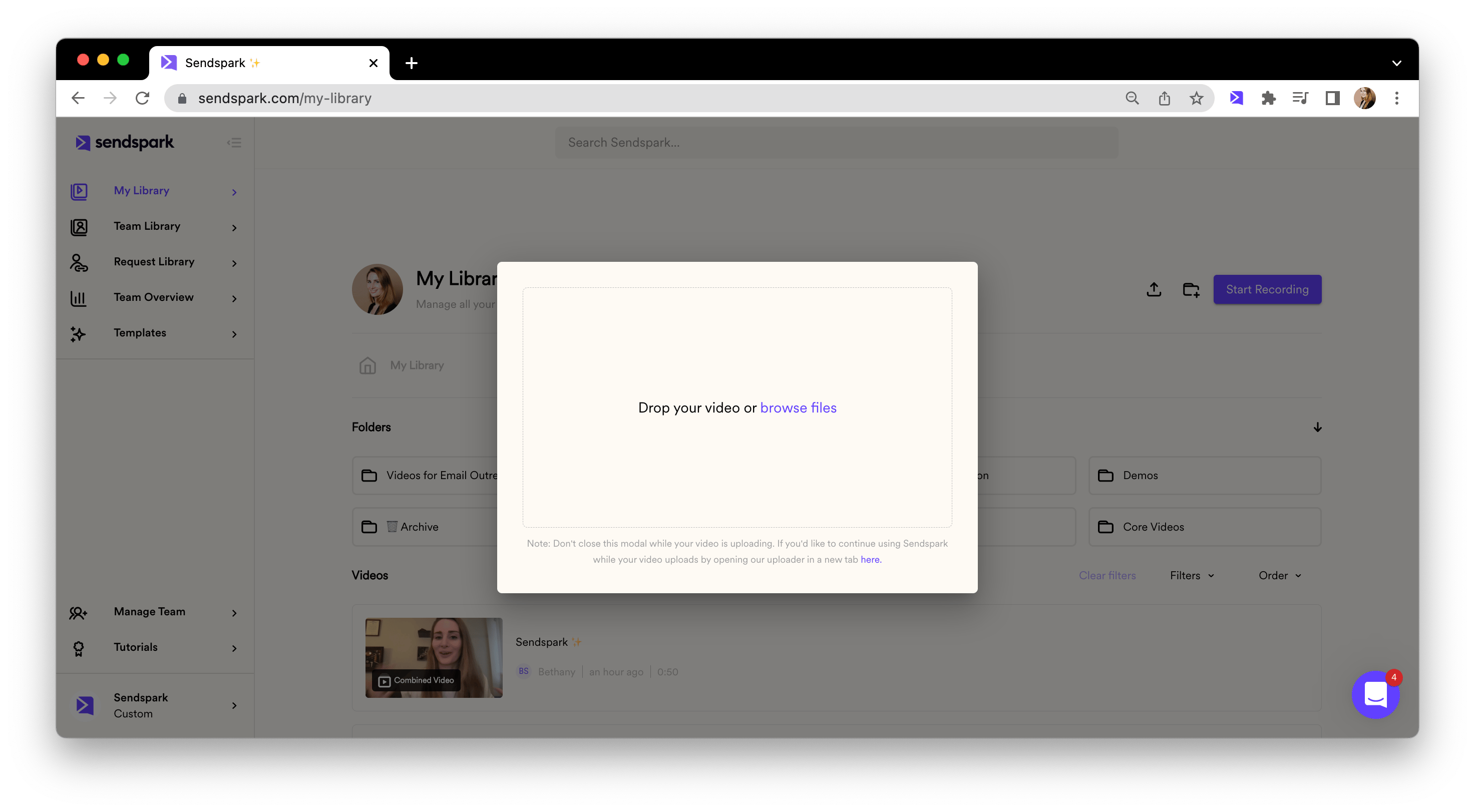
2. Personalize content around video
Customize the video header, message, and thumbnail. Feel free to use placeholders to automatically pull in contact information from Mixmax when you send your video!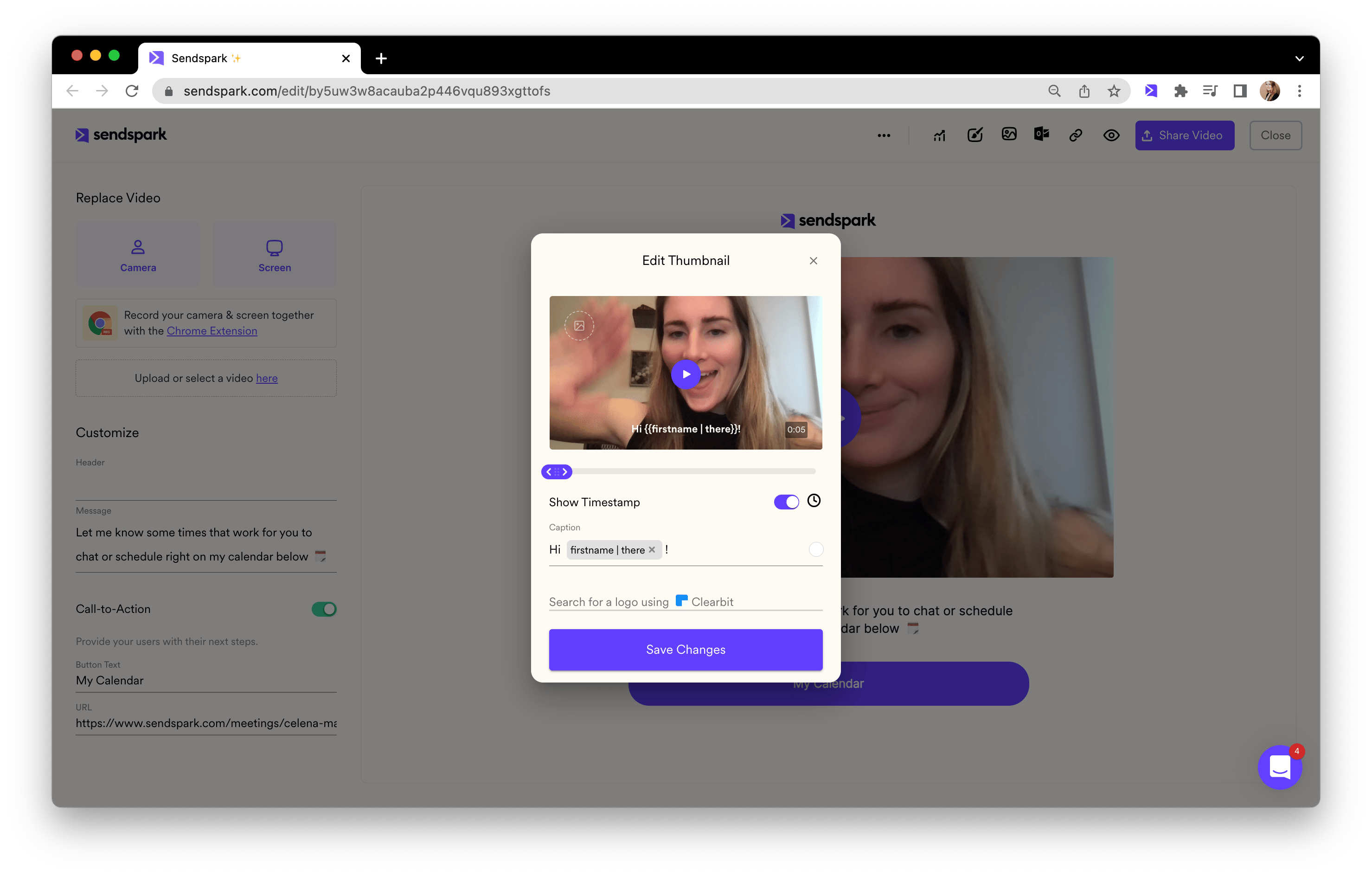
3. Copy share snippet for Mixmax
Click “Share Video,” and then select Mixmax (if you don’t see Mixmax, follow these steps to modify your share modal).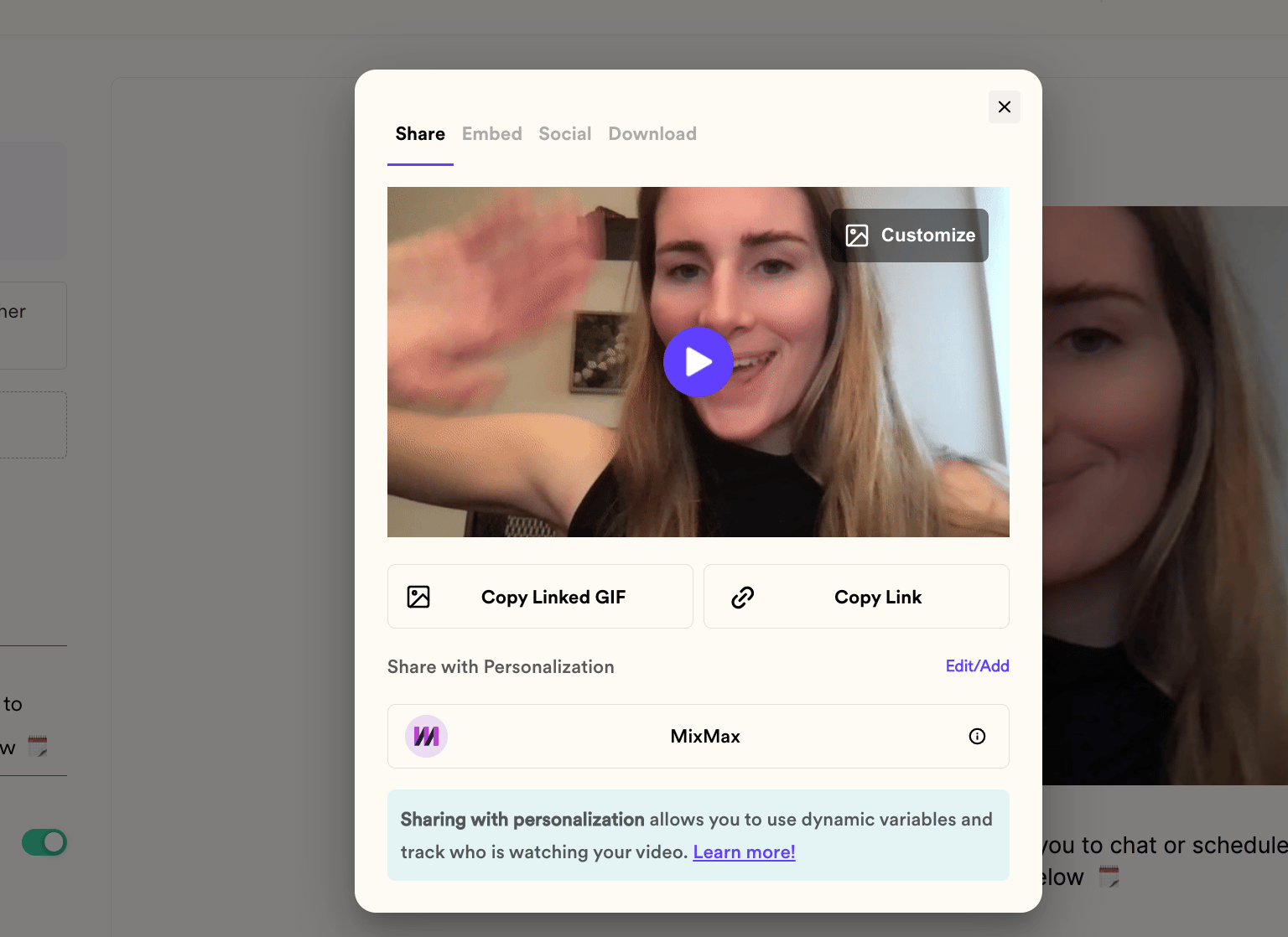
4. Paste in a Mixmax template
Create a new template in Mixmax, and then paste your video share snippet directly in the template.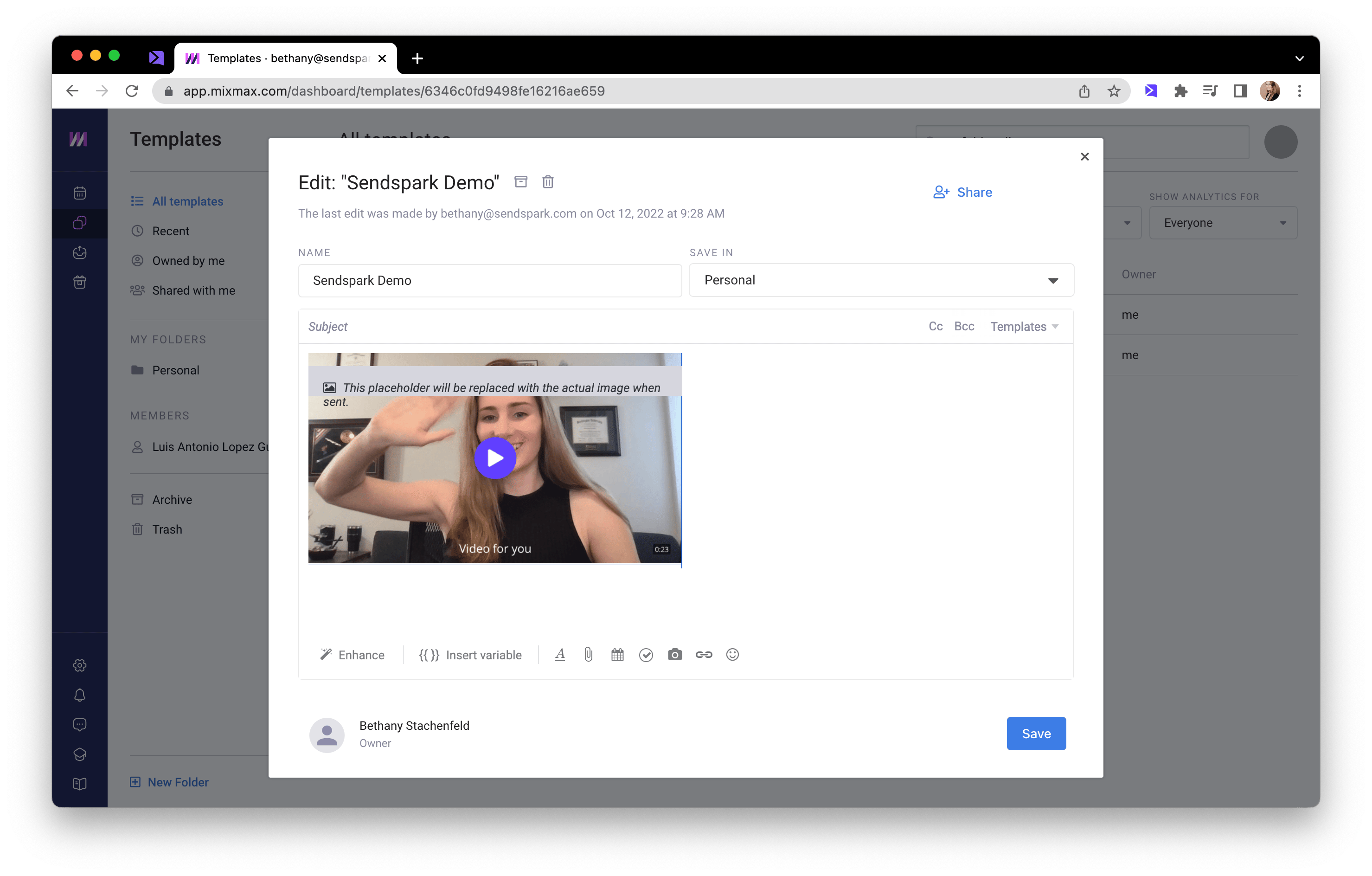
5. Send your video email!
Use your video email template when sending emails in Mixmax or Gmail using the Mixmax extension. Your video will automatically personalize for each recipient!Frequently asked questions
What personalizes automatically in Mixmax?
What personalizes automatically in Mixmax?
Sendspark can automatically pull in your viewer’s first name, company name, and job title using placeholders you add to the video header, message, and thumbnail.
The video thumbnail pastes really large in my template — can I resize it?
The video thumbnail pastes really large in my template — can I resize it?
Yes. The video pastes fairly large by default. Resize it by dragging the bottom-right corner of the video thumbnail inward.
Can I use the template with the Mixmax Gmail extension?
Can I use the template with the Mixmax Gmail extension?
Yes. Once you’ve saved your video email template, you can use it when sending emails in Mixmax or in Gmail using the Mixmax extension. The video personalizes for each recipient automatically.