

Key takeaways
- Sendspark can automatically pull in your viewer’s first name, company name, and job title, so you can personalize videos at scale in Instantly.
- Copy your share snippet by clicking “Share Video” and selecting Instantly. If Instantly isn’t listed, modify your share modal to add it.
- Paste the snippet into Instantly’s HTML editor by clicking the < > icon, then switch back to the visual editor to resize the video (50% is recommended for the best appearance).
- Use the preview icon to review your video email before sending, so you can confirm your thumbnail personalization renders correctly.
How to Send Bulk Personalized Videos in Instantly Emails
1. Record or upload your video
Record or upload your video in Sendspark your Sendspark video library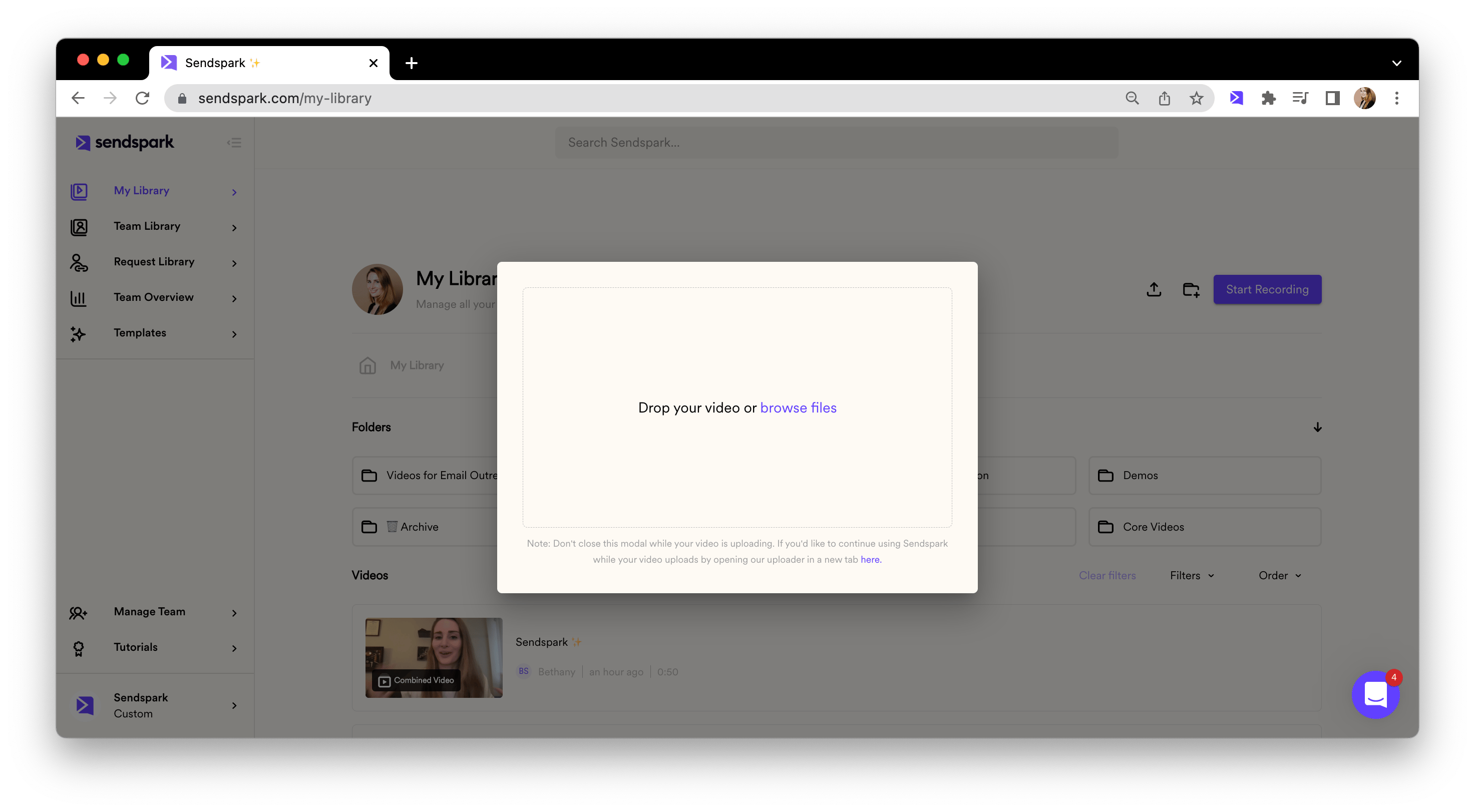
2. Personalize content around video
Customize the video header, message, and thumbnail. Feel free to use placeholders to automatically pull in contact information from Instantly when you send your video!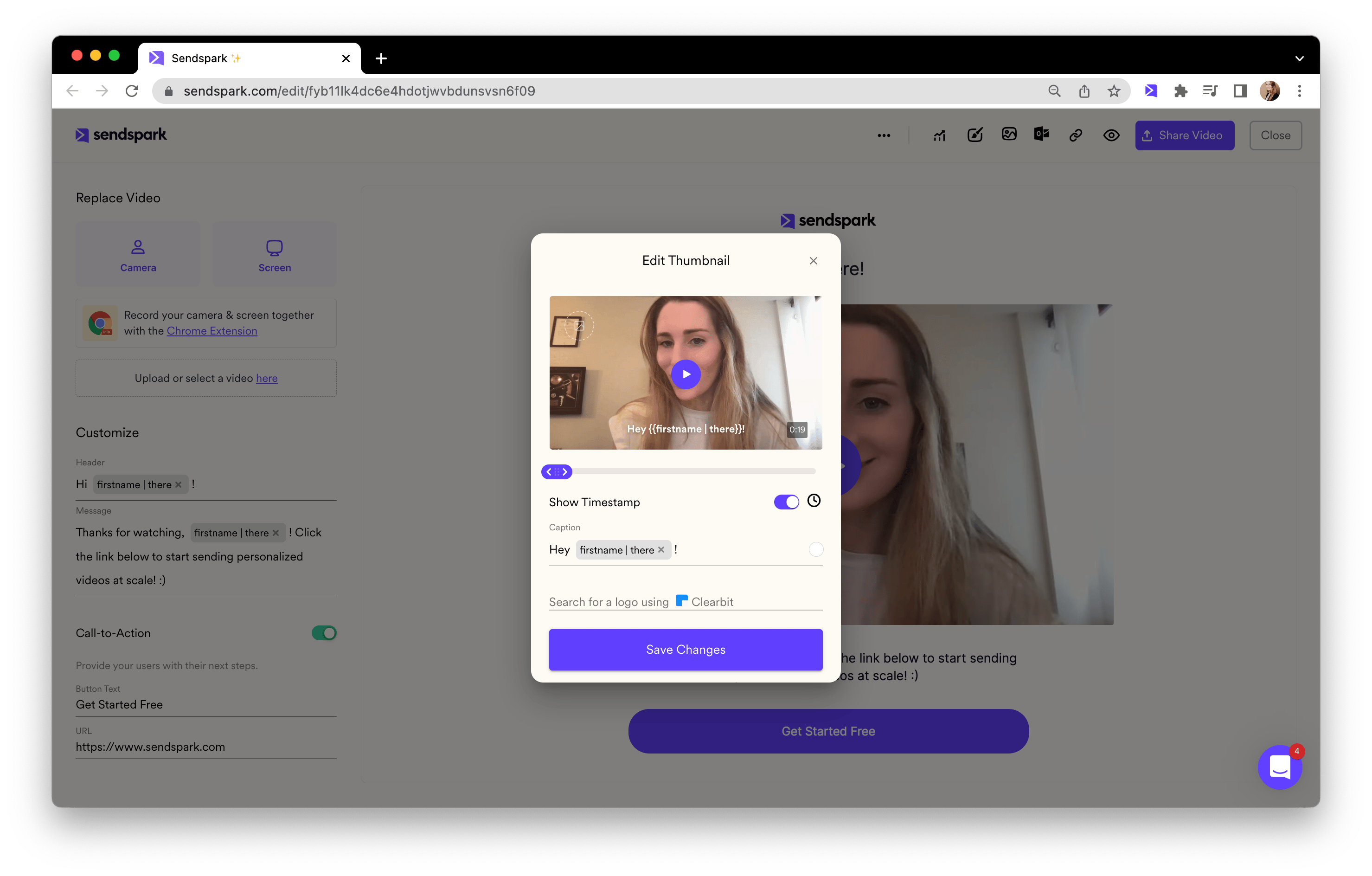
3. Copy share snippet for Instantly
Click “Share Video,” and then select Instantly (if you don’t see Instantly, follow these steps to modify your share modal).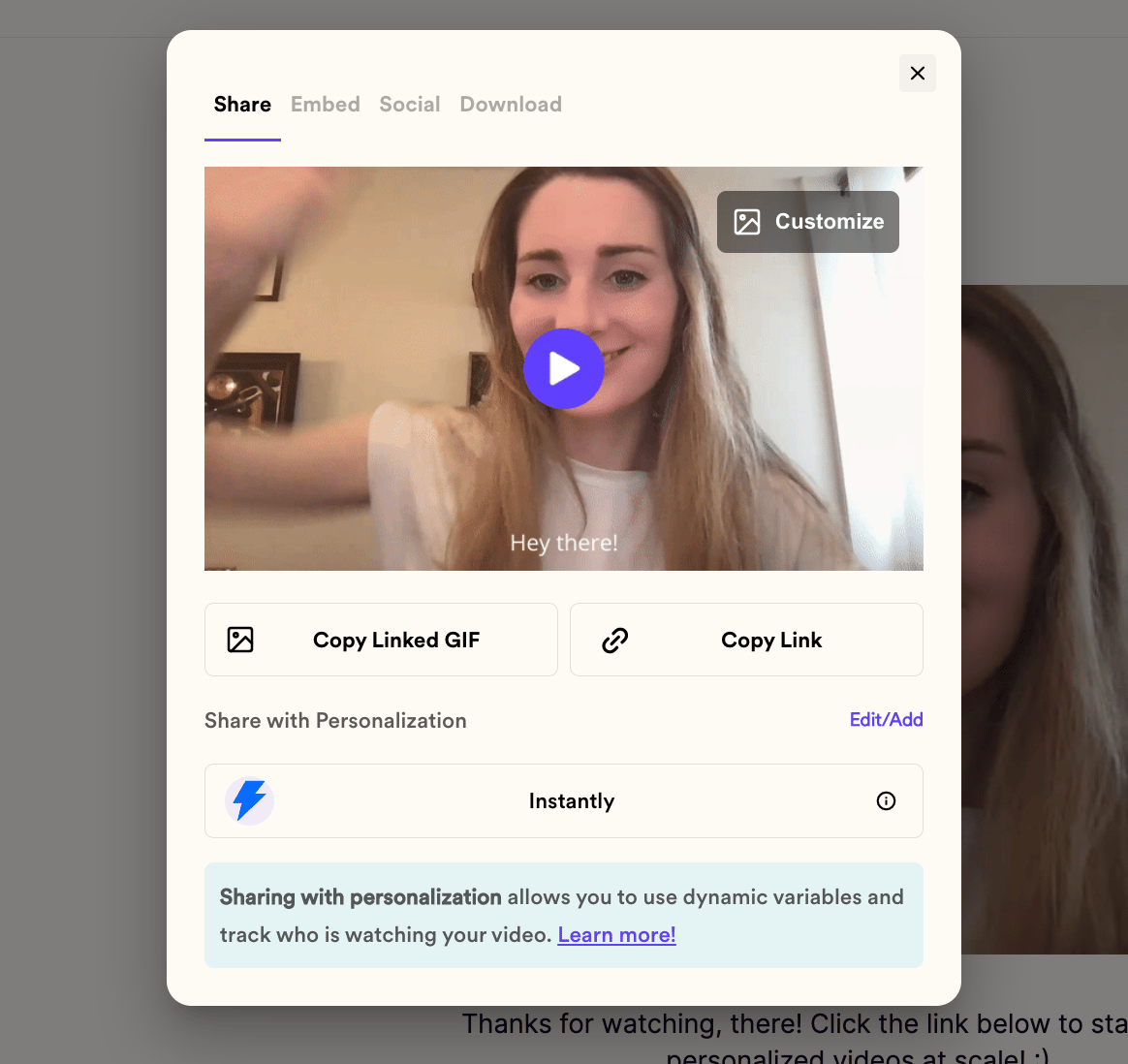
4. Paste in Instantly (HMTL)
From Instantly, click on the**< >** to get the HTML editor. Then, paste your Sendspark video snippet right where you want it to appear in your email.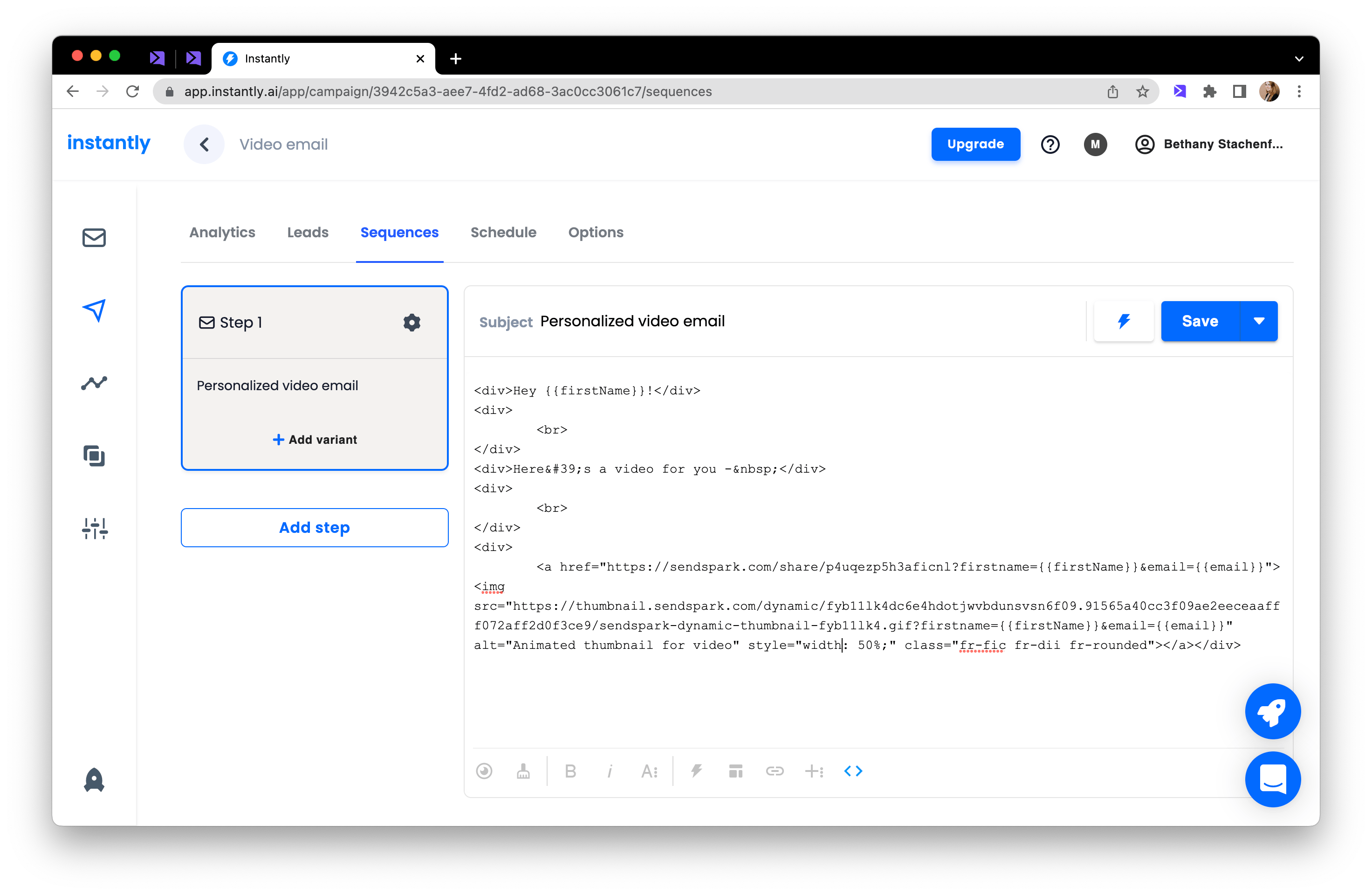
5. Resize video
Click the < > again to get back to the visual email editor. You’ll notice your video is a little large, but you can click on the video and then the rule icon to resize your video. We recommend 50% for the best appearance.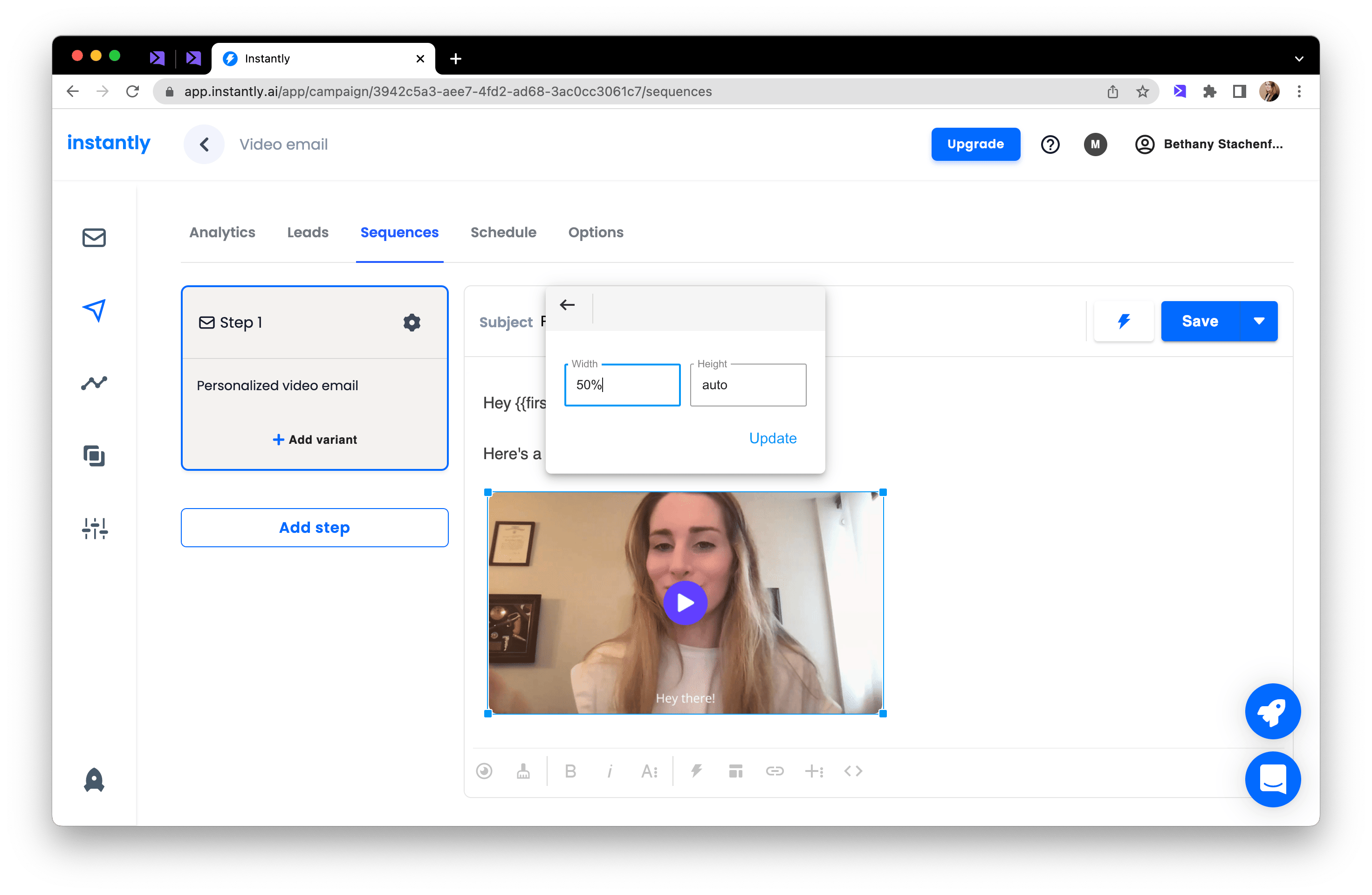
6. Preview and send!
Click on the preview icon to review your video email before sending it. If you’ve customized your video thumbnail, you should be able to see the personalization when you preview videos in Instantly.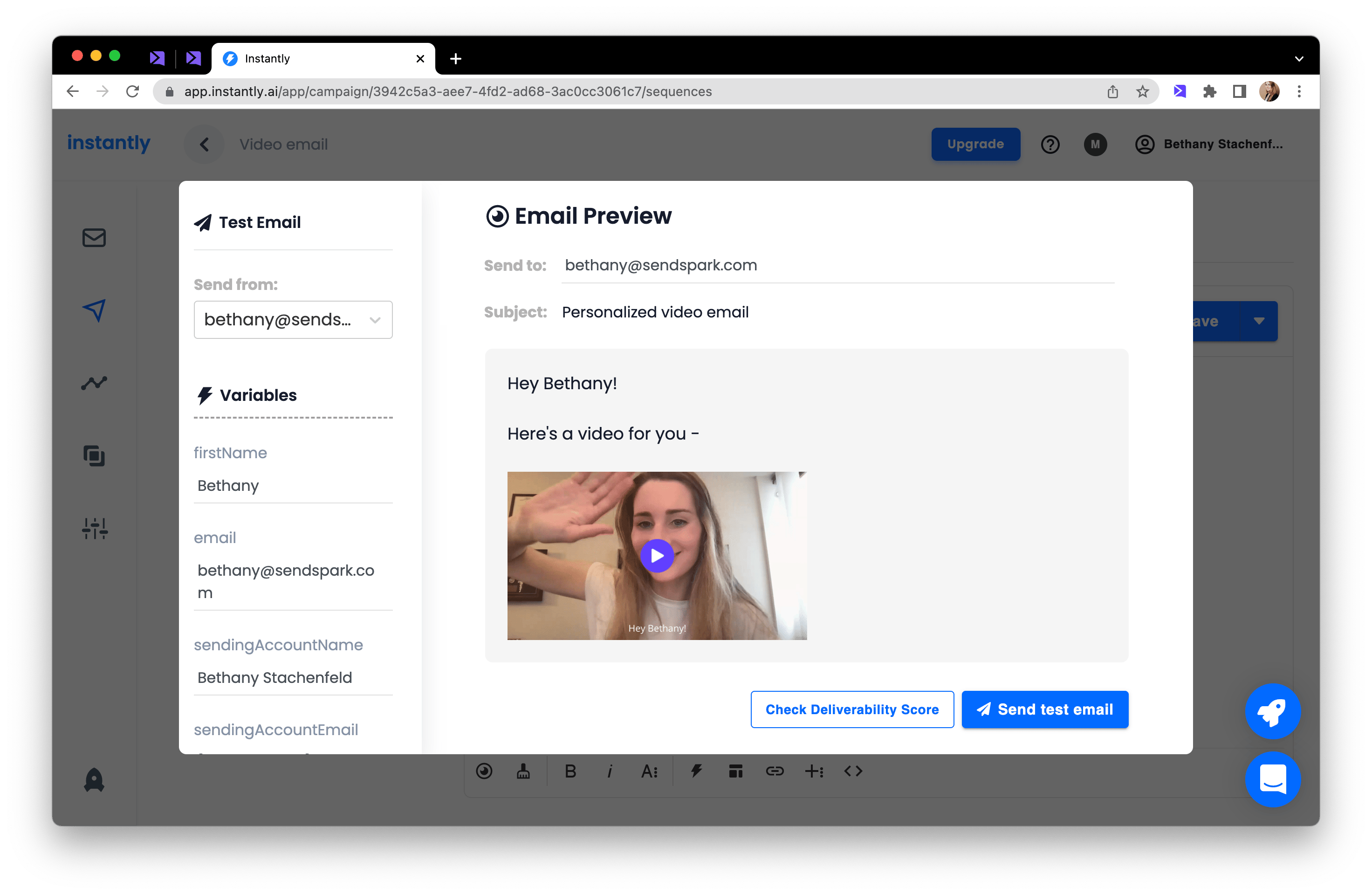
How to Send Bulk Personalized Videos in Instantly Emails
(Update Sept. 2023)
Code used on the video:
Deploy to display code:
<!DOCTYPE html><html> <head>
<title>Your Email Subject</title>
<style> /* Add CSS styles for centering content /
body { margin: 0; padding: 0; background-color: #f0f0f0; display: flex; justify-content: center; align-items: center; height: 100vh; } table { width: 100%; max-width: 600px;
/ Set your desired email width */
background-color: #ffffff; border-radius: 10px; } td { padding: 20px; text-align: left; } </style> </head> <body> <table cellspacing=“0” cellpadding=“0”> <tr> <td>
</br>
<h1>Your Email Heading</h1>
</br>
</td> </tr> <tr> <td> <p>Hello,</p>
</br>
<p>This is the content of your email. You can customize it as needed. Make sure to keep your message concise and engaging.</p> <p>Best regards,
</br>
<br>Your Name</p>
</td> </tr> <tr> <td>
</br>
<p>Copyright © 2023 Your Company. All rights reserved.</p> </td> </tr> </table> </body> </html>
Frequently asked questions
How do I add a Sendspark video to an Instantly email?
How do I add a Sendspark video to an Instantly email?
Click “Share Video” in Sendspark and select Instantly to copy the share snippet. In Instantly, click the < > icon to open the HTML editor and paste the snippet where you want the video to appear in your email.
What size should the video be in Instantly?
What size should the video be in Instantly?
After pasting the snippet, the video will look a little large. Click back to the visual email editor with the < > icon, click the video, then the rule icon to resize it. We recommend 50% for the best appearance.
Can I personalize the video for each recipient?
Can I personalize the video for each recipient?
Yes. Customize the video header, message, and thumbnail, and use placeholders to automatically pull in your viewer’s first name, company name, and job title from Instantly when you send.
How do I check the video looks right before sending?
How do I check the video looks right before sending?
Click the preview icon in Instantly to review your video email before sending. If you’ve customized your video thumbnail, you should see the personalization in the preview.