

Key takeaways
- Add dynamic variables (first name, company name, job title) to both the video share page and the video thumbnail so the preview in the email personalizes too.
- If contact information is unknown, Sendspark displays fallback variables so the message still reads cleanly.
- Copy the Engage snippet from Share Video → Share with Personalization → Engage, then paste it into a new Engage template (not directly into a send).
- Once saved, the template works anywhere in Engage — email sequences and direct emails — letting you send one video to many people with a personalized experience.
What is Engage?
Engage is a sales automation platform built by ZoomInfo. With Engage, you can create prospecting campaigns that include automated emails, calls, SMS messages, and social connection tasks to scale yourself and connect with new customers.Why Send Personalized Videos at Scale in Engage?
Personalized videos can help you get up 16x higher engagement from prospecting emails. Sendspark’s Engage Integration makes it easy to embed dynamic videos in Engage emails that automatically adapt to your prospect’s name, company, and other personalized information.How to Send Personalized Videos at Scale in Engage
Watch the video or follow the steps below:1. Create your video in Sendspark
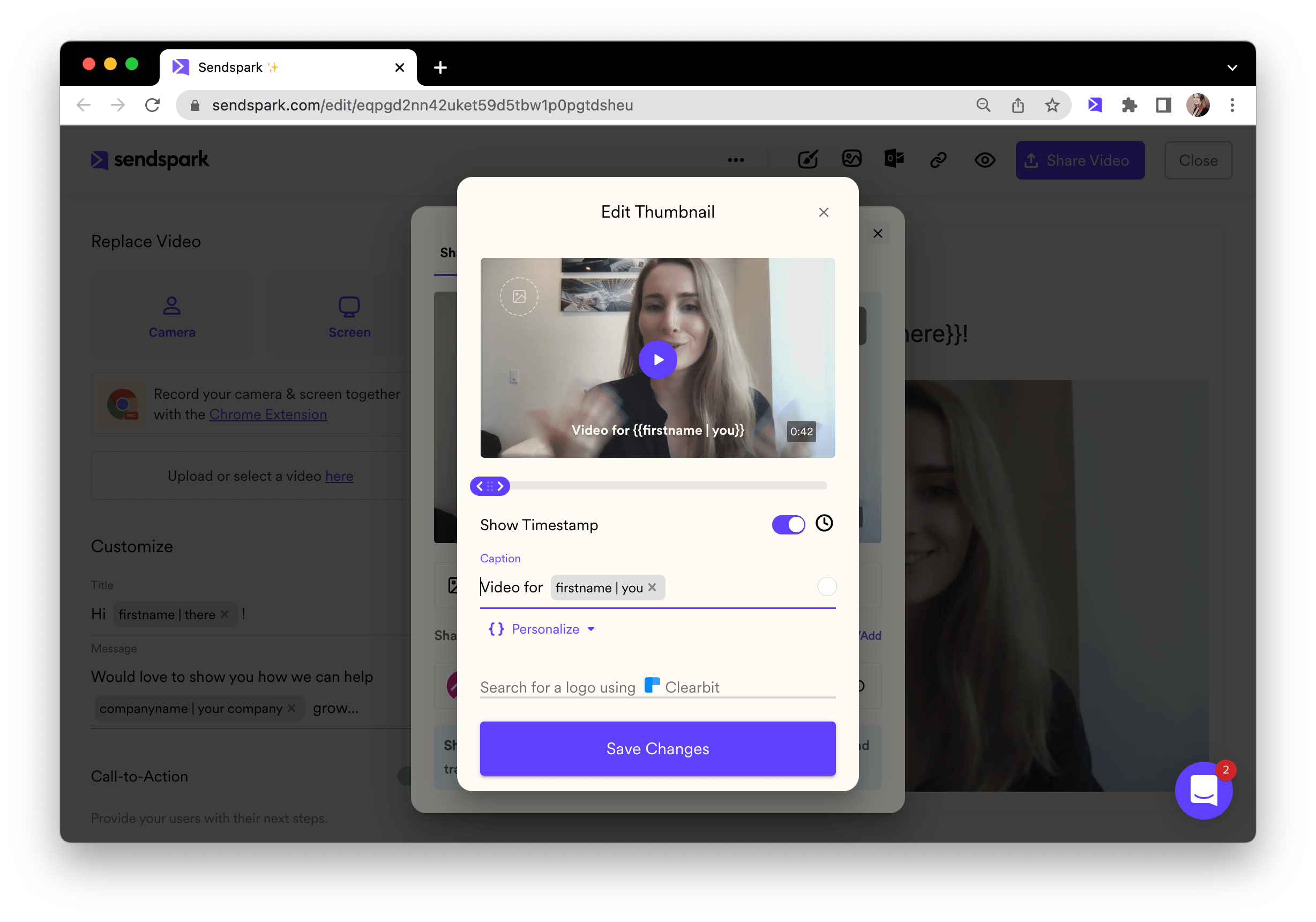
When you create your video message in Sendspark, you can use dynamic variables as placeholders for your viewer’s first name, company name, and job title. You can add dynamic variables to both the video share page and the video thumbnail (which is the video preview recipients see in the email). Video Share page: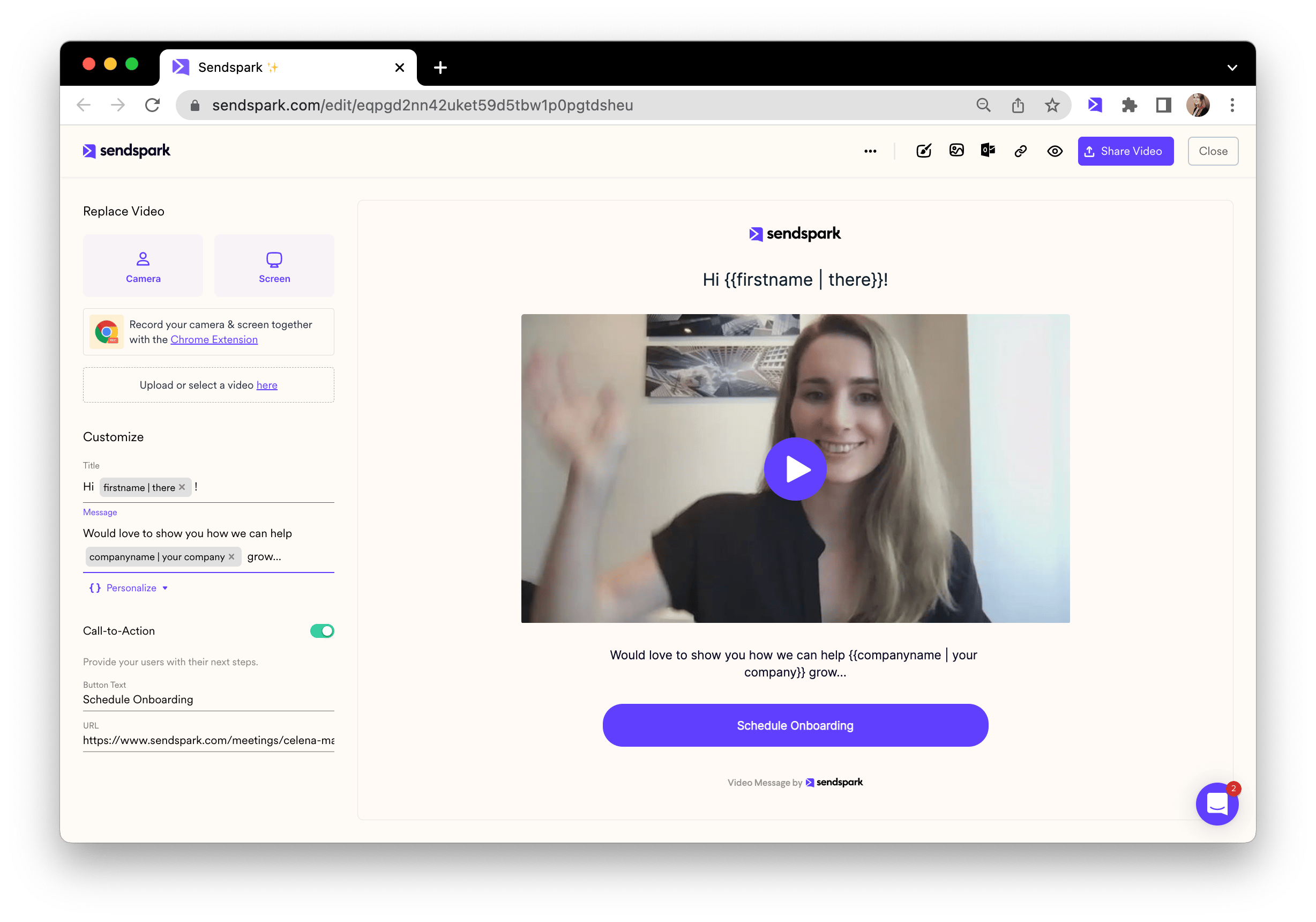
2. Copy the Outreach share snippet
Click the Share Videopurple button Under “Share with Personalization,” click on Engage.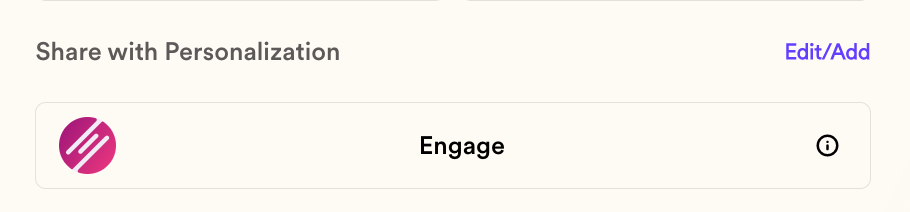
3. Paste into an Engage template
Now, you can go over to Engage and create a new template. Paste your Engage video snippet right into your template. That’s it! You can save your template and use it to send dynamically personalized videos.4. Share your video email
Now, you can use your personalized video template from anywhere in Engage, including:- Email sequences
- Direct emails to prospects and customers
Frequently asked questions
What is ZoomInfo Engage?
What is ZoomInfo Engage?
Engage is a sales automation platform built by ZoomInfo. It lets you run prospecting campaigns that combine automated emails, calls, SMS messages, and social connection tasks to scale your outreach.
Where do I add the personalization variables?
Where do I add the personalization variables?
Add dynamic variables in Sendspark to both the video share page and the video thumbnail. The thumbnail is the preview recipients see in the email, so personalizing it means the preview adapts to each viewer too.
What happens if a contact's information is missing?
What happens if a contact's information is missing?
If contact information is unknown, Sendspark displays fallback variables in place of the missing details so your message still reads correctly.
Can I use the same video for many prospects?
Can I use the same video for many prospects?
Yes. Because the snippet uses personalization tokens, you can send one video template to many people and each recipient still sees their own name, company, and job title.