

Key takeaways
- The video plays directly in the inbox for viewers whose email client supports embedded video; where it isn’t supported, viewers see a fallback image they can click to watch on a landing page.
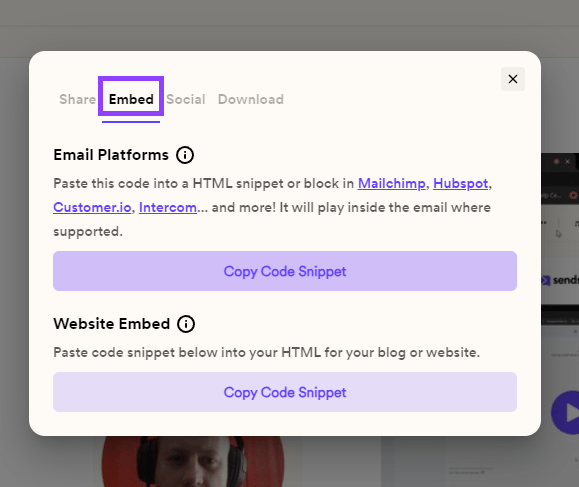
- Copy the embed code from Embed → Email Platforms → Copy Code Snippet, then paste it into an HTML block in your HubSpot email draft.
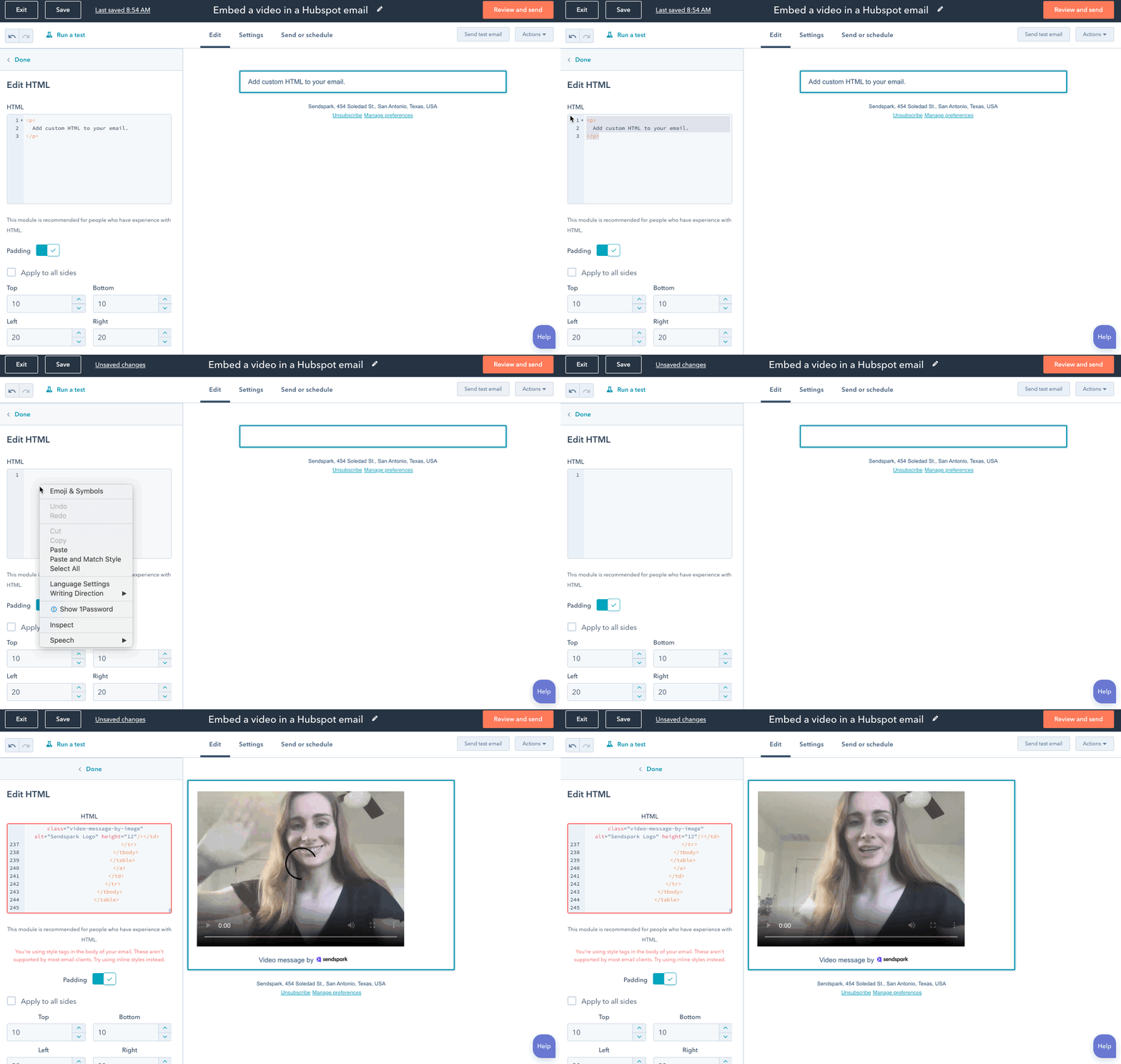
- You will see an error about using style tags when you paste. This is expected and fine, the style tags tell Sendspark when to show the embedded video versus the fallback image and link.
- See an up-to-date list of which email providers support embedded videos in email.
How to embed your video in a HubSpot email 📹
- Record, request, or upload a video to Sendspark
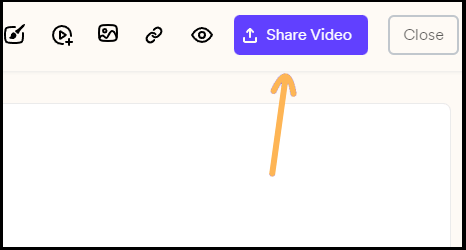
- Click Share Video
- Open the Embed tab, then under Email Platforms click Copy Code Snippet
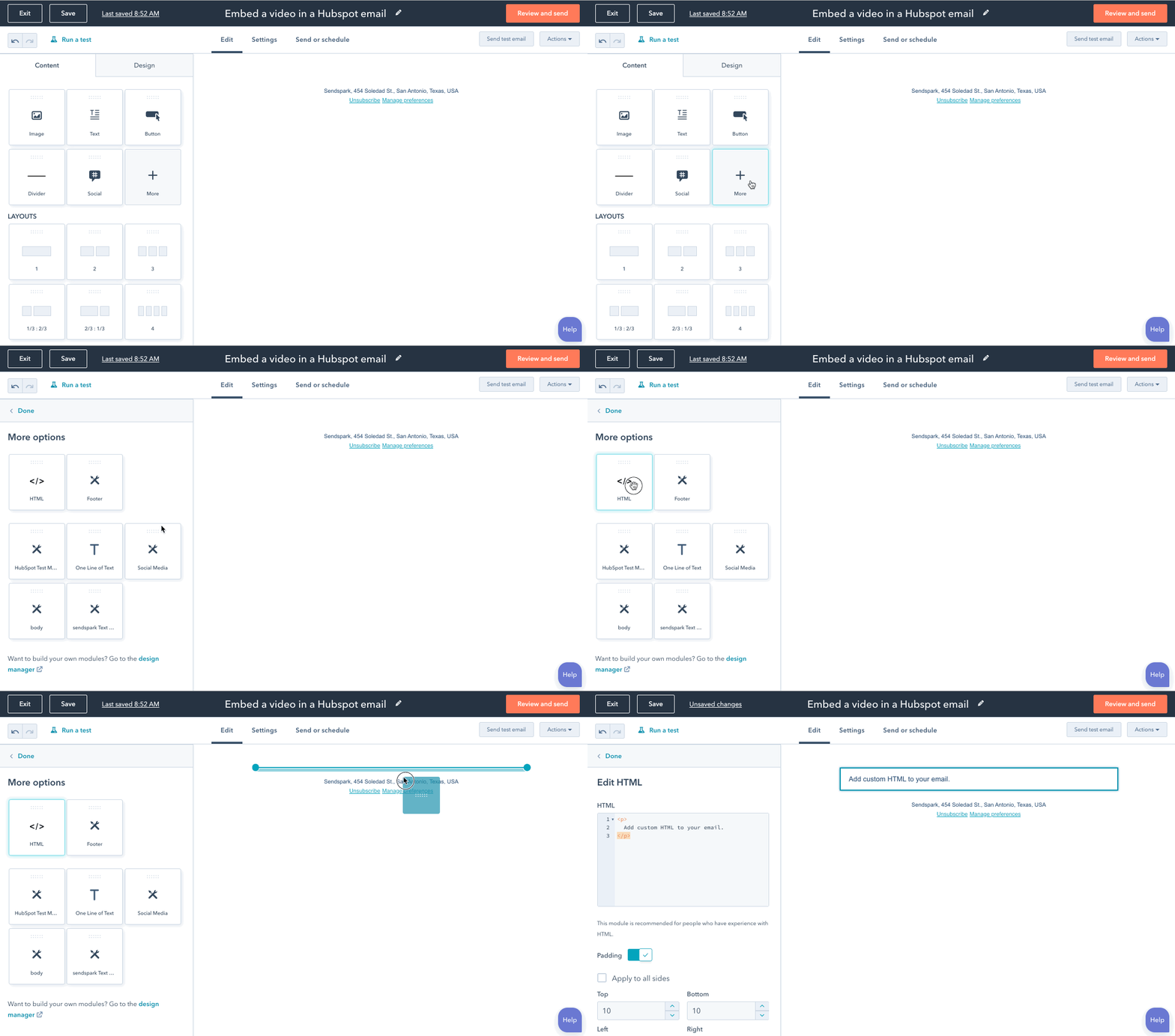
- Go over to HubSpot, and make your email

- Add an HTML block to your HubSpot email draft
- Paste your email embed code into your HubSpot email draft
Now send your video email 💌
That’s it! Good luck, and let us know how your engagement is with your new video emails!Frequently asked questions
Will the video actually play inside the email?
Will the video actually play inside the email?
It plays directly in the inbox as long as the recipient’s email client supports embedded video. If the client doesn’t support it, the viewer instead sees a fallback image they can click to watch the video on a landing page, so either way they have a great experience.
Where do I paste the embed code in HubSpot?
Where do I paste the embed code in HubSpot?
Add an HTML block to your HubSpot email draft, then paste the embed code into that block. You copy the code from Sendspark under Email Platforms by clicking Copy Code Snippet.
How do I know which email clients support embedded video?
How do I know which email clients support embedded video?
Sendspark maintains an up-to-date list of which email providers support embedded videos in email.