

Key takeaways
- Outlook is extra finicky about supporting images and videos, so always use the Static thumbnail option.
- Do NOT try to embed a video or use a GIF in Outlook.
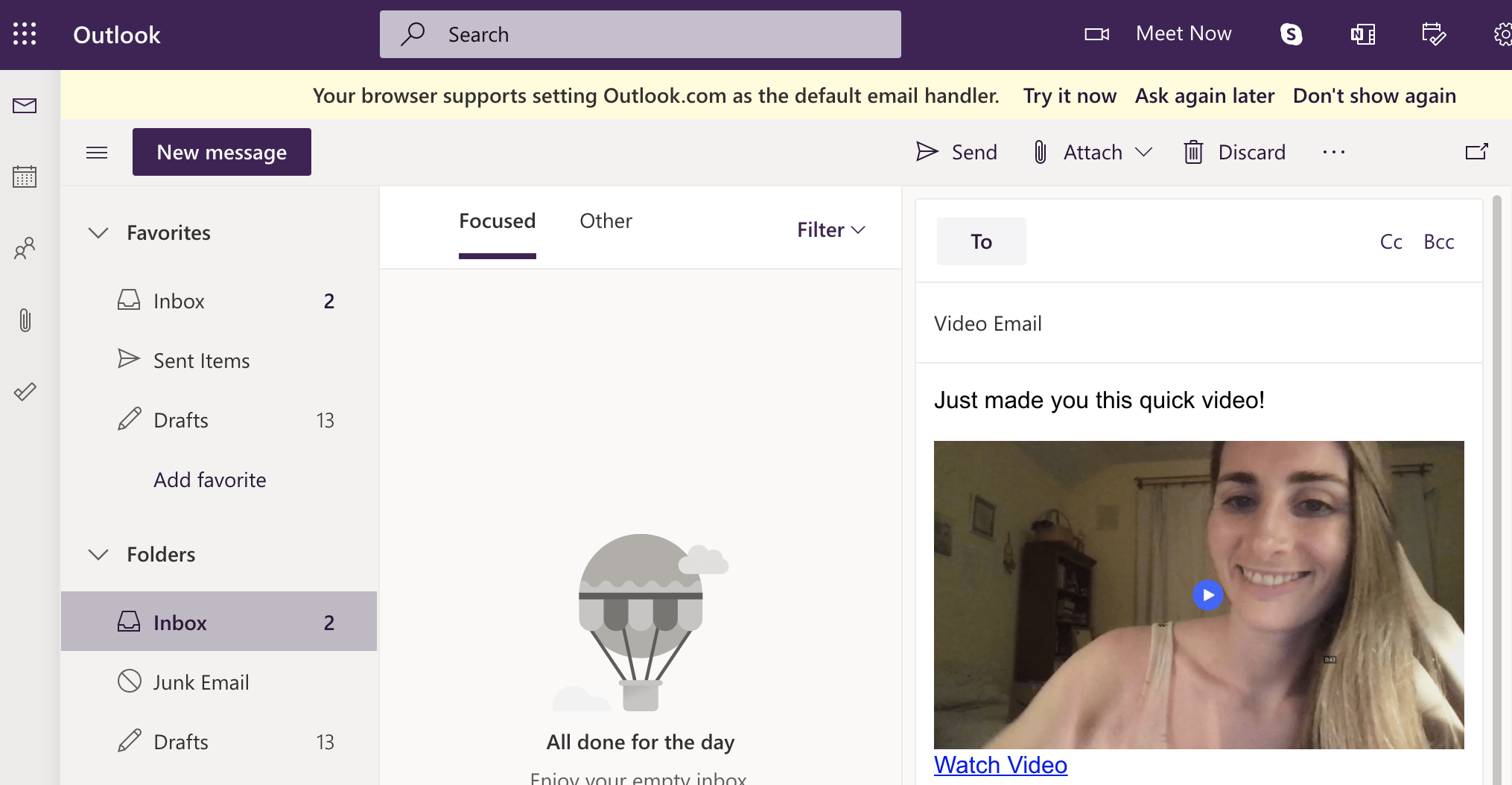
- Send a video in five steps: record or upload your video, click Share then Customize, click Edit Preview, choose Static, then paste into your email draft.
To share a video in Outlook:
- Record or upload your video.
- Click Shareand then click onCustomize

- At the bottom, click on the middle option Edit Preview
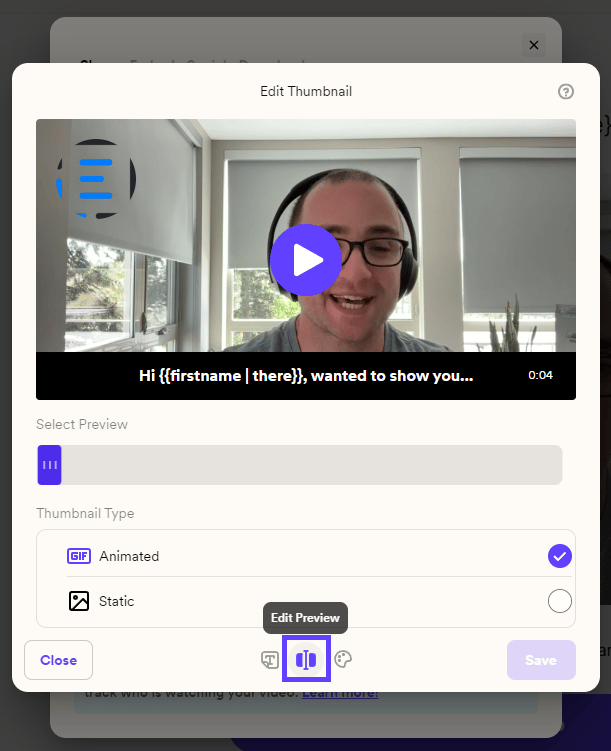
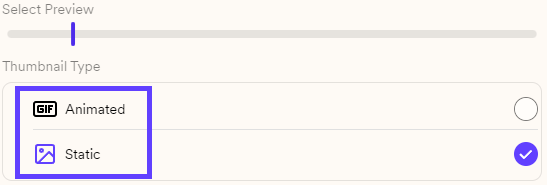
- And finally, You will see Animated& Static.For this particular case, only useStatic
Frequently asked questions
Can I embed a video or GIF in an Outlook email?
Can I embed a video or GIF in an Outlook email?
No. Outlook is extra finicky about supporting images and videos, so you should not try to embed a video or use a GIF. Use the Static thumbnail option instead.
Which thumbnail option should I use for Outlook?
Which thumbnail option should I use for Outlook?
Use Static. When you open Edit Preview you’ll see Animated and Static options, and for Outlook you should only use Static.
How do I get to the thumbnail options in Sendspark?
How do I get to the thumbnail options in Sendspark?
Click Share and then Customize, then click the Edit Preview option at the bottom. From there you can choose between the Animated and Static thumbnail types.