

Key takeaways
- Constant Contact’s built-in “video blocks” don’t truly embed video — they only pull an image preview that links out to YouTube or Vimeo. To make a video play in email, use the Custom code template with Sendspark’s embed code.
- Embedded videos only play in email clients that support them; in all other cases Sendspark shows a fallback image linking to the video landing page, so every recipient gets a good experience.
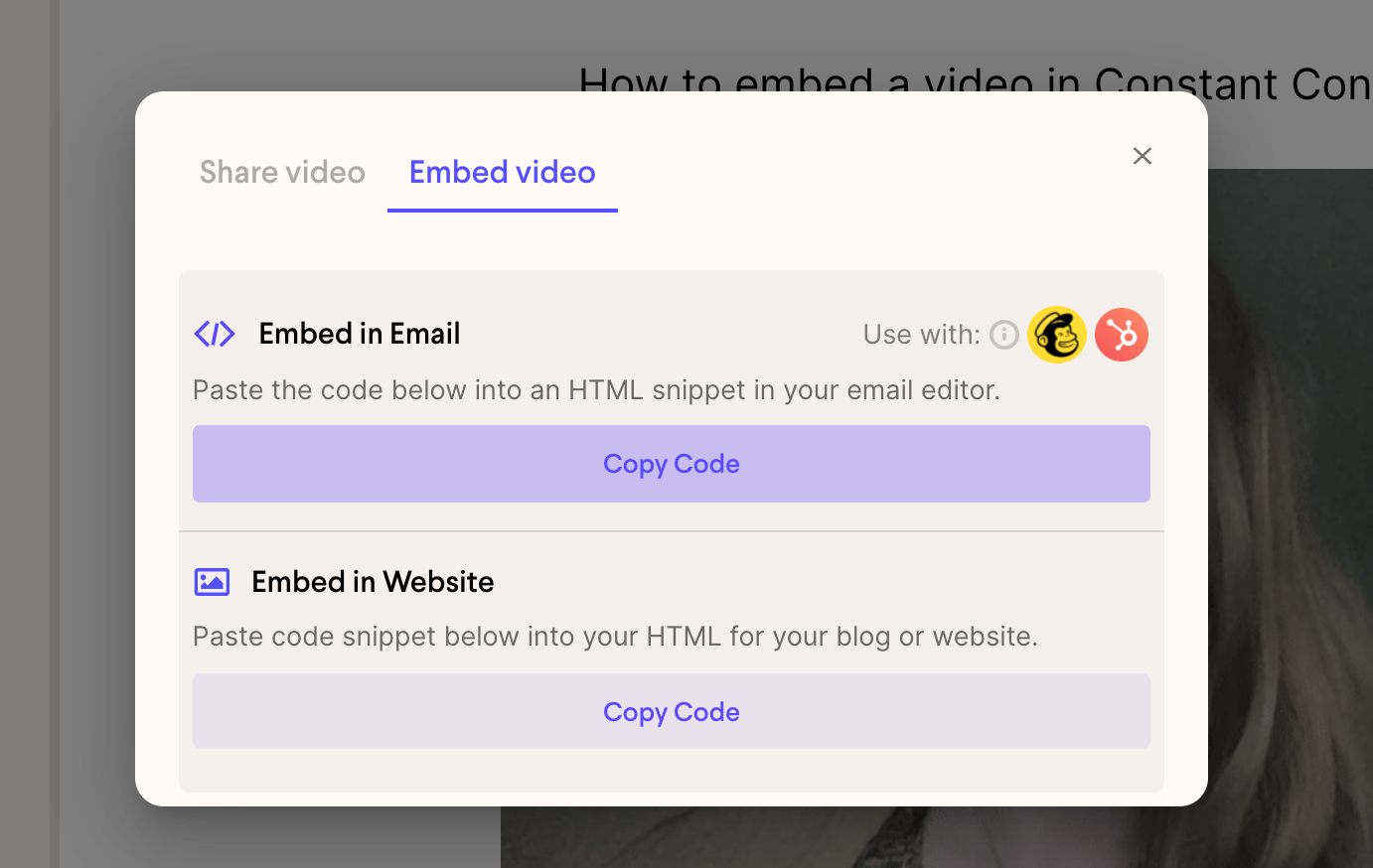
- Get the code in Sendspark by clicking Share, then copying Copy Code under Embed Video, and paste it into your Custom code email.
- Send a test email to yourself first to confirm the video is embedded the way you want before sending to your list.
🤔 Can you embed videos in Constant Contact?
Yes, however, it’s not as straightforward as you would think. In Constant Contact, they provide “video blocks.” When you use these video blocks to add YouTube or Vimeo videos to your emails, these videos are not actually embedded. Constant Contact is simply pulling an image preview of the video, and then linking it to the video on YouTube or Vimeo. If you want your video to actually play within the email, you will need to follow the steps below.🤔 Will embedded videos ALWAYS play in email?
No, embedded videos will only play in email clients where they are supported. In all other cases, Sendspark will use a fallback image with a link to the video landing page. (Similarly to how Constant Contact uses YouTube images and links). See which email clients support embedded videos here. This way, your recipient will always have the best possible viewing experience. Either they will get to watch the video in their email, or they will get to way the video on a custom video landing page. Ready to embed videos in Constant Contact emails? Here are the steps to follow…How to embed videos in Constant Contact:
- Create a new email in Constant Contact
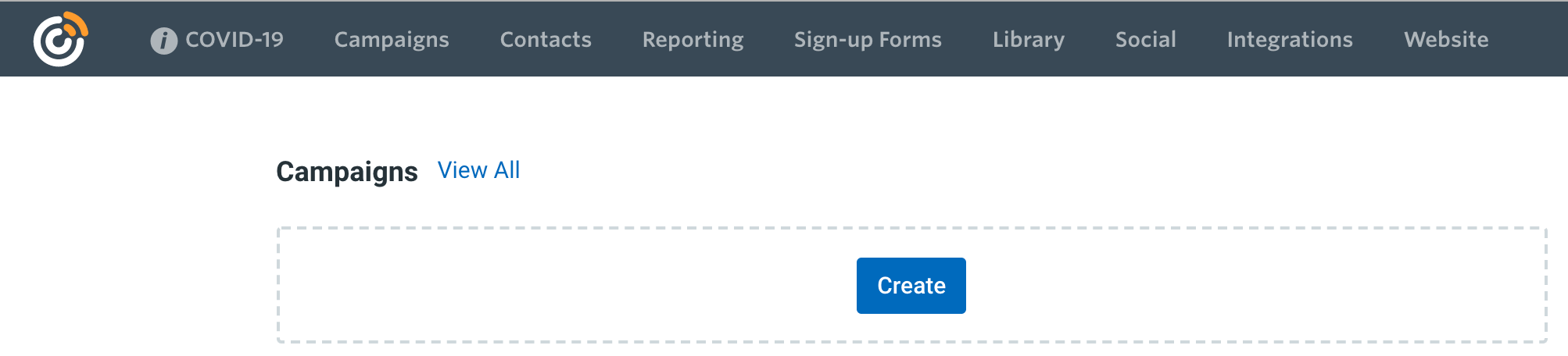
- When selecting a template, choose “Custom code”

- Create a new video in Sendspark by either recording a video, uploading a video, requesting a video from someone else.
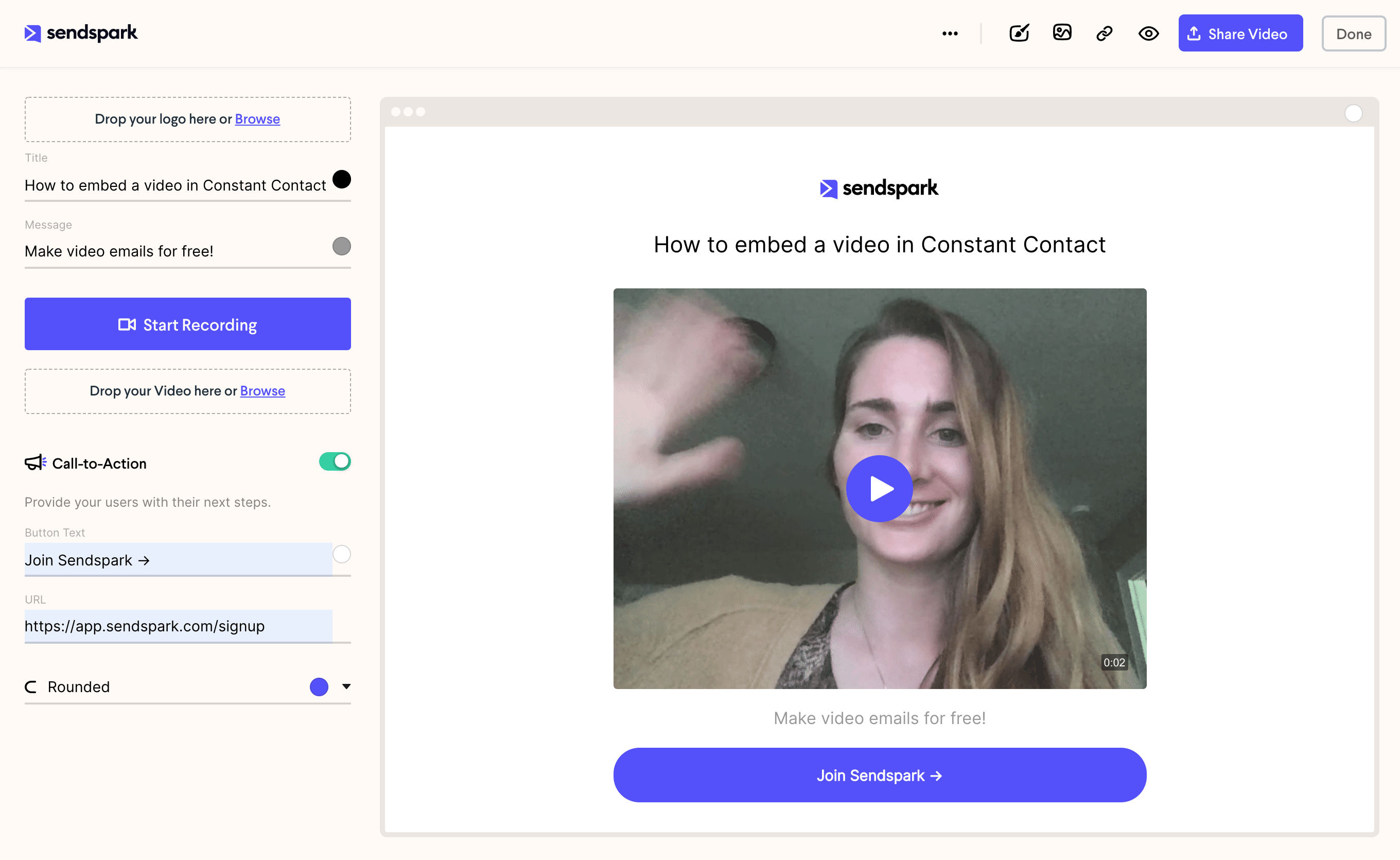
- Click Share Video, open the Embed video tab, and click Copy Code under Embed in Email (not the one under Embed in Website).
- Paste this code snippet in your Constant Contact email
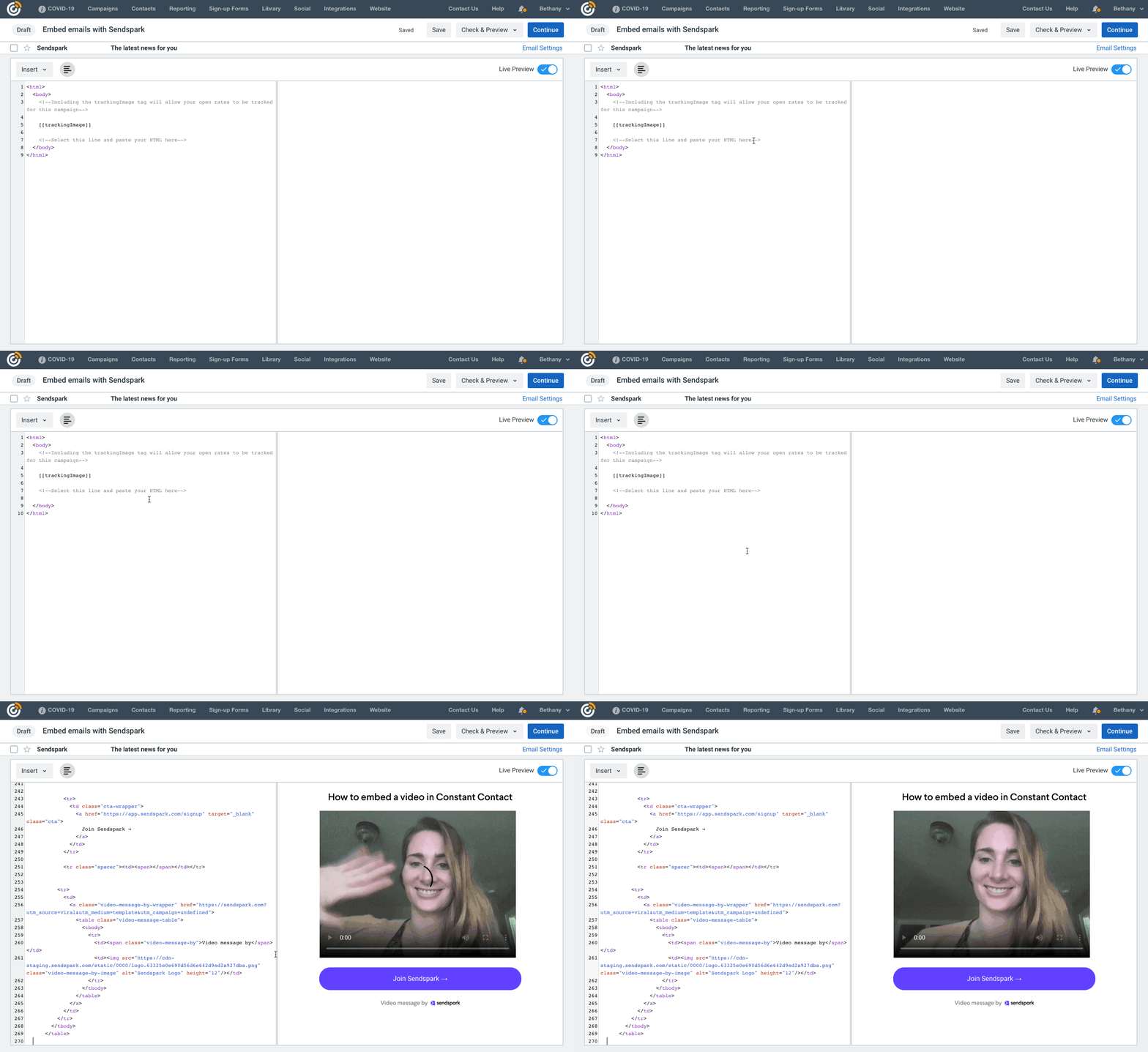
- Send a test video to yourself to make sure you like the way your video is embedded in the email.
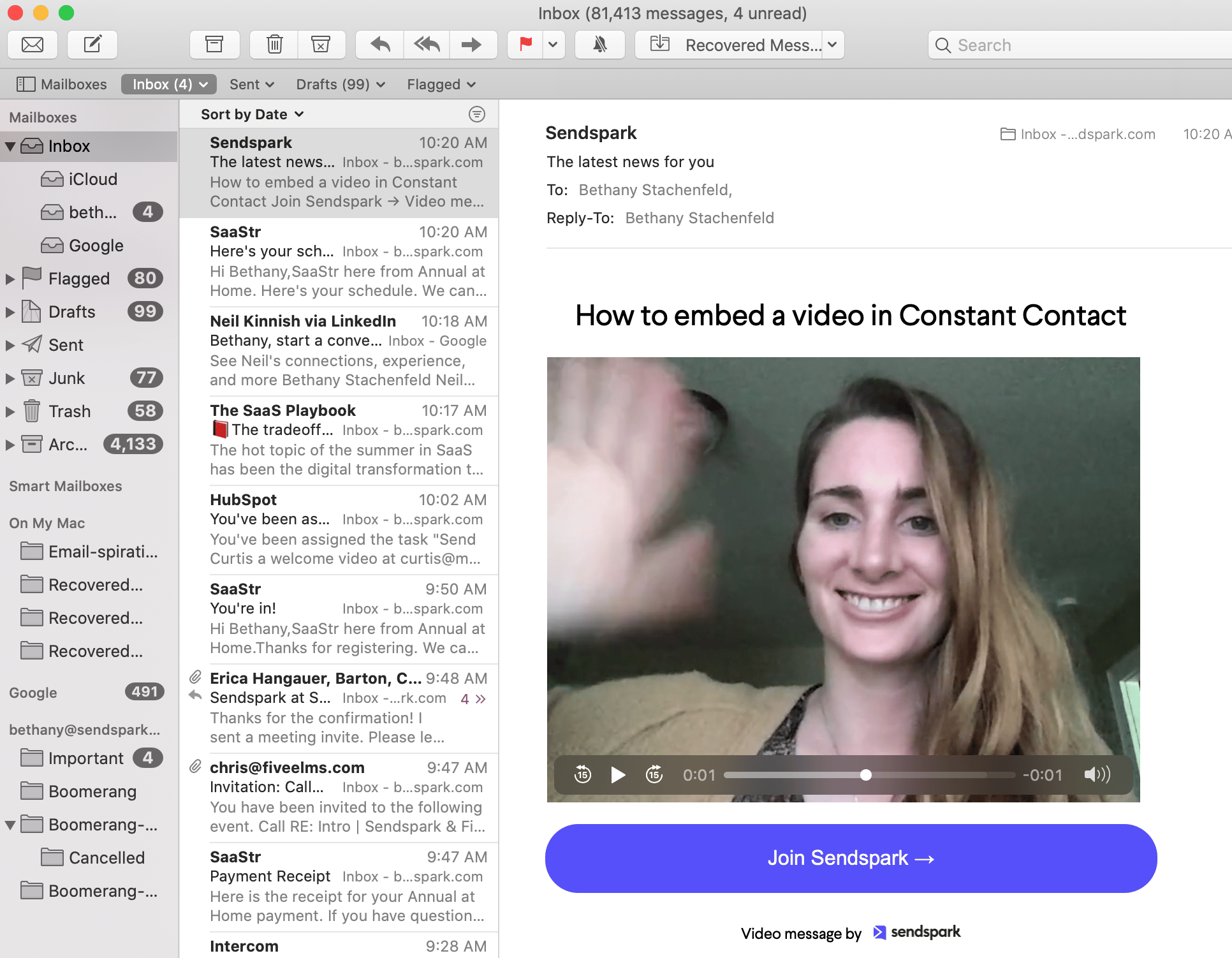
- If all looks good, you’re ready to send the video email out to your community
Have any questions about embedding videos into Constant Contact emails?
Please don’t hesitate to reach out! We are here to help.Frequently asked questions
Can you embed videos in Constant Contact?
Can you embed videos in Constant Contact?
Yes, but not through the standard video blocks — those only pull an image preview that links to YouTube or Vimeo. To make a video actually play inside the email, create your email with the Custom code template and paste in Sendspark’s Embed Video code.
Why don't Constant Contact video blocks actually embed the video?
Why don't Constant Contact video blocks actually embed the video?
Constant Contact’s video blocks aren’t true embeds. They pull a still image preview of the video and link it to the video on YouTube or Vimeo, so the video opens on those sites rather than playing in the email.
Where do I get the embed code in Sendspark?
Where do I get the embed code in Sendspark?
Create your video in Sendspark by recording, uploading, or requesting one, then click Share and copy the code under Embed Video. Paste that snippet into your Custom code email in Constant Contact.
Will the embedded video play for every recipient?
Will the embedded video play for every recipient?
No. Embedded video only plays in email clients that support it. In all other cases Sendspark shows a fallback image that links to the video landing page, so every recipient can still watch.