

Key takeaways
- Send a video in Apple Mail by copying an animated GIF preview from Sendspark and pasting it into your email draft.
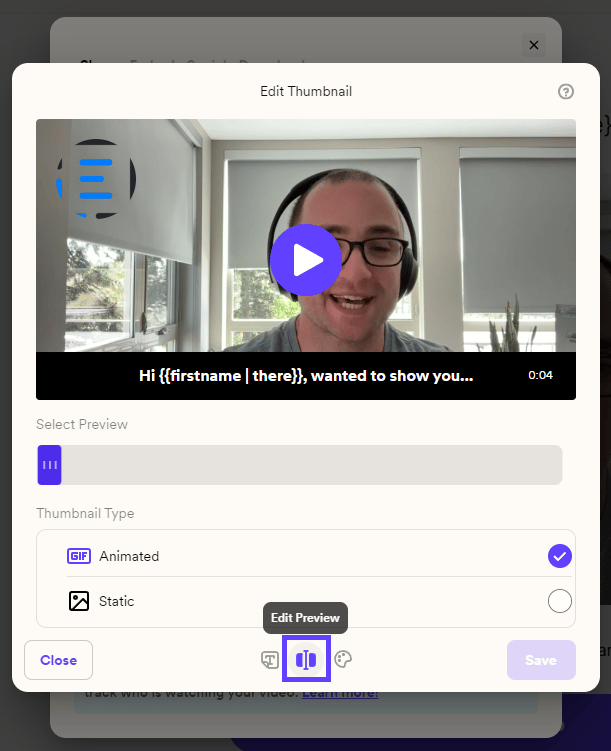
- Set the preview to Animated under Customize → Edit Preview before copying, so the moving thumbnail stands out in the inbox.
- The GIF links to your full video, which recipients open in their browser by clicking the preview.
- Record or upload your video in Sendspark and Click Share Video

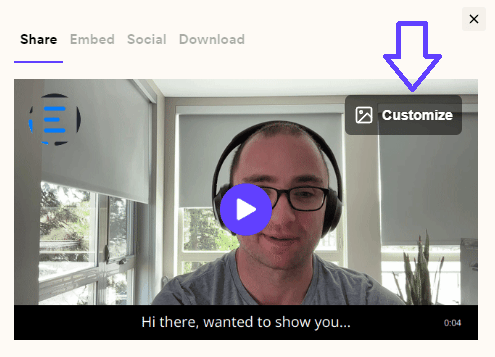
- Click onCustomize
- At the bottom, click on the middle option Edit Previewand select Animated.
- Go back and click on Copy Linked GIF

Frequently asked questions
Why should I choose the Animated preview?
Why should I choose the Animated preview?
An animated GIF preview shows a moving thumbnail that stands out in the inbox and captures attention. When recipients click it, they open and watch the full video in their browser.
Can a video play directly inside Apple Mail?
Can a video play directly inside Apple Mail?
Yes. Apple Mail is one of the email clients that supports native embedded video. To embed a video that plays in-email instead of using a GIF preview, copy the code snippet from the Share → Embed tab and paste it into your email’s HTML. See Embed Videos in Email That Play In Email.
What does the recipient see when they click the GIF?
What does the recipient see when they click the GIF?
The GIF links to your full video, which opens on its landing page in the recipient’s browser where they can watch it in full quality.