

Key takeaways
- Mailchimp supports embedded video through its Code block plus Sendspark’s embed code — when it’s pasted correctly you’ll see a video-player thumbnail appear in the block.
- About 40% of viewers see the video play inline; the other ~60% see an animated GIF fallback and click to watch in-browser (a few may just see a URL if they block all images).
- Embedded Sendspark videos increased click-through rates by 300% and open rates by 200% in the Userpilot case study, for up to a 6x lift in conversions.
- Follow the best practices below — keep videos 30–180 seconds, keep copy short, add a CTA, and avoid autoplay — to protect deliverability and view rates.
**Disclaimer:**when you embed a video in email, it won’t always play right in email for your viewer. The viewing experience depends on which email client your recipient is using. Some email clients support video, and some don’t. If you follow the steps below, your video will play right inline in email for ~40% of your viewers, and the other ~60% will see an animated GIF fallback image, and can click to play the full video in their browser. (And some might just see a URL, if they block all images). It’s always a great experience — and will be optimized for each of your viewers based on their devices!
How to embed video files in Mailchimp emails:
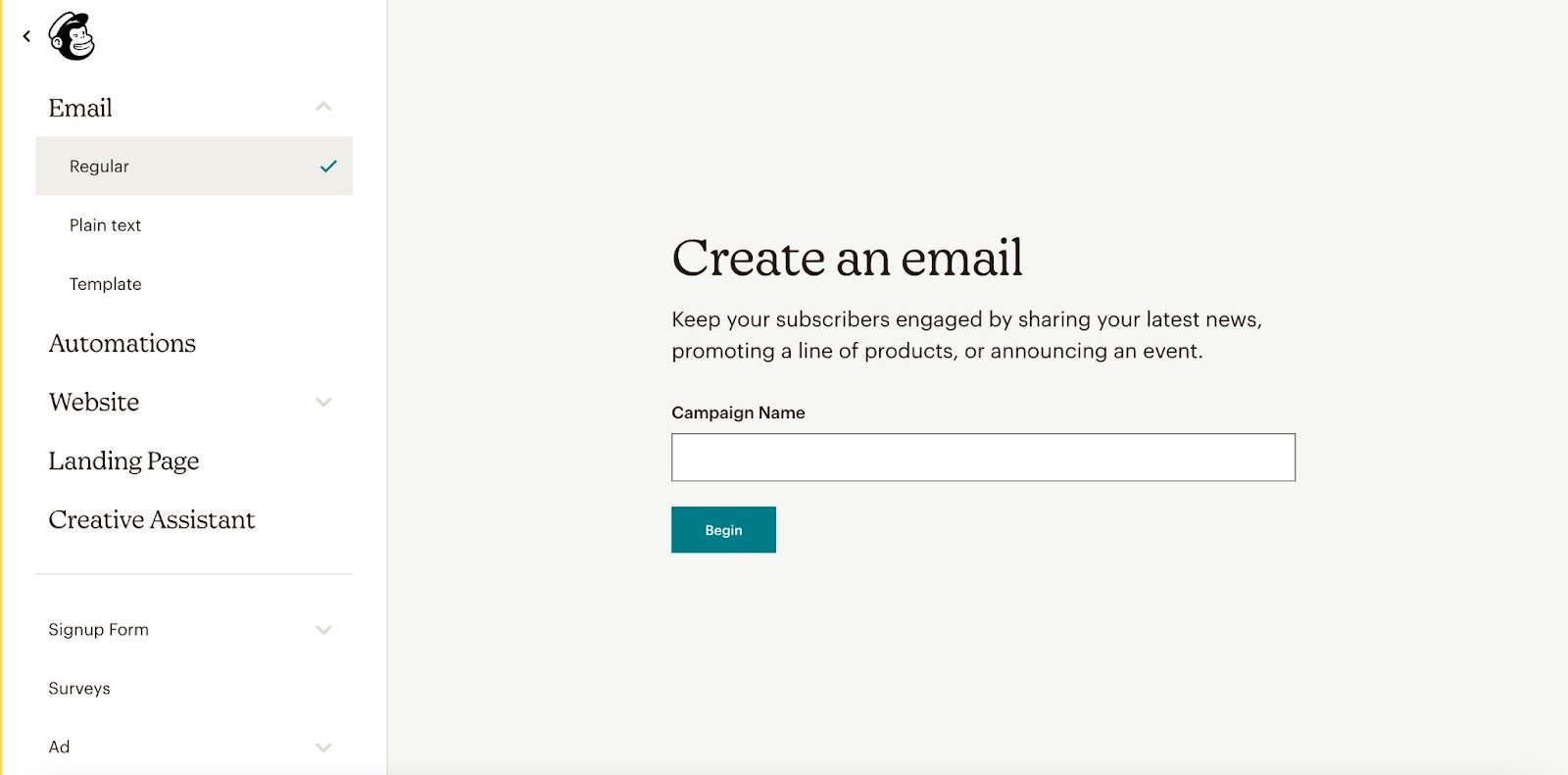
1. Create a new email in Mailchimp
2. Add a Code Block to your email
Once you’re in Mailchimp’s Design Email interface, look at the options on the right hand side. Choose the Codeblock and drag it over to your newsletter.3. Create your video in Sendspark

4. Copy your embed code
Once your video is ready, go to yourSendspark account page. Choose the video you want to embed in Mailchimp.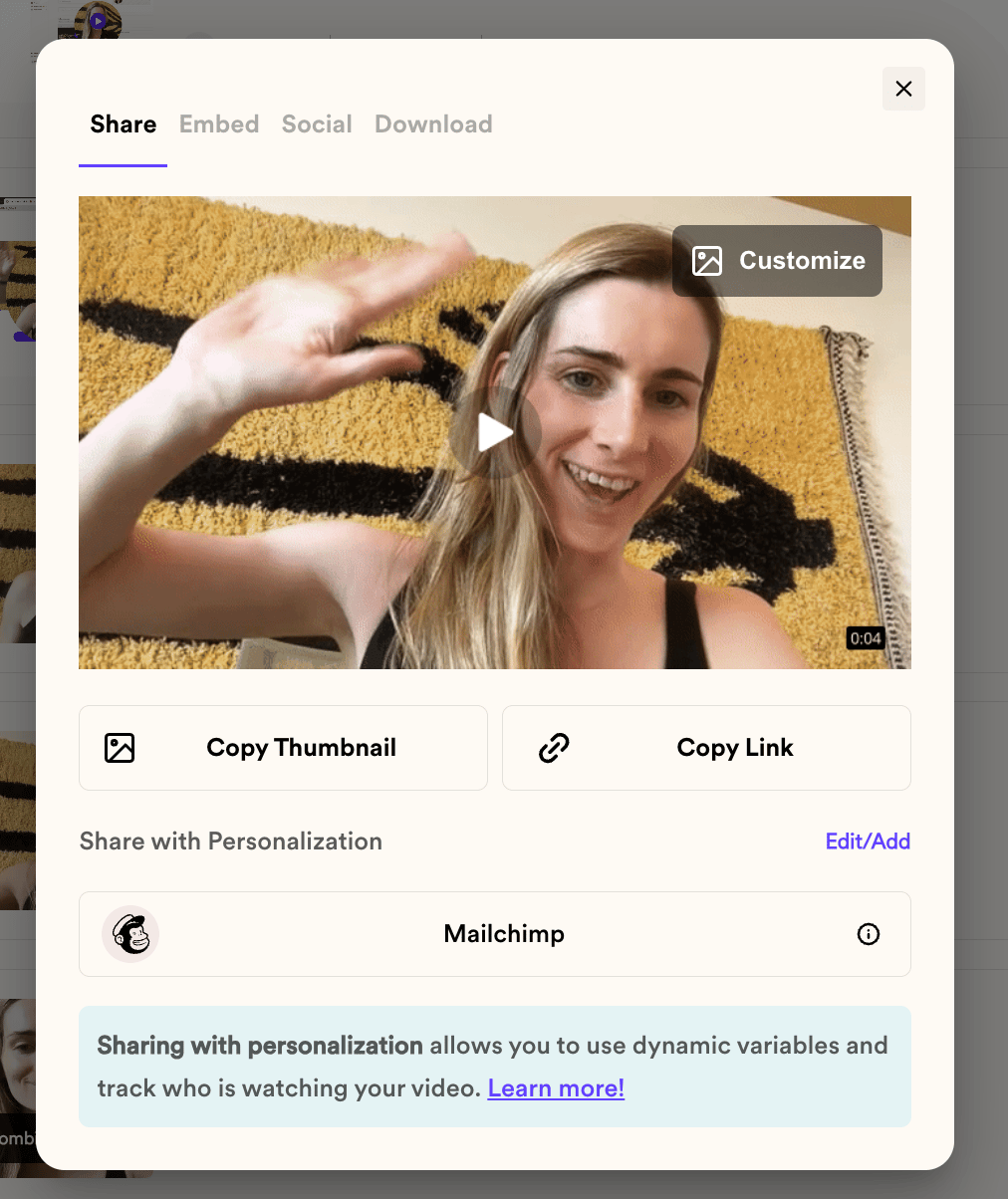
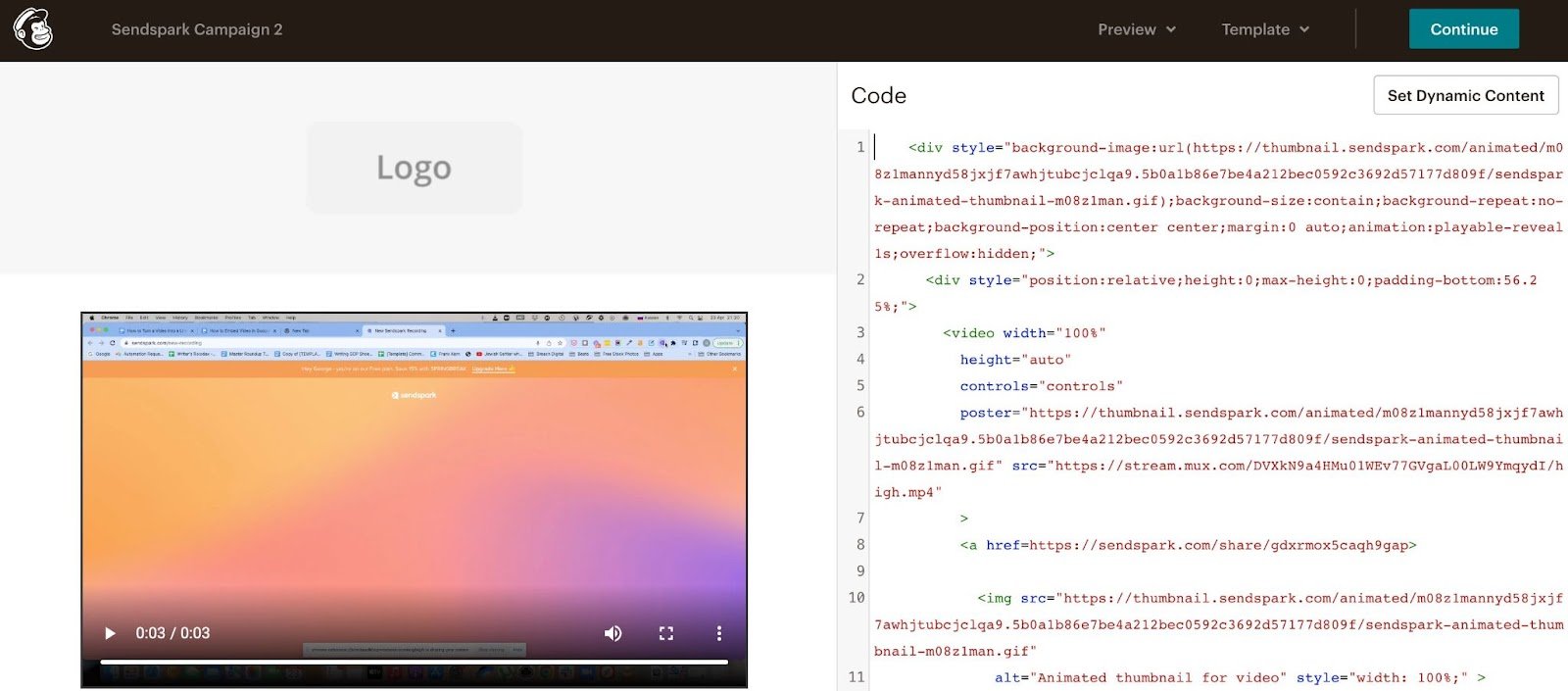
5. Paste your code into the Mailchimp code block
Why embed videos in Mailchimp?
Video email marketing is becoming increasingly common. But why should you use Sendspark to embed videos in Mailchimp email campaigns?
1. 300% more engagement
Videos catch and keep viewers’ attention; make your message easy to consume; break up the monotony of reading text e-mails. Statistically,videos increase engagement by a factor of 3.
2. More opens, more clicks
In ourUserpilot case study, embedded videos increased click-through rates 300%. They also increased open rates by 200%.
In other words, adding videos to the video email marketing campaign increased conversions by as much as 6x.
3. Less work than text
Writing blog post-length e-mails is tedious and requires lots of work. Recording a quick video and embedding it takes seconds or minutes to do. Our customers find they save an average 8 hours/week with Sendspark.
Best Practices
Here are some tips for embedding video in your emails. Keep text copy short An e-mail with lots of text and a video can be overwhelming. It’s best to build an email around one form of media - video or text - to keep your audience focused. In other words, say what you have to say in the actual video. Want to give people the same content in text form? Consider linking out to a supporting blog post or article. Add CTAs to your video and e-mail Want people to take action after they’ve seen your video? Make sure to add a call to action (CTA) to embedded video content. A simple button or text box will do the job. Mailchimp has both, with plenty of styling options to experiment with. Keep videos short Audiences prefer shorter videos. People will watch 90% of a 3-minute video, but only 18% of a 20-minute one (Social Media Examiner). To make sure people see your video through, keep it on the short side; 30-180 seconds works best. If you aresending a long video - webinars, demos, long presentations - find ways to keep it fun and engaging. Avoid autoplay Using Sendspark to embed MP4 videos in Mailchimp? Don’t use Autoplay. Videos that play automatically tend to annoy people and hurt deliverability. Instead, consider using Mailchimp’s codeblockand our embed code instead of an MP4 file. This way, audiences see a large thumbnail image with a play button; never an autoplay video.What about deliverability?
Adding videos to email campaigns the wrong way can lower deliverability. Fortunately, Sendspark videos are designed to do the opposite: increase deliverability and view rates. One reason is that our videos never autoplay. Another is that they stream instead of asking users to download large files. We use a series of fallbacks to give recipients the best video viewing experience possible every time. When video is supported by their email client, it plays right in the email. When video is not supported, recipients see a fallback image that video in their browser. Please refer to this list to seewhich email clients support video.Frequently asked questions
How do I embed a video in a Mailchimp email?
How do I embed a video in a Mailchimp email?
Drag a Code block into your Mailchimp email, then in Sendspark click Share Video, select Mailchimp, and copy the embed code. Click the pencil icon on the Code block and paste the code in. You’ll know it worked when a video-player thumbnail appears in the block.
Will the video play inside a Mailchimp email?
Will the video play inside a Mailchimp email?
It depends on the recipient’s email client. Roughly 40% of viewers will see the video play inline, and the other ~60% will see an animated GIF fallback they can click to watch the full video in their browser. A few who block all images may just see a URL.
Why shouldn't I use autoplay for video in Mailchimp?
Why shouldn't I use autoplay for video in Mailchimp?
Videos that play automatically tend to annoy recipients and can hurt deliverability. Instead, use Mailchimp’s Code block with Sendspark’s embed code so audiences see a large thumbnail with a play button rather than an autoplay video.
How long should a video in a Mailchimp email be?
How long should a video in a Mailchimp email be?
Keep it on the short side — 30 to 180 seconds works best. People watch about 90% of a 3-minute video but only 18% of a 20-minute one, so shorter videos get watched through.
Can I upload the video file to Mailchimp instead of using the embed code?
Can I upload the video file to Mailchimp instead of using the embed code?
Yes. As an alternative to pasting the embed code, you can download the video file from Sendspark and upload it using Mailchimp’s video content block.
Does Sendspark add a video thumbnail automatically?
Does Sendspark add a video thumbnail automatically?
Yes. Sendspark automatically adds a thumbnail to your Mailchimp email when you embed the video with its code.