

Key takeaways
- The integration sends Sendspark video events into Salesforce so you can report on engagement, see influenced deals, and follow up.
- Sendspark is not on the Salesforce AppExchange; you connect the two using webhooks.
- Events you can send include Video Created, Video CTA Clicked, Video Liked, Video Played, Video Viewed, and Video Watched to the End.
- Setup is two-sided: create a webhook URL in Salesforce (via APEX or the Declarative Webhooks app), then add it in Sendspark’s webhook settings and select events. Matching relies on the viewer’s email address being known.
Why Connect Sendspark with Salesforce?
You can integrate Sendspark with Salesforce to send video view data into Salesforce records. This will help you understand how viewers are engaging with video, build reports to see which deals were influenced by Sendspark, and understand what ROI Sendspark is providing to your sales process. And not only can you track, you can act! You will be able to see watch percentages, call-to-action conversions, and other video engagement metrics in order to follow up accordingly.What Data Can You Send from Sendspark to Salesforce?
It is possible to send these events from Sendspark into Salesforce:- Video Created:
- This event occurs when a new Dynamic Video is created for a Salesforce contact.
- Video CTA Clicked:
- This event occurs when a contact clicks a video “call-to-action” button on a Sendspark video page.
- Video Liked:
- This event occurs when a viewer clicks the “Like” button on a Sendspark video page.
- Video Played:
- This event occurs when a video starts to play on a video page, either because the “play” button was clicked, or because autoplay is enabled.
- Video Viewed:
- This event is triggered when a viewer opens or accesses a video, regardless of whether they interact with the playback controls or watch the video in its entirety.
- Video Watched to the End:
- This event fires when a viewer reaches the end of the video.
How to Connect Sendspark with Salesforce
Note: Sendspark is NOT on the Salesforce AppExchange at this time. You will be sending data from Sendspark to Salesforce using webhooks. 1. In Salesforce, create your webhook URL to receive data.- In Salesforce, you can create webhooks with APEX calls.
- If you would prefer a no-code way to create webhooks, you can use this app on the Salesforce AppExchange: Declarative Webhooks - Effortless Integrations for Salesforce.
- If you are using the app, follow these steps to launch an inbound call template:: Video:
How to create a webhook in Salesforce using Declarative Webhooks:
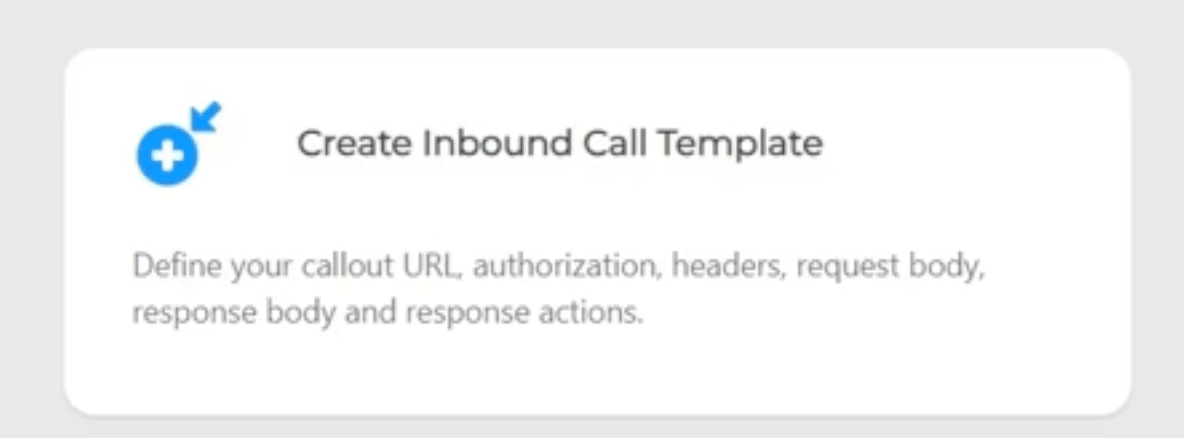
- Select “Create Inbound Call Template”
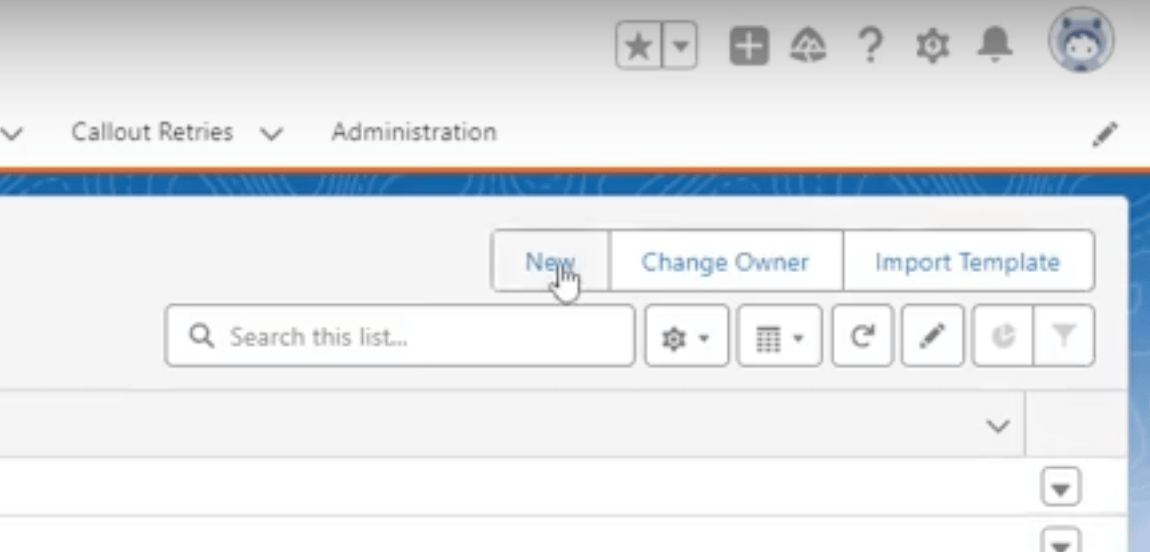
- Click “new”
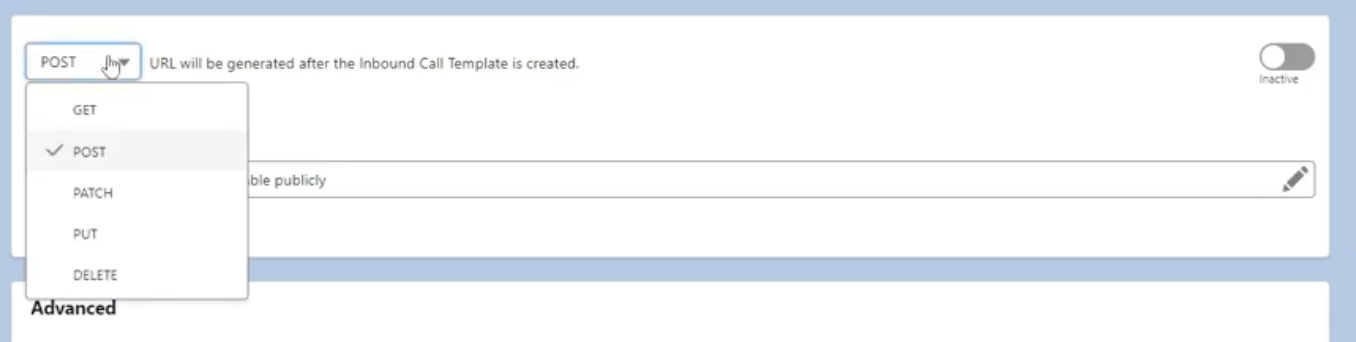
- Choose your HTTP method
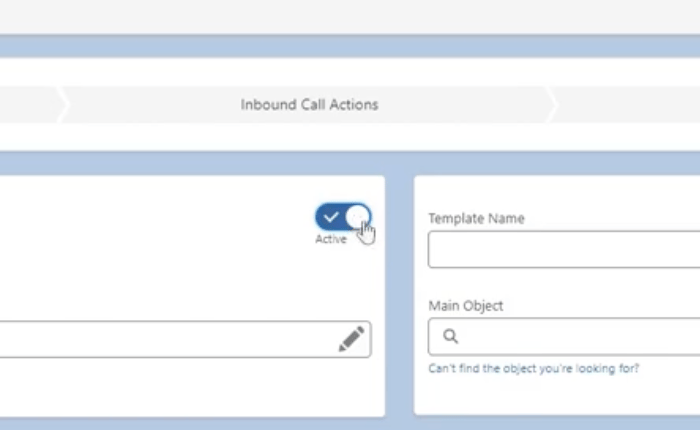
- Activate your template
- Set up your call authentication
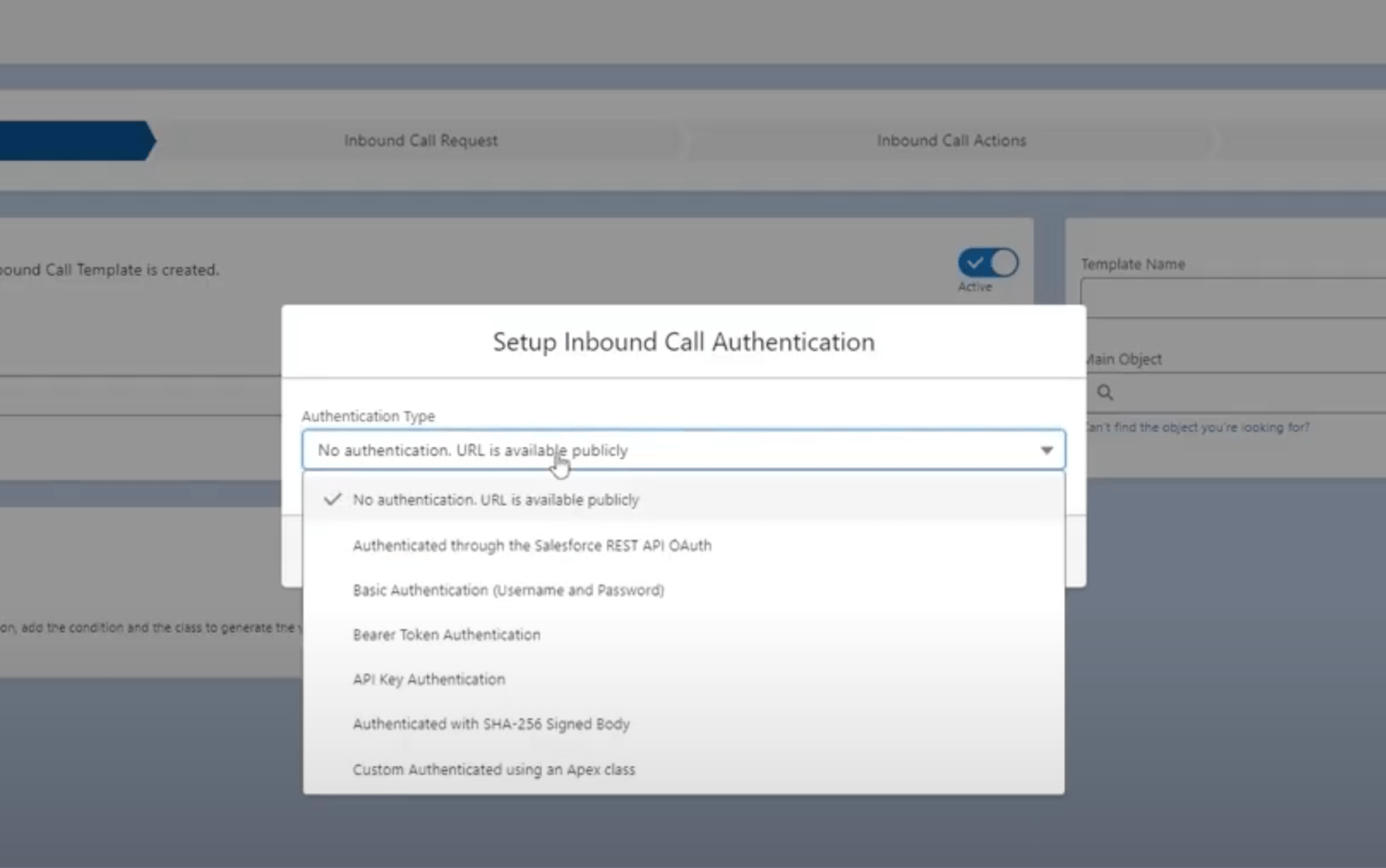
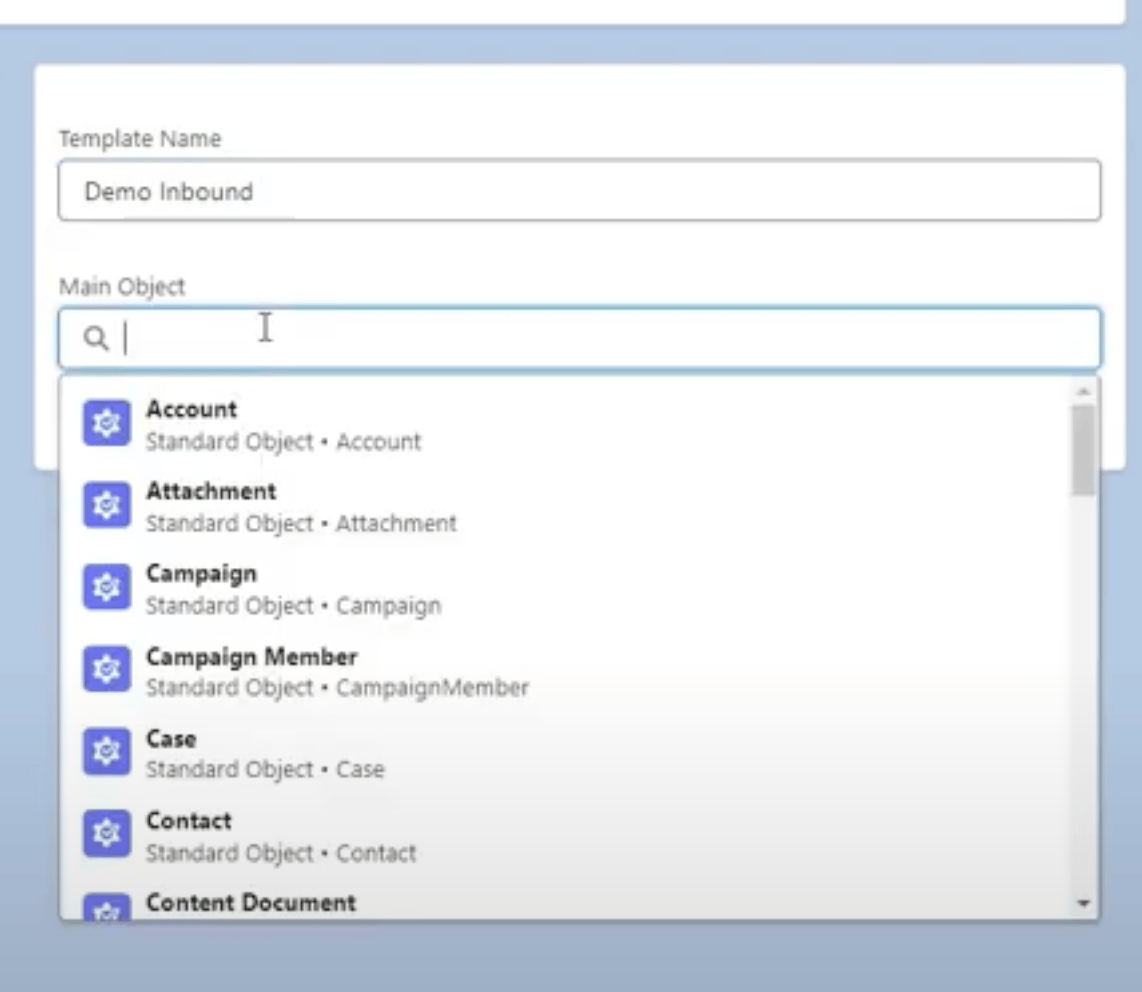
- Select the main objectthe template will be working with. This object dictates the actions you can take when the callback is received, and the actions you can take in the response.
- Choose your expected request body format. For Sendspark, this should be JSON.
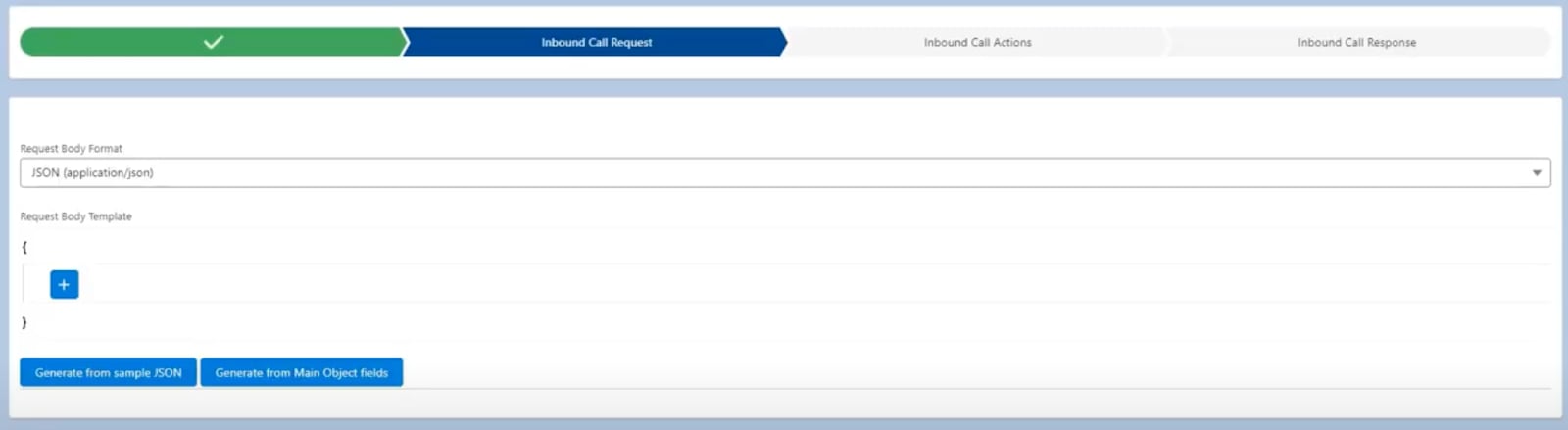
- To get a head start, use this sample response from Sendspark
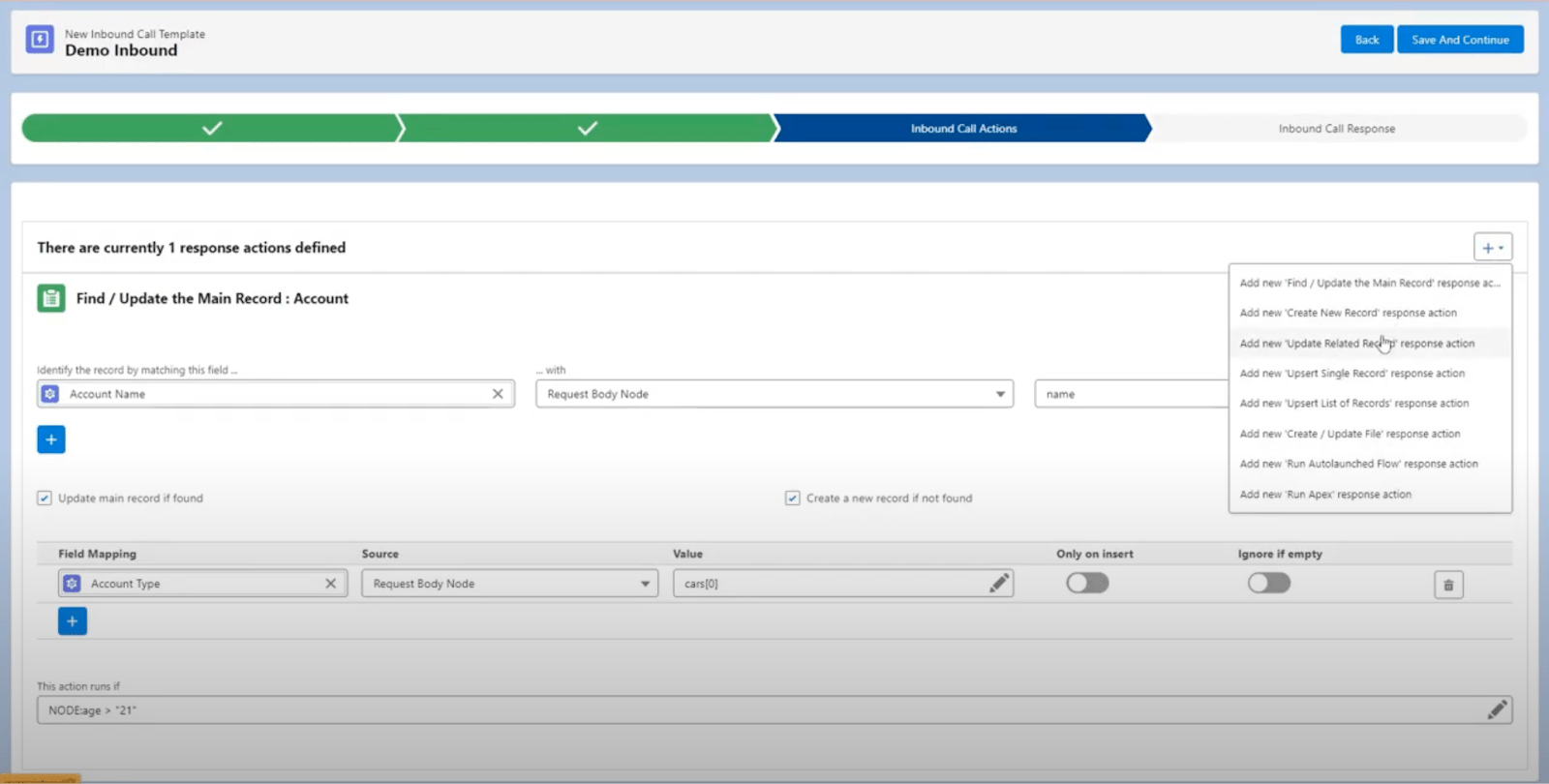
{ "campaignId": "bw14856ml6d64idzd25ms597bq5o8fw0", "campaignName": "Bethany Test > s.e@sendspark.com", "contactEmail": "s.e@sendspark.com", "contactInfo": { "contactEmail": "s.e@sendspark.com", "contactFirstName": "Bethany" }, "creatorId": "awbebxvg0zaifsxff61ylo6d168bkliu", "creatorName": "Bethany", "dynamicCampaignId": "1r4xl5k1vvs9hw5dsbvojsqxg0ii79xx", "dynamicCampaignName": "Bethany Test", "videoLink": "https://sendspark.com/share/7rh2bw5mv9ryf8go6j1hmj9ur8p5i4jn", "embedLink": "https://sendspark.com/embed/7rh2bw5mv9ryf8go6j1hmj9ur8p5i4jn", "thumbnailUrl": "https://thumbnail.sendspark.com/animated/kwm4cz49g55zwbgq6c4uzo1cnm35k9gz.b8dc25f6ebf5273a886084dbb827e54ca8f926a7/sendspark-animated-thumbnail-kwm4cz49.gif", "workspaceId": "w1dnne4qcatrajzwy4wacx9mf8tym0kd", "workspaceName": "Sendspark"} - Decide what actions you should take when a callback is received. There is a lot of flexibility in what you map. You can play around with all of the mapping options here.
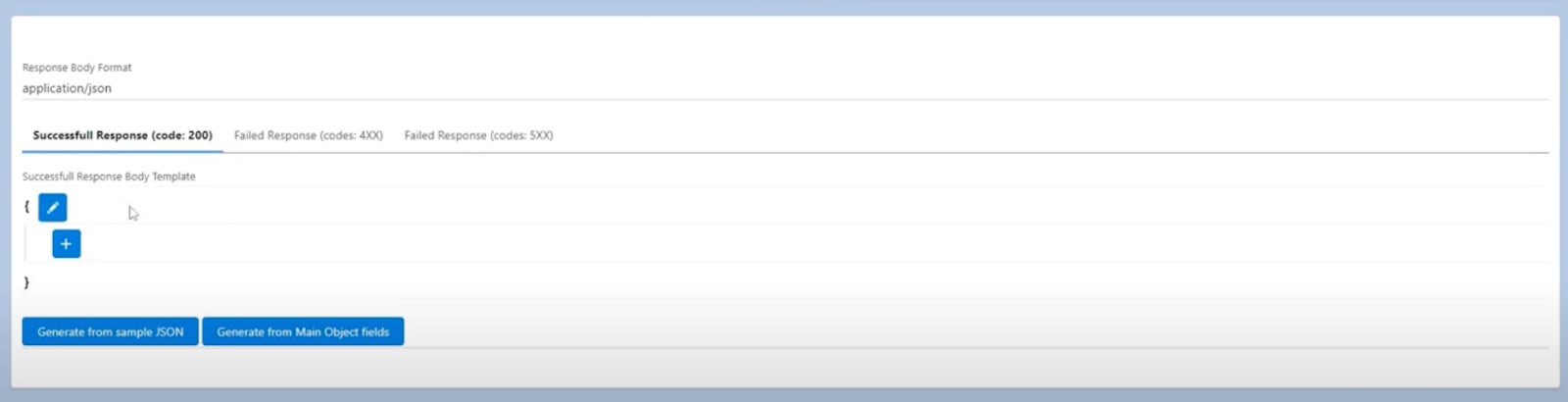
- In the final step, you have the option to craft a response. Please leave this blank.
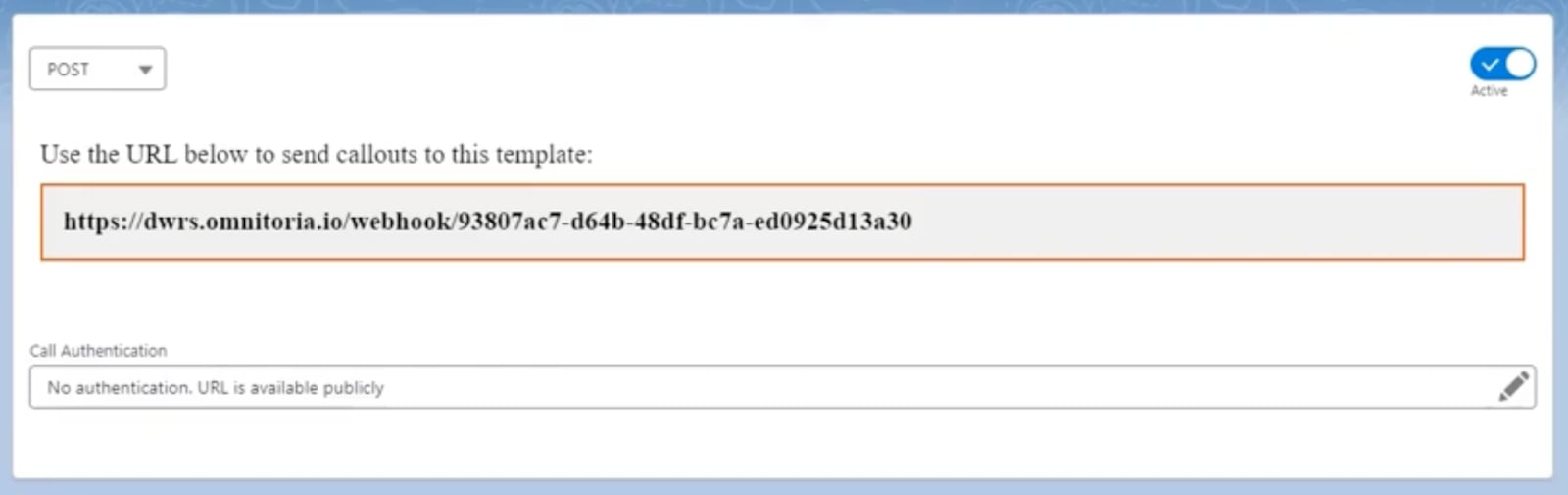
- After set up, you’ll see a URL to send callouts. This is what you need to connect with Sendspark!
- Navigate to your Sendspark webhook settings
- Fill in Name and URL
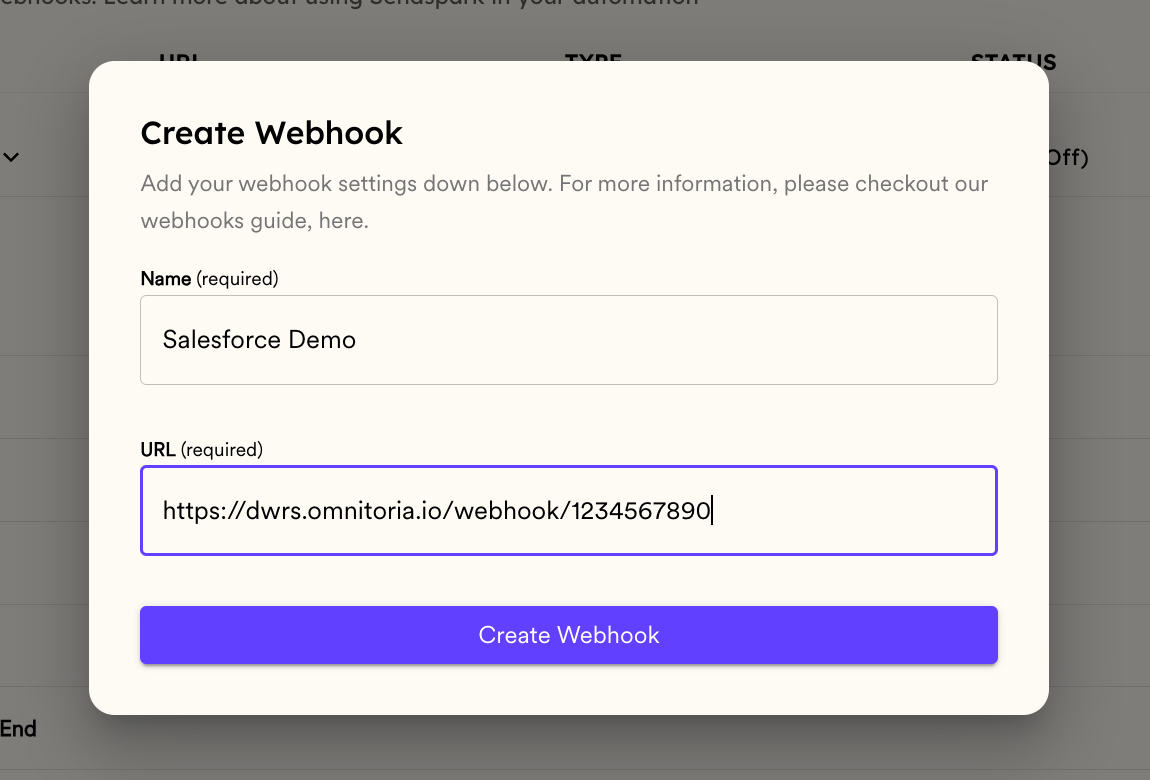
- Keep this as a “global” webhook to receive data for all events in your Sendspark workspace.
- Select the checkboxes for which events you want to receive notifications for:
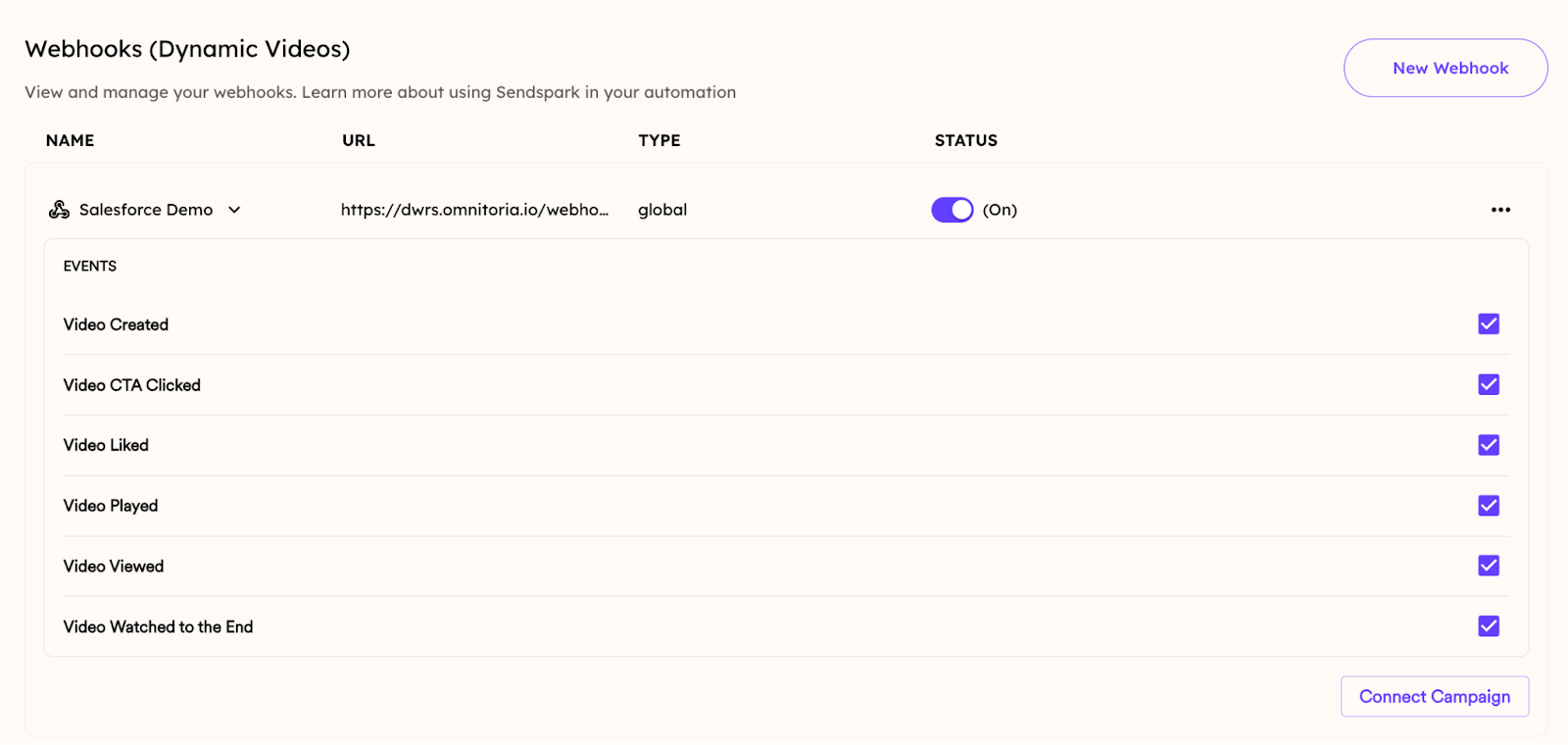
- That’s it! Now, you’re all set to take the information from the webhooks and create or update objects or trigger Processes and Flows.
Related Information
Sendspark also offers a direct Salesforce CRM integration that connects with OAuth and logs video engagement as Tasks on your Contacts and Leads — no webhooks required. Since you’ll be mapping data from Sendspark to Salesforce based on the viewer’s email address, this integration requires the viewer’s email address to be known. For this reason, we recommend you install your Marketing Cloud tracking code on Sendspark website pages. This will let you track video page views the same way you can track page views on other websites. You can see more information on connecting Salesforce Marketing Cloud to Sendspark here. Frequently asked questions
Is Sendspark on the Salesforce AppExchange?
Is Sendspark on the Salesforce AppExchange?
No, Sendspark is not on the Salesforce AppExchange at this time. You send data from Sendspark to Salesforce using webhooks instead.
What video events can I send to Salesforce?
What video events can I send to Salesforce?
You can send Video Created (a new Dynamic Video is created for a contact), Video CTA Clicked, Video Liked, Video Played, Video Viewed, and Video Watched to the End. When connected, you can select which Salesforce object to associate the data with.
How do I create the webhook URL in Salesforce?
How do I create the webhook URL in Salesforce?
In Salesforce you can create webhooks with APEX calls. For a no-code option, use the Declarative Webhooks app from the AppExchange: create an inbound call template, choose your HTTP method, set the request body format to JSON, map the actions to take when a callback is received, and leave the response blank. You’ll then get a URL to connect with Sendspark.
Where do I add the webhook in Sendspark?
Where do I add the webhook in Sendspark?
Go to your Sendspark webhook settings, fill in Name and URL, then click Create Webhook, keep it as a “global” webhook to receive data for all events in your workspace, and select the checkboxes for the events you want to receive.
What's required for the data to match a Salesforce record?
What's required for the data to match a Salesforce record?
Because data is mapped based on the viewer’s email address, the integration requires the viewer’s email address to be known. We recommend installing your Marketing Cloud tracking code on Sendspark website pages so you can track video page views the same way as other pages.