

Key takeaways
- Sendspark CTA buttons can link to files hosted on Dropbox or Google Drive; set the file permission to “Anyone with the link.”
- Two methods work: an indirect link (opens the file’s page to download manually) or a direct link (downloads immediately on click). Direct is recommended.
- For Dropbox, change
dl=0todl=1at the end of the share link. - For Google Drive, rebuild the link as
https://drive.google.com/uc?export=download&id=FILE-ID.
How to Share Files Through CTA Buttons in Sendspark
Sendspark allows you to enhance your videos by adding CTA (Call-to-Action) buttons. One common use is sharing files, and this article explains two effective methods: indirect download links and direct download links. Direct downloads are recommended as they reduce friction for users accessing your files.Getting Started
Before sharing a file, upload it to a cloud service like Dropbox or Google Drive. Ensure the link permissions allow “Anyone with the link” to view or download the file.Method 1: Indirect Download Link
This method involves sharing a regular link to the file location:- Upload your file to Google Drive or Dropbox.
- Copy the shareable link provided by the cloud service.
- Paste this link into the CTA button in Sendspark.
Method 2: Direct Download Link (Recommended)
This method enables users to download the file immediately after clicking the CTA button.For Dropbox
- Copy the shareable link.
- Locate the part of the URL that says
dl=0at the end of the link - Replace
0with1. Examples:FROM: https://www.dropbox.com/s/example?dl=0TO: https://www.dropbox.com/s/example?dl=1 - Paste the updated link into the Sendspark CTA button.
For Google Drive
- Copy the shareable link.
- Locate and remove the following sections:
/file/d/&/view?usp=sharing
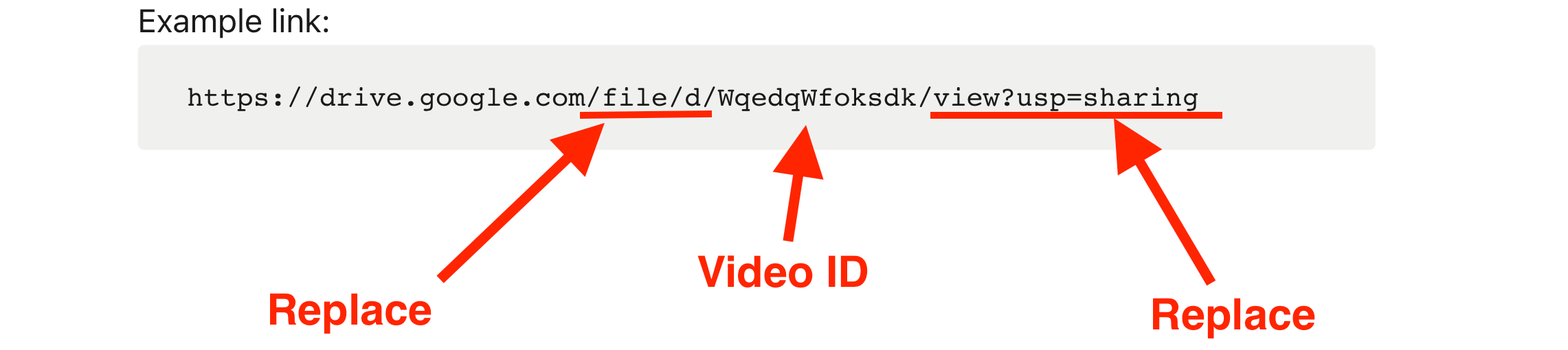
- Add the following section BEFORE the video ID:
/uc?export=download&id=VIDEO-ID
https://drive.google.com/uc?export=download&id=WqedqWfoksdk

- Paste the updated link into the Sendspark CTA button.
Tips for Success
- Double-check the permissions on your file. Ensure the link allows “Anyone with the link” to access it.
- Test your links to verify that the direct download behavior works as intended.
Frequently asked questions
What's the difference between an indirect and a direct download link?
What's the difference between an indirect and a direct download link?
An indirect link sends the viewer to the file’s page on Dropbox or Google Drive, where they download it manually. A direct link starts the download immediately when the CTA button is clicked. Direct links are recommended because they reduce friction for viewers.
How do I make a Dropbox direct download link?
How do I make a Dropbox direct download link?
Copy the shareable link, find the
dl=0 at the end of the URL, and change the 0 to 1 — for example, https://www.dropbox.com/s/example?dl=0 becomes https://www.dropbox.com/s/example?dl=1. Paste the updated link into the Sendspark CTA button.How do I make a Google Drive direct download link?
How do I make a Google Drive direct download link?
Take the file’s share link, remove the
/file/d/ and /view?usp=sharing sections, and rebuild it as https://drive.google.com/uc?export=download&id=FILE-ID, keeping the file ID from the original link. Paste the result into the CTA button.