

Key takeaways
- The Chrome Tab option records only the selected tab. If you switch tabs or leave Chrome, that footage (and your face) won’t appear in the final video, and only your voice is captured.
- To record your face and screen across multiple tabs, use the Window or Entire Screen option instead.
- The Chrome extension only records inside Chrome. To record desktop applications, download and use the Sendspark desktop app.
- Choosing the right recording option before you start prevents the missing-recording problem entirely.
Recording options compared
When using Sendspark, you might notice that your face recording is missing when you play back your video. This usually happens in the following scenarios:
Scenario 1: Using the Chrome Tab Option
When you select the Chrome tab option to record, you can see your face while recording. However, if you switch to another tab, your face recording will not be included in the final video. The recording only captures what happens in the selected tab. Solution: To record your face across multiple tabs, choose the Window option or Entire Screen option. This will ensure your face and screen recording continue uninterrupted: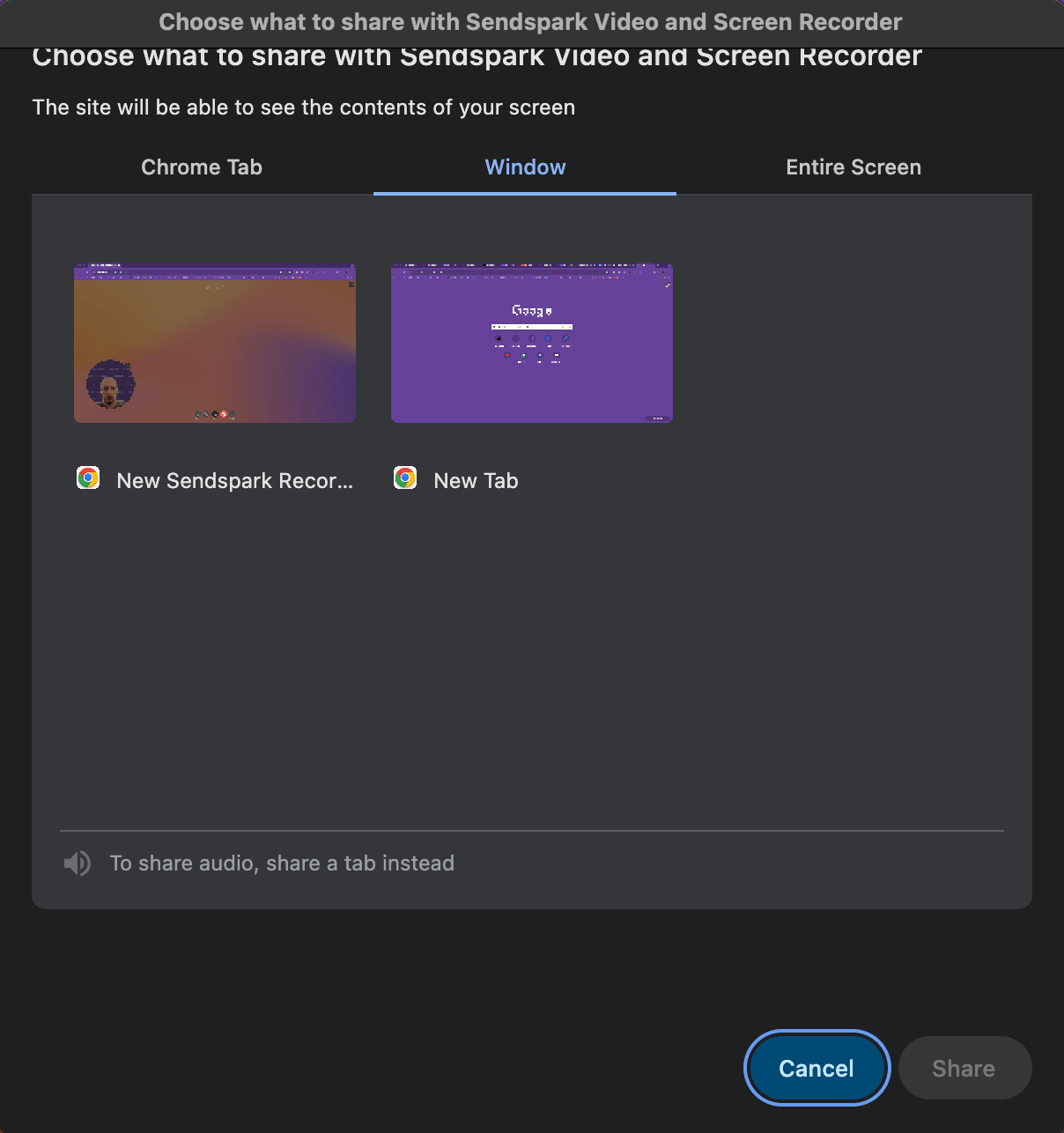
Scenario 2: Recording Desktop Applications
If you use the Chrome tab option and then switch to a desktop application, the recording will stop capturing your screen and face once you leave the Chrome tab. For recording desktop applications, download and use the Sendspark desktop app. The Chrome extension only records within Chrome, so the desktop app is needed for any other applications. You may download the Desktop app from this help article: Sendspark desktop application- Chrome Tab: If you select the Chrome tab option, your recording will focus solely in your current tab. You’ll avoid the browser’s frame and bookmarks, however If you switch tabs or move to a different application, the recording will not show in the final video, only your voice will.
- **Window:**This option will focus the recording on the Browser. Everything the browser includes will be part of the video. All tabs opened, the browser frame, the search bar, the bookmarks, etc. You can choose to jump between tabs and everything will be recorded.
- Entire Screen: To ensure that your recording continues across multiple tabs or different applications, select the entire screen option. This way, everything you do on your computer will be recorded along with your face
Frequently asked questions
Why is my face missing from my Sendspark recording?
Why is my face missing from my Sendspark recording?
You most likely recorded with the Chrome Tab option and then switched to another tab or application. The Chrome Tab option only captures the tab you selected, so anything outside it (including your face) is not saved to the final video.
How do I record my face across multiple Chrome tabs?
How do I record my face across multiple Chrome tabs?
Choose the Window option to record everything in the browser (all tabs, frame, and bookmarks), or the Entire Screen option to record across tabs and other applications. Both keep your face and screen recording uninterrupted.
Why does only my voice show up and not my screen when I switch tabs?
Why does only my voice show up and not my screen when I switch tabs?
With the Chrome Tab option, the video capture is tied to the selected tab. When you leave that tab, the video stops updating, but your microphone keeps recording, so the final video contains only your voice.
How do I record a desktop application with my face?
How do I record a desktop application with my face?
The Chrome extension only records inside Chrome. To record desktop applications, download and use the Sendspark desktop application, which records your camera bubble over any app.
Which recording option should I use to avoid missing recordings?
Which recording option should I use to avoid missing recordings?
Use Window if you only need the browser, or Entire Screen if you’ll move between tabs and applications. Reserve Chrome Tab for when you’re staying in a single tab and want to hide the browser frame and bookmarks.