

Key takeaways
- Download Sendspark’s updated CSV, not your original list. The updated export filters out any videos that did not process successfully.
- When importing to Zoho, only the mandatory fields (email and first name) need mapping. Job title and company name are optional, and you do not need to map Video Link or background URL.
- Paste Sendspark’s Zoho HTML (from Share Campaign → Zoho) into an Insert HTML block inside a Zoho email campaign.
- For accurate testing, add yourself as a contact and send to a secondary email on a different domain — sending from the same inbox to the same inbox can be flagged as spam and placeholders may not render in test emails.
How to Share a Dynamic Video Campaign through Zoho
1. Create your Dynamic Video Campaign
- Generate your Dynamic Videos and ensure all of them have been processed
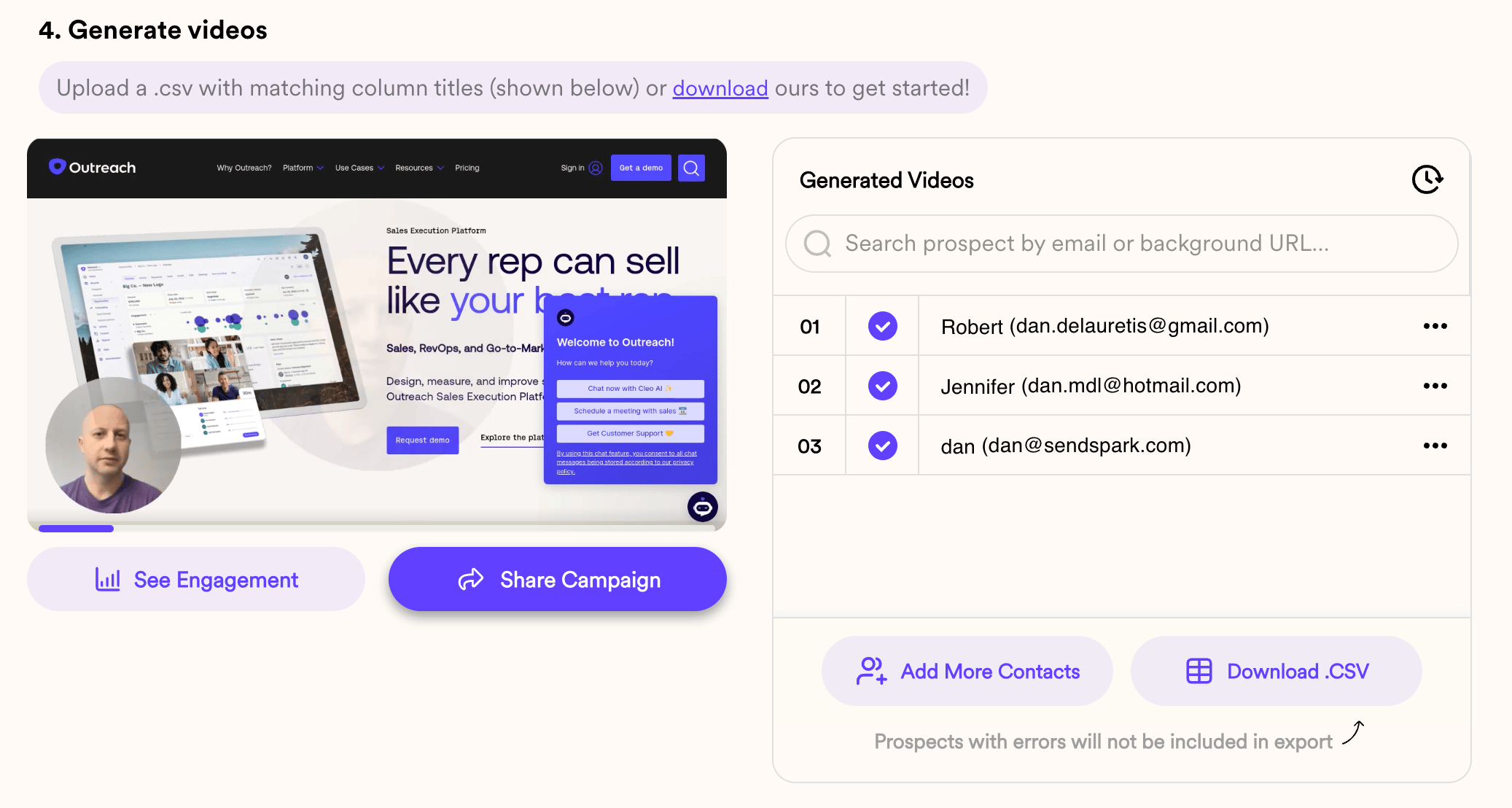
2. Download the updated CSV File
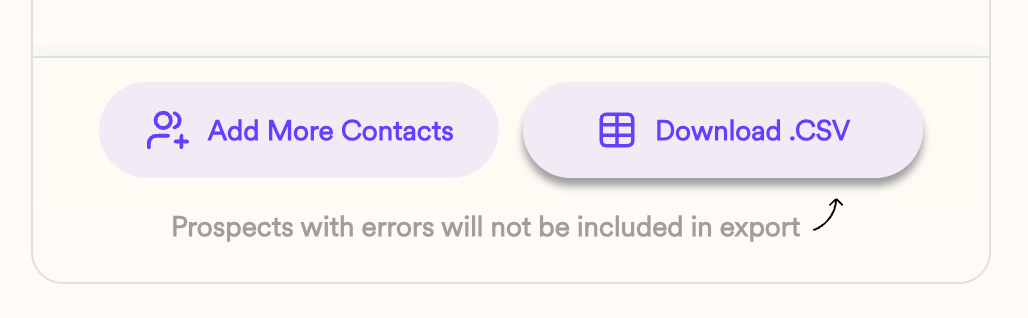
- Download the CSV file of leads to get the updated version where any unsuccessful videos are filtered out.
- Click Export Generated Videos (CSV) to get the updated version.
3. Access Zoho Account
- Log in to your Zoho account.
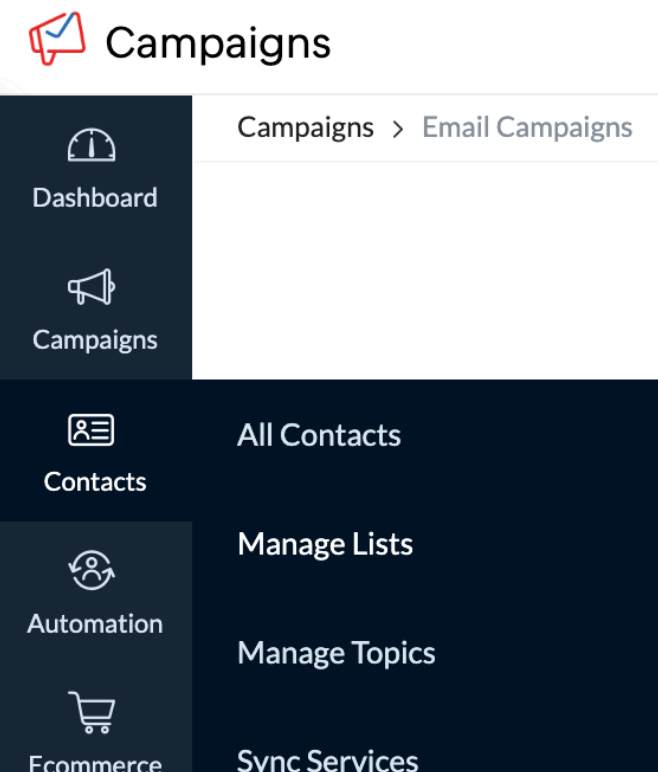
- Go to Contacts and click on Manage Lists.
4. Create and Import Contact List
- Create a new list (e.g., “July List”).
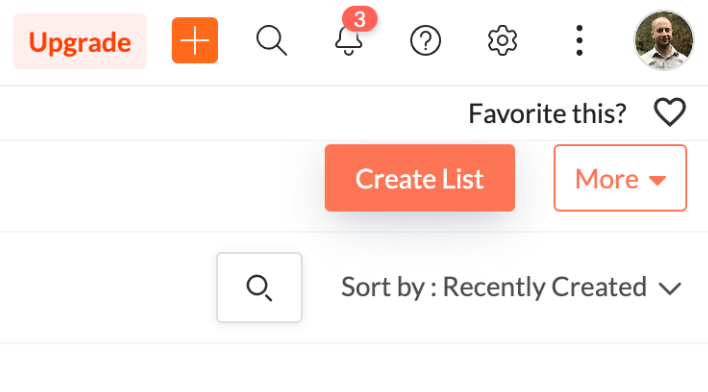
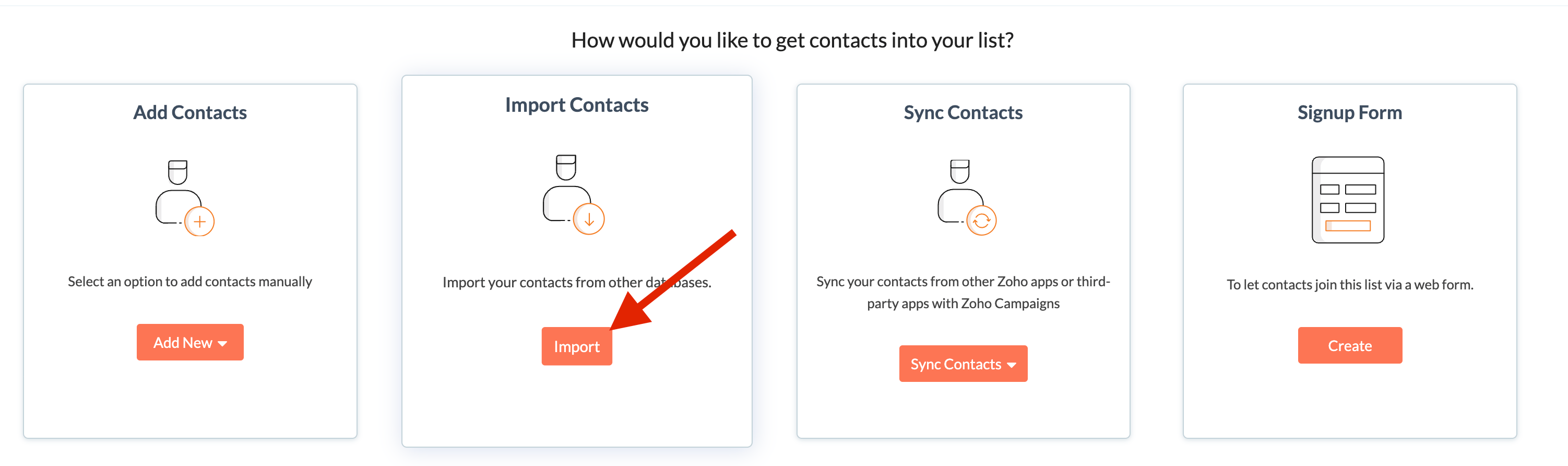
- On the Import Contacts card, click Import.
- Upload the downloaded CSV file:
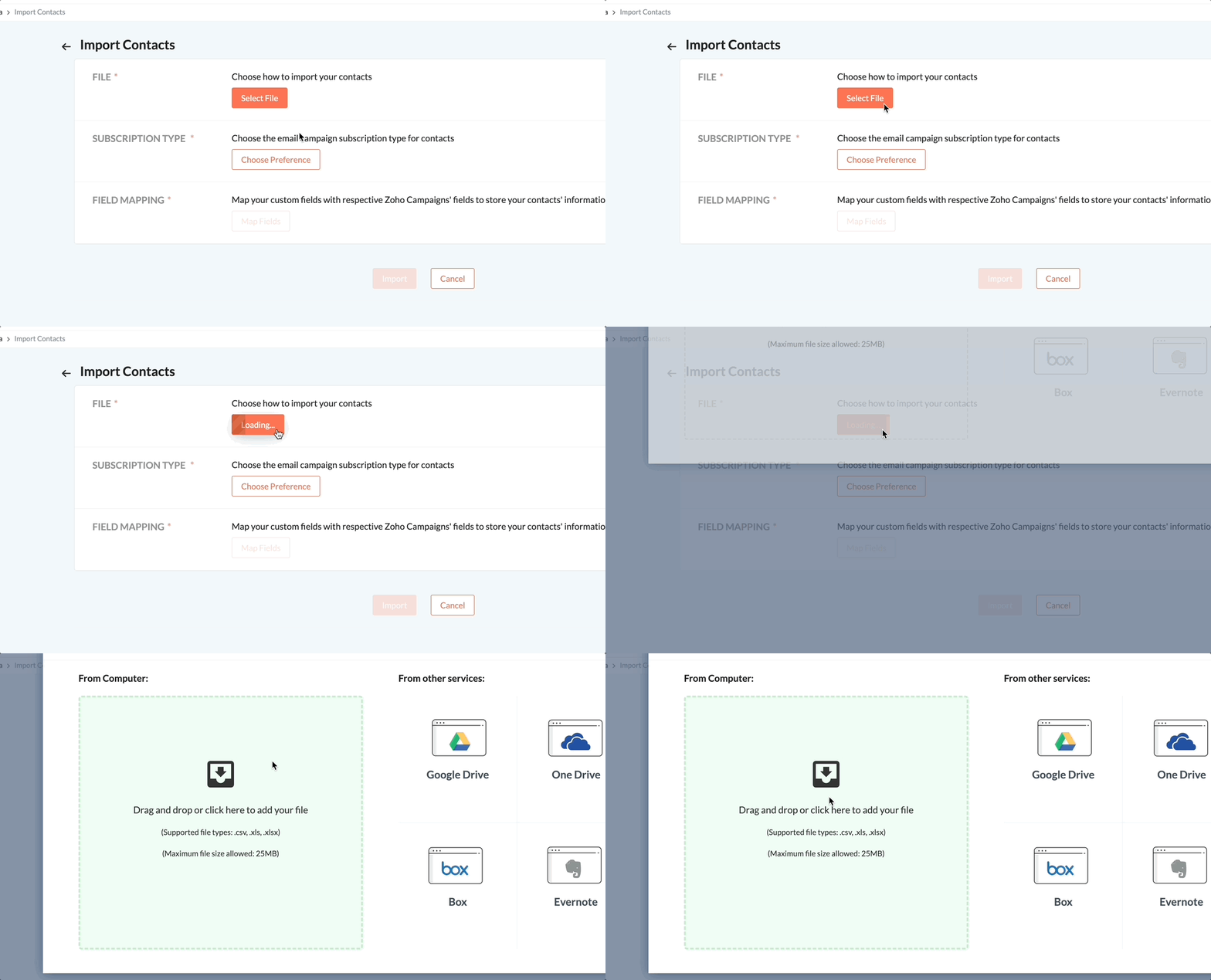
- Map only the mandatory fields (email and first name: ). Optionally, map job title and company name.
- Save and import the contacts.
5. Create an Email Campaign
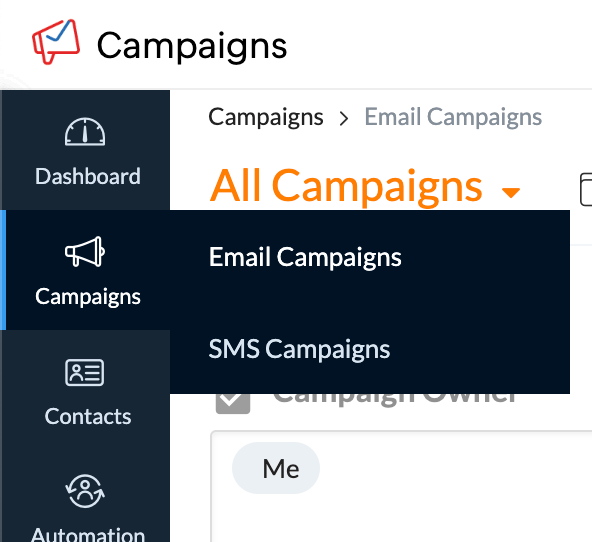
- Go to Campaigns and select Create Campaign > Email Campaign > Regular Email.
- Name your campaign (e.g., “July Campaign”).
- Add a subject line and sender information.
6. Add Recipients
- Click on List and select your newly imported contact list.
7. Create Email Content
- Choose Pre-designed Templates.
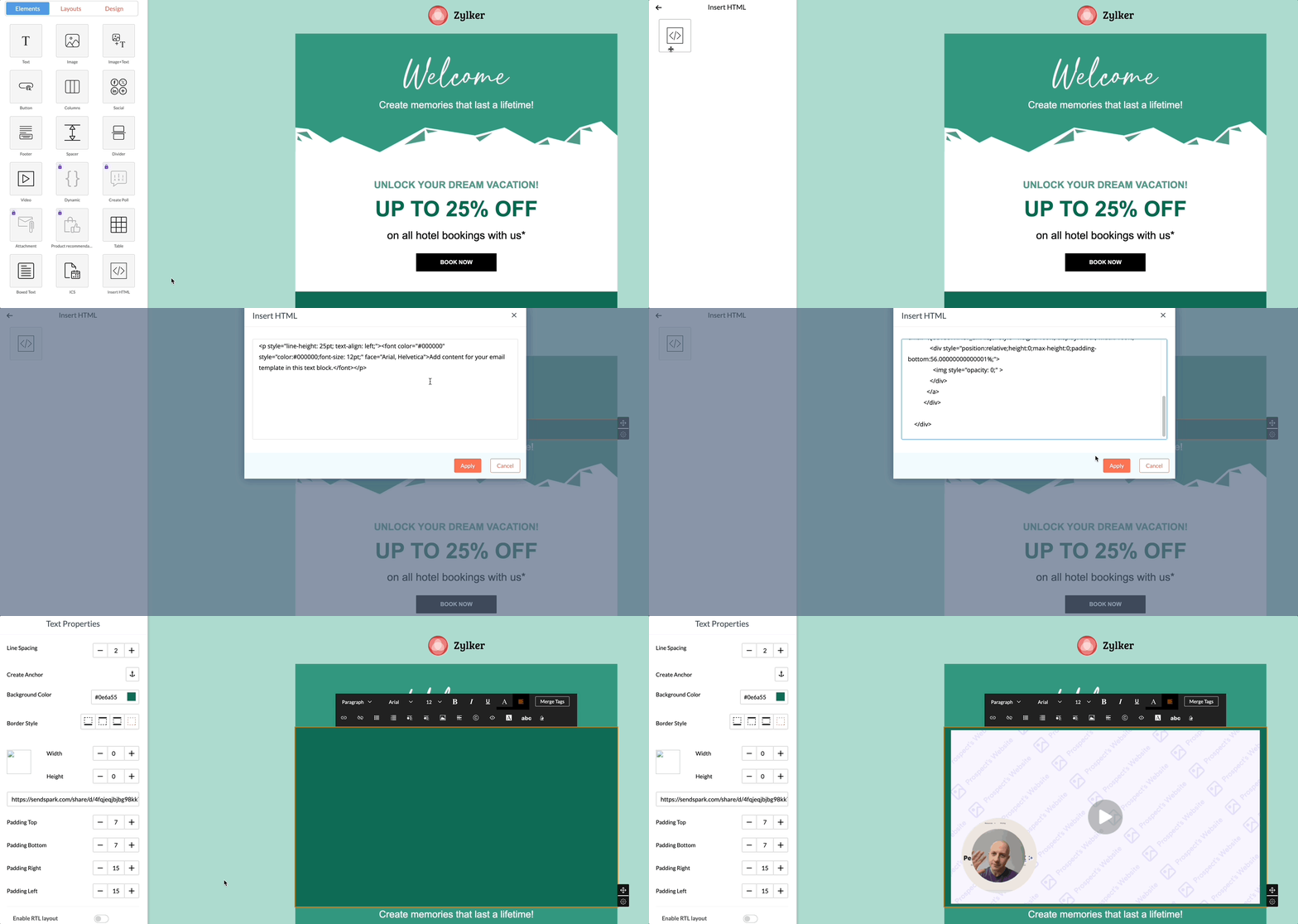
- Use the Insert HTML tool from the left sidebar.
- Drag and drop the HTML block into your email content.
8. Insert Dynamic Video Campaign
- Go back to your dynamic video campaign and select Share Campaign > Zoho.
- Copy the provided HTML code and paste it into the HTML block in Zoho.
- Apply the changes.
Side Notes
- Variables and Placeholders: During test emails, placeholders might not display correctly due to variable placeholders. For accurate testing, add yourself as a contact and send the campaign to a secondary email with a different domain.
- Spam Issues: Sending emails from the same inbox to the same inbox may be flagged as spam. Use a different domain for test emails if needed.
Frequently asked questions
Which CSV should I upload to Zoho?
Which CSV should I upload to Zoho?
Download the updated CSV from Sendspark after all your videos have processed. This version filters out any unsuccessful videos, so you only import contacts who actually have a video ready.
Which fields do I need to map when importing contacts?
Which fields do I need to map when importing contacts?
Only the mandatory fields — email and first name — need to be mapped. Job title and company name are optional. You do not need to map Video Link or background URL.
Where do I paste the video code in Zoho?
Where do I paste the video code in Zoho?
In your Zoho email campaign, choose a pre-designed template, drag an Insert HTML block into the content, then paste the HTML code from Sendspark’s Share Campaign → Zoho menu and apply the changes.
Why do the placeholders look wrong in my test email?
Why do the placeholders look wrong in my test email?
During test emails, variable placeholders may not display correctly. For accurate testing, add yourself as a contact and send the campaign to a secondary email on a different domain, since sending from the same inbox to the same inbox can also be flagged as spam.