

Key takeaways
- You need two things from Sendspark: the Klaviyo snippet (from Share Campaign) and the CSV file of the leads you generated videos for.
- Upload the CSV as a Klaviyo list and map fields like First Name, Email, and Video Link, then paste the snippet into an HTML block in your email campaign.
- Always preview or test the campaign to confirm the video populates correctly before sending.
- For SMS, the HTML snippet is not compatible — use the Video Link field from your CSV as a variable in the message body instead.
What is a Dynamic Video?
Dynamic videos are videos that are automatically personalizedfor each of your recipients. With 1 single recording, you can make it look like you’re recording multiple videos. The feature automatically adds each of your prospects’ websites to the background and with the help of AI you can also add the prospect’s name This tutorial will cover how to share dynamic videos in Klaviyo. If you are not familiar with dynamic videos, please start with this tutorial: How to make dynamic videos)How to Share Dynamic Videos in Klaviyo
Step 1: Copy the Video Snippet Code
- Access your Dynamic Video Campaign.
- Head to the SHARE CAMPAIGN button
- Copy the snippet code provided by clicking Copy to Clipboard on Klaviyo
Step 2: Download the CSV File
- Export the CSV file containing the leads you generated videos for.
- Save the file to your device for later upload into Klaviyo.
Step 3: Upload Leads into Klaviyo
- Log in to your Klaviyo account.
- Navigate to Audience > Lists & Segments.
- Create a new list by selecting Create List, and name it (e.g., “Test”).
- Click Upload Contacts and select your CSV file.
- Map the fields (e.g., First Name, Email, Video Link).
- Click Next, ensure the contacts are set to “Subscribe,” and click Import.
Step 4: Create an Email Campaign
- Go to Campaigns and select Create Campaign.
- Name the campaign and choose Email as the type.
- Select the list you uploaded (e.g., “Test”).
- Choose a template or create a new email layout.
- In the email editor, drag and drop an HTML block into the email body.
- Paste the snippet code you copied from Sendspark into the HTML block.
Step 5: Preview and Test the Campaign
- Use the preview function to ensure the video populates correctly in the email.
- Test the campaign by sending it to a sample recipient or using Klaviyo’s preview tools.
Optional: Set Up SMS Campaigns
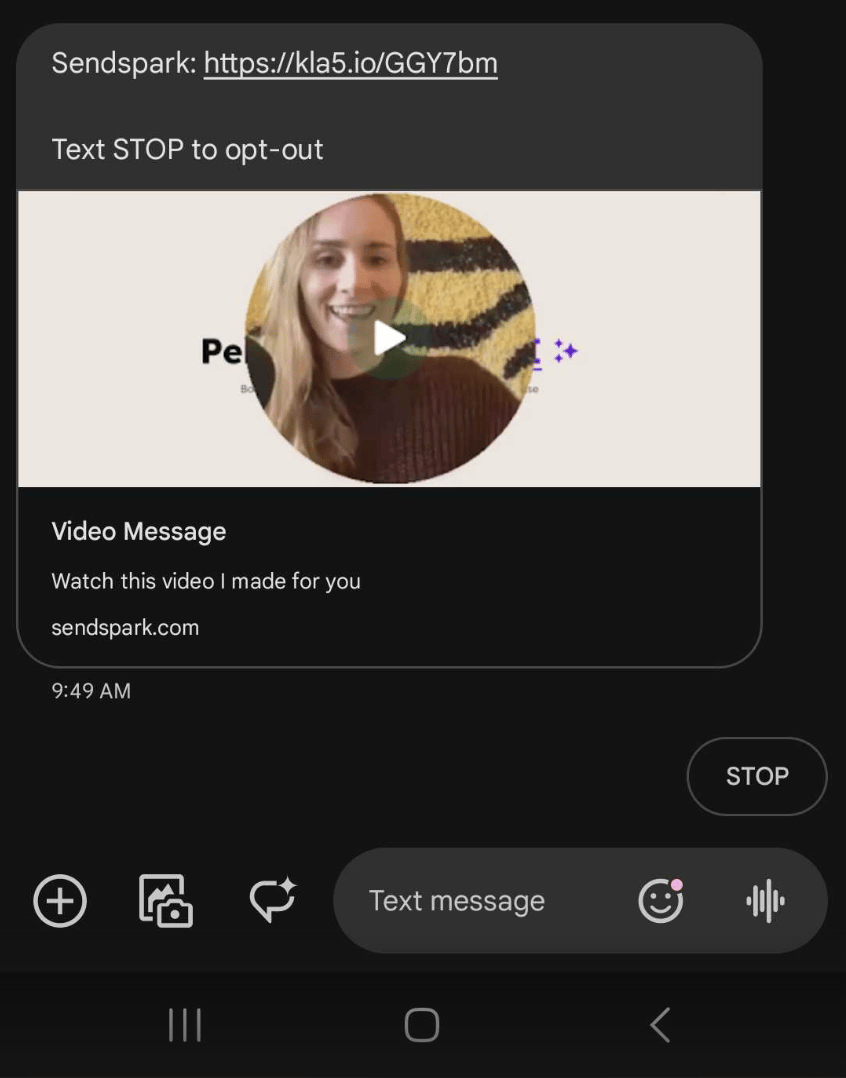
If sending an SMS campaign:- Select SMS instead of Email during campaign creation.
- Use the Video Link field from your CSV file as a variable in the SMS text body.
- Note that HTML snippet codes are not compatible with SMS messages. The correct option here is to use the variables instead of the Snippet Code.
Final Steps
Once your email or SMS is configured and tested:- Schedule or send the campaign.
- Monitor results and adjust as needed for future campaigns.
Frequently asked questions
What is a dynamic video?
What is a dynamic video?
A dynamic video is automatically personalized for each recipient. From a single recording, Sendspark adds each prospect’s website to the background and, with AI, can add the prospect’s name — so it looks like you recorded a separate video for everyone.
Where do I get the video snippet for Klaviyo?
Where do I get the video snippet for Klaviyo?
Open your Dynamic Video Campaign, click Share Campaign, and copy the snippet by clicking Copy to Clipboard on the Klaviyo option.
Do I have to upload a CSV?
Do I have to upload a CSV?
Yes. Export the CSV of the leads you generated videos for, then upload it as a Klaviyo list (Audience → Lists & Segments → Create List → Upload Contacts) and map fields such as First Name, Email, and Video Link.
How do I add the video to the email?
How do I add the video to the email?
In the Klaviyo email editor, drag and drop an HTML block into the email body and paste the snippet you copied from Sendspark into that block. Then use the preview function to confirm the video populates.
Can I send dynamic videos over SMS?
Can I send dynamic videos over SMS?
Yes, but HTML snippet codes are not compatible with SMS. Instead, choose SMS as the campaign type and use the Video Link field from your CSV as a variable in the SMS body.