

Key takeaways
- Always import Sendspark’s exported CSV, not the original file you used to build the campaign. The export filters out contacts whose video hit a processing error.
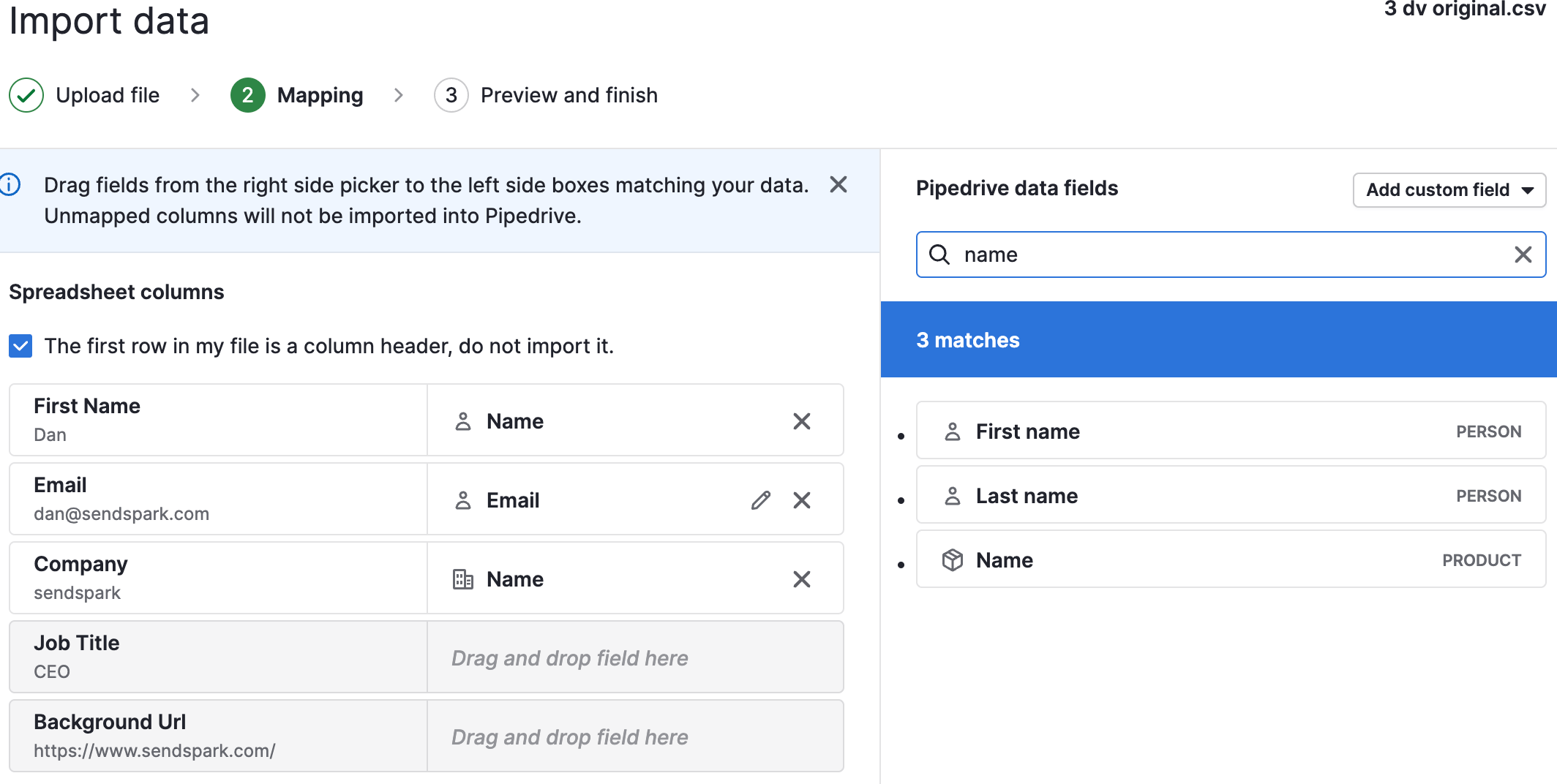
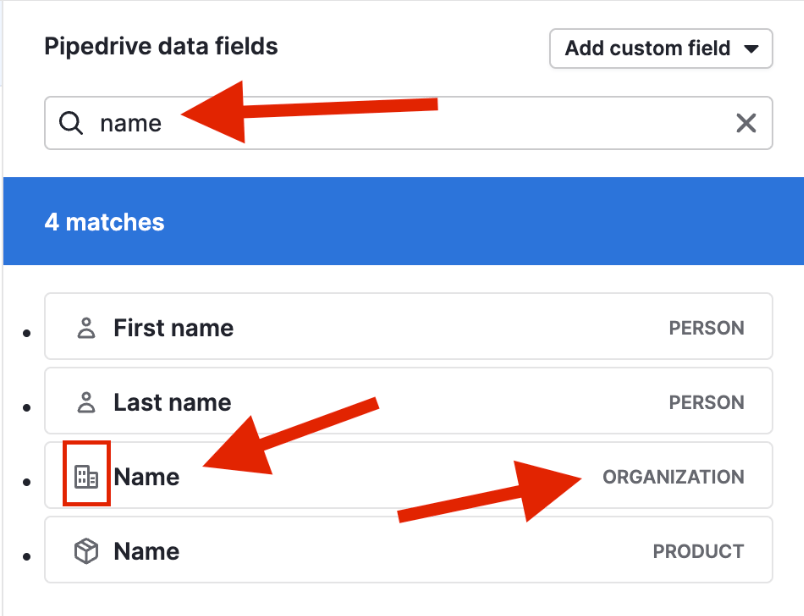
- In Pipedrive, use Import Data → Upload Spreadsheet to add the contacts, then map the fields. Background URL doesn’t need a tag, Job Title has no matching Pipedrive merge tag, and Company maps to the NAME tag from the Organization column.
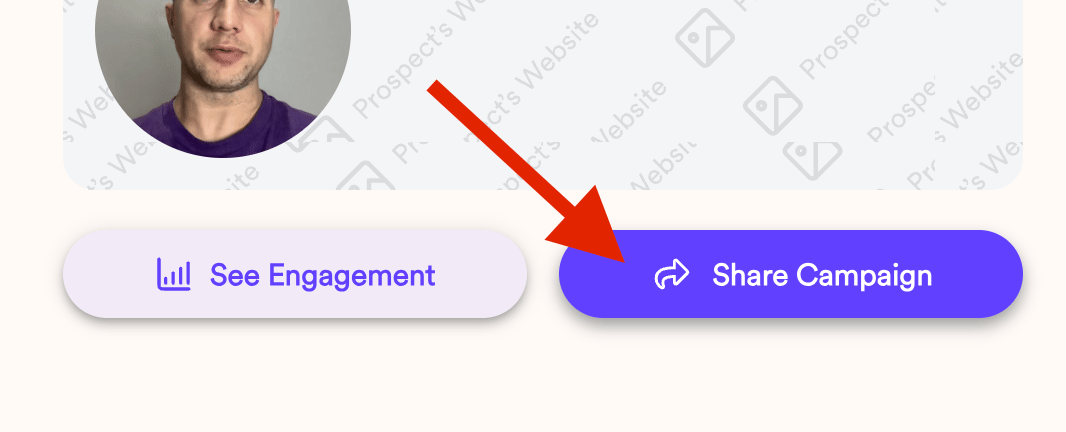
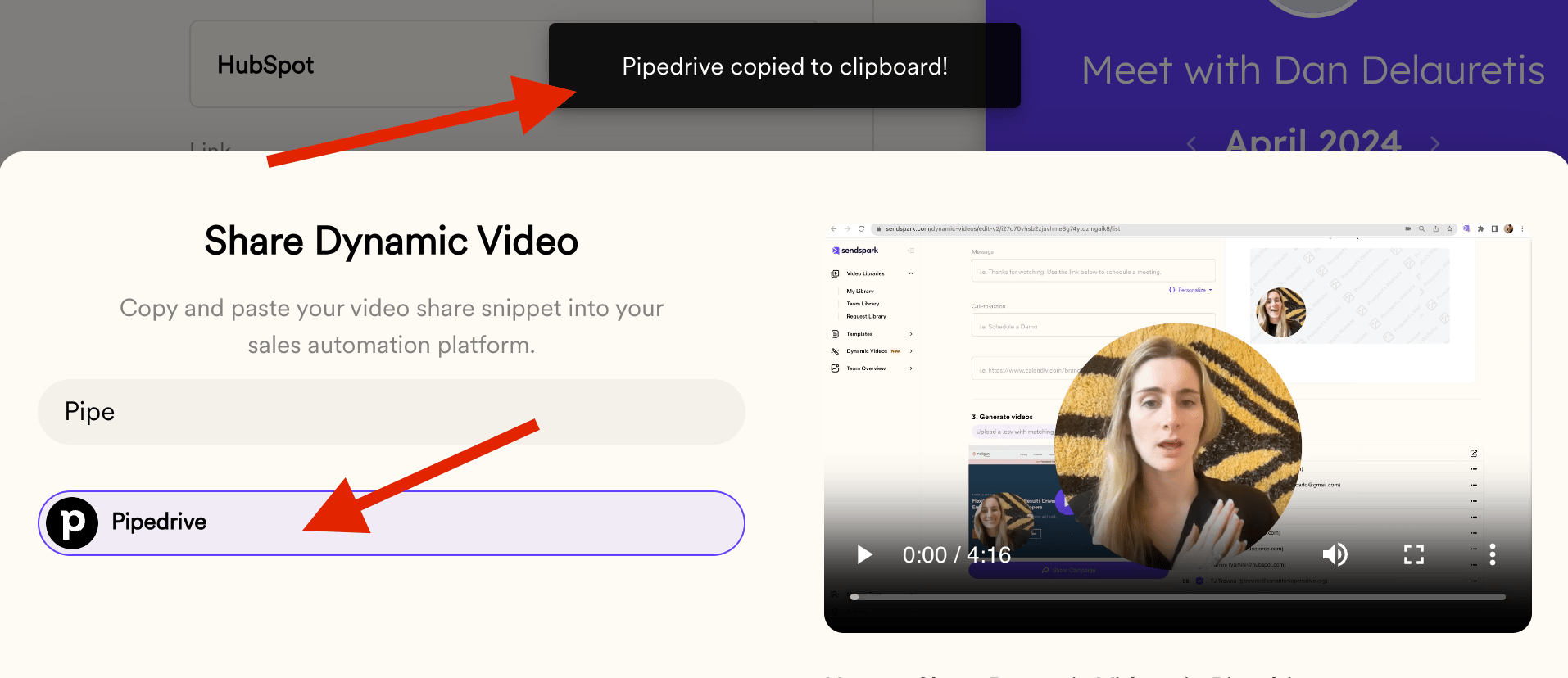
- Get the snippet from Sendspark’s Share Campaign → Pipedrive, which copies the code to your clipboard automatically.
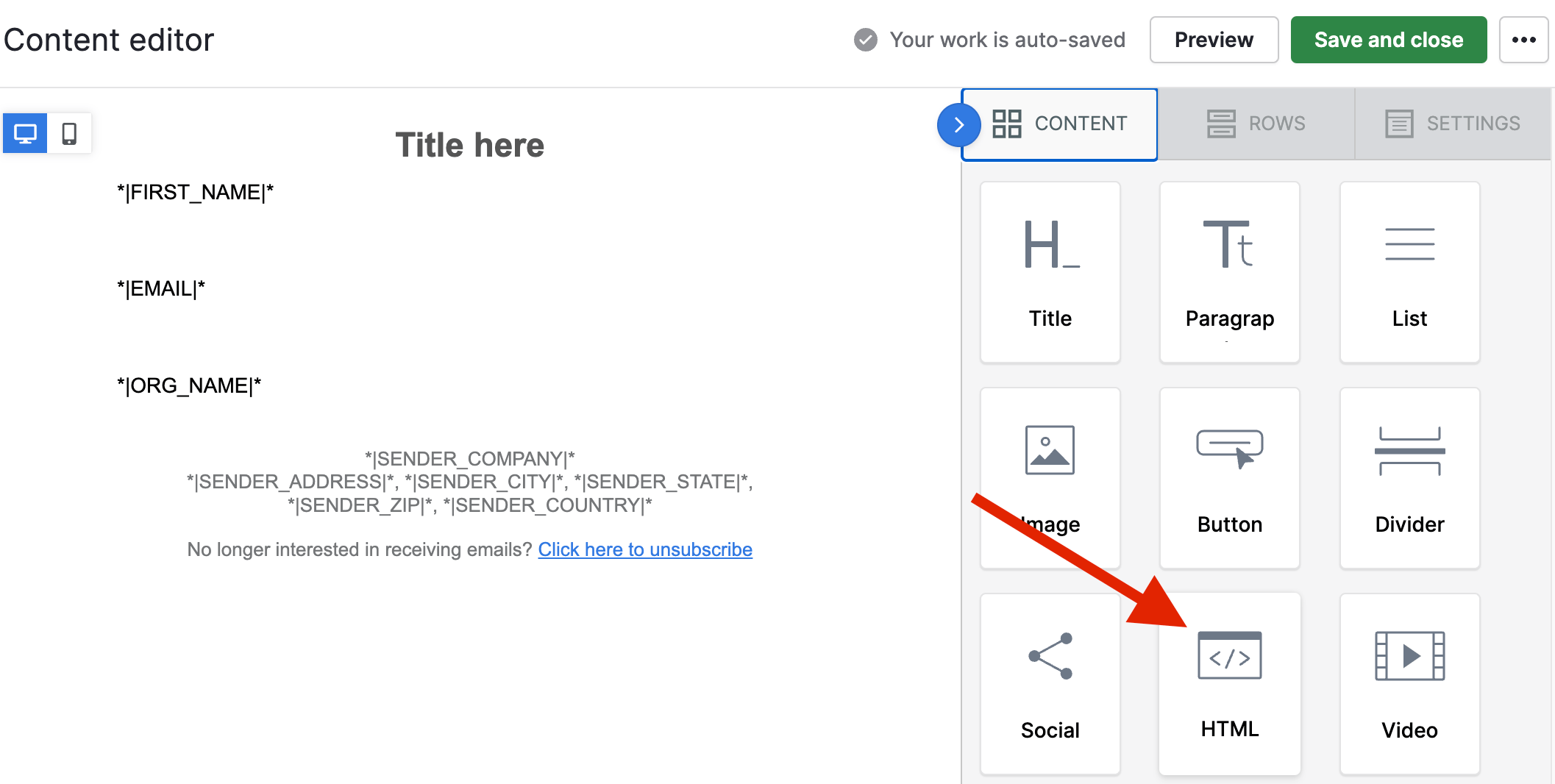
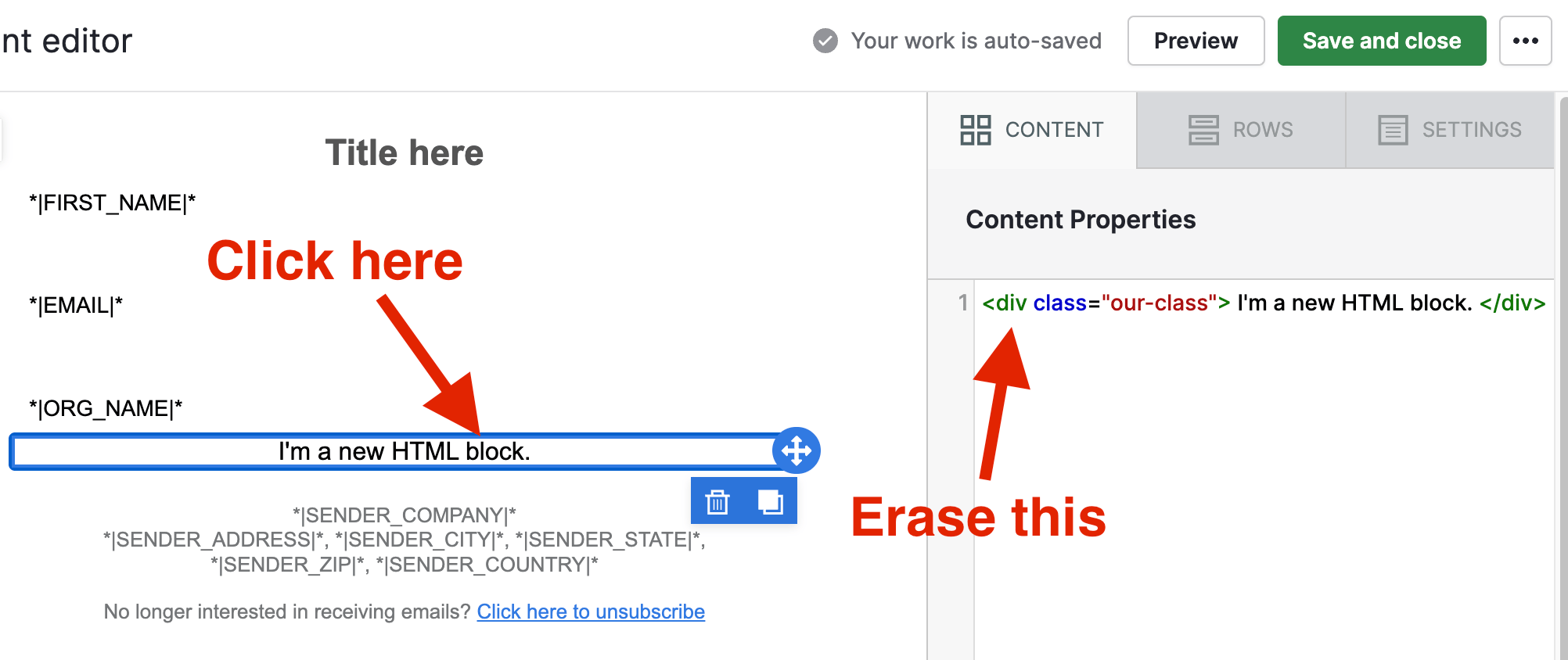
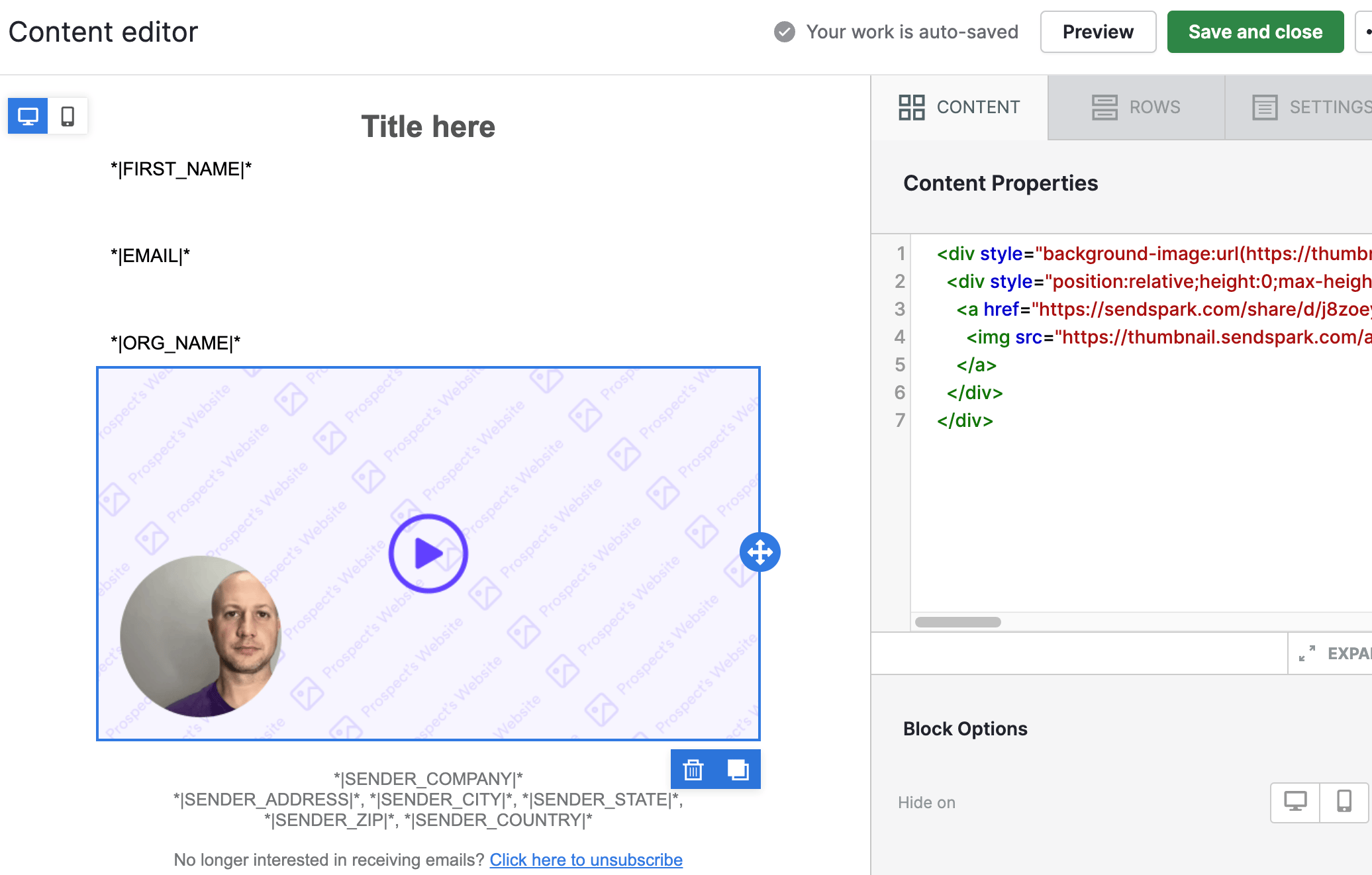
- In the Pipedrive Content editor, drop an HTML block, clear the text under Content Properties, then paste the snippet so the thumbnail appears.
How to Share Dynamic Videos in Pipedrive:
1. To ensure the filtering of any processing errors, export the CSV file from your Dynamic Video Campaign: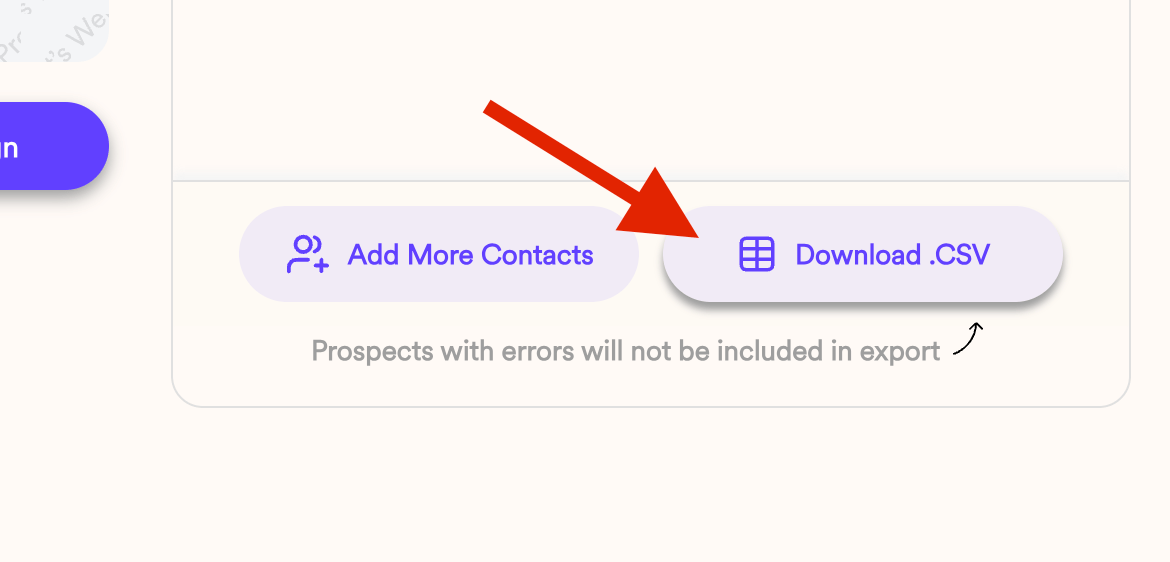
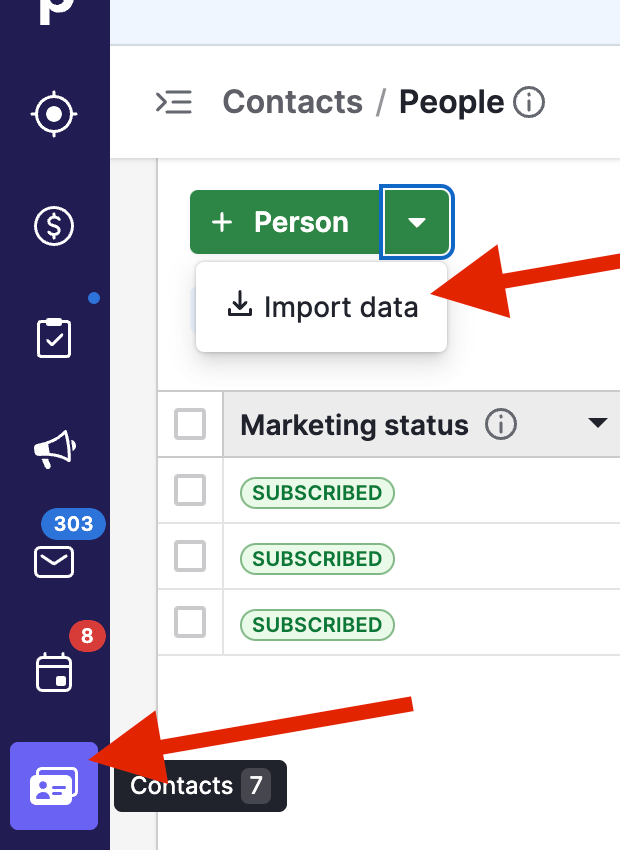
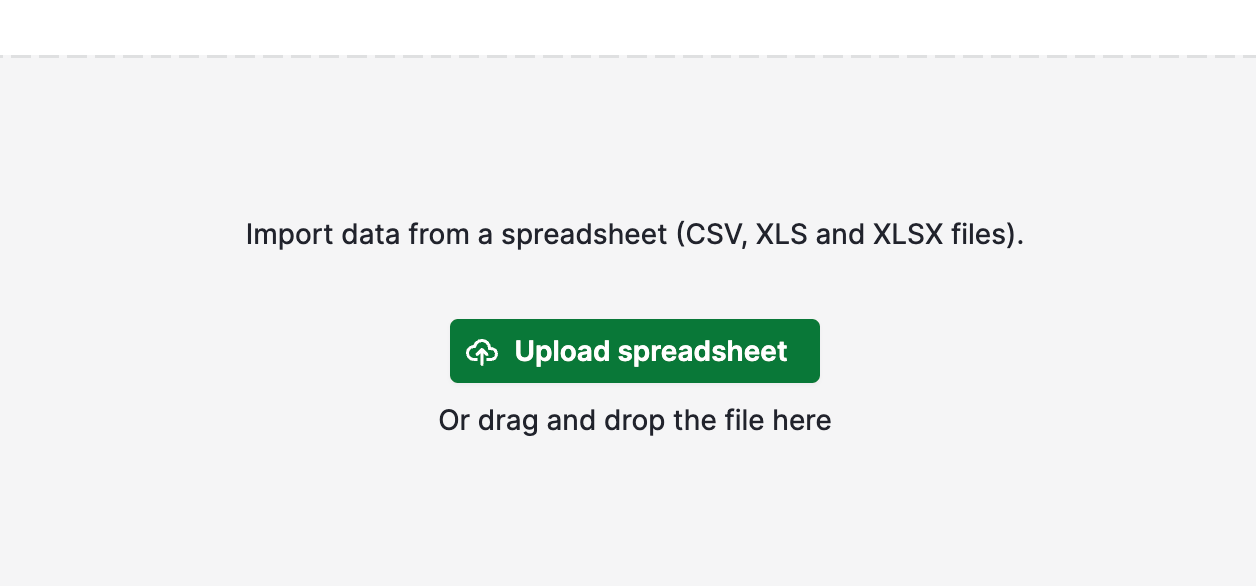

Happy recordings!
Frequently asked questions
Why import the exported CSV instead of my original file?
Why import the exported CSV instead of my original file?
The CSV you export from your Dynamic Video campaign filters out any processing errors, so it only contains contacts whose video generated successfully. Importing the original file you used to create the campaign can include contacts that don’t have a finished video.
How should I map the fields when importing into Pipedrive?
How should I map the fields when importing into Pipedrive?
Background URL doesn’t require a tag. Job Title has no merge tag to connect to in Pipedrive, so it’s left unmapped. Company connects with the NAME tag — be sure to select the NAME tag from the Organization column.
Where do I get the Pipedrive snippet?
Where do I get the Pipedrive snippet?
In Sendspark, open your Dynamic Video campaign, click Share Campaign to open the Share Dynamic Video modal, find Pipedrive, and click its button. That automatically copies the snippet code to your clipboard.
How do I add the snippet to a Pipedrive email?
How do I add the snippet to a Pipedrive email?
In the Pipedrive Content editor, grab the HTML block and drop it into the email body. Click the block’s text, erase the text under Content Properties on the right, then paste the copied snippet. The video thumbnail will show up.