

Key takeaways
- Start by creating your AI personalized videos in Sendspark before sharing — see how to make dynamic videos if you haven’t yet.
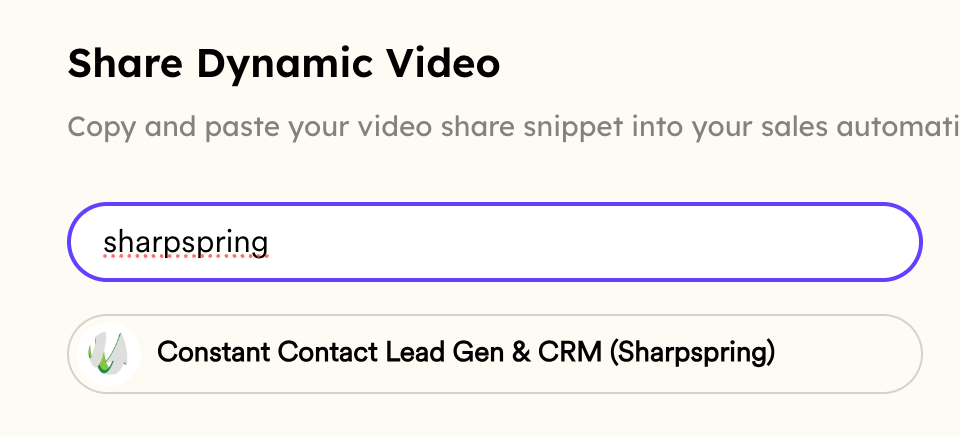
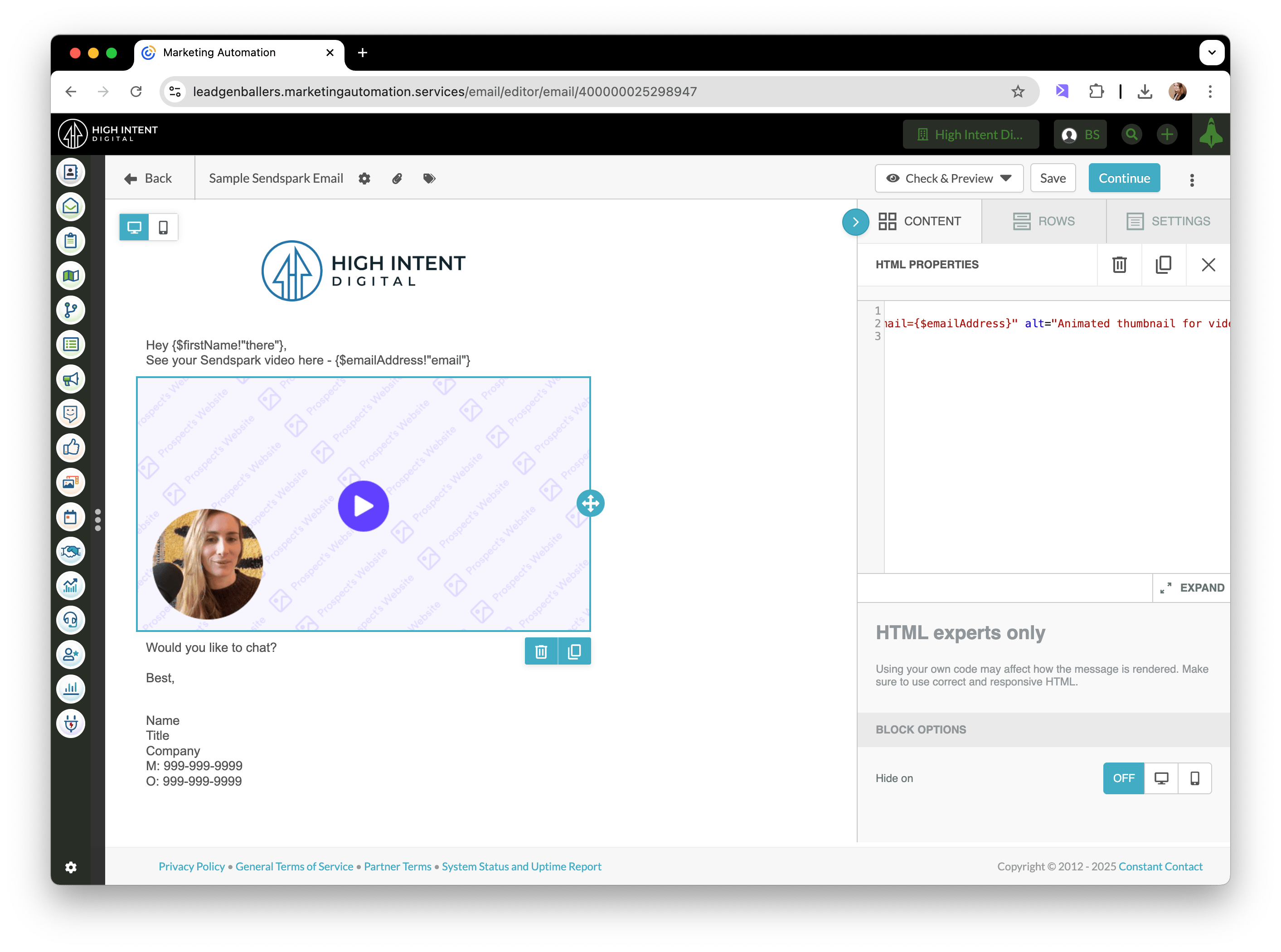
- Share by clicking Share Campaign, copying the snippet for Constant Contact Lead Gen & CRM (SharpSpring), and pasting it into an HTML block in your email.
- Test with Check & Preview → Send a Preview Mail to someone who is on your Sendspark video list.
- If the video doesn’t appear in the preview, the recipient’s email address is probably not on your dynamic video list — only contacts you generated a video for will see one.
How to Send AI Personalized Videos in Constant Contact Lead Gen & CRM (SharpSpring)
1. Create AI Personalized Videos in Sendspark
If you have not done that yet, please start with this article!2. Click “Share Campaign”
3. Copy the Snippet for Constant Contact Lead Gen & CRM (SharpSpring)
4. Paste in an HTML block in your email
5. Preview & Send!
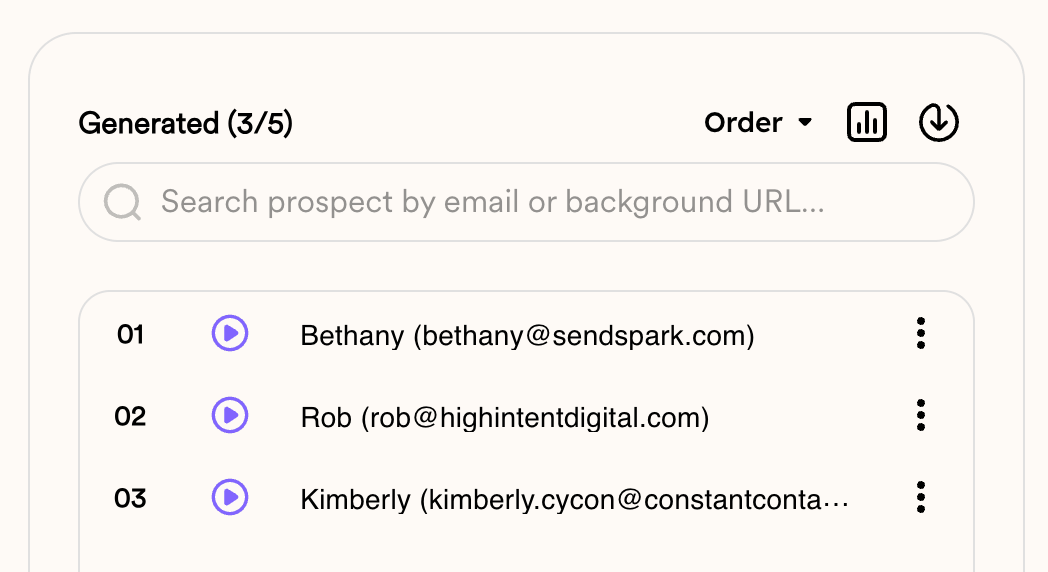
You can test your email by clicking “Send a Preview Mail,” and sending a sample email with someone who is on your Sendspark video list.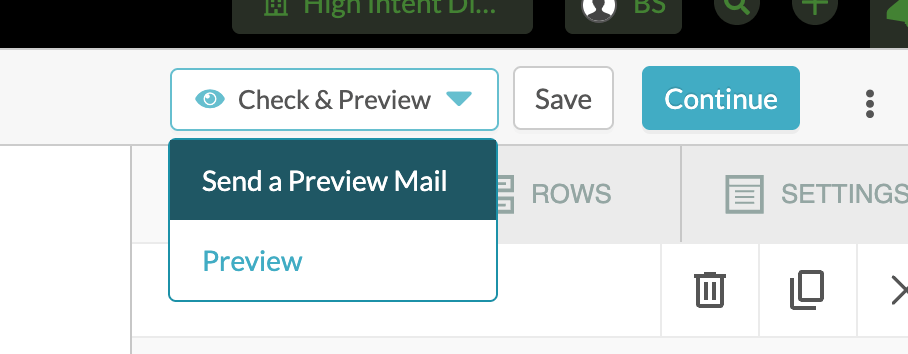
Frequently asked questions
Do I need to create the videos before sharing in SharpSpring?
Do I need to create the videos before sharing in SharpSpring?
Yes. Create your AI personalized videos in Sendspark first. If you haven’t done that yet, start with how to make dynamic videos with AI introductions.
Where do I paste the Sendspark snippet?
Where do I paste the Sendspark snippet?
After clicking Share Campaign and copying the snippet for Constant Contact Lead Gen & CRM (SharpSpring), paste it into an HTML block in your email.
How do I test the video email?
How do I test the video email?
Click Send a Preview Mail and send a sample email to someone who is on your Sendspark video list, so you can confirm the video populates correctly.
Why doesn't the video show up in my preview?
Why doesn't the video show up in my preview?
Most often it’s because you’re testing with someone you haven’t generated a video for. Make sure that recipient’s email address is on your dynamic video list — only contacts on the list have a personalized video.