

Key takeaways
- Record one video and Sendspark’s AI voice cloning personalizes it for every contact, so you don’t re-record per person.
- Say “watermelon” in your recording as a placeholder wherever you want the viewer’s first name spoken; the AI swaps in each contact’s real name.
- Toggle on Voice cloning before generating, then import contacts, click Share Campaign, and select Salesloft.
- Paste the snippet into a Salesloft email template. Preview it against Salesloft’s default contact “George” (g.p.burdell@example.net) before sending.
Quick steps
- Record one video in Sendspark, saying “watermelon” where each viewer’s first name should go (pause briefly after it).
- Toggle on Voice cloning.
- Customize your dynamic video share page.
- Import your contacts and generate the personalized videos.
- Click Share Campaign and select Salesloft.
- Paste the snippet directly into your email template in Salesloft.
- Send! Each contact receives their own personalized video.
How to Send Dynamic Video Campaigns in Salesloft Cadences
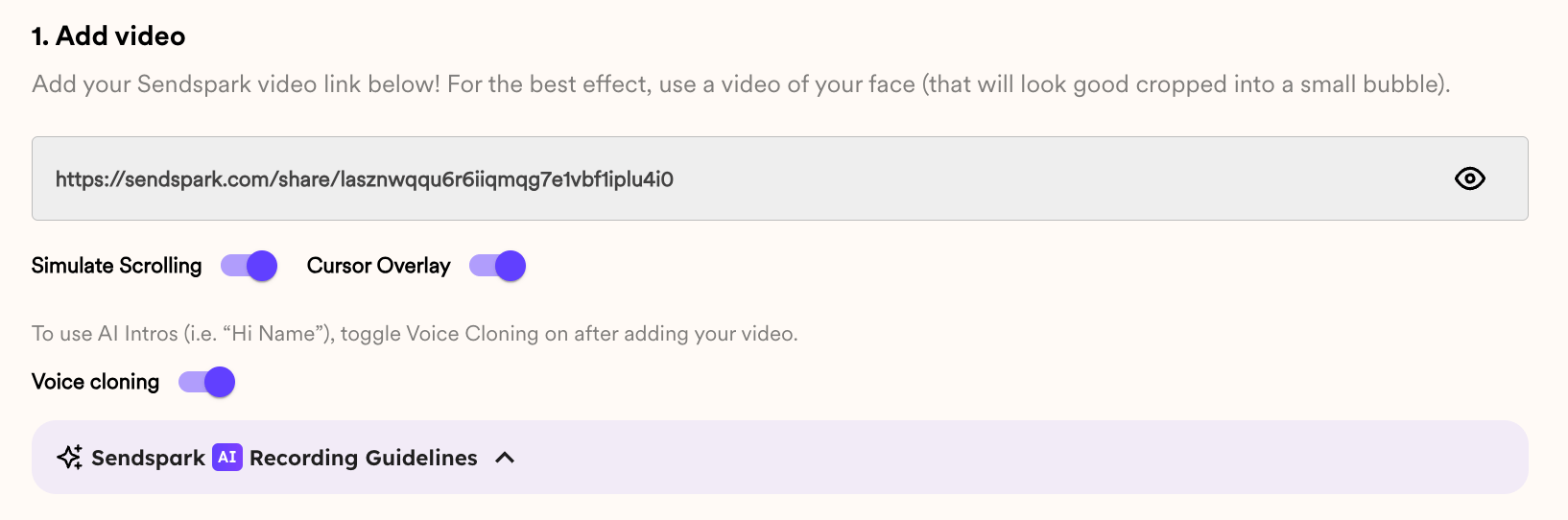
- Record one video in Sendspark. Make sure to say “watermelon” where you want your viewer’s first name to go, like this:
- Toggle on “Voice Cloning”
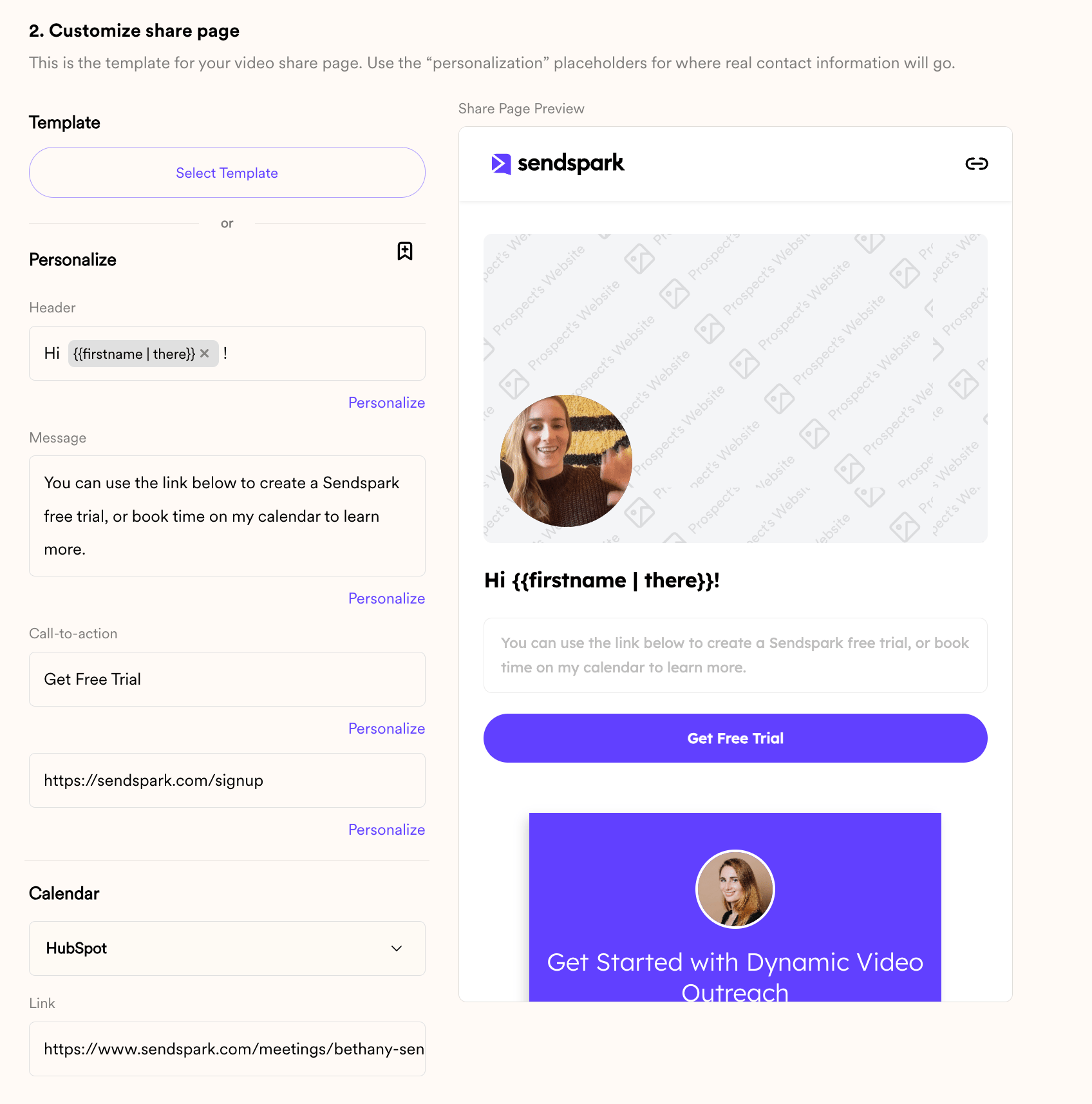
- Customize your dynamic video page in Sendspark
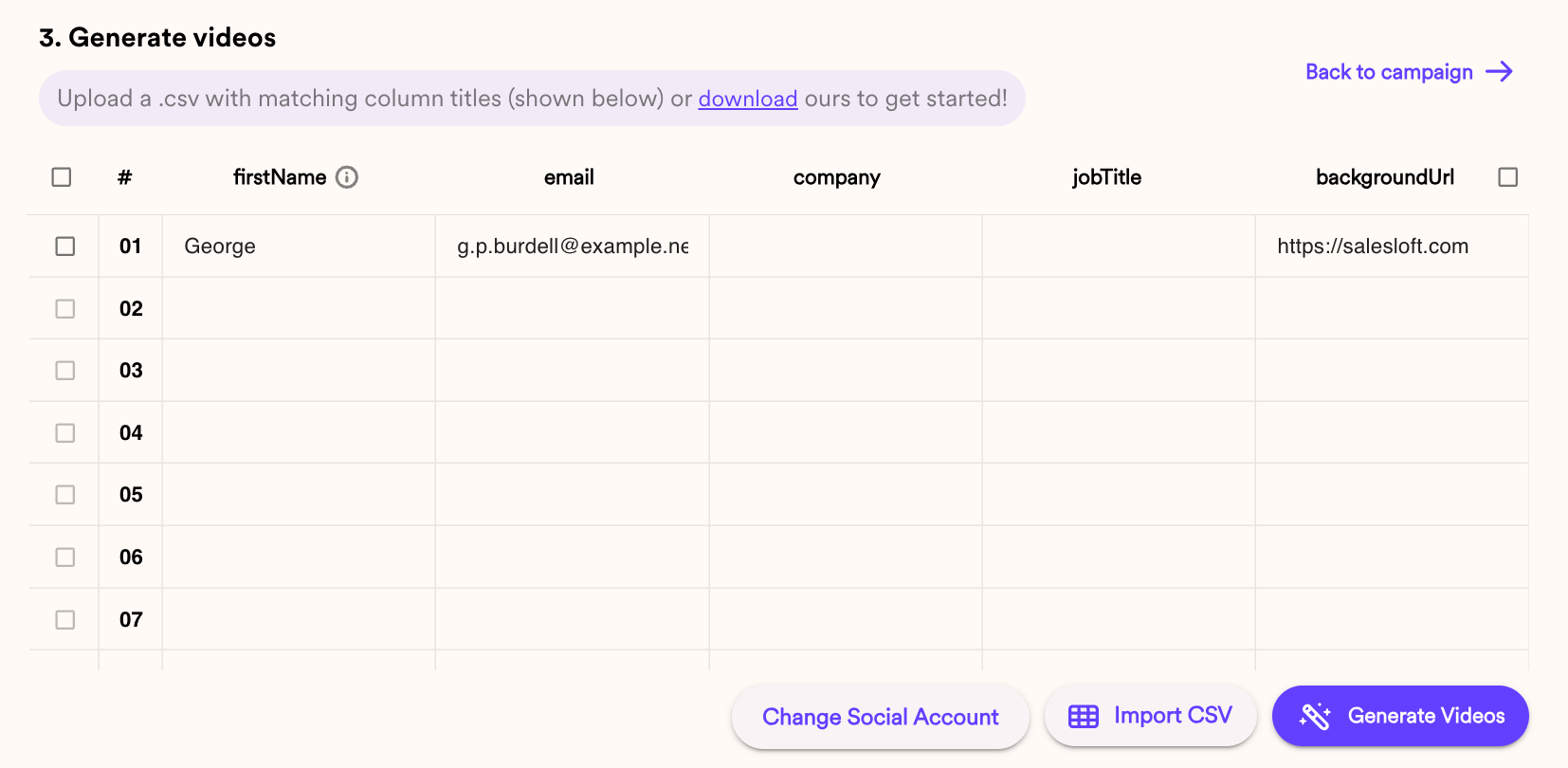
- Import your contacts, and generate personalized videos
- Click “Share Campaign”
- Select SalesLoft
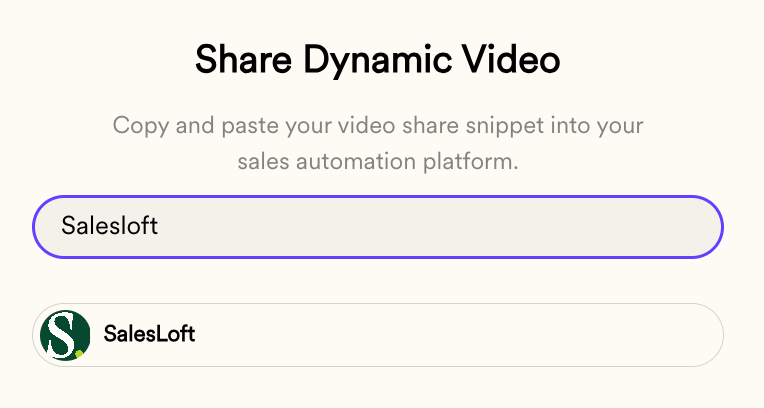
- Paste directly in your email templatein Salesloft
- Note, if you want to preview how this will look for real contacts, you can use the Salesloft default contact “George” whose email is “g.p.burdell@example.net”
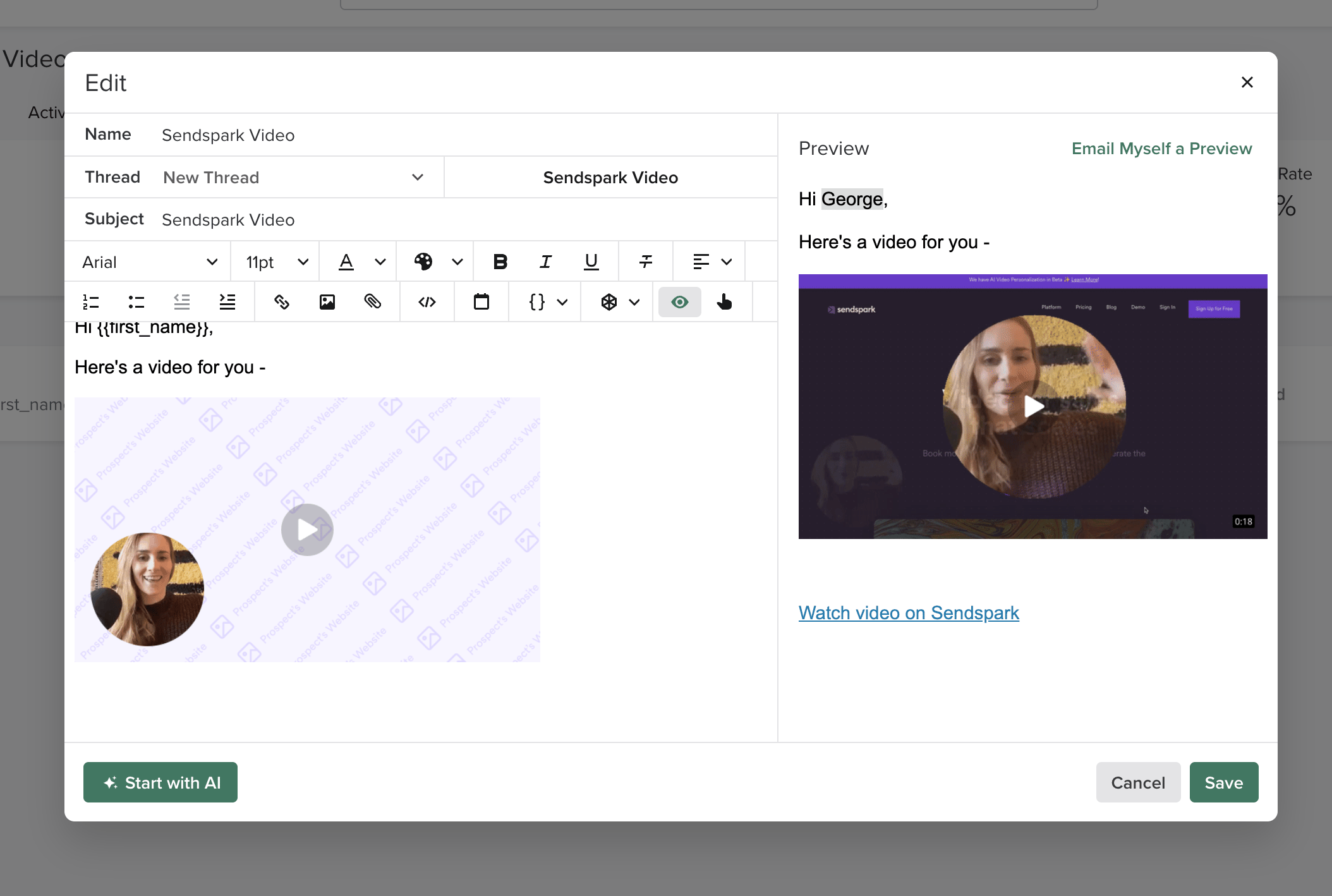
- Send!
Frequently asked questions
How do I personalize a video for each contact in Salesloft?
How do I personalize a video for each contact in Salesloft?
Record a single video in Sendspark and turn on Voice cloning, then import your contacts to generate personalized videos. When you paste the campaign snippet into a Salesloft email template, each contact receives a video personalized with their own name and website.
What does saying 'watermelon' do in a Sendspark video?
What does saying 'watermelon' do in a Sendspark video?
“Watermelon” is a placeholder for the viewer’s first name. Say it in your recording wherever you want each contact’s name to be spoken, and Sendspark’s AI voice cloning replaces it with the real name for every contact.
Where do I paste the Sendspark snippet in Salesloft?
Where do I paste the Sendspark snippet in Salesloft?
Paste it directly into an email template in Salesloft. Once the template is in a cadence or direct email, the video updates automatically for each contact.
Can I preview how the dynamic video will look before sending?
Can I preview how the dynamic video will look before sending?
Yes. Use Salesloft’s default contact “George” (whose email is g.p.burdell@example.net) to preview how the personalized video renders for a real contact.
How long should my recording be for AI voice cloning?
How long should my recording be for AI voice cloning?
Record at least 10 seconds so the AI has enough voice data, pause briefly after saying “watermelon,” and record in a quiet environment close to your microphone for the best results.