

Key takeaways
- Sendspark’s Dynamic Video feature places one recorded video over any background, so it looks like you’re recording over each prospect’s website or URL.
- Copy the ConvertKit-specific code from Share Campaign and paste it as plain text (CMD/CTRL + V) into a ConvertKit email template.
- Use the template under Send → Broadcasts, then use Preview email to confirm the result.
- ConvertKit’s preview may show the video as a broken link because of how dynamic videos work. It still renders correctly in the recipient’s inbox.
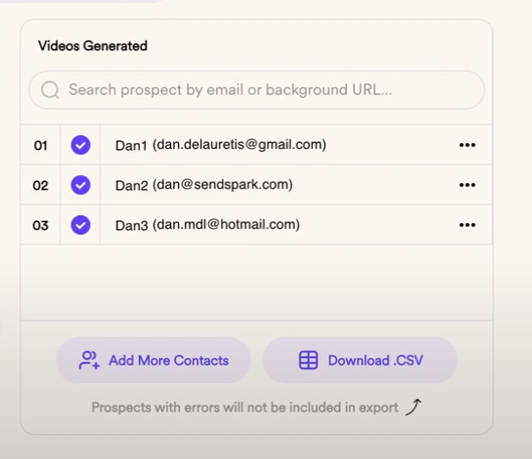
- Send to the same list of contacts you generated videos for; use Sendspark’s Export Generated Videos (CSV) to match them exactly.
In this tutorial, we’ll show you how to send dynamic videos in Convertkit using the Sendspark + Convertkit integration.
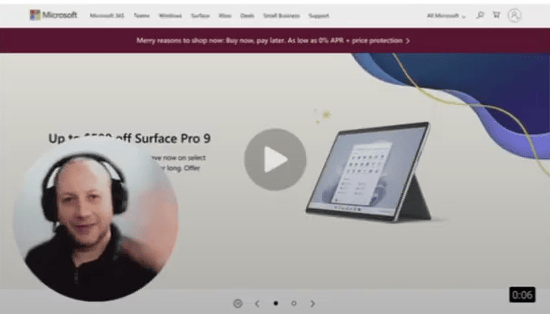
Sendspark’s Dynamic Video feature lets you take one video of yourself, and instantly put that video over any background, so it looks like you’re recording over any website or URL. Use this to supercharge your sales outreach, product demos, onboarding, customer success, and more!
How to Create a Dynamic Video Campaign for the first time:
How to Send Dynamic Videos in Convertkit:
- Create your email campaign in Convertkit
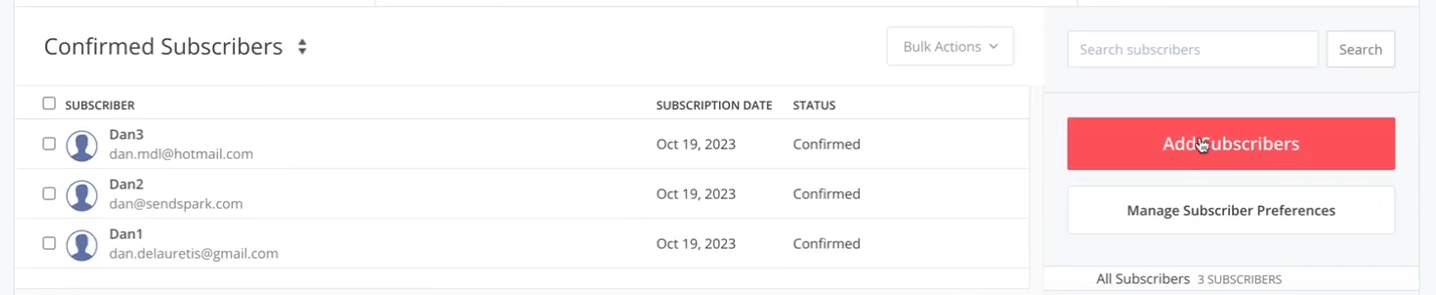
- Upload your contacts to your Convertkit account.
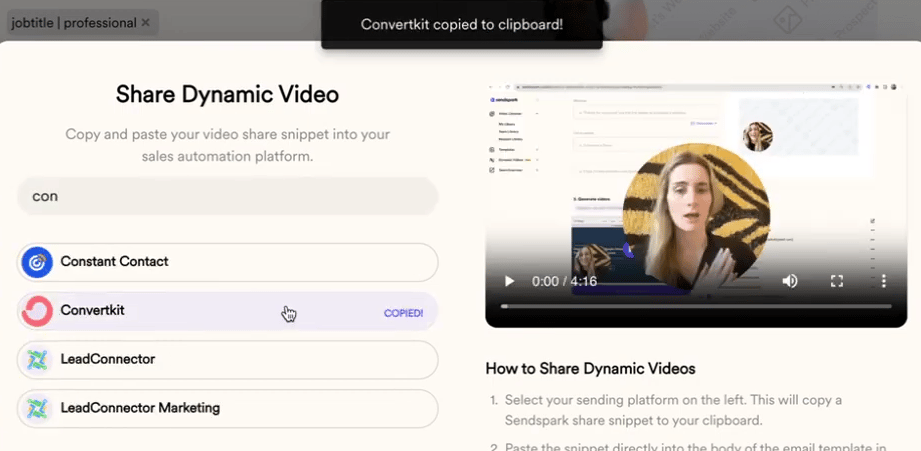
- Click on Share Campaign, look for Convertkit, and click on it to copy the code.
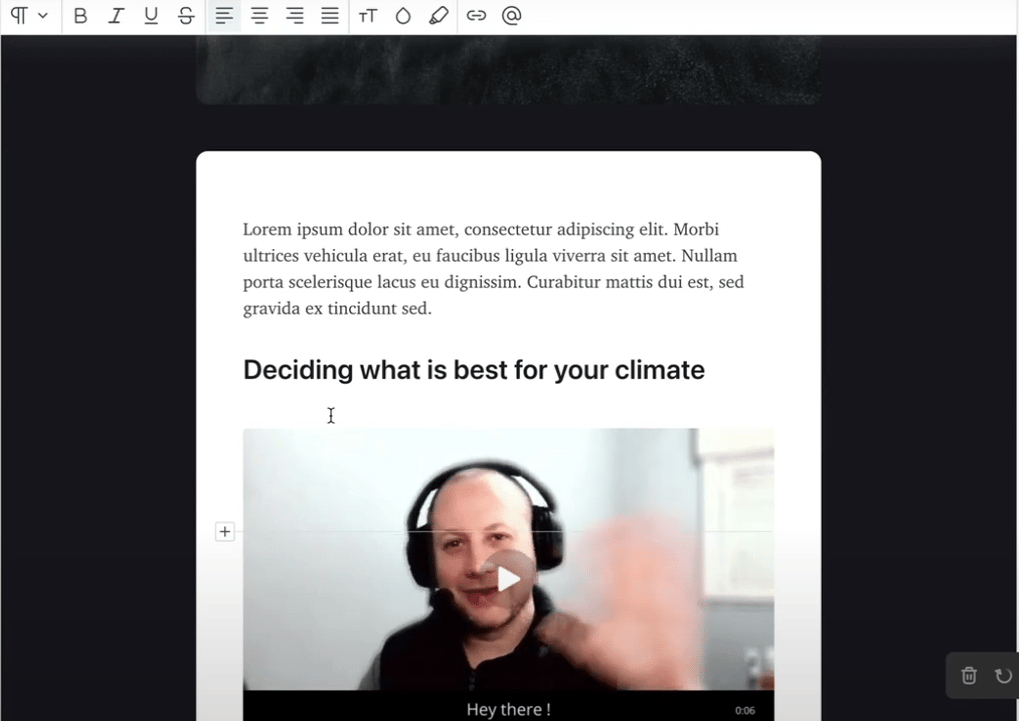
- Create an email Template and paste the code as plain text “CMD or CTRL + V”
- Save the Template and go to Send —> Broadcasts —> and select the Template you just created.
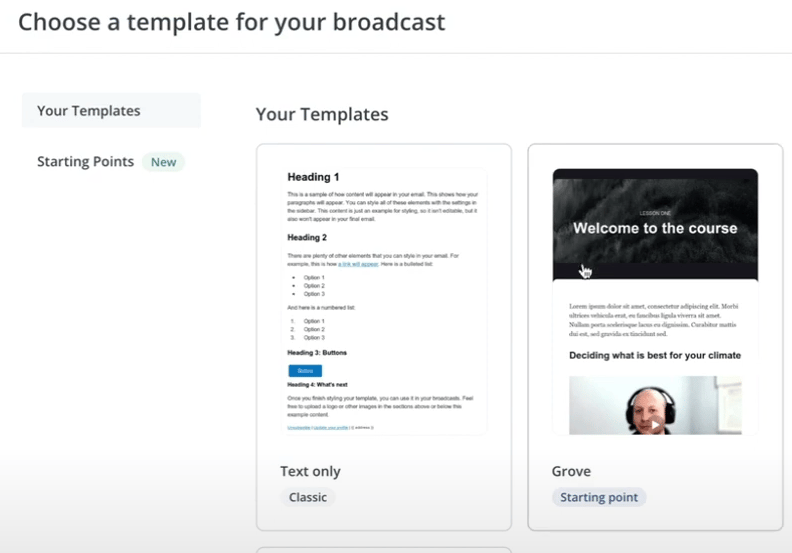
- Click Preview email to see the final result
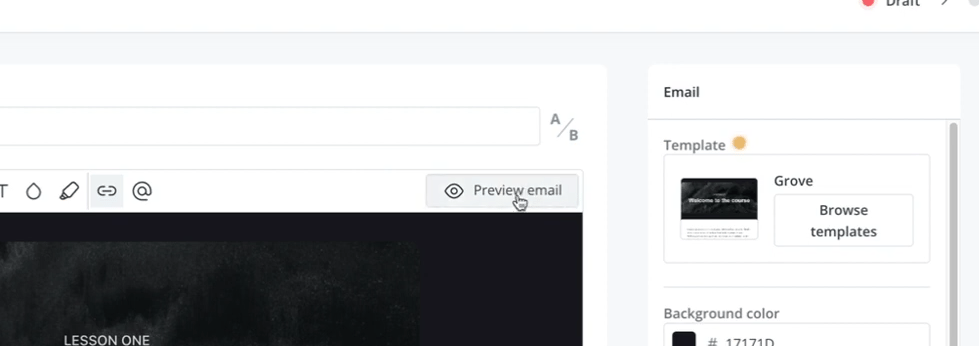
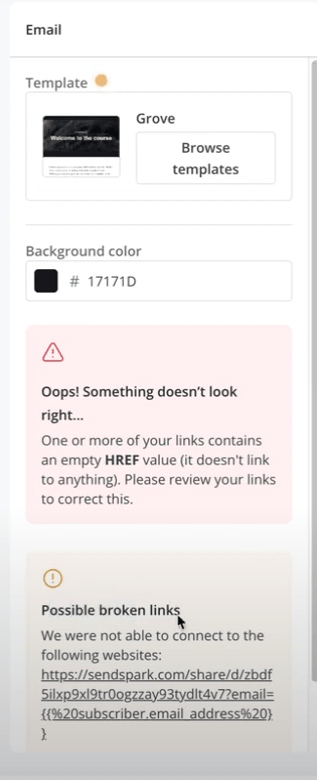
- Notice that Convertkit will display the video as a broken link because of how Dynamic Videos work. But no worries, the system just doesn’t understand how to display the preview. Sending the test email will confirm that it works once it is in the recipient’s inbox.
- And that’s all to it!
Frequently asked questions
How do I get the code to paste into ConvertKit?
How do I get the code to paste into ConvertKit?
In Sendspark, click Share Campaign, look for ConvertKit, and click it to copy the code. Then paste it as plain text (CMD or CTRL + V) into a ConvertKit email template.
Why does ConvertKit show my video as a broken link?
Why does ConvertKit show my video as a broken link?
ConvertKit displays the video as a broken link because of how dynamic videos work. The system just doesn’t understand how to display the preview. Sending a test email confirms it renders correctly once it’s in the recipient’s inbox.
How do I make sure the right contacts get videos?
How do I make sure the right contacts get videos?
Send the broadcast to the same list of contacts you generated videos for in Sendspark. To be extra safe, click Export Generated Videos (CSV) in Sendspark to get the exact list of contacts videos were generated for.
How do I send the campaign after creating the template?
How do I send the campaign after creating the template?
Save the template, then go to Send → Broadcasts and select the template you created. Click preview and send a test email to see the final result before sending to your list.