

Key takeaways
- Every automation has one trigger and at least one action — there’s no limit on the number of actions.
- Triggers are events such as a form filled, demo booked, webpage visited, lead status met, or event occurred.
- Actions happen automatically after the trigger fires — for example, generate a Sendspark video, add a lead to an email campaign, or send an email in Gmail or Outlook.
- Sendspark can be a trigger (New Video Generated, New Video CTA Clicked, New Video Watched) or an action (create dynamic videos), and you can add tools for router logic, data cropping, and time delays.
How Sendspark Agentic Workflows Work
How to Create Agentic Workflows
You can create automated workflows in the Automations section of Sendspark. Simply click “New automation” to create a new automation from scratch. Alternatively, you can click **“Create from template”**to create an automated workflow from a template.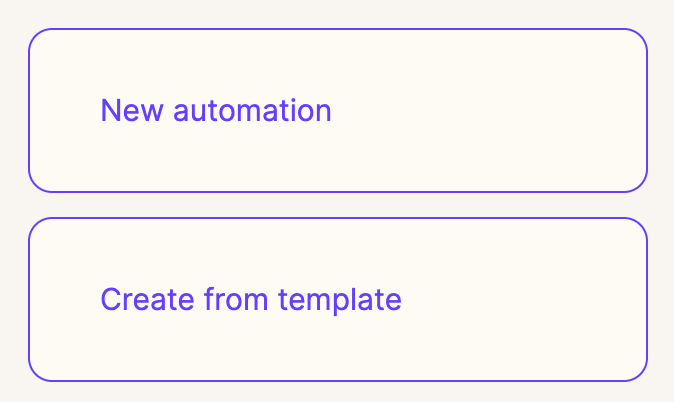
How Triggers and Actions Work
In your automated workflow, you will see the option to add a trigger & action. This is how to think about them.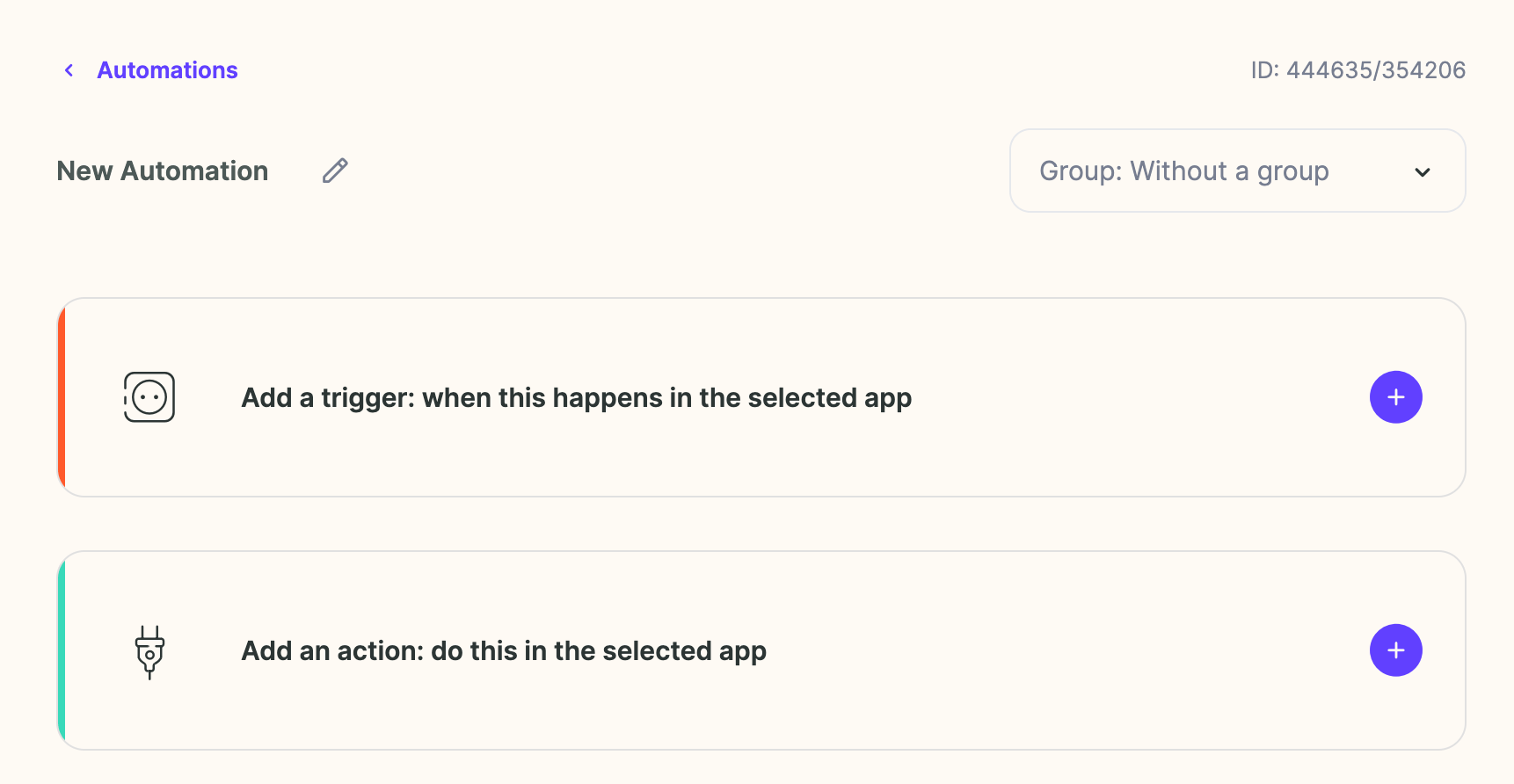
- **Trigger:**an event or criteria that “triggers” an automation to start. Common triggers include:
- Form filled
- Demo booked
- Webpage visited
- Lead status met
- Event occurred
- **Action:**an “action” that you want to happen automatically after the trigger starts the campaign. For example, this could be to…
- Automatically generate a Sendspark video
- Automatically add a lead to an email campaign in Smartlead, Instantly, etc
- Automatically send an email in Gmail or Outlook
How to Connect Agentic Workflows with Dynamic Video Campaigns
You can connect Agentic Workflows with Sendspark Dynamic Video campaigns to automatically create videos, or to automatically share videos after they’ve been created. In either case, you would set “Sendspark” as the trigger of the action.Use Sendspark to Trigger Automations
To use Sendspark to trigger automations, select “Sendspark” as the trigger, and then choose which event you would like to use: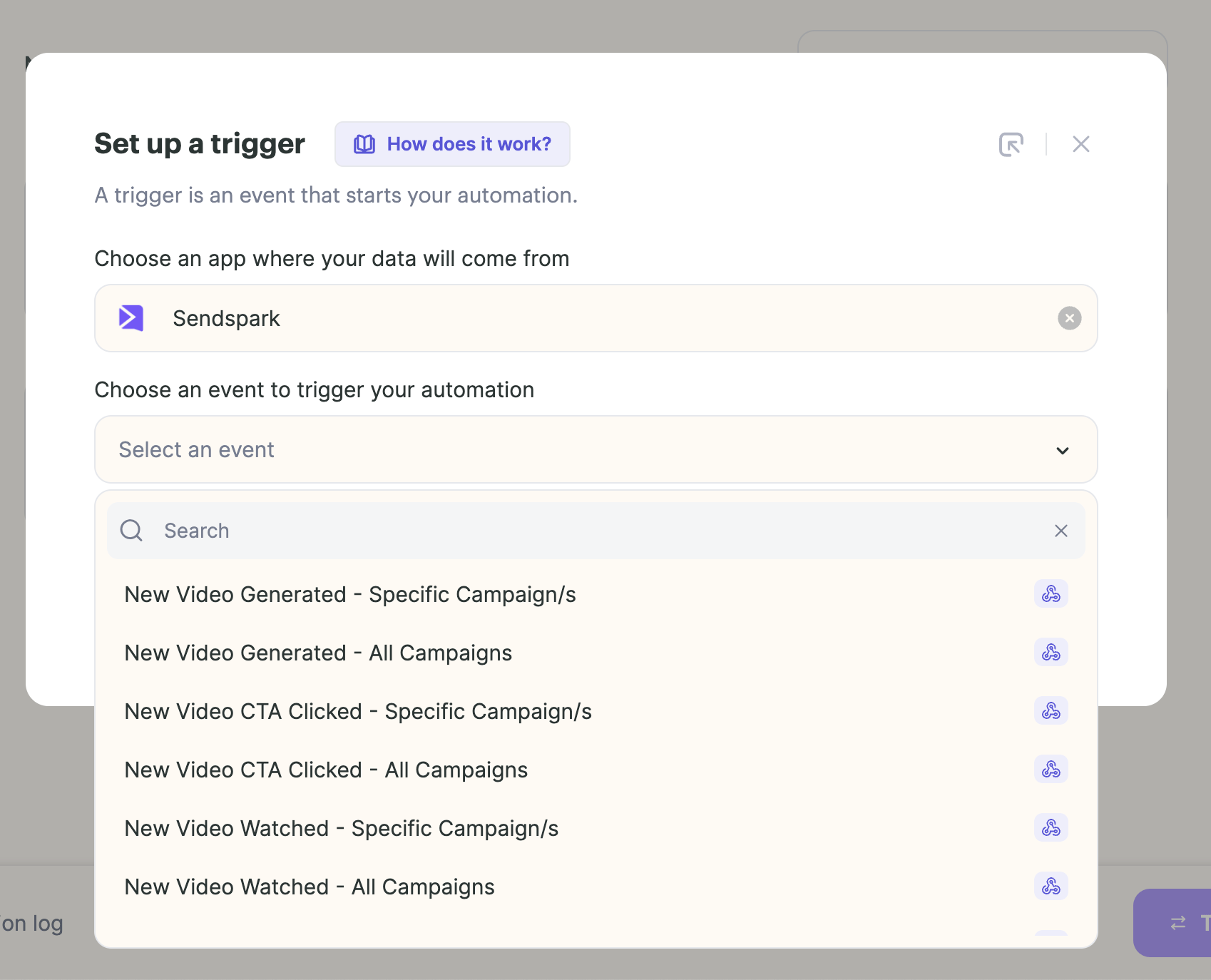
- New Video Generated— This fires when new dynamic videos are generated. Use this when creating automations that automatically send videos in email or LinkedIn after videos are generated.
- New Video CTA Clicked— This fires when end-viewers click on the call-to-action button embedded next to your video.
- New Video Watched — This fires when someone watches your video. Use this trigger when you want to create notifications when viewers engage with videos.
- All Campaigns— means that events from ANY dynamic video campaign will trigger this automation. This is best to use when creating notifications.
- Specific Campaign/s— means that only one linked dynamic video campaign will trigger this automation. This is best to use when creating automations that automatically send videos after they are created.
Use Sendspark as an Action in Automations
There is only one Sendspark automated action at the moment — to create dynamic videos!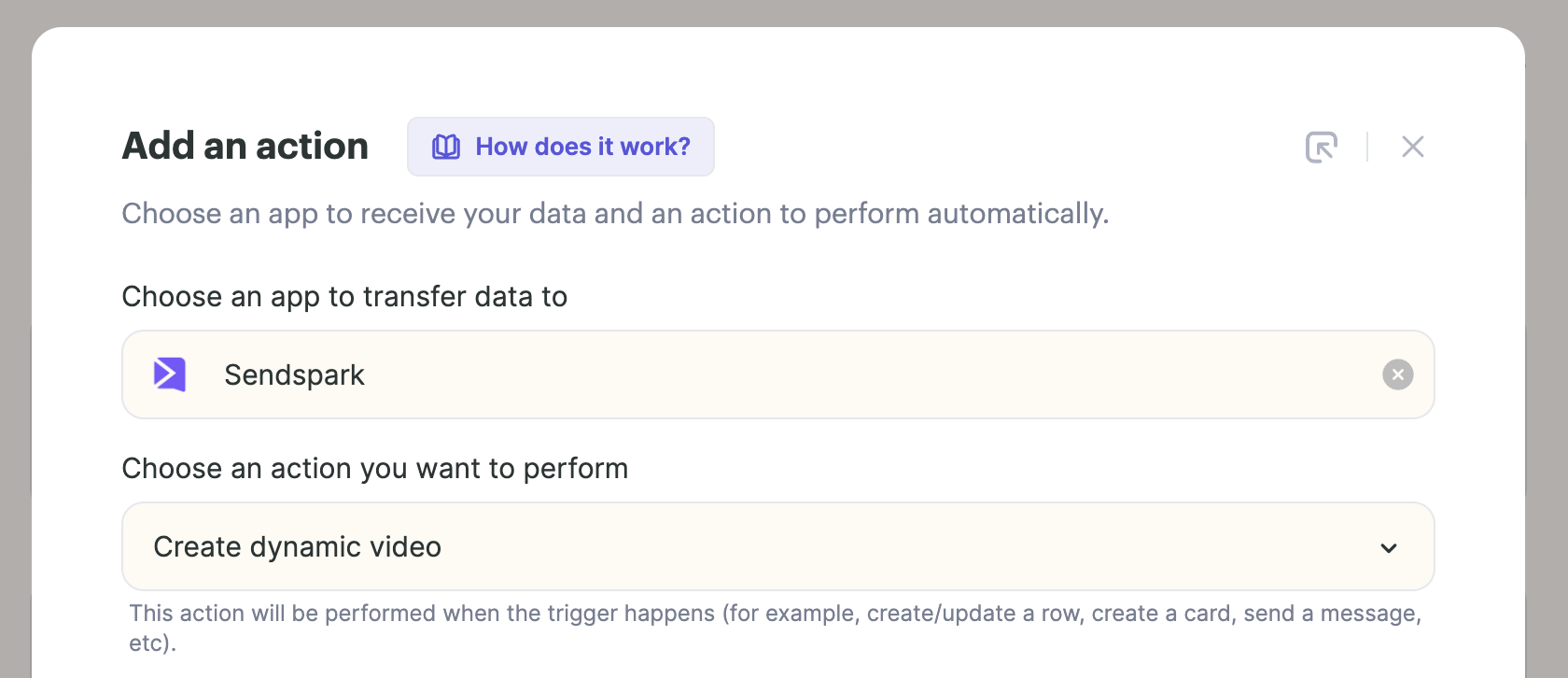
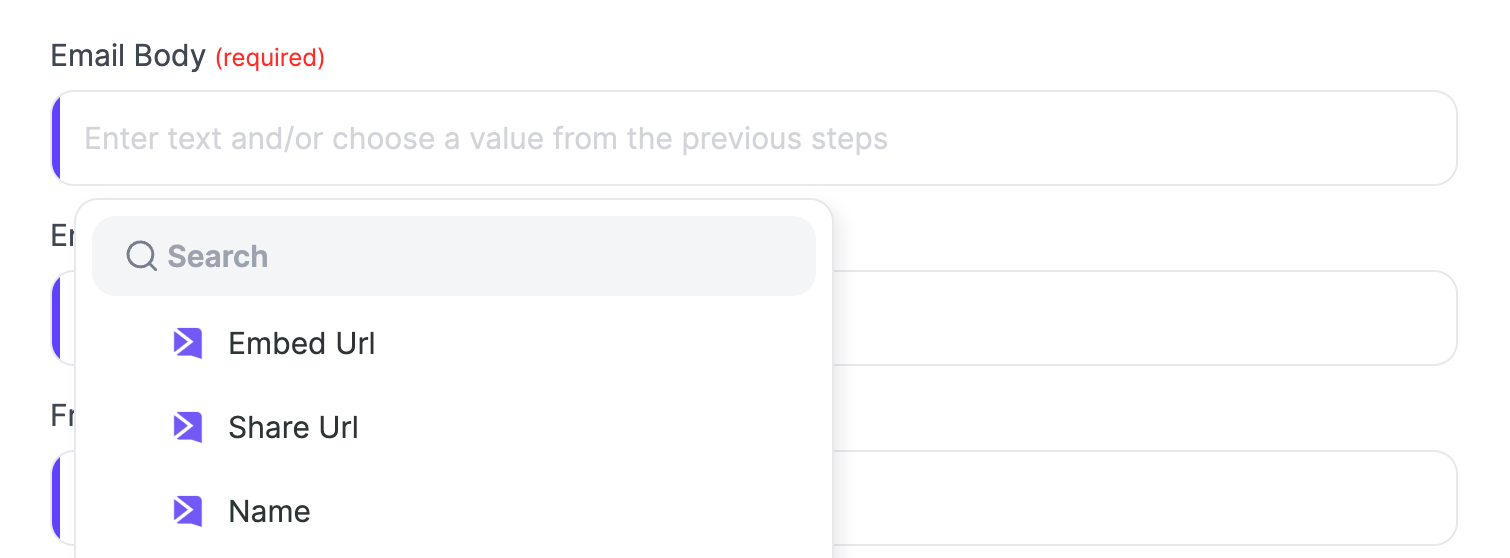
- Share Url— is the link to the video on a public share page
- Email Embed HTML — is a little snippet you can use to embed your video link + GIF in an email
- Embed Url— is a hosted video link you can use to embed your video on a landing page
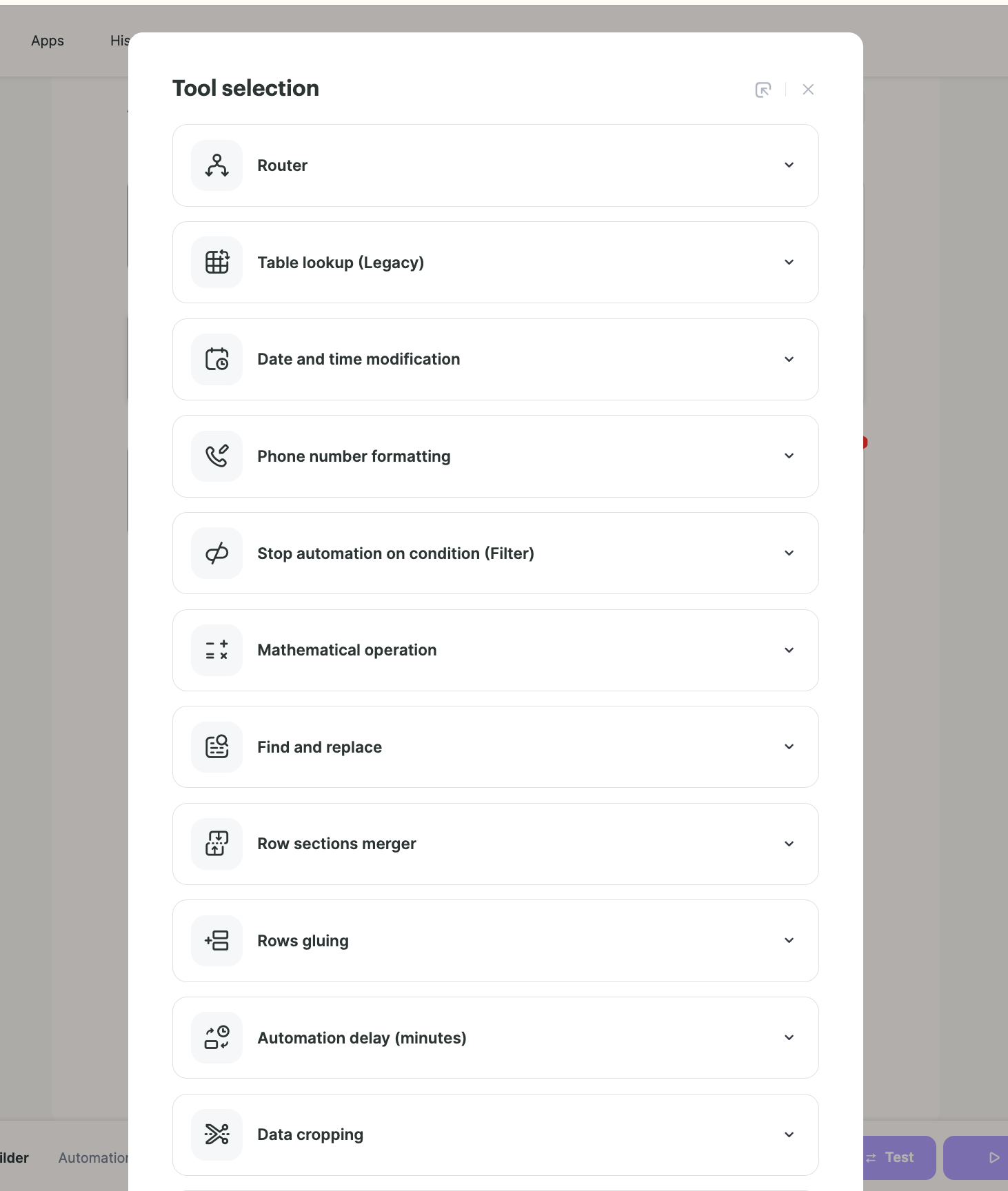
Available Tools
In addition to triggers and actions, you can also add tools to your automations to help you succeed.
Available Integrations
We have many integrations available. Go to the **“Apps”page and click”Add a connection”**to see all integrations.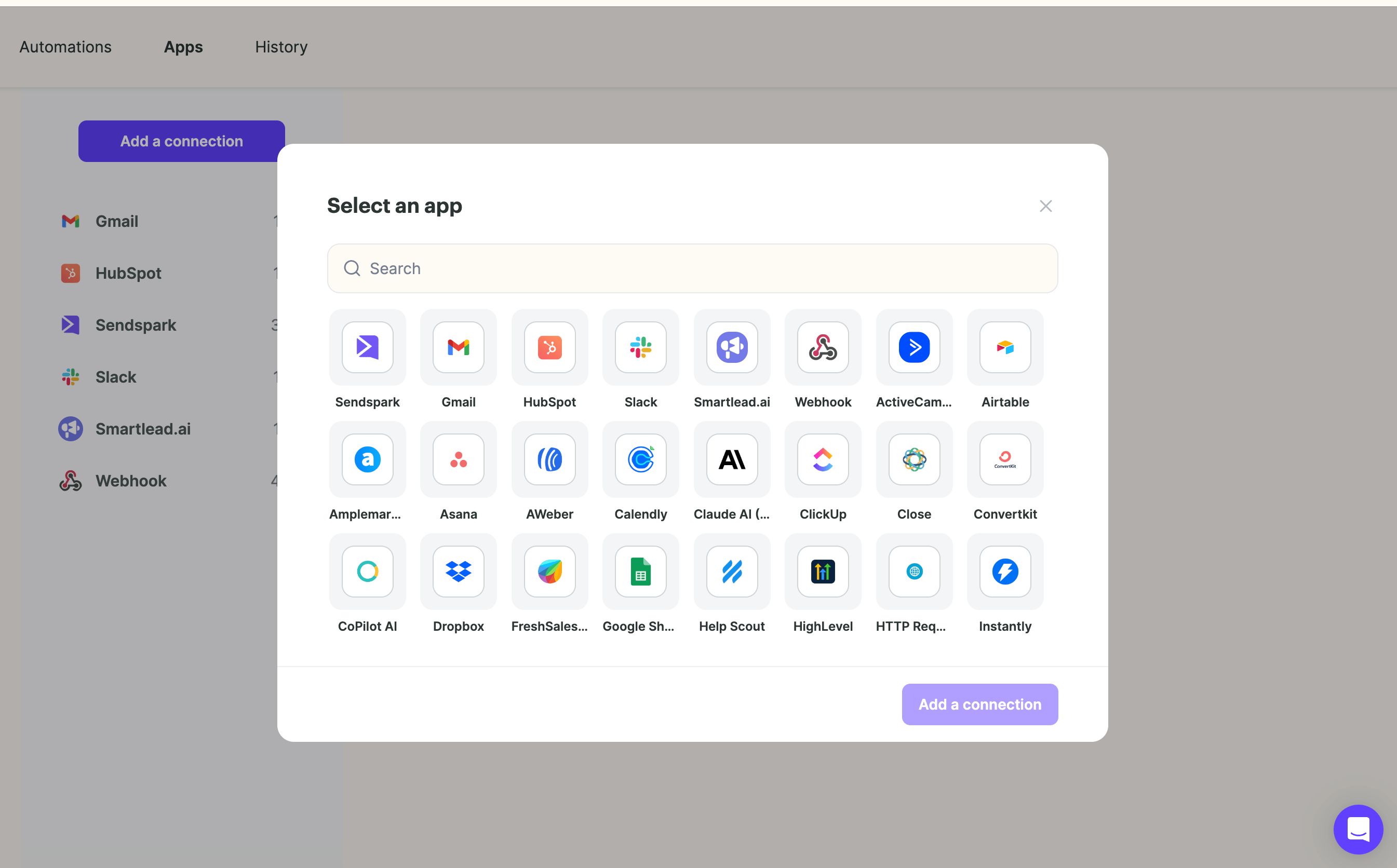
Worked examples to copy
Each of these walks through one complete trigger-and-action pair, so they’re the fastest way to see the pattern applied:- Auto-send videos when leads join campaigns, triggered from Instantly
- Smartlead: auto-send videos to new leads, triggered when a lead moves to a status you choose
- Outreach: AI video for new sequence leads
- Salesloft: auto AI videos for a cadence
- Gong Engage: send automated videos in email flows
- Get notified when someone watches a video, using the New Video Watched trigger
- Auto-generate videos from a Skylead campaign
- Meeting booked in Calendly
- Website visit, the general pattern behind the two below
- RB2B: videos for identified visitors
- Warmly: videos from visitors
Frequently asked questions
How do I create an automated workflow?
How do I create an automated workflow?
Go to the Automations section of Sendspark and click New automation to build one from scratch, or click Create from template to start from a prebuilt template.
What's the difference between a trigger and an action?
What's the difference between a trigger and an action?
A trigger is the event or criteria that starts an automation (for example, a form filled or demo booked). An action is what happens automatically afterward (for example, generating a video or sending an email). Each automation needs one trigger and at least one action.
What Sendspark events can trigger an automation?
What Sendspark events can trigger an automation?
There are three: New Video Generated (fires when dynamic videos are generated), New Video CTA Clicked (fires when viewers click the CTA next to your video), and New Video Watched (fires when someone watches your video). Each appears twice in the list: once as Specific Campaign/s and once as All Campaigns.
Should I choose 'All Campaigns' or 'Specific Campaign/s'?
Should I choose 'All Campaigns' or 'Specific Campaign/s'?
Use All Campaigns when any dynamic video campaign should trigger the automation — best for notifications. Use Specific Campaign/s to link one campaign — best for automations that send videos after they’re created.
Can Sendspark create videos as part of a workflow?
Can Sendspark create videos as part of a workflow?
Yes. The one Sendspark action available is creating dynamic videos. When you create videos via automation, you can use their data — like Share Url, Email Embed HTML, and Embed Url — in later actions to share the video, such as embedding and sending it in Gmail or Outlook.