

Key takeaways
- The workflow auto-generates a personalized video whenever a lead moves to a chosen status in your Smartlead campaign.
- Add your Sendspark video placeholder to the 2nd Smartlead email or a later step, so the video has time to generate before it sends.
- Trigger the Sendspark Agentic Workflow with Smartlead.ai: Lead moved to the specified status set to the In Progress status.
- In the Create dynamic video step, map the lead fields and be sure to map the email field — it matches the right video to the right lead.
How to Create Sendspark Videos When Leads Get Added to Smartlead Campaign
1. Create a Dynamic Video Campaign in Sendspark
Start by creating your dynamic video campaign in Sendspark. This will be the template you use to create all of the personalized videos.2. Create an Email Campaign in Smartlead
Create your email campaign in Smartlead, and add your Sendspark video placeholder where you want your video to appear. Note that you will have to add this to the 2nd email in Smartlead, or a later step, to ensure that the video has enough time to generate before you send off the video email. Learn how to get your Sendspark video placeholder for Smartlead Smartlead dynamic video integration.3. Create an Agentic Workflow in Sendspark
Go to the Agentic Workflow section of Sendspark and create a new automation.4. Use “Smartlead: Lead moved to specified status” as the Trigger
For your trigger, select Smartlead.ai and then Lead moved to the specified status Connect your Smartlead account, and then specify the Smartlead email campaign that you’re using here.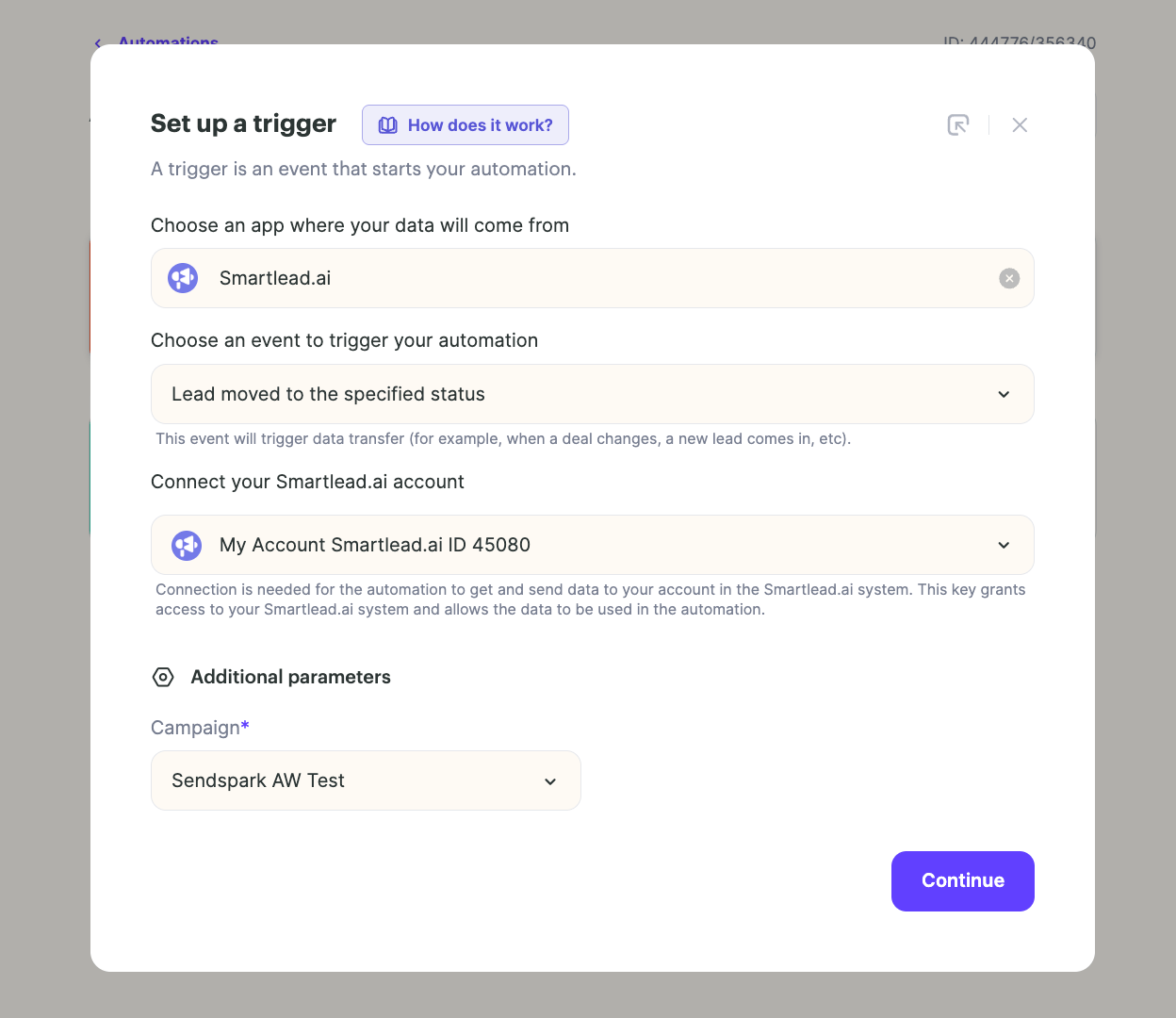
5. Select the Status “In Progress”
Click anywhere in the first step to launch the settings modal. Set select the statusto “IN PROGRESS,” so when leads get updated to this status in Smartlead, it will trigger the automation in Sendspark.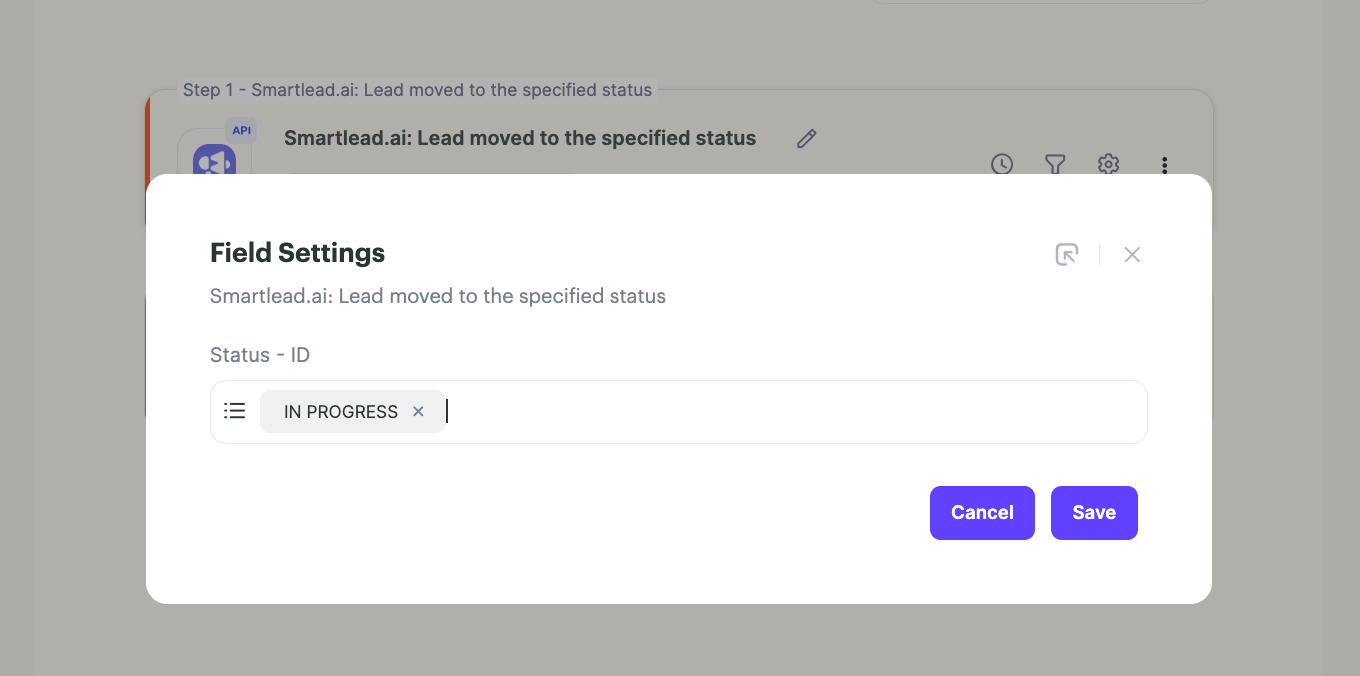
6. Add Step to Create Sendspark Video
Add an action for “Sendspark” and select Create dynamic video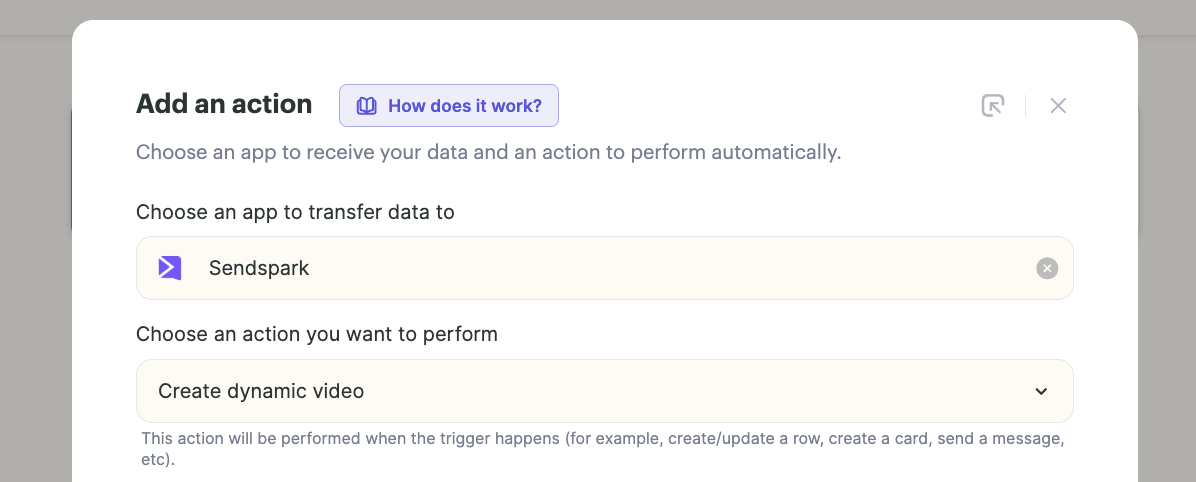
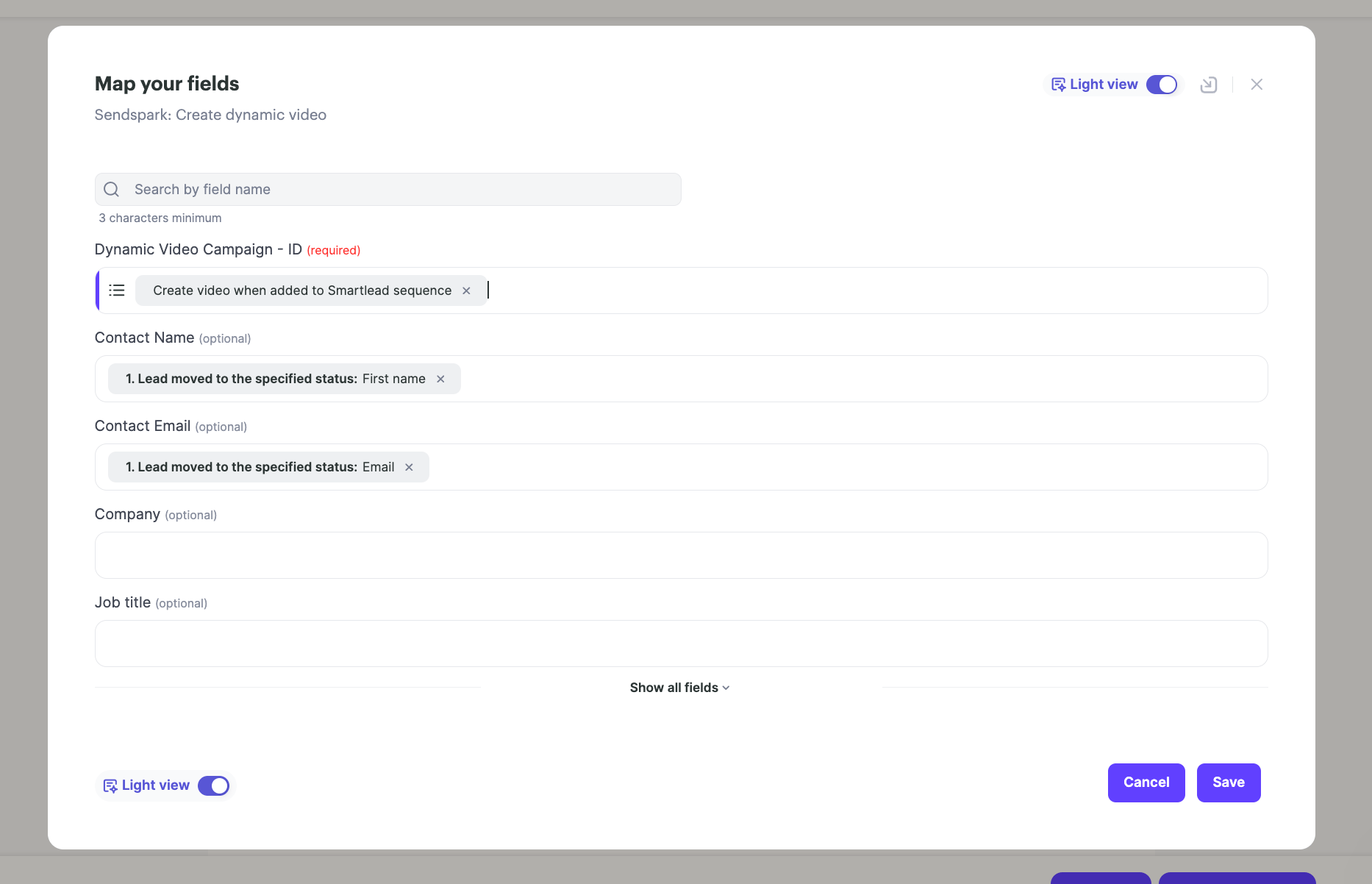
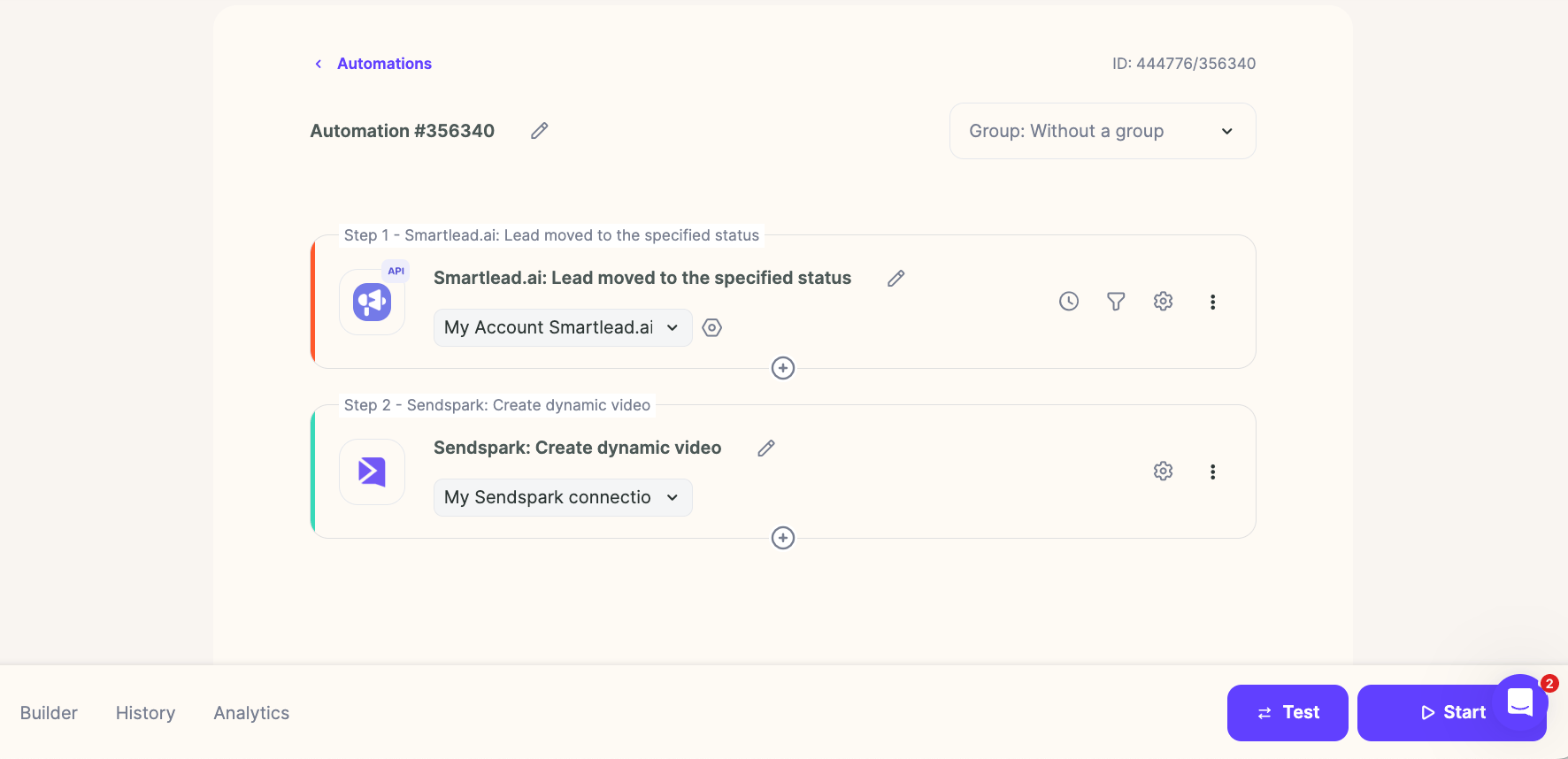
7. Review the finished automation
That’s it! Your entire automation should look something like this, where…- When a lead in Smartlead moves to “in progress” status of your chosen campaign…
- You’re automatically creating a dynamic video…
- And then updating the video placeholder in your email to make sure that every lead gets the right video.
Frequently asked questions
Why should the video placeholder go on the 2nd email or later?
Why should the video placeholder go on the 2nd email or later?
You add the Sendspark video placeholder to the 2nd email in Smartlead (or a later step) to ensure the video has enough time to generate before the video email sends.
Which trigger do I use in the Sendspark Agentic Workflow?
Which trigger do I use in the Sendspark Agentic Workflow?
Select Smartlead and then “Lead moved to specified status” as the trigger. Connect your Smartlead account and specify the Smartlead email campaign you’re using.
Which status triggers the video creation?
Which status triggers the video creation?
Set the status to “In Progress.” When leads get updated to this status in your chosen Smartlead campaign, it triggers the automation in Sendspark to create the video.
Why is mapping the email field essential?
Why is mapping the email field essential?
In the Create dynamic video step, you map the Smartlead fields you want to use. Mapping the email field is essential because it’s what matches the right video to the right lead in Smartlead.
Where do I get the Sendspark video placeholder for Smartlead?
Where do I get the Sendspark video placeholder for Smartlead?
Get your Sendspark video placeholder from the Smartlead dynamic video integration guide, then add it to your Smartlead email campaign.