

Key takeaways
- The workflow is four steps: a Form Submitted trigger, a Create dynamic video action, and a step to send the video.
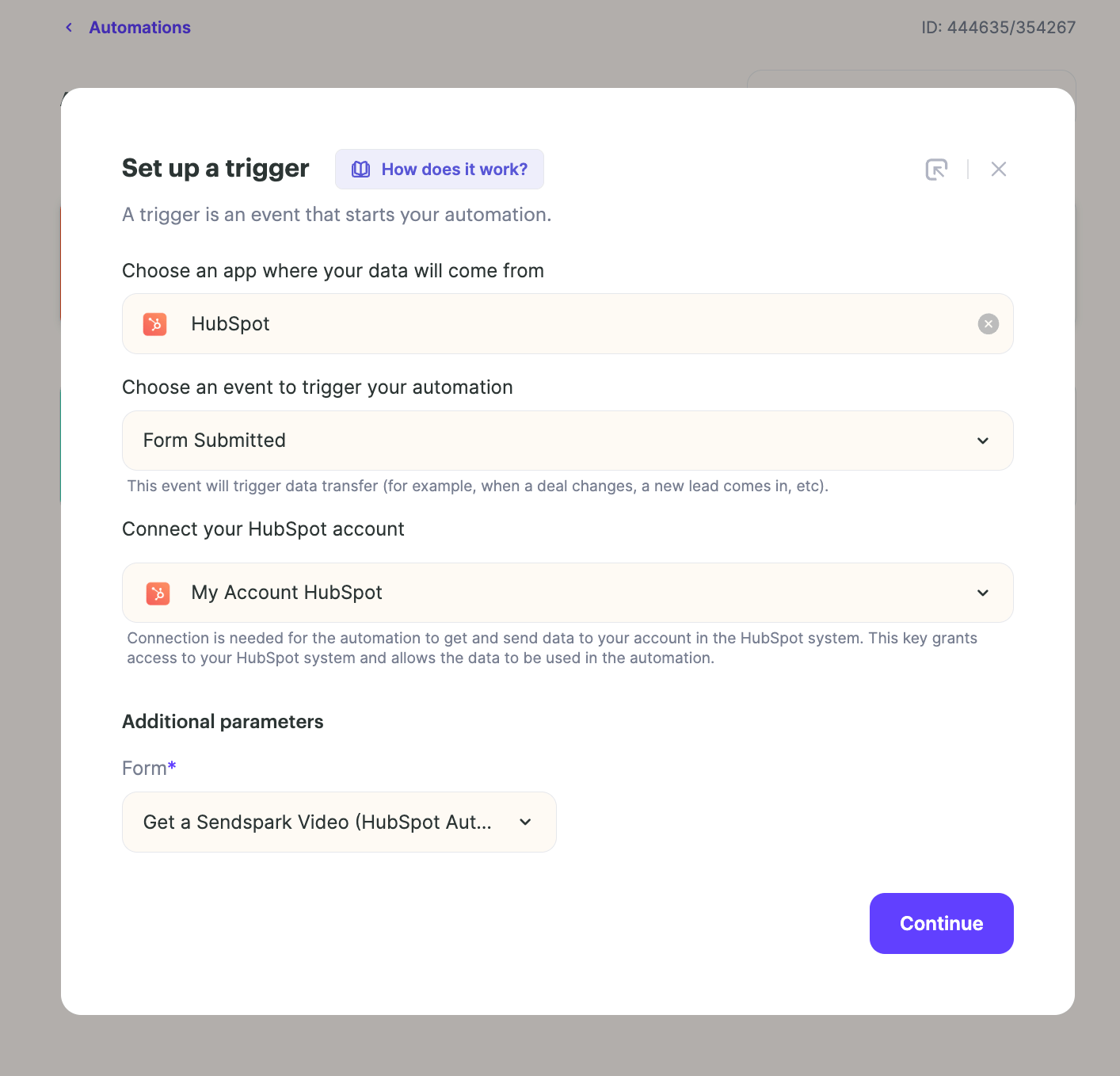
- The trigger can be a form submitted through your website, CRM, or a tool like Airtable or Google Sheets — check the app section for supported apps, and select the specific form that should fire the automation.
- In the Create Dynamic Video action, pick your campaign and map the trigger fields (first name, email, etc.) into the video.
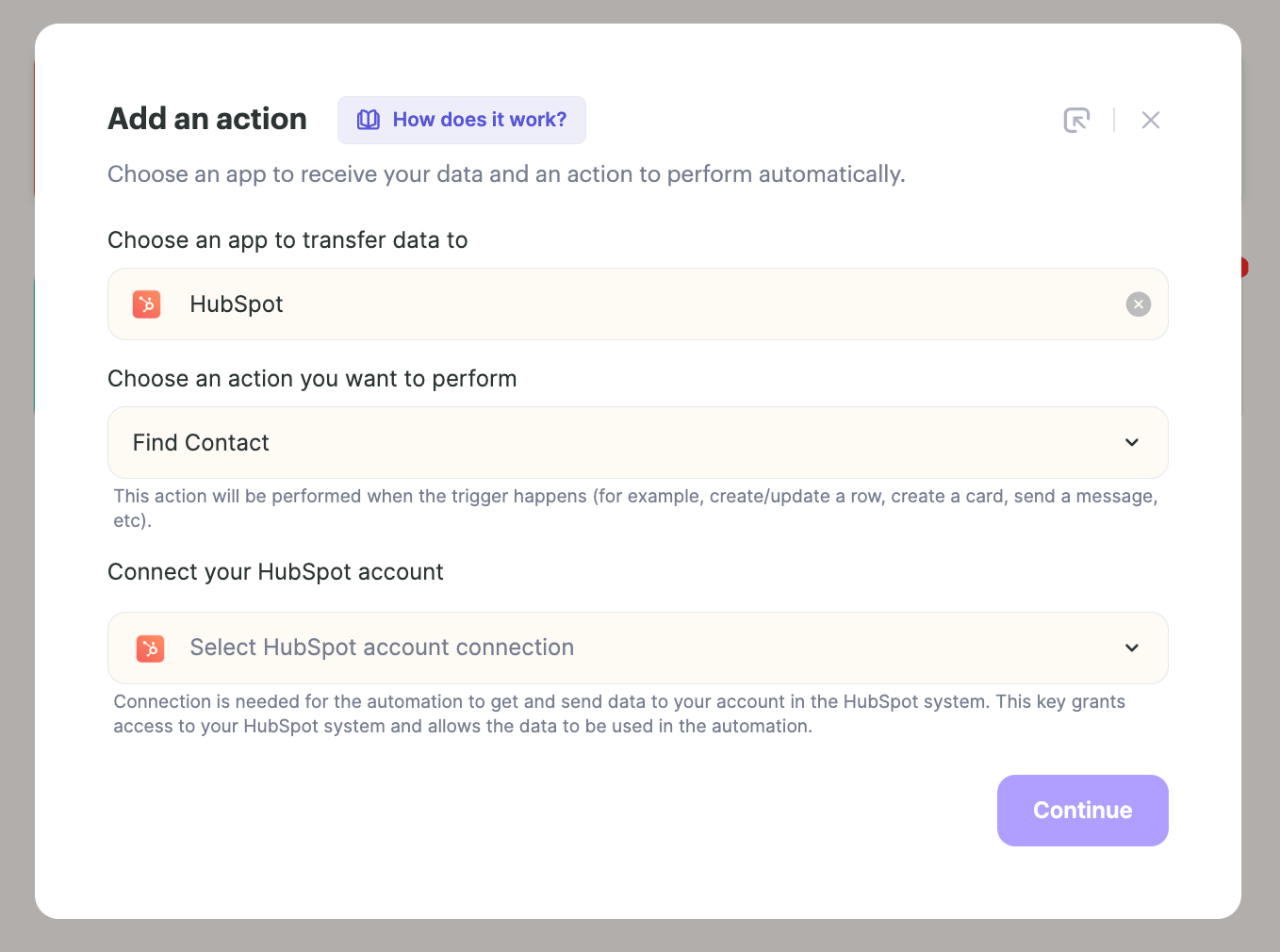
- If you’re missing contact data, add a Find Contact action before the video step to look up more information in your CRM.
How to Create AI Personalized Videos from Form Submissions
1. Create New automation in Sendspark
Start by heading to the automated workflow tab in Sendspark, and clicking “new automation”2. Add Your Trigger: Form Submitted
For the trigger, add your form submission.
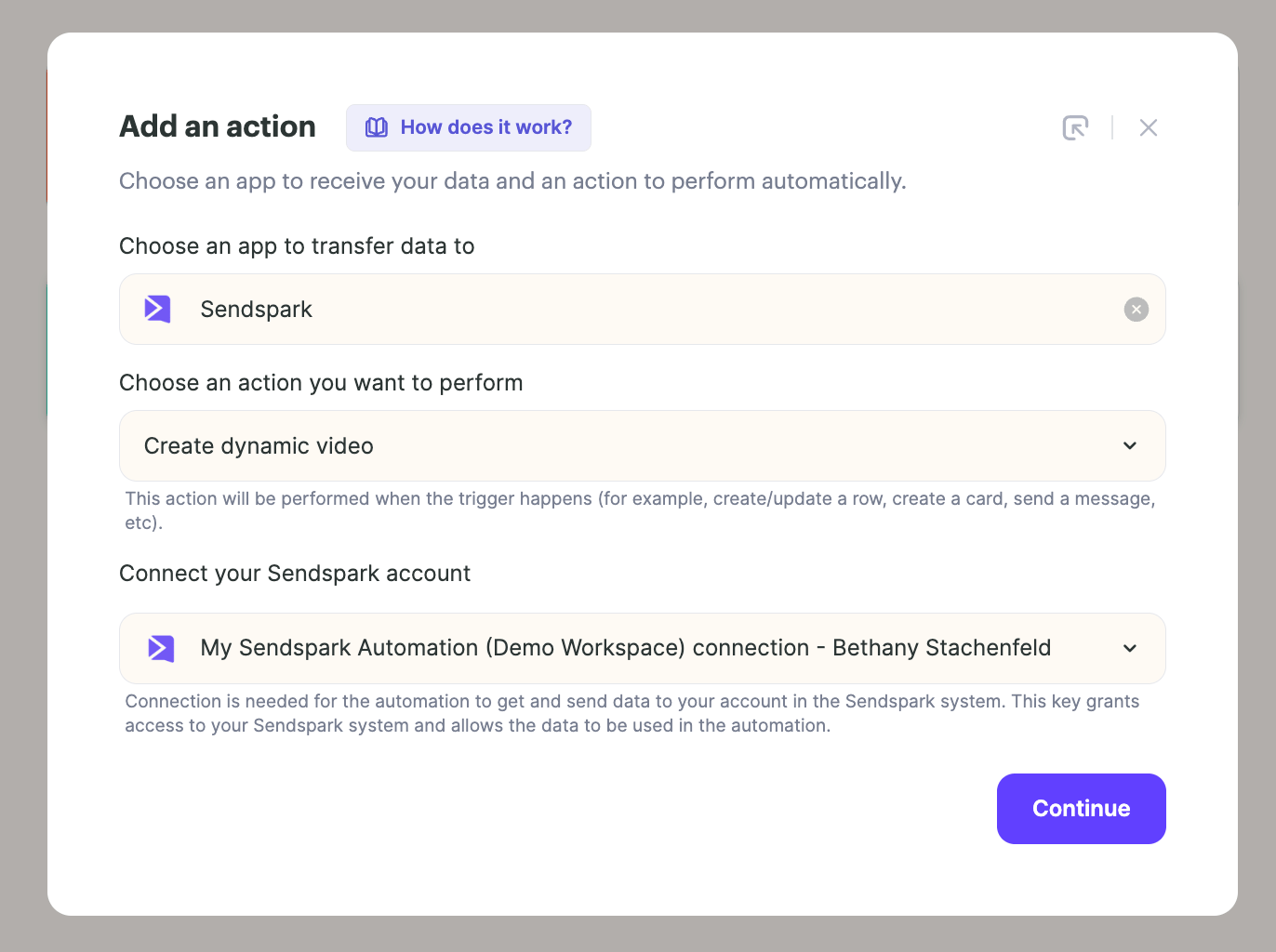
3. Add Action to Generate Video
Now, add an action.
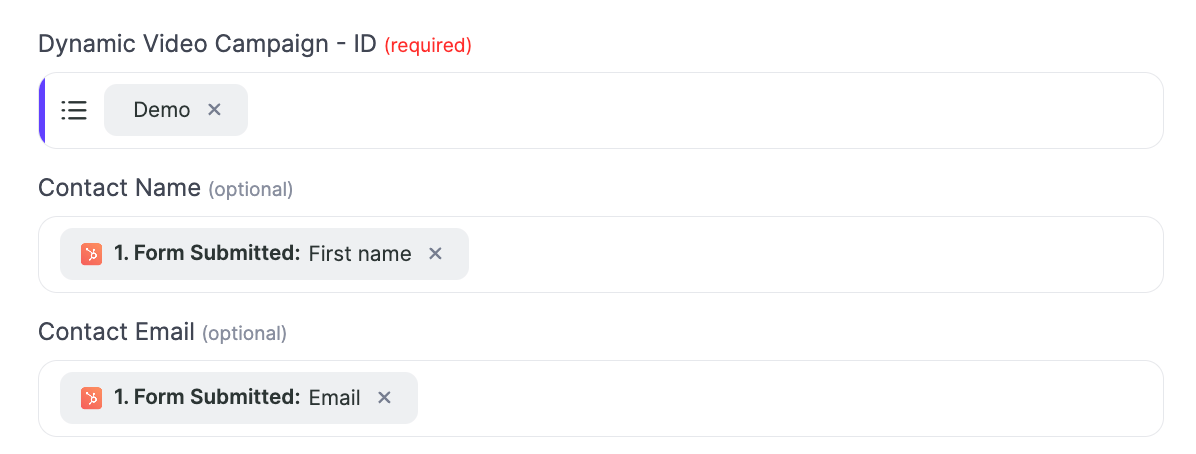
Note: if you are missing any contact data, you can add a “find contact” action before this step to look up more information about this contact in your CRM. Then, you will have more data fields available!
4. Add Action to Send Video
Add a final step to send this video out. You can embed videos directly in Gmail or Outlook, add the contact to an automated sequence, or choose another way to share. Check out all ways to share automated workflows that are supported in Sendspark. In the end, your automated workflow will look something like this: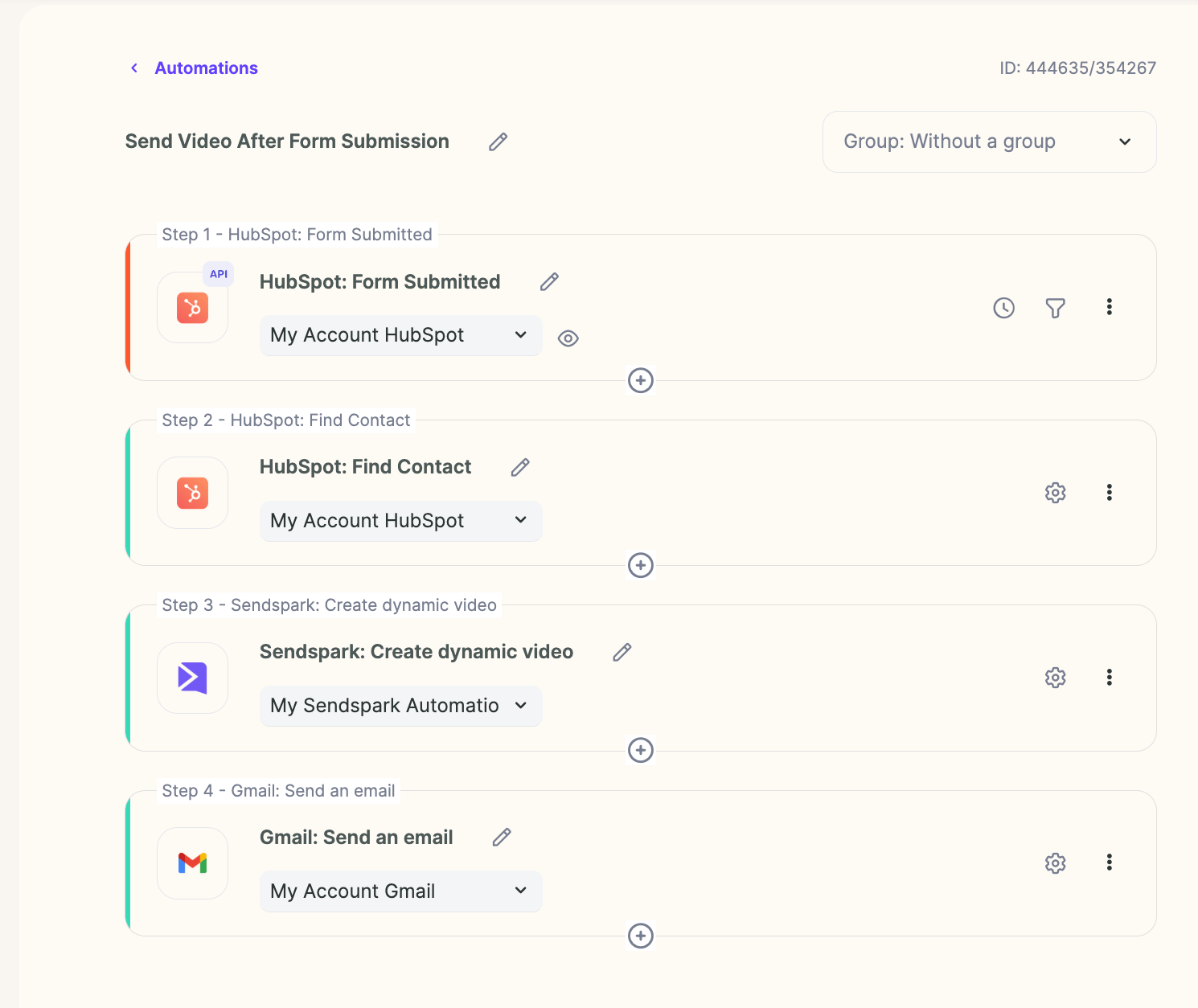
Frequently asked questions
What kinds of forms can trigger this automation?
What kinds of forms can trigger this automation?
The form submission can come from your website, your CRM, or even a tool like Airtable or Google Sheets. Check the app section in Sendspark to see which apps are supported, and be sure to select the specific form that should trigger the automation.
How do I personalize the video with form data?
How do I personalize the video with form data?
In the Sendspark: Create Dynamic Video action, select the dynamic video campaign you want to use, then map the fields from your trigger — such as first name and email — into the video.
What if my form doesn't capture all the contact data I need?
What if my form doesn't capture all the contact data I need?
Add a Find Contact action before the Create Dynamic Video step. It looks up more information about the contact in your CRM, giving you additional data fields to use in the video.
How is the video sent after it's created?
How is the video sent after it's created?
Add a final step to send it. You can embed the video directly in Gmail or Outlook, add the contact to an automated sequence, or choose another supported way to share.