

Key takeaways
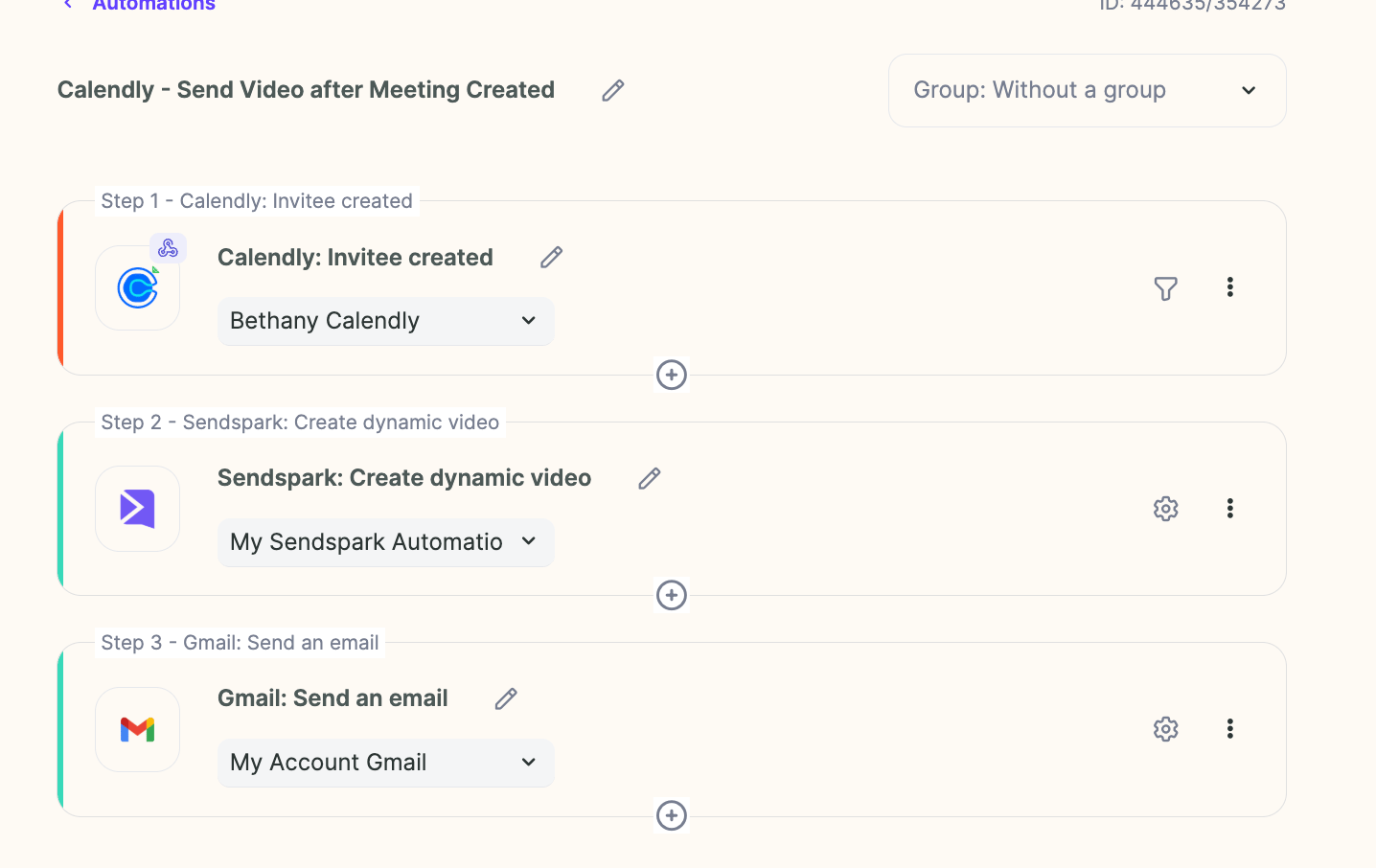
- A workflow pairs one trigger (Calendly’s Invitee created event) with actions that create and send the video.
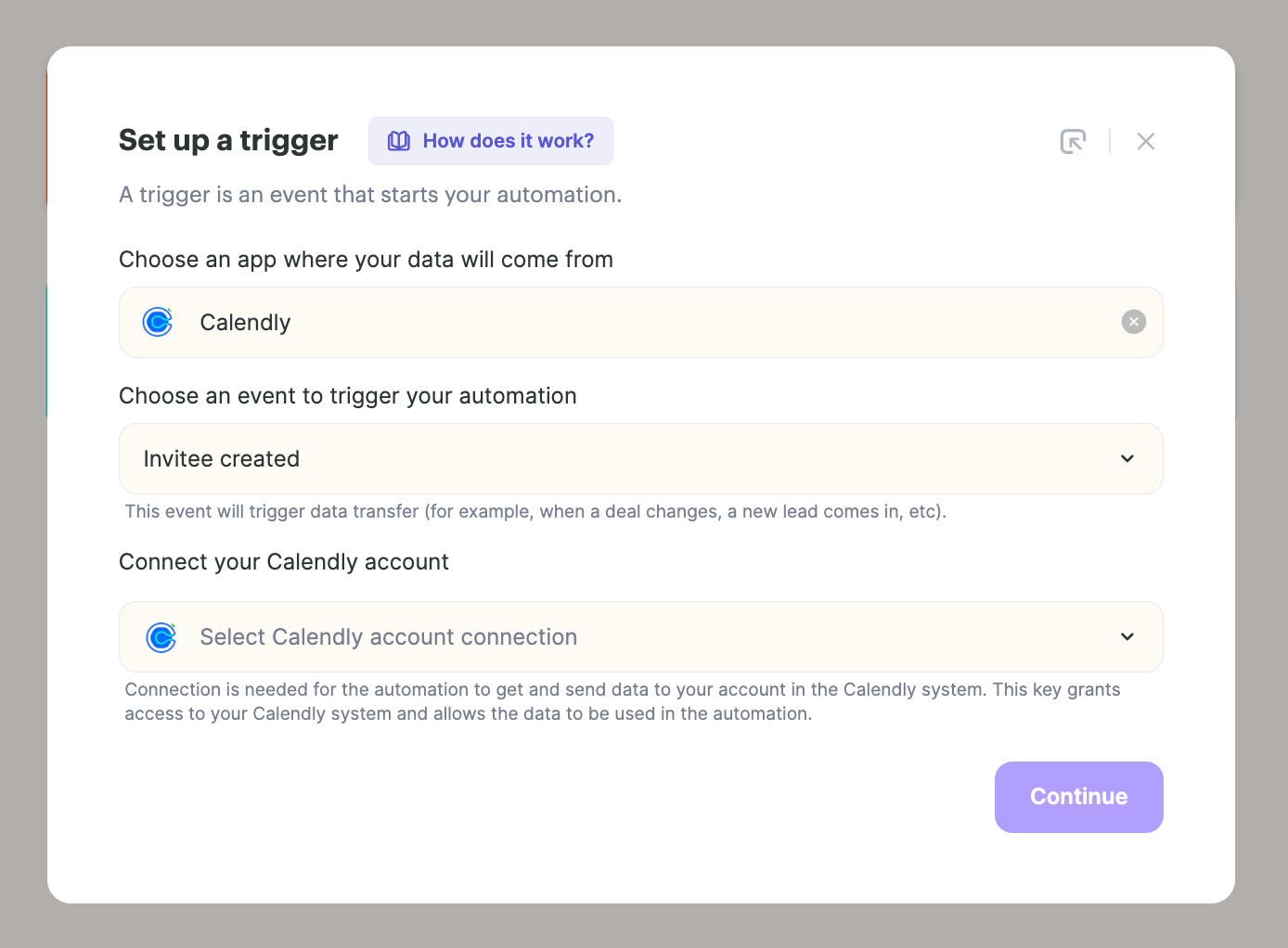
- The Invitee created event fires anytime someone books a meeting and is created as an invitee.
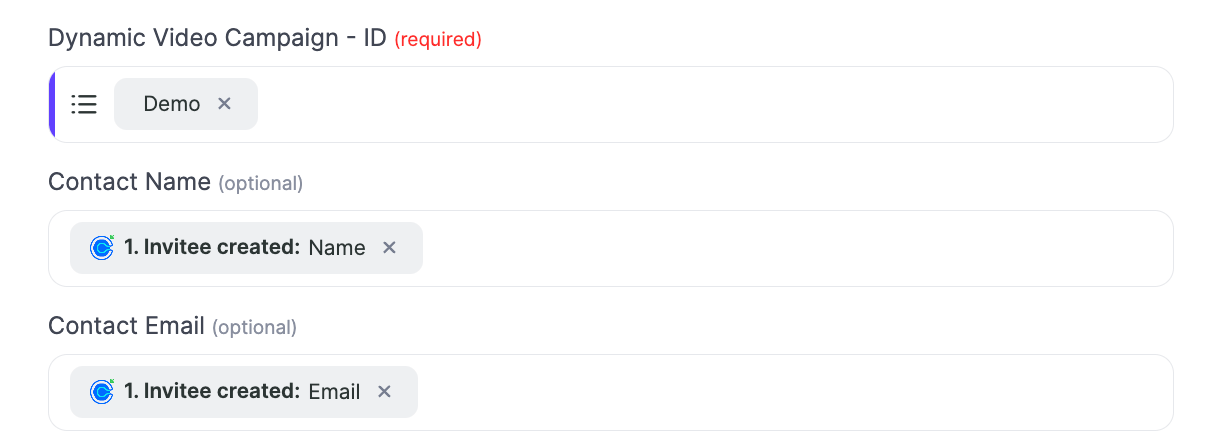
- Map the fields from Calendly into Sendspark so the AI video is personalized to the person who booked.
- Send the finished video directly in Gmail or Outreach, or use one of the other automated ways to share videos.
1. Create Automation
Go to Sendspark Agentic Workflows. Create a “new automation”
2. Add Trigger: Meeting Booked
Add a trigger to start the automation.
3. Add Action: Create Sendspark AI Video
Add an action. Select **“Sendspark”**and Create dynamic video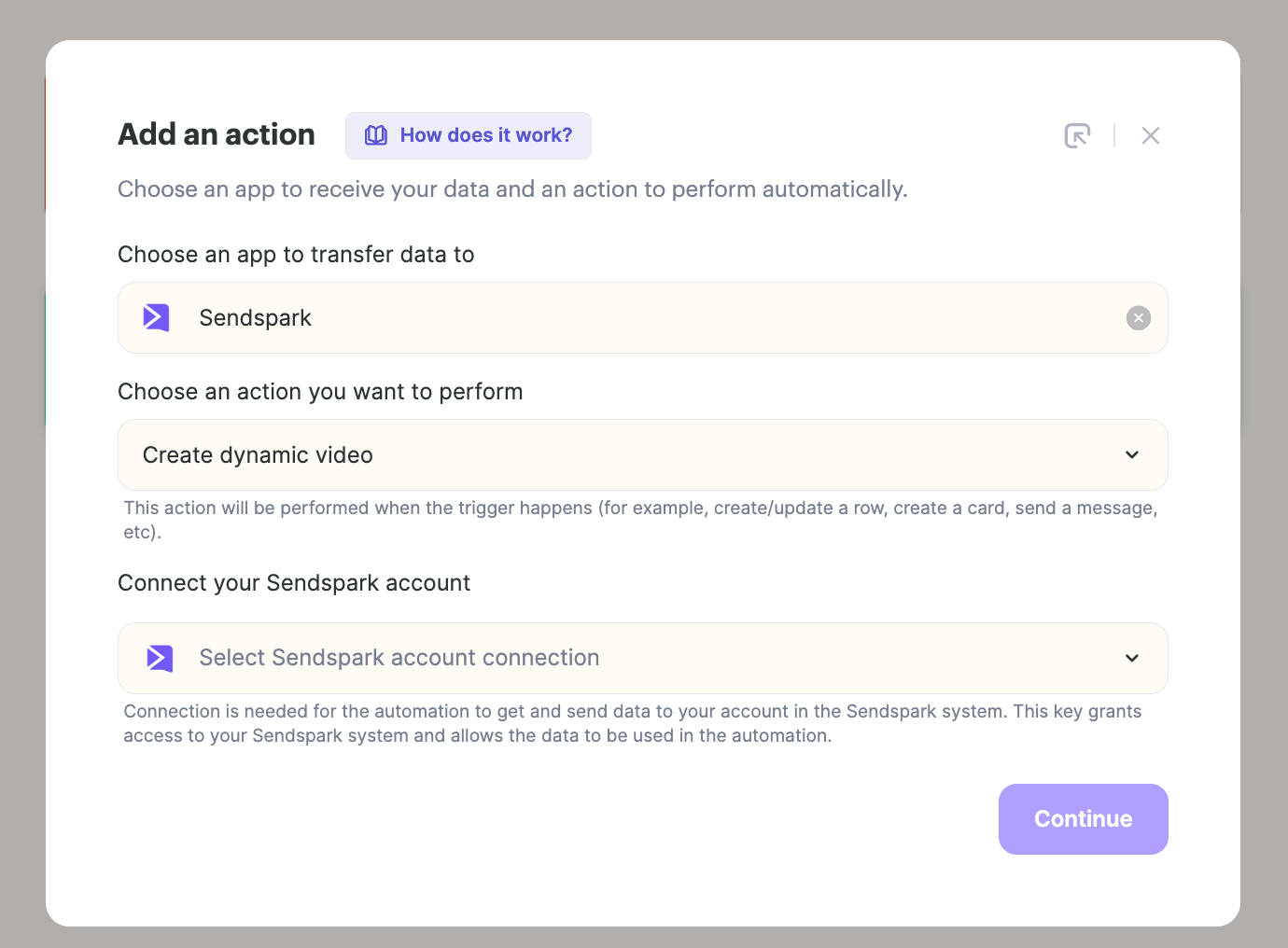
4. Add Action: Send Video
Set Email Format to HTML and use the Email Embed HTML output from the Create dynamic video step — the video only renders if both are set. You can send this video directly in Gmail or Outreach, or check out one of the many other ways to share your video in automated workflows.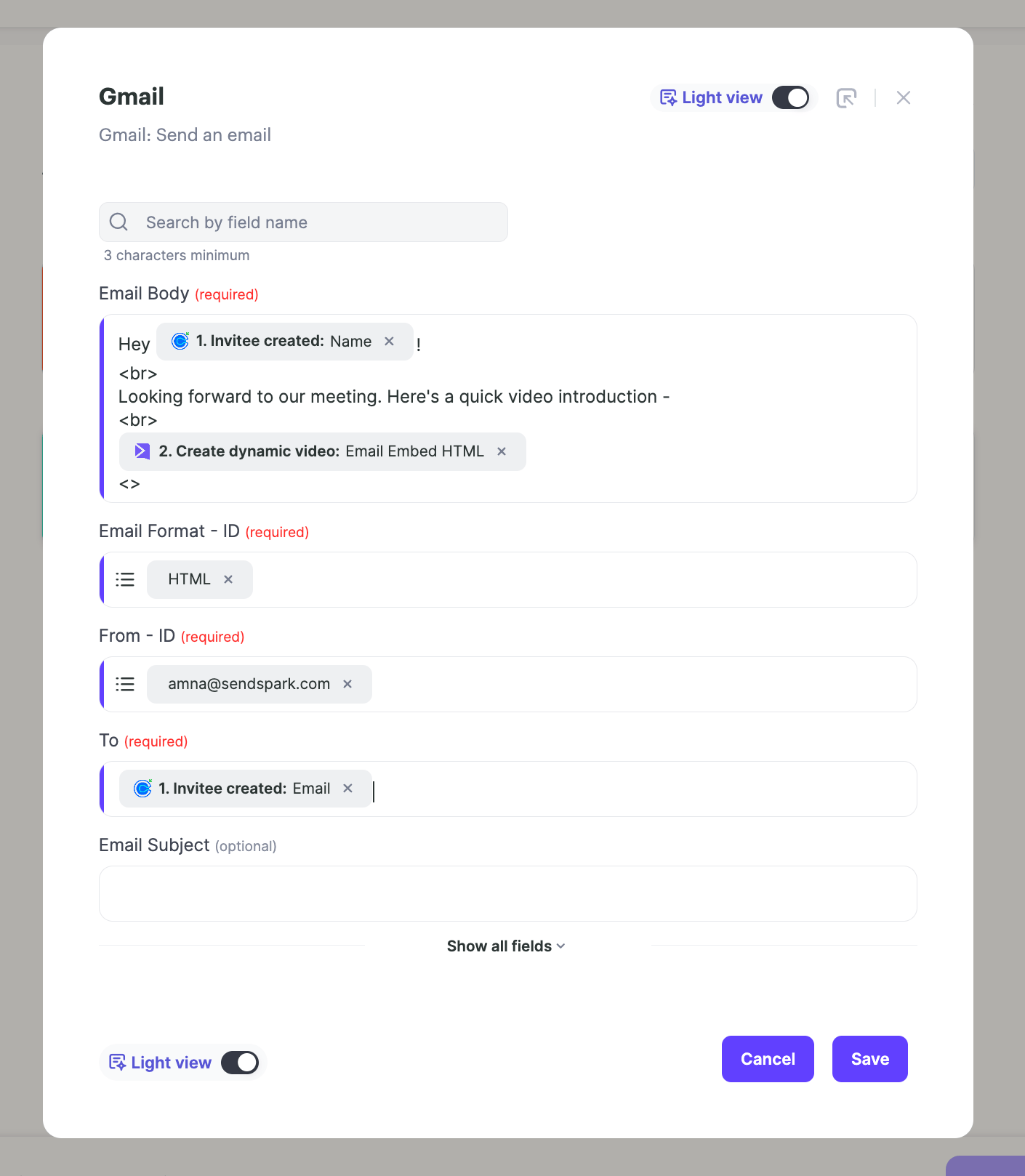
Frequently asked questions
Which Calendly event triggers the video?
Which Calendly event triggers the video?
Use the Invitee created event. It fires anytime someone books a meeting and is created as an invitee in Calendly, which is what starts the automation.
Do I need to record a video first?
Do I need to record a video first?
No. The workflow’s Create dynamic video action generates the Sendspark video automatically when the trigger fires, using the fields you map in from Calendly.
How is the video personalized?
How is the video personalized?
In the Create Dynamic Video action you map fields from Calendly into Sendspark. Those fields are then used in the AI video personalization for each person who books.
How do I send the video after it's created?
How do I send the video after it's created?
You can send it directly in Gmail or Outreach as an action, or use one of the many other ways to share videos in automated workflows.
Where do I build this automation?
Where do I build this automation?
In the Sendspark Agentic Workflows section. Click New automation to start from scratch.