

Key takeaways
- Works with RB2B, Warmly, Vector, or any other website de-anonymization tool.
- The simplest trigger is a webhook from your de-anonymization tool; it fires every time a visitor is identified.
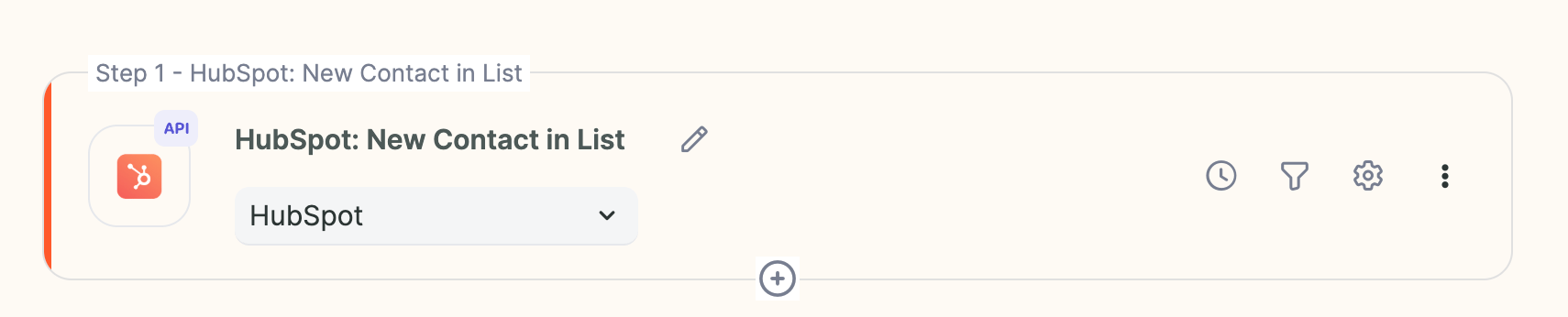
- For more control, trigger from a CRM list or property of “qualified recipients” to avoid unqualified visitors or existing customers.
- Add the Sendspark Create dynamic video action, map fields such as first name and email, then add a send action (email, LinkedIn, or text) or enroll the lead in an automated campaign.
1. Create New automation in Sendspark
- Go to the Automations section of Sendspark
- Create**“New automation”**
2. Add Your Trigger: Website Visit
There are a few ways to do this. The simplest way is to simply add a webhook from your website de-anonymization tool to the trigger. When you use the webhook as the trigger, it means that any time this webhook fires (as in a website visitor is identified), it will trigger this workflow.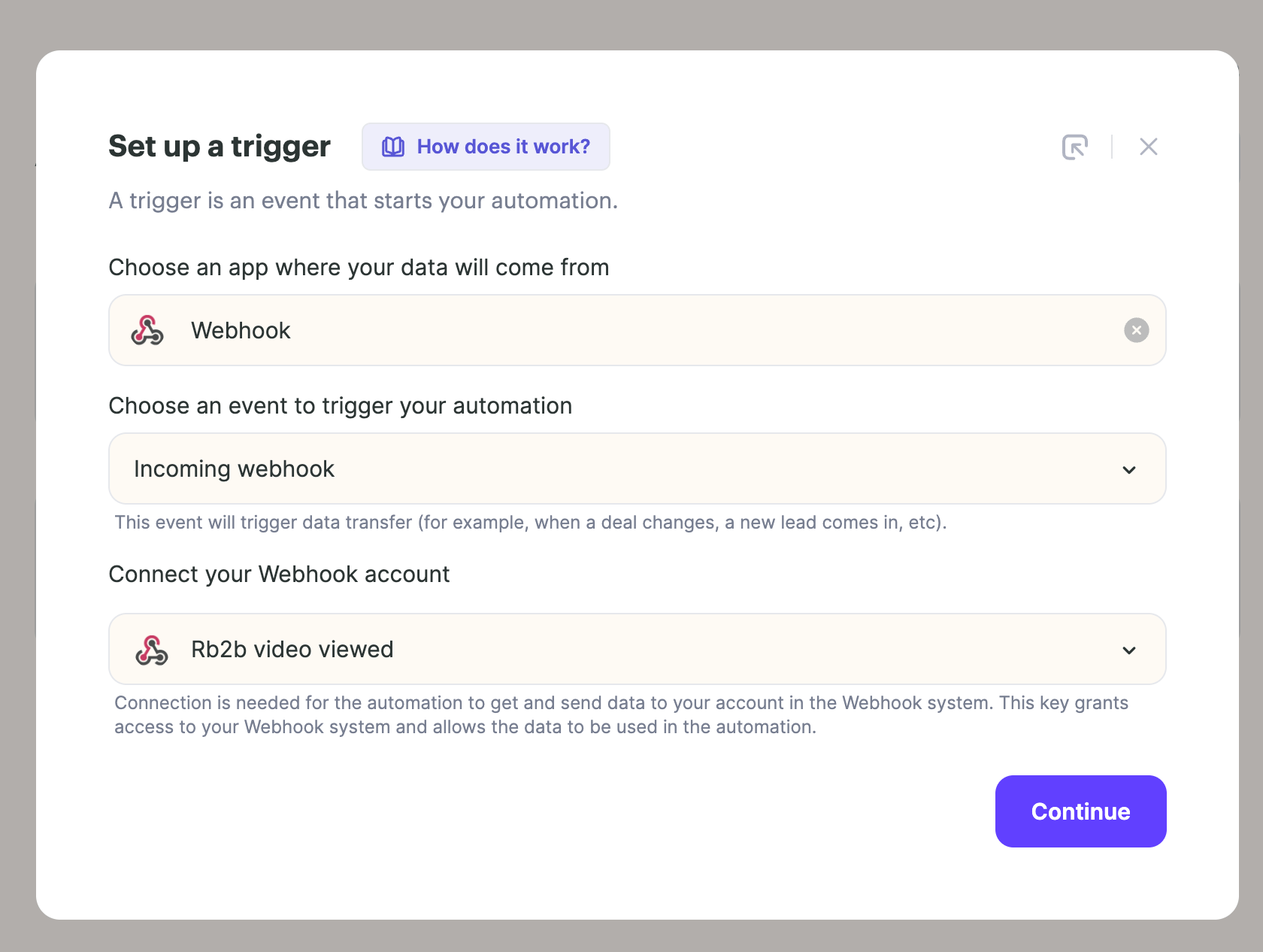
3. Add Action: Generate Sendspark Video
Next, add the action Sendspark and select Create dynamic video. Make sure to map the fields from the previous step that you would like to use in the video (first name, email, etc).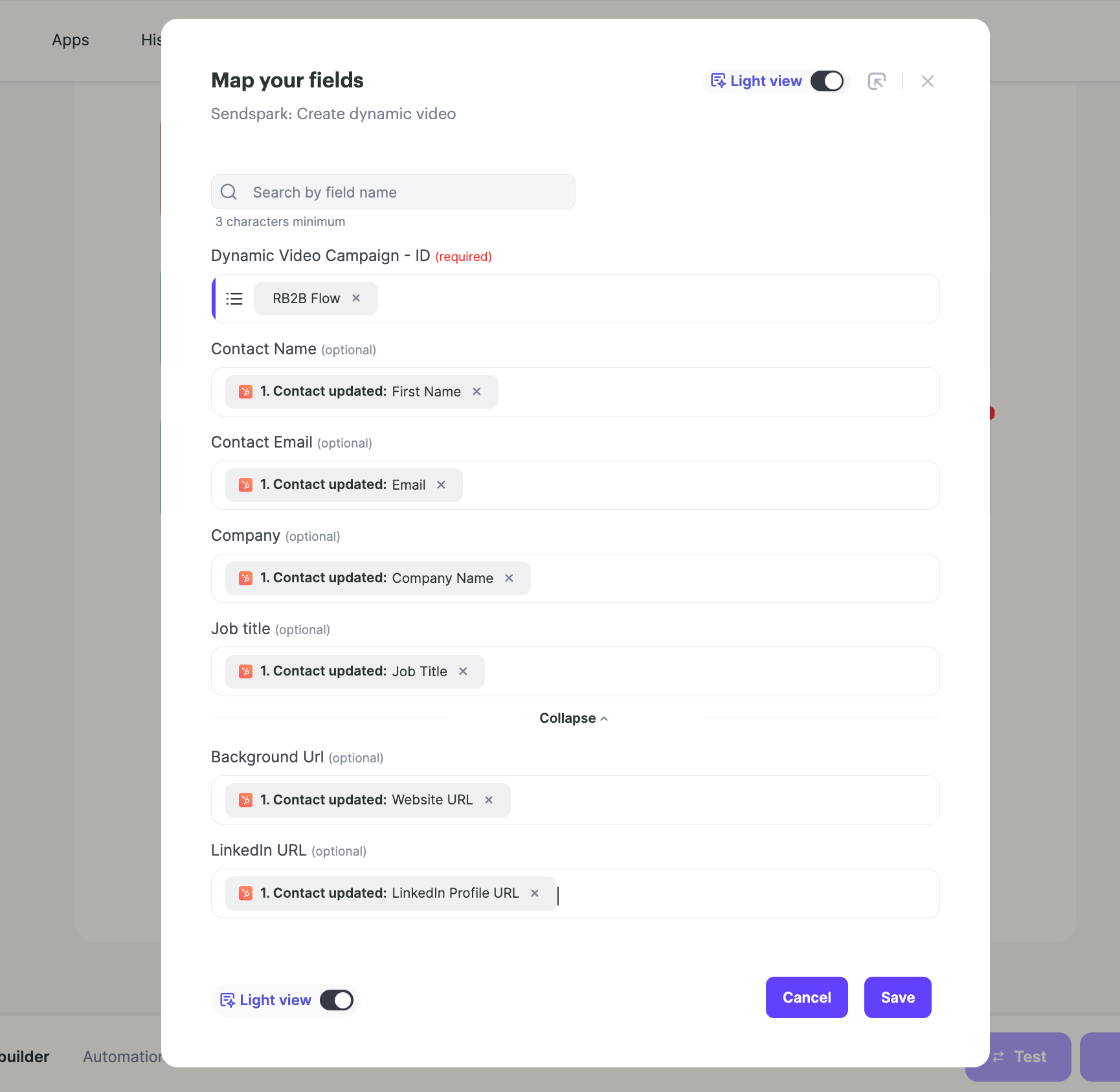
4. Send Video
Add another action to send your video out. You can send your video directly in an email, LinkedIn message, text message, or another message.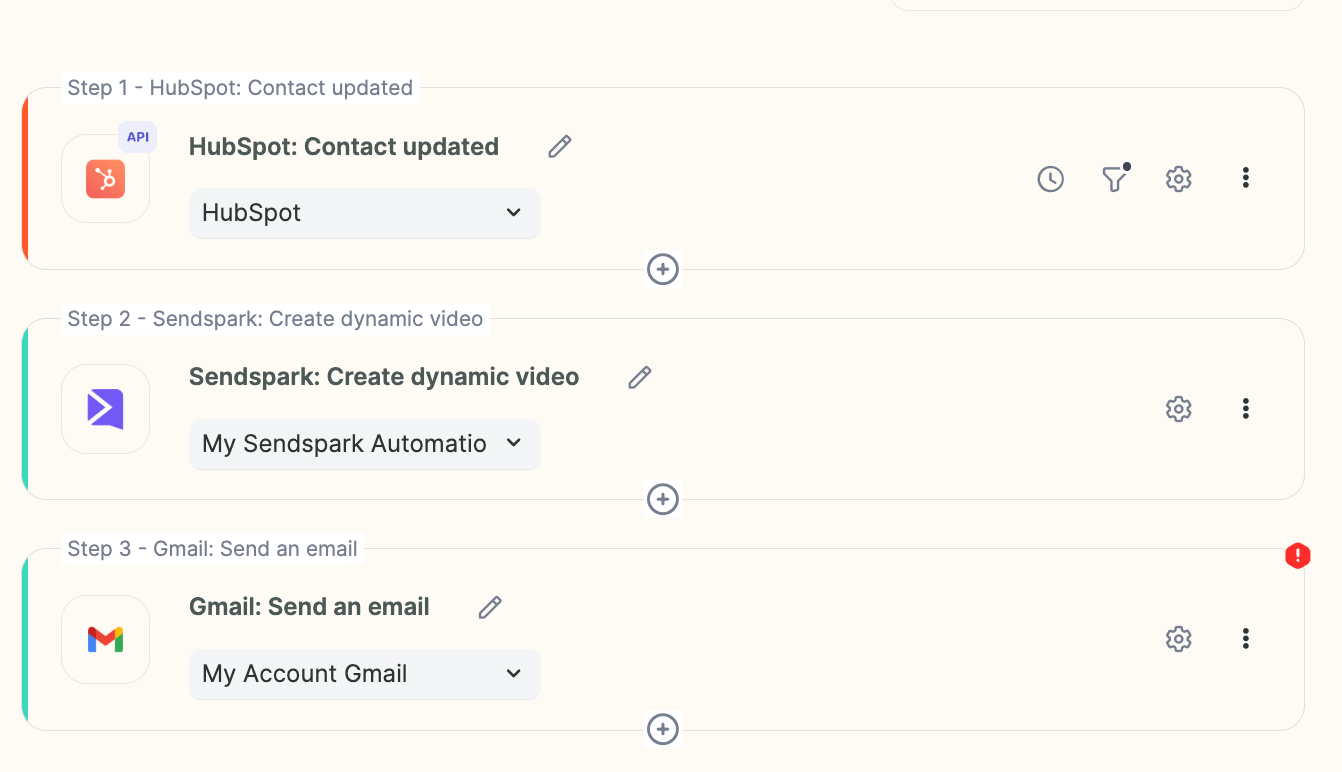
Frequently asked questions
Which website visitor tools does this work with?
Which website visitor tools does this work with?
This works with RB2B, Warmly, Vector, or another website de-anonymization tool of your choice.
What's the simplest way to set up the trigger?
What's the simplest way to set up the trigger?
Add a webhook from your website de-anonymization tool as the trigger. Every time that webhook fires (a visitor is identified), it triggers the workflow.
How do I avoid making videos for unqualified visitors or existing customers?
How do I avoid making videos for unqualified visitors or existing customers?
Use the more advanced approach: create a list or property in your CRM for “qualified recipients” and use that as the trigger instead of the raw webhook.
What fields should I map into the video?
What fields should I map into the video?
Map the fields from the previous step that you want to use in the video, such as first name and email.
How do I send the video after it's created?
How do I send the video after it's created?
Add a send action to deliver the video by email, LinkedIn message, or text message, or add the lead into an automated email or LinkedIn campaign.