

Key takeaways
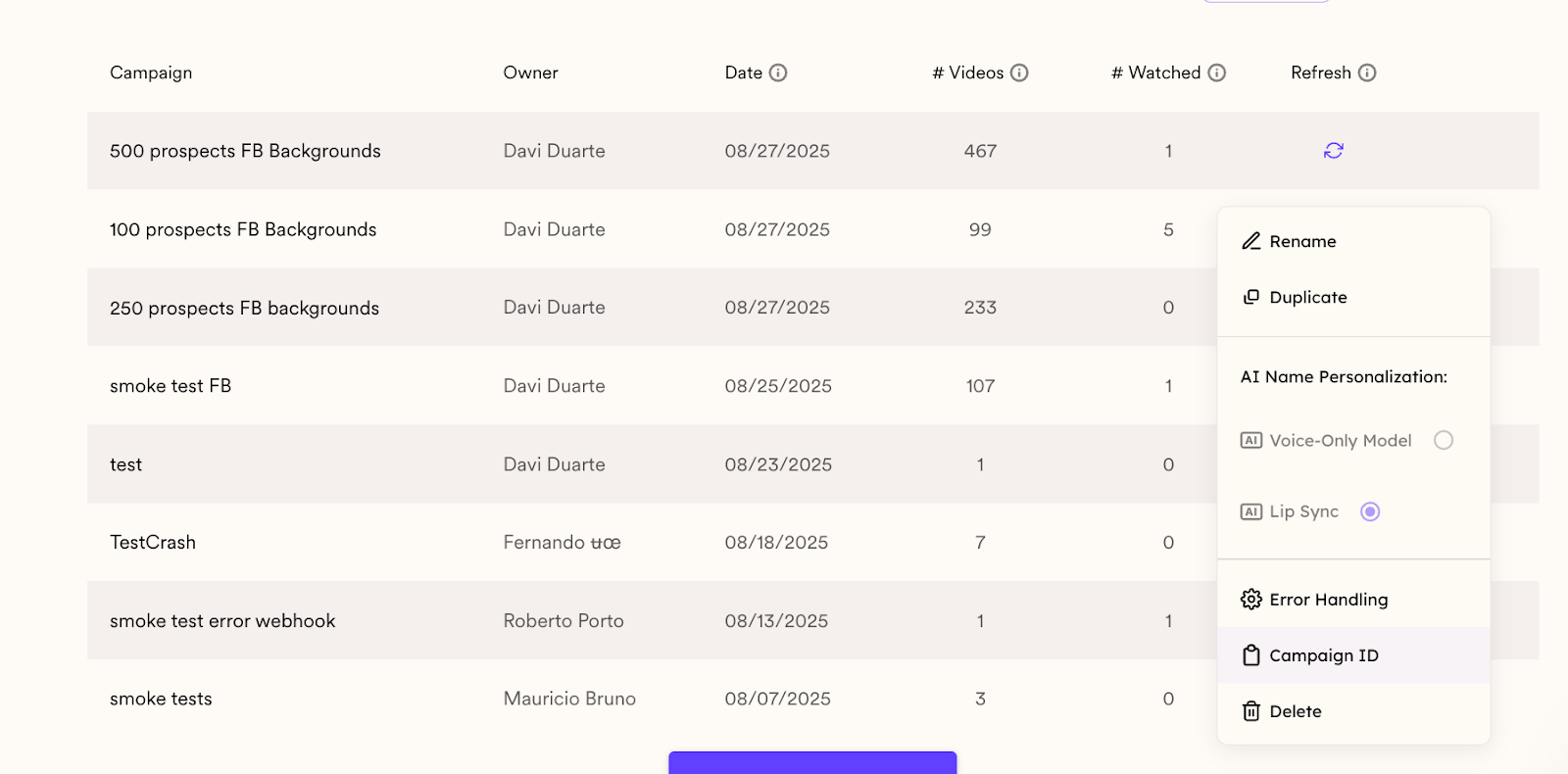
- Your Dynamic Video Campaign acts as the template for every AI-personalized video created.
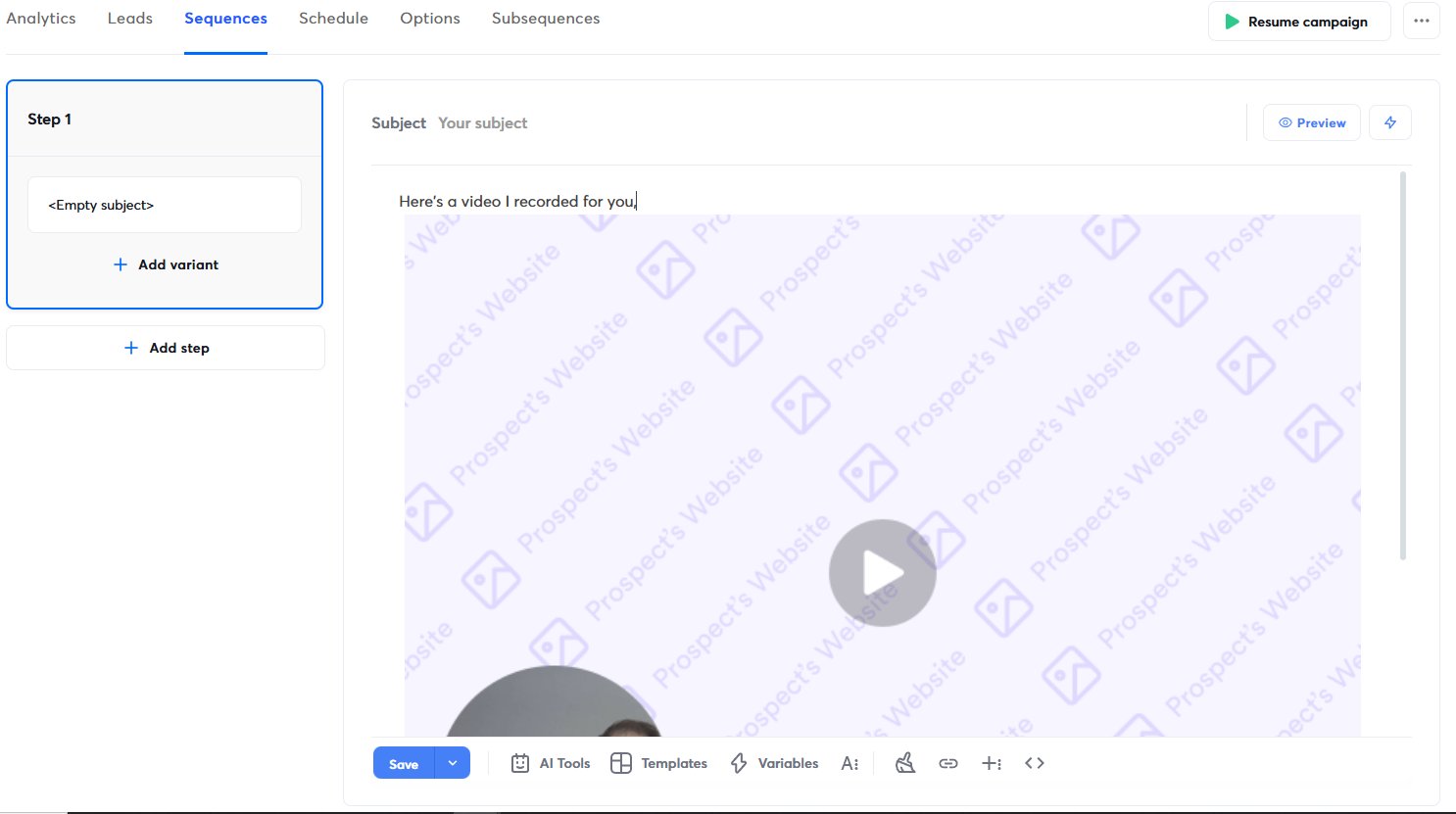
- Add the Instantly snippet to your email template via Share Campaign → Instantly, pasting it where you want the video to appear. The same pattern works in other sequencers: see Outreach and Salesloft.
- In the agentic workflow, map at least the email or first name field — both are used in later steps.
- A Router on the “Search Lead” step’s Lead ID (non-empty) sends existing leads straight to “Add Lead to Campaign” and new leads through “Create Lead” first; enable duplicate checking to avoid adding a lead twice.
1. Create Dynamic Video Campaign in Sendspark
This will act as the template for all AI-personalized videos created. Learn more about creating dynamic videos here.2. Add Video Placeholder to Instantly Email Template
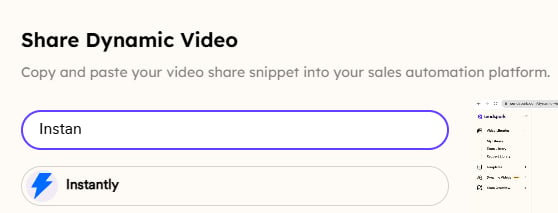
You can add this placeholder snippet to your snippet to your Instantlye-mail template so it will be changed for every lead. Go to your Dynamic Video Campaign and click “Share Campaign”
3. Create Your First Step Of The Workflow
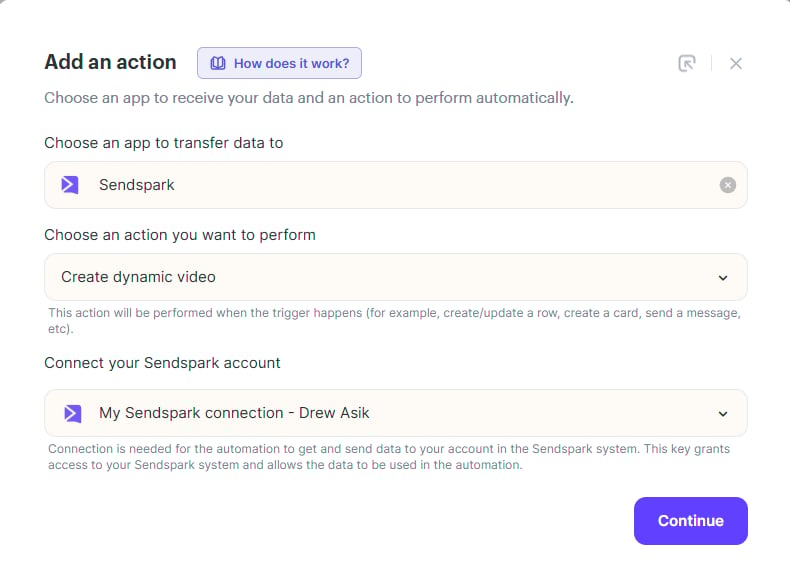
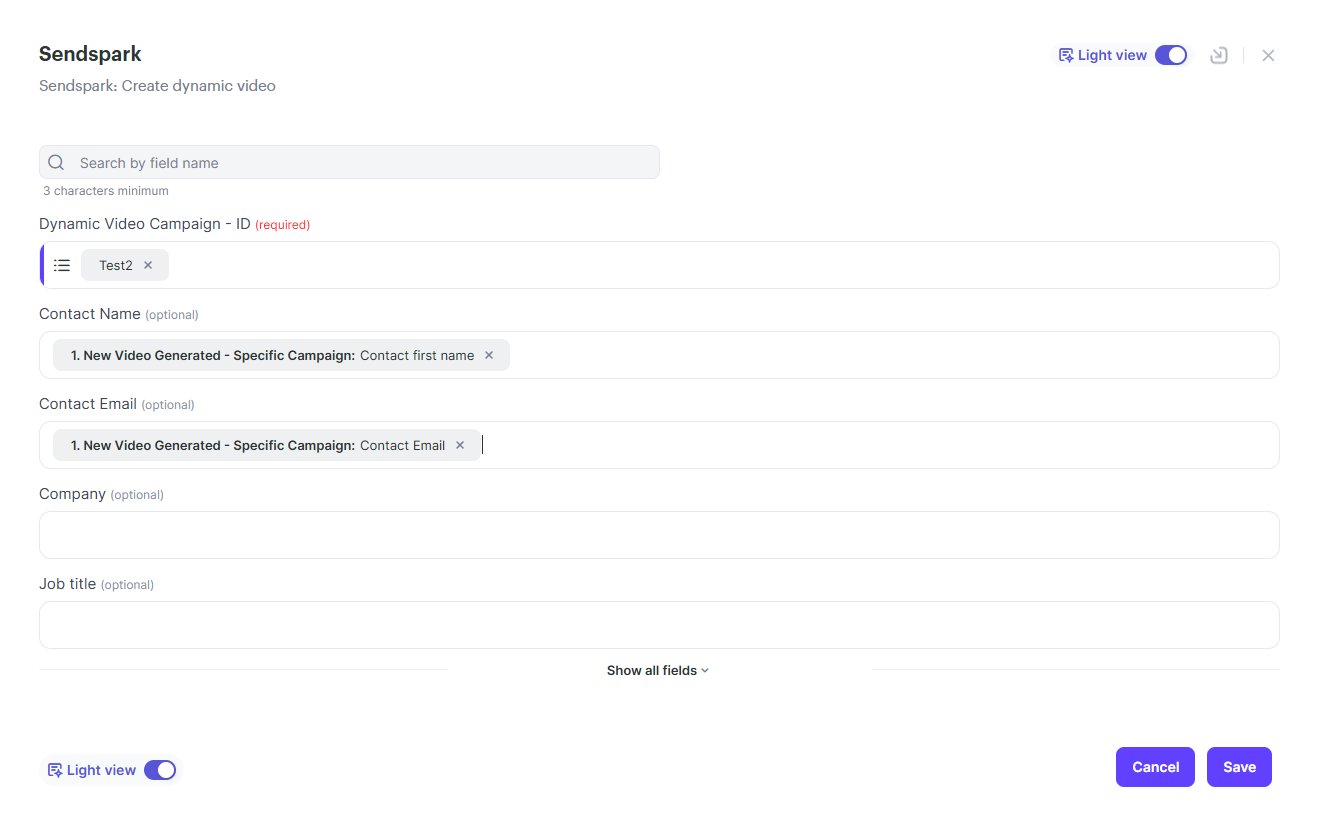
Go to your agentic workflows, and click on plus icon and choose Sendspark, it should look as in the image below,
4. Search The Lead On Instantly
Click on the plus icon and choose action, search for the “Instantly”, choose “search lead” and connect your Instantly account and click on the continue button on the right corner. Then map the contact e-mail from your Sendspark video and click on save.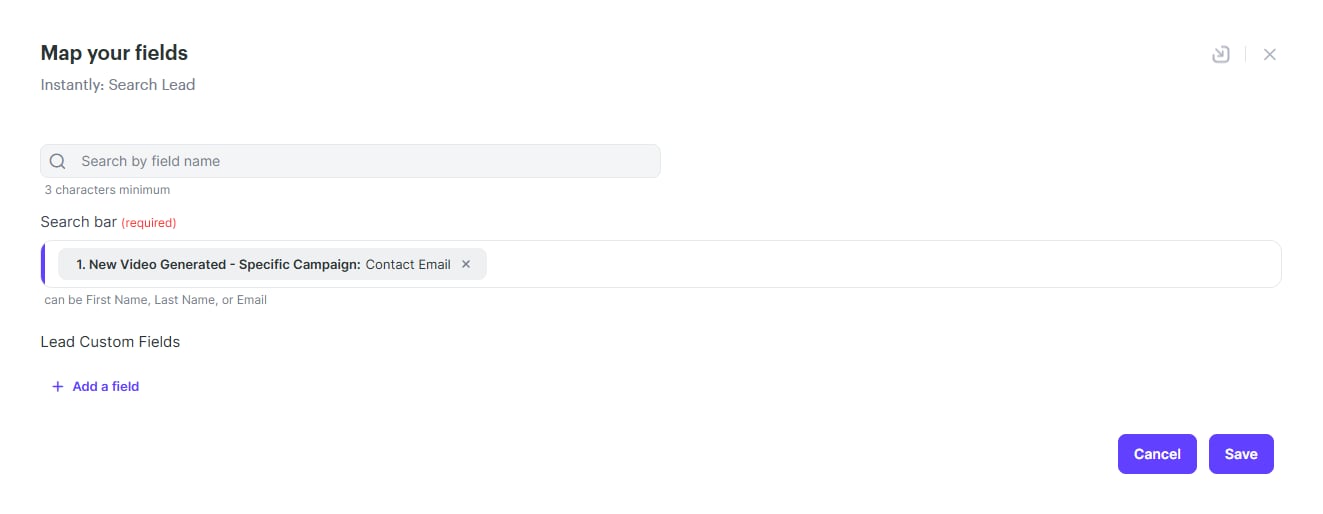
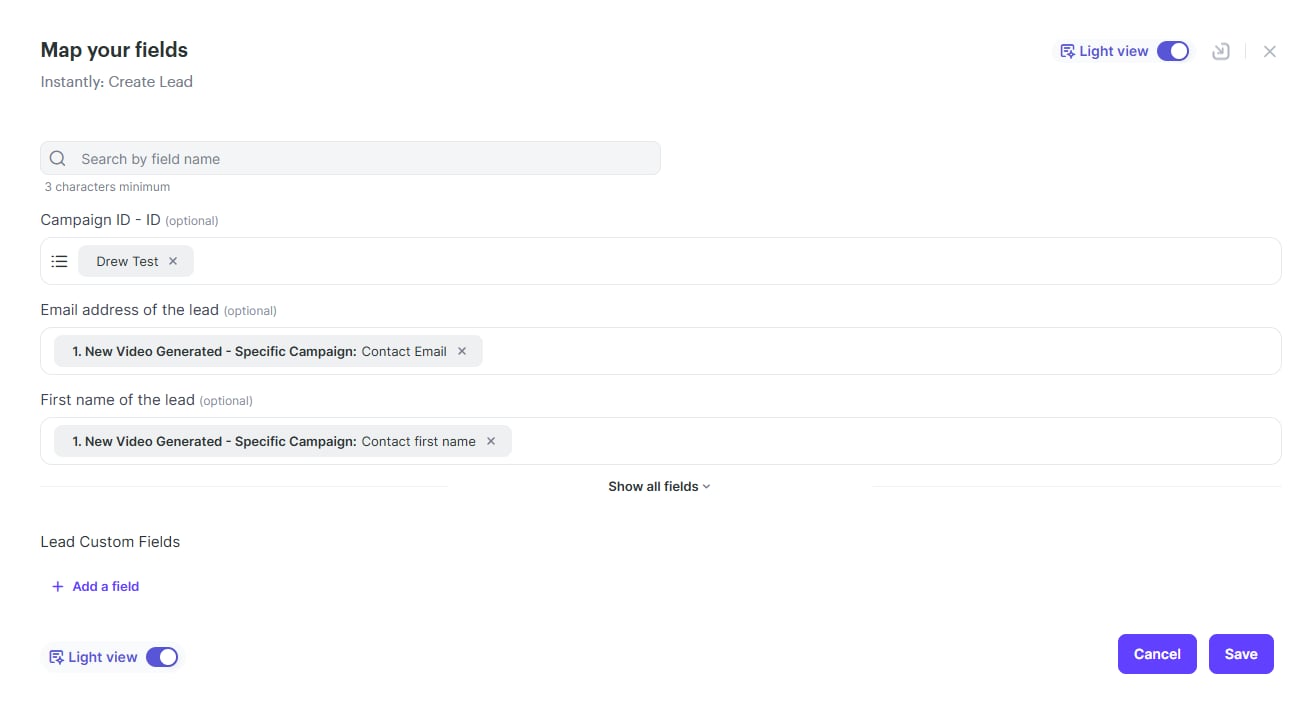
5. Create The Lead On Instantly
Click on the plus icon and choose action, search for the “Instantly”, choose “create lead” and hit continue.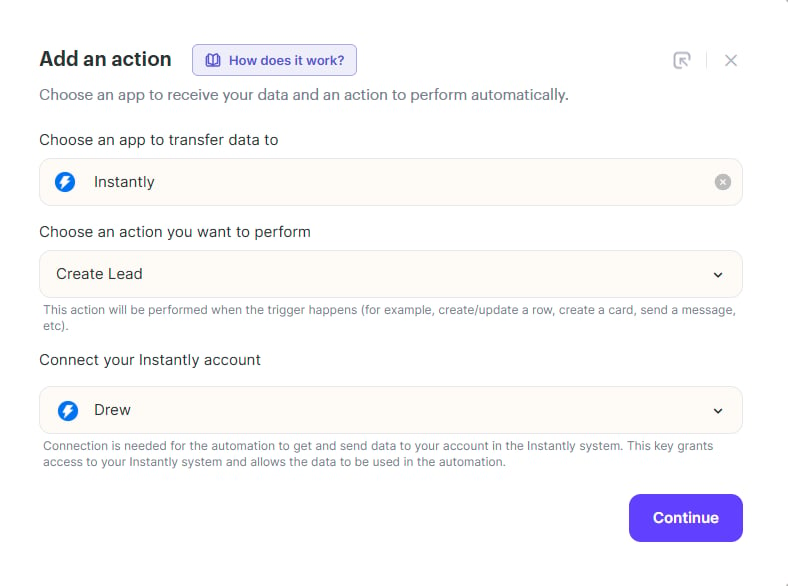
6. Add Lead to Campaign
Add another step and choose “Add Lead to Campaign”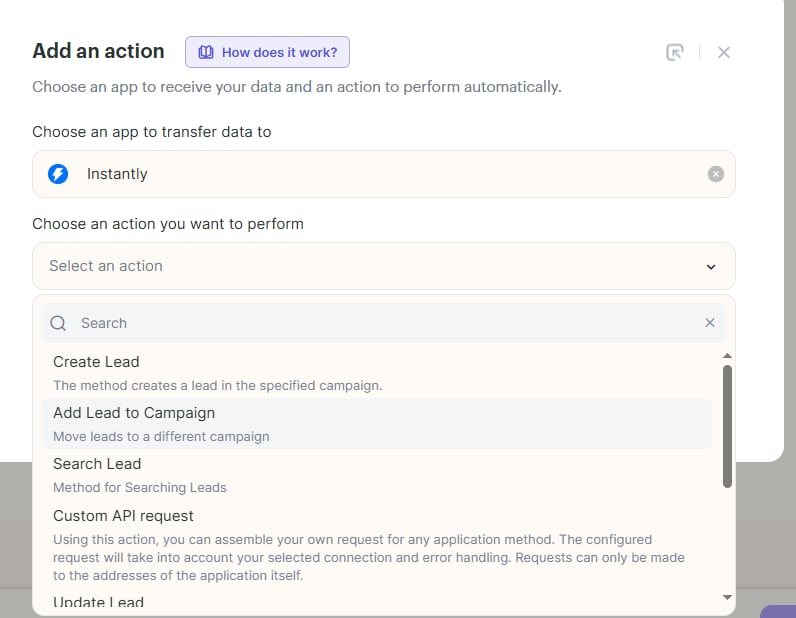
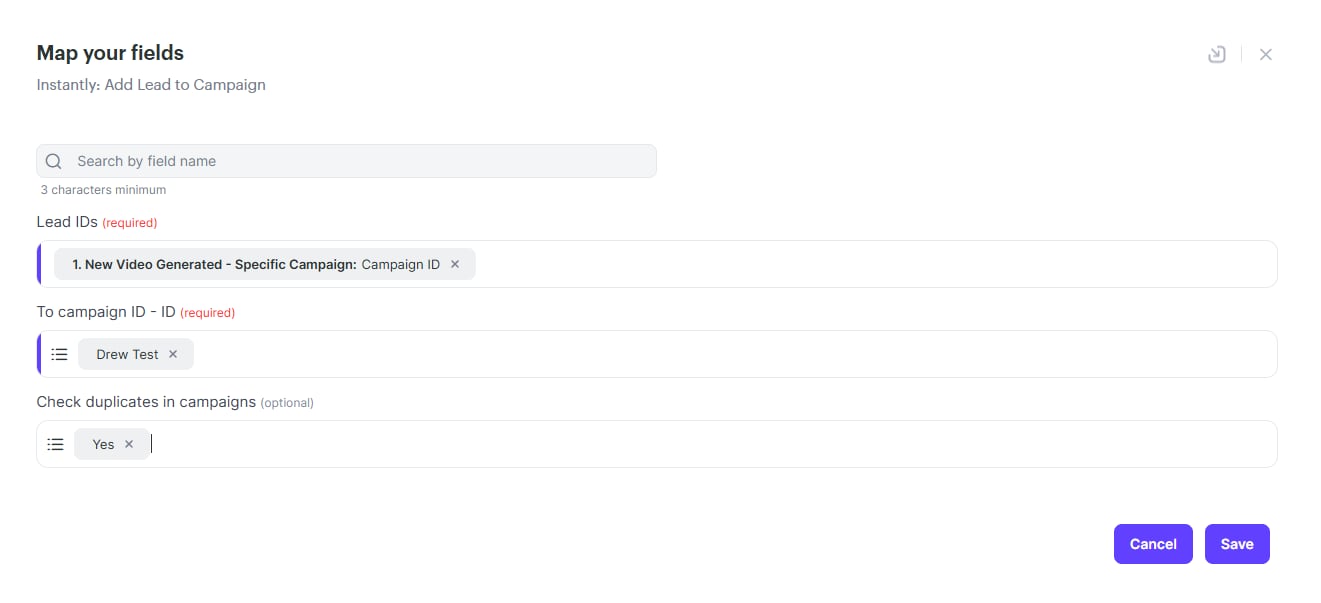
7. Add A Router
Click on the plus icon again and choose “tool” and Router under your second step which is “Instantly: Search Lead”. Add “Lead ID” on the If section’s field and choose Non-empty (with data).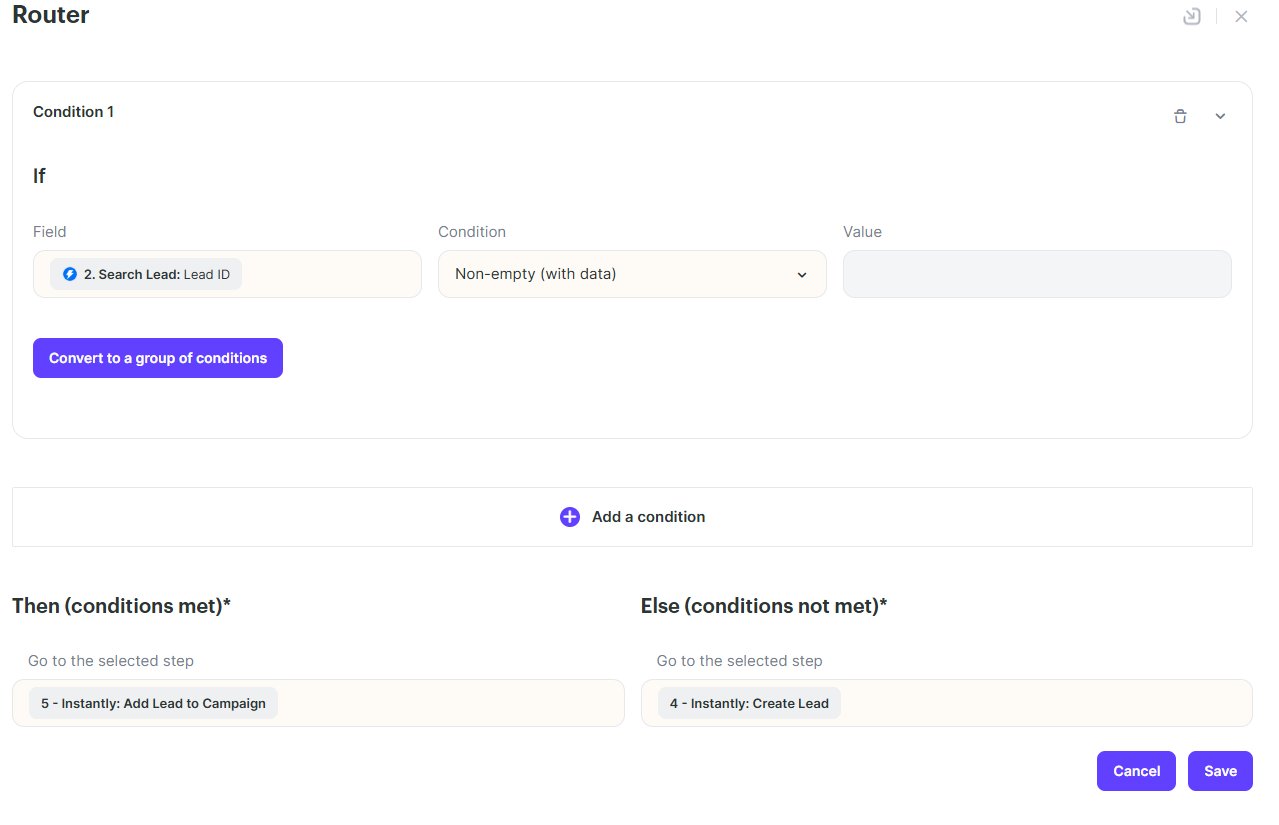
What this means is, if your search finds a Lead ID, it will add that lead to the campaign but if it doesn’t have the Lead ID it will create the lead and then add it to the campaign.
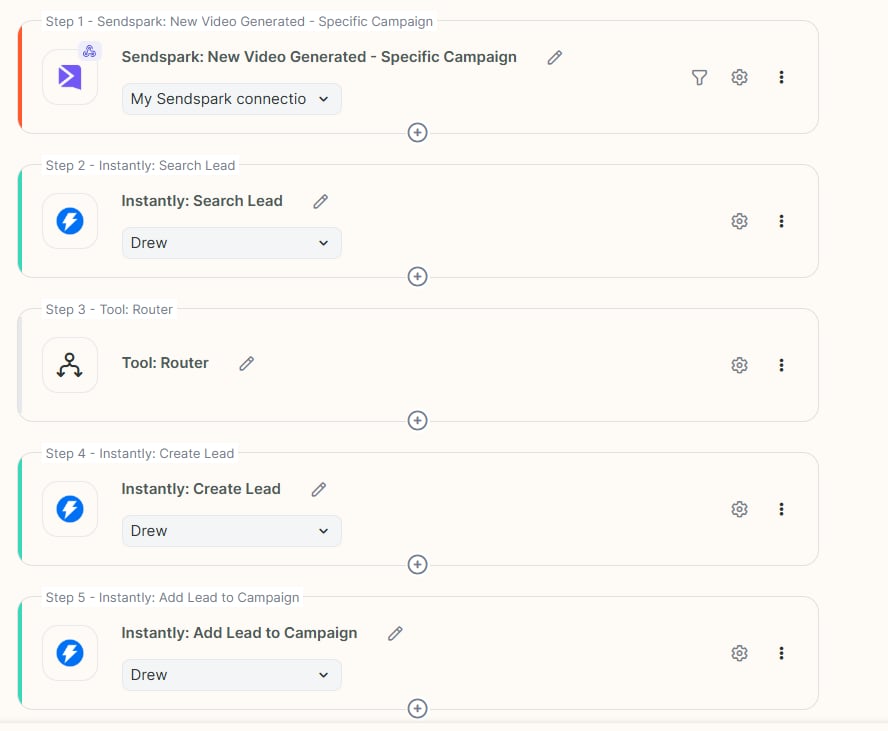
This is how your workflow look in the end. You can click on start button and add a prospect into your Dynamic Video Campaign and it will automatically do the all steps for you.
Frequently asked questions
What triggers this automation?
What triggers this automation?
The workflow starts from your Sendspark Dynamic Video Campaign. When you add a prospect to the campaign and a video is created, the agentic workflow runs the remaining steps automatically to search, create, and add the lead in Instantly.
Which fields should I map from the Sendspark step?
Which fields should I map from the Sendspark step?
Map the fields you need, but we suggest always mapping the email and first name fields, because those are used in the later Instantly search and create-lead steps.
Why do I need both a 'Search Lead' and a 'Create Lead' step?
Why do I need both a 'Search Lead' and a 'Create Lead' step?
The Search Lead step checks whether the contact already exists in Instantly. The Router then uses the Lead ID: if it’s non-empty (the lead exists), the flow adds that lead to the campaign; if it’s empty, it creates the lead first and then adds it. This prevents duplicate leads.
How do I stop the same lead being added twice?
How do I stop the same lead being added twice?
In the Add Lead to Campaign step, choose “yes” for check duplicates in the campaigns. Combined with the Router logic, this keeps existing leads from being recreated or added again.
Where does the video actually get inserted in the email?
Where does the video actually get inserted in the email?
You paste the Instantly snippet (from Share Campaign → Instantly) directly into your Instantly sequence where you want the video to appear. The snippet is replaced with each lead’s personalized video when the email sends.