

Key takeaways
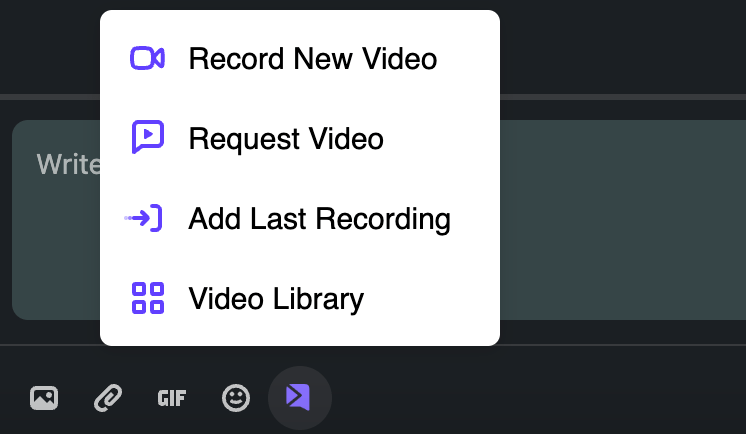
- Install the Sendspark Chrome extension first, it adds a Sendspark button to your LinkedIn message composer.
- Add the
firstnamemerge tag to the Header of your video so the recipient’s name shows on the thumbnail. See how to edit your LinkedIn messages for the headers, placeholders, and custom domains you can set. - Never copy the video link directly from Sendspark and paste it into LinkedIn, that loses personalization. Always insert via the Chrome extension.
- You can’t edit and resend the same link, LinkedIn caches it. Duplicate the video in Sendspark to generate a fresh link.
- Only send videos to your LinkedIn connections. Sending to non-connections can cause LinkedIn to block the thumbnail.
Sharing Sendspark videos on LinkedIn is straightforward, provided you follow the right steps. This guide will walk you through the process and highlight common mistakes to avoid.
Prerequisites
Chrome Extension: Ensure you have the Sendspark Chrome extension installed. This adds a convenient Sendspark button to your LinkedIn interface. Click HERE to download the Chrome Extension
Steps to Send Videos
- Accessing the Video Library
- Click on the Sendspark button within your LinkedIn post or message composer.
- Select “Video Library.”
- Choose the video you want to share.
- Personalizing Your Video
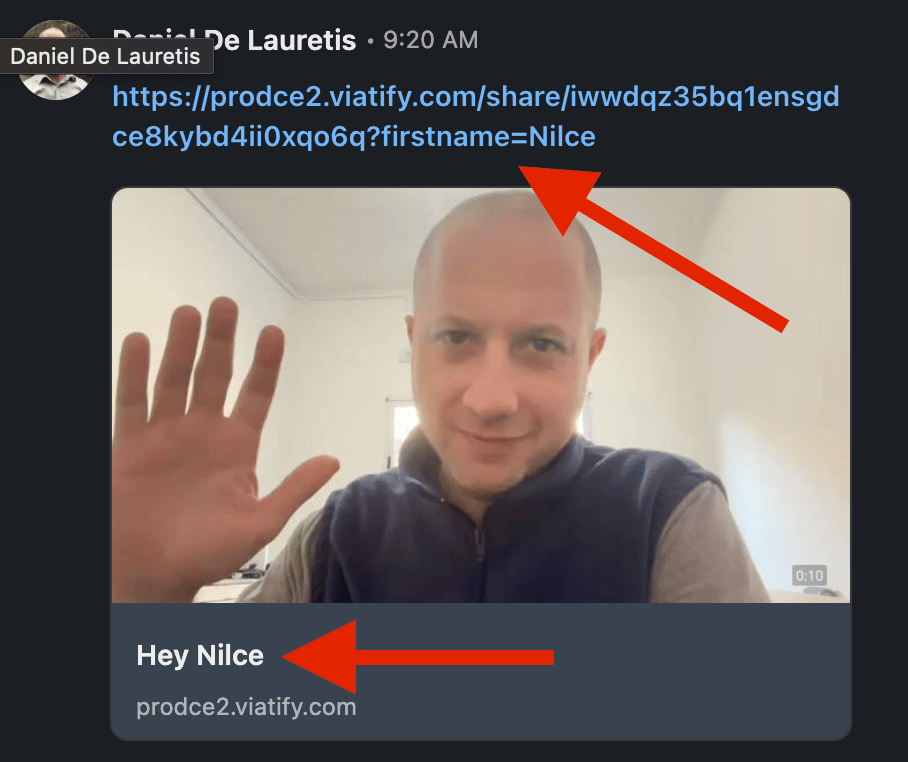
- Add the tag “firstname” merge tag to the Header in the edit section of your video in order to see the name personalization in the Video Thumbnail
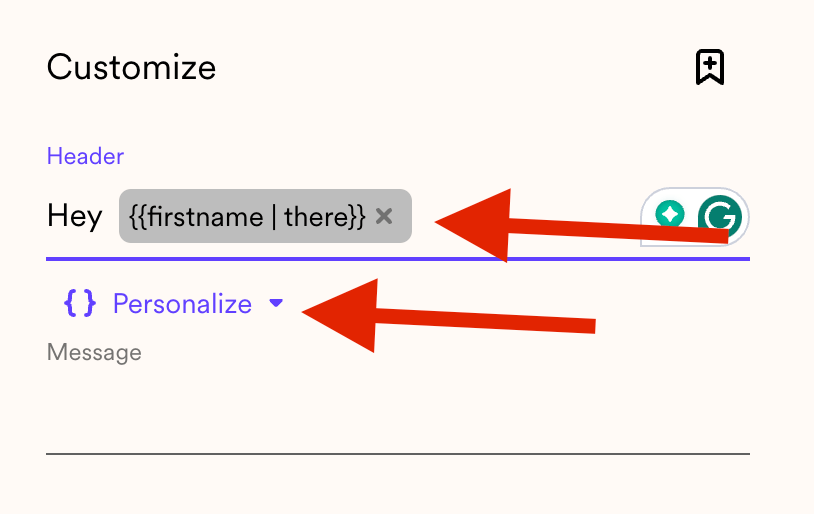
- You will see a link and a parameter that says
firstname. - Click “Send.” LinkedIn will take a few moments to populate the thumbnail.
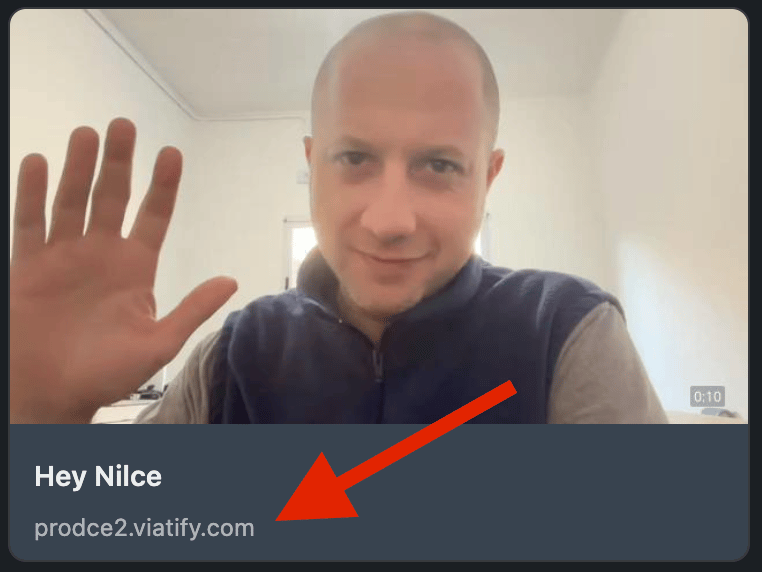
- Custom Domain
- Ensure your workspace is verified and connected for branding. If not, Sendspark’s default domain will be used.
What Not to Do
- Incorrect Link Sharing
- Avoid copying the video link directly from Sendspark and pasting it into LinkedIn. This method does not retain personalization.
- To properly include personalization, always use the Chrome extension to insert your video.
- Editing After Sending
- If you realize you’ve made a mistake (e.g., forgot to include the recipient’s name), you cannot simply edit and resend the same link.
- Due to LinkedIn’s caching, changes will not take effect. Instead, duplicate the video in your Sendspark library to generate a new link.
Additional Tips
- Thumbnails and Banners:
- When adding a banner or thumbnail, personalization (like first name) will not appear on the banner. It will only show in the main content area.
- Ensure your thumbnails and banners are correctly set before sending.
- Connection Requirement:
- Only send videos to LinkedIn connections. Sending to non-connections may result in LinkedIn blocking the thumbnail.
Frequently asked questions
Do I need the Chrome extension to send videos on LinkedIn?
Do I need the Chrome extension to send videos on LinkedIn?
Yes. The Sendspark Chrome extension adds a Sendspark button to your LinkedIn interface, which is what lets you insert a video with personalization intact. You can download it from the Chrome Web Store.
How do I get the recipient's name to show on the thumbnail?
How do I get the recipient's name to show on the thumbnail?
Add the
firstname merge tag to the Header in the edit section of your video. Once it’s in the Header, the name personalization will appear in the video thumbnail. After you click Send, LinkedIn takes a few moments to populate the thumbnail.Why shouldn't I just copy and paste the video link?
Why shouldn't I just copy and paste the video link?
Copying the video link directly from Sendspark and pasting it into LinkedIn does not retain personalization. To keep personalization, always use the Chrome extension to insert the video.
I made a mistake after sending. Can I edit and resend the same link?
I made a mistake after sending. Can I edit and resend the same link?
No. Because of LinkedIn’s caching, edits to an already-sent link won’t take effect. Instead, duplicate the video in your Sendspark library to generate a new link, then send that.
Why does my thumbnail get blocked sometimes?
Why does my thumbnail get blocked sometimes?
LinkedIn may block the thumbnail if you send to someone who isn’t a connection. Only send videos to your LinkedIn connections. Also note that personalization like first name shows in the main content area, not on a banner or thumbnail banner.