

Key takeaways
- The setup has three parts: a Dynamic Video Campaign in Sendspark, a Sendspark placeholder in your Apollo sequence email, and a Sendspark automation that enrolls contacts in Apollo.
- Use Sendspark: New Video Generated - Specific Campaign as the trigger so contacts only enroll once their personalized video is ready.
- Enroll contacts by calling the Apollo API endpoint
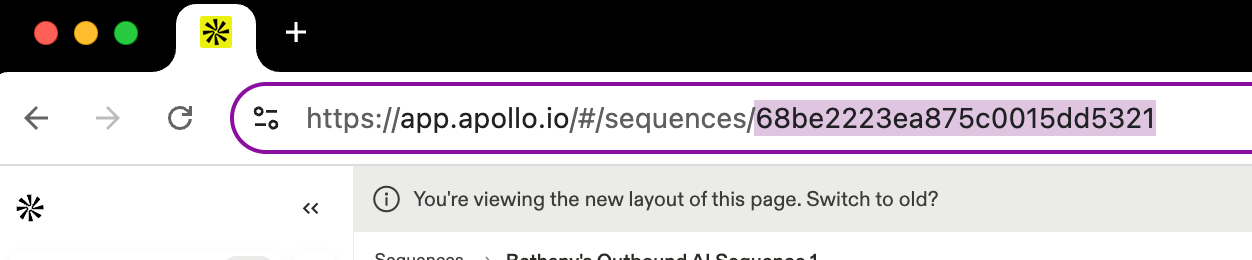
https://api.apollo.io/api/v1/emailer_campaigns/{YOUR_CAMPAIGN_ID}/add_contact_idswith aPOSTrequest. - Find your Apollo campaign ID in the URL of your Apollo sequence, and get your API key from Apollo’s Developer Keys page.
Step 1: Create a Dynamic Video Campaign in Sendspark
Start by setting up a Dynamic Video Campaign in Sendspark. This is the template video that will be personalized at scale with your contact’s details (name, company, etc.).Step 2: Add a Sendspark Placeholder into Your Apollo Sequence
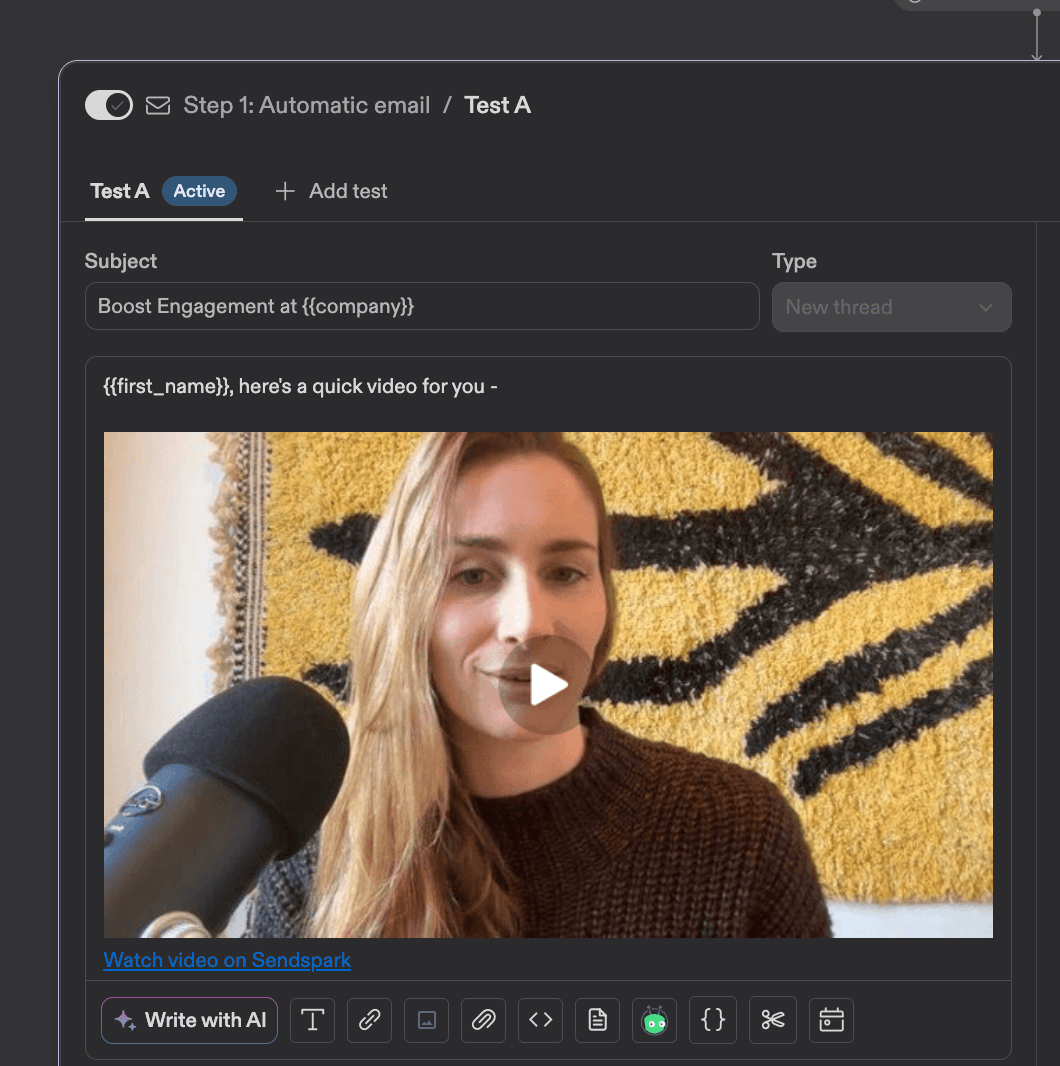
In Apollo, edit your sequence email where you’d like the personalized video to appear. This placeholder will automatically update with each contact’s unique video once it’s generated. Add this into Apollo by…- Going to your Dynamic Video Campaign
- Clicking Share Campaign
- Searching for “Apollo”
- Clicking on the snippet to copy it to your clipboard

- Pasting into Apollo exactly where you’d like it to appear in your email
Step 3: Build a Sendspark Automation to Enroll Contacts in Apollo
Now we’ll set up an automation that connects Sendspark with Apollo that looks something like this: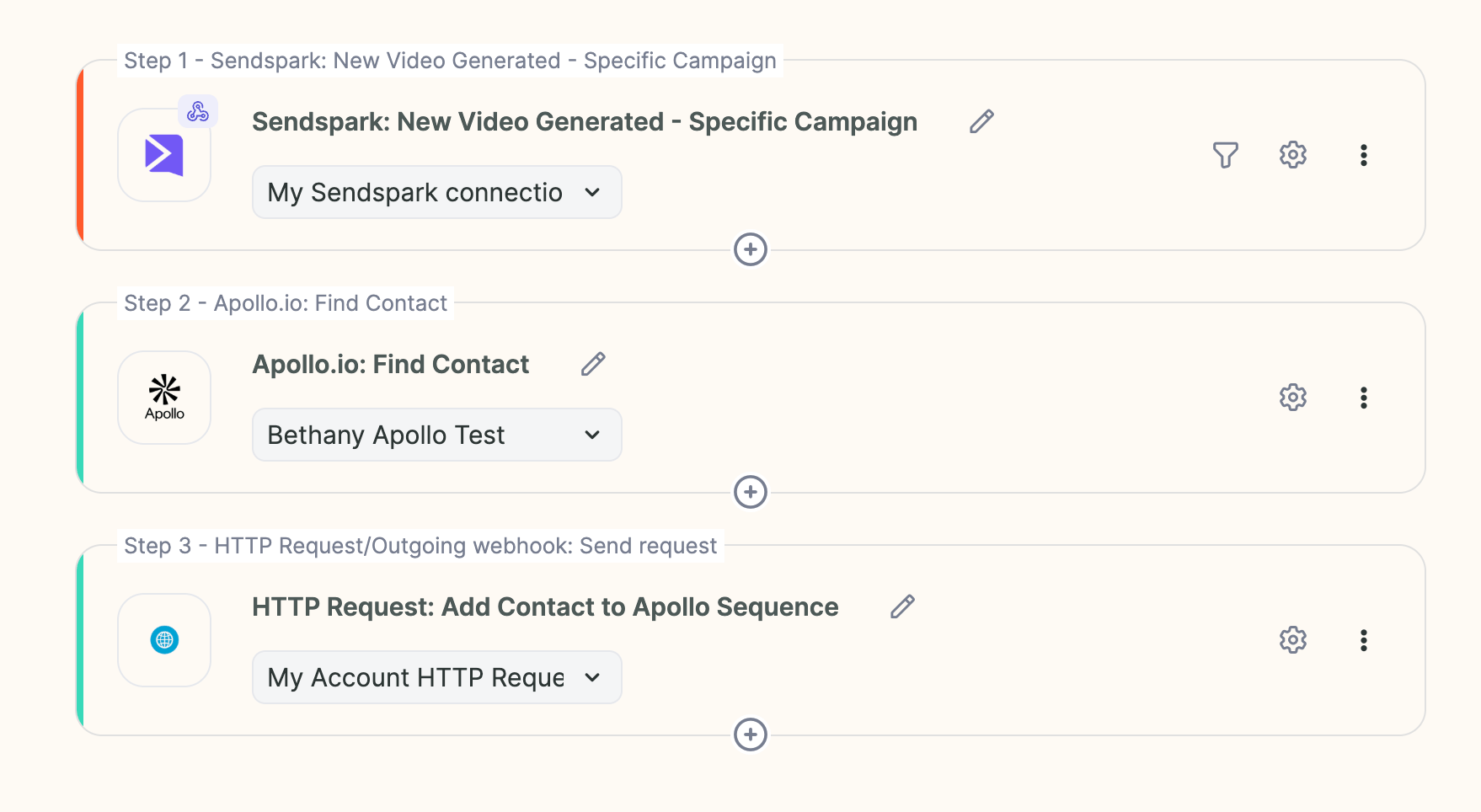
1. Choose Your Trigger
- If you already have a trigger (like “Contact added to Apollo list” or “Contact added in HubSpot”), use that.
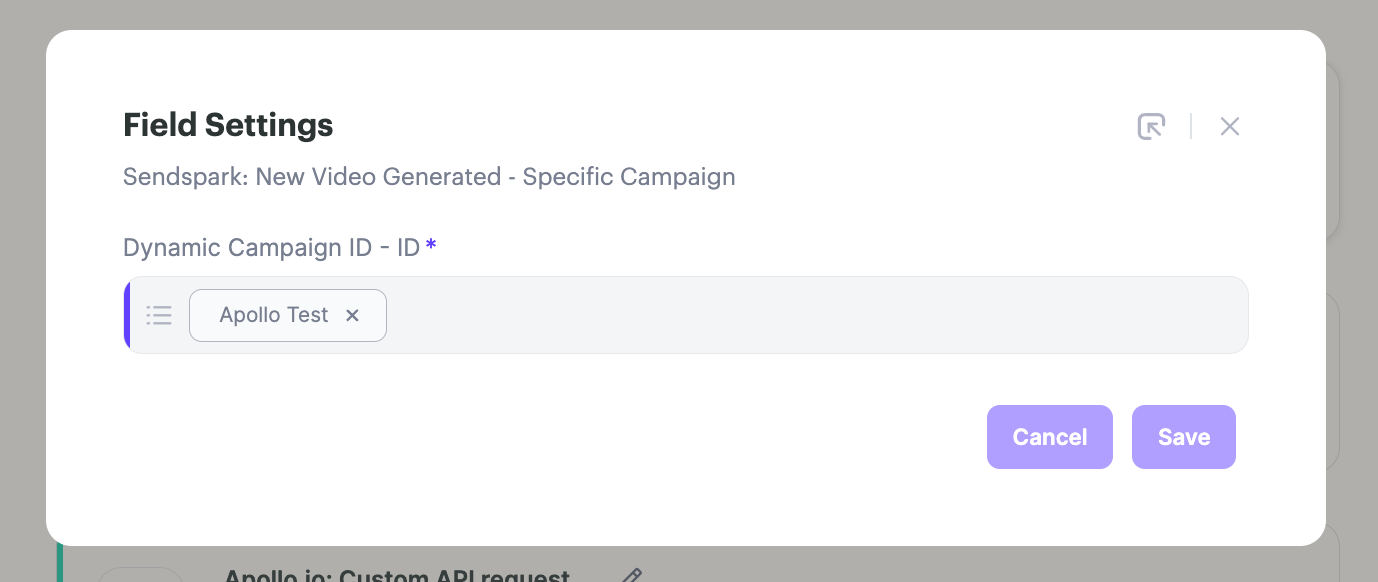
- Otherwise, simply use “Sendspark: New Video Generated - Specific Campaign” as the trigger and connect the dynamic video campaign you’d like to use
2. Add Step: Apollo.io: Find Contact
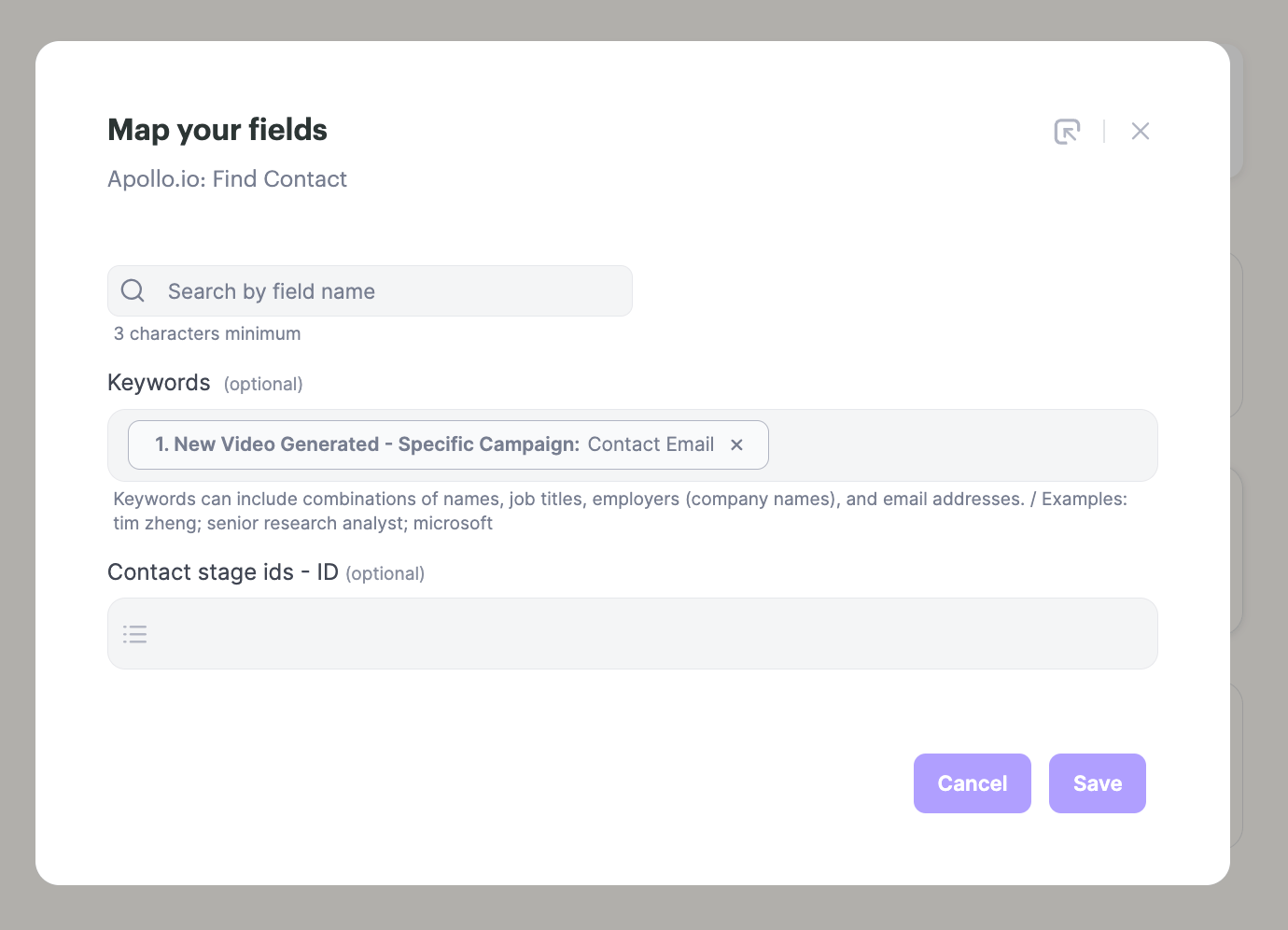
- Add a step: Apollo.io: Find Contact
- Use the Sendspark email field as the search parameter.
3. Add Step: HTTP Request/Outgoing webhook: Send request
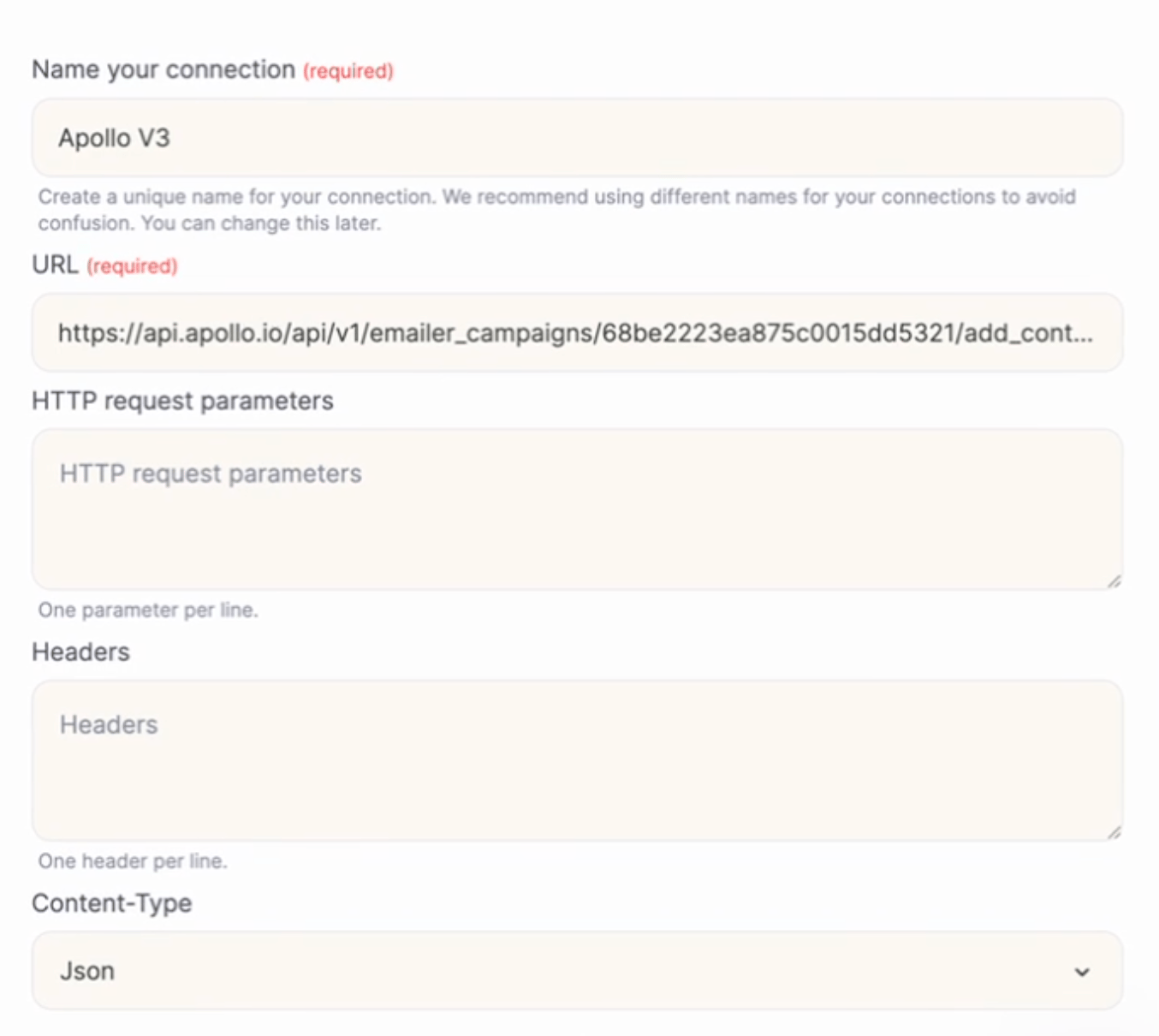
- Create a new step: HTTP Request/Outgoing webhook: Send request
- Paste the following URL, using the real campaign ID from your Apollo sequence (you can find it in the URL of your Apollo sequence):
POST
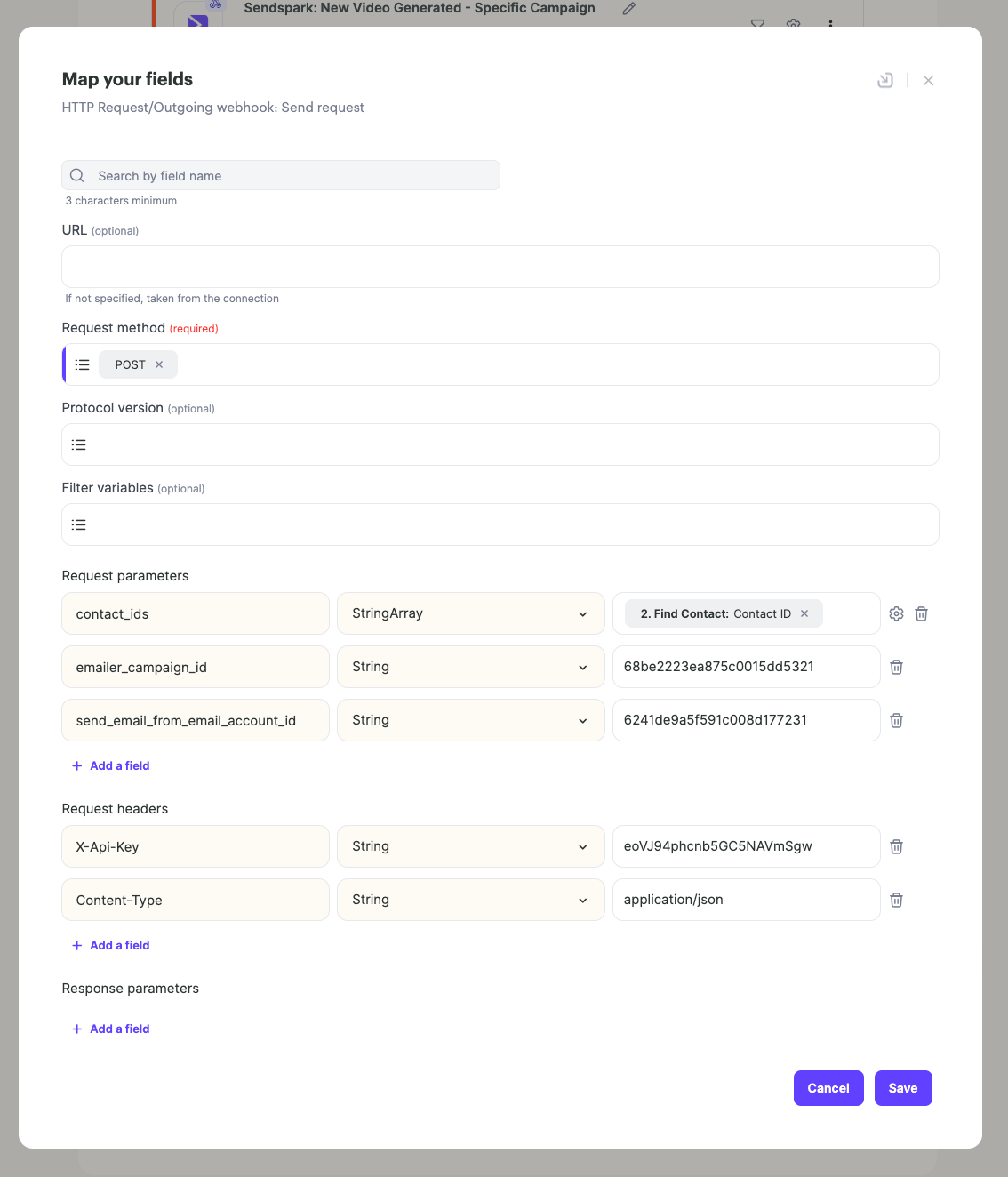
Request Parameters:
contact_ids→StringArray→ insert this dynamically from the Find Contact stepemailer_campaign_id→String→Your Apollo campaign ID (find this in the URL of your sequence)send_email_from_email_account_id→String→Your connected Apollo email account (you can find this from Apollo API Docs)
X-Api-Key→String→ Get your Apollo API key here: Apollo Developer KeysContent-Type→String→application/json
4. Start Automation
When all looks good, “Start” to start running this automation.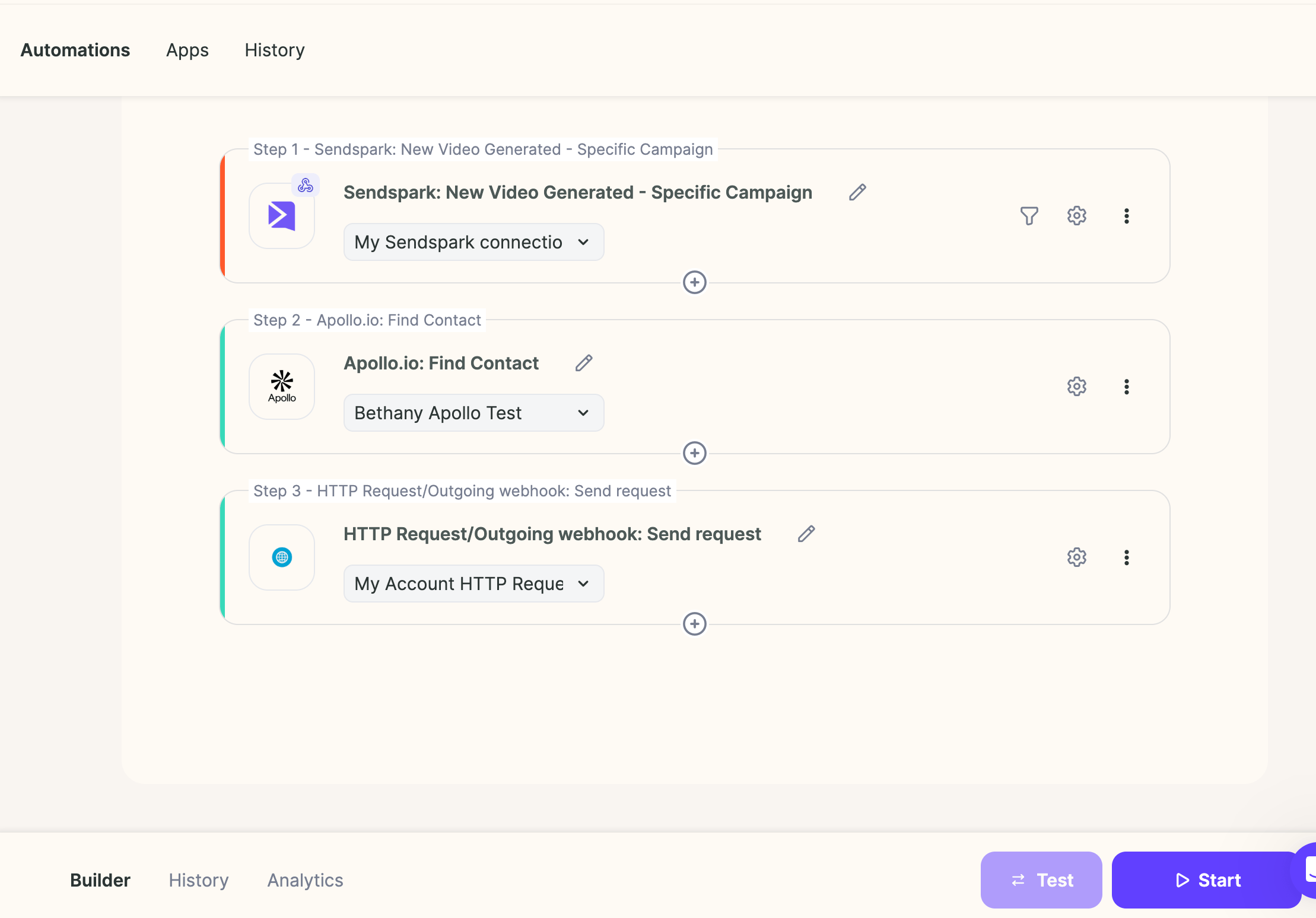
Bonus: Create Contacts in Apollo If They Don’t Already Exist
For the most part, your contacts should already exist in Apollo (because they have a large database). However, if you believe that some contacts might not exist, then you can add logic to create contacts in Apollo if they don’t exist.Apollo API request at a glance
Frequently asked questions
How do I automatically send personalized video emails in Apollo?
How do I automatically send personalized video emails in Apollo?
Create a Dynamic Video Campaign in Sendspark, paste a Sendspark placeholder into your Apollo sequence email, then build a Sendspark automation that triggers on “Sendspark: New Video Generated - Specific Campaign,” finds the contact in Apollo by email, and calls the Apollo API to enroll them in your sequence. Contacts are added automatically once their video is ready.
What trigger should I use for the Sendspark automation?
What trigger should I use for the Sendspark automation?
If you already have a trigger such as “Contact added to Apollo list” or “Contact added in HubSpot,” use that. Otherwise use Sendspark: New Video Generated - Specific Campaign and connect the dynamic video campaign you want to use, so contacts enroll only after their video is ready.
Where do I find my Apollo campaign ID and API key?
Where do I find my Apollo campaign ID and API key?
Your Apollo campaign ID appears in the URL of your Apollo sequence. Your API key comes from the Apollo Developer Keys page, and your connected email account ID is available from the Apollo API docs.
What if some of my contacts don't already exist in Apollo?
What if some of my contacts don't already exist in Apollo?
Most contacts will already exist because Apollo has a large database. If some might not, you can add logic to create contacts in Apollo if they don’t already exist before enrolling them in the sequence.