

Key takeaways
- You’ll need admin access to Outlook (to connect the Sendspark app) and the Agentic Workflows feature in Sendspark (currently in Beta).
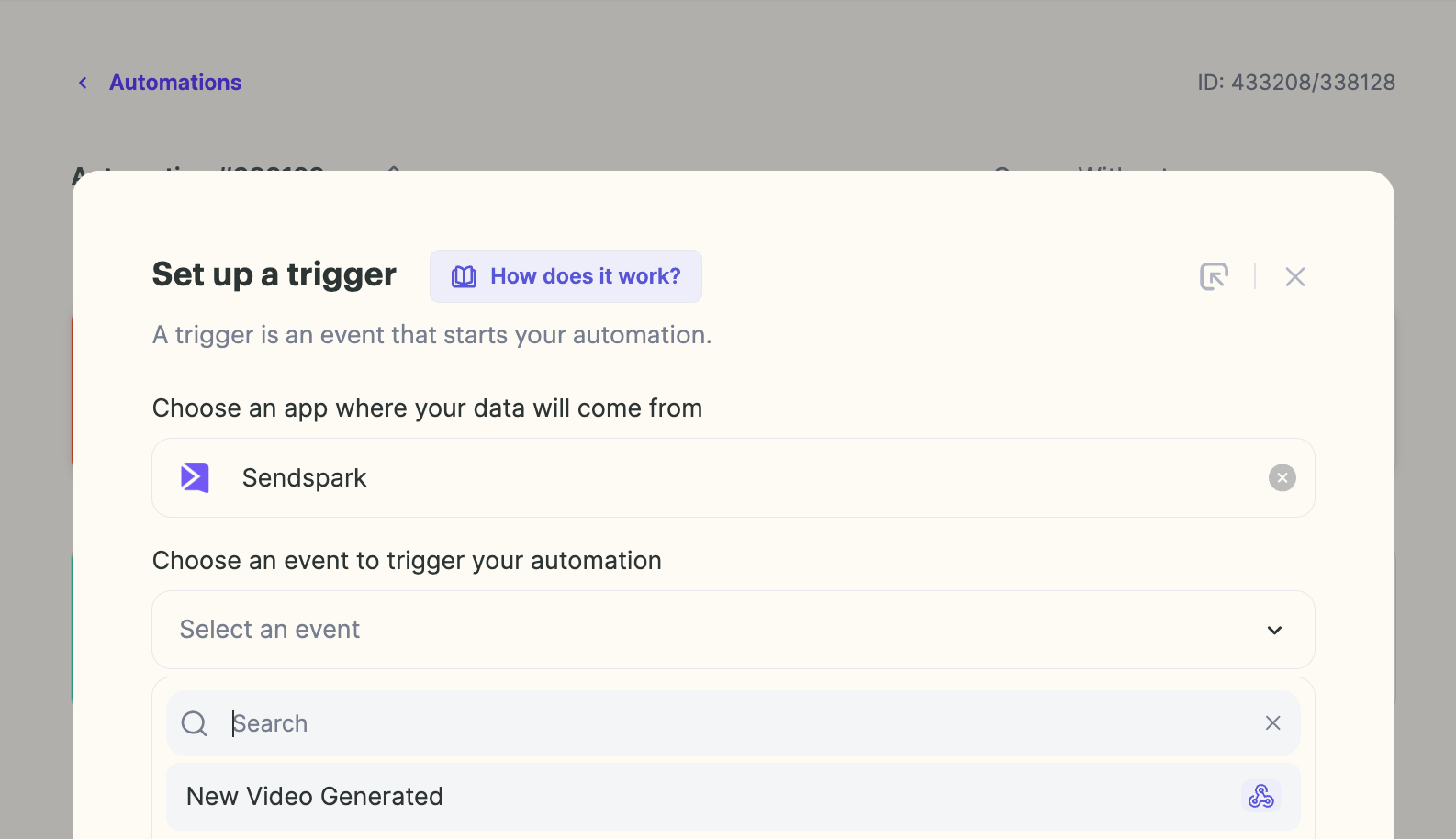
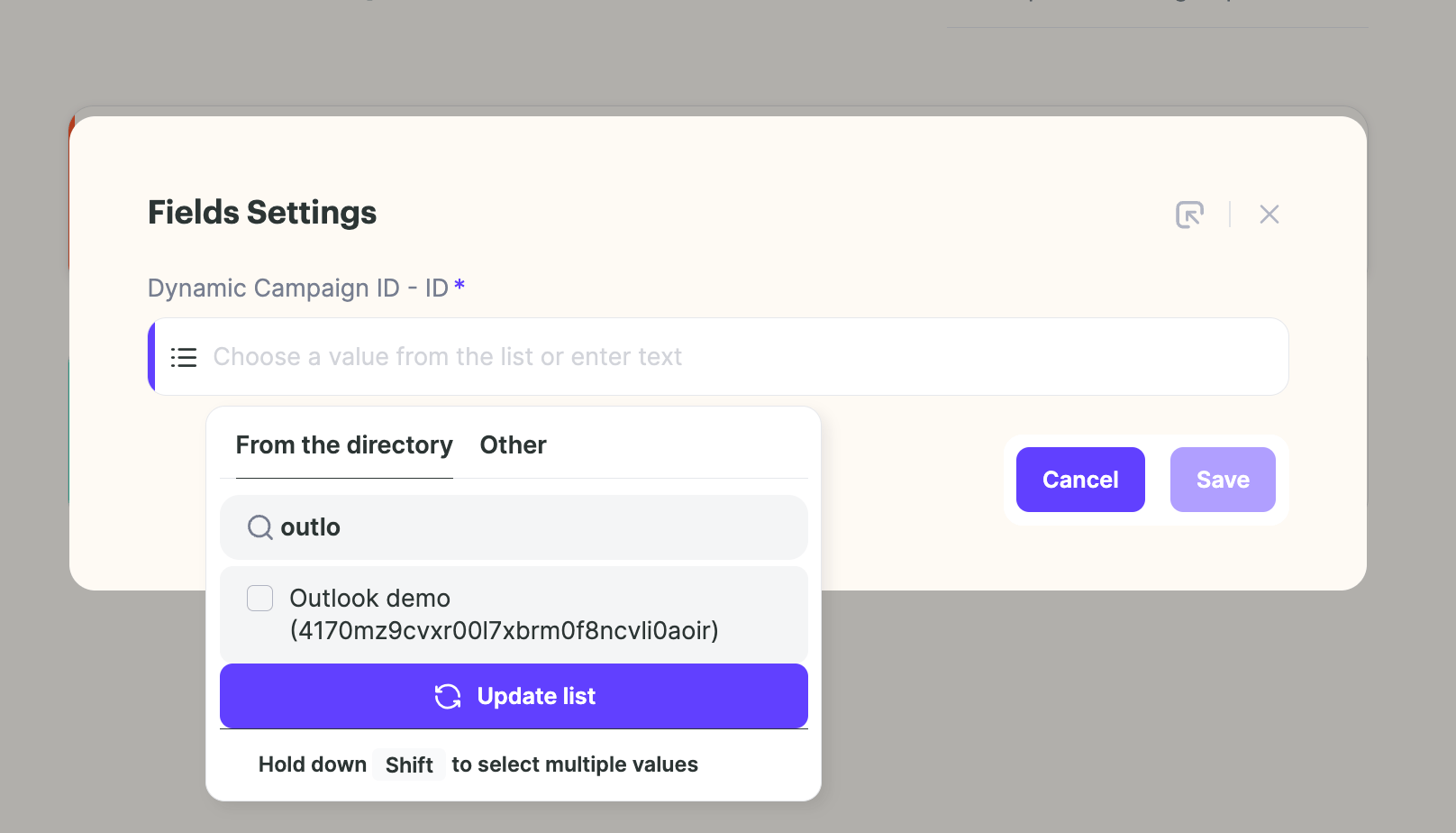
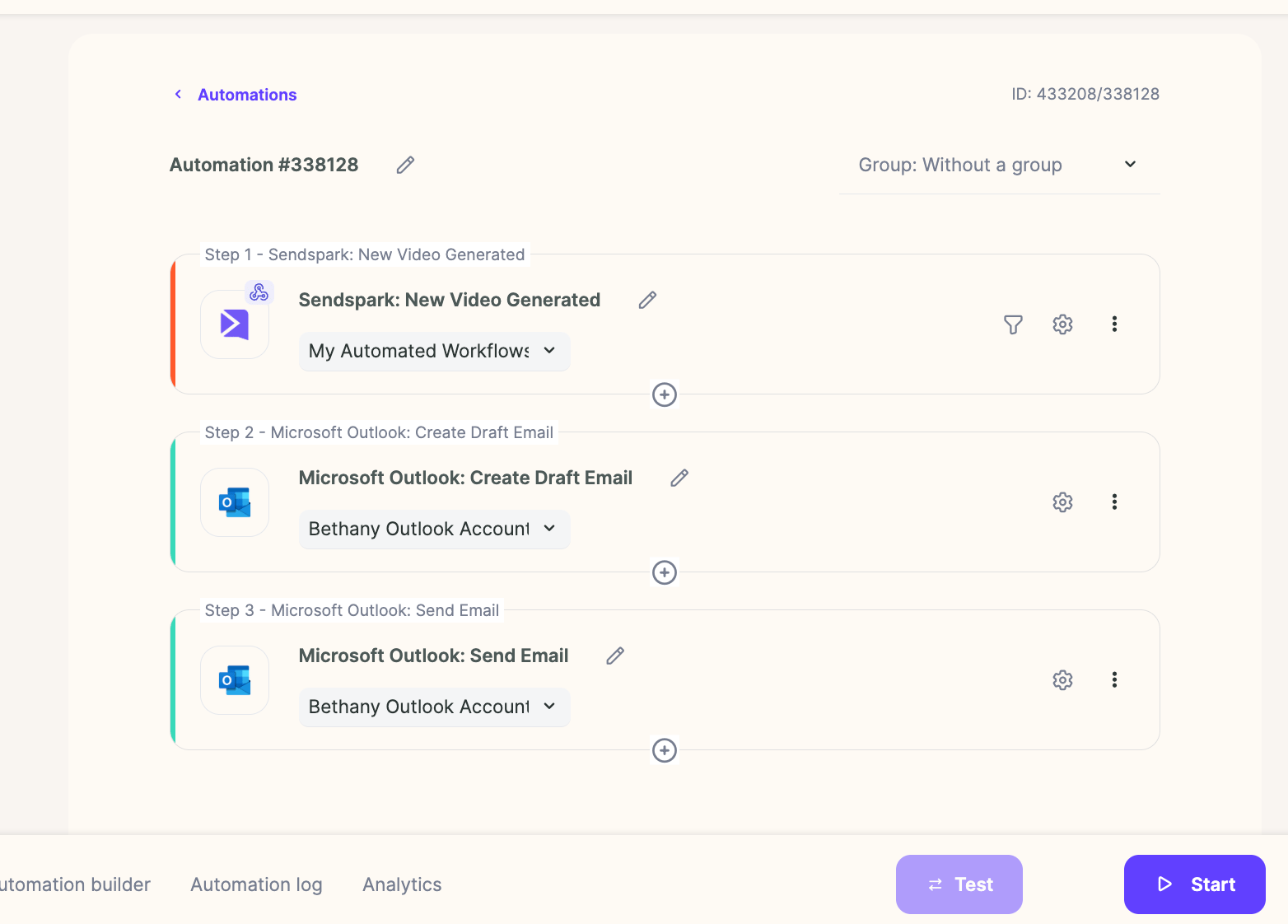
- Trigger the workflow on Sendspark’s New Video Generated event and select your Dynamic Video Campaign.
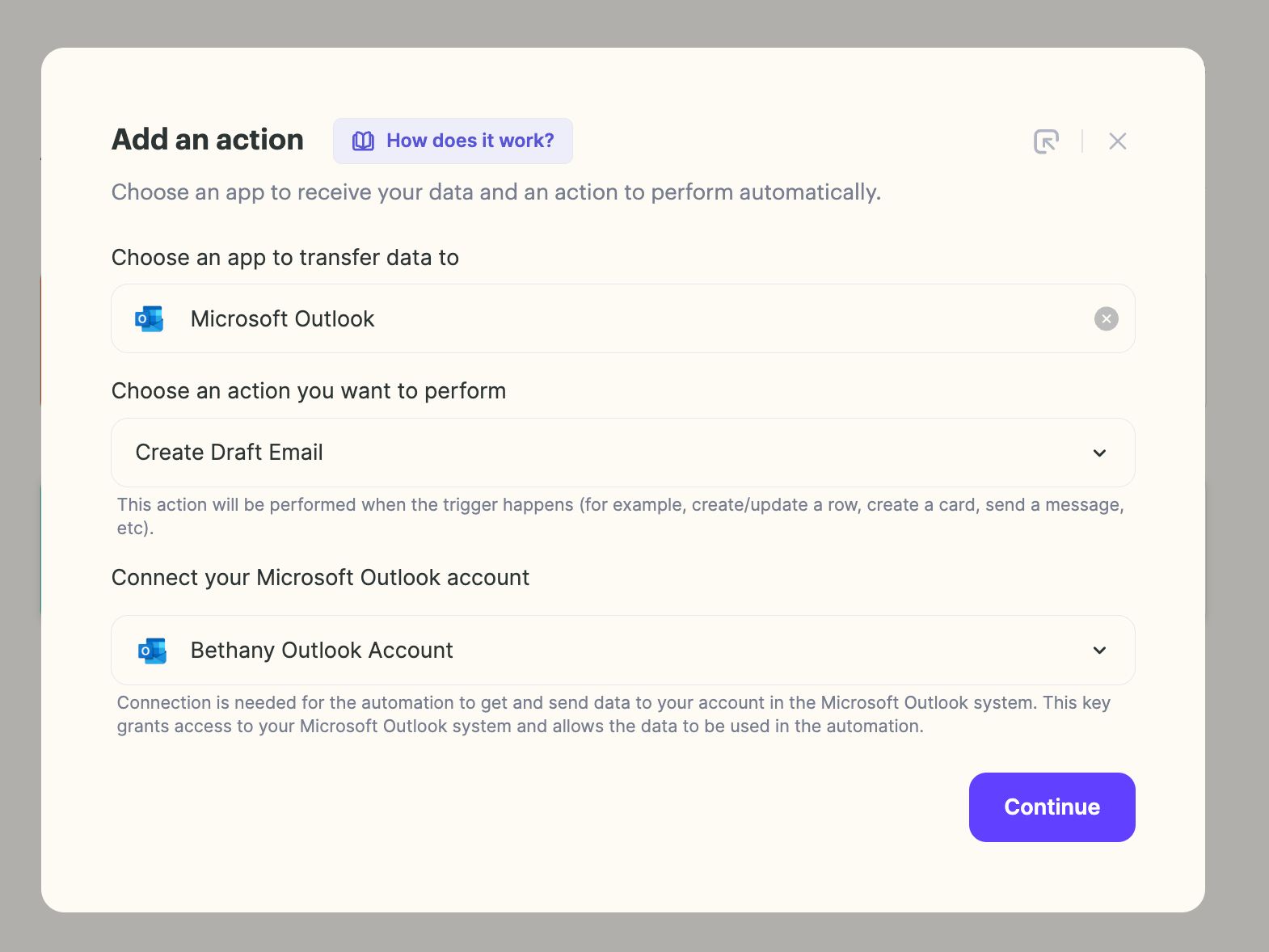
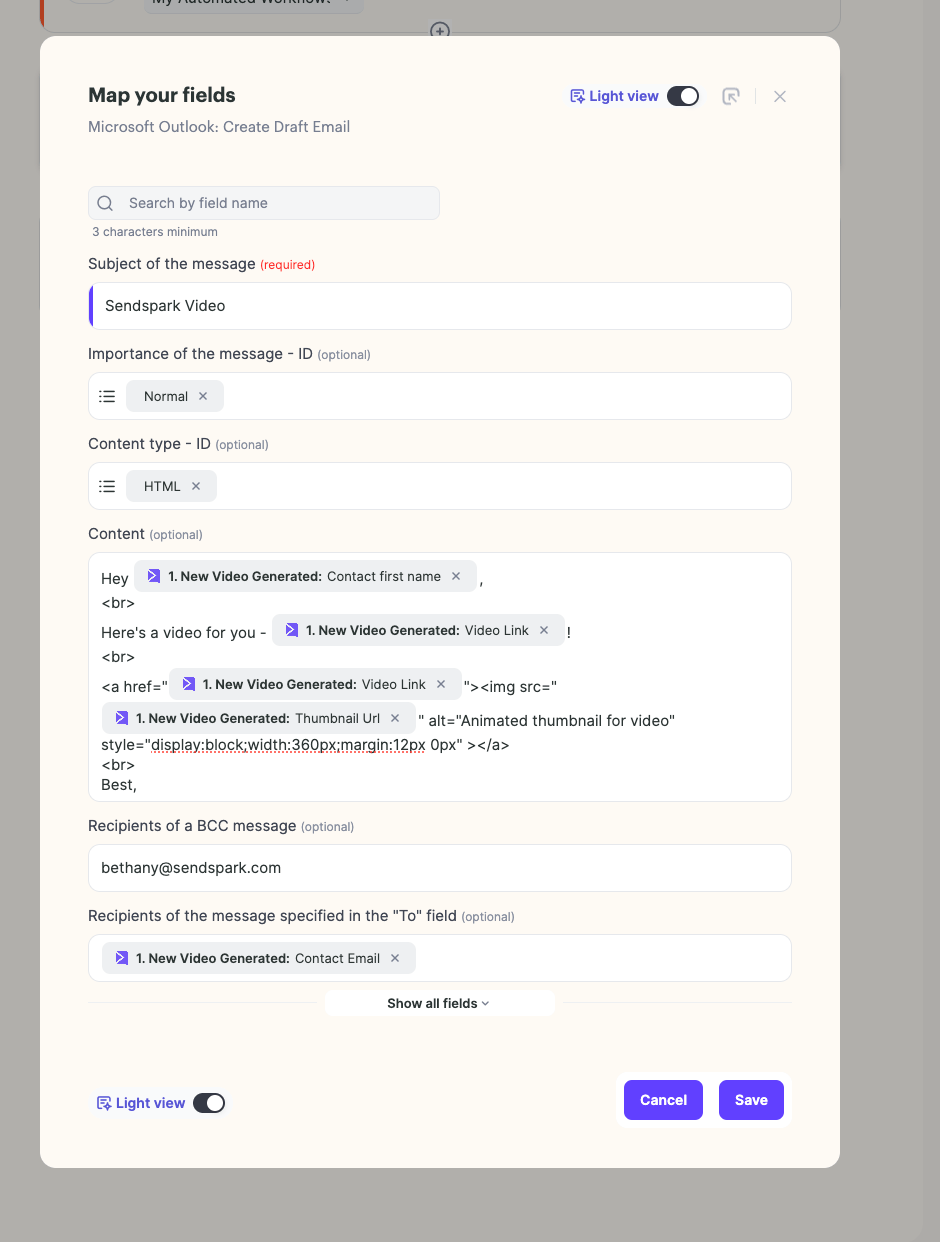
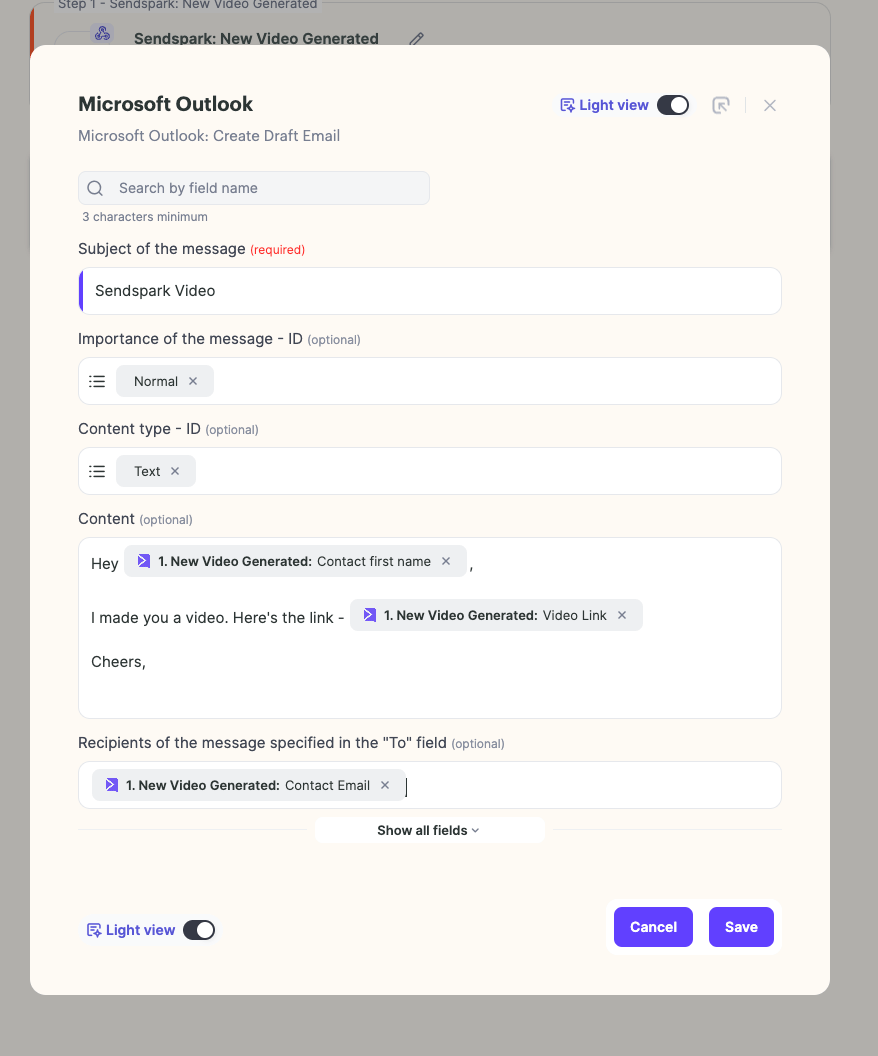
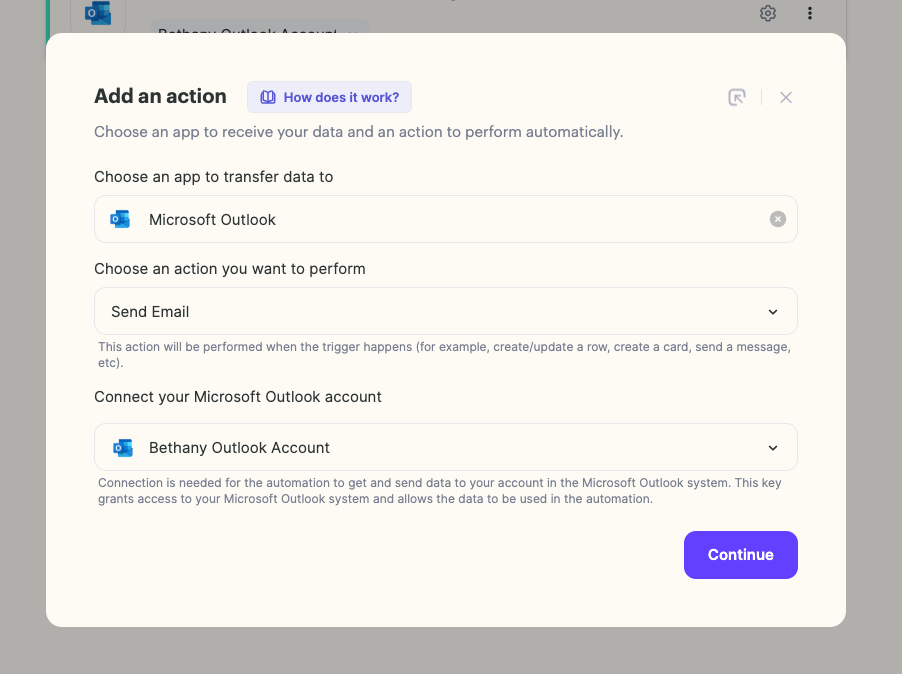
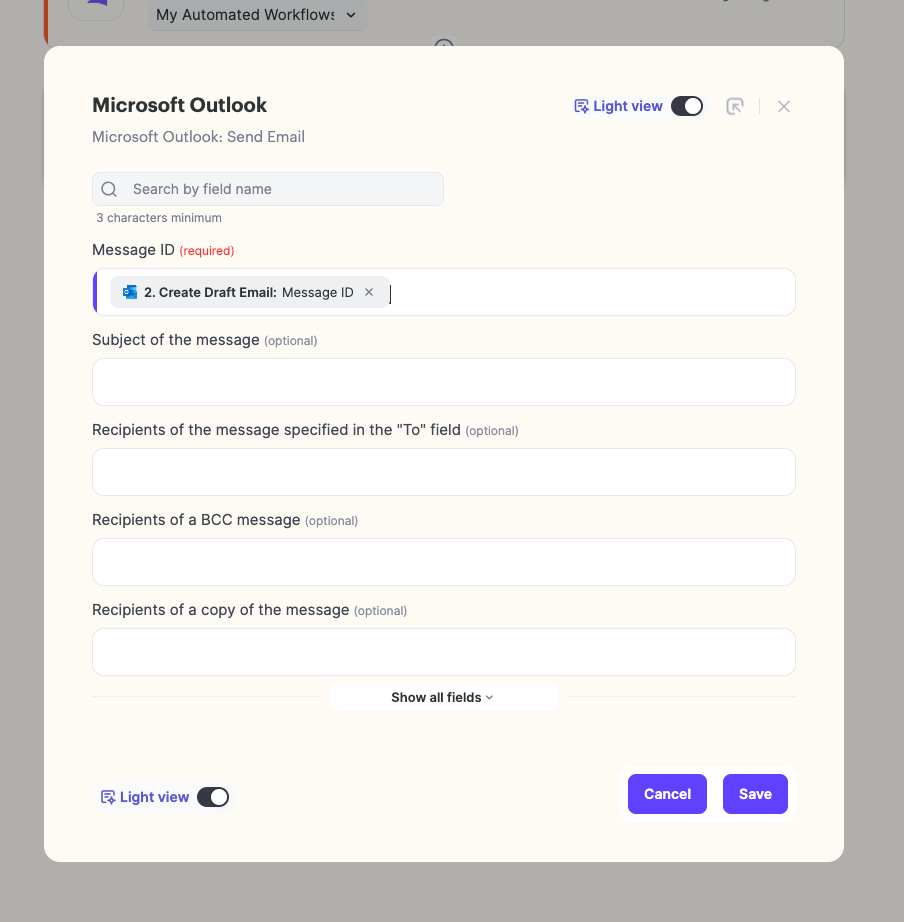
- Add a Microsoft Outlook Create Draft Email action, then a Send Email action using the message ID from the draft step.
- Embed the video with the provided HTML snippet (replacing the video link and thumbnail URL) or just include a plain-text link.
Requirements for connecting Sendspark and Outlook:
- Admin access to Outlook (to connect the Sendspark App)
- Agentic Workflows feature in Sendspark (currently in Beta)
How to Create & Send AI Personalized Videos in Outlook
Please watch this video if you’d like to see the entire setup from beginning to end!Step 1: Create Your Dynamic Video Campaign
Start by creating your Dynamic Video Campaign in Sendspark. If you are not sure how to do that, please refer to this help article on how to create dynamic videos.Step 2: Create Your Agentic Workflow
Go to the Agentic Workflow Section of Sendspark. Select**“New automation”**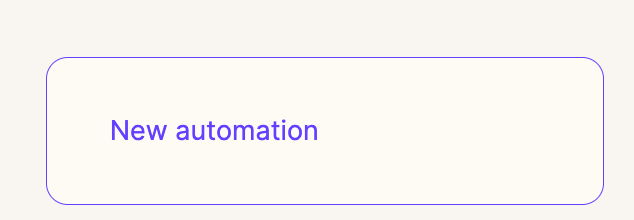
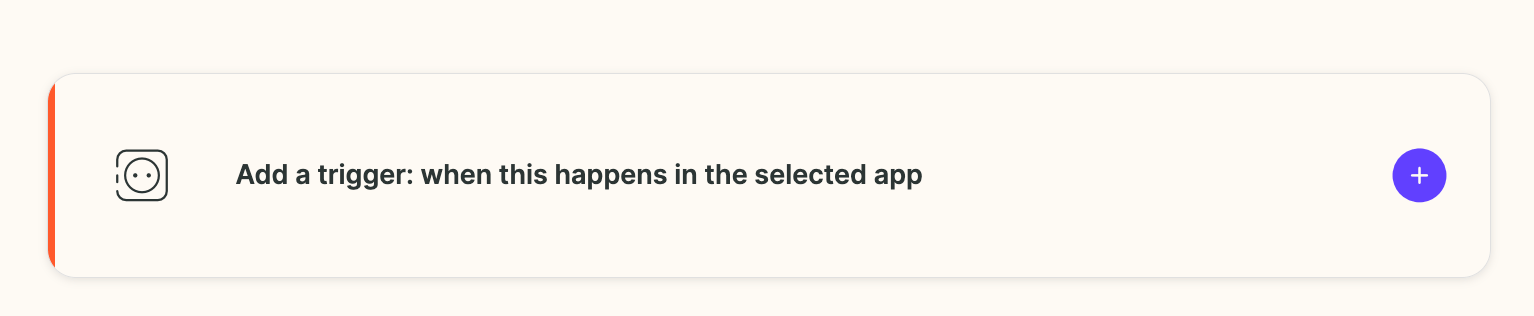

Frequently asked questions
What do I need to connect Sendspark and Outlook?
What do I need to connect Sendspark and Outlook?
Two things: admin access to Outlook (so you can connect the Sendspark app) and the Agentic Workflows feature in Sendspark, which is currently in Beta.
What triggers the workflow?
What triggers the workflow?
Set the trigger to Sendspark and New Video Generated, then select the Dynamic Video Campaign you created. Each newly generated video kicks off the Outlook steps.
How do I embed the video in the Outlook email?
How do I embed the video in the Outlook email?
Use an HTML email with the provided code snippet, replacing [VIDEO LINK] and [THUMBNAIL URL] with your real video and thumbnail links from the dropdown. If you’d rather not use HTML, send a plain-text email that simply includes the link to your video.
When are the videos actually sent?
When are the videos actually sent?
Automatically. Once you add contacts to your dynamic video campaign and their videos are created, the workflow sends each contact their video email from Outlook. The final Send Email action uses the message ID from the draft step.