

Key takeaways
- The flow has three pieces: a Sendspark dynamic video campaign, the Sendspark placeholder pasted into your Instantly email, and an Agentic Workflow that ties them together.
- The workflow triggers on “Instantly — Email sent”, so place your video placeholder in the 2nd (or later) step to give the video time to generate before it sends.
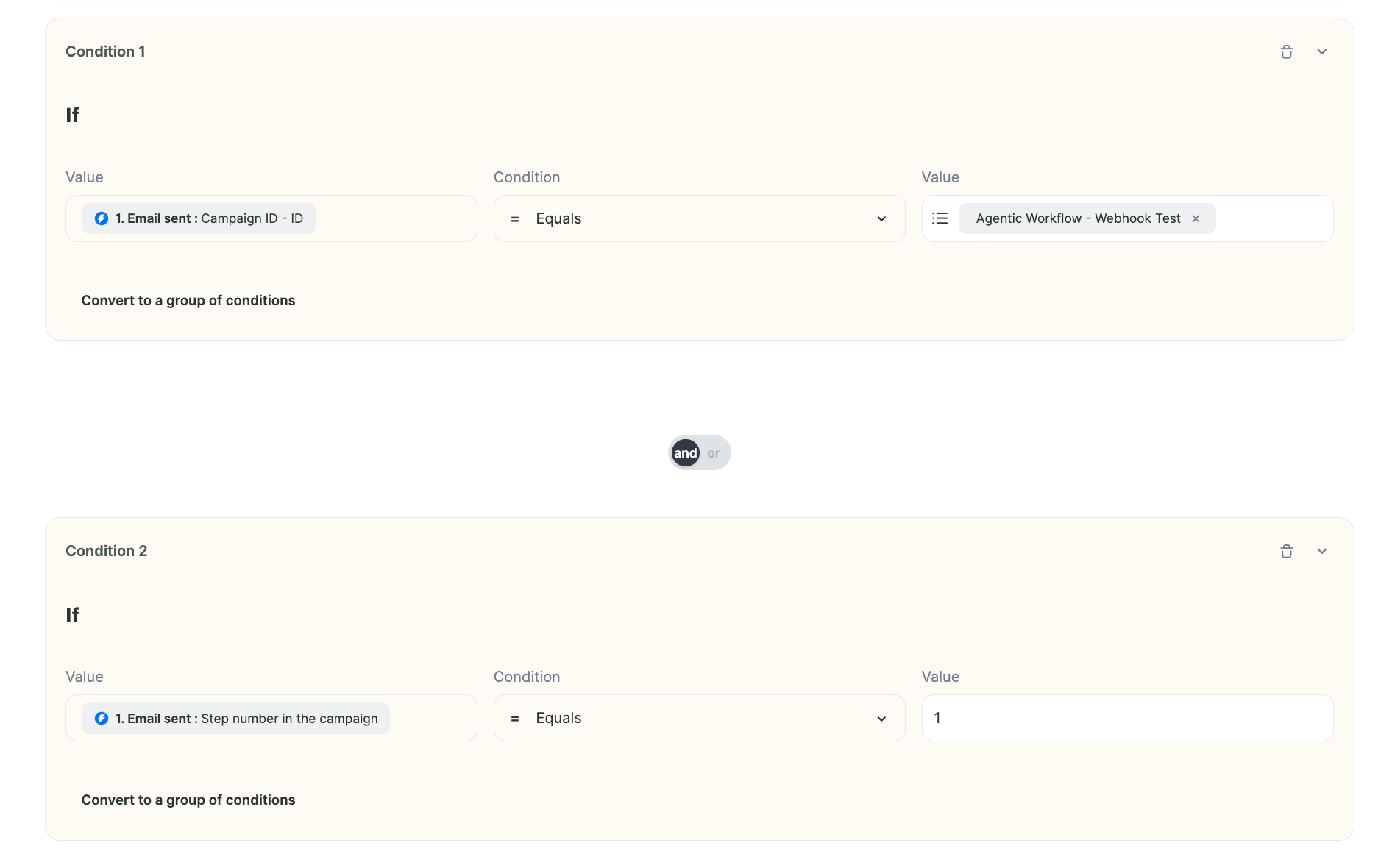
- Filter the trigger by campaign ID and by first step so contacts don’t re-enroll as later emails go out.
- Always map the Contact Email field in the Create dynamic video action, since email is what updates the placeholder and ensures the right person receives the right video.
How to Automatically Create Sendspark Videos When Leads Get Added to Instantly Campaigns
1. Create Dynamic Video in Sendspark
Start by creating your dynamic video campaign in Sendspark. Here, you can take one video and add placeholders for “first name” and other dynamic fields.2. Create Email Campaign in Instantly
In Instantly, create your email campaign, and add the placeholder for your Sendspark dynamic video campaign where your video should show up in email. You can find your Sendspark video placeholder by…- Going to your dynamic video campaign
- Clicking “Share Campaign”
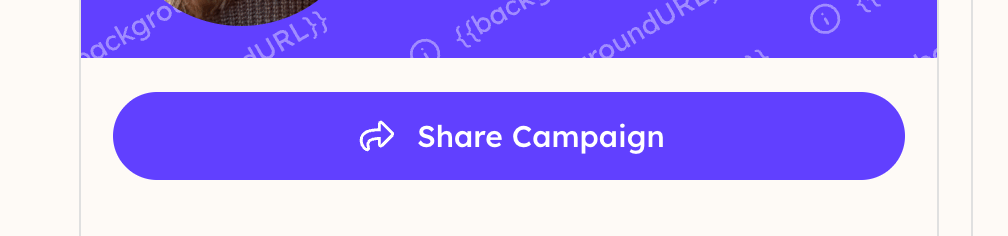
- Selecting “Instantly” to copy the placeholder to your clipboard

- Going to your Instantly email template and switching into “code view”
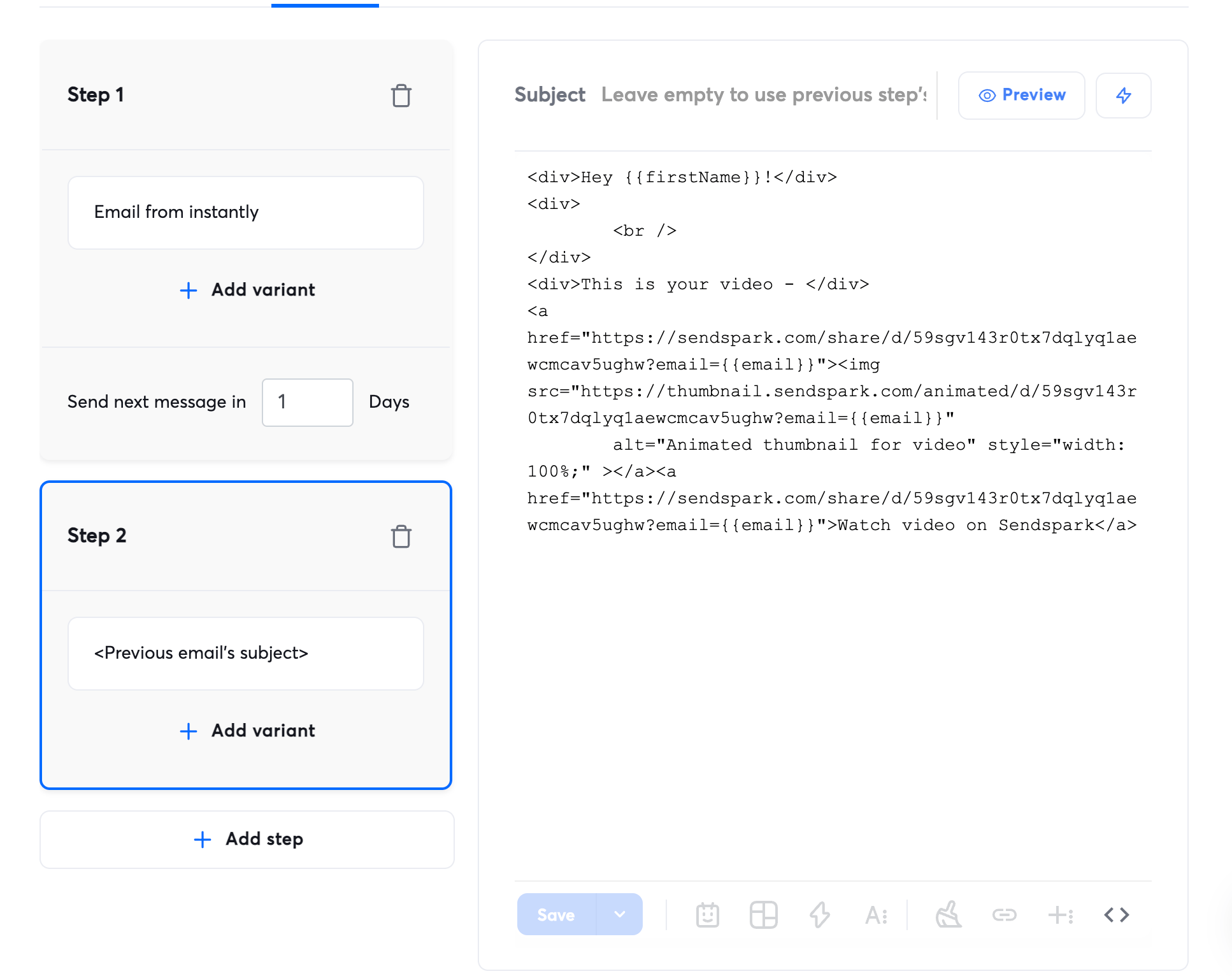
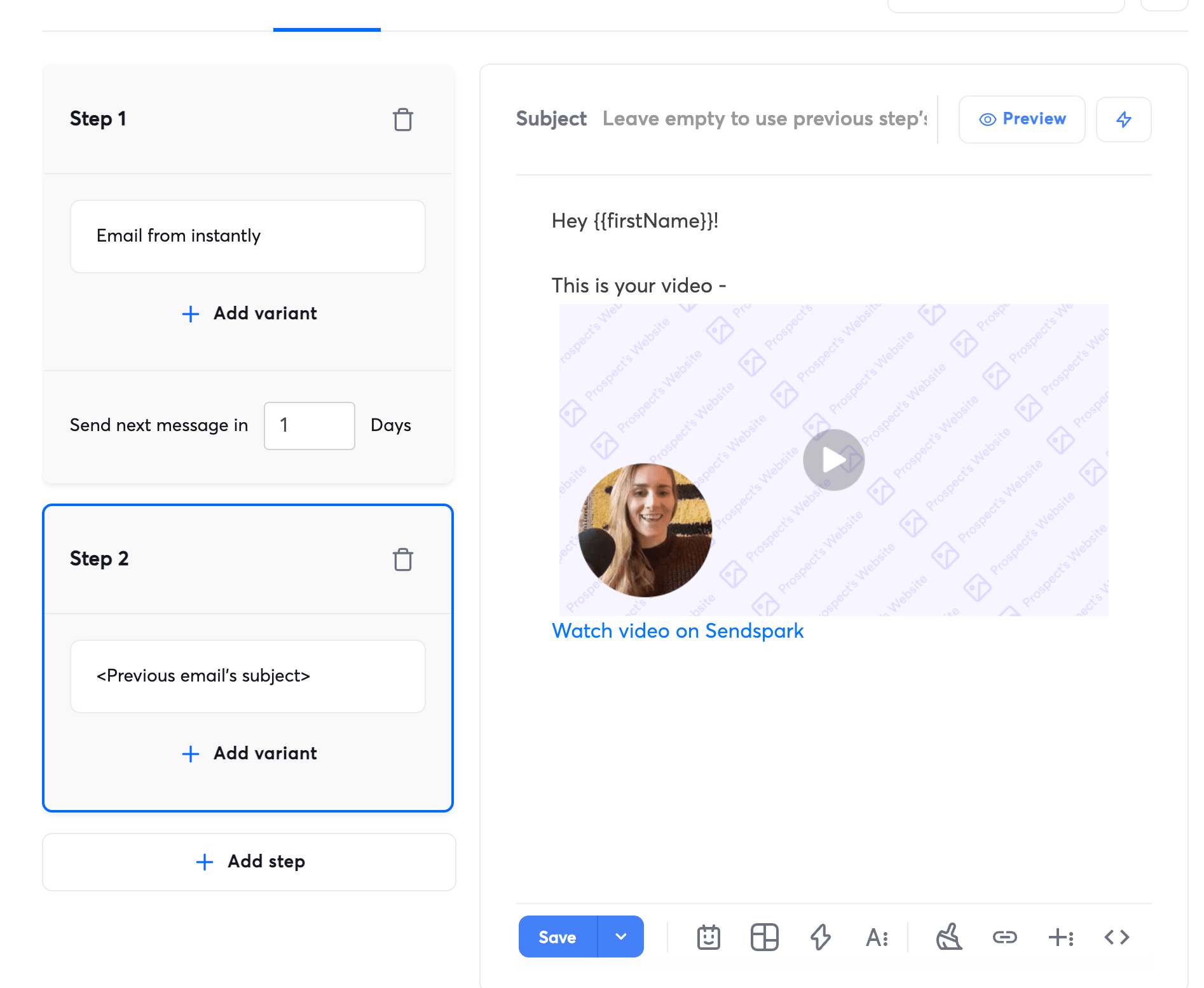
- Pasting and then switching back to “non-code view” and clicking “save”
3. Create Agentic Workflow in Sendspark
Now that we have everything set up, we want to make sure that Sendspark videos automatically get created when you add leads into the Instantly campaign, so everyone gets a video personalized for them. Navigate to the Agentic Workflows section of Sendspark, and create a new automation.
4. Use “Instantly - Email sent” as a Trigger
- Click to add a trigger to your workflow

- Select “Instantly” and Email sent
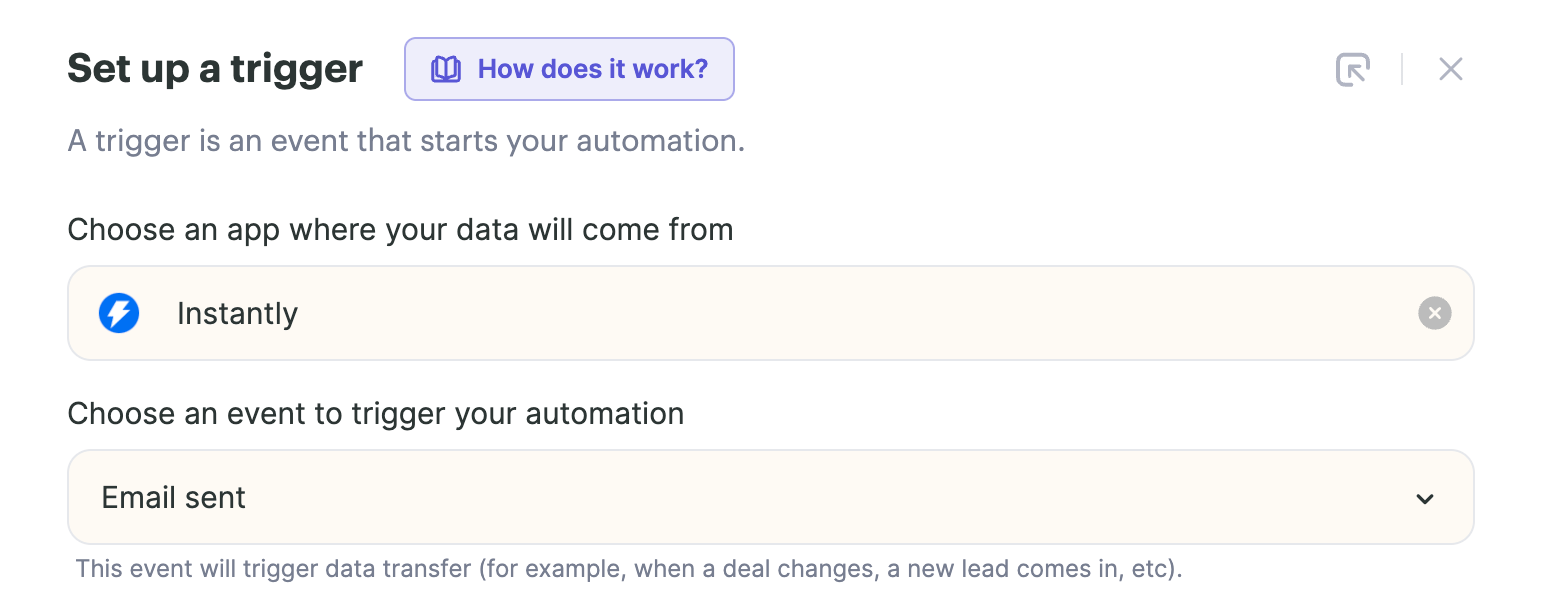
- Connect Instantly
- If this is your first time using Instantly in Sendspark Agentic Workflows, follow these steps to connect your Instantly account.
5. Filter Your Trigger To Match Your Instantly Campaign
- Select the funnel next to your trigger to filter it to only fire when you send an email from the right Instantly campaign
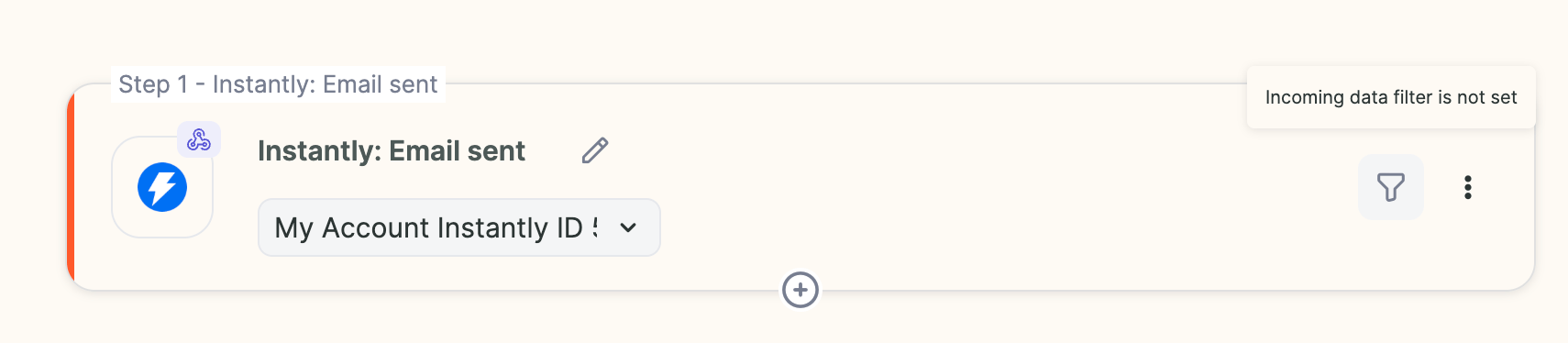
- We’d recommend adding two filters here. One to make sure the campaign ID is the Instantly campaign you’d like to connect this automation to, and another to make sure this only fires on the first step, so that contacts do not re-enroll as you send them more emails
6. Add Action “Sendspark: Create dynamic video”
Now, add an action for “Sendspark: Create dynamic video” to automatically create the AI-personalized videos when leads get added to the Instantly campaign.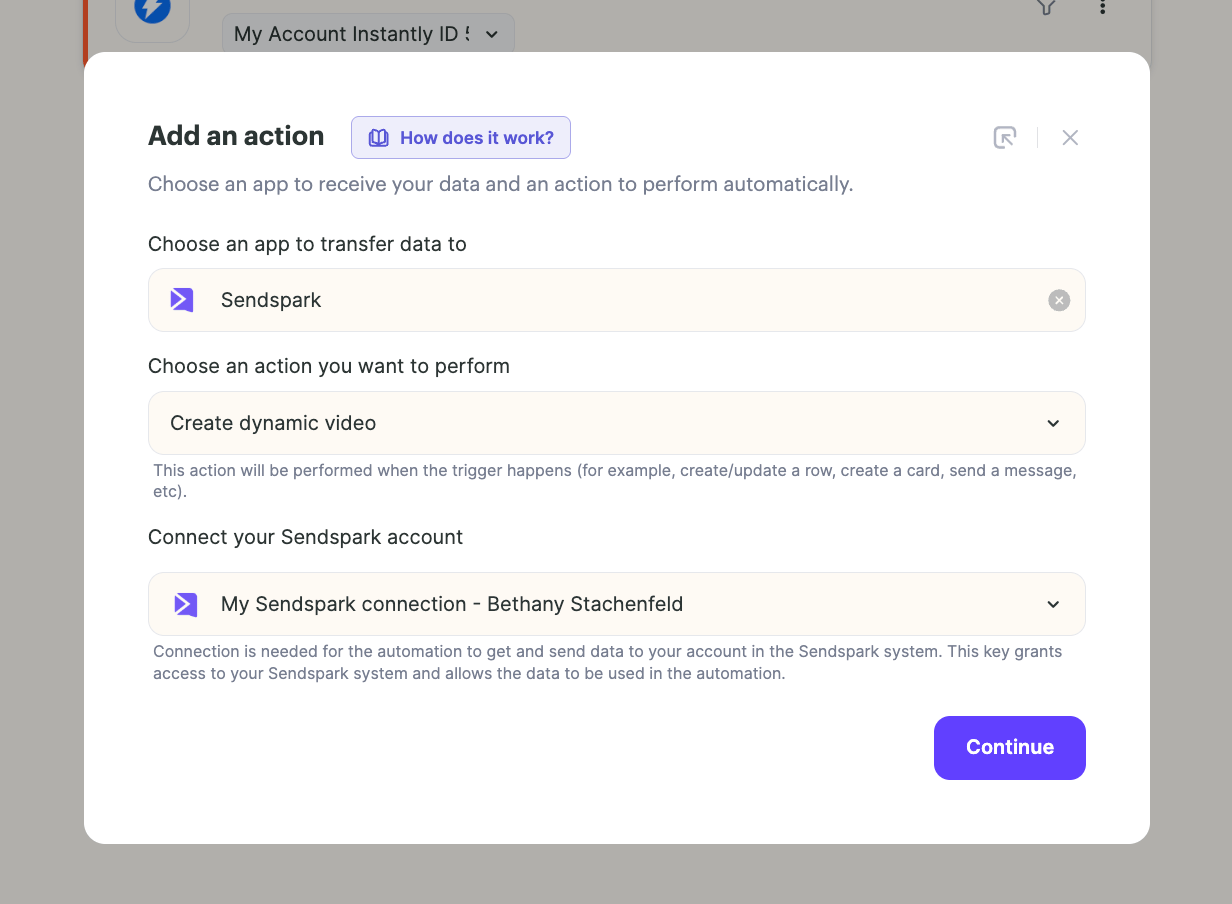
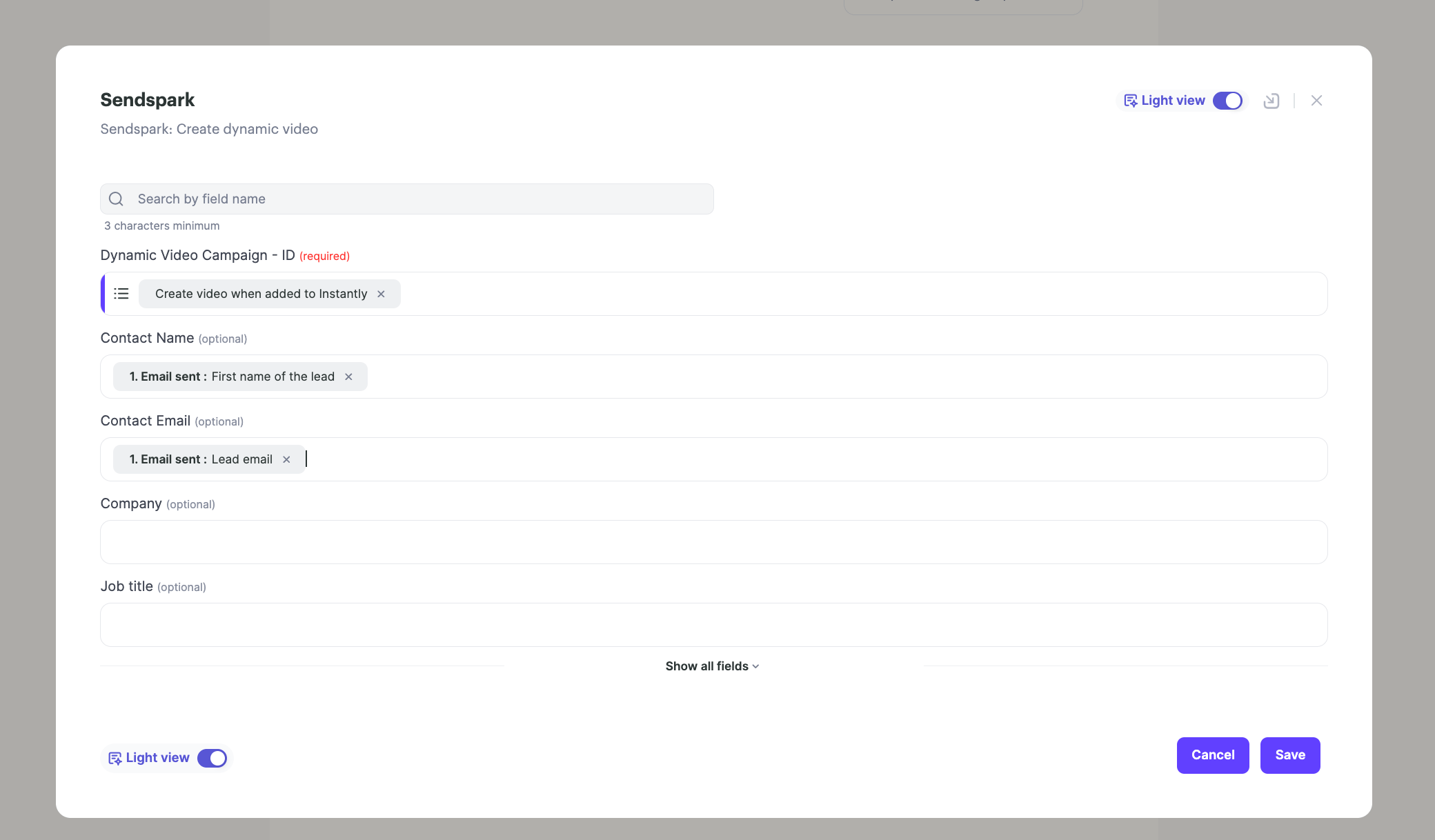
7. Start automation
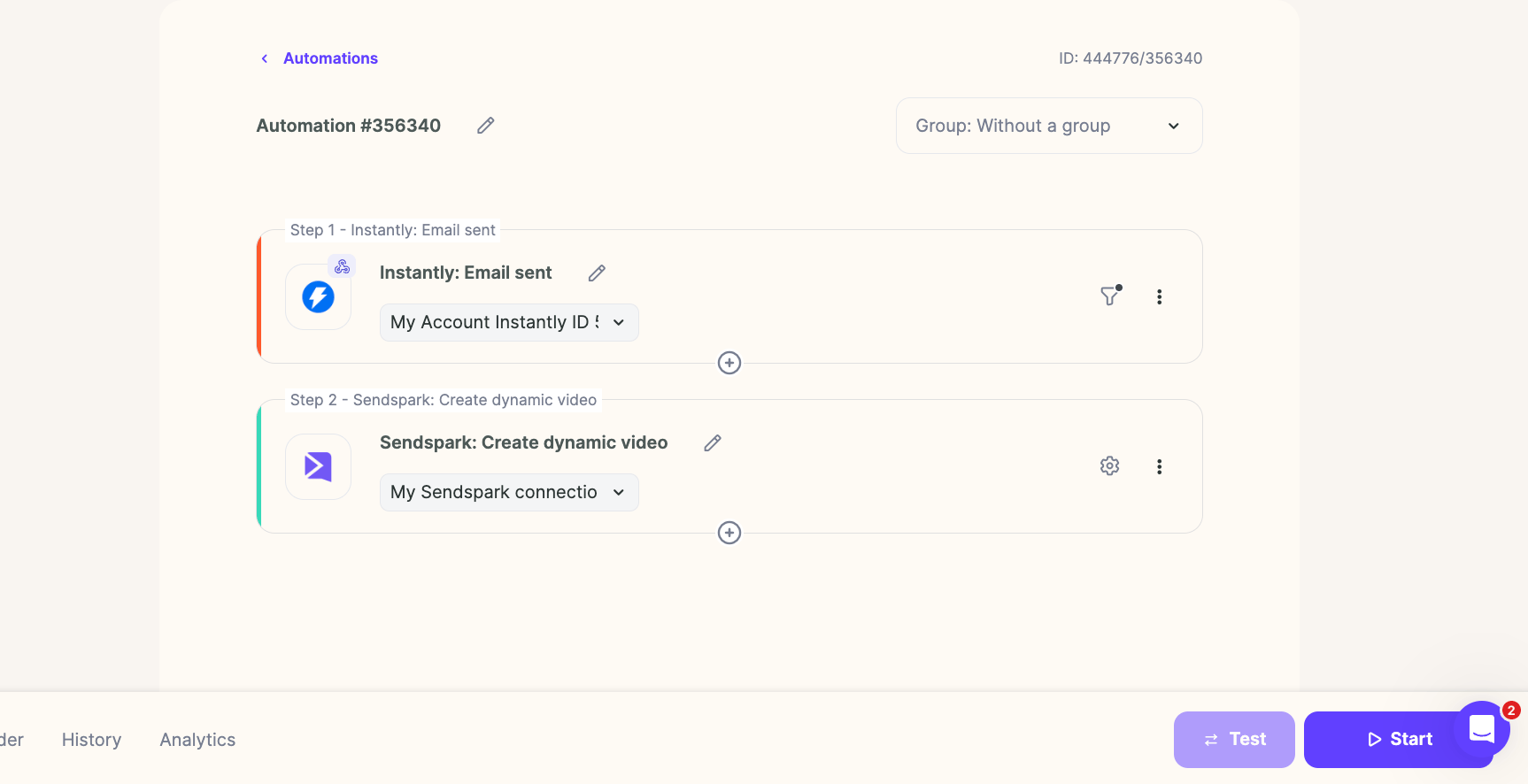
That’s it! Your automation should look something like this:- When a lead gets sent the first email in a sequence…
- You generate a Sendspark video using the contact data from Instantly…
- And the video placeholder in Instantly gets updated to ensure the right contact receives the right video
Frequently asked questions
Why does my video placeholder need to be in the 2nd step, not the 1st?
Why does my video placeholder need to be in the 2nd step, not the 1st?
The automation is triggered after the first email is sent (“Instantly — Email sent”). If the placeholder were in the first email, there wouldn’t be time to generate the personalized video before that email goes out. Putting it in the 2nd (or later) step gives Sendspark enough time to create the video first.
How do I stop contacts from re-enrolling as I send more emails?
How do I stop contacts from re-enrolling as I send more emails?
Use the funnel next to your trigger to add filters. We recommend two: one that matches the specific Instantly campaign ID, and another that only fires on the first step. The first-step filter prevents contacts from re-enrolling every time a later email in the sequence sends.
Why is the email field so important in the Create Dynamic Video action?
Why is the email field so important in the Create Dynamic Video action?
The email field is what updates the Sendspark placeholder inside your Instantly email campaign. It’s the key that matches the right video to the right person, so if you skip it the correct video won’t reach the correct recipient.
How do I paste the Sendspark placeholder into Instantly?
How do I paste the Sendspark placeholder into Instantly?
In your dynamic video campaign, click Share Campaign, select Instantly, and copy the placeholder. In your Instantly email template, switch into code view, paste it, switch back to non-code view, and click save.