

Key takeaways
- Two prerequisites: Outreach Admin access (to connect the Sendspark Outreach App) and the Agentic Workflow feature enabled in Sendspark.
- Paste the Sendspark “Dynamic Video Snippet” into your Outreach email template exactly where you want the video to appear; you must generate at least one video first to reach the Share Campaign page.
- The Agentic Workflow uses the Prospect Enrolled in a Sequence trigger from Outreach and a Create dynamic video action in Sendspark.
- Always map the “email” field, as it is essential for the integration to work properly.
- Leave a brief time delay between enrolling contacts and the email sending so the video has time to generate.
- To have Outreach Admin access (to connect the Sendspark Outreach App)
- To have the Agentic Workflow feature enabled in Sendspark.
Step 1: Create Your Video & Email Campaigns
- Start by creating your Dynamic Video Campaign in Sendspark
- Next, Create your email sequence in Outreach
Step 2: Add Video Placeholders in Outreach Sequence
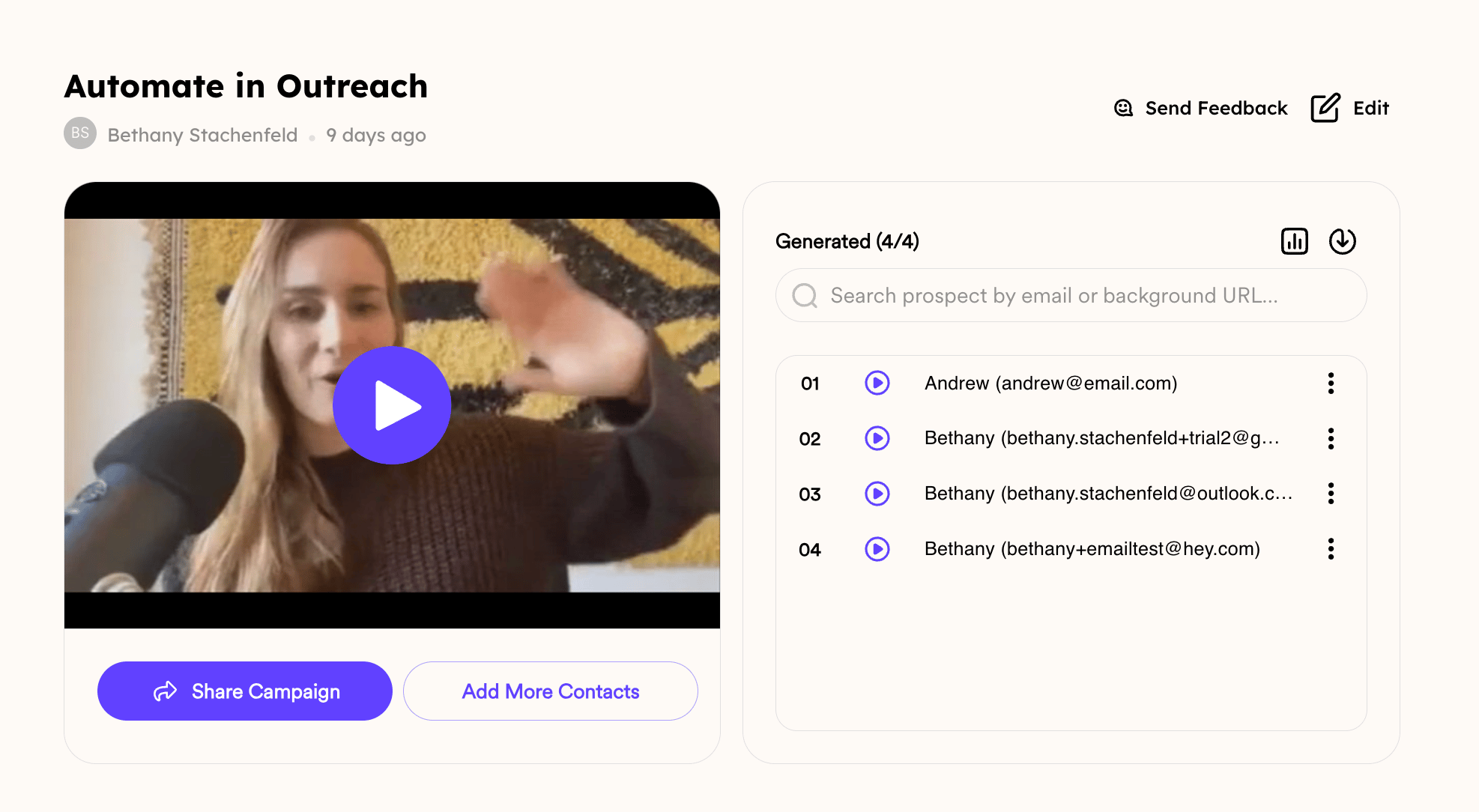
Copy and paste the Sendspark “Dynamic Video Snippet” from Sendspark into your Outreach email template, exactly where you want the video to appear in your email.- In Sendspark, click “Share Campaign”(you need to generate at least one video from your dynamic video campaign to get to this page)
- Search for “**Outreach”**in the modal
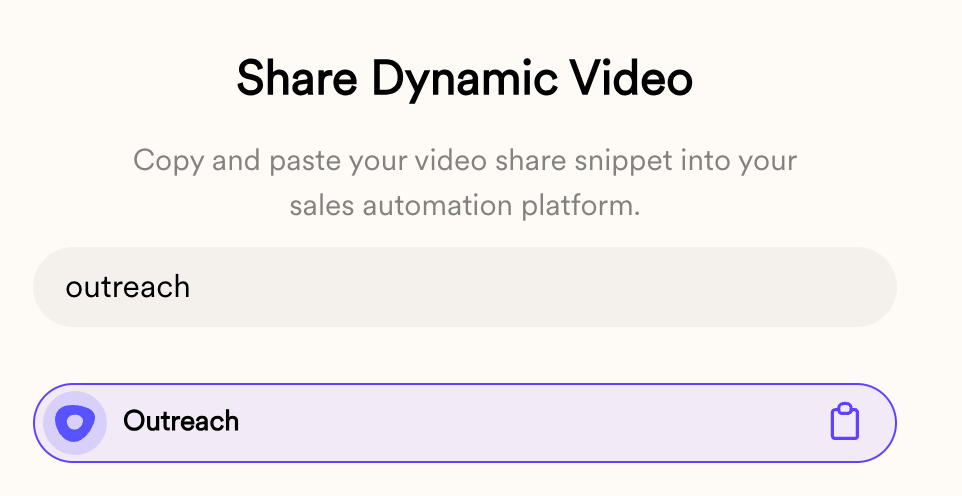
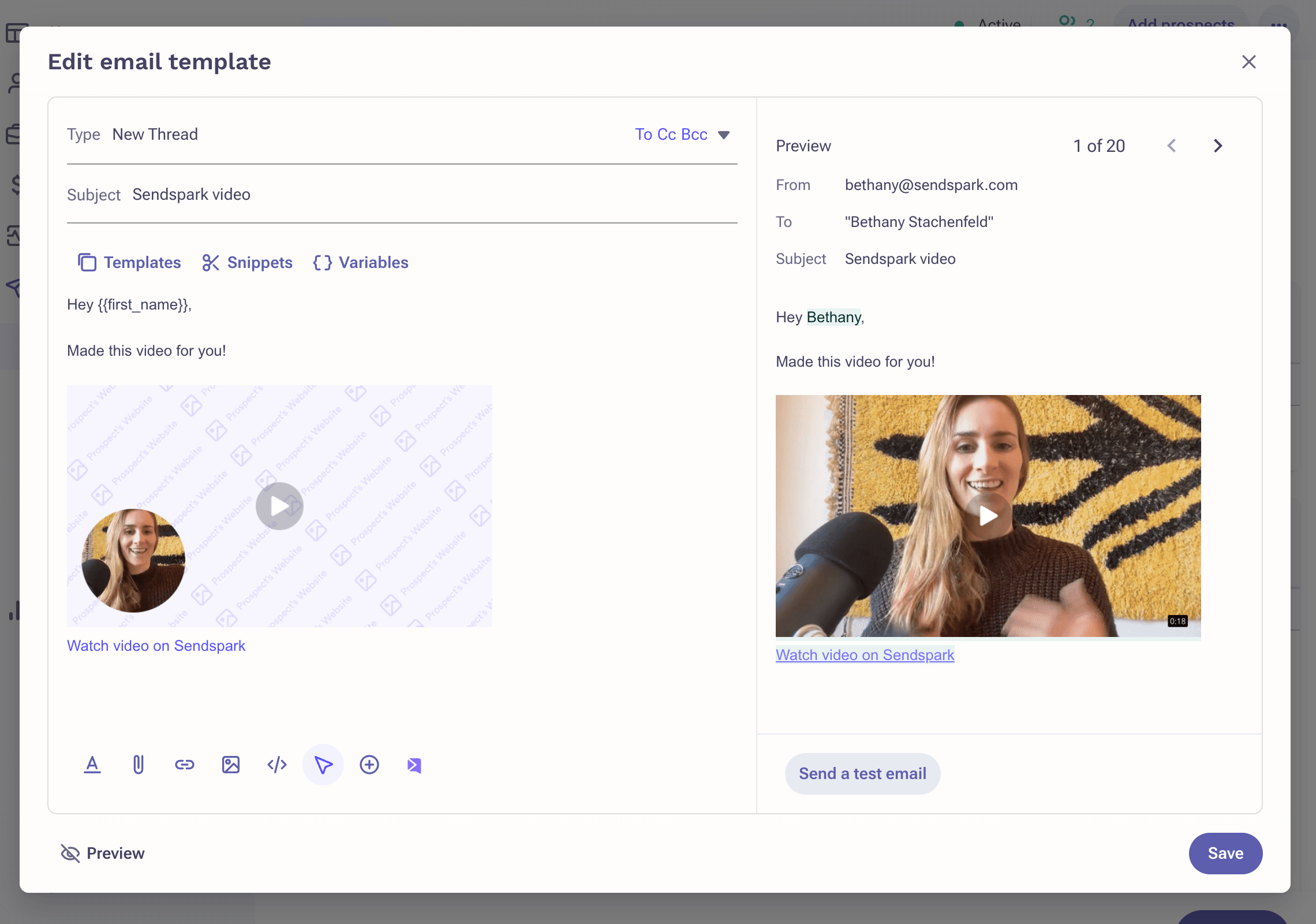
- Click on “Outreach” and paste directly into your email template
Step 3: Create Agentic Workflow
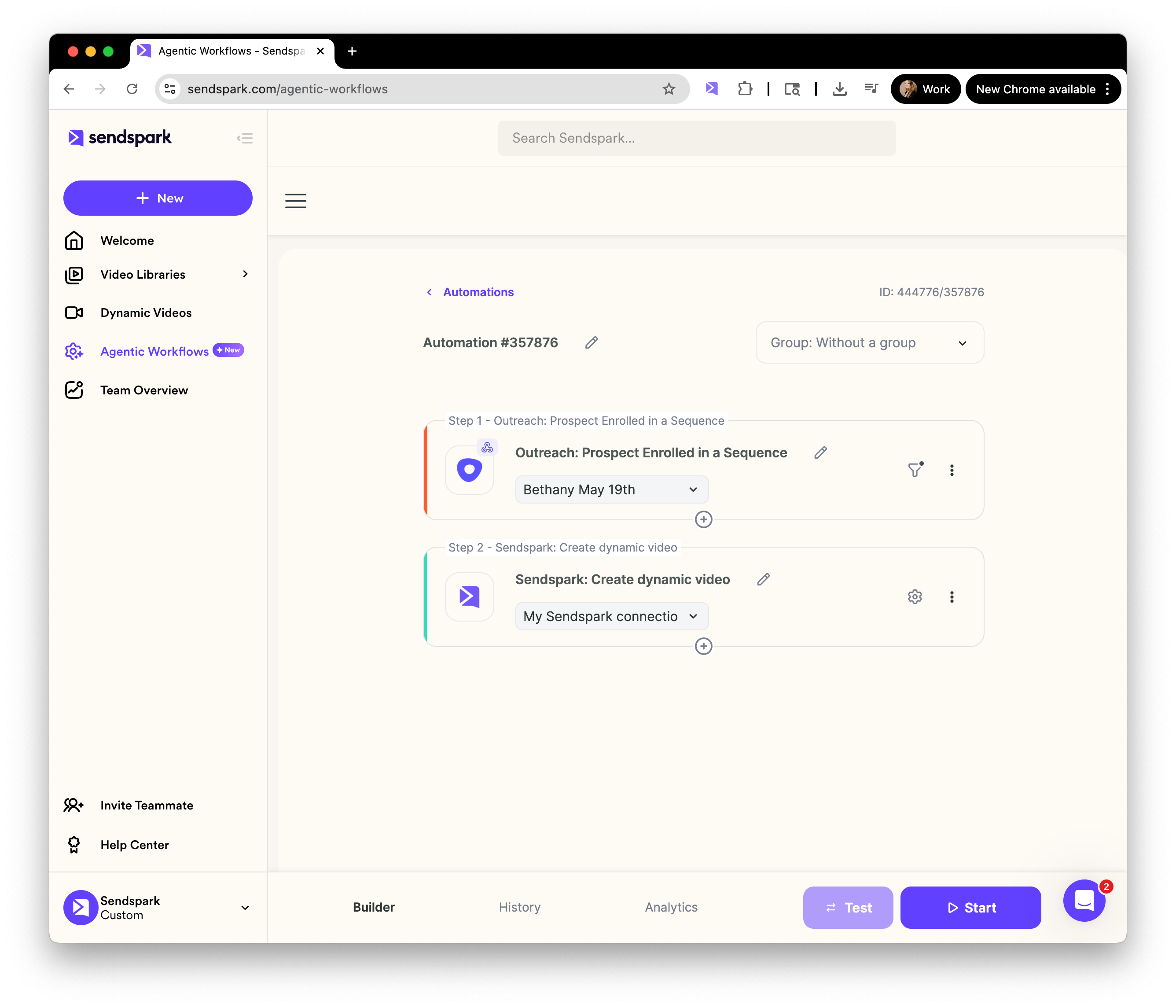
Now the fun part! Let’s set up an automation so that when prospects get added to the Outreach sequence, AI videos automatically get created!- Go to Sendspark Agentic Workflows
- Create a New automation
- As the Trigger, select **“Outreach”**and then Prospect Enrolled in a Sequence
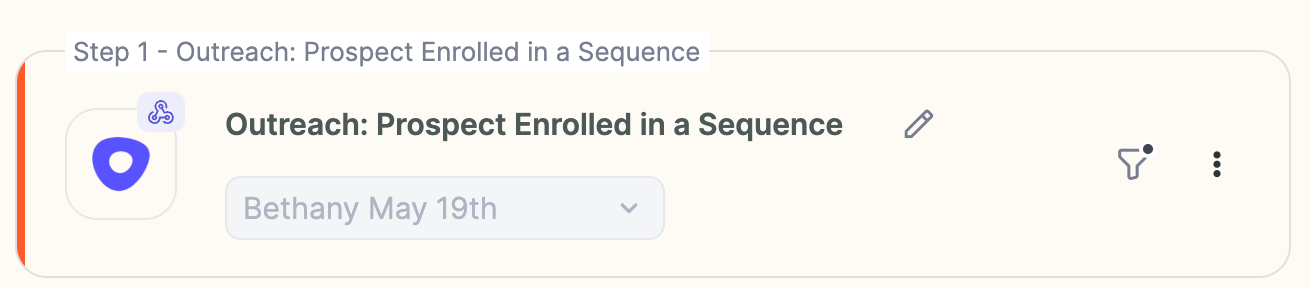
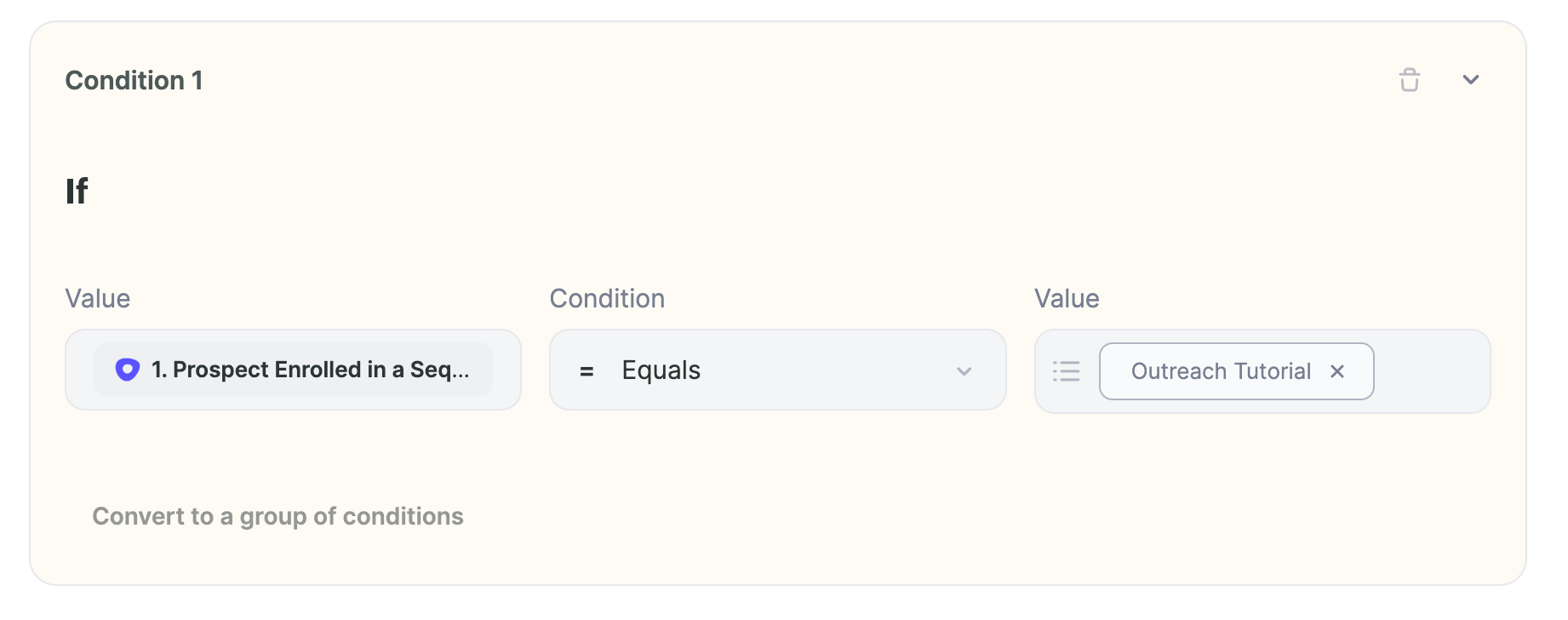
- Add a condition that the task has a note that contains your dynamic video campaign
- Add an action for Sendspark
- Select Create dynamic video

- Select the Dynamic Video Campaignyou want to use from Sendspark, and map in the fields from Outreach, so you can use them in your videos
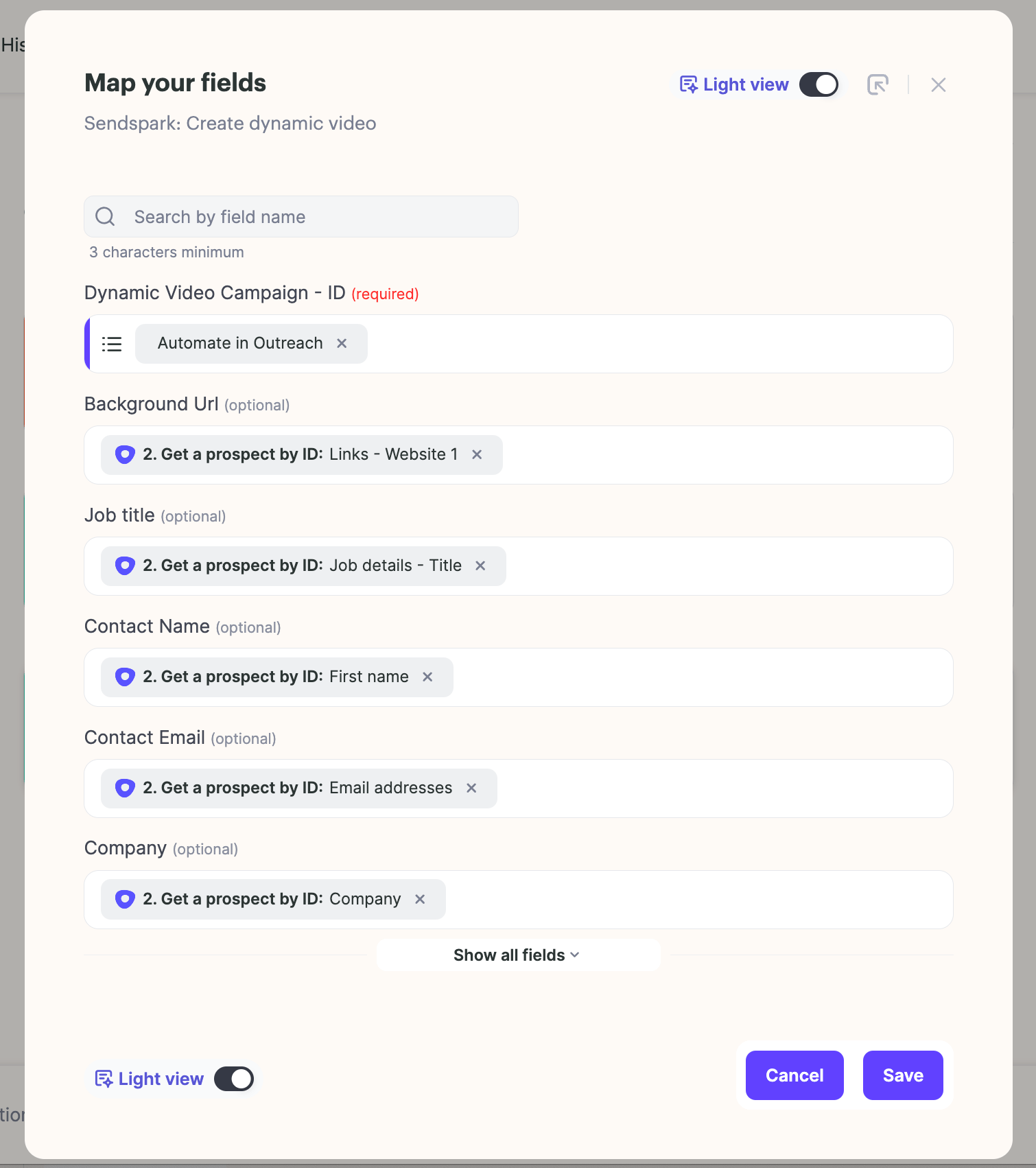
- Make sure to map “email,” as this is essential for the integration to work properly
- Save and close!
Frequently asked questions
What do I need before setting this up?
What do I need before setting this up?
You need Outreach Admin access to connect the Sendspark Outreach App, and the Agentic Workflow feature enabled in Sendspark.
Where do I get the Dynamic Video Snippet?
Where do I get the Dynamic Video Snippet?
In Sendspark, click “Share Campaign” and search for “Outreach” in the modal, then click on Outreach to copy the snippet. Note that you need to generate at least one video from your dynamic video campaign to reach this page.
What trigger and action does the Agentic Workflow use?
What trigger and action does the Agentic Workflow use?
The trigger is “Outreach → Prospect Enrolled in Sequence” (with a condition that the task has a note containing your dynamic video campaign), and the action is Sendspark’s “Create dynamic video.” Then you select the Dynamic Video Campaign and map in the fields from Outreach.
Which field is essential to map?
Which field is essential to map?
Make sure to map “email,” as this is essential for the integration to work properly.
Why should I add a time delay in my sequence?
Why should I add a time delay in my sequence?
We recommend leaving a brief time delay between when you enroll contacts in the sequence and when the email actually sends, to give the video time to generate.