

Key takeaways
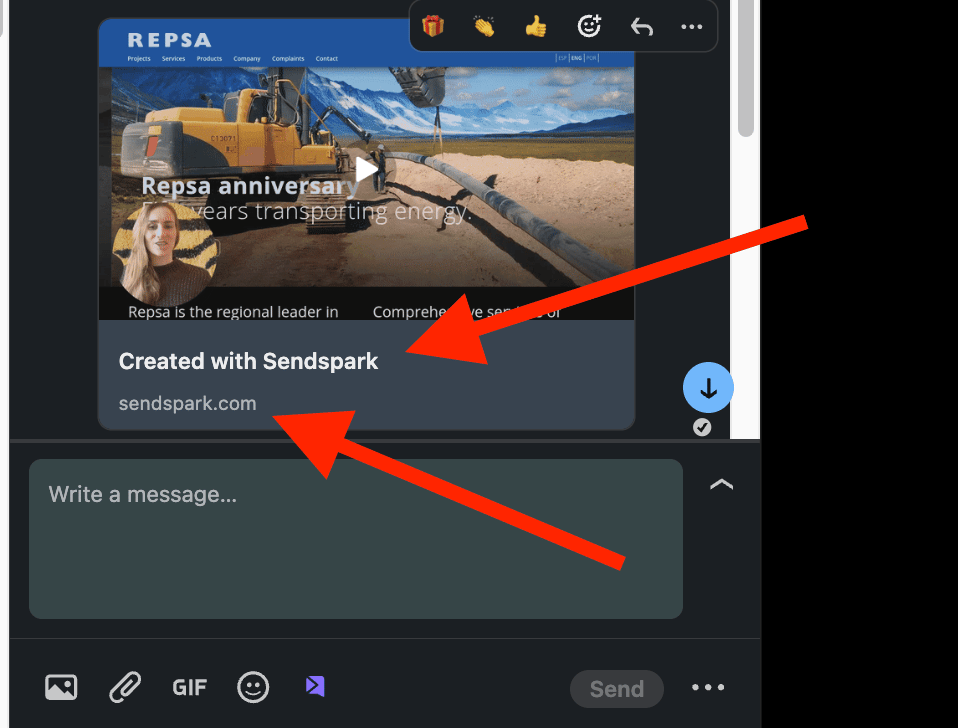
- Whatever you put in the landing page header appears on the LinkedIn thumbnail; an empty header is what produces the “created with Sendspark” legend.
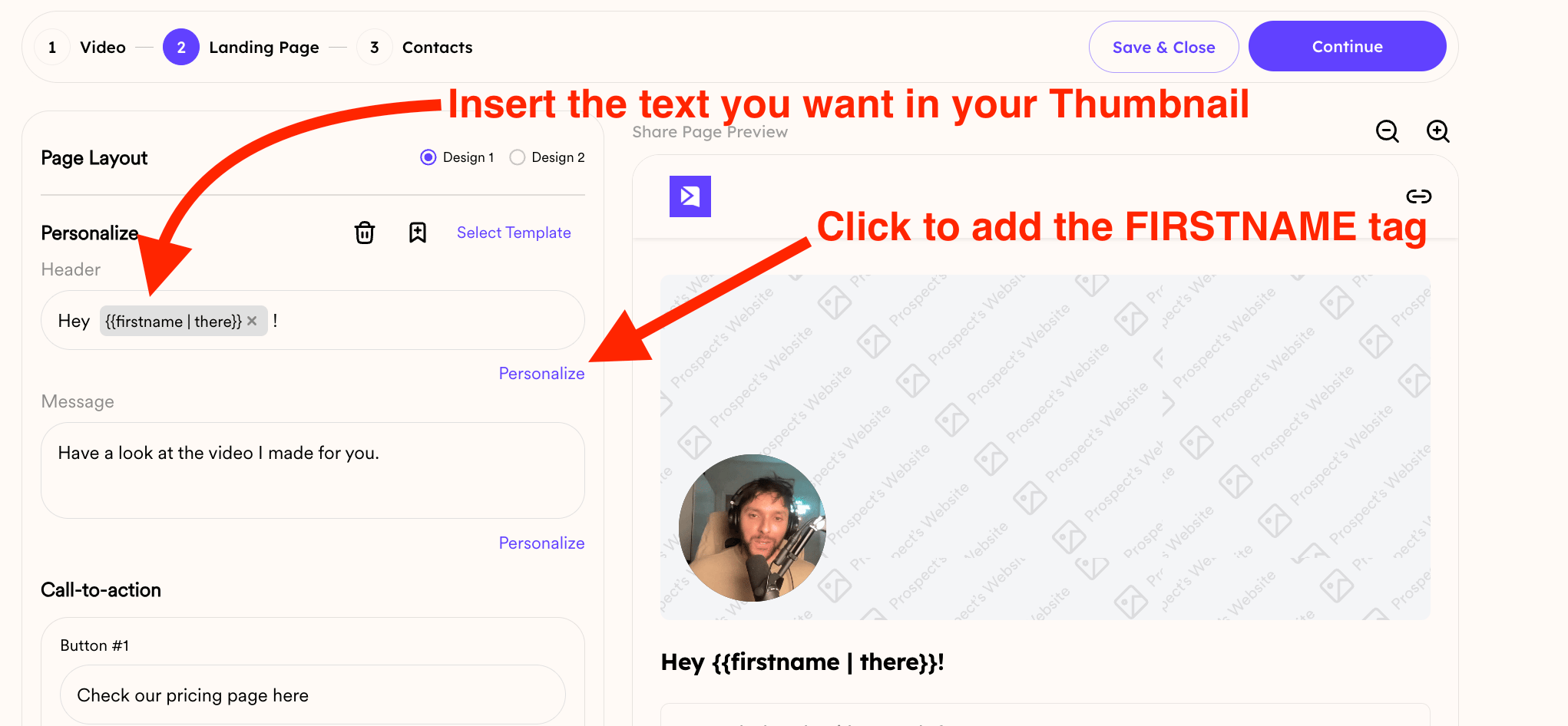
- Add personalization such as “Hey First Name” to the header so the lead’s name shows in the thumbnail.
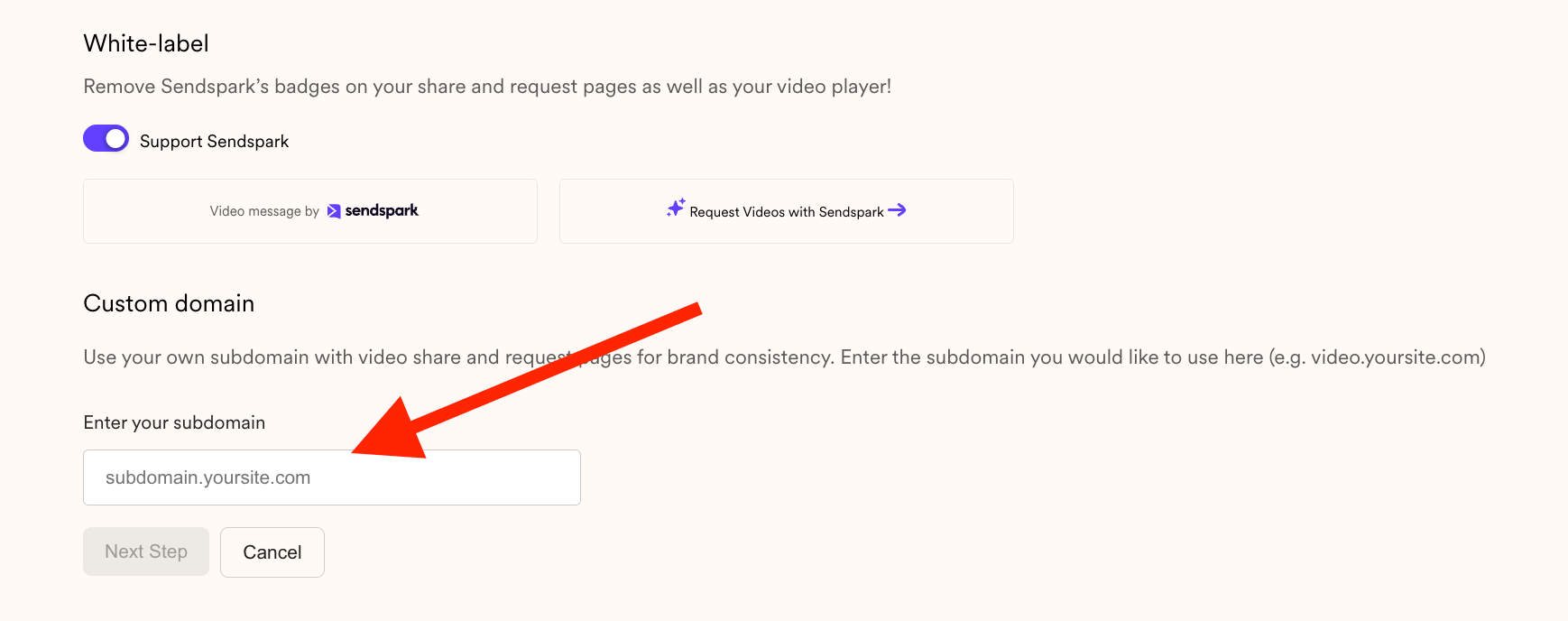
- Connect a custom domain in your workspace settings to remove the sendspark.com line at the bottom of the thumbnail.
- LinkedIn caches thumbnail images, so regenerate the video for a new link if you’ve already shared it and need the updated thumbnail to appear.
Frequently asked questions
Why does 'created with Sendspark' appear on my LinkedIn thumbnail?
Why does 'created with Sendspark' appear on my LinkedIn thumbnail?
It appears because the header in the landing page section of your dynamic campaign was left empty. Anything you put in that header shows up on the thumbnail instead.
How do I personalize the thumbnail with the lead's name?
How do I personalize the thumbnail with the lead's name?
Add personalization like “Hey First Name” to the landing page header. Whatever you enter there comes through on the thumbnail, so the lead’s name can appear automatically.
How do I remove the sendspark.com text at the bottom of the thumbnail?
How do I remove the sendspark.com text at the bottom of the thumbnail?
Connect a custom domain to Sendspark. Head to your workspace settings to start the process; there’s a dedicated help article on using a custom domain for videos.
I updated the header but LinkedIn still shows the old thumbnail. Why?
I updated the header but LinkedIn still shows the old thumbnail. Why?
LinkedIn caches images. If you already shared the video, you’ll likely need to regenerate it so a new link is provided, which avoids LinkedIn pulling the cached thumbnail.