

Key takeaways
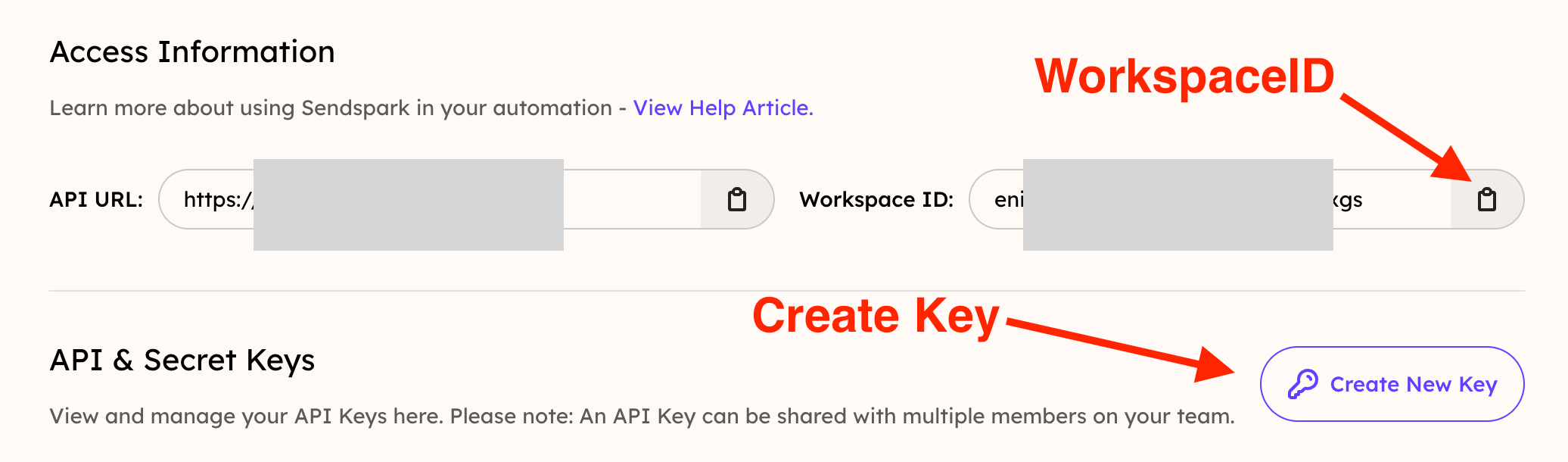
- You connect the two tools with three Sendspark credentials: your Workspace ID, an API Key, and a API Secret.
- Find them in Sendspark under Settings → API Credentials.
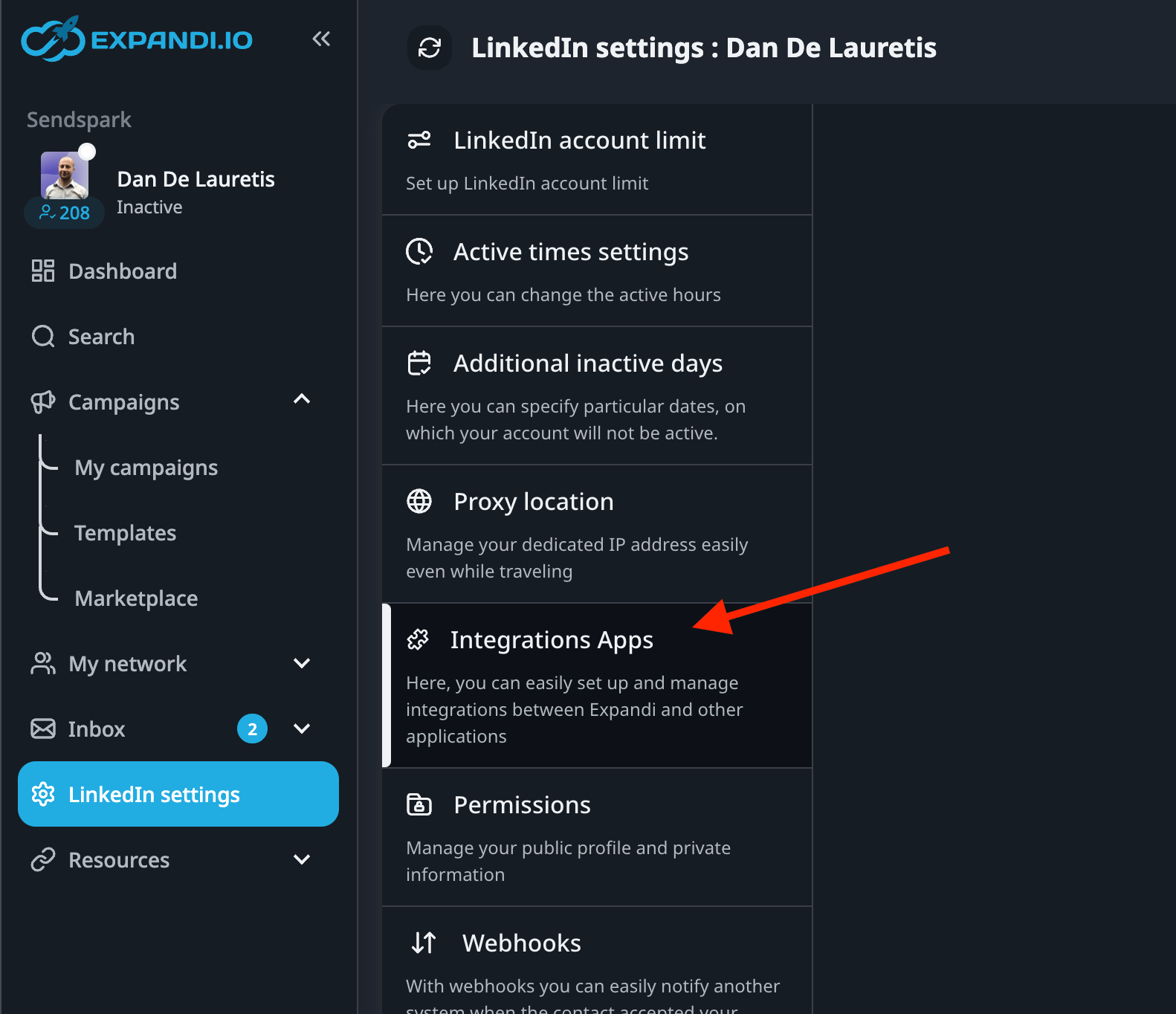
- In Expandi, paste them under Account Settings → Integrations Apps → the SendSpark integration panel.
- This is a one-time setup. Afterward you can create and send AI-personalized videos in Expandi campaigns.
This article will help you prepare your Expandi and Sendspark automated connection. Follow these steps to properly sync both accounts.
1. Get Your API Credentials from Sendspark
Access your API section in Sendspark: https://sendspark.com/settings/api-credentials: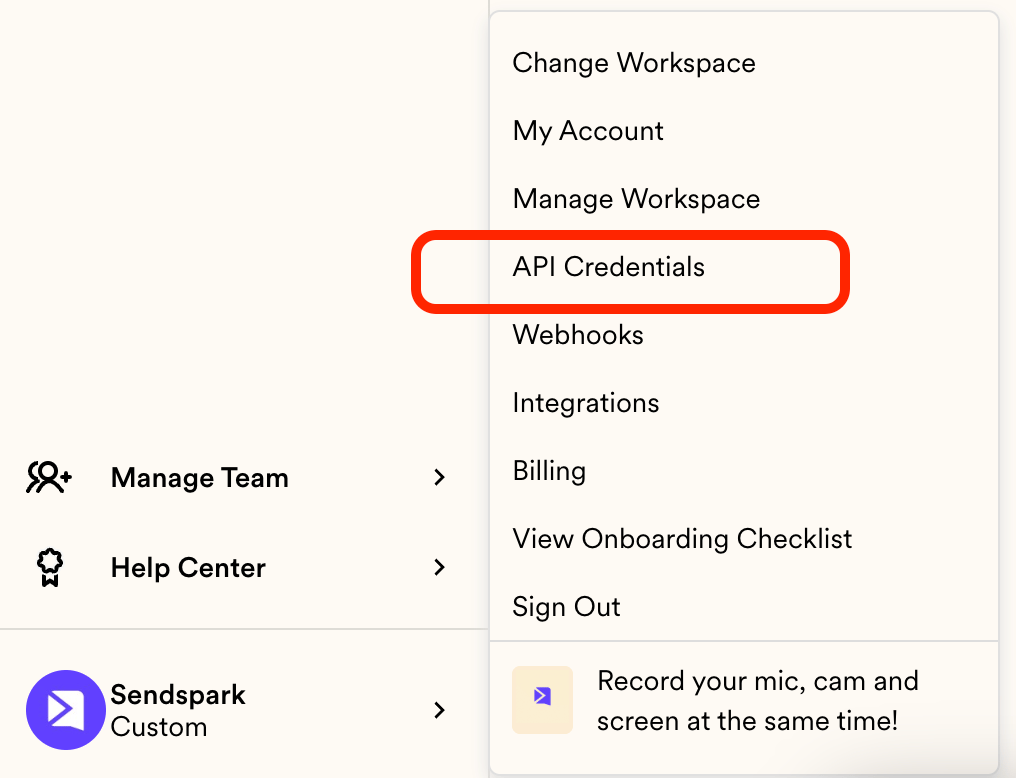

2. Add API Credentials to Expandi
Head to your menu button located in the top right-hand side corner and click on “Account Settings”: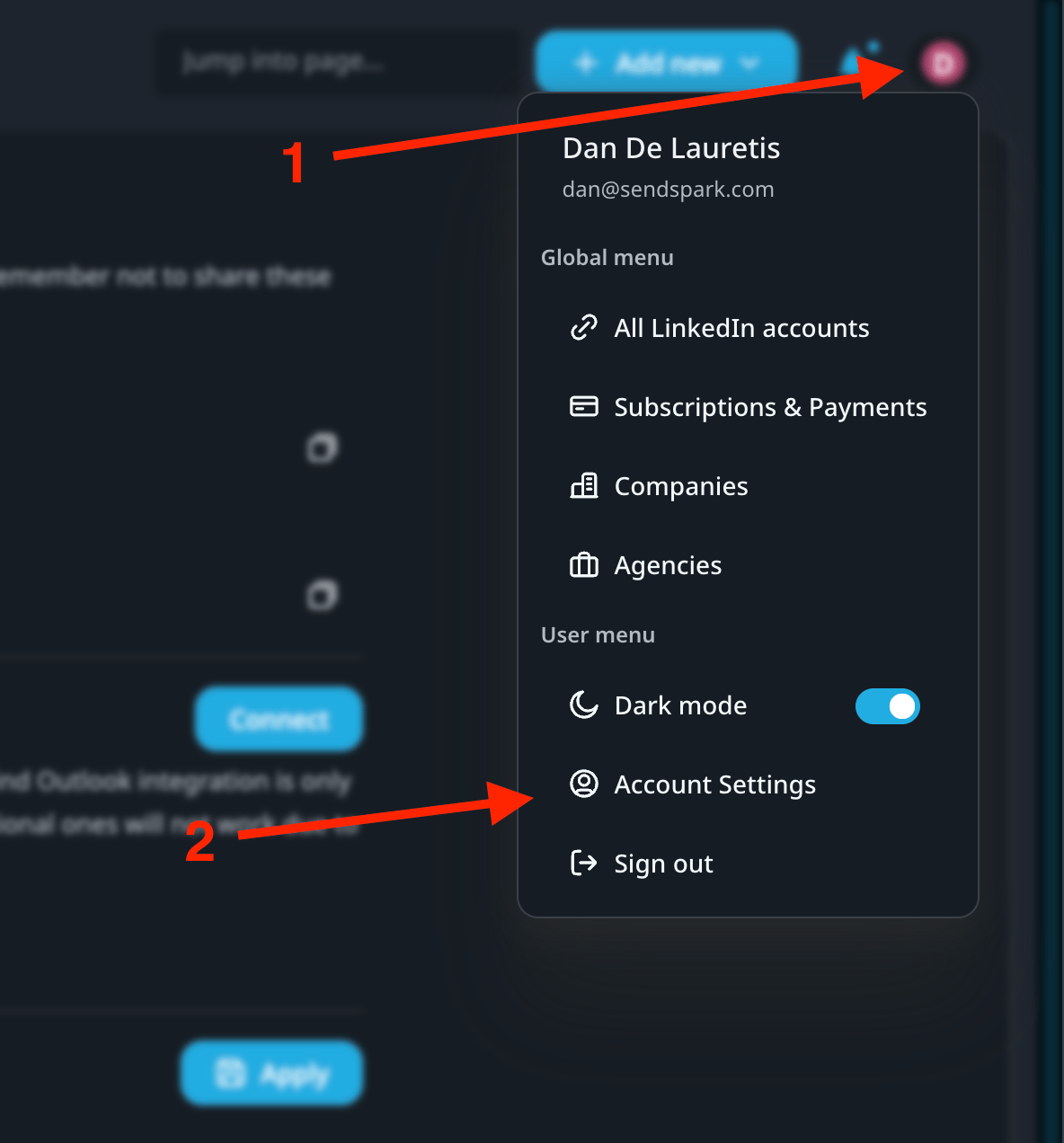
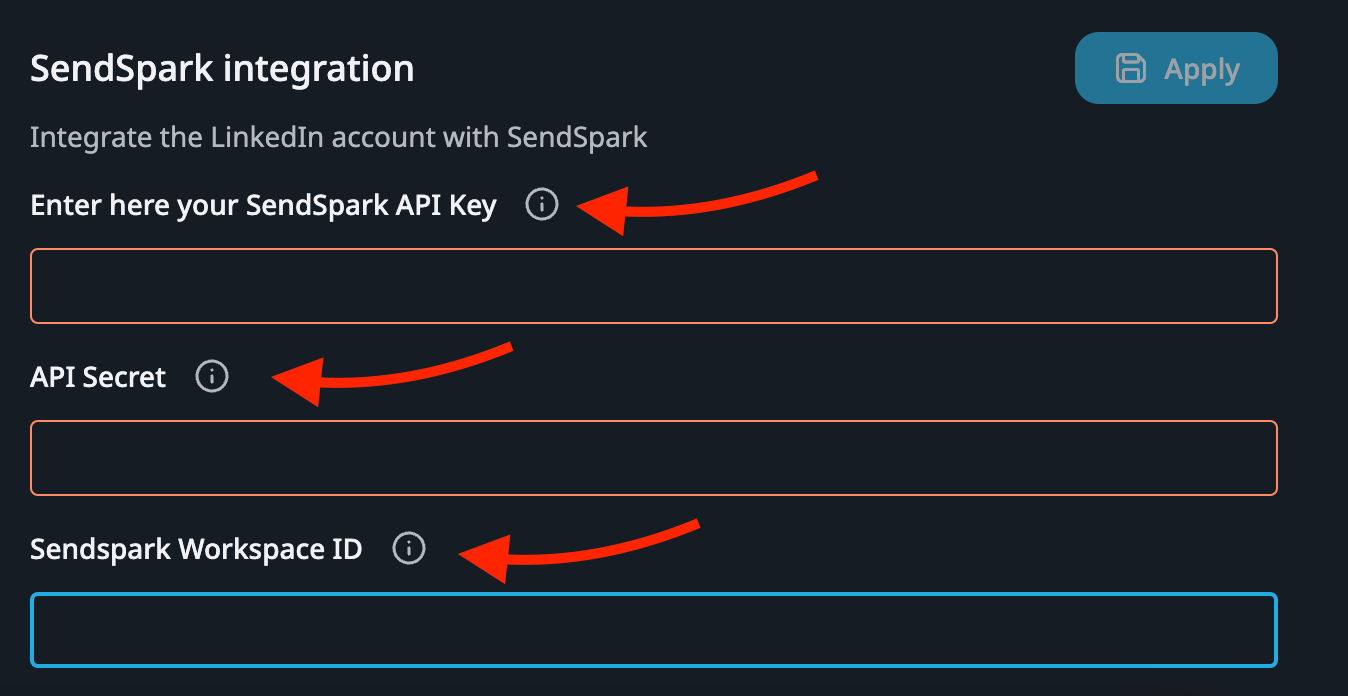
3. Apply Changes
Click Apply in the top right of the SendSpark integration panel. Your credentials are not saved until you do. That’s it! You’re all set! Ready to send hyper-personalized LinkedIn Messages? Check out this article for how to create & send videos in Expandi campaigns.Frequently asked questions
Where do I find my Sendspark API credentials?
Where do I find my Sendspark API credentials?
In Sendspark, open the API section at Settings → API Credentials (sendspark.com/settings/api-credentials). There you can copy your Workspace ID, create an API Key, and create a API Secret.
What credentials does Expandi need?
What credentials does Expandi need?
Three values from Sendspark: your Workspace ID, an API Key, and a API Secret.
Where in Expandi do I paste the credentials?
Where in Expandi do I paste the credentials?
Open the menu in the top-right corner and click Account Settings, then choose the Integrations Apps tab on the left. Scroll to the SendSpark integration panel and paste the information from Sendspark.
What can I do once the accounts are connected?
What can I do once the accounts are connected?
You can send AI-personalized videos inside your Expandi LinkedIn campaigns. See create & send videos in Expandi campaigns for the next steps.