

Key takeaways
- A Sendspark dynamic video campaign personalizes one recorded video for every contact using AI.
- When importing contacts, map the LinkedIn URL (not an ID or custom field) so it can be used as a reference in your automation tool.
- If you use a LinkedIn profile as the video background, generate only 20 to 30 videos a day to avoid a LinkedIn block.
- The downloaded CSV adds a unique Video Link column; import it into Expandi and map Video Link as a Dynamic Placeholder (and Background URL to PROFILE_LINK).
- A native Expandi integration via API connection is also available. See the best way to use Sendspark videos in Expandi.
How to Send AI-Personalized Videos in LinkedIn Automation
Overview of LinkedIn Automation Tools and Integration
LinkedIn automation platforms enable tasks like scheduling, video delivery, and responding to LinkedIn triggers. These platforms can be integrated with Sendspark to include personalized videos in LinkedIn messaging workflows, improving efficiency and engagement.1. Create a Dynamic Video Campaign in Sendspark
Head to the dynamic video section of Sendspark to get started. In your dynamic video campaign, you will be able to select one video and use AI to automatically personalize each video for each viewer. Here is more information on creating a Dynamic Video Campaign in Sendspark.2. Import Contacts into Sendspark
You can either manually type contact data into Sendspark or upload them via a CSV file. Be sure to map the data correctly, specially the LinkedIn URL. Also, be sure to add the LinkedIn URL instead of another field such as the unique ID or custom field, so that you can use that as a reference in your LinkedIn automation tool such as Expandi. The background URL option is simply to generate a background with that LinkedIn profile. Keep in mind that, if that’s your idea, you would probably want to generate 20 to 30 videos a day to avoid a Linkedin blockage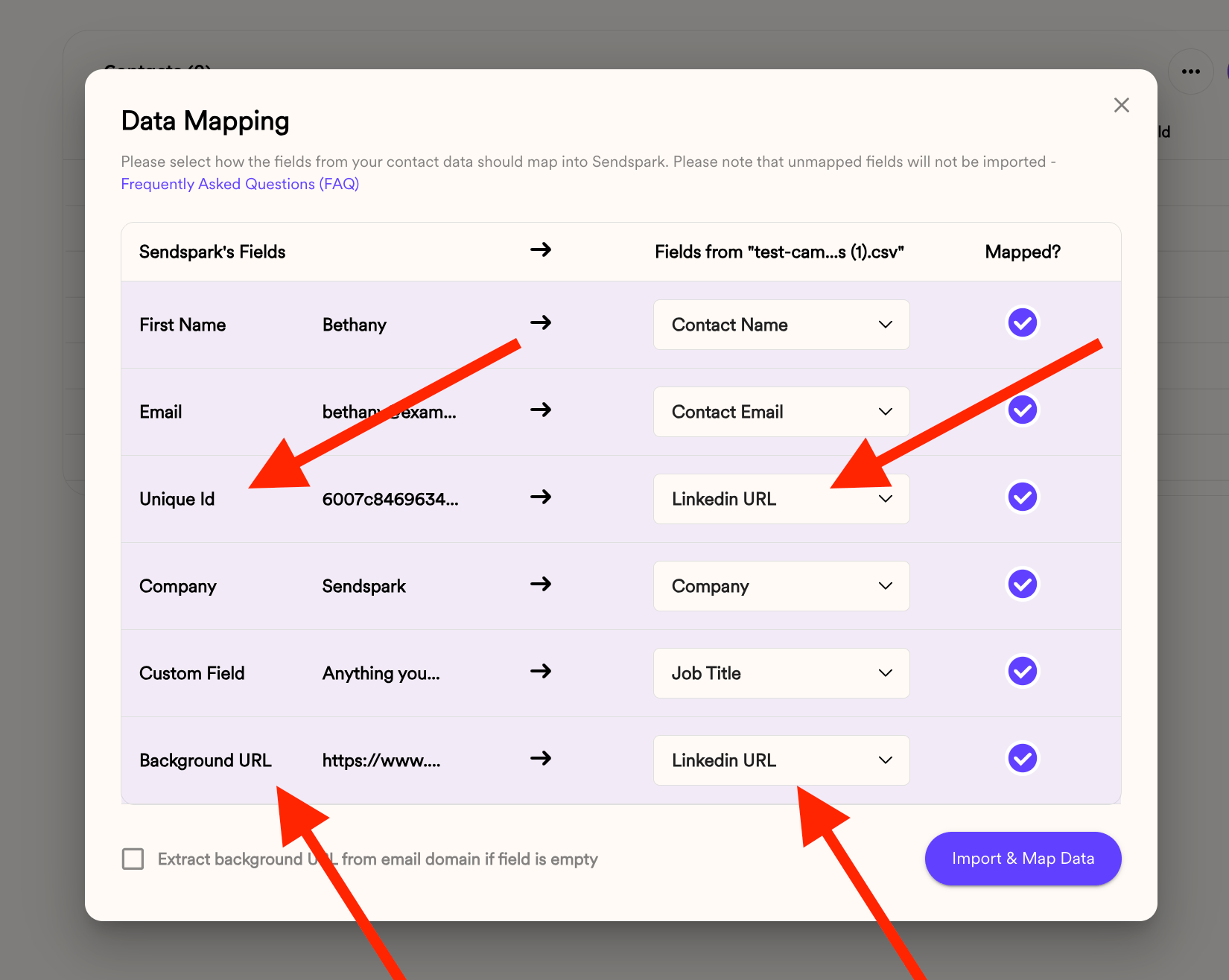
3. Generate Dynamic Videos
Just click Generate to make AI personalized videos for every contact on your list.
4. Export the generated videos
You can click Export Generated Videos (CSV) in the generated-videos panel to export your contact list out of Sendspark to import it back into Expandi.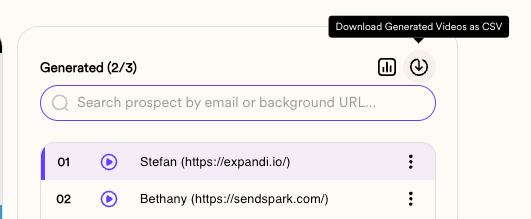
5. Import CVS into Expandi
In Expandi, go to your campaign, and then to the People step, and select Upload CSV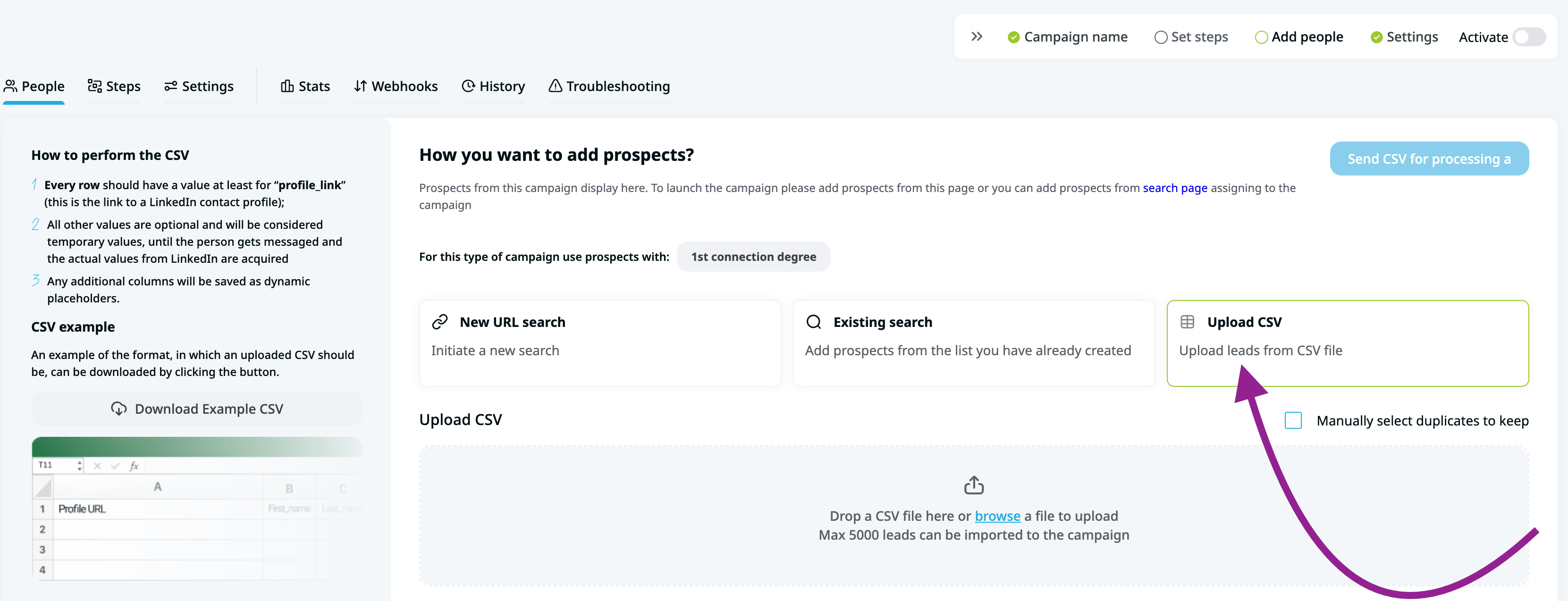
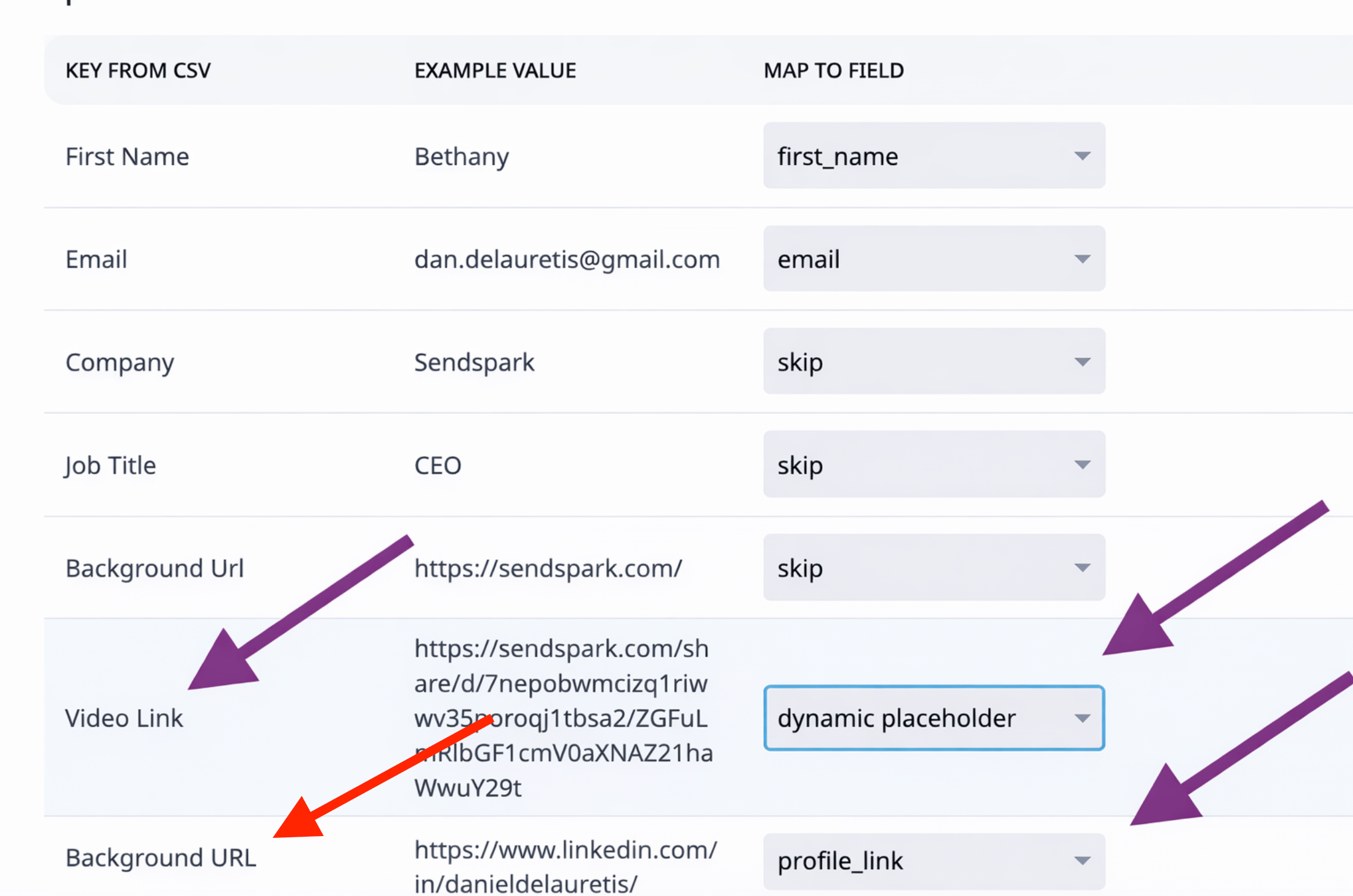
- Remember to map the “Background URL” field back to Expandi with
profile_link - Import “Video Link” as a “Dynamic Placeholder”
6. Use AI Video Link in Expandi
Now, when you write the content for LinkedIn connection request or messaging, you can use the Dynamic Placeholder for Video Link. Just select “Dynamic Placeholder”
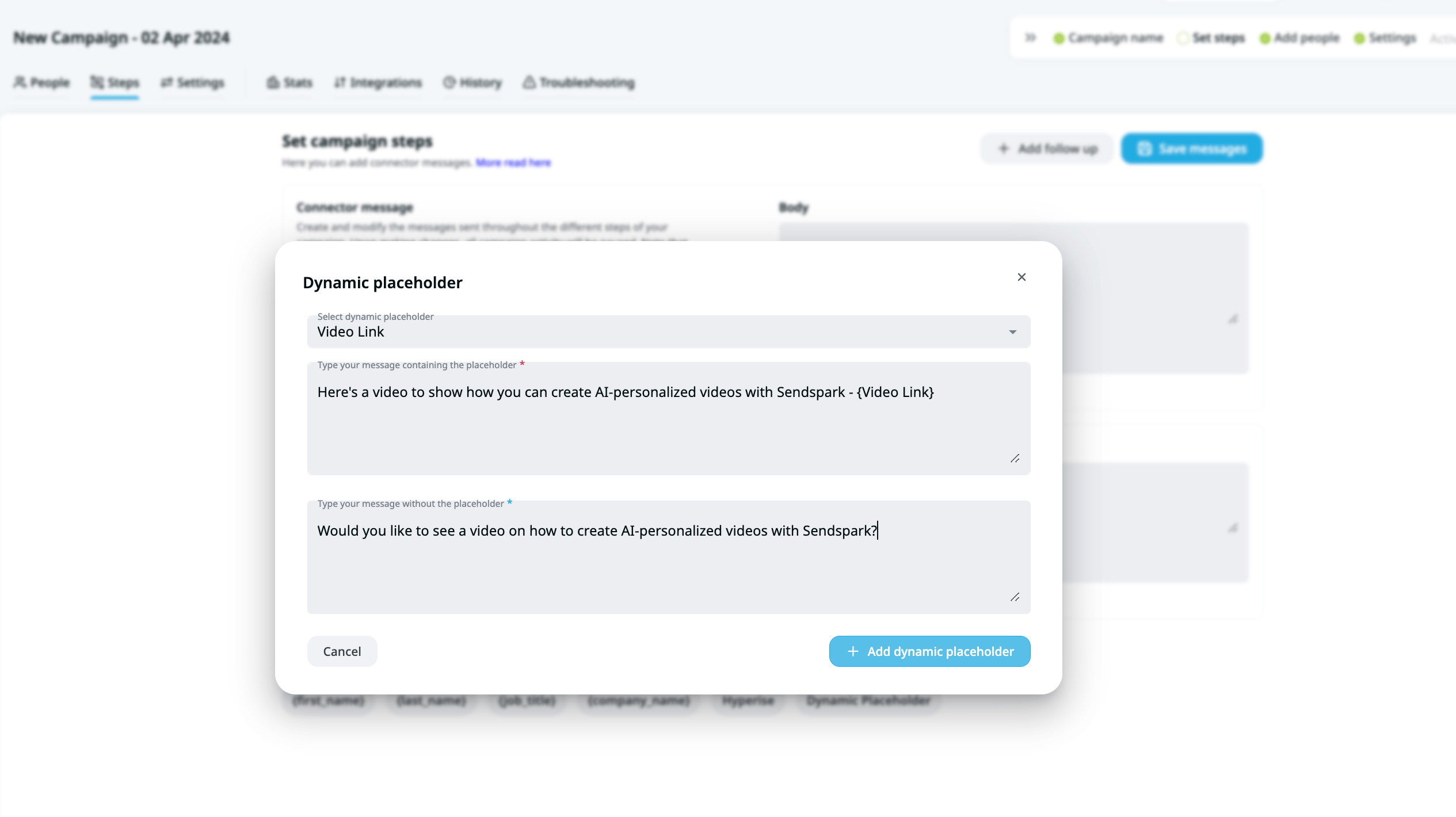
7. Save and activate your campaign
That’s it! Now you’ll be all set to send AI-personalized videos in LinkedIn outreach. When your prospects receive videos, they will see something link this in their messenger (with an animated GIF):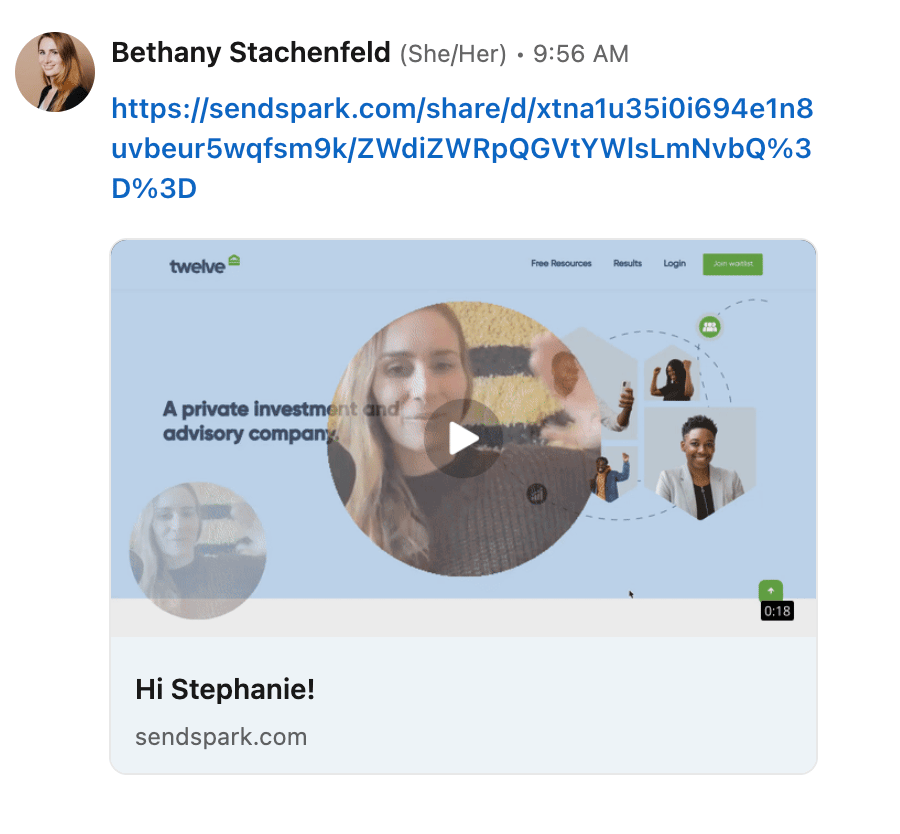
Frequently asked questions
Which LinkedIn automation tools does this work with?
Which LinkedIn automation tools does this work with?
You can send AI-personalized Sendspark videos through most LinkedIn automation platforms, including Expandi, La Growth Machine, and Skylead. This article walks through Expandi, but the same steps replicate on nearly any of them.
Which field should I map when importing contacts to Sendspark?
Which field should I map when importing contacts to Sendspark?
Map the data carefully, especially the LinkedIn URL. Use the LinkedIn URL rather than a unique ID or other custom field, so you can use it as a reference in your LinkedIn automation tool.
How many videos should I generate per day?
How many videos should I generate per day?
If you’re generating a background from each contact’s LinkedIn profile, keep it to about 20 to 30 videos a day to avoid a LinkedIn block.
How do I map the fields when importing the CSV into Expandi?
How do I map the fields when importing the CSV into Expandi?
Map the Background URL field back to Expandi as PROFILE_LINK, and import the Video Link column as a Dynamic Placeholder. Then click “Send to Processing” and continue building your campaign.
What is the Video Link column in the downloaded CSV?
What is the Video Link column in the downloaded CSV?
It’s the unique, AI-personalized video URL for each contact. You use this Dynamic Placeholder in your Expandi connection requests or messages to send each prospect their own video.