

Key takeaways
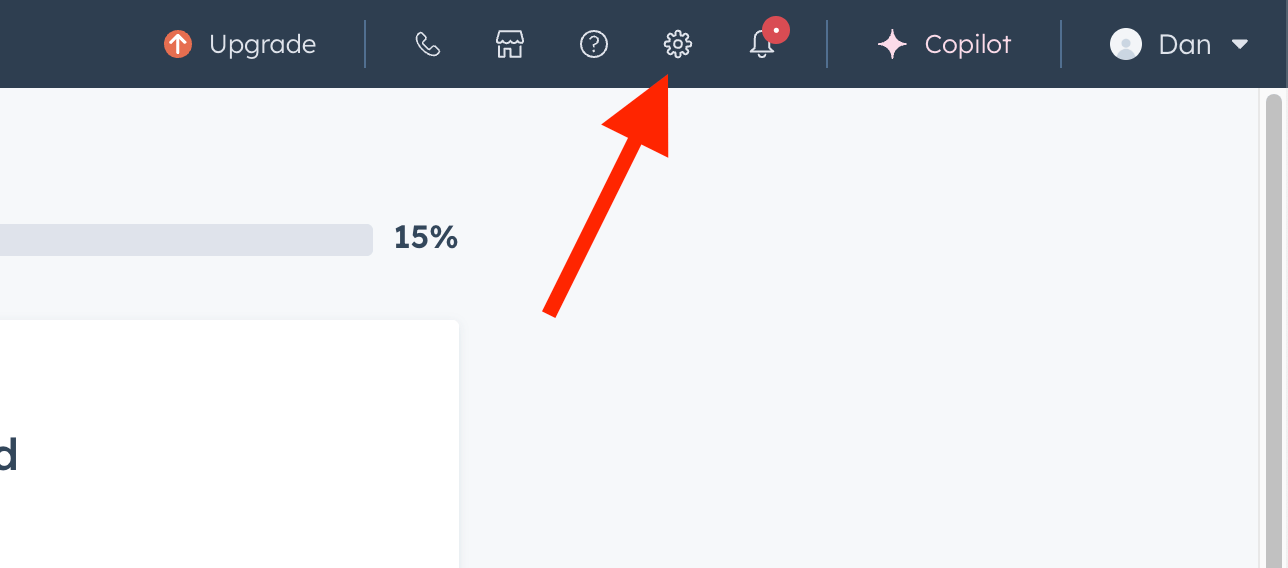
- Open Settings from the top right-hand corner of your HubSpot Home Page.
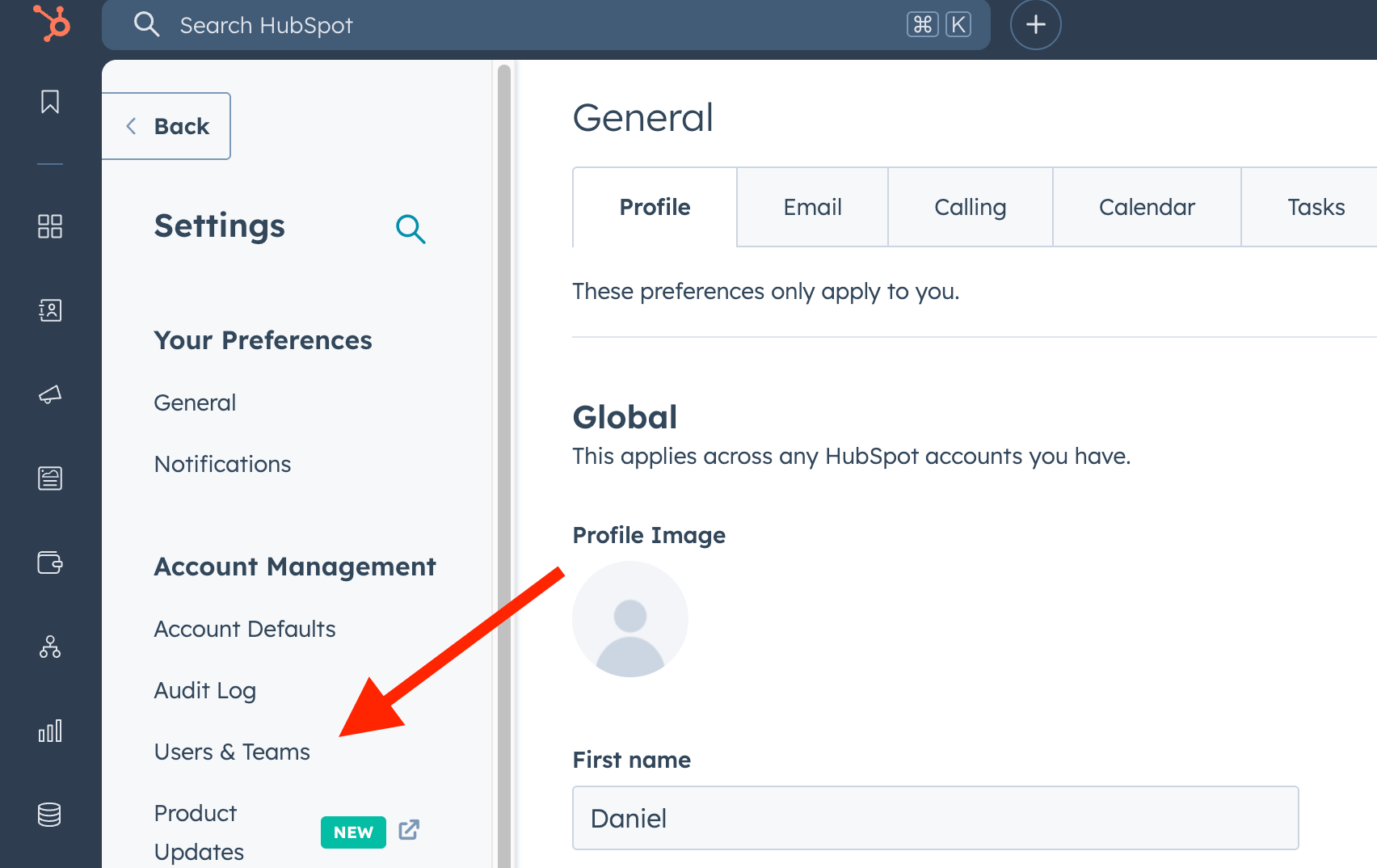
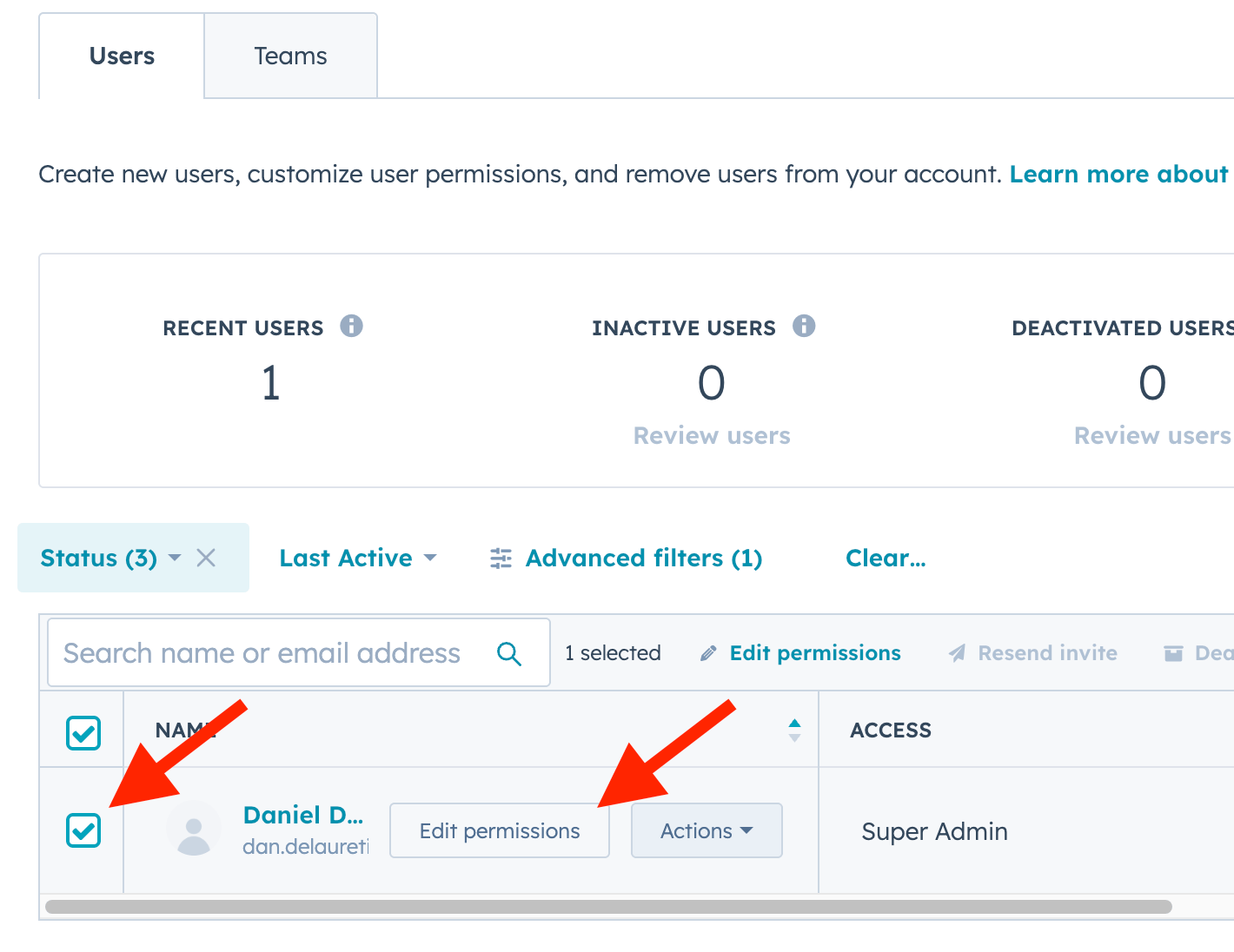
- Under Account Management, go to Users & Teams and select the right user to enable the Edit permissions button.
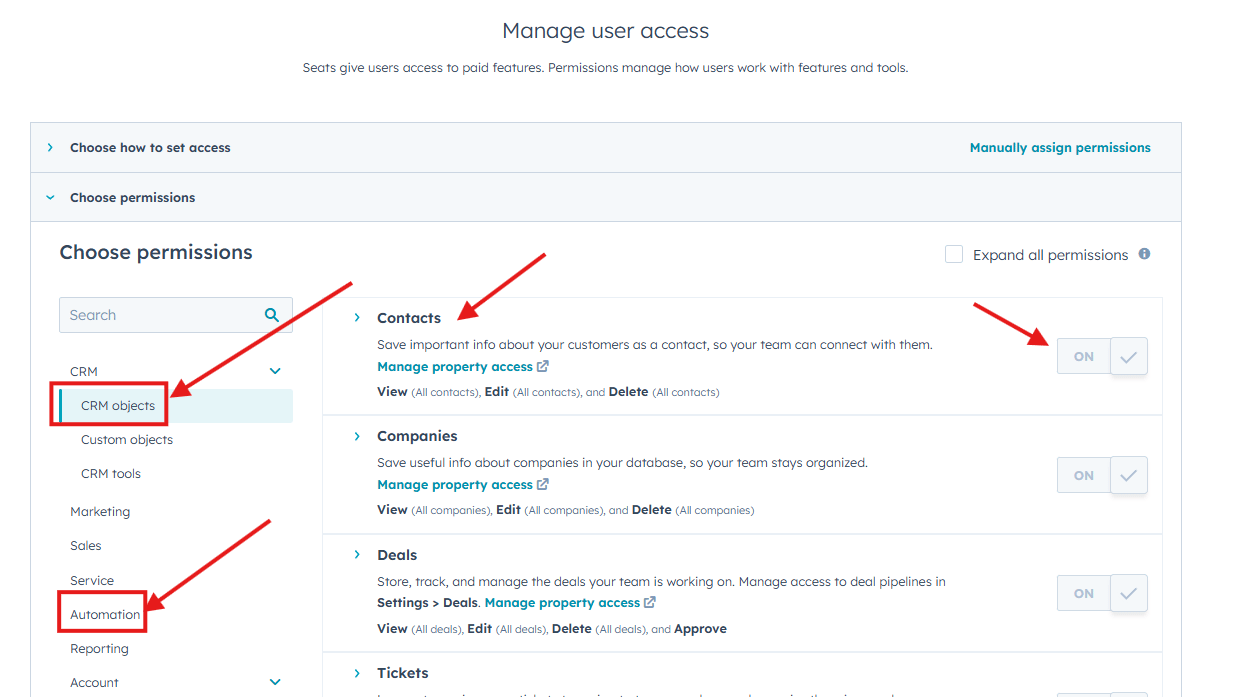
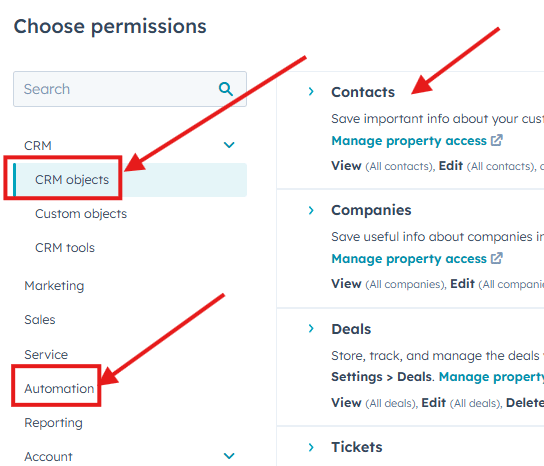
- In the left-hand permissions menu, open the CRM objects and Automation categories, then switch the individual objects you need to ON.
- Both permissions are required to successfully create automated workflows.
Which permissions are needed to create workflows?
You need both the CRM objects and Automation permissions turned on for the user. Both are found in the left-hand menu after clicking Edit permissions, and both are important when creating automated workflows.Frequently asked questions
Where do I find the permissions settings in HubSpot?
Where do I find the permissions settings in HubSpot?
From your Home Page, click the Settings button in the top right-hand corner. Then, in the left-hand panel under Account Management, choose Users & Teams.
How do I edit a specific user's permissions?
How do I edit a specific user's permissions?
In Users & Teams, select the right user. Selecting the user enables the Edit permissions button, which opens that user’s permission settings.
Which permissions do I need to turn on for workflows?
Which permissions do I need to turn on for workflows?
Find the CRM objects and Automation options in the left-hand permissions menu and be sure to turn them both ON. Both are needed to successfully create automated workflows.
Why can't I create an automated workflow?
Why can't I create an automated workflow?
A common cause is missing permissions. Confirm the user has both CRM objects and Automation switched on under Edit permissions, since both are required for creating automated workflows.