

Key takeaways
- An Intercom tag added to a conversation triggers a webhook that passes customer info (name, email, company) to your automation platform.
- The webhook connects to Sendspark to automatically generate a personalized video, matched to the tagged customer.
- HubSpot then sends the generated video link by email using an automated workflow.
- Use clear, standardized tags and test each step with a dummy customer before going live.
⭐ Why Use This Workflow
Customers often show intent to upgrade but never finalize the steps. With this workflow, you can:- 🏷️ Identify upgrade-ready customers via Intercom tags.
- 🎥 Automatically generate a personalized video in Sendspark.
- ✉️ Deliver the video through HubSpot emails.
🛠️ Step-by-Step Setup
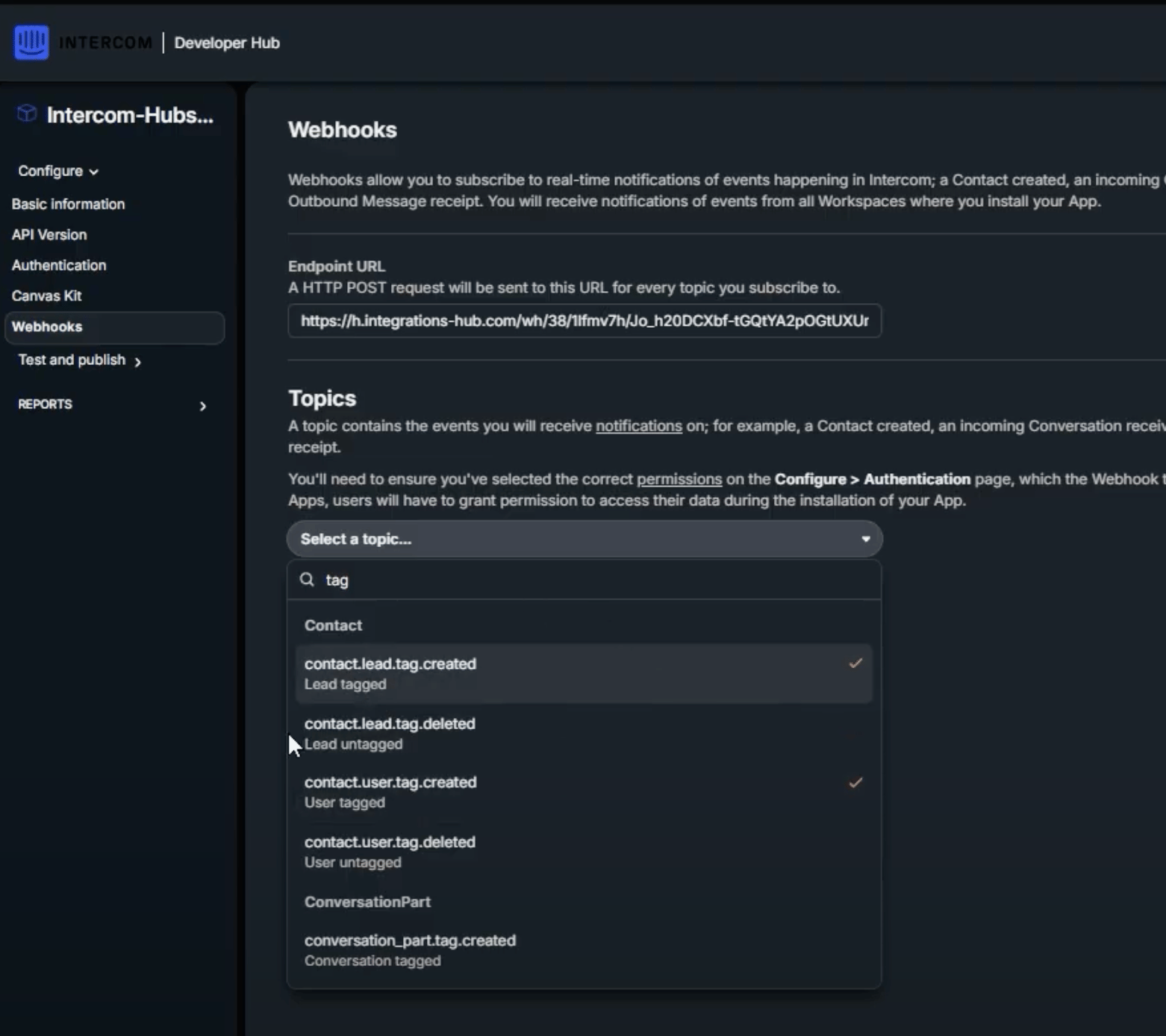
Step 1: 🔗 Configure a Webhook in Intercom
- Go to ⚙️ Settings > Developers > Webhooks in Intercom.
- ➕ Create a new webhook that triggers when a tag is added.
- Paste the webhook URL from your automation platform (Albato, Zapier, or Make).
- Ensure the webhook passes customer info (🧑 Name, ✉️ Email, 🏢 Company).
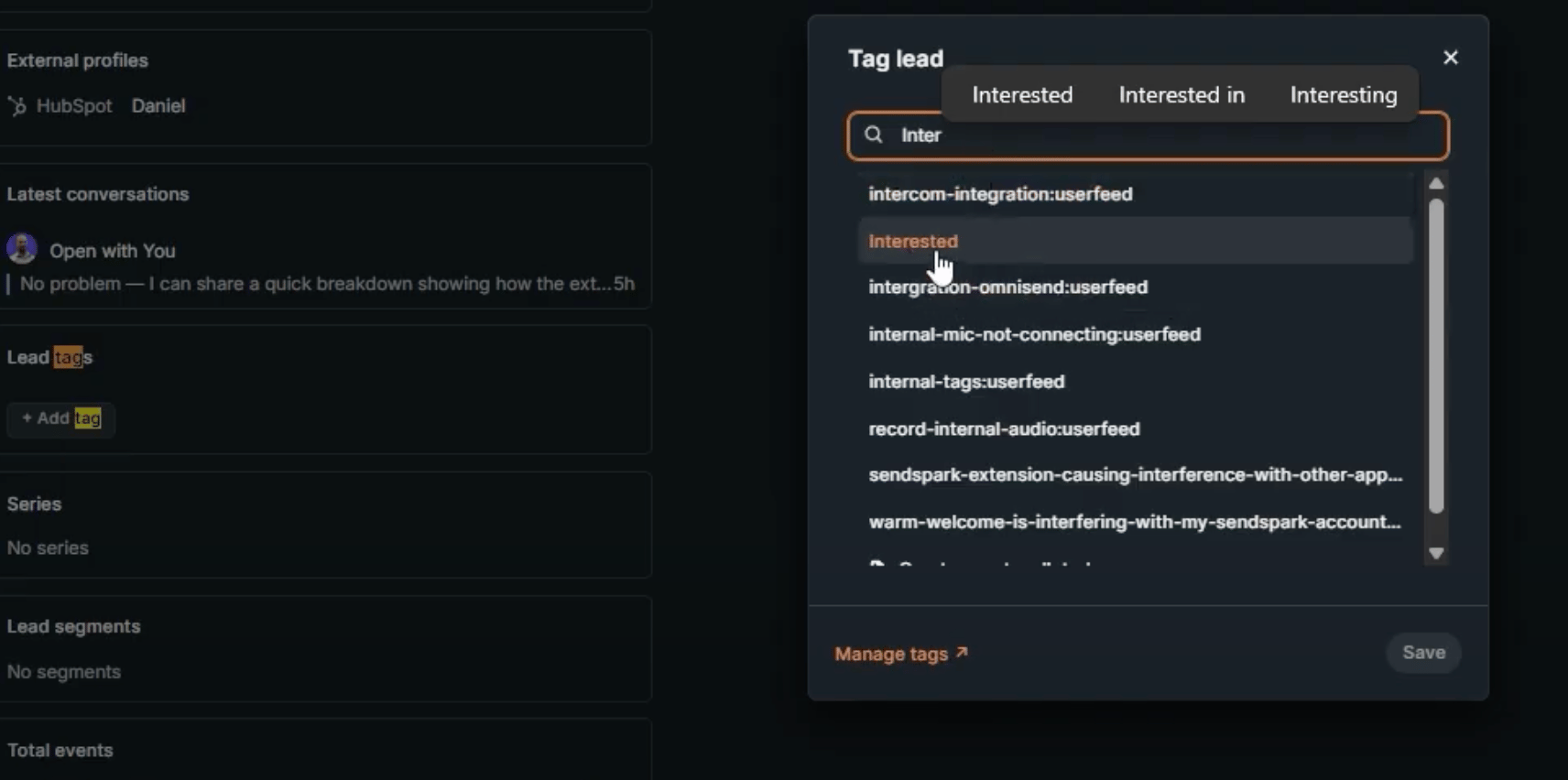
Step 2: 🏷️ Tag Customers in Intercom
- Log in to your Intercom dashboard.
- Open the conversation with a customer who shows interest in upgrading.
- From the tag menu, select or create a tag (e.g.,
Upgrade_Interested). - ✅ Apply the tag to the conversation.
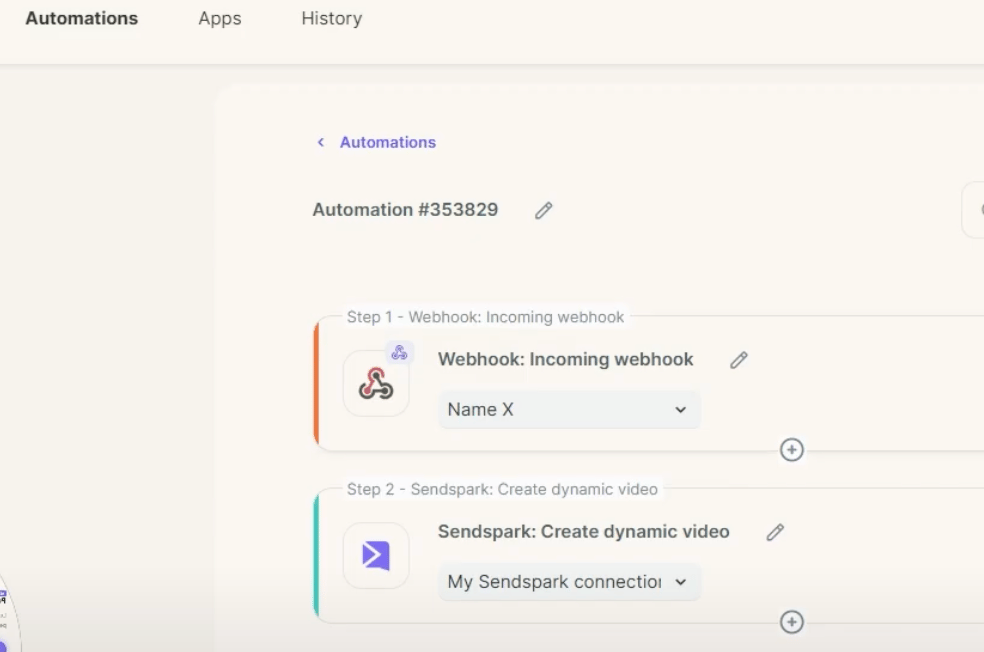
Step 3: 🎥 Automate Video Creation in Sendspark
- Connect the Intercom webhook to Sendspark in your automation platform.
- 🔑 Map the fields so Sendspark knows which data to personalize (e.g., customer first name).
- 📝 Create a Sendspark video template with placeholders (like Hi {{Name}}).
- ▶️ Test the setup to confirm a video generates whenever the webhook fires.
Step 4: 📧 Send the Video via HubSpot
- Log in to your HubSpot account.
- ⚡ Create an automated workflow that triggers when a new video link is generated.
- ✍️ Insert the Snippet Code in a HubSpot email template.
📊 Example Flow in Action
- 🧑 Customer asks about upgrading.
- 🏷️ Agent applies the Upgrade_Interested tag in Intercom.
- 🔗 Intercom webhook fires and sends customer data.
- 🎥 Sendspark generates a personalized video.
- 📧 HubSpot sends an automated email with the video link.
💡 Best Practices
- Use clear, standardized tags so agents know exactly when to trigger the workflow.
- 🧪 Test each step with a dummy customer before going live.
- 🎯 Keep your video script short, focused, and upgrade-specific.
- 📈 Track HubSpot analytics to measure open rates and conversions.
✅ Conclusion
By following these steps, you can fully automate follow-up with upgrade-ready customers using Intercom + Sendspark + HubSpot. This process saves time, personalizes outreach, and increases conversions.Frequently asked questions
What triggers the automated video in this workflow?
What triggers the automated video in this workflow?
Adding a tag to a conversation in Intercom (for example,
Upgrade_Interested) fires a webhook. That webhook passes the customer’s info to your automation platform, which triggers Sendspark to generate a personalized video.Which automation platforms can I use to connect Intercom to Sendspark?
Which automation platforms can I use to connect Intercom to Sendspark?
You can paste the webhook URL from Albato, Zapier, or Make into Intercom’s webhook settings, then connect that webhook to Sendspark inside the automation platform.
What customer data should the webhook pass?
What customer data should the webhook pass?
Make sure the webhook passes customer info such as name, email, and company, then map those fields so Sendspark knows which data to personalize (for example, the customer’s first name).
How is the video actually delivered to the customer?
How is the video actually delivered to the customer?
HubSpot handles delivery. Create an automated HubSpot workflow that triggers when a new video link is generated, and insert the Sendspark snippet code into a HubSpot email template so the video goes out by email.