

Key takeaways
- Share a video by text in three steps: Share Video, Copy Link, then paste into your message.
- Recipients see a clickable video preview when they have your contact info saved in their phone.
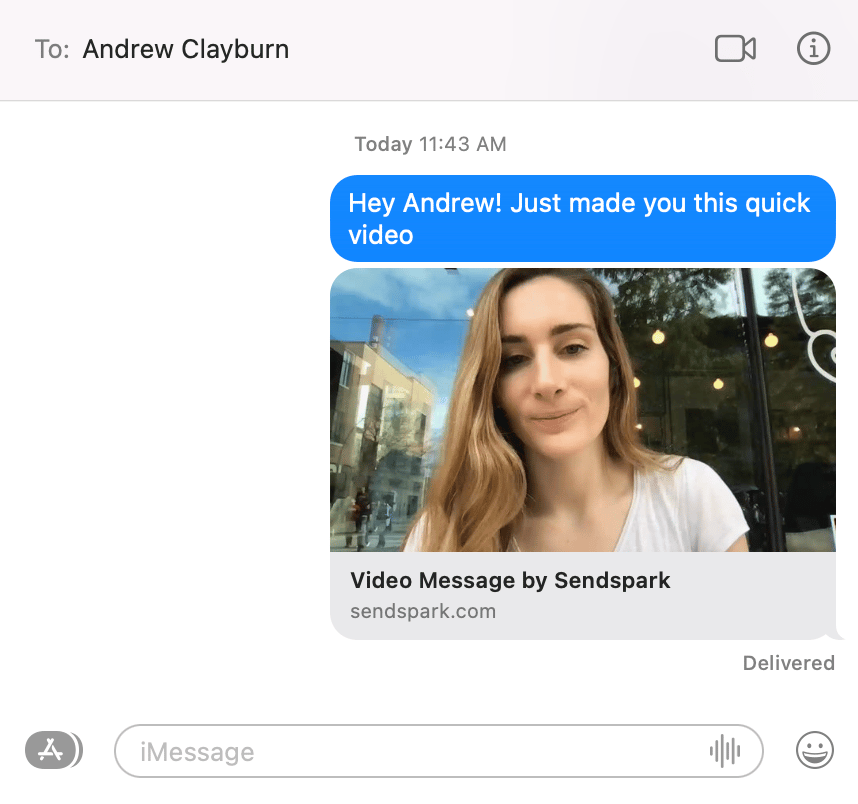
- The preview renders as a tappable thumbnail in clients like iMessage.
- Click Share Video

- Under Share Link, click Copy Link
- Paste in your text messages and send!

Frequently asked questions
How do I text a video to a client?
How do I text a video to a client?
Click Share Video, then under Share Link click Copy Link. Paste the link into your text message and send.
Why doesn't my recipient see a video preview?
Why doesn't my recipient see a video preview?
The preview shows as long as your recipient has your contact info saved in their phone. Without your contact saved, they may only see the plain link.
What does the video look like in iMessage?
What does the video look like in iMessage?
It renders as a video preview the recipient can click to watch the full video.