

Key takeaways
- This guide assumes you’ve already created your Sendspark videos in Clay — if not, start with how to create Sendspark videos in Clay.
- Prep the email by copying the Instantly snippet from Share Campaign and pasting it into your Instantly email in Code View; a Sendspark placeholder appears once you switch back out.
- Preview the video as a real contact by clicking Preview and entering their address in the “email” variable.
- Automate sending by adding Clay’s “Add Lead to Campaign” Instantly enrichment, selecting your Campaign ID, and passing the contact email so videos are sent as soon as they generate.
How to Send Videos in Instantly via Clay
This guide assumes that you’ve already created Sendspark videos in Clay, and you’re looking to send them in Instantly campaigns as soon as they generate. If you have not done that yet, please start with this guide on how to create Sendspark videos in Clay.1. Prep Your Video Email
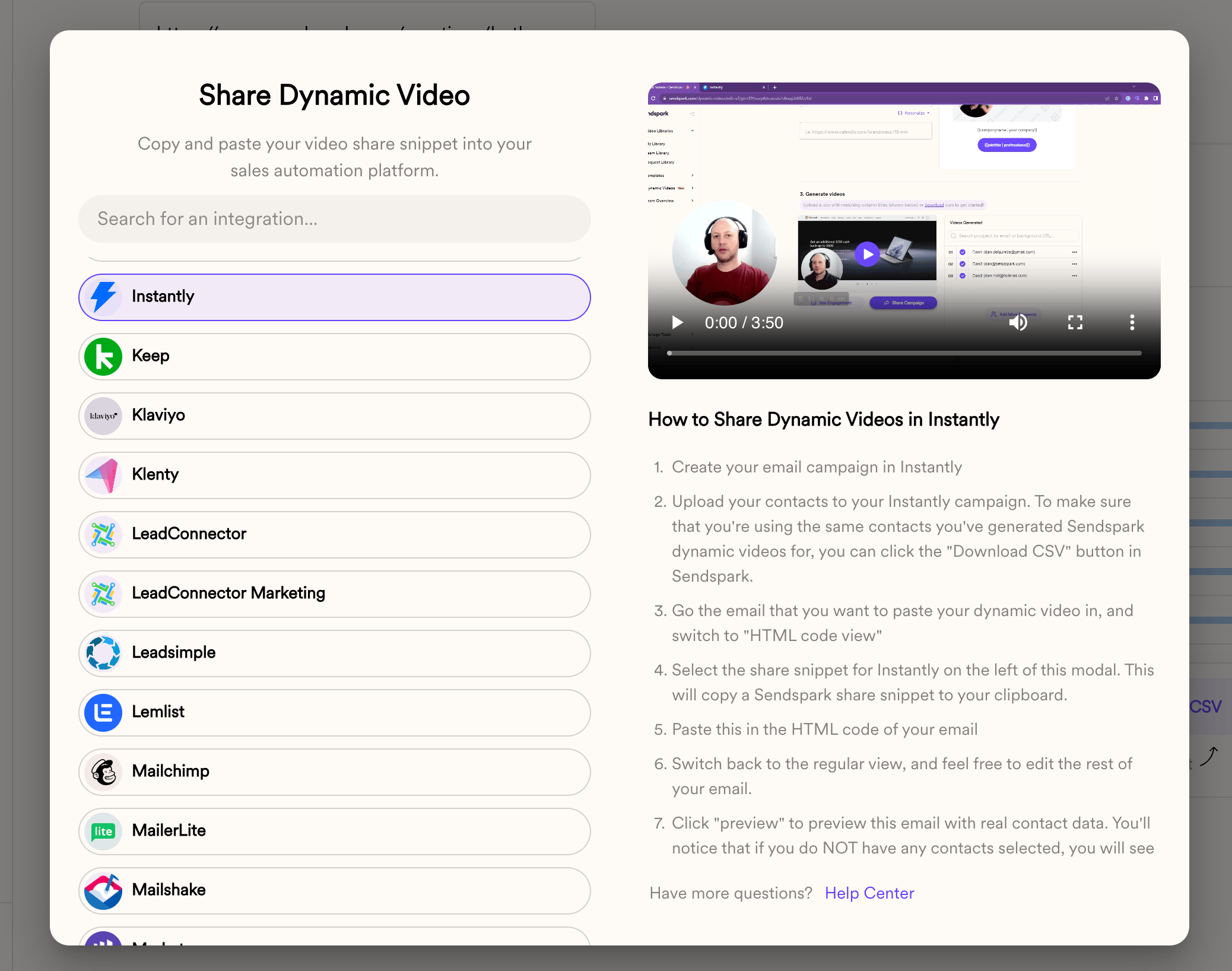
Before you can start enrolling contacts in your Instantly sequence, you need to add your Sendspark share snippet to the email:- From Sendspark, click “share campaign”
- Click on “Instantly” to copy the code snippet to your clipboard
- Go to your email in Instantly
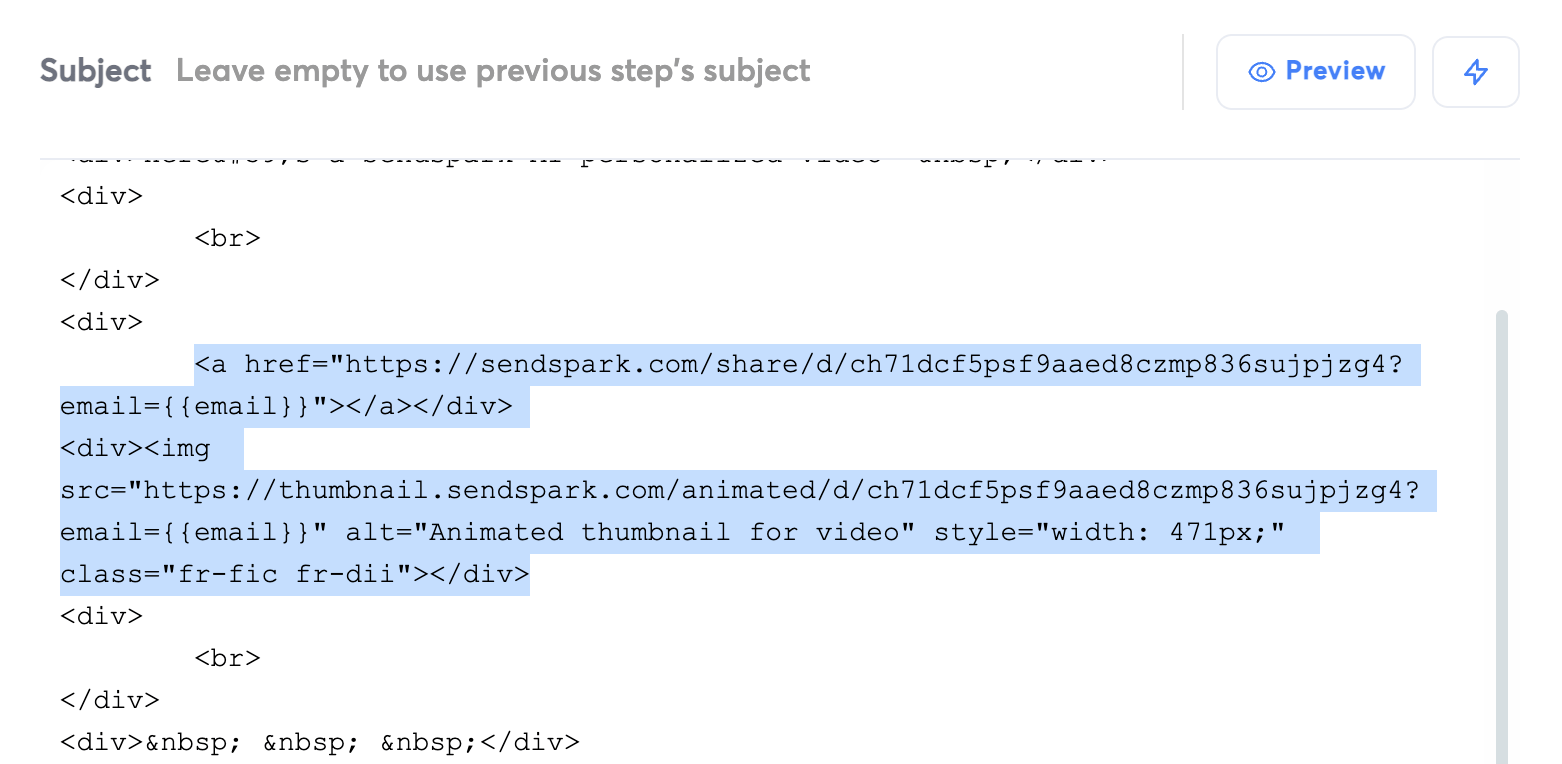
- Switch into “Code View”

- Paste into your email where you want the video to be:
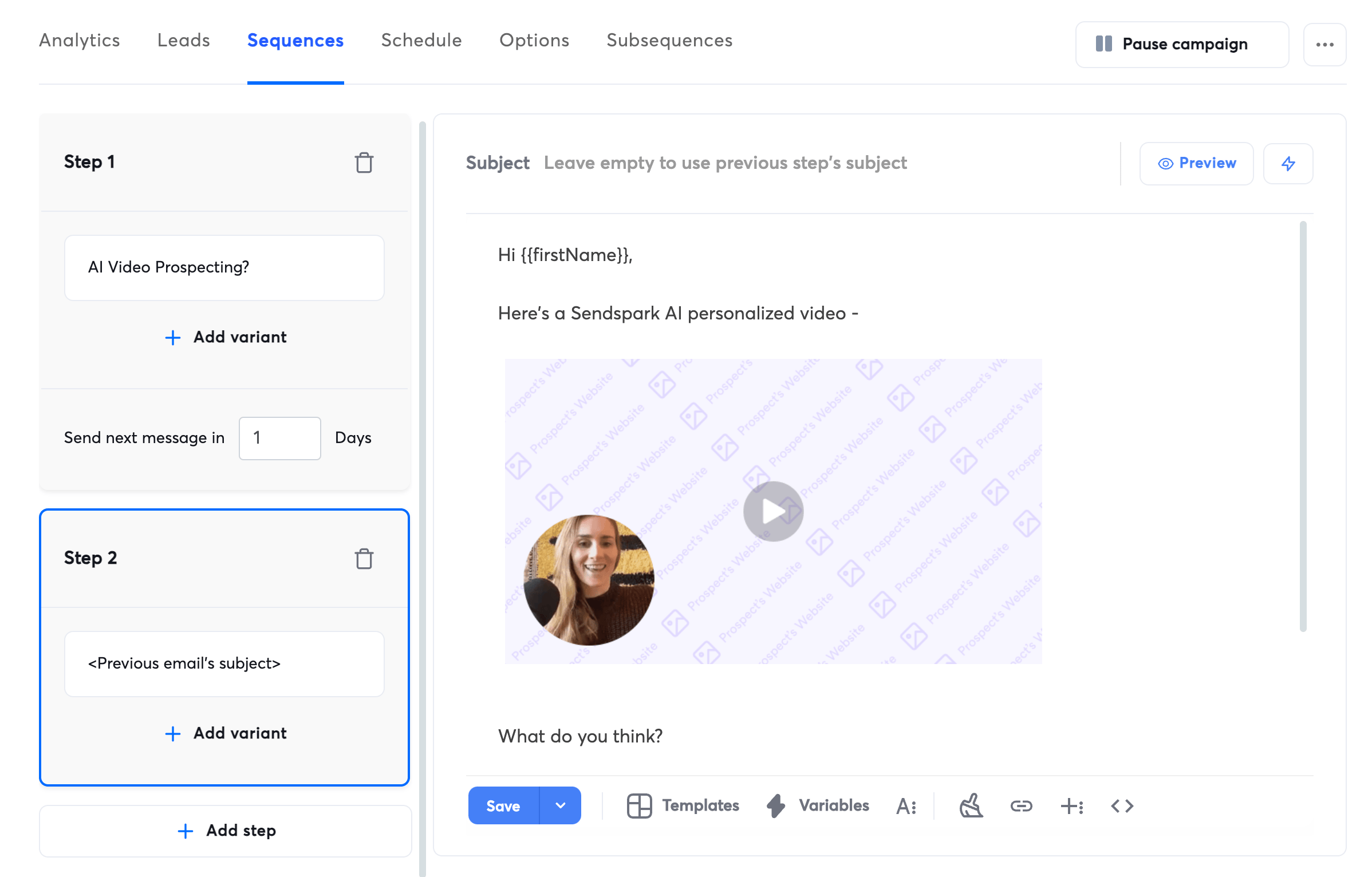
- Switch back out of Code View
- You should see the Sendspark placeholder in your email now.
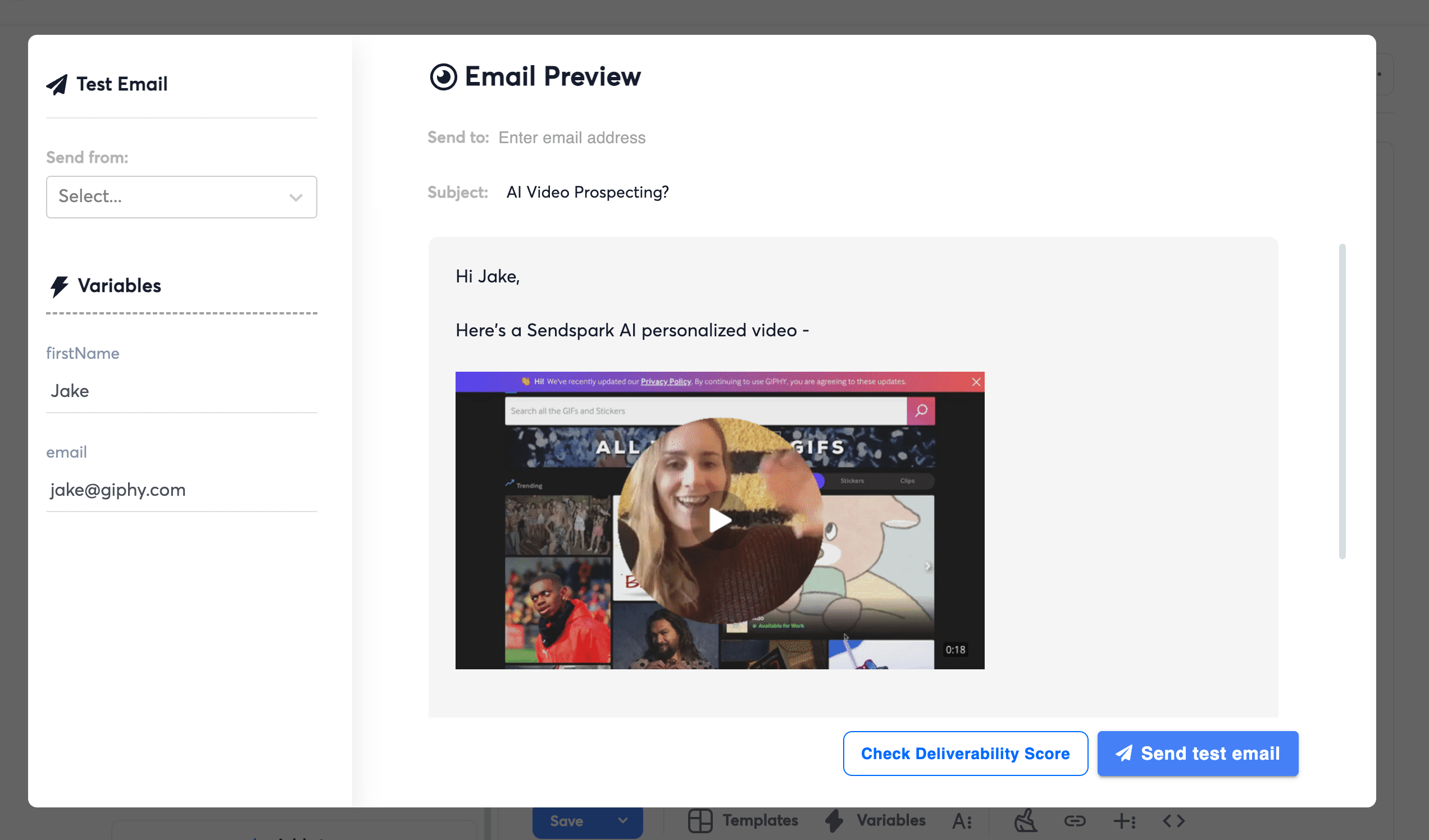
- And, if you want to preview your video as a contact who’s been added to your Sendspark campaign, you canclick “Preview” and then use their email in the “email” variable:
2. Automatically Send Video Email
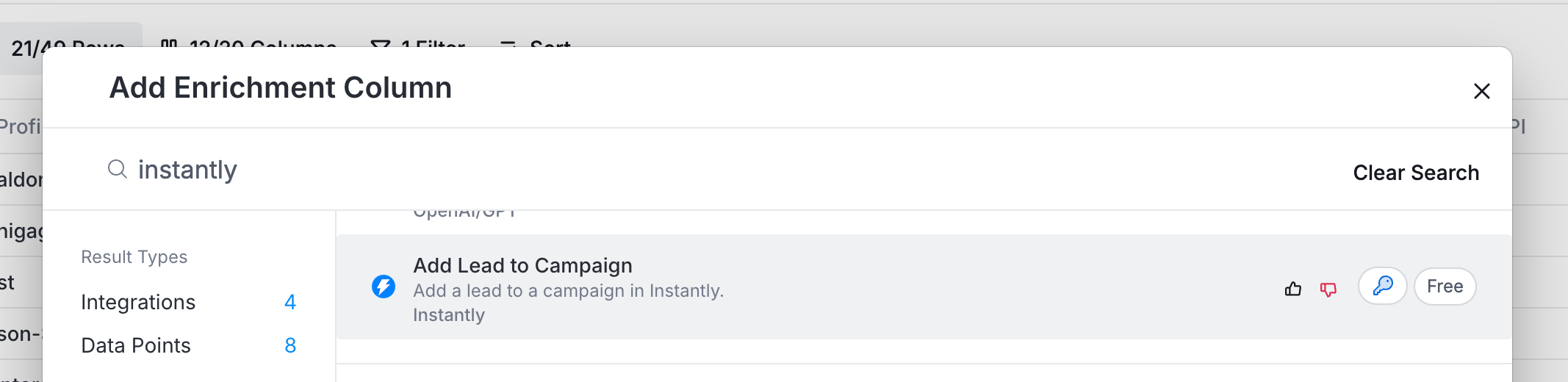
Now, the final step is to add a column in Clay to add your contact to the Instantly email sequence.- From Clay, click “Add Enrichment Column”
- Search for Instantly, and select the **“Add Lead to Campaign”**option
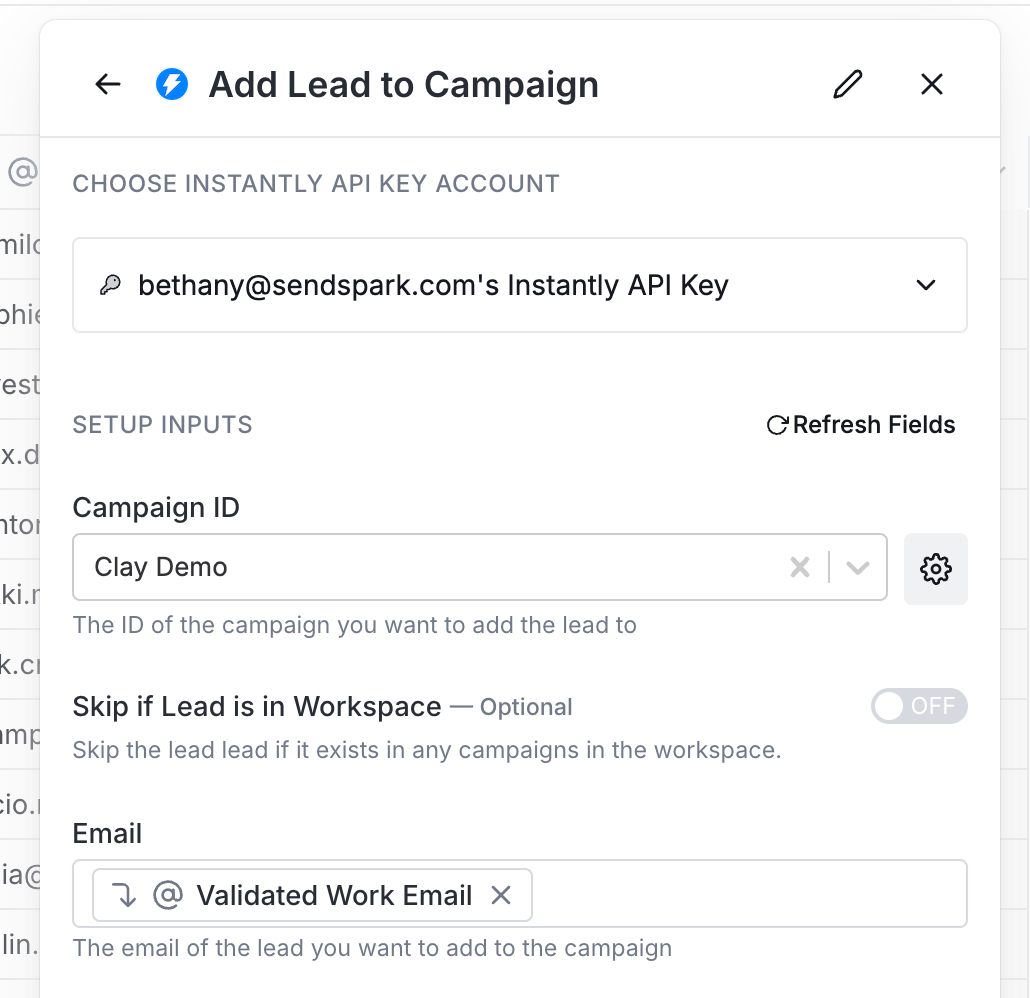
- Select your Campaign ID
- Add the contact email, and any other data you want to send to Instantly
Frequently asked questions
Do I need to create the videos before following this guide?
Do I need to create the videos before following this guide?
Yes. This guide assumes you’ve already created your Sendspark videos in Clay. If you haven’t, start with how to create Sendspark videos in Clay first.
How do I add the Sendspark video to my Instantly email?
How do I add the Sendspark video to my Instantly email?
From Sendspark, click Share Campaign, then Instantly to copy the code snippet. In Instantly, switch your email into Code View, paste the snippet where you want the video, then switch back out. You’ll see the Sendspark placeholder in your email.
Can I preview the video email before sending?
Can I preview the video email before sending?
Yes. Click Preview and enter the address of a contact who’s been added to your Sendspark campaign in the “email” variable to see their personalized video.
How are contacts enrolled into the Instantly campaign automatically?
How are contacts enrolled into the Instantly campaign automatically?
In Clay, click Add Enrichment, search for Instantly, and select “Add Lead to Campaign.” Choose your Campaign ID and pass the contact email (plus any other data). Save and run so contacts are enrolled as their videos generate.