

Key takeaways
- The Floating Menu gives quick recording access from anywhere on the web, without opening the dashboard.
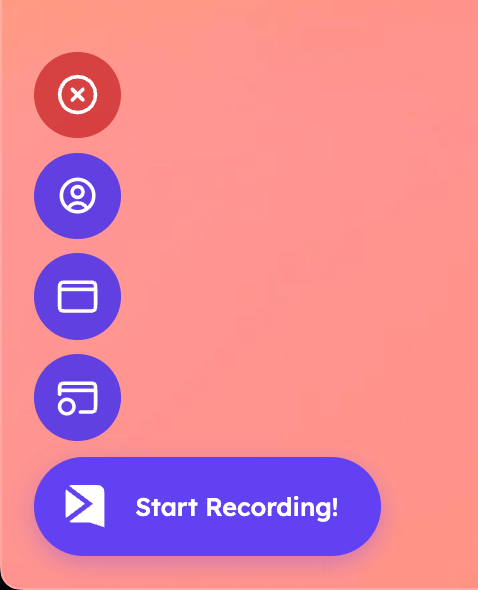
- Recording modes: Camera Only, Screen Only, and Full Screen (Camera + Screen).
- It also includes Settings and a “Start Recording!” button.
- Enable or disable it from the Chrome extension’s Sendspark icon → Settings → Floating Menu toggle.
Menu Options
From top to bottom:- ❌ Close Button – Hides the floating menu.
- 🎥 Camera Only – Record using your webcam only.
- 🖥️ Screen Only – Record your screen only (no camera feed).
- 📸 Full Screen (Camera + Screen) – Record both your screen and camera at the same time.
- ⚙️ Settings – Adjust recording or display options.
- ▶️ “Start Recording!” Button – Begins the recording with your selected mode.
How to Enable/Disable
Click on the Chrome Extension’s Sendspark Icon, head to Settings, and toggle the Floating Menu ON/OFF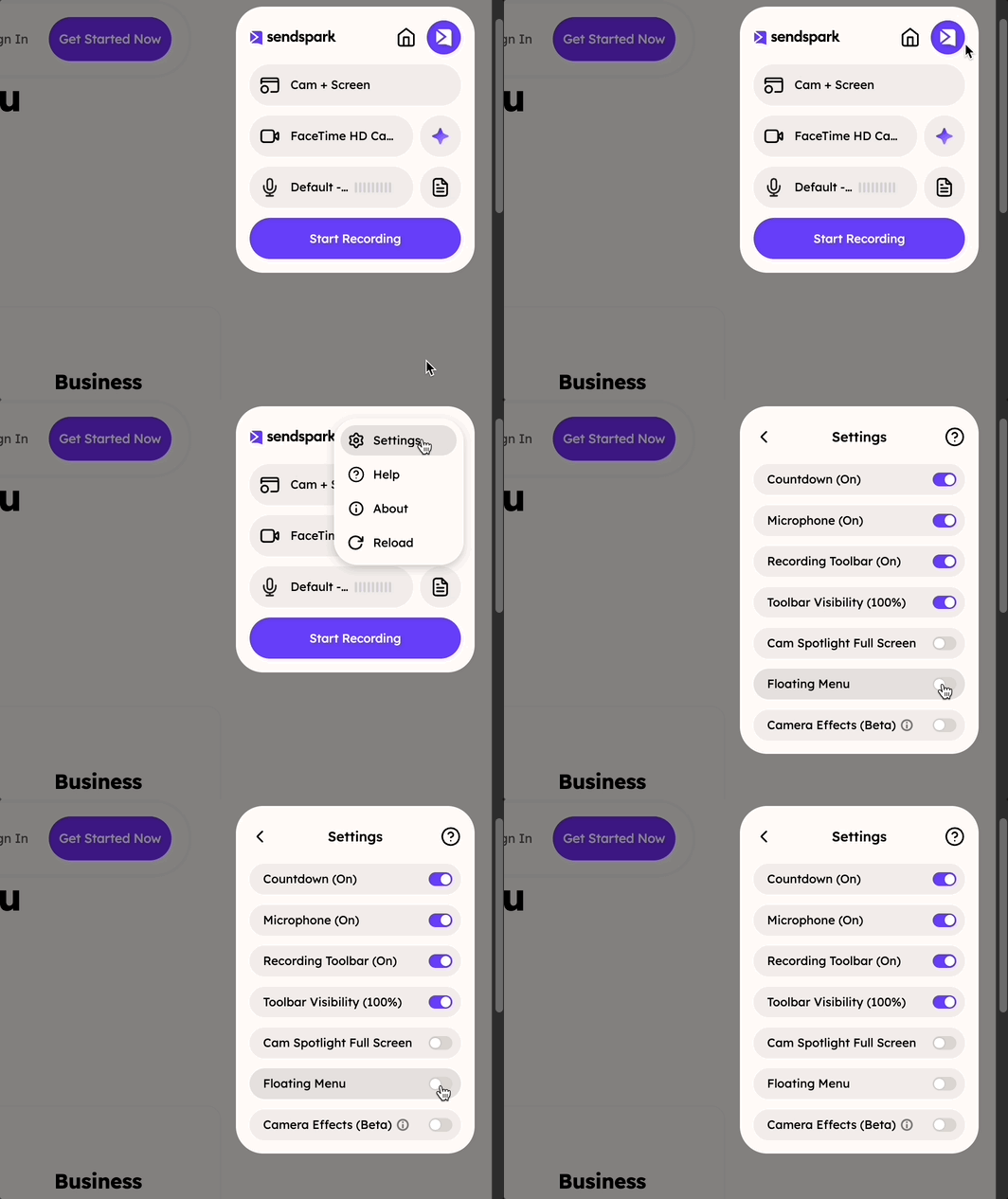
Frequently asked questions
Do I need to open the dashboard to start recording?
Do I need to open the dashboard to start recording?
No. The Floating Menu gives you quick access to start recording from anywhere on the web without opening the full Sendspark dashboard.