

Key takeaways
- Sendspark generates an AI-powered script, plus email content and landing page content, based on the template you choose. See how to make an AI-generated video script to write one outside a template.
- The built-in teleprompter scrolls your script as you record, and you can adjust the scrolling speed for a natural delivery. Using the teleprompter covers it on its own.
- You can add dynamic variables such as name and company to personalize videos automatically.
- Finished videos can be shared via email, LinkedIn, or embedded in your outreach campaigns.
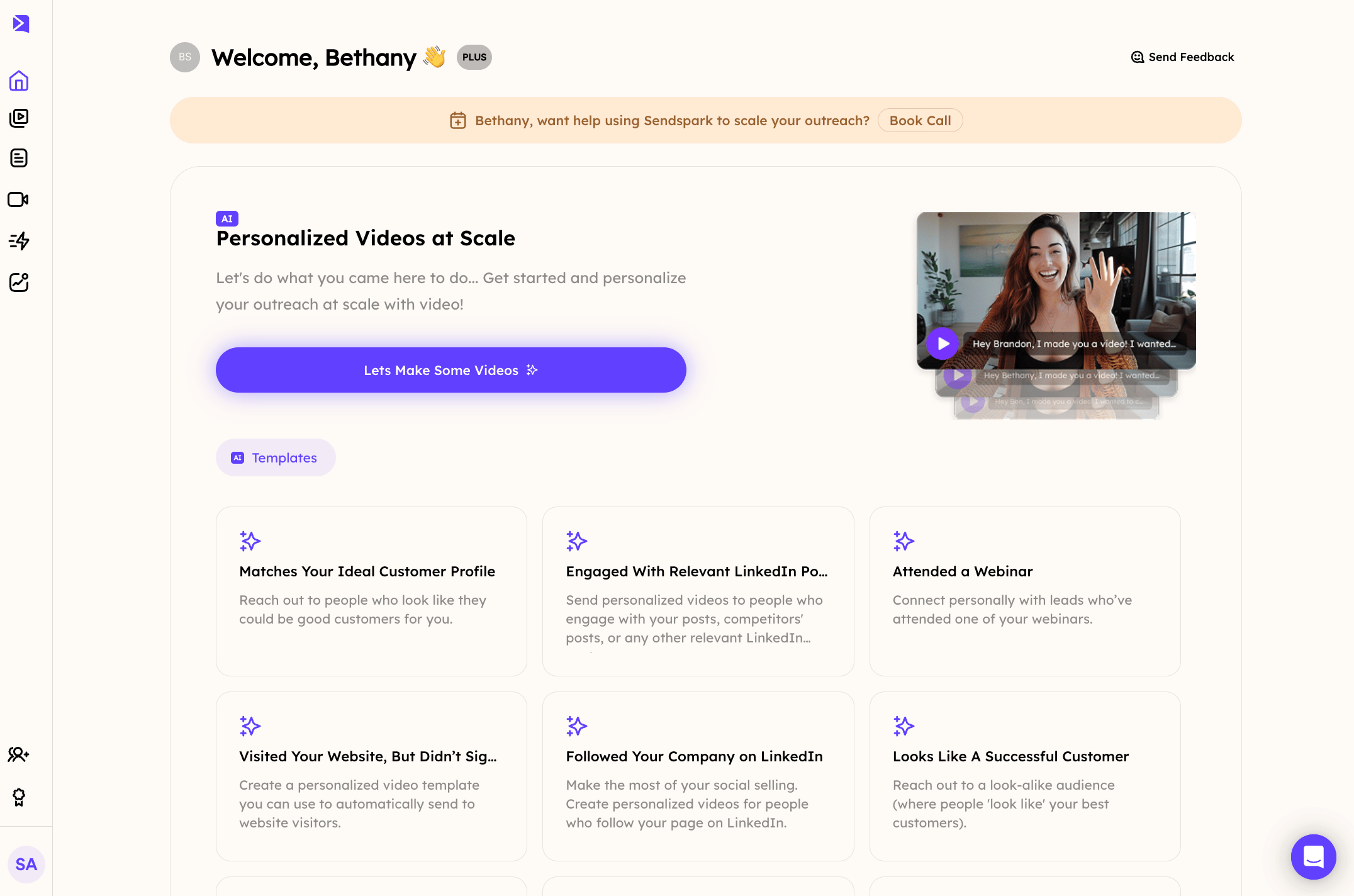
Step 1: Select a Video Template
- Log in to Sendspark and navigate to the welcome page
- Choose a template that fits your message (e.g., sales outreach, follow-up, onboarding, etc.).
Step 2: Generate an AI Script
- Once you’ve selected a template, Sendspark will generate an AI-powered script based on best practices. We’ll provide a video script, email content, and landing page content that you can use.
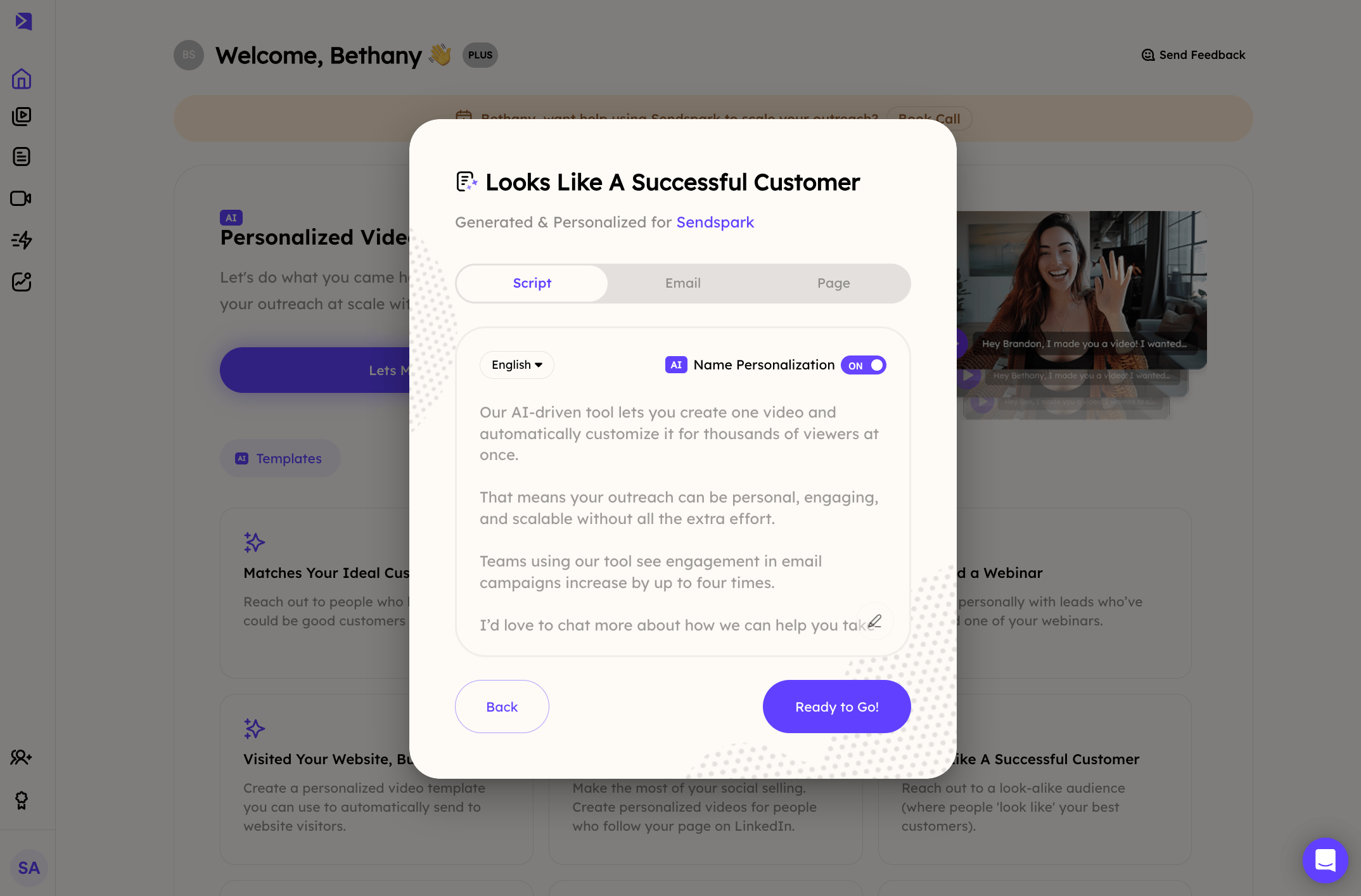
- You can review and edit the script as needed to match your personal style and audience.
Step 3: Record with the Teleprompter
- Preview the script and edit it as you’d like
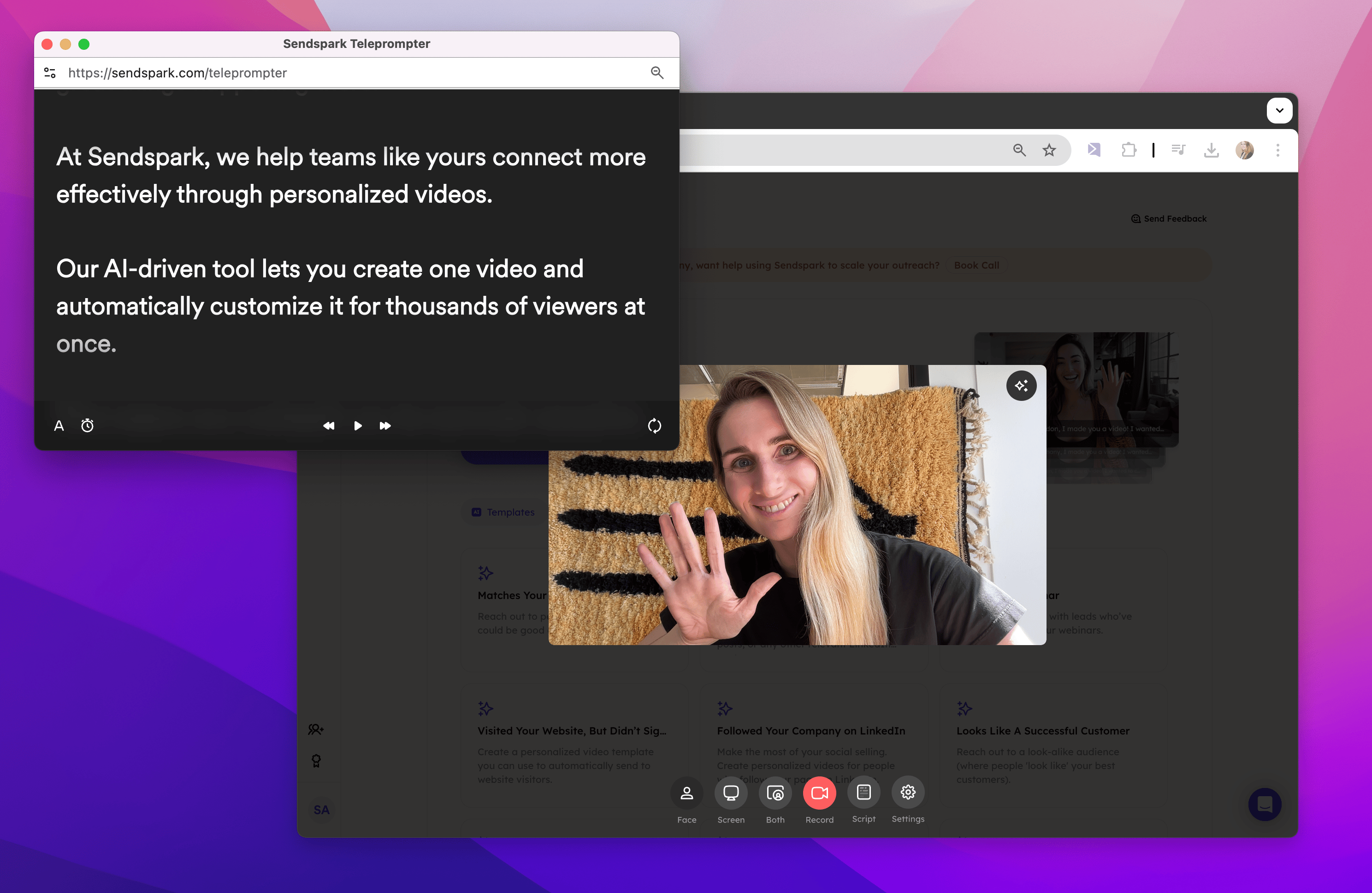
- Click Record Video to start recording. The teleprompter will disappear and come back after the countdown for you.
- The script will scroll as you record, helping you stay on track.
- Adjust the scrolling speed to your preference for a natural delivery.
Step 4: Personalize and Send at Scale
- After recording, use Sendspark’s AI personalization features to tailor the video for individual recipients.
- Add dynamic variables (e.g., name, company) to customize your message automatically.
- Click Share and send your video via email, LinkedIn, or embed it in your outreach campaigns.
Frequently asked questions
What does Sendspark generate after I pick a template?
What does Sendspark generate after I pick a template?
Sendspark generates an AI-powered script based on best practices, along with email content and landing page content that you can use.
Can I edit the AI-generated script?
Can I edit the AI-generated script?
Yes. You can review and edit the script as needed to match your personal style and audience before you record.
How does the teleprompter work while recording?
How does the teleprompter work while recording?
When you click Record Video, the teleprompter disappears and comes back after the countdown, then scrolls as you record. You can adjust the scrolling speed to your preference.
How do I personalize videos for individual recipients?
How do I personalize videos for individual recipients?
After recording, use Sendspark’s AI personalization features and add dynamic variables such as name and company to customize your message automatically.