

Key takeaways
- Only the “email” and “backgroundUrl” fields are required when uploading contacts, and Sendspark can auto-extract background URLs from your prospects’ email domains.
- To use AI intros that greet each viewer by name, record your video with the wildcard variable “Watermelon” in the introduction and toggle on AI voice cloning.
- Share dynamic videos as direct links (best for LinkedIn, Slack, and messaging) or, for email campaigns, with the Copy Linked GIF icon on a prospect’s row, which copies an animated preview.
- Test your campaign with a few contacts before generating videos for your entire list.
Set Up Your Sendspark Account
All of the steps in this section are optional, however, they can make the Sendspark experience better. If you set these up once, they will apply for all videos created in your library going forward, so we recommend doing them and getting them out of the way. If you don’t feel like it, you can skip this section, or come back later to do it.1. Set Global Styles
Sendspark lets you add your logo & brand colors to deliver a cohesive branded experience to video viewers. To set your styles…- Go into your workspace settings
- Click “Set Global Styles”
- Use the edit on the left to upload your logo and select your color theme. You’ll be able to preview how this will appear on video pages on the right.
- Hit **“Save Changes”**when done
2. Configure Custom Domain
You have the option of using a custom domain, so when you send videos, instead of sending them from “sendspark.com/share/xyz…” you use your own domain, ex: “video.yourdomain.com/share/xyz…” To do this, simply follow the steps to connect your domain in the Sendspark workspace settings.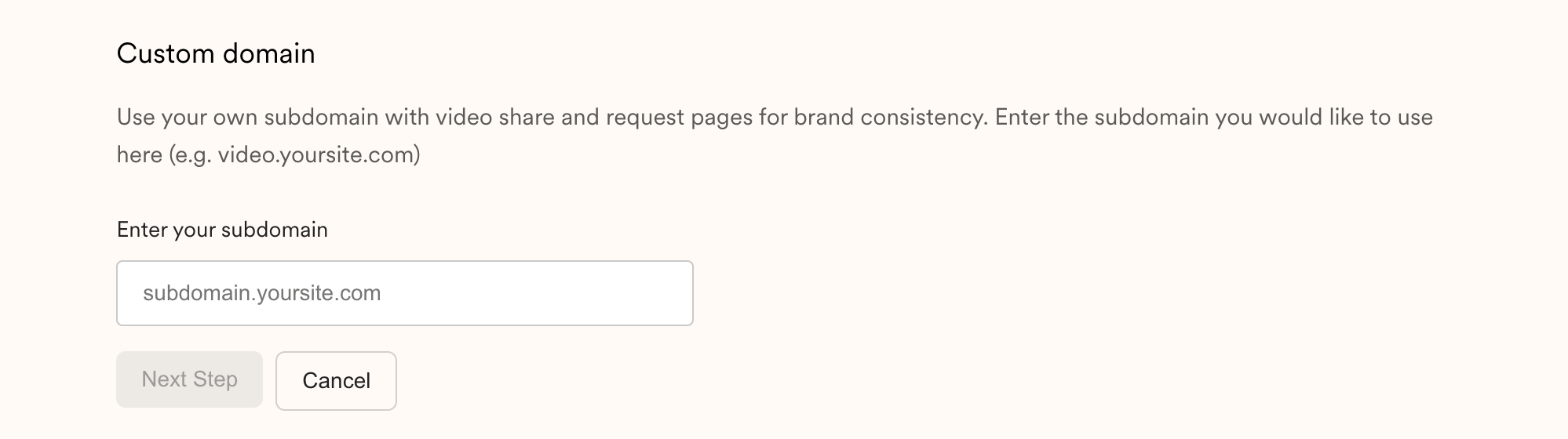
3. Connect Your CRM or Analytics Platform
If you’d like to track how viewers are engaging with Sendspark videos in HubSpot, Salesforce, or another analytics platform, you can connect your CRM or add a tracking pixel. Navigate to the Integrations tab, and select “Edit” for the platform you would link to use. Then add the ID number that that platform requires.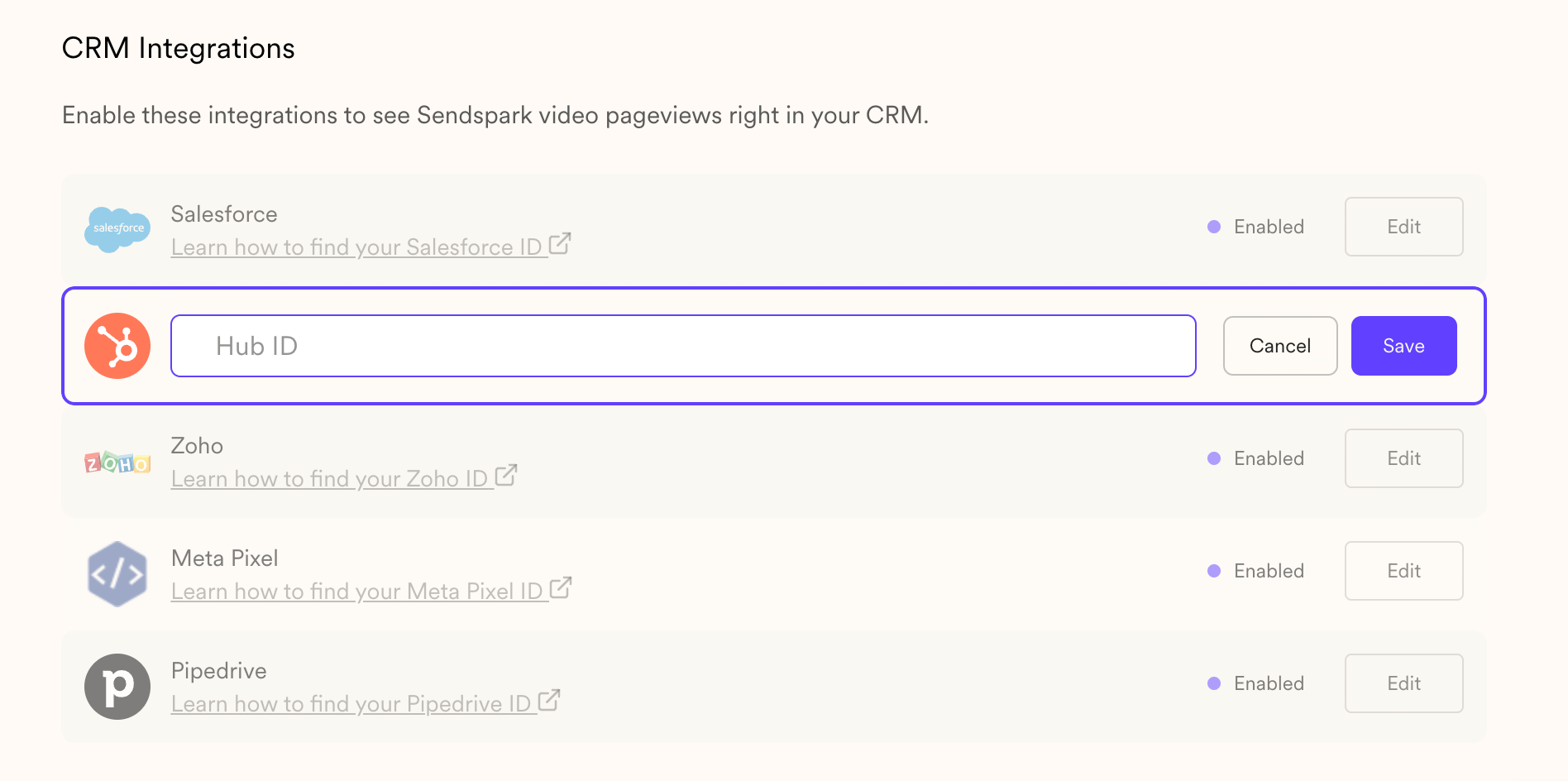
Create Dynamic Video Campaign
1. Create Campaign
Start by going into the dynamic video section of Sendspark, and clicking Create dynamic video in the top right. Give your campaign a name, and then click **“Start Creating”**to move on.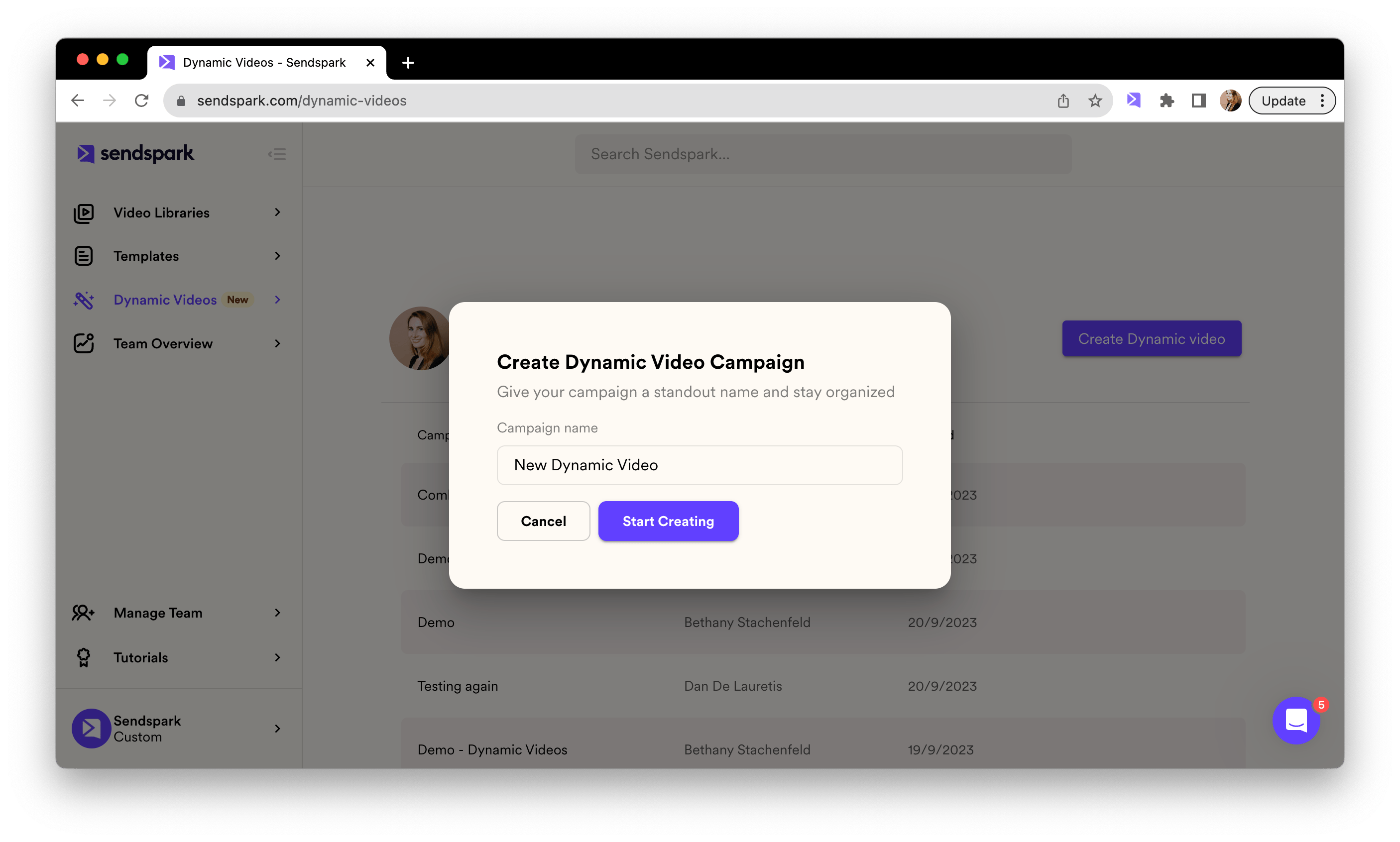
2. Add Video
The first thing you need to do is add your video to the campaign. Start your campaign, name it, and browse the video from your library. This video will be the same for every dynamic video you create, it will be overlayed on your prospects’ website.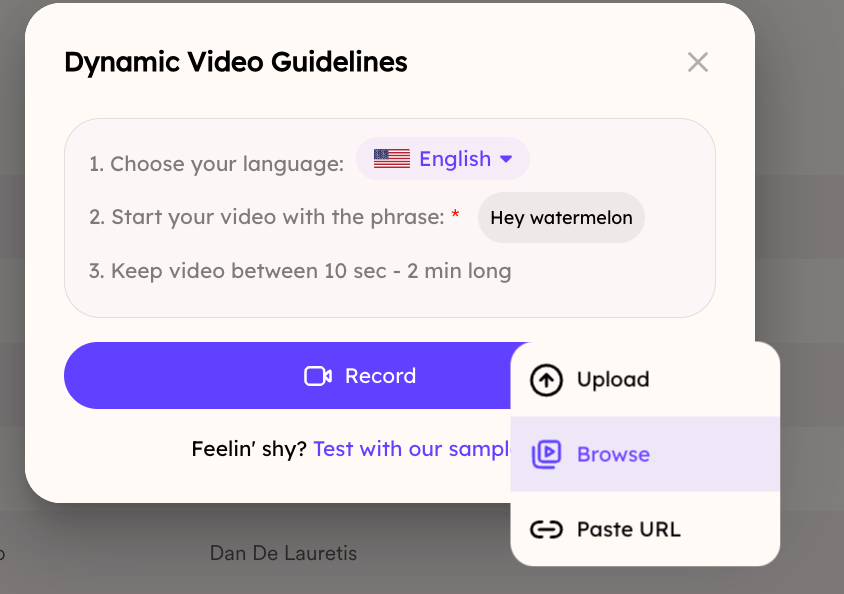
- Paste a link— Add the share link to an existing right into the input area above.
- Record a new video — Click “Start Recording” to record a new video and insert it into the input area. If you have the Sendspark Desktop App or Chrome Extensioninstalled, the “Start Recording” button will trigger one of those recorders.
- Browse your library — Click “Browse” to view all videos in your Sendspark library, and select from any existing video.
- Upload a video — If you like to upload an existing video, upload it to your “My Videos” or “Team Videos” library, and then select it for a dynamic campaign using the “browse” option above.
AI Personalization
Want to use AI intros to automatically greet each viewer by name (“Hi Dan,” “Hi Ben,” etc.?) Make sure to record your video with the wildcard variable, “Watermelon” in the introduction, and then toggle on AI voice cloning. We also provide these recommendations for the best quality: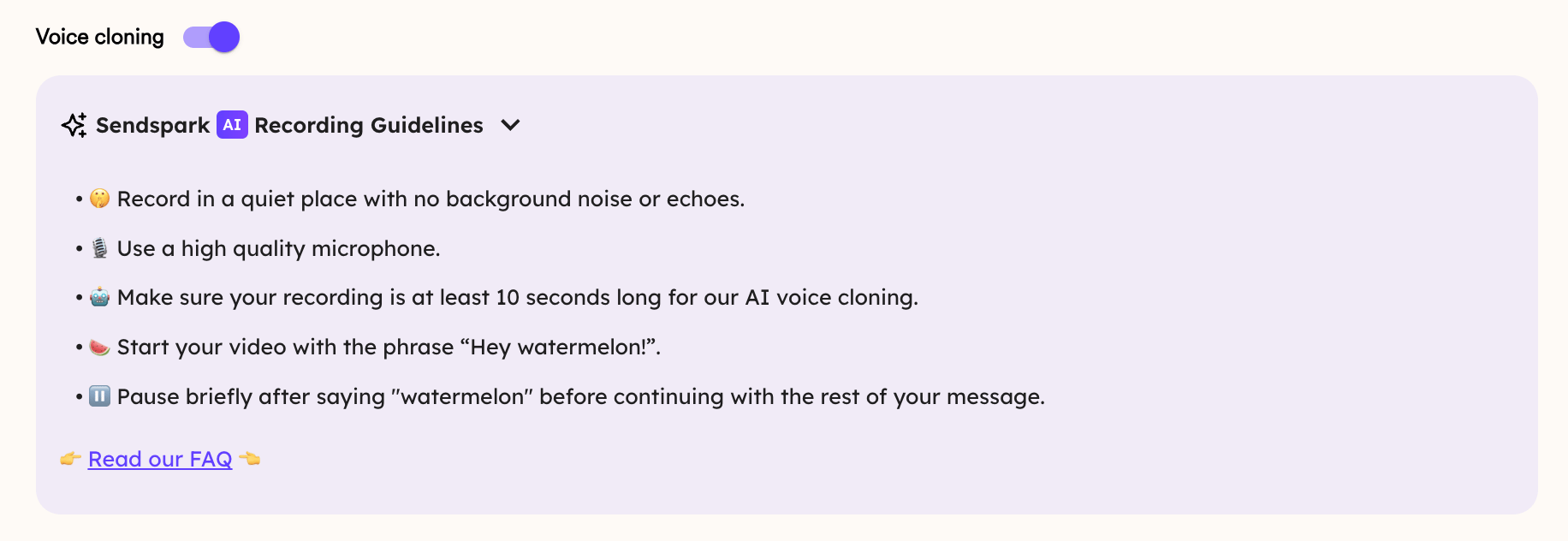
3. Customize share page
You can customize the video landing page to enhance the viewer experience. Use the editor on the left to write text, and see how it will display on your video landing page in the preview area on the right.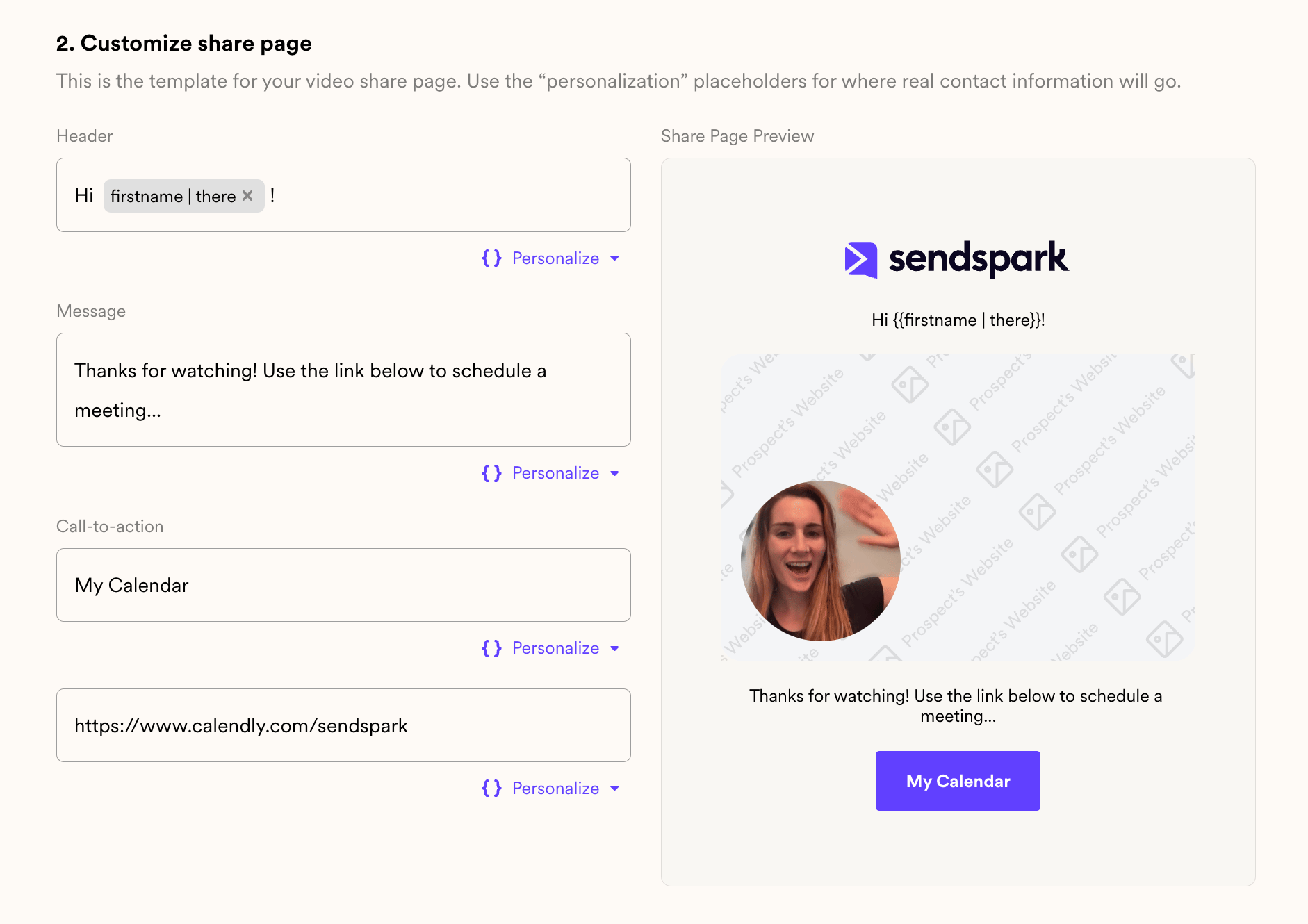
- Header: a short intro, like “Hi [First Name]”
- Message: tell the viewer what they should do next, like “Book some time on my calendar below.”
- Call-to-action (first field):write the text you want displayed on your button
- Call-to-action (second field): add the link to where the viewer should be directed when they click the button
Bonus: Use Merge Tags
In any of these sections, you can merge tags to personalize videos for each of your viewers. Just click on the “personalize” button to add your merge tag.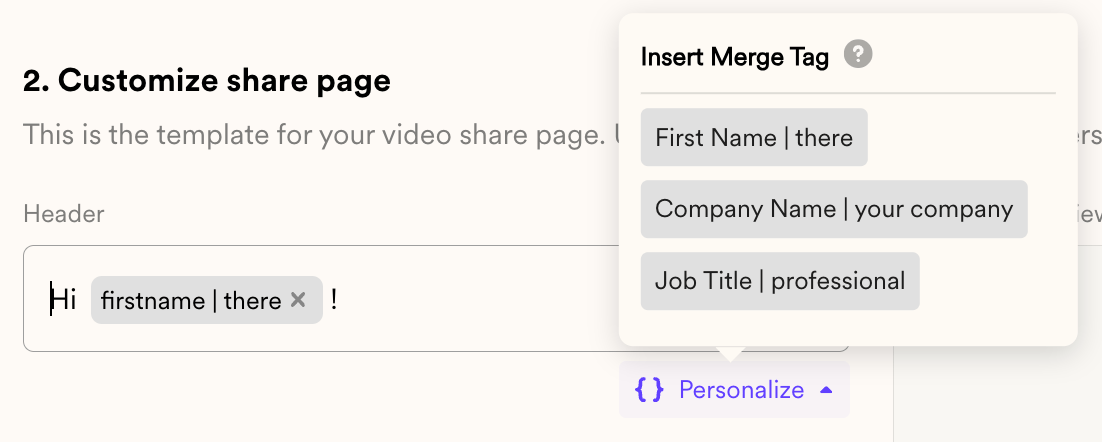
4. Add Contacts & Generate Videos
Start typing contacts, or upload a CSV for everyone who would like to create videos for. You can export this list of contacts right from your email platform or CRM, and then export it into contacts.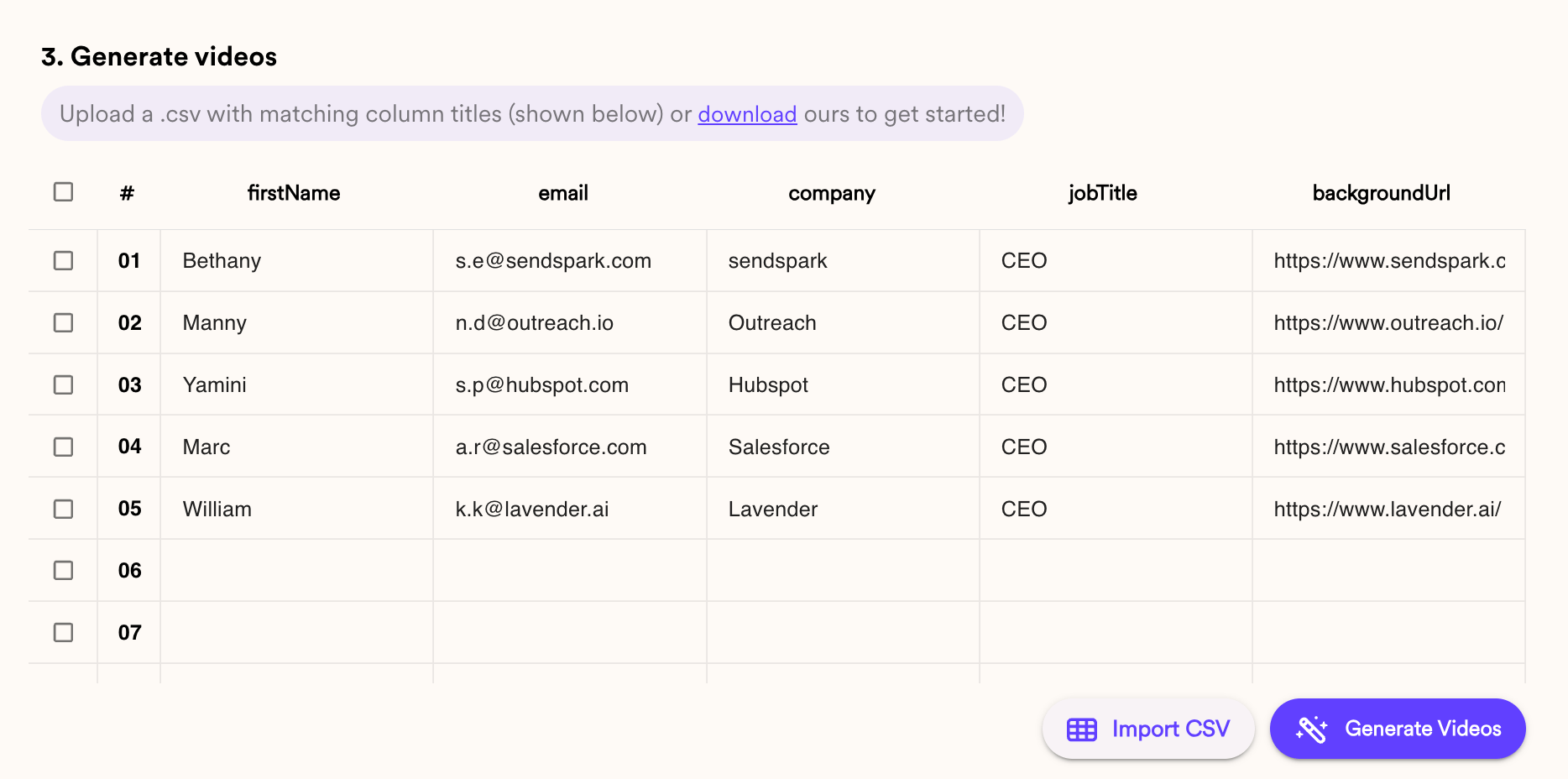
- firstName— first name for your contact (i.e. “Mark”)
- email— email address for your contact (i.e. “marc@salesforce.com”. We will use this to map the contact in Sendspark to the contact in your email sending platform.
- company— name of the company for your contact (i.e. “Salesforce”)
- jobTitle— job title for your contact (i.e. “CEO”)
- backgroundUrl— the URL for the webpage that you want to superimpose your video over. Can be their website homepage, or any public URL.
5. Share Videos
There are a few ways to share your dynamic videos: Sendspark offers options to share videos either as direct links or as email-friendly GIF previews combined with links. This ensures optimal presentation and recipient interaction.Quick Share (1-to-1 Sending)
To quickly share a one off video with a contact, click on the ”…” next to their name. Click on “Copy Link” to grab a share link that you can send them to them via LinkedIn, Slack, or any direct messaging channel. Using the “Copy Link” option is ideal for messaging platforms and social media like LinkedIn, where direct links are more effective than animated GIFs. If you’d like to share this with an animated thumbnail in email, hover the prospect’s row and click the Copy Linked GIF icon, then paste directly into any email compose window. This method is particularly effective for email campaigns, as the animated preview can significantly enhance click-through rates.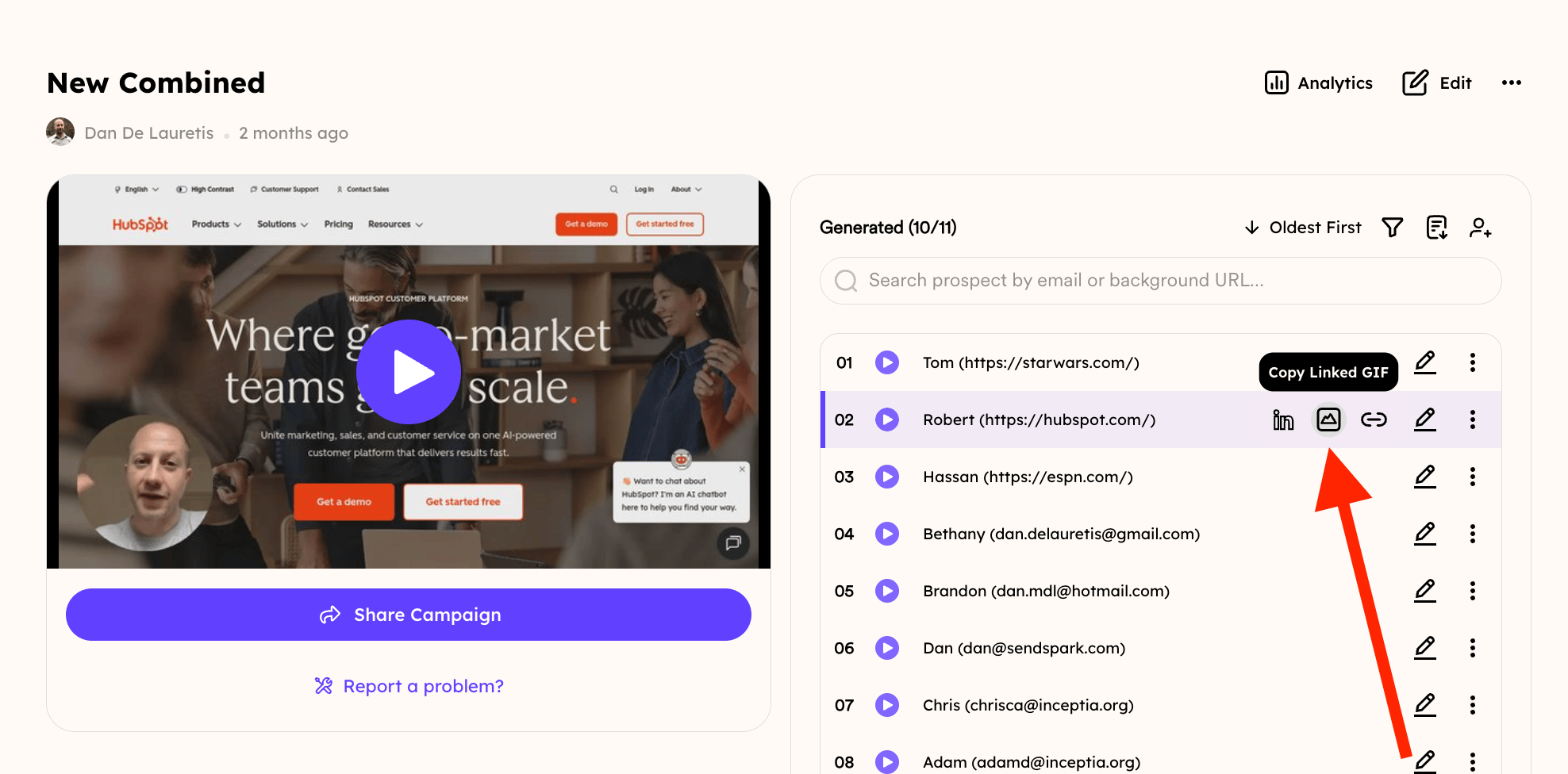
Sharing on LinkedIn
For LinkedIn messages, always use the video link instead of the GIF URL. Sendspark does not support GIF previews for LinkedIn messaging, so the direct link ensures the recipient can access and view the video correctly.Send in Email Campaign (Bulk Sending)
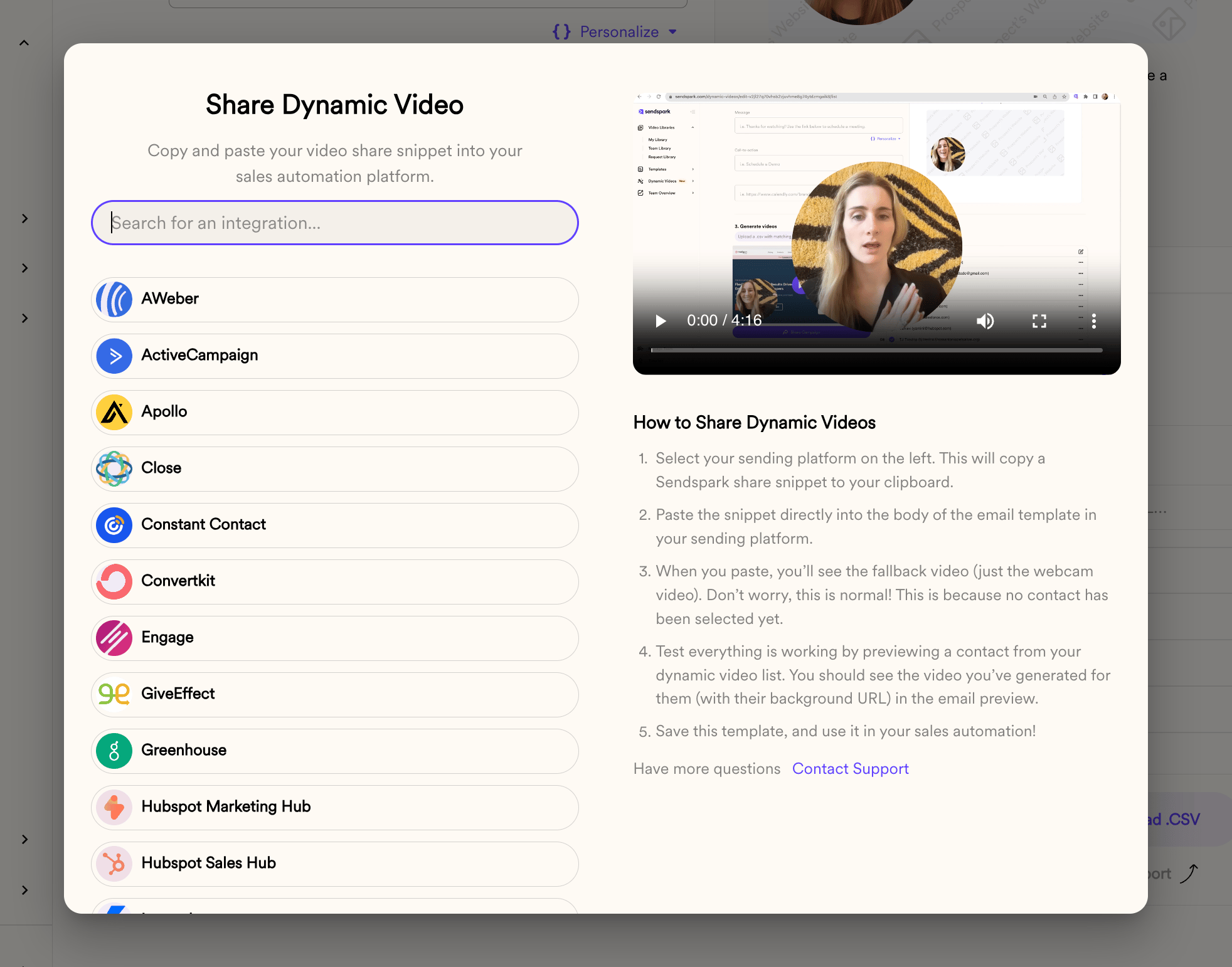
To send your video in an email cadence or sales sequence, click the “Share Campaign” button.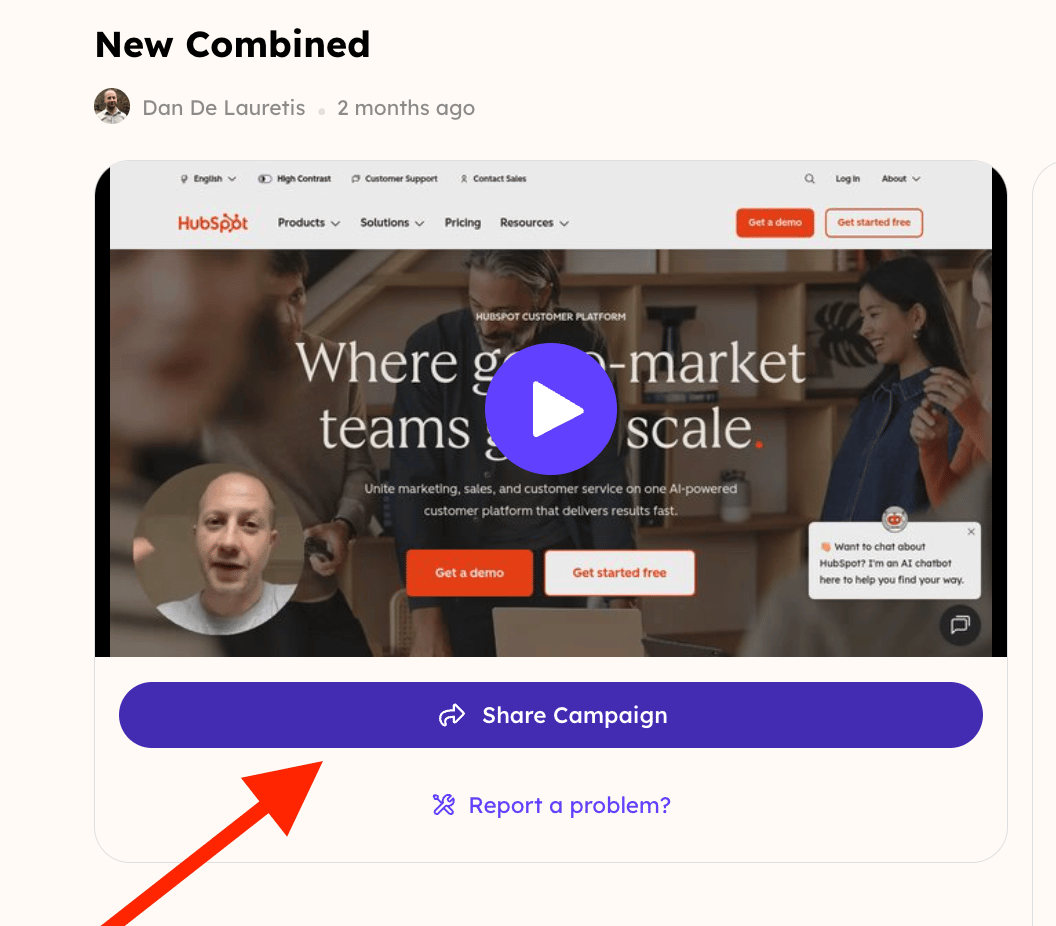
Track Dynamic Videos Campaign Success
After sending videos, you might want to see how your campaign is performing. You’ll get emails the first time anyone watches each of your videos, and you can view total campaign performance with the Analytics button at the top right of the campaign.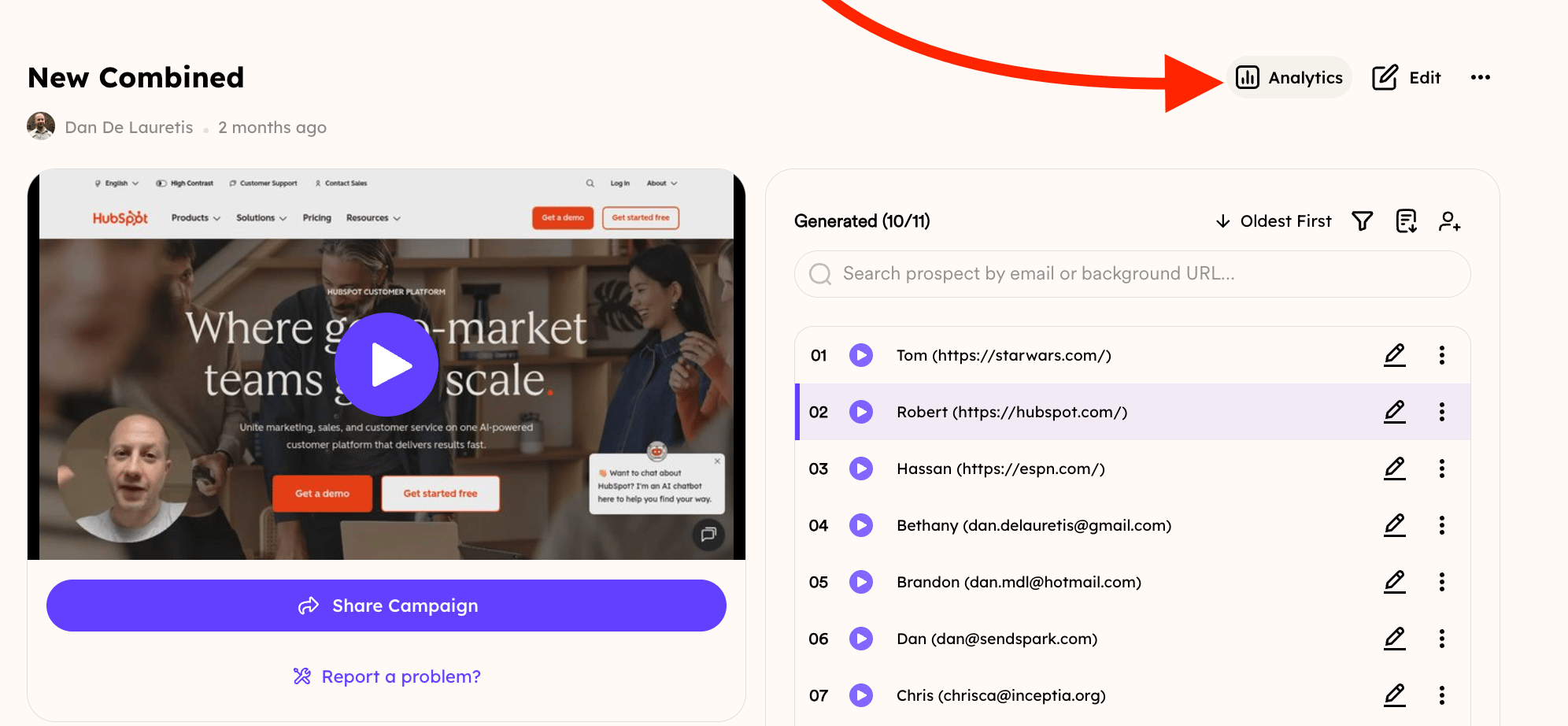
Frequently asked questions
Which fields are required to generate dynamic videos?
Which fields are required to generate dynamic videos?
Only the “email” and “backgroundUrl” fields are required. If you don’t have the background URLs handy, you can click a button to automatically extract them from your prospects’ email domains.
How do I make videos greet each viewer by name?
How do I make videos greet each viewer by name?
Record your video with the wildcard variable “Watermelon” in the introduction, then toggle on AI voice cloning so AI intros automatically greet each viewer by name.
How can I track how my campaign is performing?
How can I track how my campaign is performing?
You’ll get emails the first time anyone watches each video, and you can click Analytics at the top right of the campaign to see exactly who is watching, what percentage they watched, and what other actions they took.
How do I make sure I'm emailing the same contacts I generated videos for?
How do I make sure I'm emailing the same contacts I generated videos for?
Click Export Generated Videos (CSV) in the generated-videos panel to download a CSV of the contacts you’ve successfully generated videos for, so your list matches exactly in Sendspark and your email platform.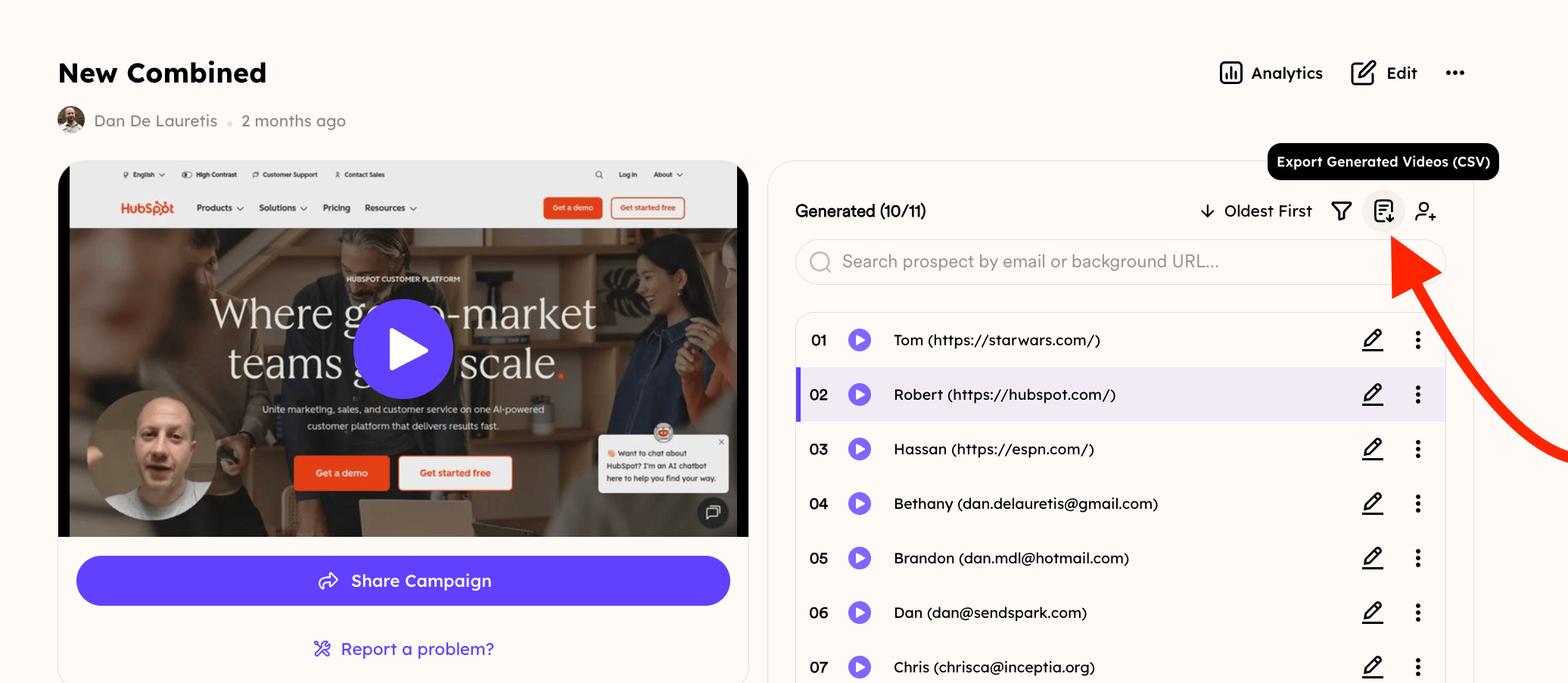
Will every video process perfectly for all contacts?
Will every video process perfectly for all contacts?
We do our best, but always double-check. We recommend skimming through generated videos to make sure everything is up to your standards before sending them to contacts.