

Key takeaways
- Anyone can record a video for you from the request link. They don’t need a Sendspark account.
- Common uses include video testimonials, troubleshooting requests, and introductions from a new hire, plus many other creative reasons.
- The link lives in Request Library, which sits beside My Library and Team Library under Video Libraries in the sidebar. Click Copy Request Link and it copies to your clipboard so you can paste it anywhere.
- Received videos appear automatically in your Request Library, and Growth, Team, and Business plans let you brand the request page with your name, avatar, logo, and colors.
- Open Request Library in the sidebar, under Video Libraries:
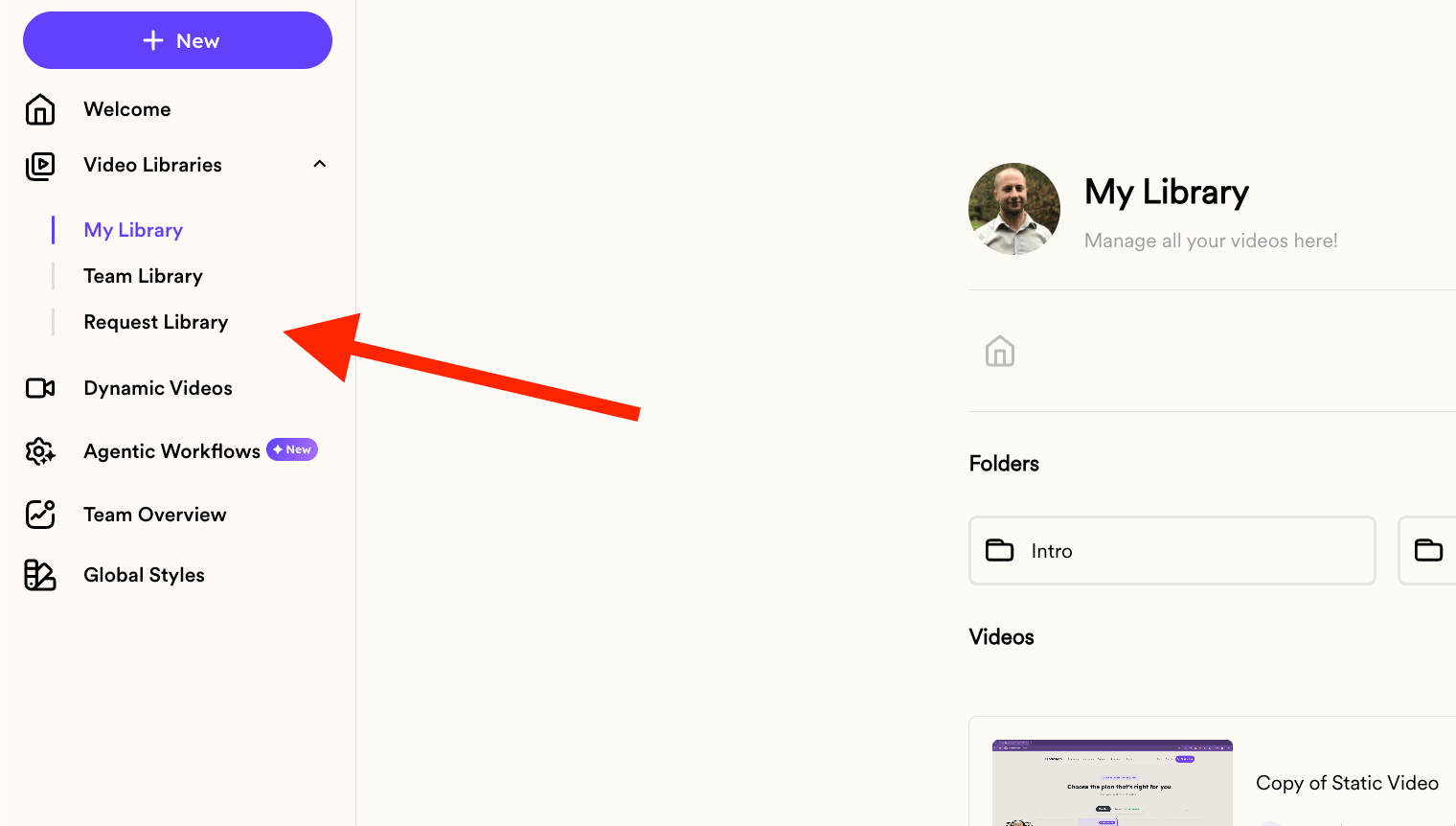
- Click Copy Request Link

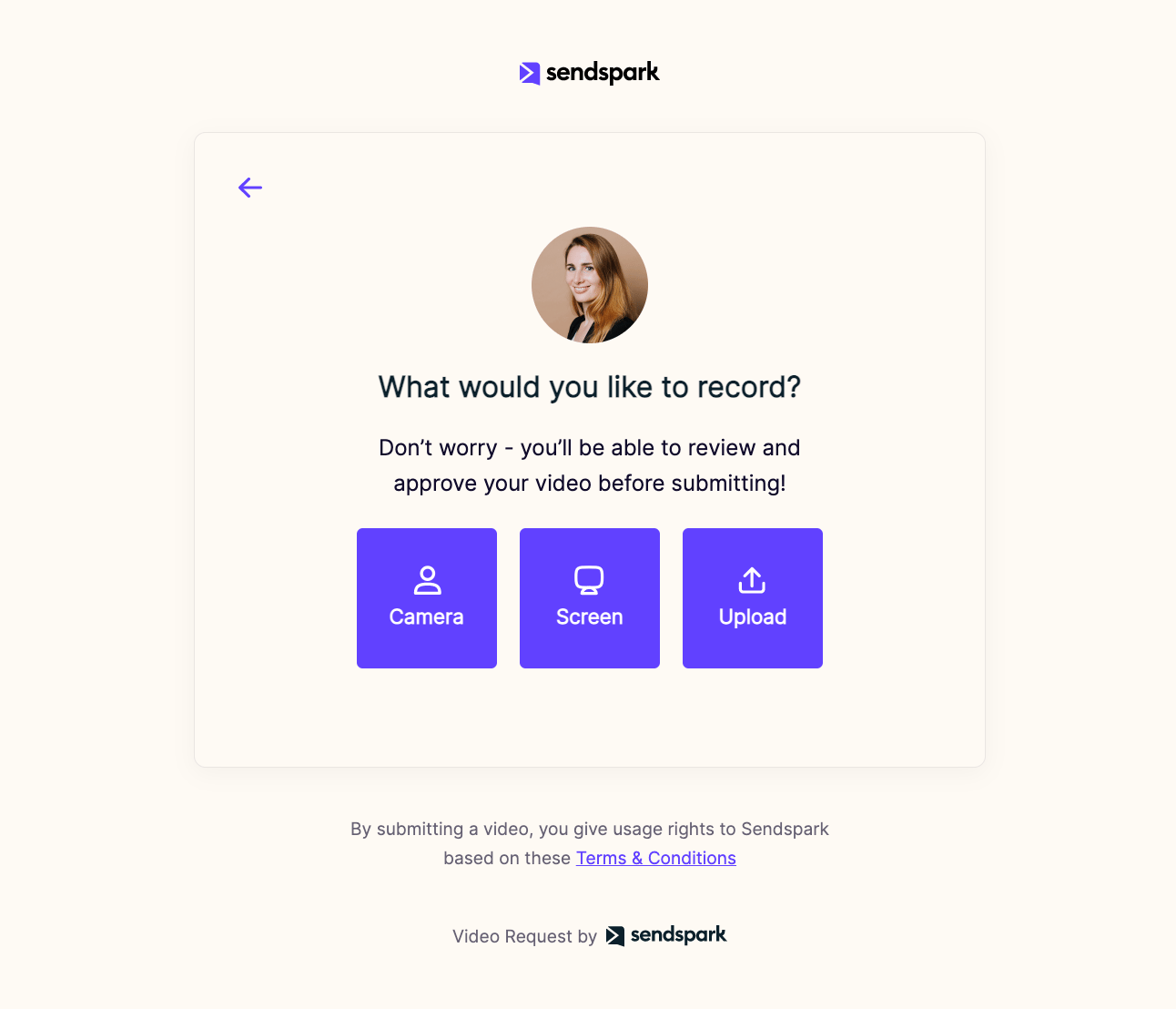
- Share that link with anyone!
- They will be able to record videos for you on that page.
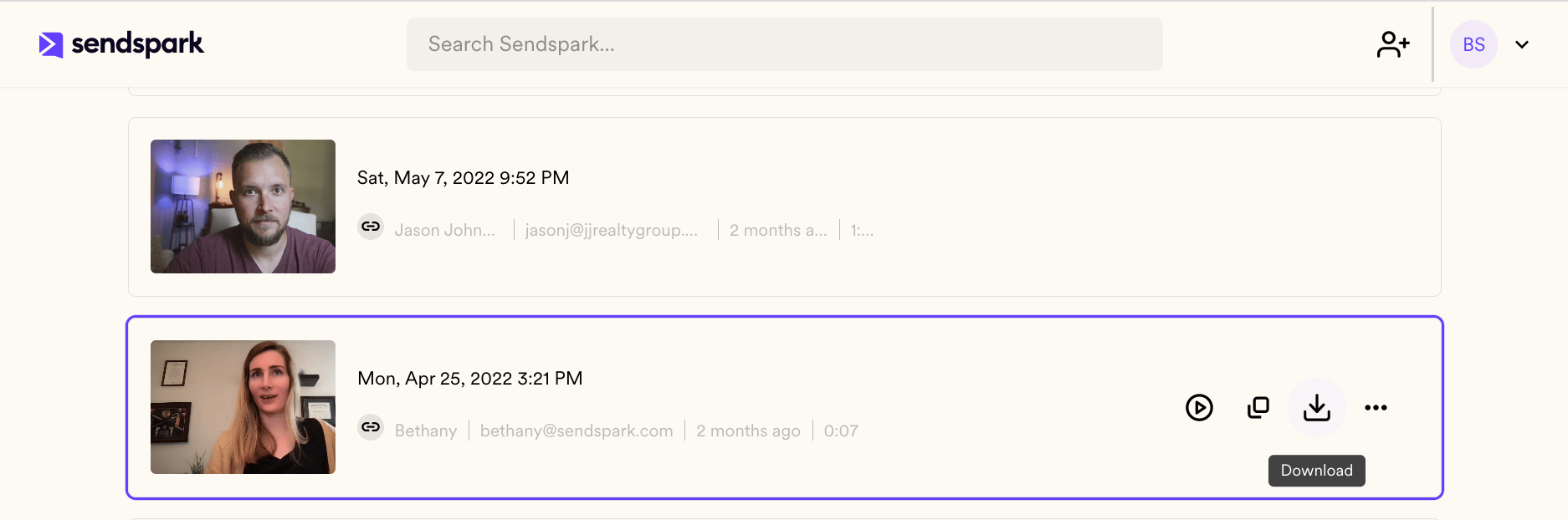
- Videos upload automatically to your Request Library. Hover a row for its play, duplicate and download icons.
How to request a video from anyone
- Find your request link. In the sidebar, expand Video Libraries and choose Request Library. It sits alongside My Library and Team Library rather than inside My Library.
- Copy the link. Click Copy Request Link. Sendspark generates the link and copies it to your clipboard.
- Share it anywhere. Paste the link wherever you like so your viewer can click it and record.
- Collect the videos. Once someone records a video from your link, it appears automatically in your Request Library, ready to view, download, or share.
Pro tip: add the link to a call-to-action button
You can drop your request link into the call-to-action on a Sendspark video landing page. When you customize the landing page, toggle on the call-to-action, edit the button text, and paste your video request link into the CTA URL. Now viewers can record a video for you right in the moment by clicking the button.Brand your request page
On Growth, Team, and Business plans, you can make the video request page match your brand instead of using Sendspark’s default branding:- Add your name and avatar in My Account (open the avatar dropdown on your dashboard). These show on the request page so the recorder knows who is asking, for example “[Your name] is requesting a video from you.”
- Add your logo and brand colors under Manage Workspace → Set Global Styles.
Frequently asked questions
Does the other person need a Sendspark account to record?
Does the other person need a Sendspark account to record?
No. Anyone can record a video for you straight from the request link. They do not need a Sendspark account.
What can I use video requests for?
What can I use video requests for?
Common uses include video testimonials, troubleshooting, and introductions from a new hire, but there are many other creative reasons to request a video from someone.
Where do the recorded videos go?
Where do the recorded videos go?
They upload automatically to your Requested Videos library, where you can view, download, or share them.
Can I brand the video request page?
Can I brand the video request page?
Yes, on Growth, Team, and Business plans. Add your name and avatar in My Account, and your logo and brand colors under Manage Workspace → Set Global Styles. See How to Customize Your Request Video Pages for details.
Can I reuse the same request link?
Can I reuse the same request link?
Yes. Your request link stays the same and can be shared as many times as you like. See Can I use the Request Video link multiple times? for how it behaves across workspaces.