

Key takeaways
- You need two things: a Clay table of contacts and a Sendspark Dynamic Video campaign that acts as the single template.
- Record your template video saying “watermelon” wherever the viewer’s first name should go.
- Generate videos using Clay’s Sendspark enrichment, “Add Prospect To Video Campaign,” authenticated with your API Key and Secret Key from Sendspark’s API credentials.
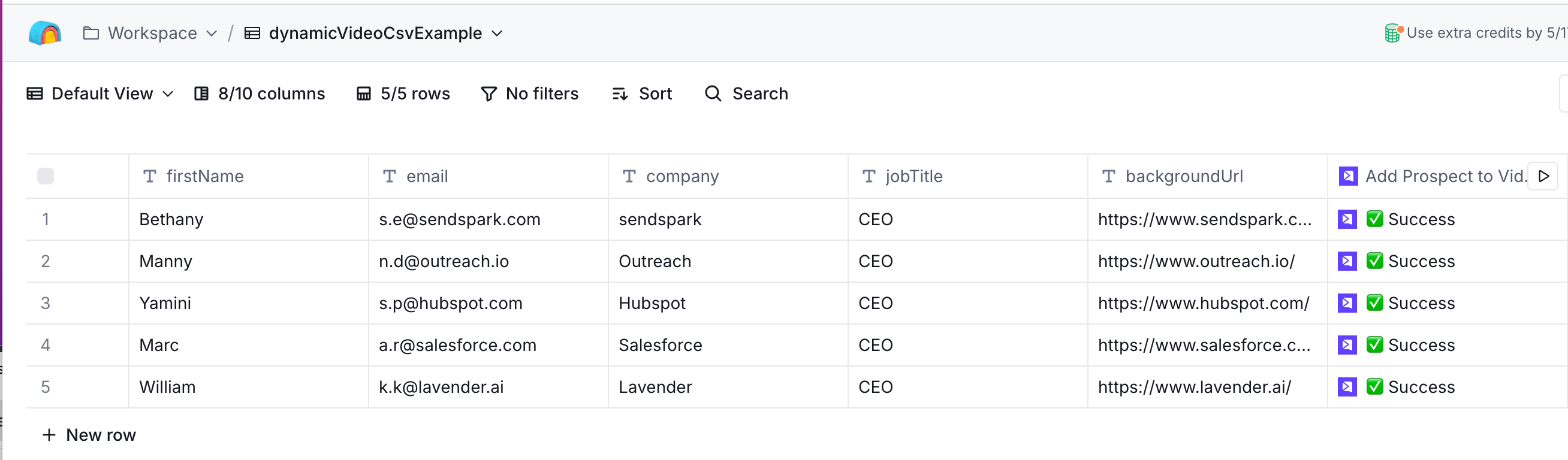
- Once generated, Clay shows a ✅ Success status and returns the Video Link, Embed Link, and Thumbnail URL for use in the rest of your automation.
How to Generate AI Videos in Clay:
Watch this video, or follow along the steps below to see how to create AI-personalized videos in Clay!1. Create Your Clay Table
Get started by creating a table in Clay. In your table, you should have contacts for whom you would like to create AI personalized videos.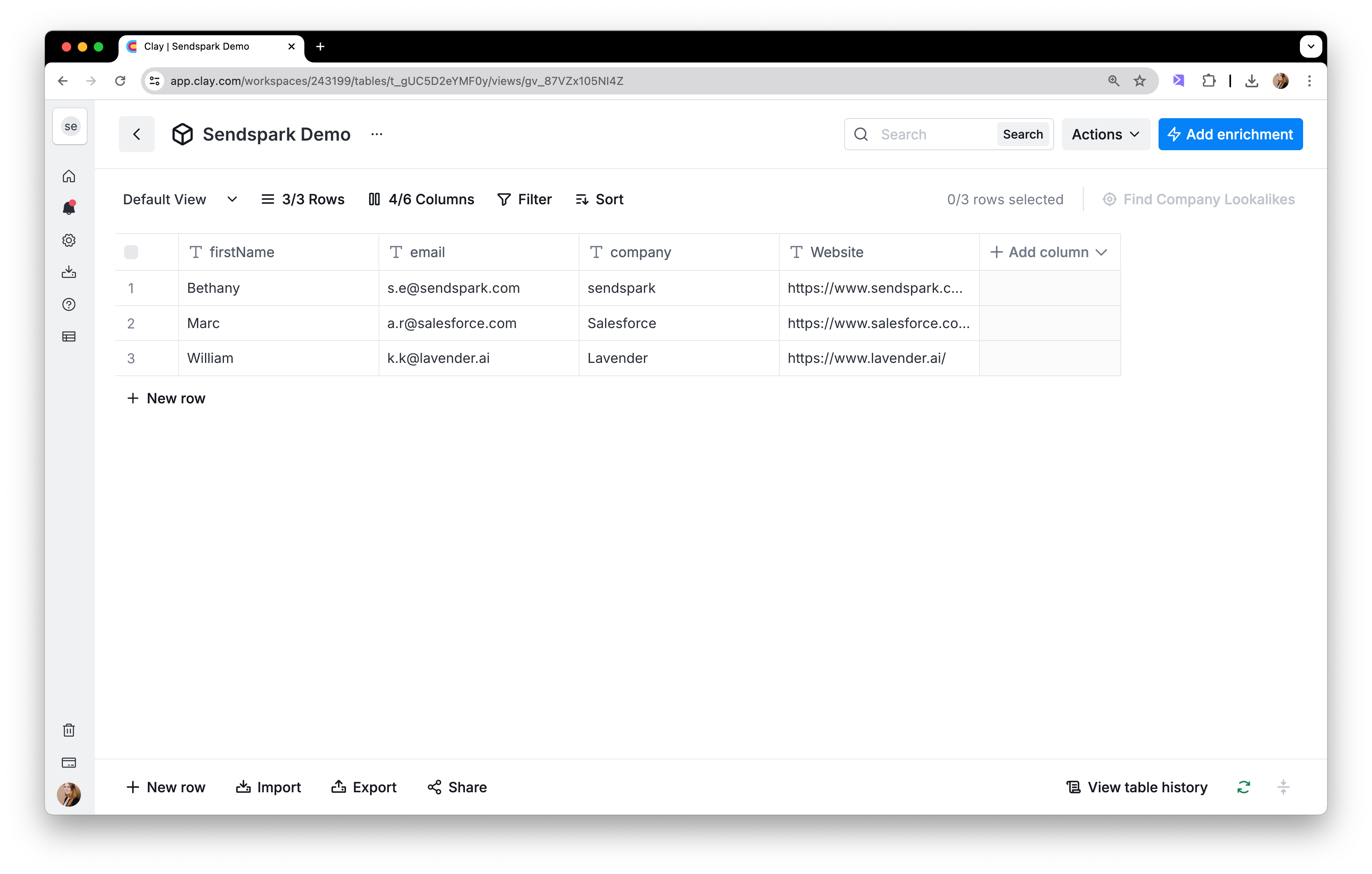
2. Create Your Sendspark Video Campaign
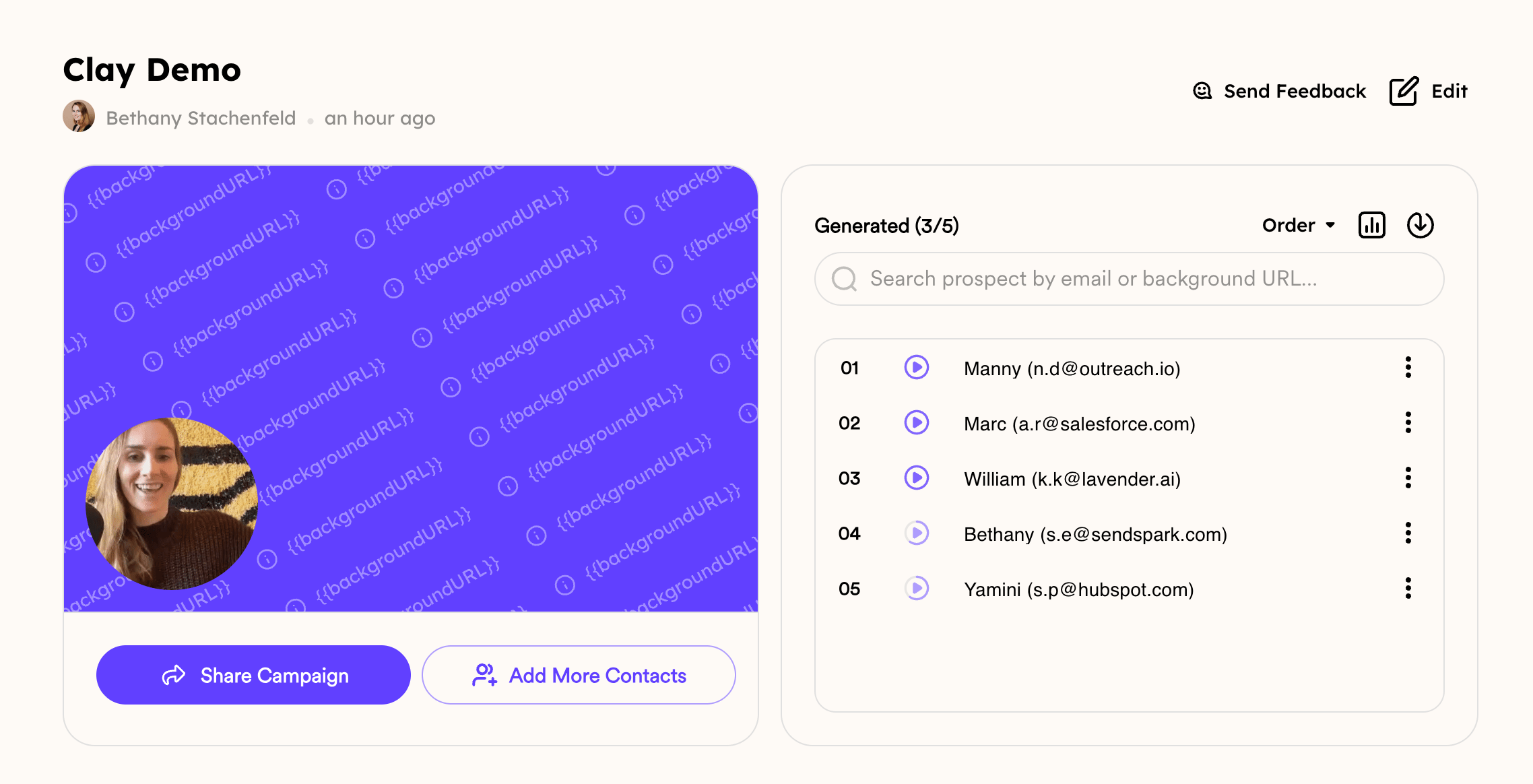
Go to your Dynamic Video section in Sendspark, and create a new dynamic video campaign. With this dynamic video campaign, you’ll have one template for your video. Then, you can import contacts from Clay to create personalized videos for each person.I. Record Your Video
Record a video of yourself or your screen. Just remember to use the word **“watermelon”**where the viewer’s first name should go. (See example video)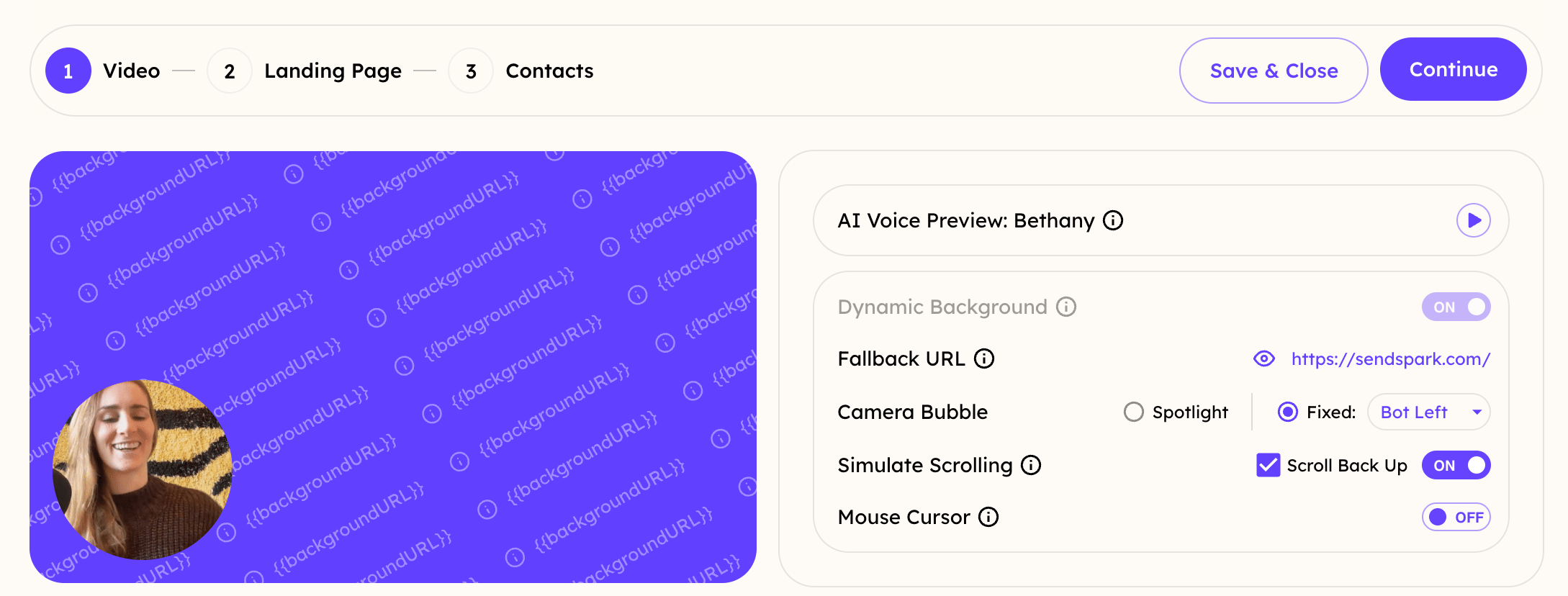
II. Customize Your Landing Page
You can customize video landing pages with custom text, calls-to-action, and an embedded calendar next to your videos.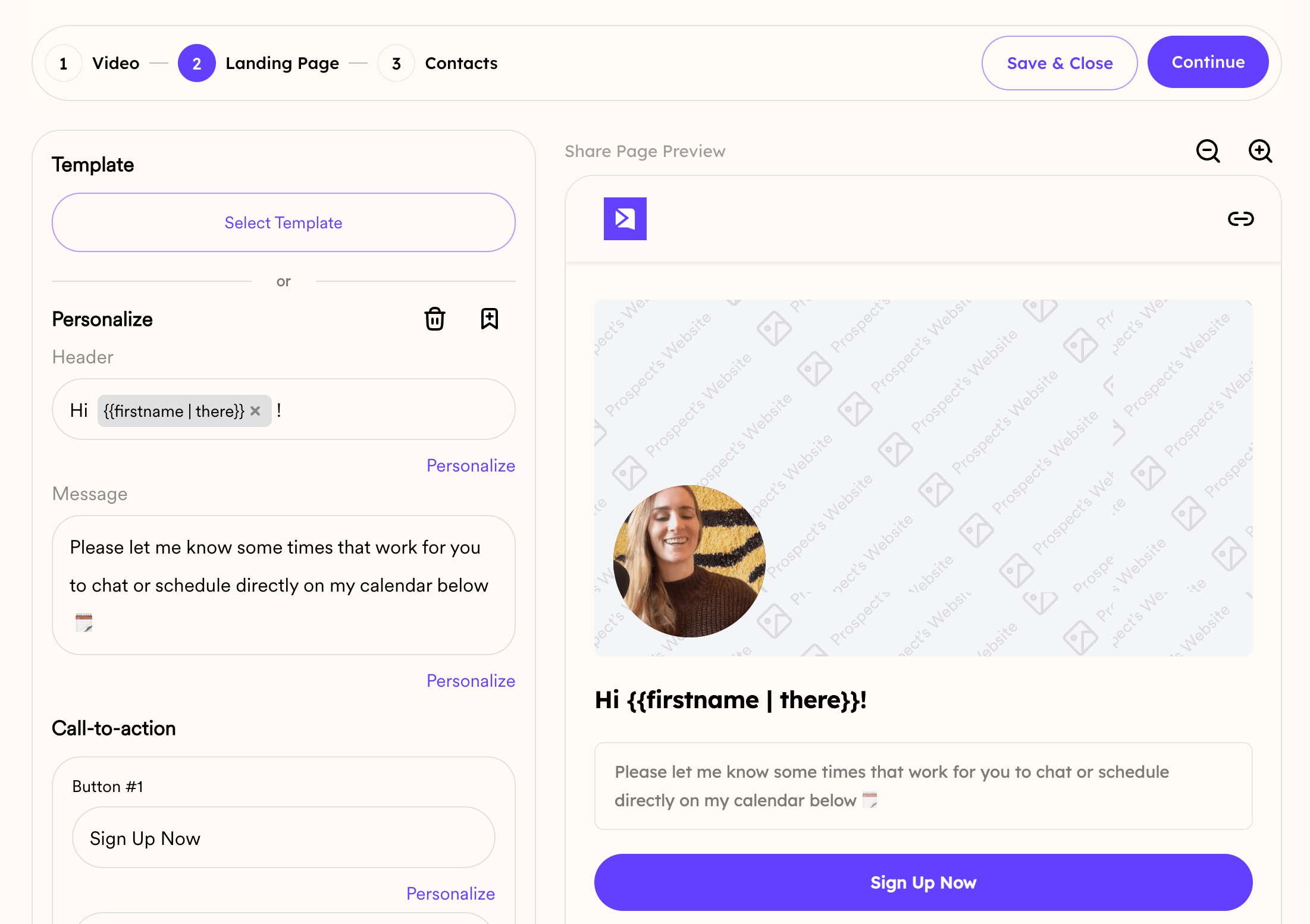
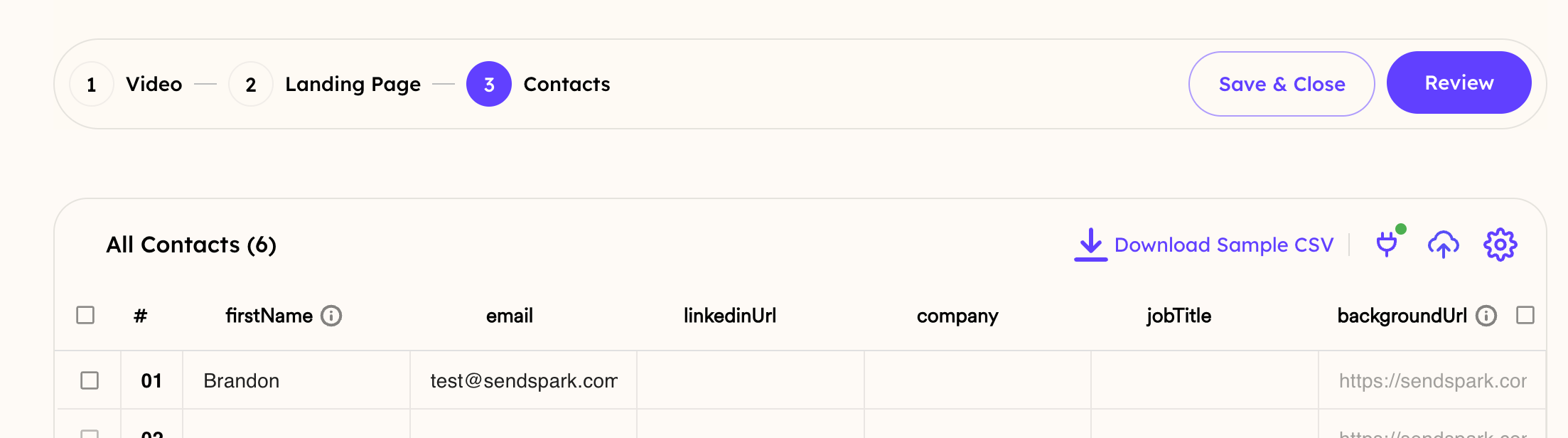
III. Contacts
You can add yourself or another test contact to preview your AI video. However, for the most part, we’ll be adding contacts via the Sendspark Clay Integration.
3. Create Sendspark Videos for Clay Contacts
To create videos for contacts in your clay table, use the Clay Sendspark Enrichment “Add Prospect To Video Campaign.”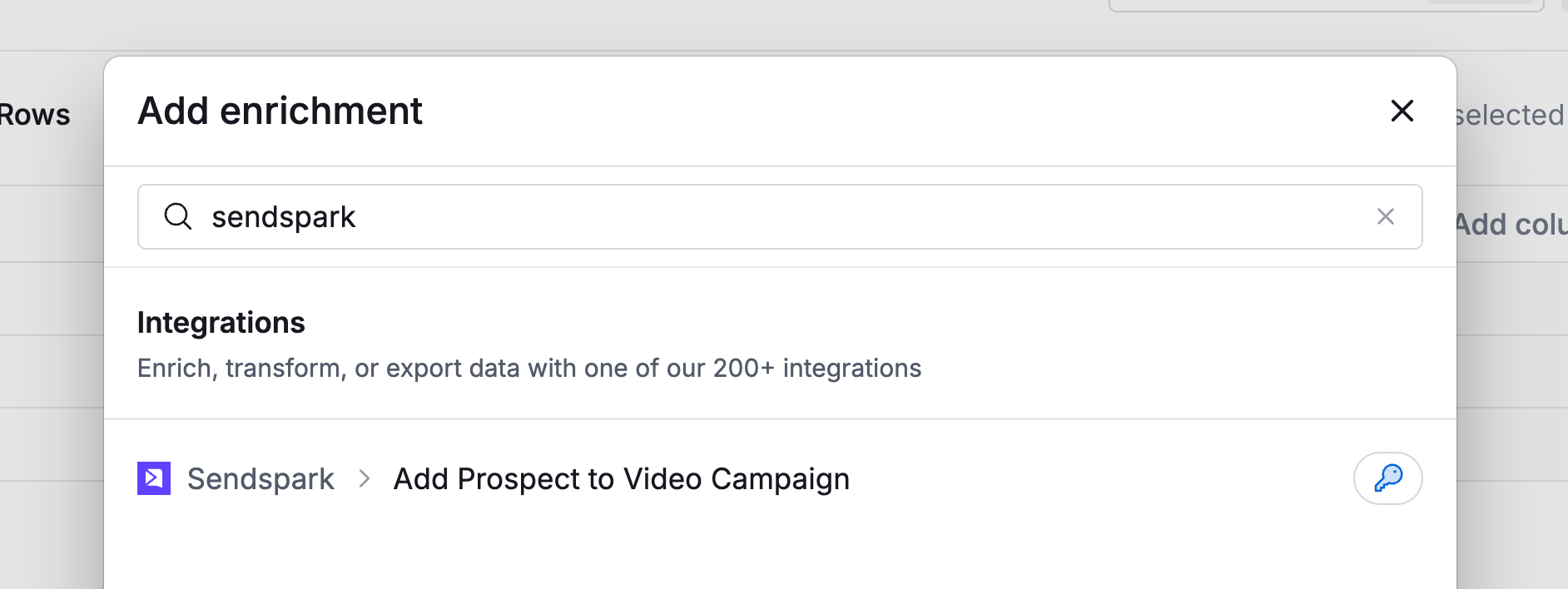
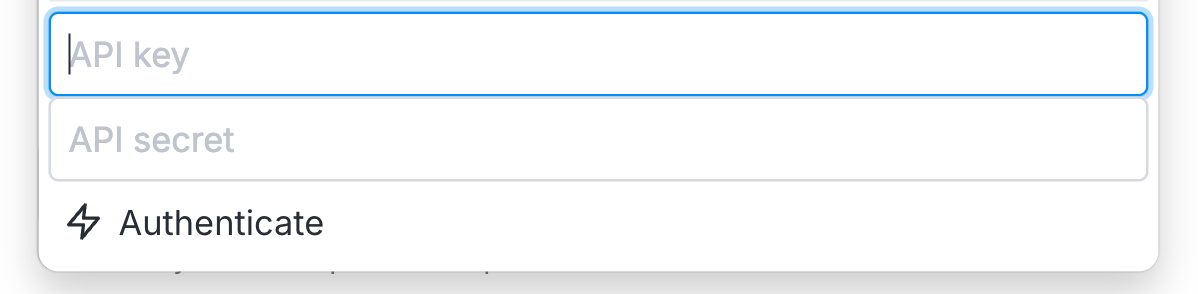
- Add your “API Key” and “Secret Key.” You can find both in the API credentials section of Sendspark.
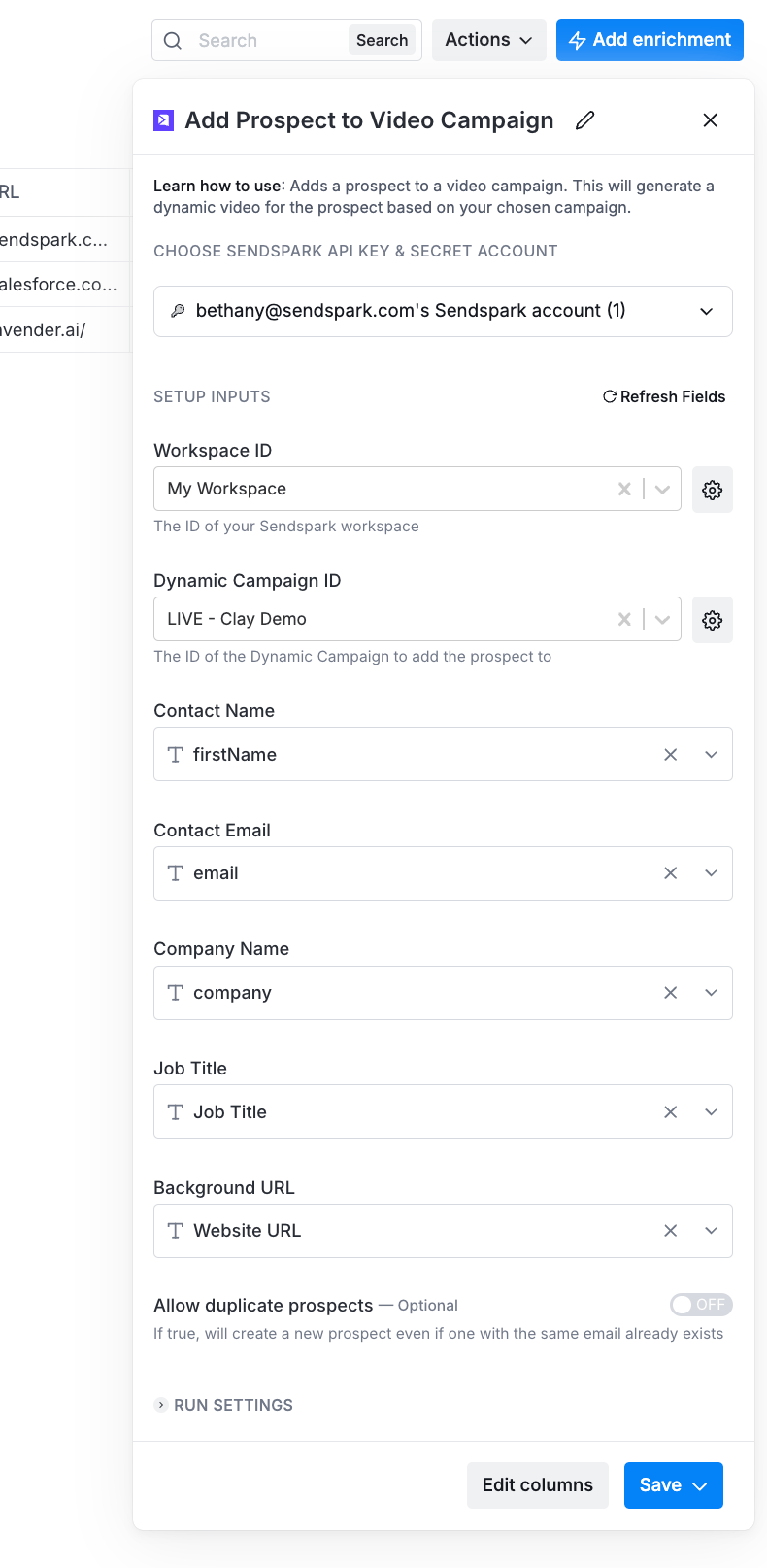
- Select Your Workspace from the dropdown
- Select Your Dynamic Campaign ID from the dropdown
- Map Contact Fields Into Clay
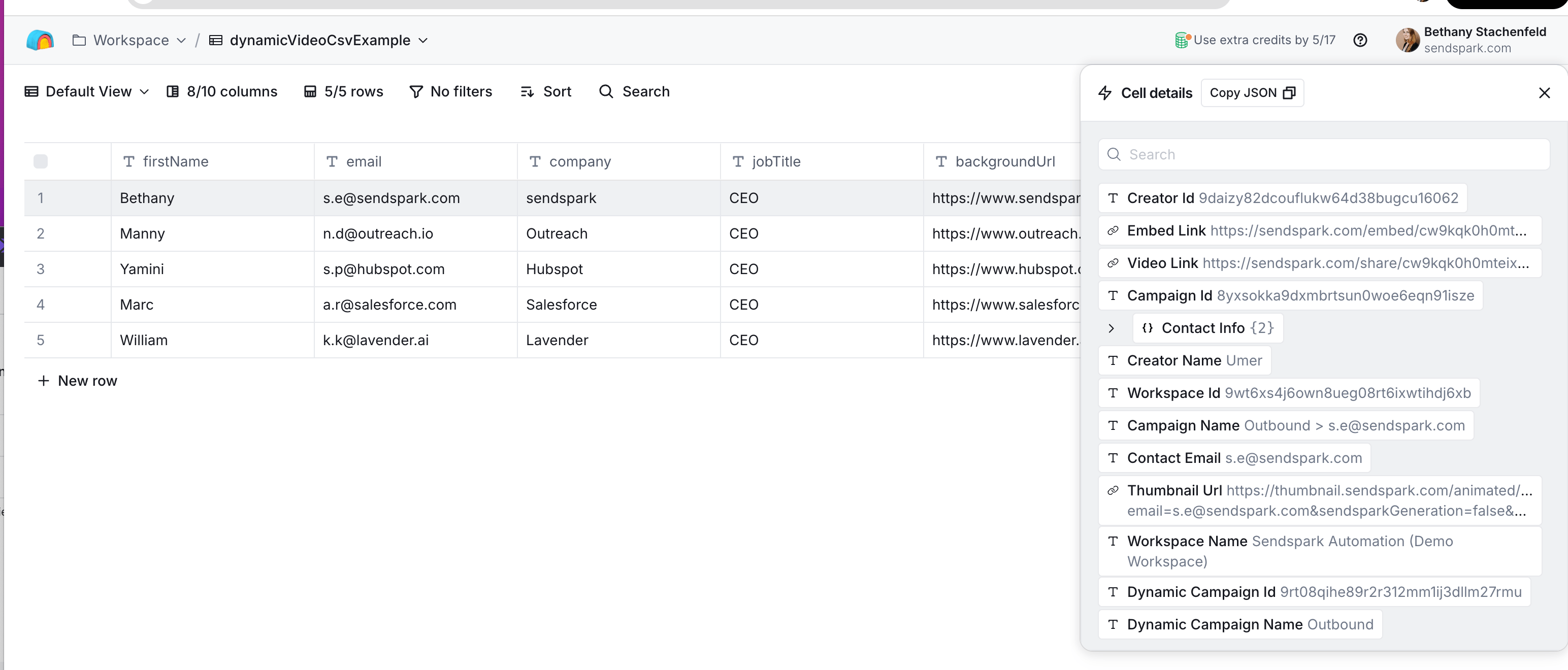
- Video Link: is the link your video share page. You can use this to share videos in LinkedIn, or any place that you’d like to share the video as a link.
- **Embed Link:**is the link that you would use to embed the video on a website page. You can use this to embed your video on a webflow page, or any other custom landing page.
- Thumbnail URL: is the image URL for the GIF preview of your video. You can use this together withVideo Link to embed your video in email with a GIF preview.
Additional Resources for Sharing Videos From Clay:
We have also put together some guides for the best ways to share videos in Smartlead, Instantly, La Growth Machine, and other common platforms used with Clay:- How to Send Videos Instantly from Clay
- How to Send Videos in Smartlead from Clay
- How to Send Videos in La Growth Machine from Clay
Frequently asked questions
How do I connect Clay to Sendspark?
How do I connect Clay to Sendspark?
In Clay, use the Sendspark enrichment “Add Prospect To Video Campaign.” Add your API Key and Secret Key (both found in the API credentials section of Sendspark), select your workspace, select your Dynamic Campaign ID, and map your contact fields.
Where do I put the viewer's name in the video?
Where do I put the viewer's name in the video?
Say the word “watermelon” while recording, wherever you want the viewer’s first name to appear. Sendspark replaces it with each contact’s name when the personalized videos are generated.
Which fields does Sendspark return to Clay?
Which fields does Sendspark return to Clay?
After videos finish generating, click the ✅ Success cell to see all returned fields. The most popular are the Video Link (your video share page), the Embed Link (for embedding on a website), and the Thumbnail URL (the GIF preview image, often used with the Video Link to embed video in email).
Can I preview a video before running the whole table?
Can I preview a video before running the whole table?
Yes. In the Contacts section of your Dynamic Video campaign you can add yourself or another test contact to preview your AI video, though most contacts are added through the Clay integration.