

Key takeaways
- Record one video and add each prospect’s LinkedIn URL in the Background URL field to place your video over their profile.
- Connect LinkedIn from the contacts area of your Dynamic Video campaign using the Connect Social Account button. Connecting LinkedIn for dynamic videos covers the same step on its own if you only need that part.
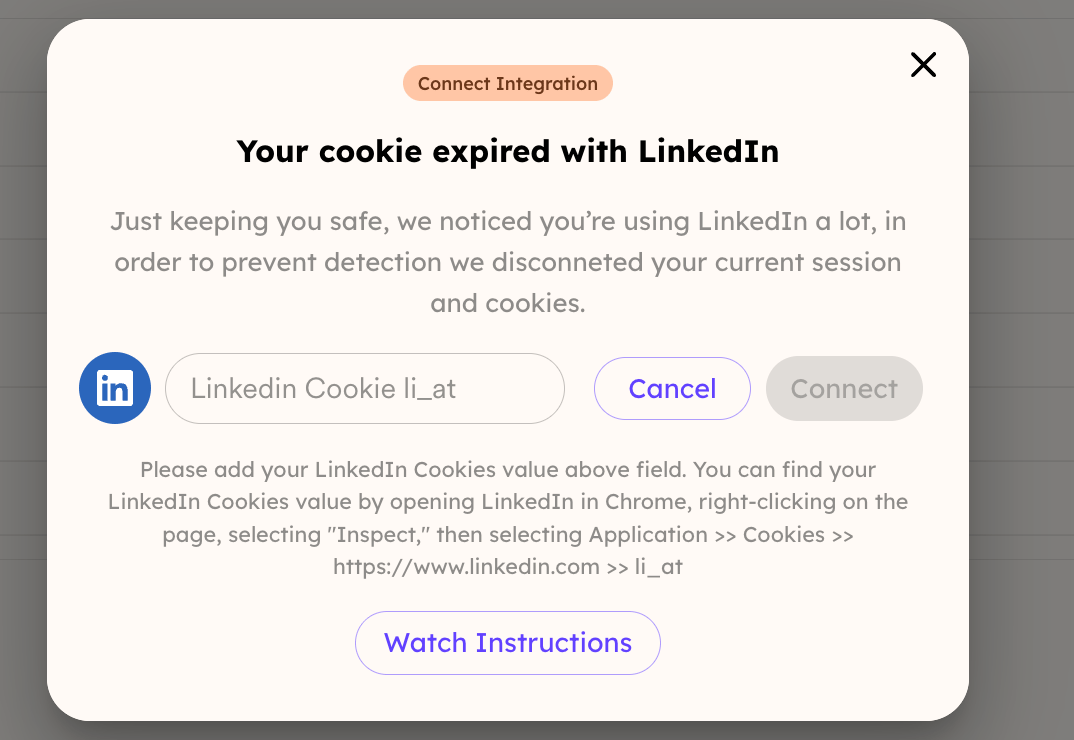
- You authenticate by pasting your LinkedIn Cookie li_at value into Sendspark.
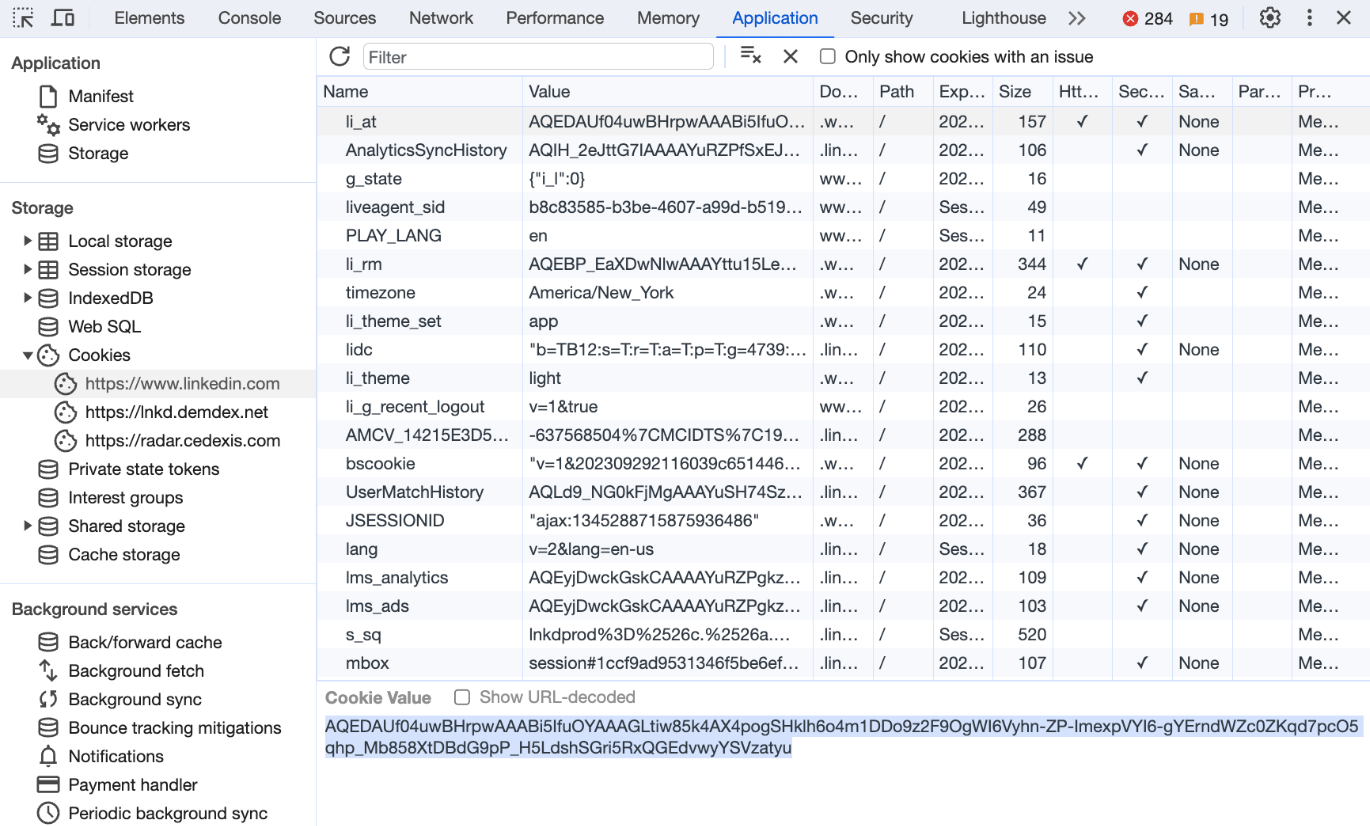
- Find the li_at value in Chrome Developer Tools under Application > Cookies > linkedin.com > li_at.
How to Add LinkedIn Credentials to Sendspark
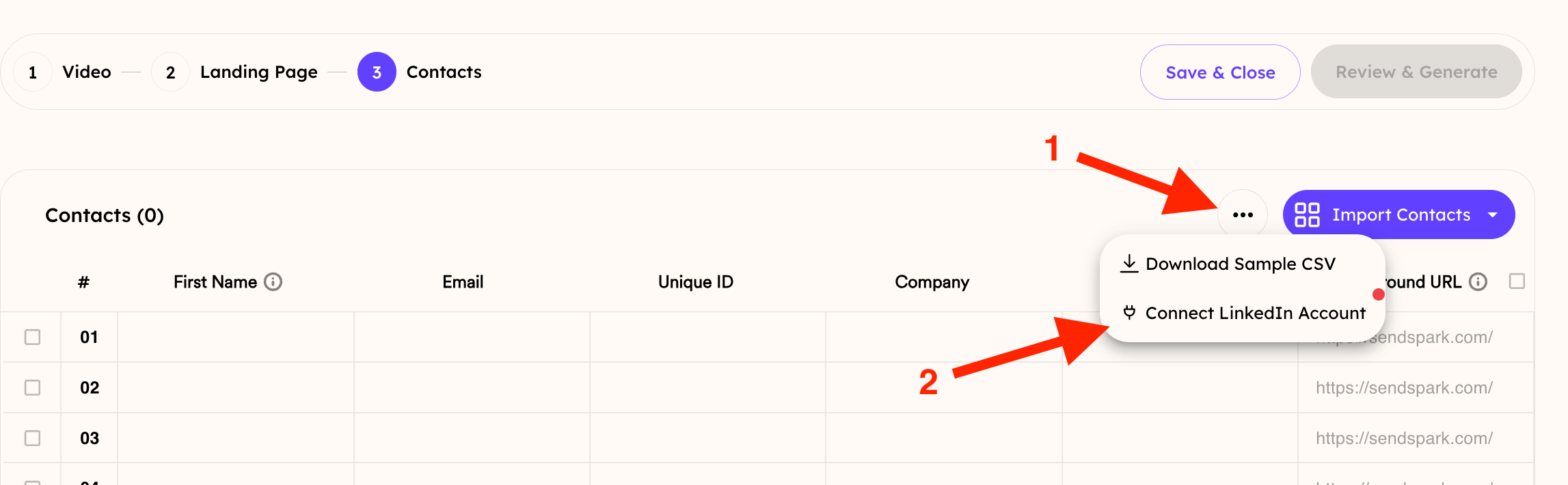
In your Dynamic Video campaign, go to the area where you add contacts. Then click the Connect Social Accountbutton**.**
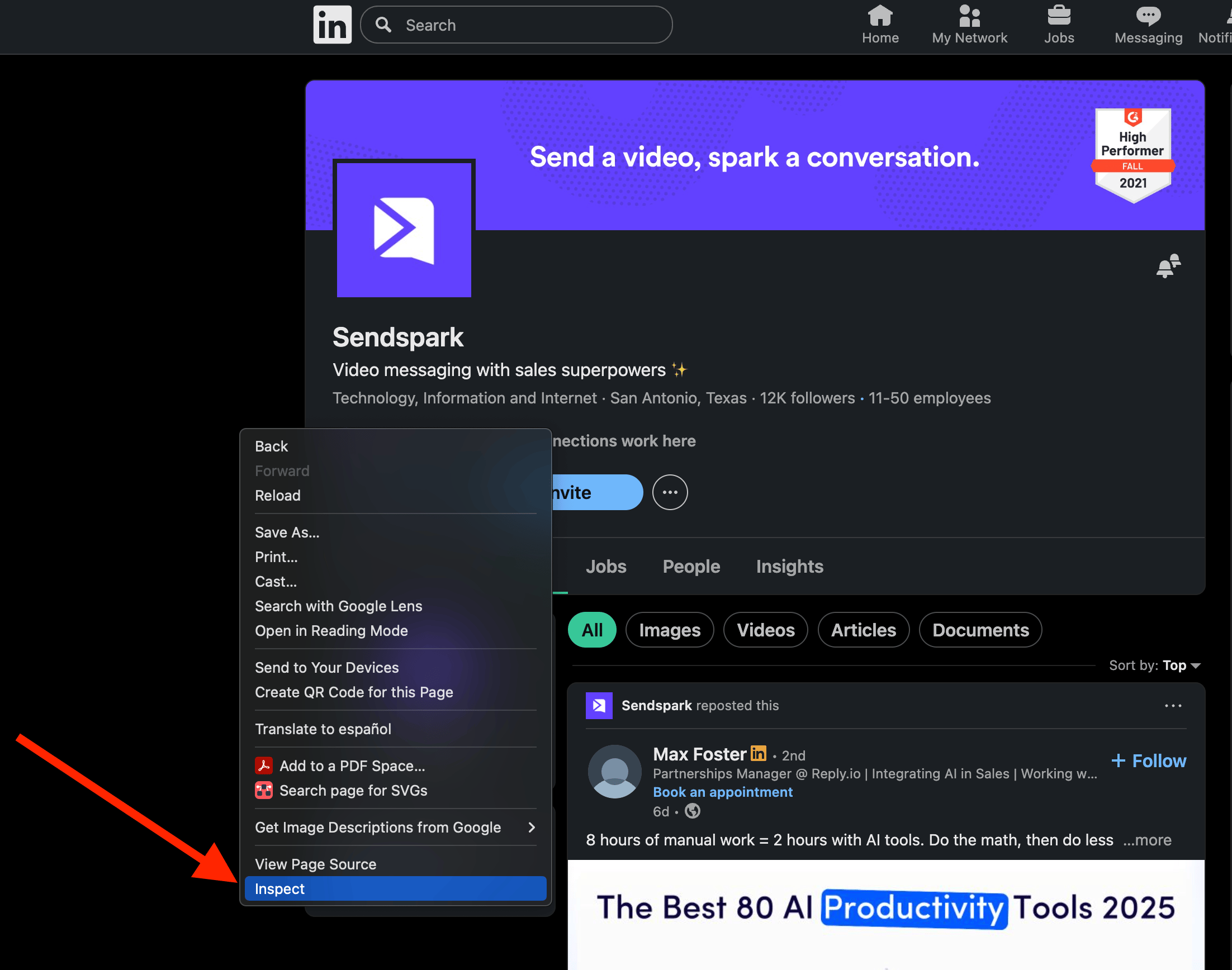
- Open LinkedIn in a Chrome Browser
- Right click on the page and then selectInspect to Chrome Developer Tools
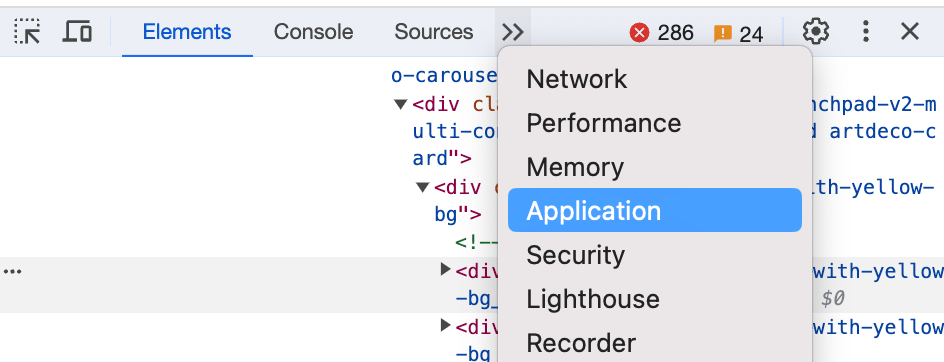
- In the Dev tools, click into Application >> Cookies >> https://www.linkedin.com >> li_at
- If you don’t see “Application” right away, click the**>>** on the top menu to see more options:
- If you don’t see “Application” right away, click the**>>** on the top menu to see more options:
- Copy yourli_at value, and paste it into Sendspark.
Now, just click Connectand you should be all set to create dynamic videos using LinkedIn profile pages!
Frequently asked questions
How do I put my video over a prospect's LinkedIn profile?
How do I put my video over a prospect's LinkedIn profile?
Add the prospect’s LinkedIn URL in the Background URL field of your Dynamic Video campaign, and Sendspark places your video over their profile.
How do I connect LinkedIn to Sendspark?
How do I connect LinkedIn to Sendspark?
In your Dynamic Video campaign’s contacts area, click Connect Social Account, then click Connect next to LinkedIn and add your LinkedIn Cookie li_at value.
Do I need to record a separate video for each prospect?
Do I need to record a separate video for each prospect?
No. You record just one video of yourself, and Sendspark automatically places it over each prospect’s LinkedIn profile, saving you from recording thousands of videos manually.