

Key takeaways
- Use the Camera Only recording mode for Dynamic Videos, set from the bottom icons in the Sendspark Chrome extension.
- The default is Cam + Screen, which records your face along with your website or screen. The active mode appears darker than the others.
- Cam + Screen is the best mode for regular videos, but using a Cam + Screen recording in a Dynamic Video gives an unwanted result.
- Set the mode to Camera Only before recording, so your Dynamic Video displays as intended.
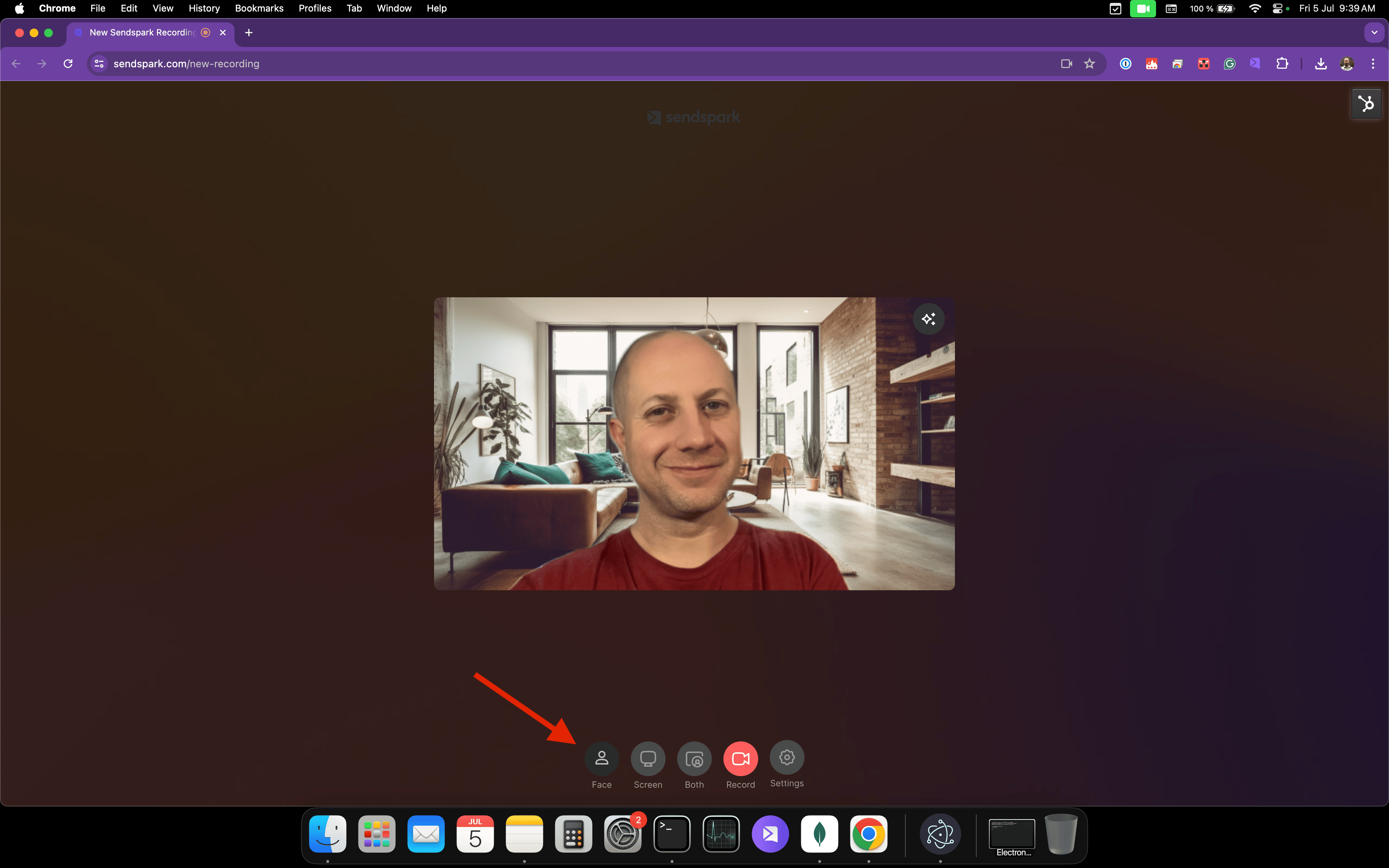
The first step towards recording your first videos is to click on the Sendspark Chrome extension icon. Doing that will open your camera’s feed in a bubble on top of your background, just like this:
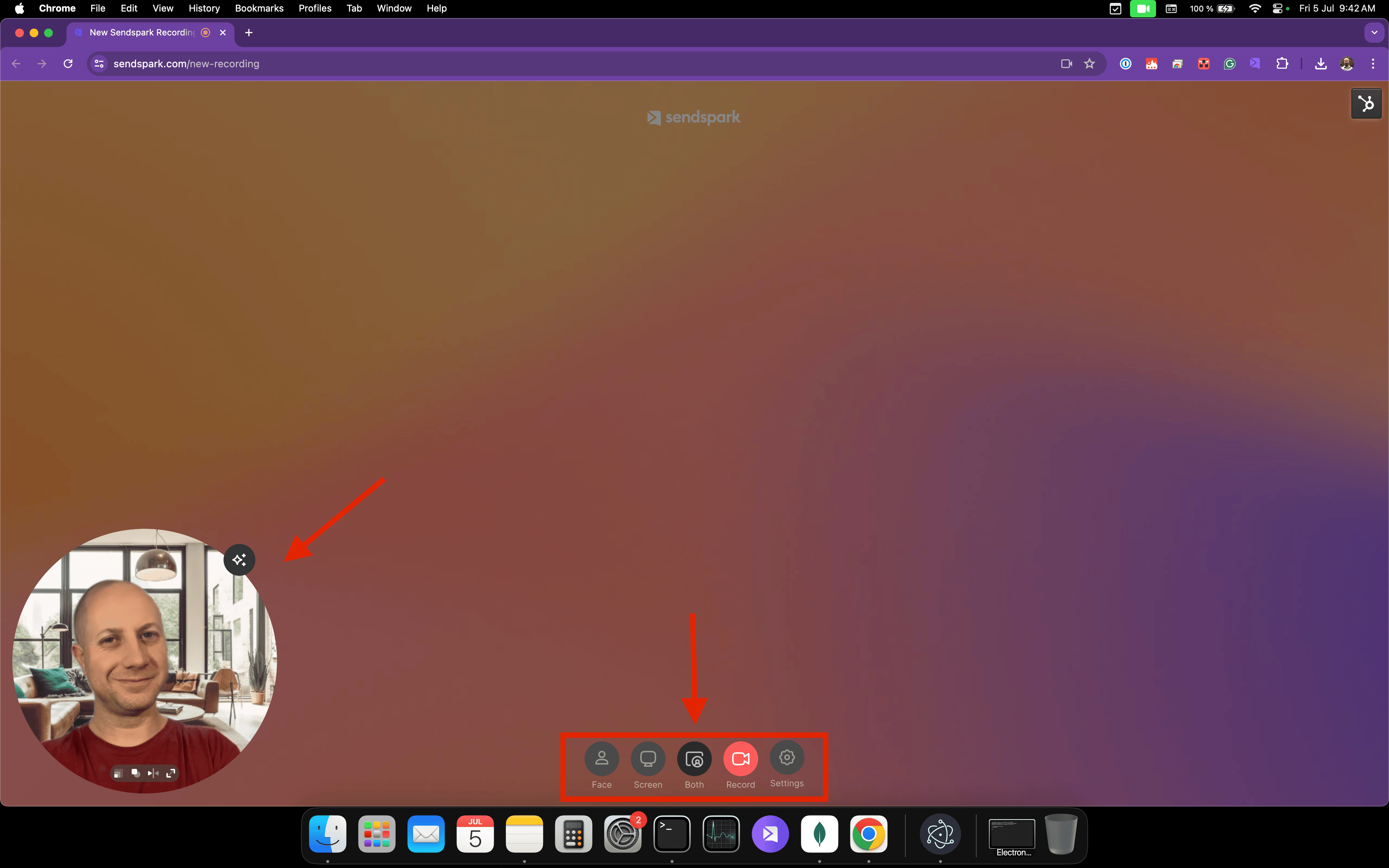
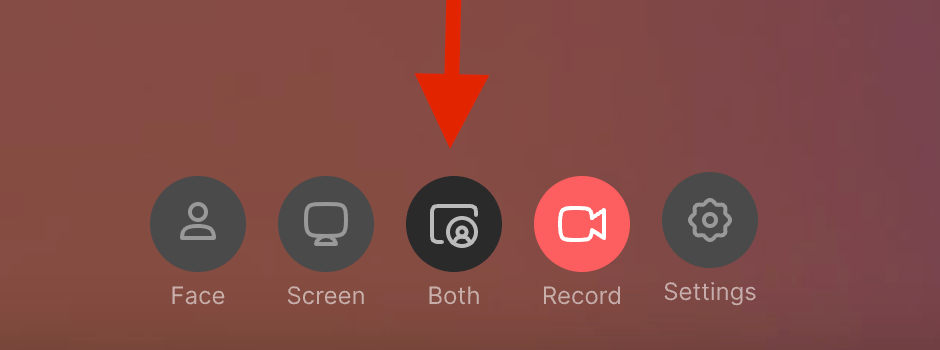

Why not use Cam + Screen for Dynamic Videos?
Cam + Screen records your face and your screen at the same time, which is ideal for standard videos. But a Dynamic Video is designed to place just your face over a personalized background. When a Cam + Screen recording is used in one, you end up with a screen inside a screen rather than a clean camera bubble. Recording in Camera Only keeps just your face, so it sits correctly on the dynamic background. For a deeper comparison, see Camera Only vs Cam + Screen recording in Dynamic Videos.Frequently asked questions
Which recording mode should I use for Dynamic Videos?
Which recording mode should I use for Dynamic Videos?
Use Camera Only. It’s the correct mode for Dynamic Videos, and you set it from the icons at the bottom of the Sendspark Chrome extension recorder.
What is the default recording mode?
What is the default recording mode?
The default is Cam + Screen, which records your face along with your website or screen. That’s the best mode for standard videos.
How do I know which mode is currently active?
How do I know which mode is currently active?
The active mode’s icon appears darker than the others in the bottom row of icons, showing it’s the current selection.
What happens if I record in Cam + Screen and use it in a Dynamic Video?
What happens if I record in Cam + Screen and use it in a Dynamic Video?
You’ll get an unwanted result. A Dynamic Video expects a Camera Only recording, so that just your face is placed over the personalized background. A Cam + Screen recording won’t display as intended.
Do I need the Chrome extension to record in Camera Only?
Do I need the Chrome extension to record in Camera Only?
Yes. You set the recording mode by clicking the Sendspark Chrome extension icon, which opens your camera feed in a bubble where you can choose Camera Only, Screen Only, or Cam + Screen.