

Key takeaways
- Sendspark now has a direct HighLevel integration — an easier alternative to the webhook method below.
- Step 1: build a Dynamic Video campaign in Sendspark, using the placeholder word “Watermelon” where the viewer’s first name should go.
- Step 2: a GHL workflow with a POST custom webhook (API Key and Secret Key in the headers) generates a video for each contact.
- Step 3: a second GHL workflow triggered by an inbound webhook sends each finished video via email (LeadConnector snippet), SMS, or WhatsApp using the
videoLinkvariable.
- Create dynamic video campaign in Sendspark
- Automatically Generate Videos in HighLevel
- Automatically send videos in HighLevel
Update: Sendspark has a direct integration with HighLevel
We have an easier way to connect GHL and Sendspark! Please reference this guide to use the new HighLevel integration.How to Create AI-Personalized Videos in HighLevel
Watch the video or follow the steps below!1. Create Dynamic Video Campaign
Before you get started, you will want to have your Dynamic Video Campaign set up in Sendspark. To create a dynamic video campaign….- Go to the Dynamic Video Section of Sendspark
- Record, upload, or select a video. Remember to use the placeholder word “Watermelon” for where you want your viewer’s first name to go
- Customize the “scroll” effect as you’d like.
- Toggle on “Voice Cloning” if you want to use a custom intro, (ex: “Hi First Name”) for each of your viewers
- Customize a page template for what you want to appear on your video page alongside the video.
2. Automatically Generate Videos in HighLevel
In this step, we are going to show how you can automatically generate videos in Make.- In HighLevel, go to “Automations” and then click “Create Workflow”

- You can use any trigger to start your automation.
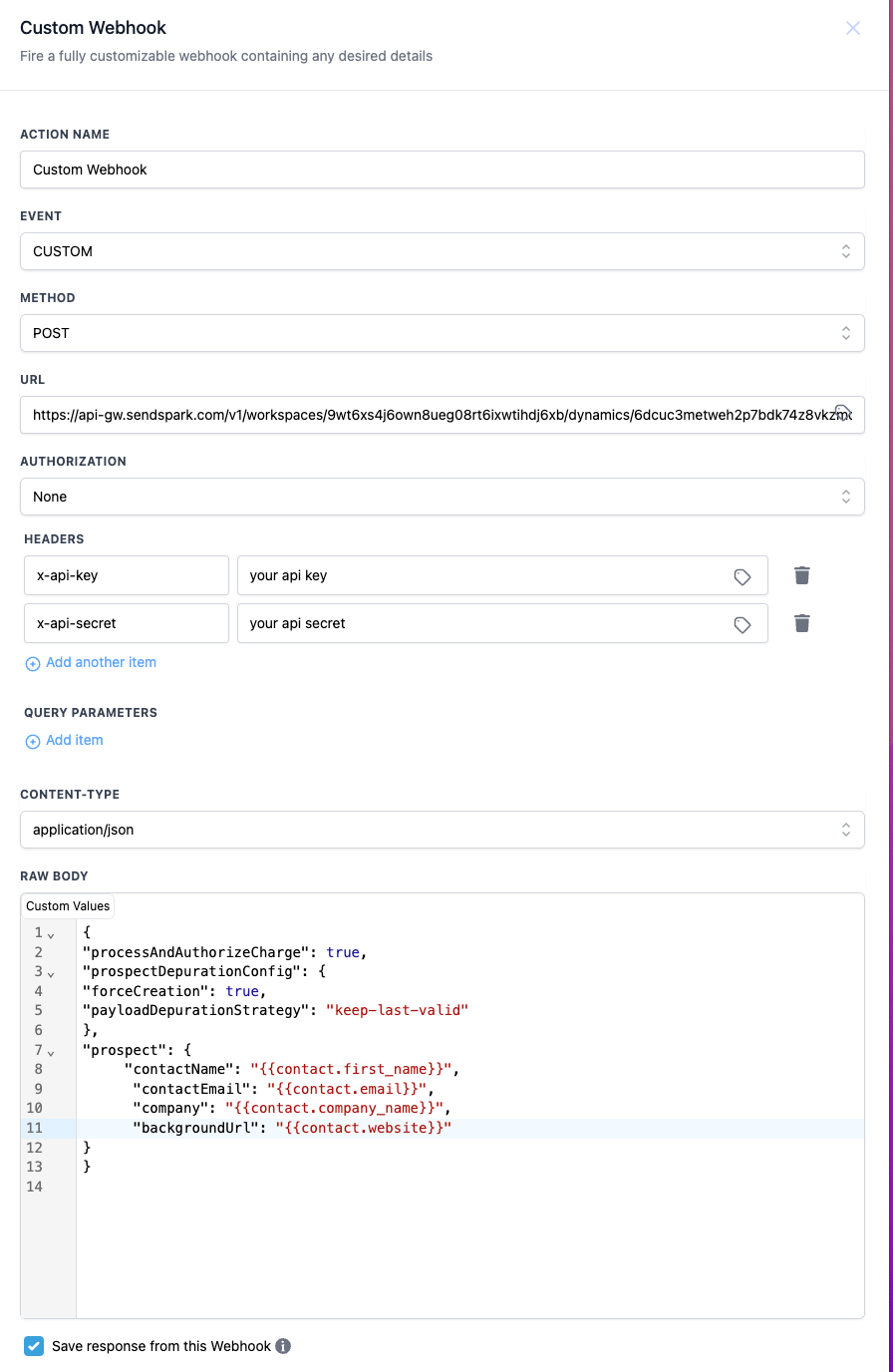
- To automatically create Sendspark videos, add a “Custom Webhook”
- Fill use this information:
- Change the method to POST
- Use this URL:
https://api-gw.sendspark.com/v1/workspaces/{workspaceId}/dynamics/{dynamicId}/prospect - You can find the workspaceId from your API Credentials tab
- You can find your dynamicId from the URL of your dynamic video campaign

- **Headers:**You’ll need two (for your API Key and Secret Key)
- You can find these both from your API credentials tab
- Body: Copy and paste this snippet. Note: here we are mapping contact variables from HighLevel into Sendspark.
{ "processAndAuthorizeCharge": true, "prospectDepurationConfig": { "forceCreation": true,"payloadDepurationStrategy": "keep-last-valid" }, "prospect": { "contactName":"{{contact.first_name}}", "contactEmail":"{{contact.email}}", "company":"{{contact.company_name}}", "backgroundUrl":"{{contact.website}}"}}
3. Automatically Send Video Emails
For this last step of this automation, we’ll use a webhook to know when AI videos have successfully generated, and are ready to send to contacts.- In HighLevel, create a new Workflow. Use “Inbound Webhook” as a trigger.
- Copy the URL HighLevel provides to your clipboard
- In Sendspark, go to the Webhooks Section
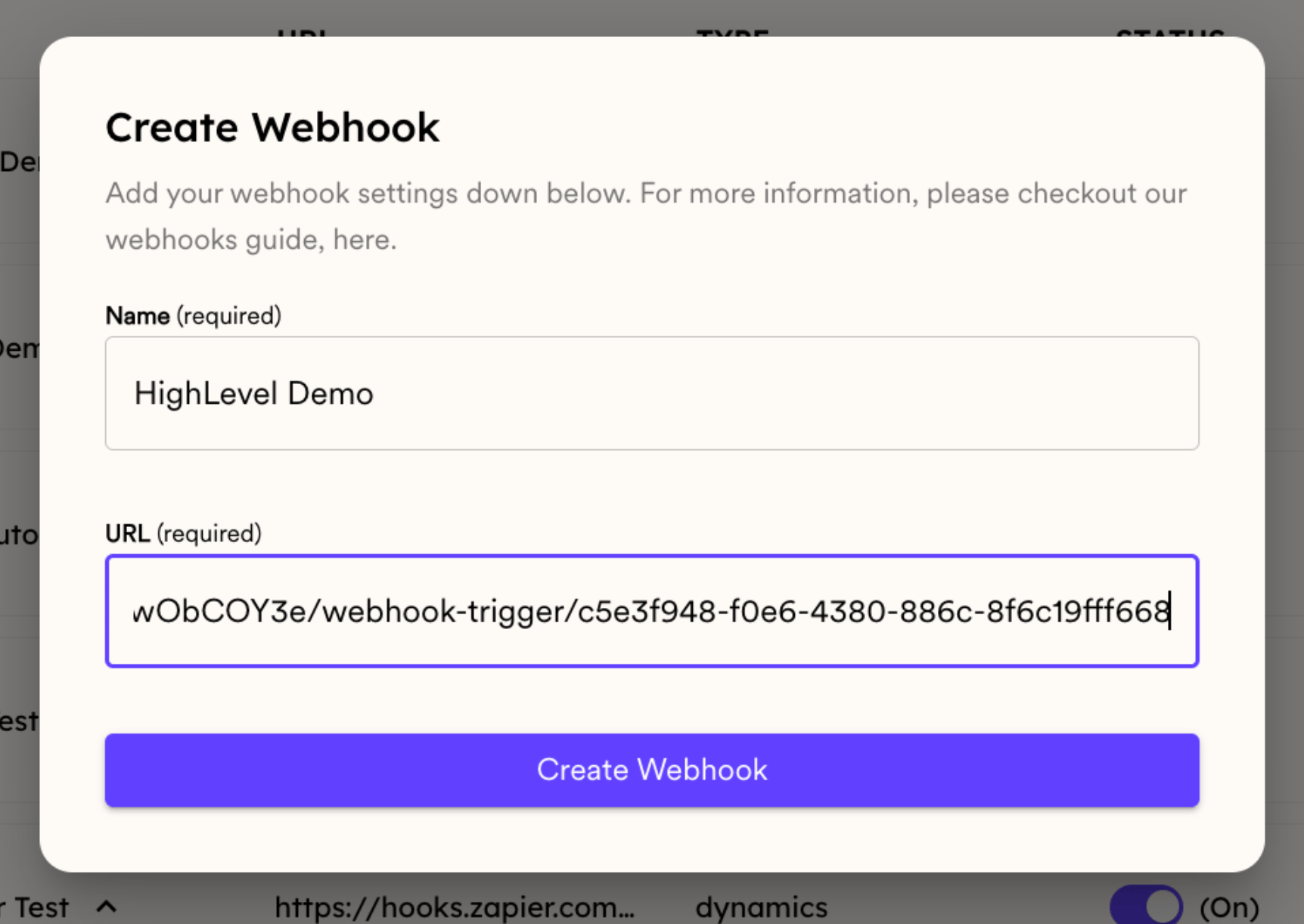
- Click New Webhook, then give it a Name and paste the URL HighLevel provided into URL. Both are required.
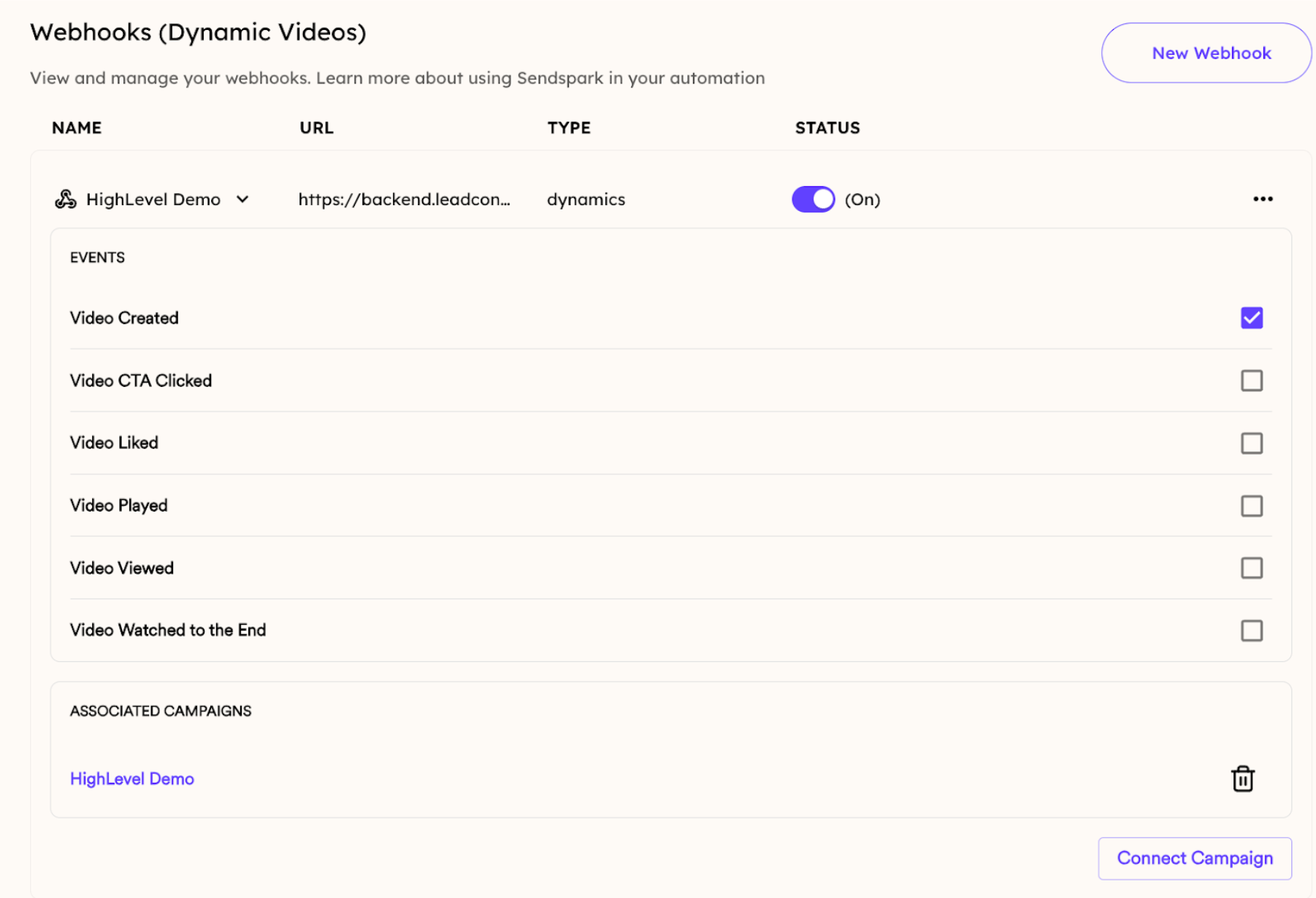
- Open the webhook, tick the Video Created event, then use Connect Campaign to attach your dynamic video campaign. This makes it so every time a video is created from that campaign, a webhook sends into your HighLevel Workflow.
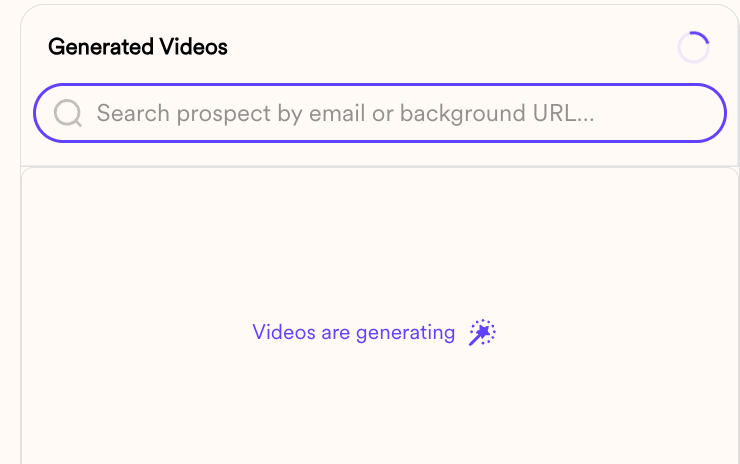
- Create a few dynamic videos in Sendspark so that you can have some sample webhooks to work with.
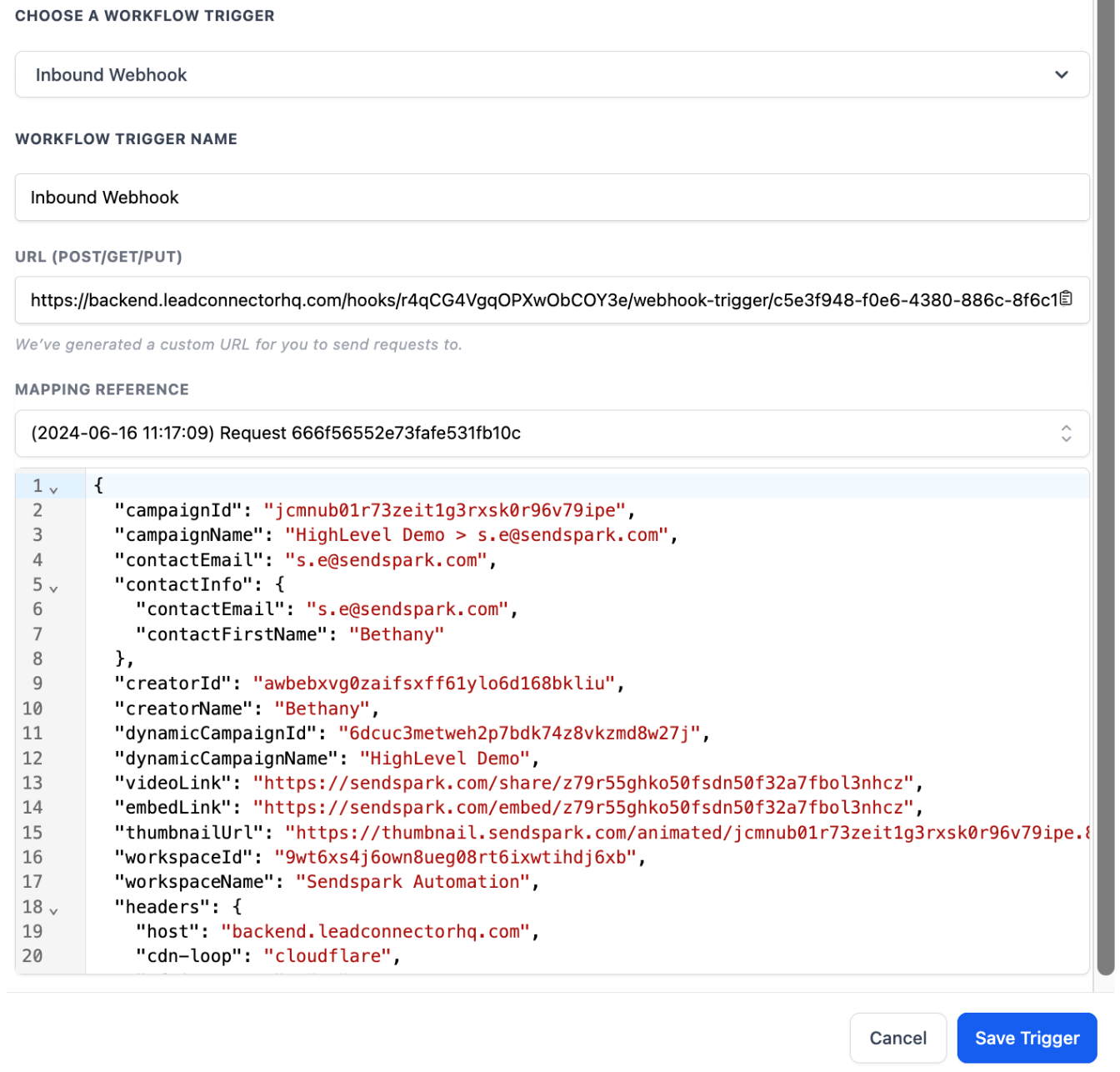
- Click “Save Trigger,” and let’s continue!
Send Email
- Add an action to your workflow: “Send Email”
- In that email, add the placeholder from your Sendspark video
- From Sendspark, click “Share Campaign”
- Copy the snippet for “LeadConnector”
- Paste directly into the email draft
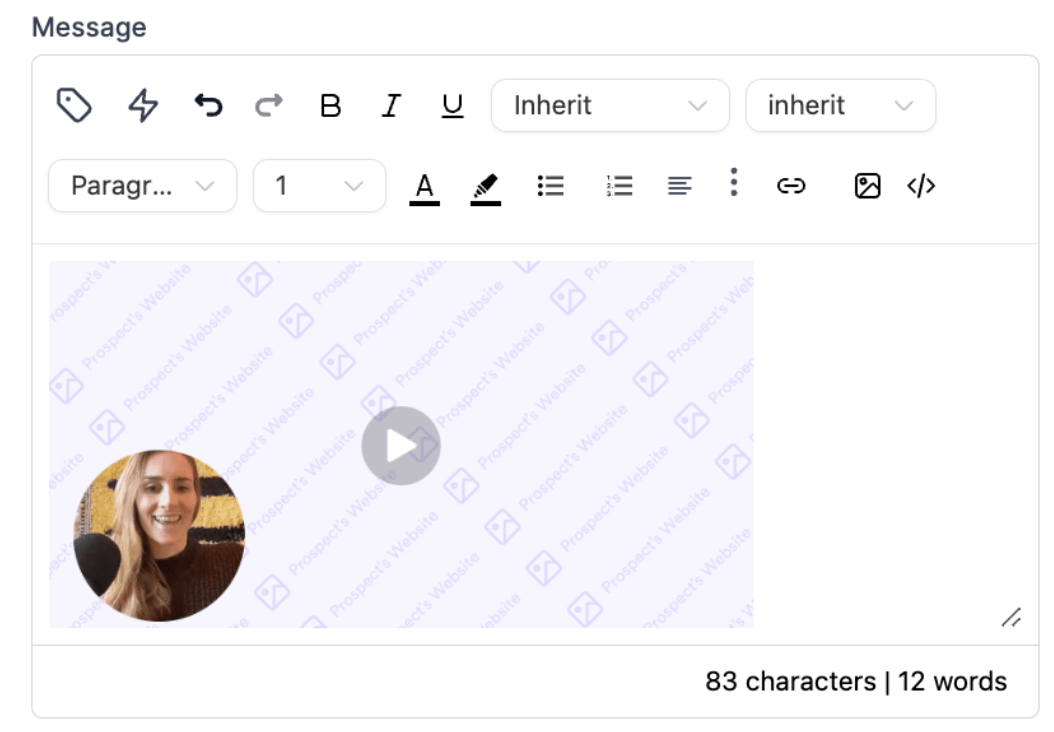
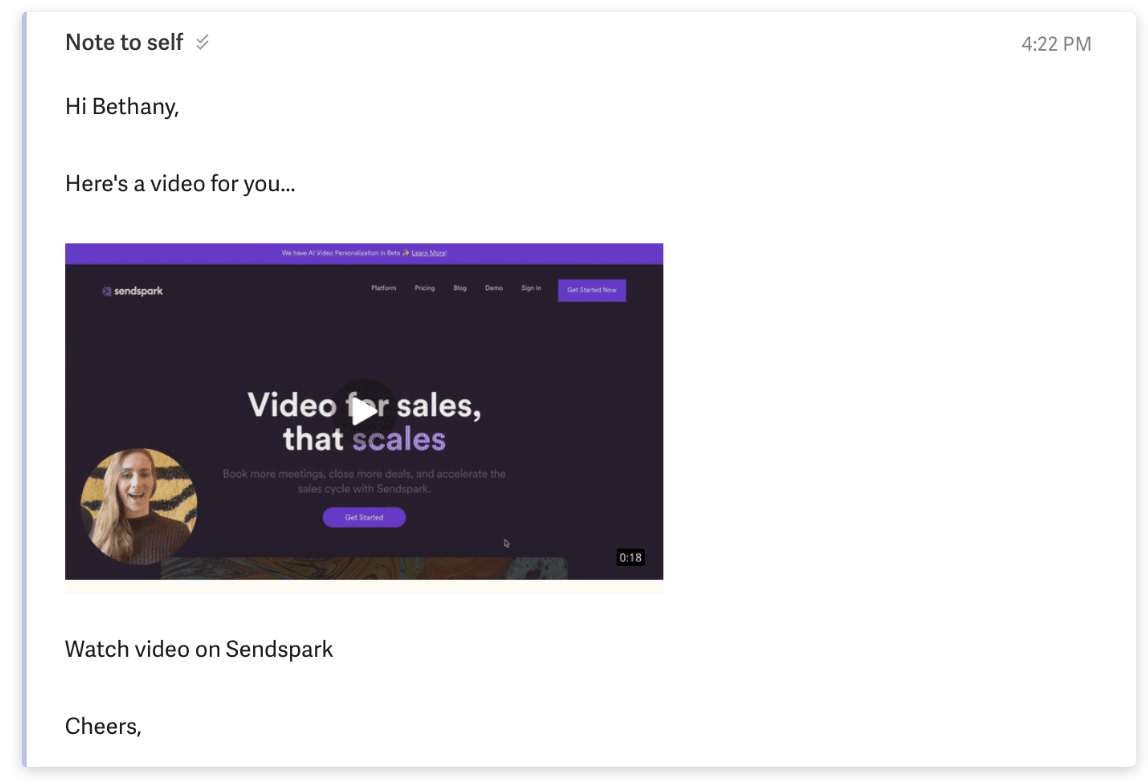
- Send yourself a test email. It should look something like this…
Send WhatsApp or SMS Message
You can also send videos in WhatsApp or SMS text messages by using the “videoLink” variable returned in the webhook. Here is a video to walk you through it:- In your workflow (using the Inbound Webhook as a trigger), add action: Send SMS
- In your message, selectCustom Values > Inbound Webhook Trigger > videoLink
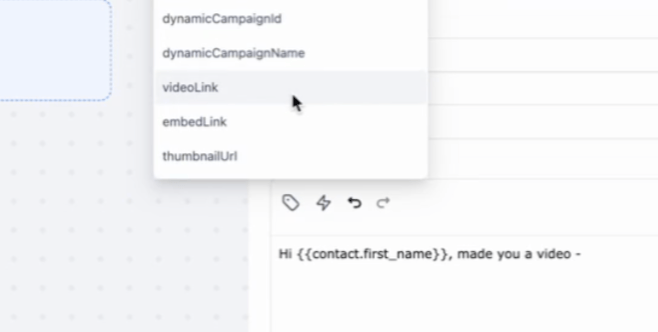
- And that will let you use the unique video link created for that person in the message
Frequently asked questions
Is there an easier way to connect HighLevel and Sendspark?
Is there an easier way to connect HighLevel and Sendspark?
Yes. Sendspark now has a direct HighLevel integration, which is simpler than the custom-webhook method described here. This webhook approach still works if you prefer full control over the workflow.
Where do I find my workspaceId and dynamicId for the webhook URL?
Where do I find my workspaceId and dynamicId for the webhook URL?
Your workspaceId is in your API Credentials tab, alongside your API Key and Secret Key. Your dynamicId is in the URL of your dynamic video campaign.
How does HighLevel know when a video is ready to send?
How does HighLevel know when a video is ready to send?
In Sendspark’s Webhooks section, create a webhook using the URL from a GHL inbound-webhook workflow and link it to your dynamic video campaign. Every time a video is created from that campaign, the webhook enrolls that person in your HighLevel workflow so you can send it.
Can I send the video by SMS or WhatsApp instead of email?
Can I send the video by SMS or WhatsApp instead of email?
Yes. In your inbound-webhook workflow, add a Send SMS action and select Custom Values > Inbound Webhook Trigger > videoLink to insert that person’s unique video link into the message.
What placeholder do I use for personalization?
What placeholder do I use for personalization?
Use the word “Watermelon” in your video wherever you want the viewer’s first name to appear. You can also toggle on Voice Cloning for a custom spoken intro like “Hi First Name.”