

Key takeaways
- Set Global Styles in your workspace settings to apply your logo and brand colors across every video.
- Use a Call-to-Action to convert viewers: add a calendar link, phone number, text message, or URL link.
- Download videos as .MP4 files from the share modal to edit or share them anywhere.
- Record unlimited videos on Starter, and invite team members to record more.
1. Set Global Styles
Use your own logo and brand colors to make videos look polished and professional. Go to your workspace settings, and click Set Global Styles. Here, you can upload your logo, and change all of the color fields.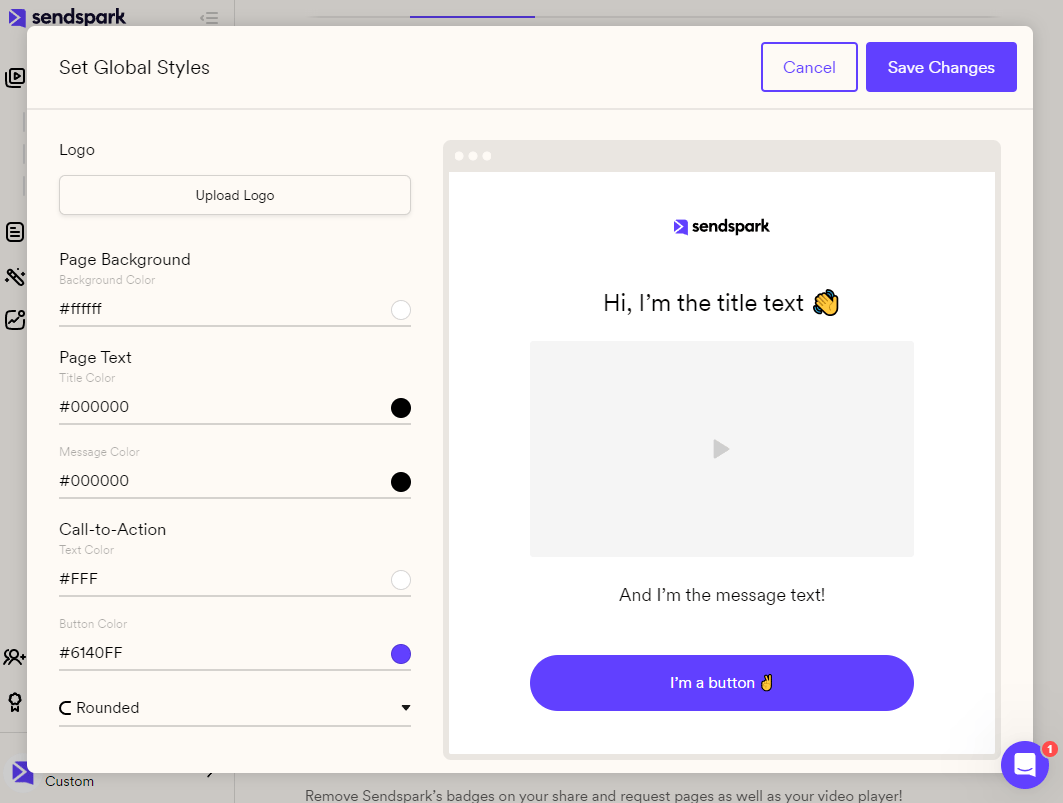
2. Use Video Call-To-Action
Toggle on the Call-to-Action feature to convert viewers after they watch your video. Here, you can add a calendar link, phone number, text message, or URL link.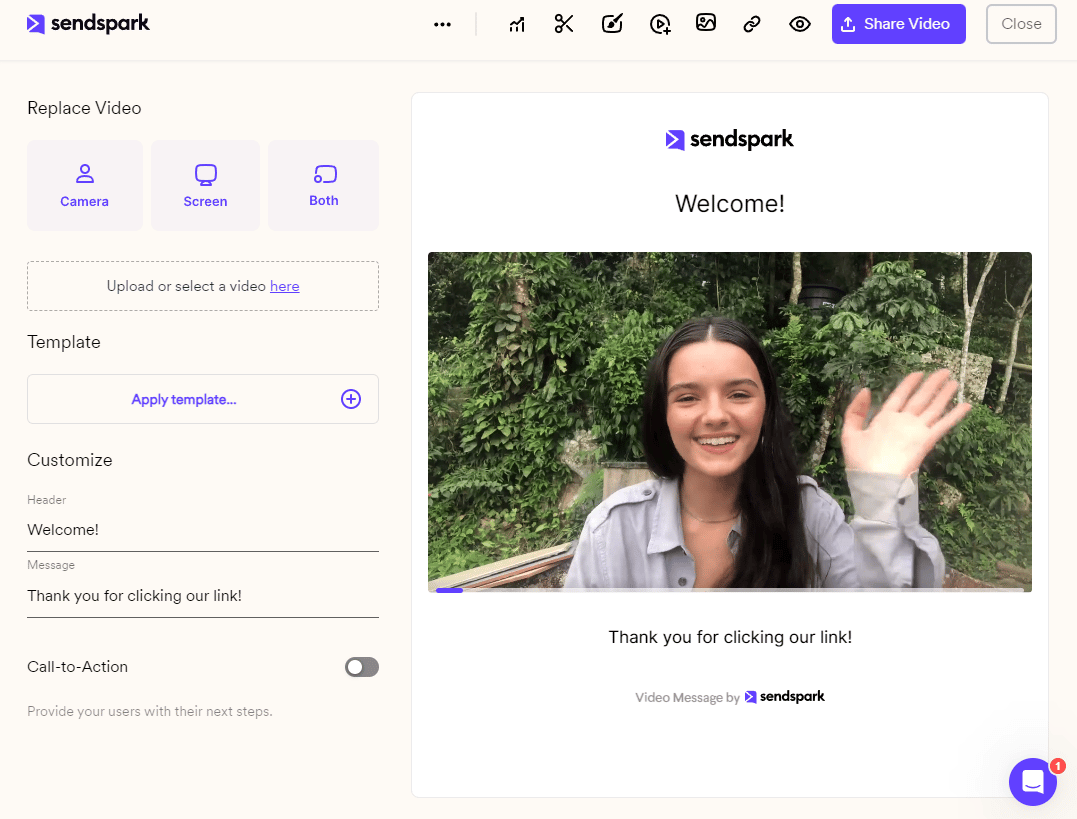
3. Download Videos
Download your videos as .MP4 files to edit or share them anywhere. Just launch the share modal, and then Download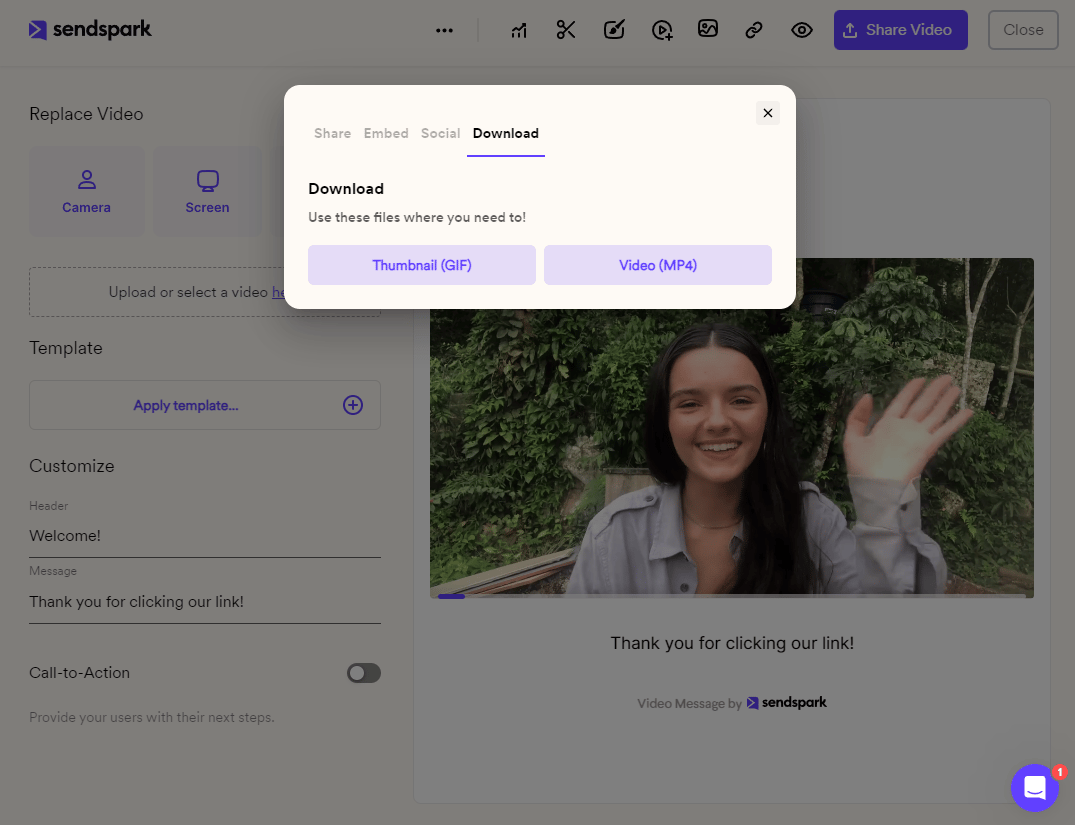
4. Unlimited Videos
Nothing can stop you now — certainly not a 30-video limit! Record unlimited videos, and invite team members to record even more 🙌Frequently asked questions
How do I apply my brand's look to every video?
How do I apply my brand's look to every video?
Go to your workspace settings and click Set Global Styles. Upload your logo and change the color fields, then save changes to see your new styles appear across all videos in your workspace.
What kinds of call-to-action can I add?
What kinds of call-to-action can I add?
You can toggle on a Call-to-Action and add a calendar link, a phone number, a text message, or a URL link to convert viewers after they watch.
Can I download my videos?
Can I download my videos?
Yes. Launch the share modal and click Download to save your video as an .MP4 file, so you can edit or share it anywhere.
Is there a limit on how many videos I can record?
Is there a limit on how many videos I can record?
No. The Starter plan lets you record unlimited videos, and you can invite team members to record even more.