

Key takeaways
- This setup uses a Sendspark webhook paired with a Zapier Zap (Webhooks by Zapier → Slack).
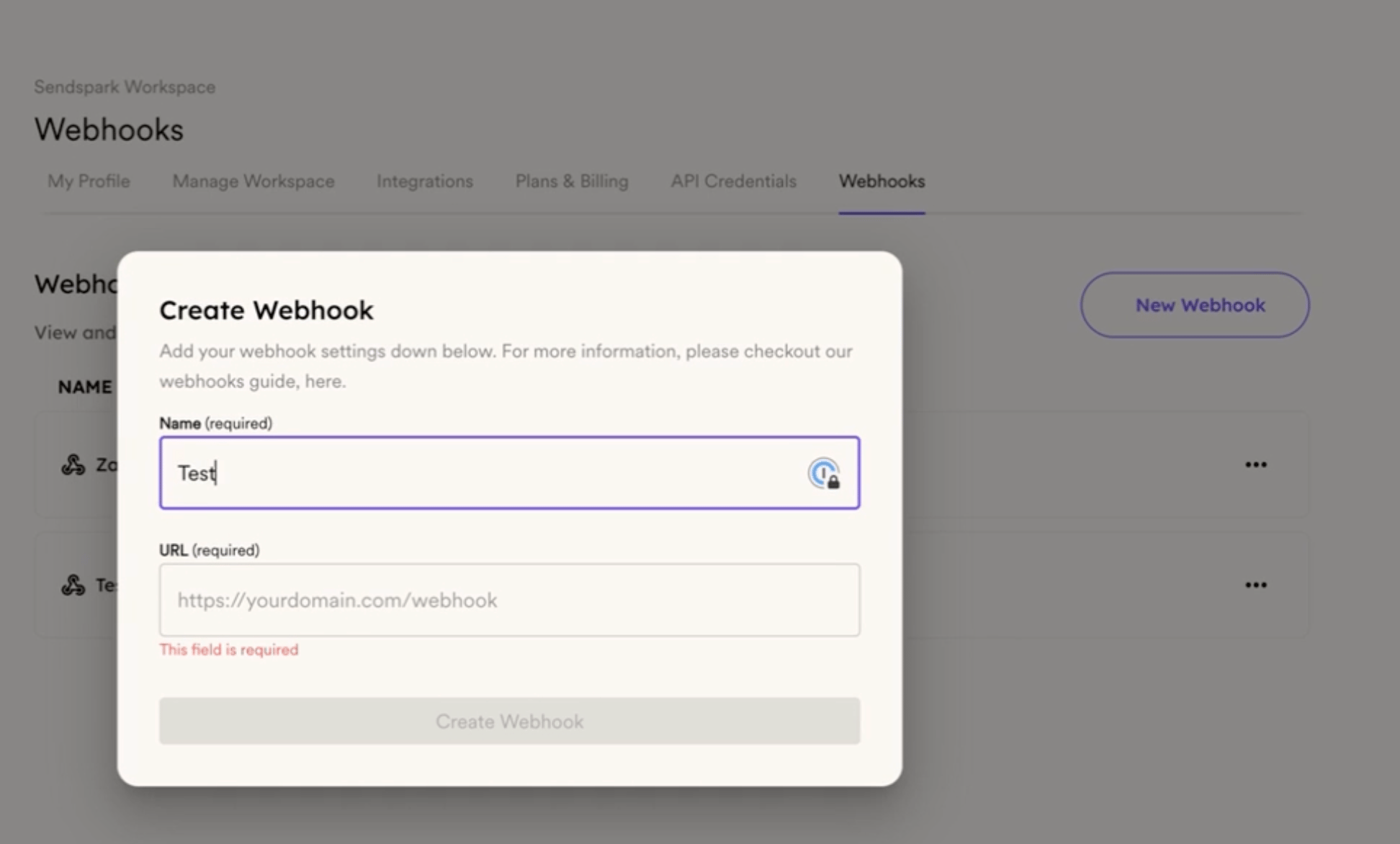
- In Sendspark, create and name a new webhook under Menu → Webhooks.
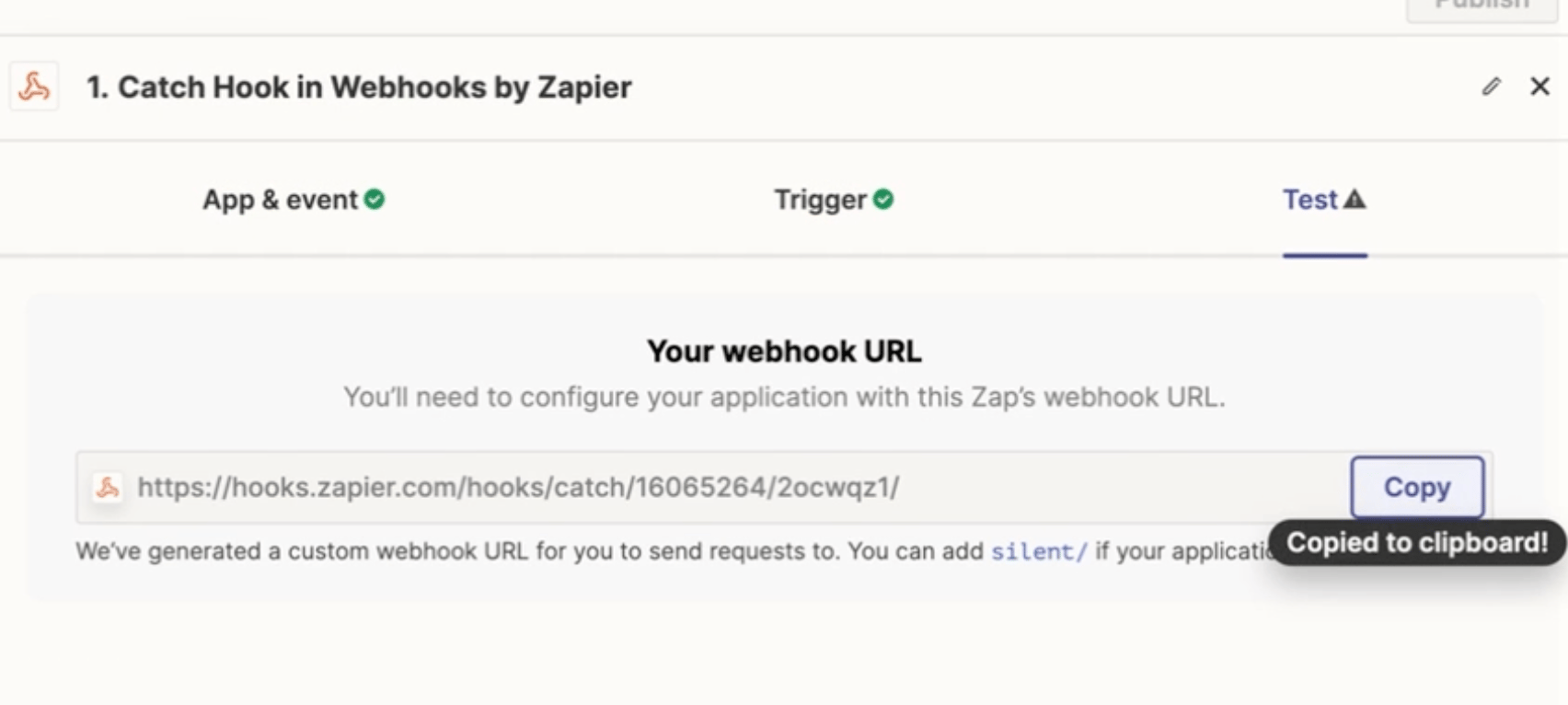
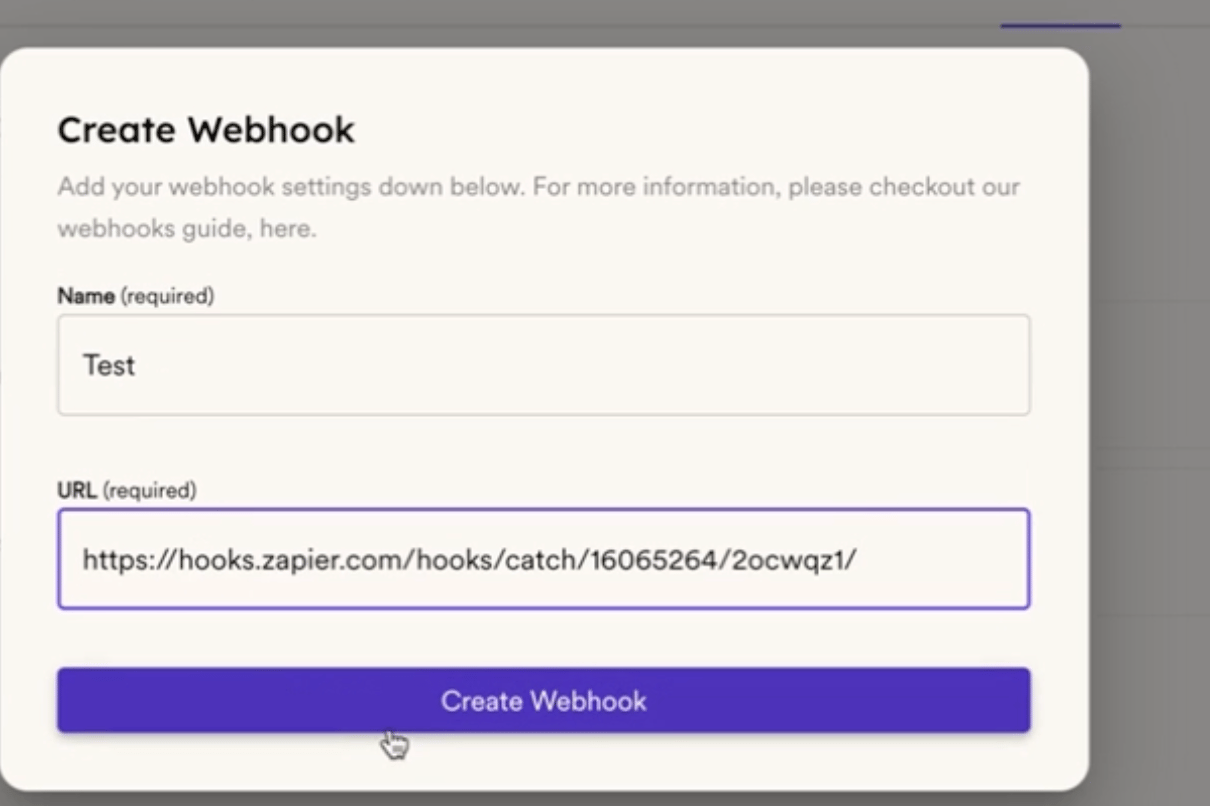
- In Zapier, use the Catch Hook trigger, copy the generated URL, and paste it back into your Sendspark webhook.
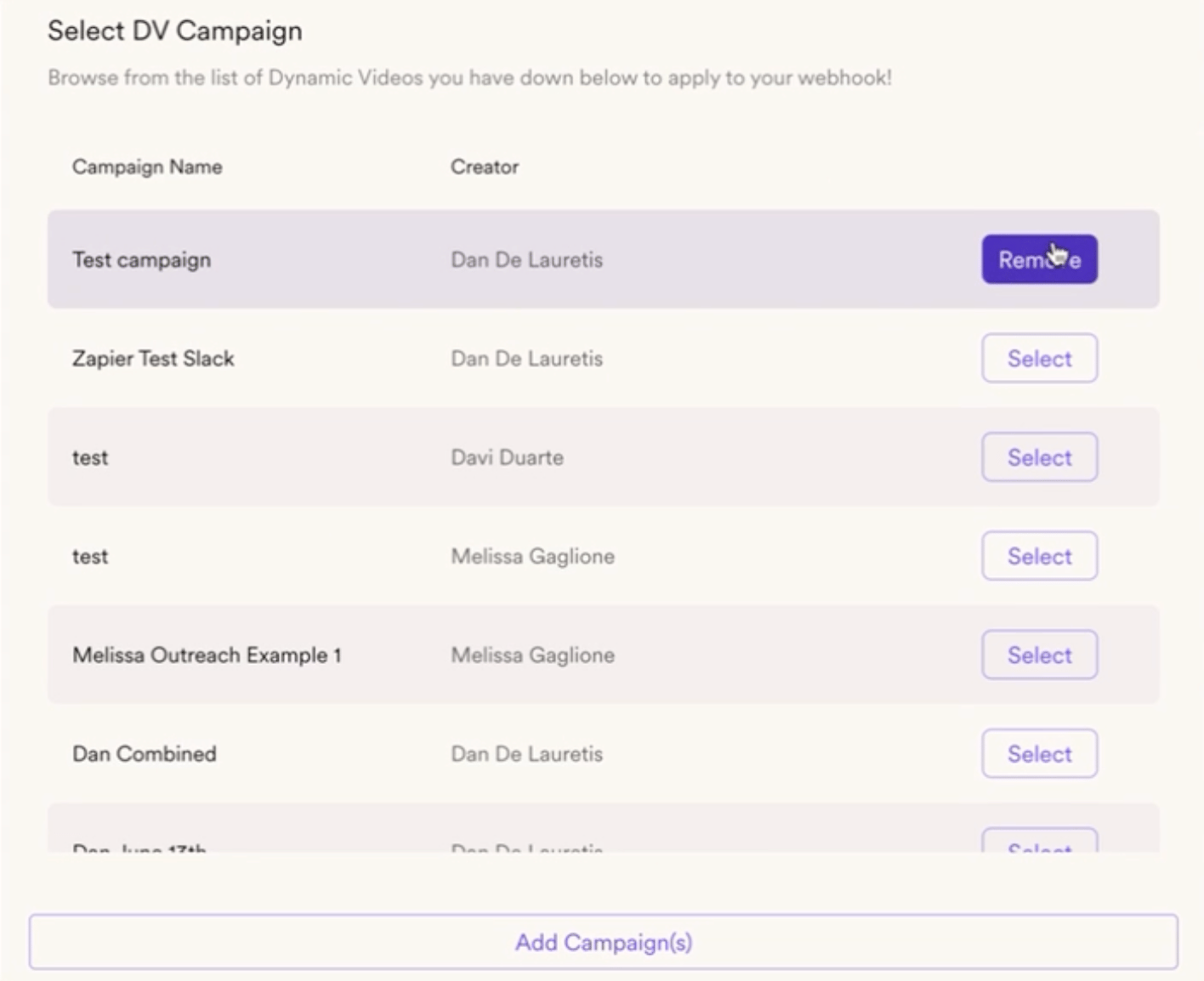
- Attach the webhook to your Dynamic Video campaign, then add Slack’s Send a Message action and choose your channel.
Is the video too long? Here’s the quick version
In SendSpark:
- Go to Menu.
- Select Webhooks.
- Create a new webhook.
- Name your webhook.
- Create a new Zap.
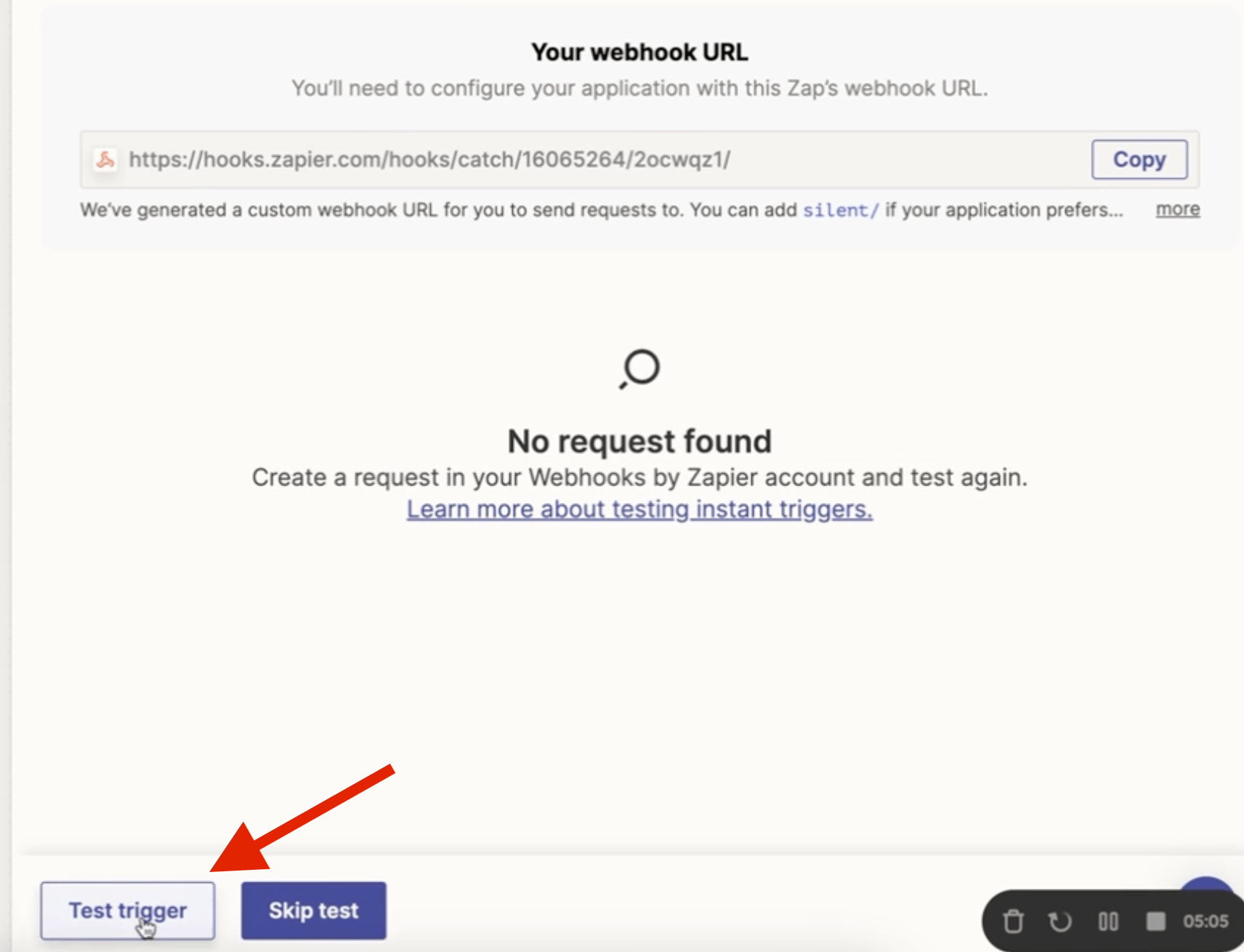
- Click on Trigger.
- Search for Webhooks by Zapier.
- Select Catch Hook.
- Continue and copy the generated URL
- Paste the URL in the webhook you created.
- Create the webhook
- Create a new Dynamic Video Campaign
- Go to the Webhooks section.
- Select the campaign you just created.
- Click on Test Trigger.
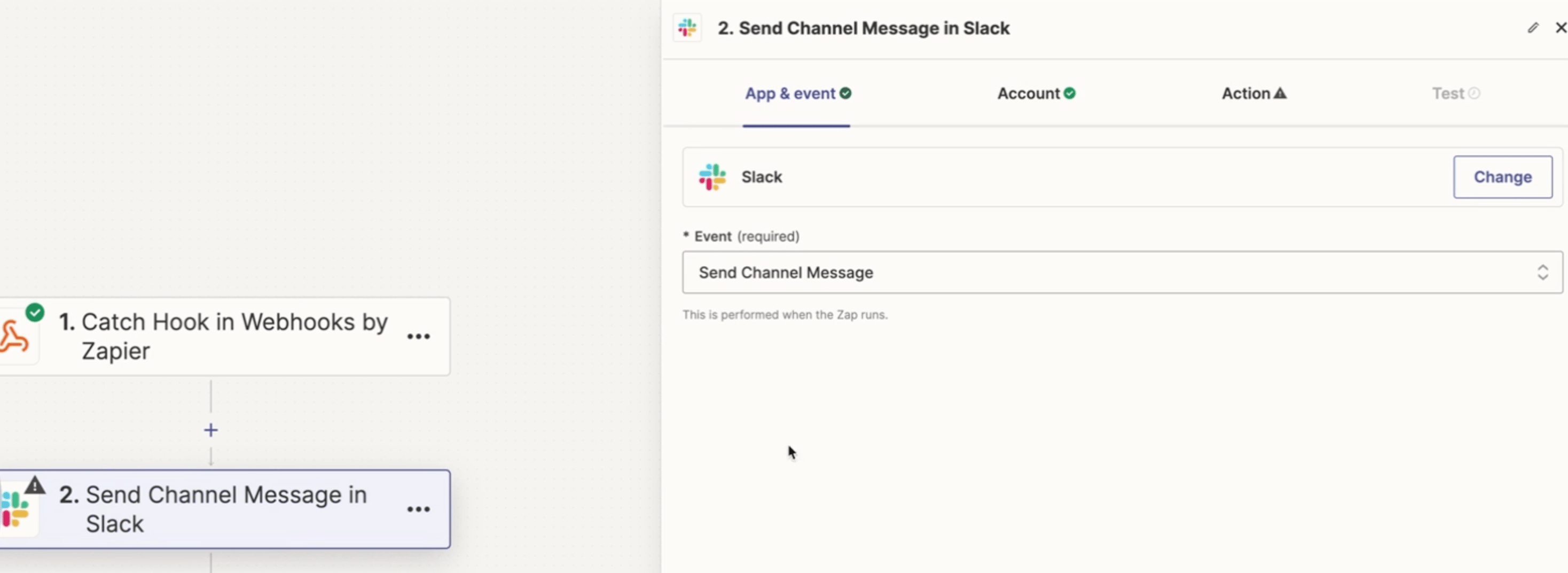
- Search for Slack.
- Select Send a Message.
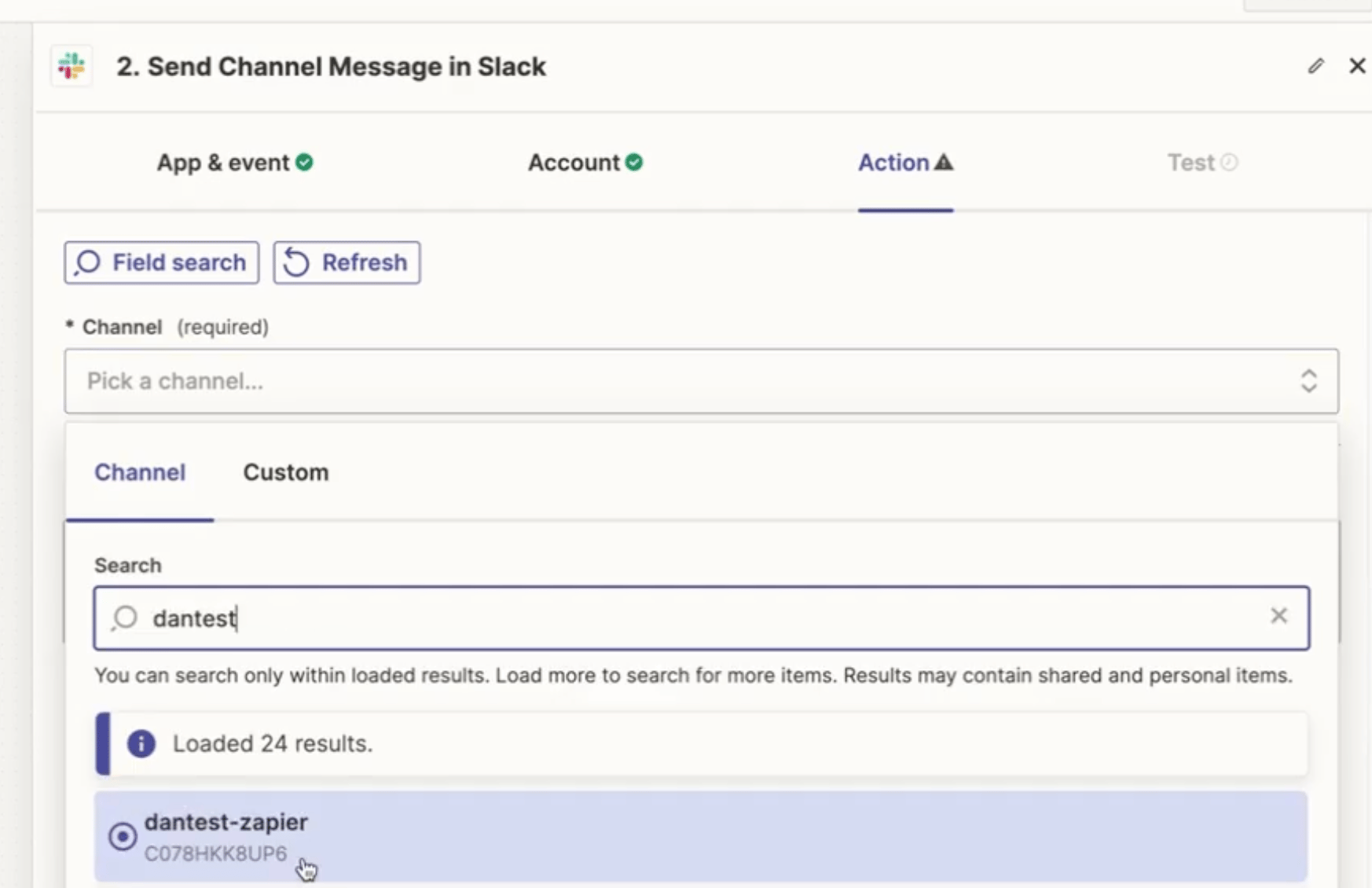
- Continue and choose your Slack channel.
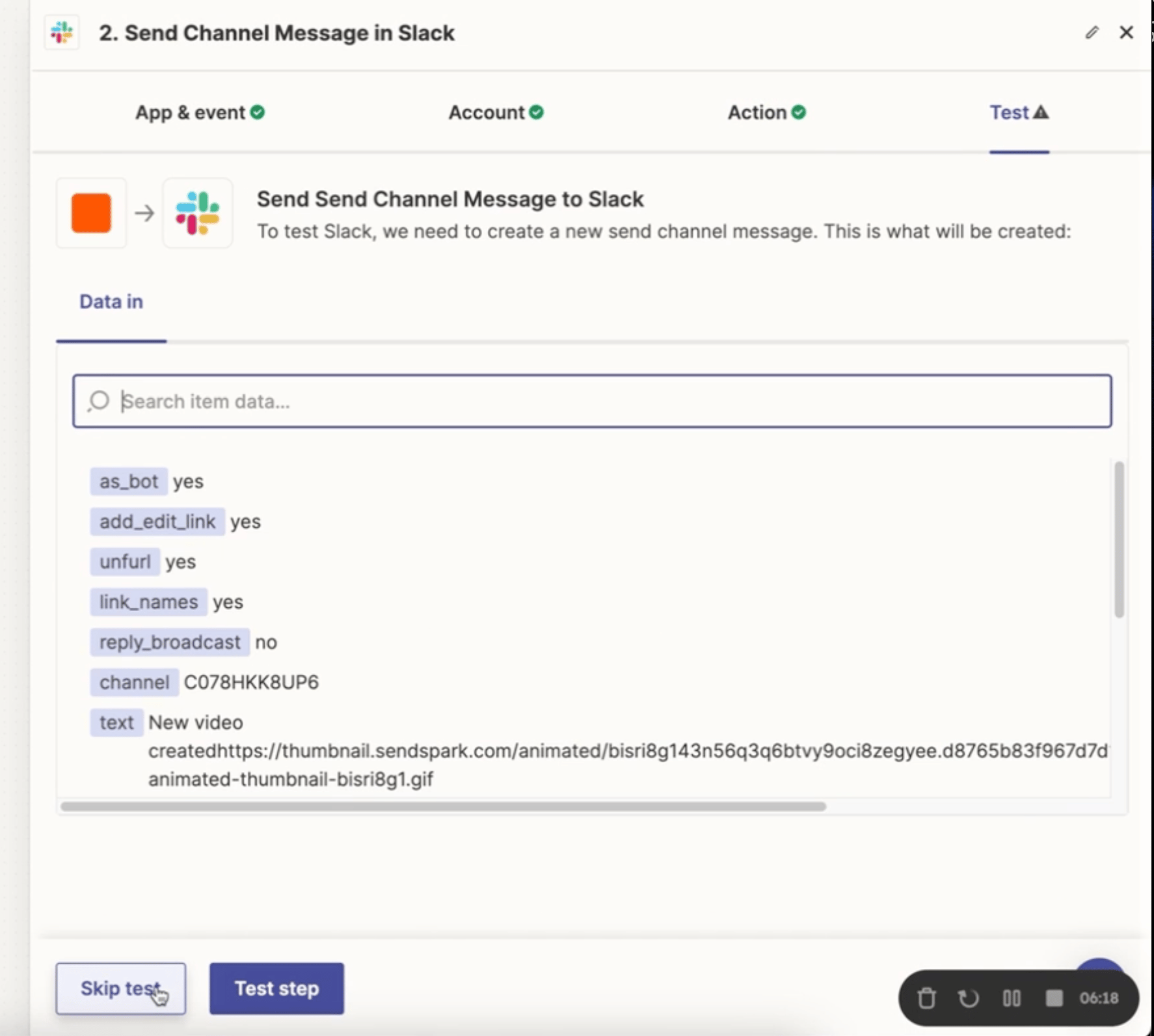
- Customize the message.
- Click on Continue and confirm the notification in Slack.
- DONE!!
Frequently asked questions
How do I create the webhook in Sendspark?
How do I create the webhook in Sendspark?
Go to Menu, select Webhooks, create a new webhook, and give it a name. You’ll paste the Zapier URL into this webhook in a later step.
Which Zapier trigger connects to the Sendspark webhook?
Which Zapier trigger connects to the Sendspark webhook?
In Zapier, create a new Zap, click Trigger, search for Webhooks by Zapier, and select Catch Hook. Continue, then copy the generated URL and paste it into the webhook you created in Sendspark.
How does the webhook know which videos to report?
How does the webhook know which videos to report?
After creating a Dynamic Video campaign, go to the Webhooks section and select that campaign. This attaches your webhook so it fires for new videos in that campaign.
How do I send the notification to Slack?
How do I send the notification to Slack?
In Zapier, click Test Trigger, then search for Slack and select Send a Message. Continue, choose your Slack channel, customize the message, and confirm the notification in Slack.