

Key takeaways
- Generate and share personalized videos automatically from any trigger event in HighLevel, using contact properties like first name and company name.
- Pass data with a Custom Webhook (not the other Webhook field) — there are two webhook fields in HighLevel and only the Custom Webhook works here.
- Create two custom contact fields in HighLevel — Sendspark Share URL (for SMS/WhatsApp) and Sendspark Email HTML Snippet (for email) — so Sendspark can push data back.
- Add a time delay of roughly 15 minutes before sending, to give Sendspark enough time to generate the video.
What You Can Do With HighLevel + Sendspark
The HighLevel + Sendspark integration is designed to help you automatically generate and share videos through automation. More specifically, you can…- Create personalized videos from any trigger event in HighLevel
- Use HighLevel contact properties(first name, company name, etc.) in videos to personalized at scale
- Send videos in HighLevel automated emails, SMS, and WhatsApp messages
How to Use Sendspark & HighLevel To Create & Share Personalized Videos
Watch the video or follow along the steps below to create & share AI personalized videos in HighLevel.- Create a new Agentic Workflows in Sendspark
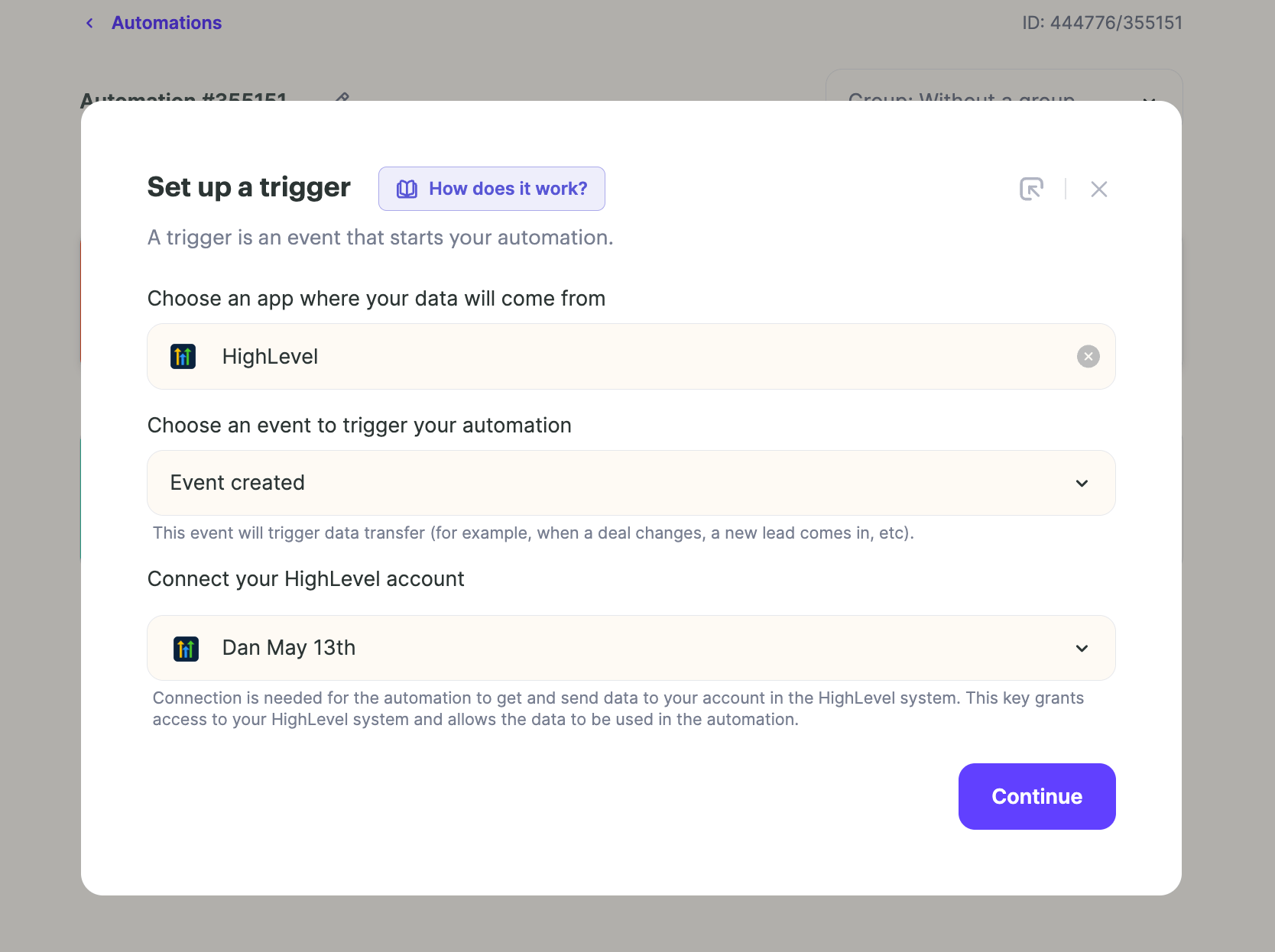
- For the trigger, select HighLevel and connect your HighLevel Account
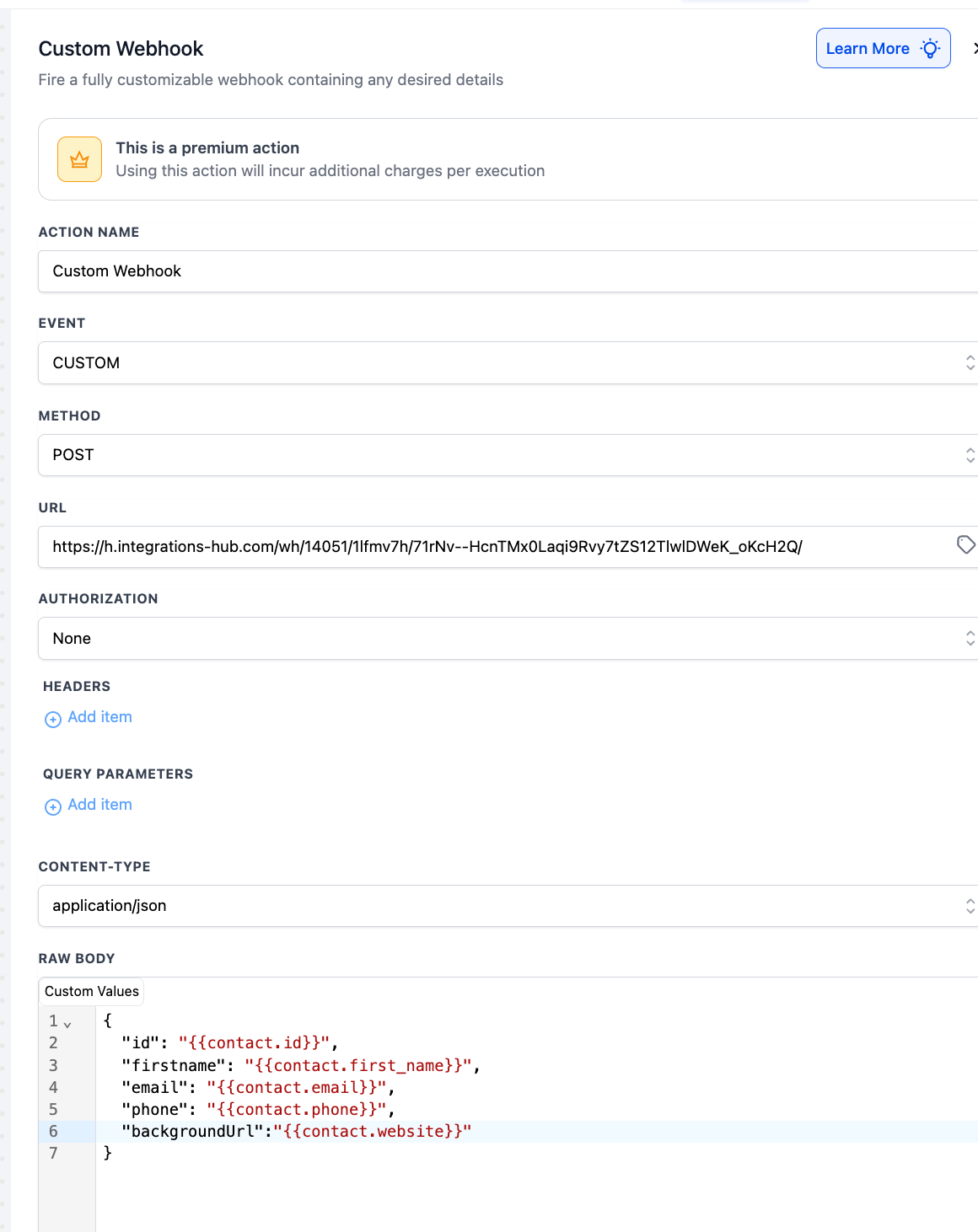
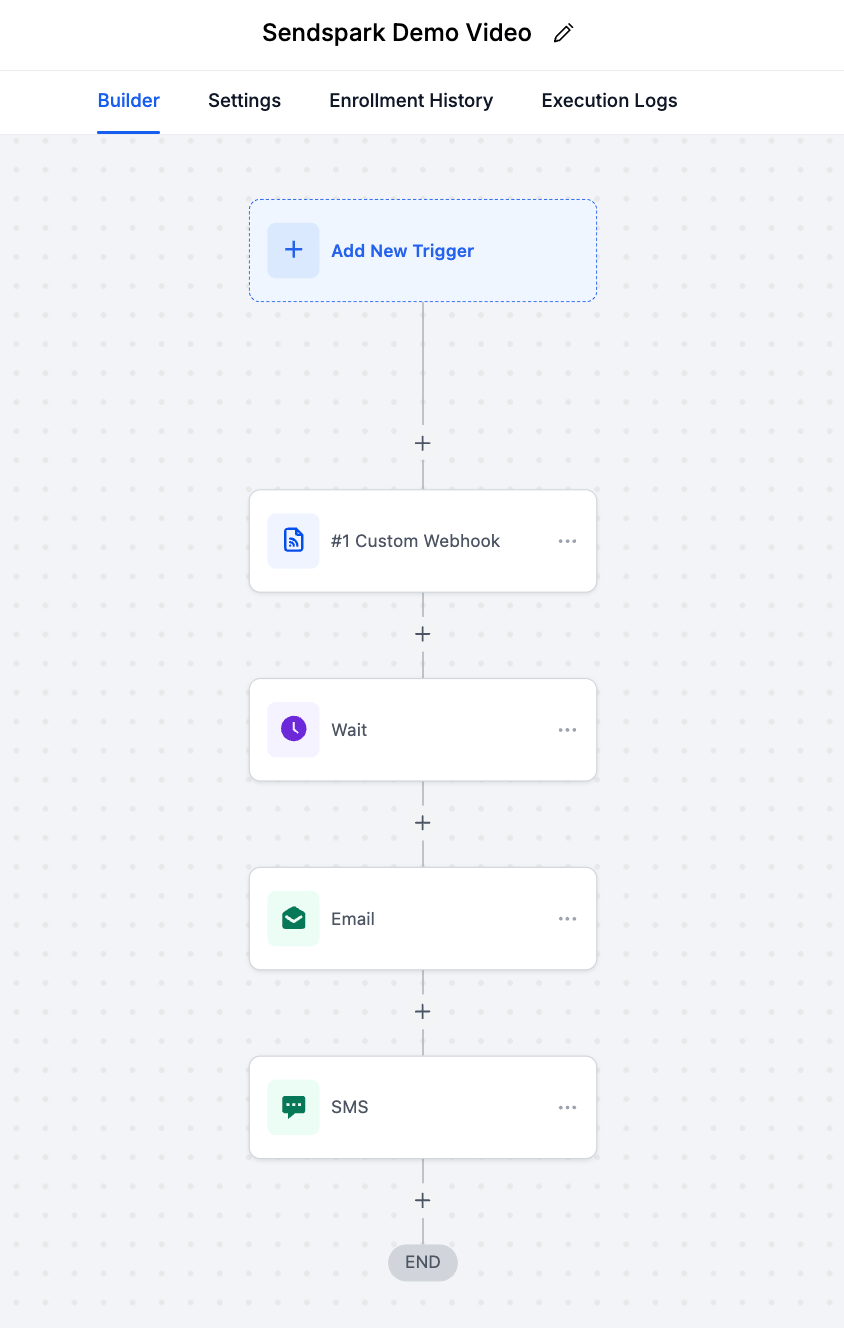
- Next, you will see a webhook URL appear. You can take this URL, and go to your HighLevel automated workflow. At the point that you want the Sendspark video to get generated, add a Custom Webhook event, and paste this URL
- You can also select which data you want to send to Sendspark here. Send the fields that you’ll use in your video. The fields that Sendspark supports are:
- Contact email
- Contact first name
- Contact job title
- Company name
- Background URL (that you’ll use in the background of your video if you’re using a Dynamic Background)
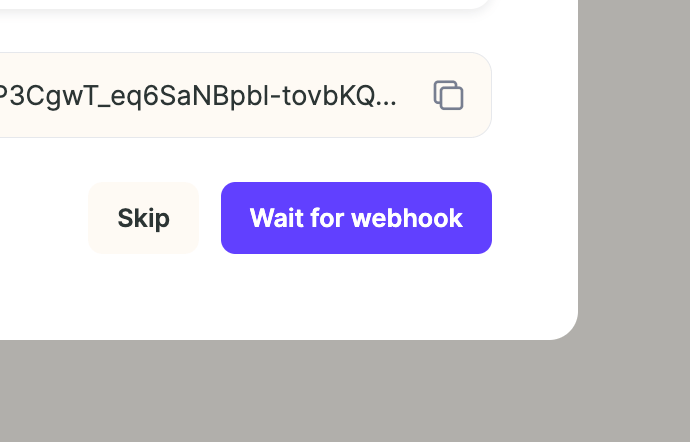
- Back in Sendspark, click Wait for Webhook
- Then, in HighLevel, trigger your webhook by running a test contact through your automation. You’ll know this works when you see the successful logs in HighLevel, and the HighLevel data appear in Sendspark
- Now, add a step in your HighLevel automation for Sendspark: Create Dynamic Video.
- Select the Sendspark dynamic video campaign you want to use
- Match the fields you’re sending from HighLevel to the appropriate fields in Sendspark
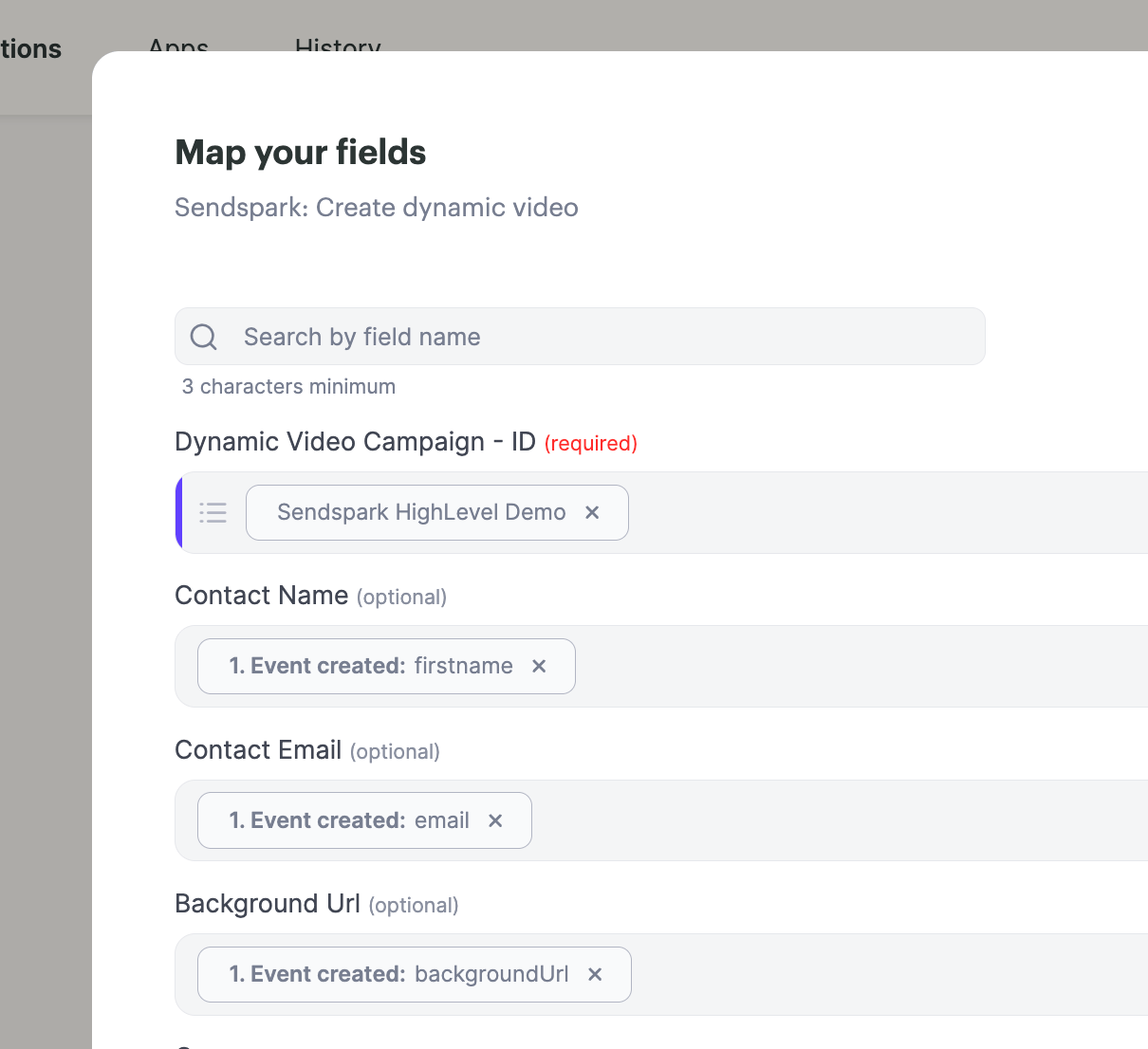
- This ensures that when the contact is enrolled in your HighLevel workflow, and hits the Custom Webhook stage, this personalized video will be generated for them
- The last step in the automation will be send the Sendspark video back into HighLevel for you to share it with prospective customers.
- Before you set up the automation, you need to create the custom contact fields in HighLevel. Go to HighLevel Contact Property settings, and create 2 new fields:
- Sendspark Share URL— you’ll be able to use this to send the videos in SMS or WhatsApp
- Sendspark Email Email HTML Snippet— you’ll be able to use this to send the video in email
- Back in Sendspark, add a new action to your automation for HighLevel: Update a Contact
- Map in the Contact ID from your first HighLevel step

- Map in the custom fields that you just created in the previous step, so you can push the data from Sendspark back in HighLevel. If you don’t see the fields, click “update” to refresh available fields
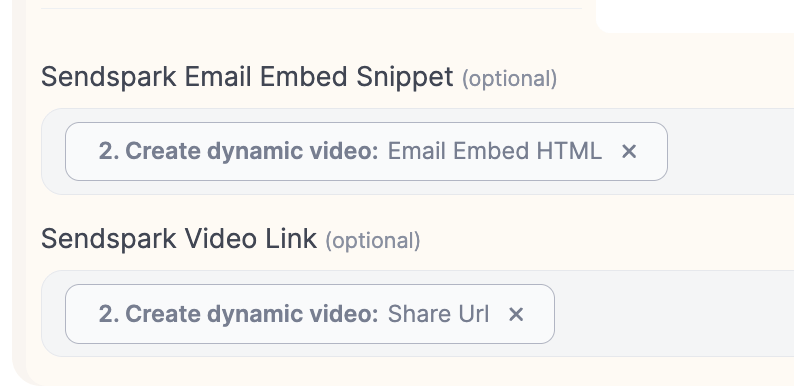
- Click Save and Start your automation!
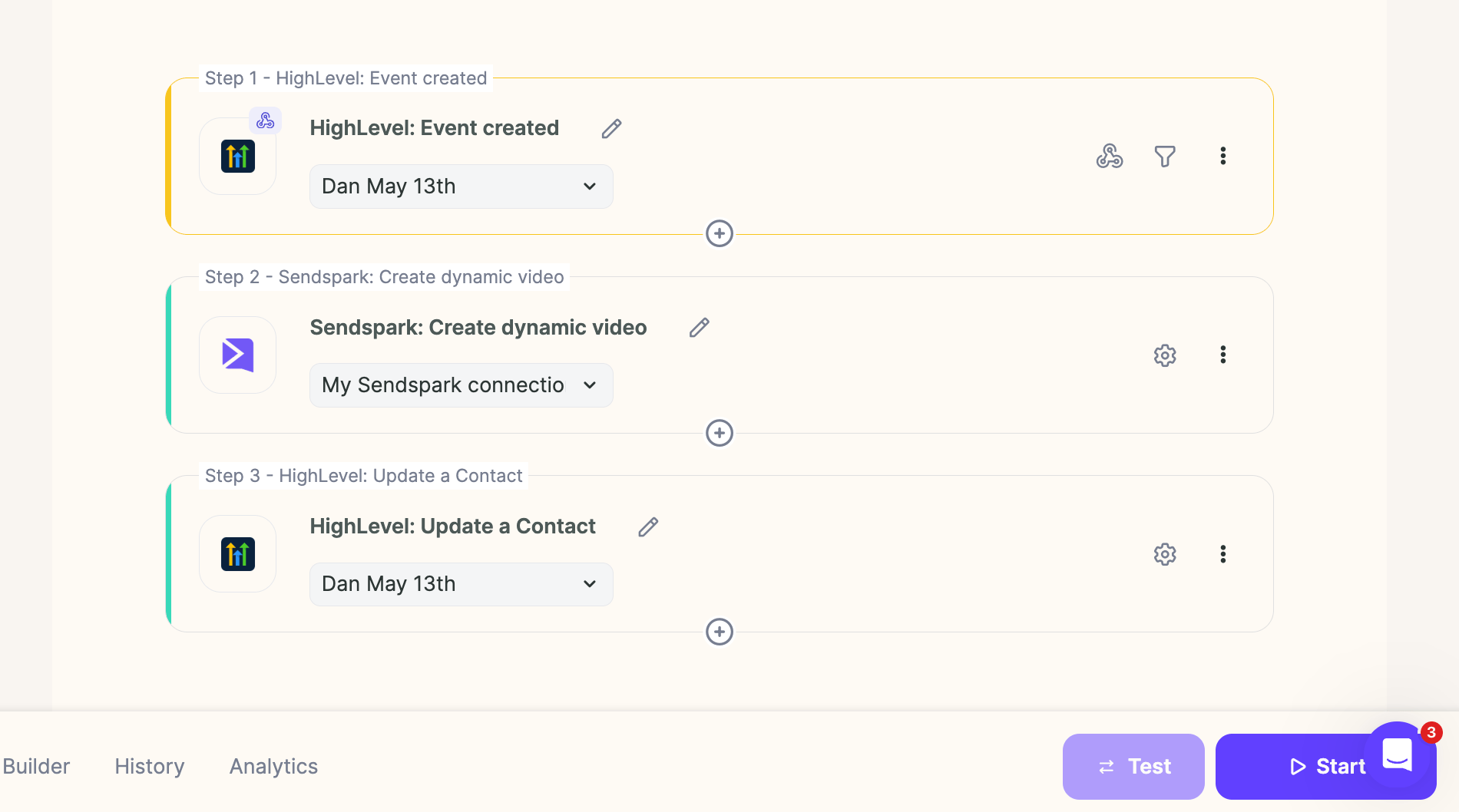
- In your HighLevel automation, you can now add steps for emails, SMS messages, or WhatsApp messages to share the personalized videos you’re creating here.
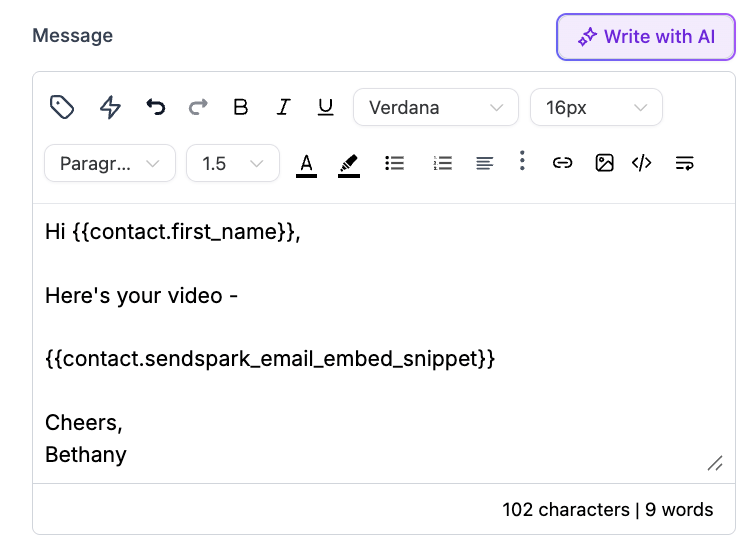
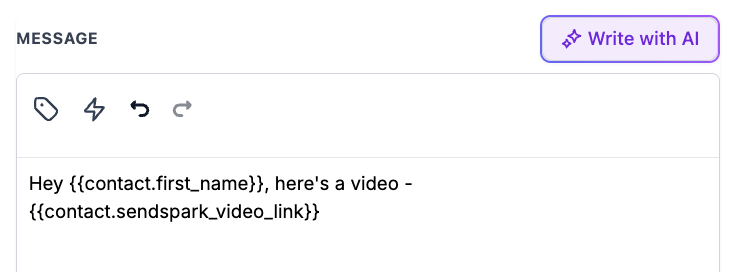
- Just make sure to use the Sendspark Share URL or Sendspark Email HTML Embed fields as placeholders where you want the video go.
- Email:
- SMS or WhatsApp:
- Also make sure you’re adding time delays to give Sendspark enough time to generate the video (~15 minutes or so should be safe).
- Your entire automation in HighLevel should look something like this. When all looks good, save, hit publish, and start enrolling real contacts!
Q: Is technical expertise required for setup?
A: Yes, both workflows involve setting up automations and webhooks, which might require basic technical knowledge of integrating tools using webhook URLs and data fields.Q: What types of videos work best for personalization?
A: Videos with placeholders for names, locations, and other dynamic variables captured from lead data ensure the most impact.Q: Why is the Webhook from HighLevel not triggering any data in Sendspark?
A: Make sure you’re using the Custom Webhook field in HighLevel, not the other Webhook field. There are 2 webhook fields and it’s confusing!Q: How do I get more data from HighLevel into Sendspark?
A: When you’re sending the webhook, you can add lines with more contact fields to send from HighLevel into Sendspark.Q: Why am I not seeing my HighLevel custom variables in Sendspark?
A: Click “Update” to make sure you’re seeing all available HighLevel fields in Sendspark.
Frequently asked questions
Which webhook field should I use in HighLevel?
Which webhook field should I use in HighLevel?
Use the Custom Webhook field, not the other Webhook field. HighLevel has two webhook fields and it’s easy to confuse them — if data isn’t reaching Sendspark, this is the most common cause.
Which contact fields does Sendspark support from HighLevel?
Which contact fields does Sendspark support from HighLevel?
Sendspark supports contact email, contact first name, contact job title, company name, and a background URL (used behind your video when you’re using a Dynamic Background). Send whichever fields you plan to use in your video.
How do I send the generated video back into HighLevel?
How do I send the generated video back into HighLevel?
Before setting up the automation, create two custom contact fields in HighLevel: Sendspark Share URL (for SMS or WhatsApp) and Sendspark Email HTML Snippet (for email). Then add a HighLevel: Update a Contact action in Sendspark, map in the Contact ID, and push those fields back.
Why aren't my HighLevel custom variables showing in Sendspark?
Why aren't my HighLevel custom variables showing in Sendspark?
Click Update to refresh the available HighLevel fields in Sendspark. This applies both to the fields you send in and to the custom fields you create for pushing data back.
How long should I wait before sending the video?
How long should I wait before sending the video?
Add a time delay of about 15 minutes in your HighLevel automation before the email, SMS, or WhatsApp step. This gives Sendspark enough time to generate the personalized video before it’s shared.