

Key takeaways
- Simulate Scrolling overlays your video of yourself on top of each contact’s own webpage as it appears to scroll.
- Set it up in three steps: create a dynamic video campaign, add your video, then toggle on “Simulate Scrolling.”
- Each contact’s webpage is handled automatically when you import contacts and generate videos.
- The result is a unique video per contact — for example, one scrolling sendspark.com and another scrolling hubspot.com.
How to Add Website Scroll to Dynamic Videos
- Create a dynamic video campaign
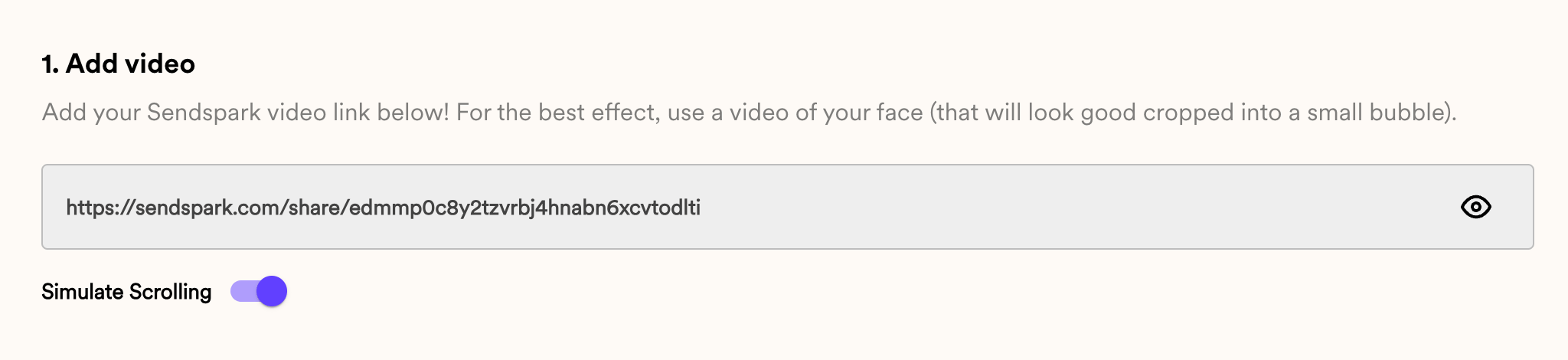
- Add the video that you would like to use of yourself (that will appear over the website for each of your contacts)
- Toggle on “Simulate Scrolling”
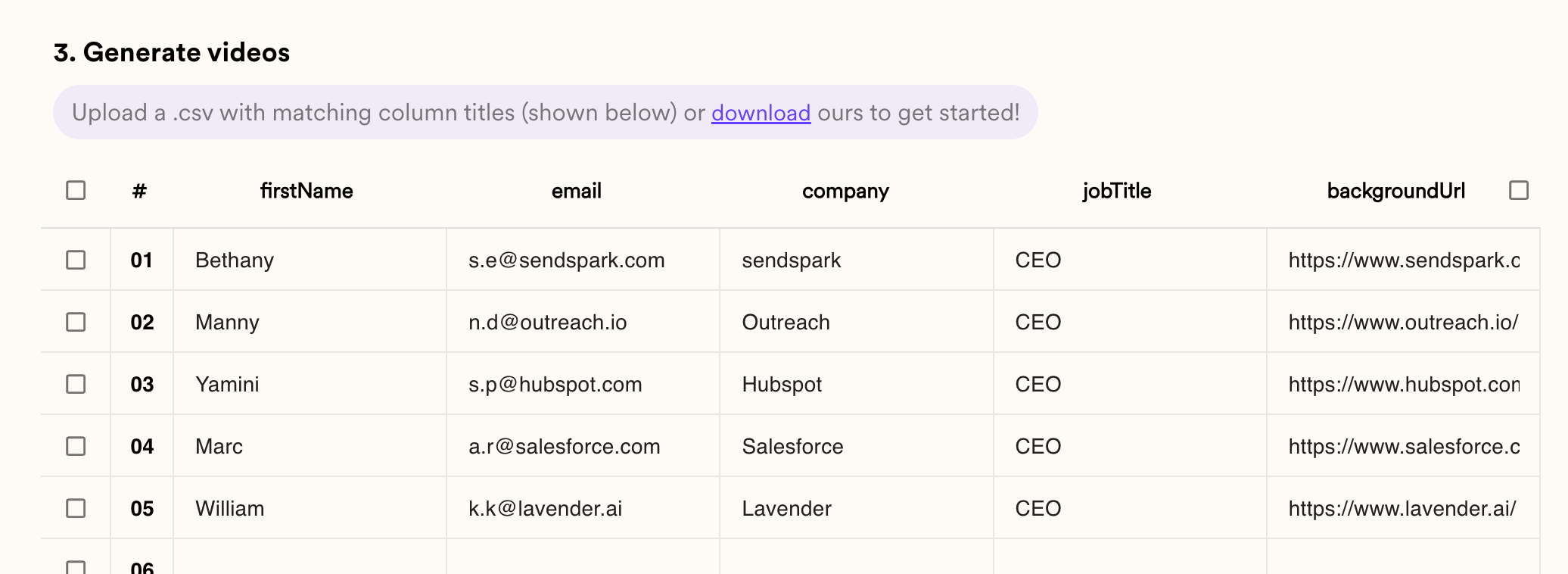
- Bethany (sendspark.com)
- Manny (outreach.io)
- Yamini (hubspot.com)
- Mac (salesforce.com)
- William (lavender.ai)
Frequently asked questions
How do I add website scrolling to a dynamic video?
How do I add website scrolling to a dynamic video?
Create a dynamic video campaign, add the video of yourself that will appear over the website, then toggle on “Simulate Scrolling.” When you add contacts and generate videos, each one will look like you’re scrolling through that contact’s webpage.
What video should I add?
What video should I add?
Add a video of yourself. In each generated video, your recording appears over the contact’s webpage while it scrolls.
Which webpage gets scrolled for each contact?
Which webpage gets scrolled for each contact?
Each contact’s own webpage. Once you import your contacts and generate videos, Sendspark produces a separate video per contact showing you scrolling through their site.
Can I see examples of the finished videos?
Can I see examples of the finished videos?
Yes. The examples above show the same recording over different contacts’ sites — Bethany (sendspark.com), Manny (outreach.io), Yamini (hubspot.com), Mac (salesforce.com), and William (lavender.ai).