

Causes of Audio/Video Sync Issues
Audio and video may go out of sync during a Sendspark recording if your computer’s resources are maxed out. Heavy system load can hinder accurate processing during the recording.How to fix your audio/video sync issues:
1. Check your external camera or mic
If you have an external camera or microphone plugged in, it could be causing issues. Try disconnecting these and re-recording your video. If you want to keep using your external camera or microphone, it might still be possible. Try following the steps below to see if you can fix your audio/video sync issue while keeping your external devices. As a preventive measure, try disabling camera effects if you are using the Chrome extension. This reduces processing load and optimizes system performance during recording.2. Restart Chrome
Sometimes audio / video issues occur when Chrome is overwhelmed. Try quitting and restarting Chrome. It’s a simple fix that could go a long way!3. Restart your computer
Another simple fix that can go a long way. Give it a try!4. Disable hardware acceleration
Open your Chrome settings by clicking on the 3 dots located on the top right-hand side of the browser.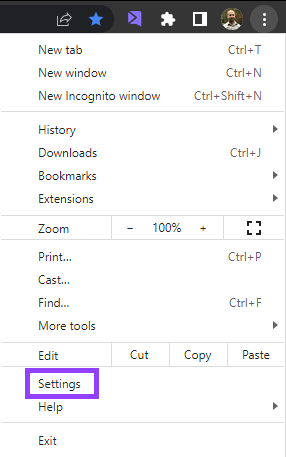
- Inside settings, click on the “System” tab on the left side of the screen. Or, you can navigate directly here by typing chrome://settings/system on the address bar.
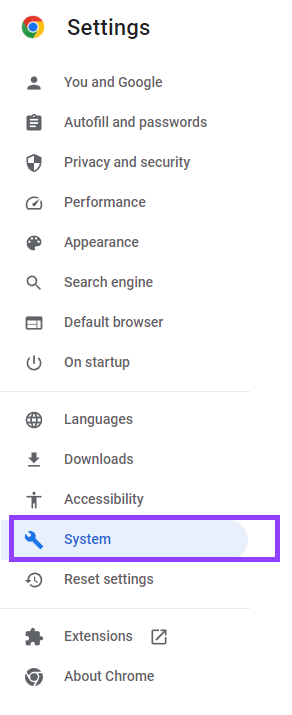
- Next, disable “Use hardware acceleration when available”, and click on ReLaunch to restart your browser.