

Key takeaways
- Videos failing to generate with a LinkedIn background URL are usually caused by a disconnected LinkedIn cookie.
- To fix it, disconnect the current cookie, then clear the LinkedIn cookie in your browser’s dev tools (Application → LinkedIn), log back in, and copy the new cookie.
- Paste the new cookie into your Dynamic Video campaign and try generating the video again. See how to connect LinkedIn and Sendspark for where the Connect Social Account field lives.
- Prevent recurrence by generating only 20-30 videos a day and not over-extending the number of profiles you request. See LinkedIn background video generation limits for the numbers in detail.
This video will help you process videos that are failing to generate when you have a LinkedIn background URL.
- Disconnect your current Cookie
- Head to LinkedIn and access YOUR PROFILE from your menu
- Right-click on an empty space and access your inspect tools
- Click on APPLICATION header and look for the LINKEDIN cookie on the left-hand side panel
- Right-click it and hit CLEAR
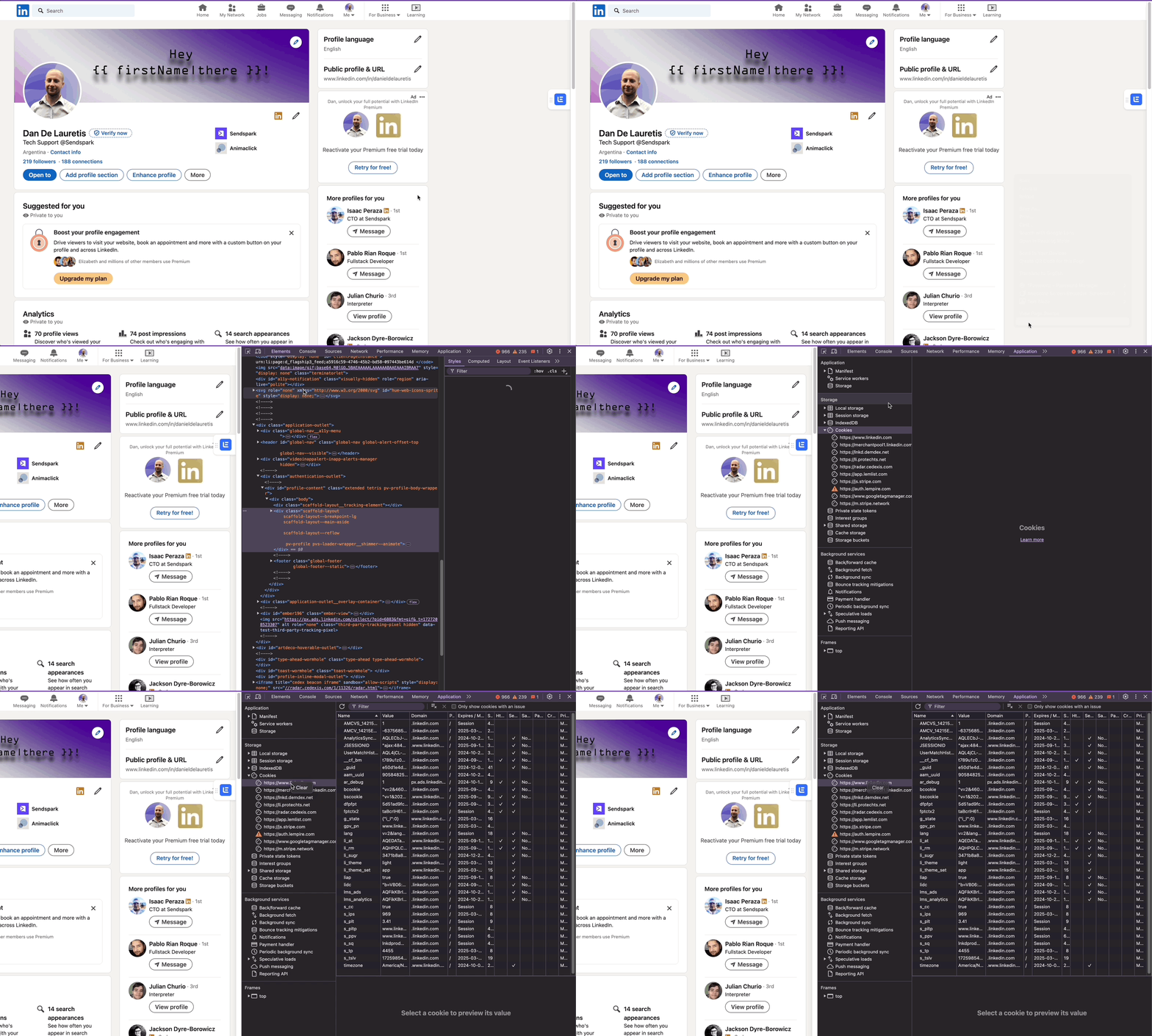
- Log back in to LinkedIn and look for the new COOKIE.
- Copy that and paste it in your Dynamic Video campaign
- Try to generate the video again
How to avoid this from happening again?
-Do not over-extend the number of profiles you’re requesting to avoid a disconnection of your cookie.-Generate between 20-30 videos a day. The more videos you generate, the more likely you are to provoke LinkedIn to disable the cookie.Frequently asked questions
Why won't my video generate when I use a LinkedIn profile background?
Why won't my video generate when I use a LinkedIn profile background?
This typically happens when your LinkedIn cookie has been disconnected. Refreshing the cookie and pasting the new value into your campaign resolves the failure.
How can I stop this from happening again?
How can I stop this from happening again?
Don’t over-extend the number of profiles you request, and generate only 20-30 videos a day. The more videos you generate at once, the more likely LinkedIn is to disable your cookie.