> ## Documentation Index
> Fetch the complete documentation index at: https://help.sendspark.com/llms.txt
> Use this file to discover all available pages before exploring further.
# ZoomInfo Engage - Send Dynamic Videos
> Find out how to send Sendspark dynamic personalized videos through ZoomInfo Engage. Automate AI video outreach directly within your sales sequences.
To send dynamic personalized videos in ZoomInfo Engage, create a Dynamic Video campaign in Sendspark, import your contacts, then click Share Campaign and select Engage to copy a snippet you paste into a ZoomInfo Engage email template. Each prospect on your Sendspark list receives an email with the personalized video generated for them.
## Key takeaways
* Record one video in Sendspark, then use AI to generate a personalized version for each prospect and send them all through ZoomInfo Engage sequences.
* For AI voice cloning, record your video starting with the phrase **"Hi Watermelon."** — Sendspark replaces "Watermelon" with each viewer's first name.
* Get the snippet from **Share Campaign → Engage**, then paste it into a ZoomInfo Engage email template; a generic preview shows until you preview as a contact from your Sendspark list.
* To be sure you only email people who have a generated video, export the Dynamic Video Contact List as a CSV in Sendspark.
Sendspark makes it easy to send AI-personalized videos in ZoomInfo Engage email sequences.
You can record one video in Sendspark, and then use AI to generate personalized videos for each prospect.
And then, with one simple shortcut, you can send videos in ZoomInfo Engage email sequences.
## How to Send AI-Personalized Videos in ZoomInfo Engage
## 1. Create Your Dynamic Video Campaign
Go to the [dynamic video section](https://sendspark.com/dynamic-videos) of Sendspark and click **"Create Dynamic Video"** to create a new campaign.
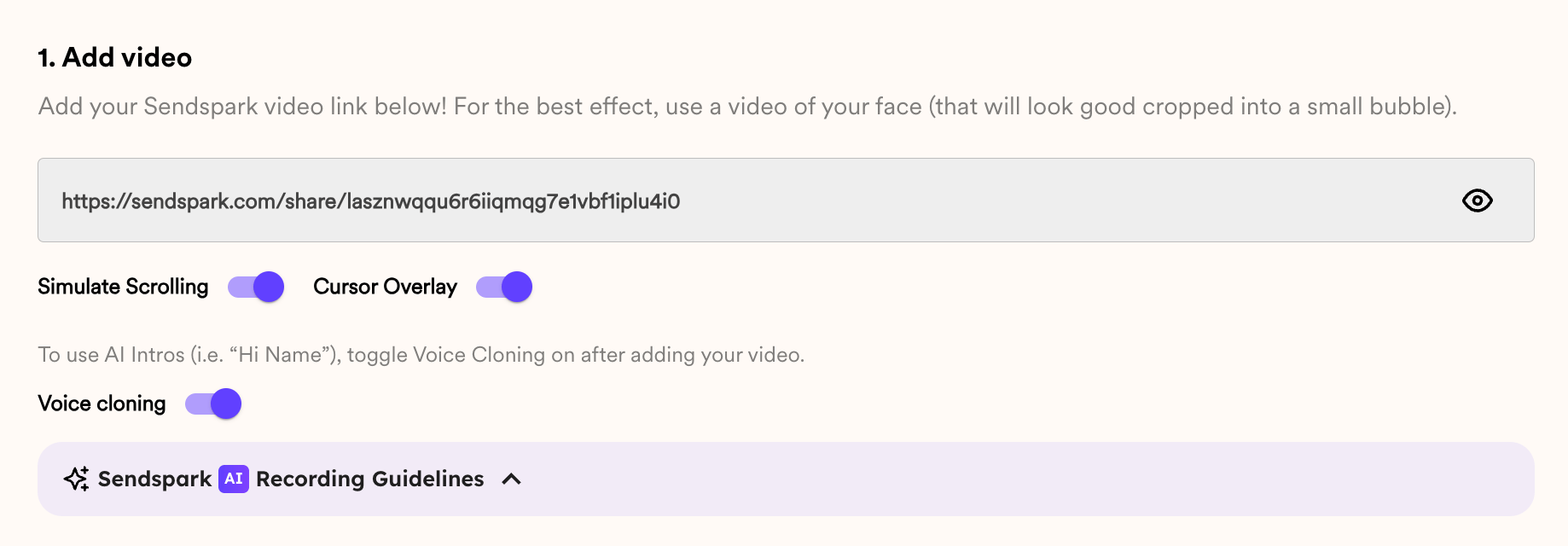
The first step is to **add your video.**
If you are using AI voice cloning, you need to record your video with the starter phrase **"Hi Watermelon."** (Then, we will replace "Watermelon" with your viewer's name).
Here's an example of a video that would work well:
After adding your video, you have some options:
* \*\*Simulate Scrolling:\*\*Makes it look like you are recording over your viewer's website, and scrolling through the page
* **Cursor Overlay:** Adds a cursor, to make the website scroll look more convincing
* **Voice Cloning:** Ensures that we replace the word "watermelon" with your viewer's first name
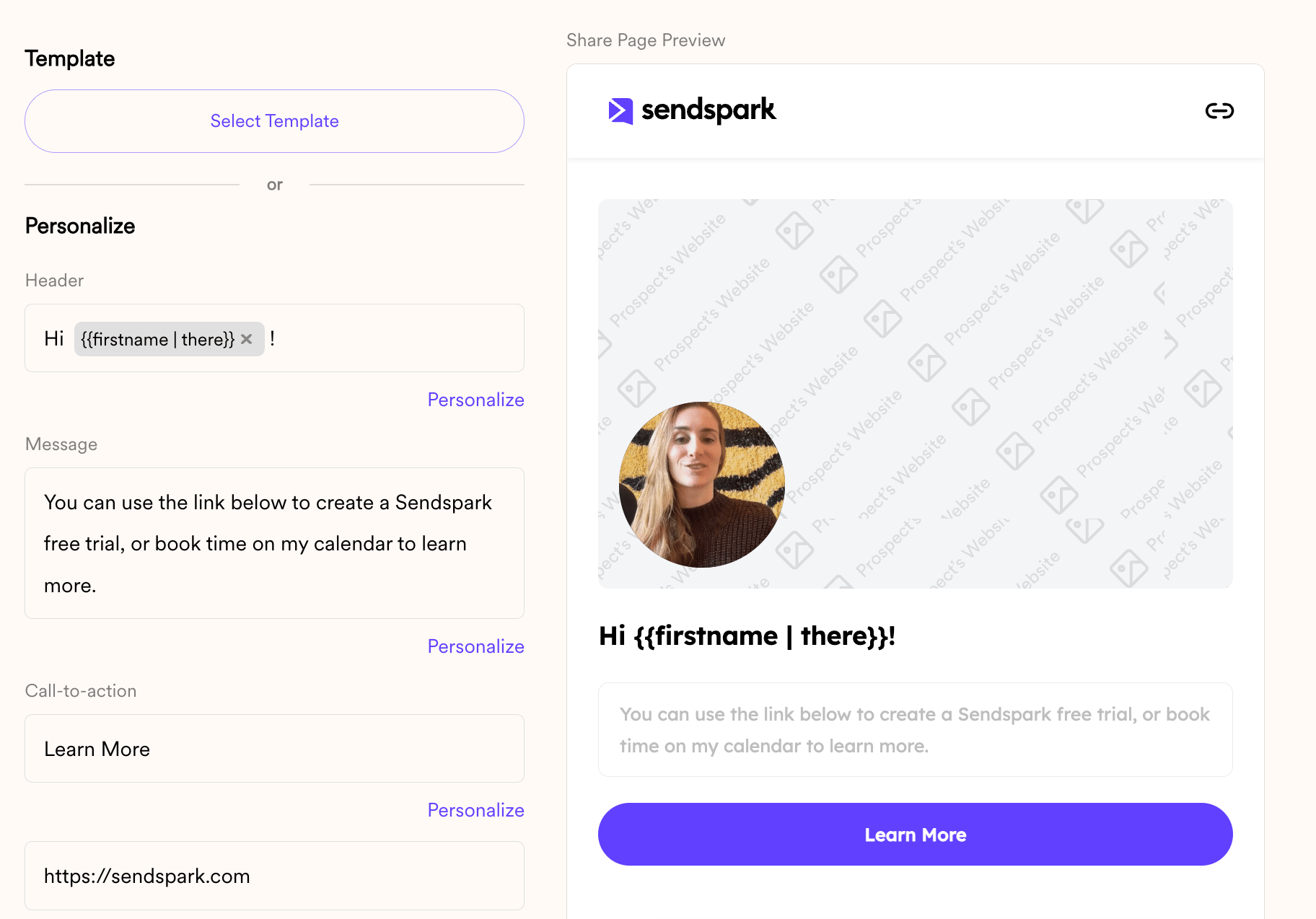
You can also customize the video landing pages to make sure that viewers take the next step in your sales process after watching:
## 2. Import Contacts
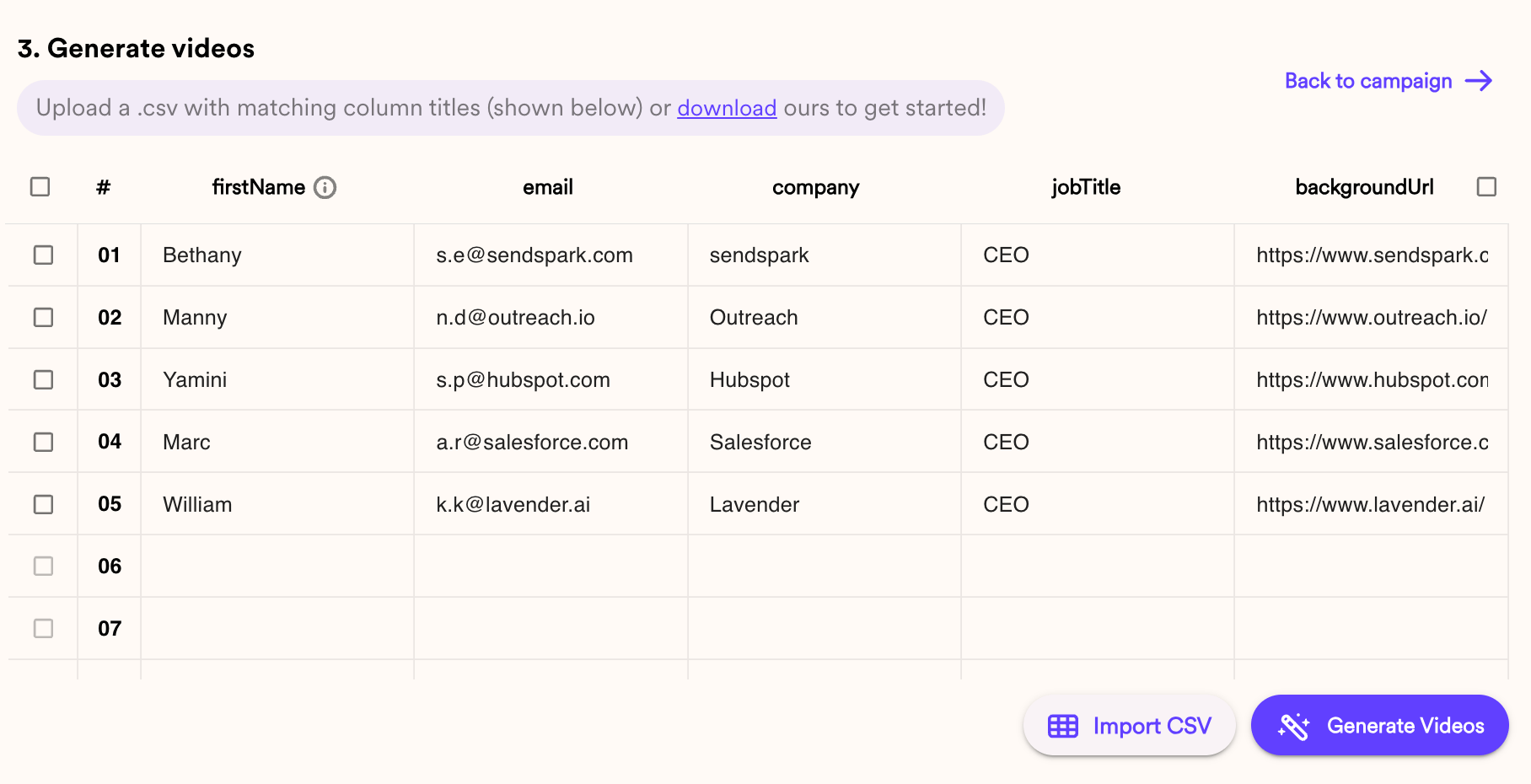
You can create dynamic videos for contacts in a few ways:
1. Manually type contact data
2. Import a CSV
3. Generate videos via automation (Zapier, API, etc)
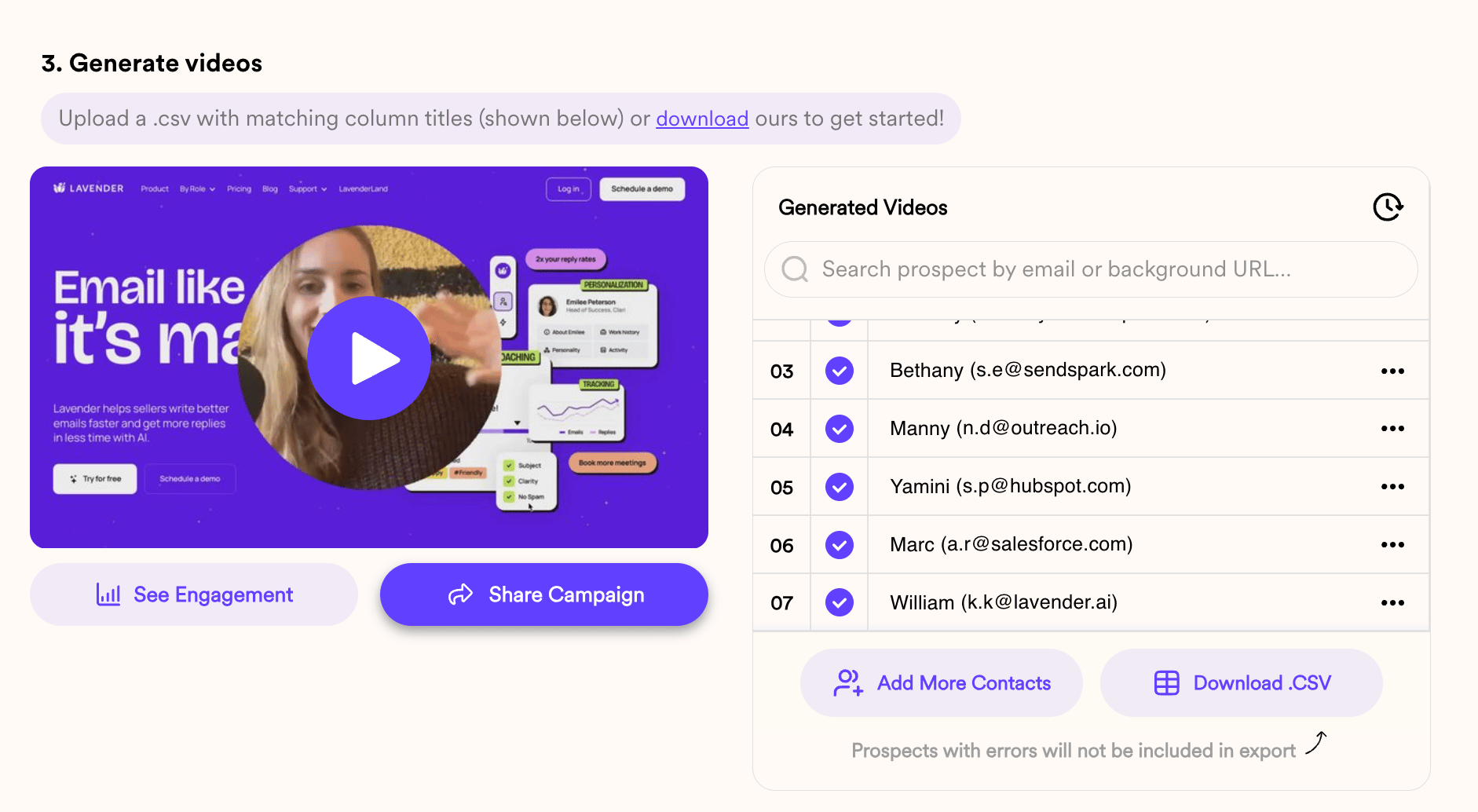
Once dynamic videos have been created, you'll see them populate, and can play them to test out the AI and make sure everything looks great.
## 3. Share in ZoomInfo Engage
To share videos in ZoomInfo Engage, simply click **"Share Campaign"**
Then, select **"Engage"**
Now, you can take that snippet and**paste it in an email template in ZoomInfo Engage.**
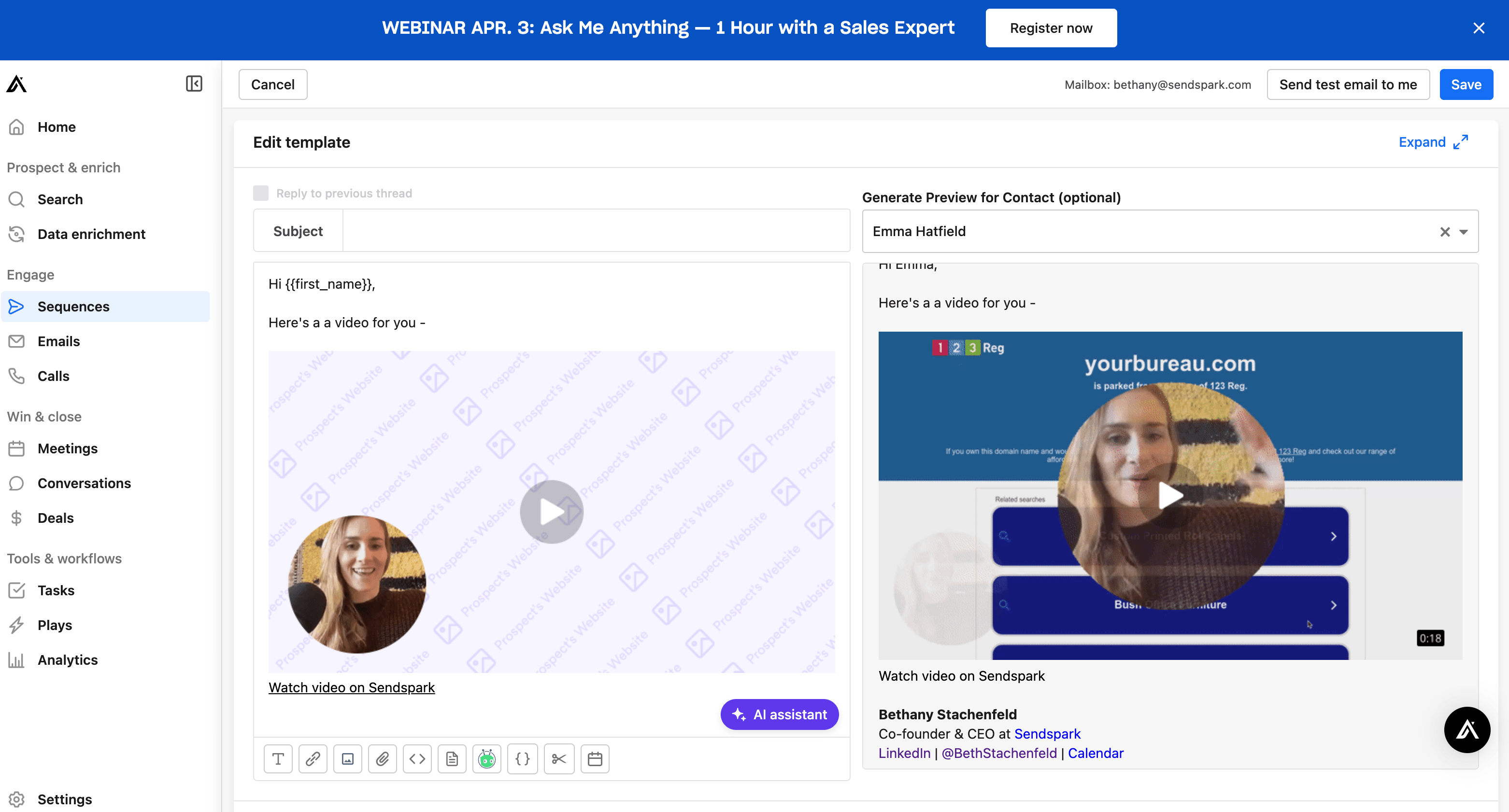
When you first paste the video into your email template, you will see a generic video preview.
However, if you preview this video as a contact who was on your Sendspark list, then you should see the video that has been generated for them.
We don't have a ZoomInfo account we can use to demo, but this is how it would look in Apollo, where we have a similar integration:
Now, you should be able to turn on your sequence and ensure that every person who was part of your Sendspark list receives an email with the video made for them.
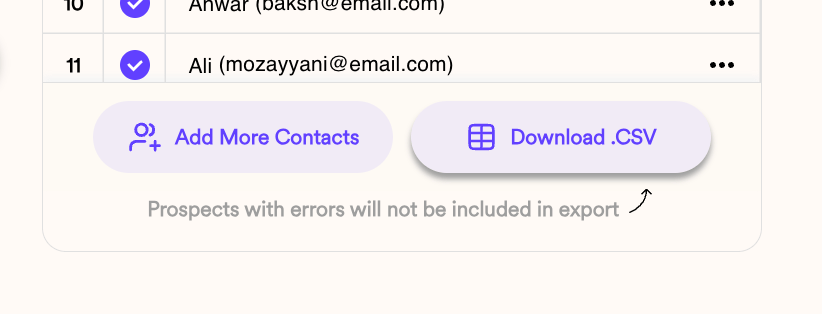
Note: if you want to be absolutely positive that you are only sending video emails to people whom you've made videos for, you can export the Dynamic Video Contact List as a CSV in Sendspark.
## 4. Track Views & Engagement
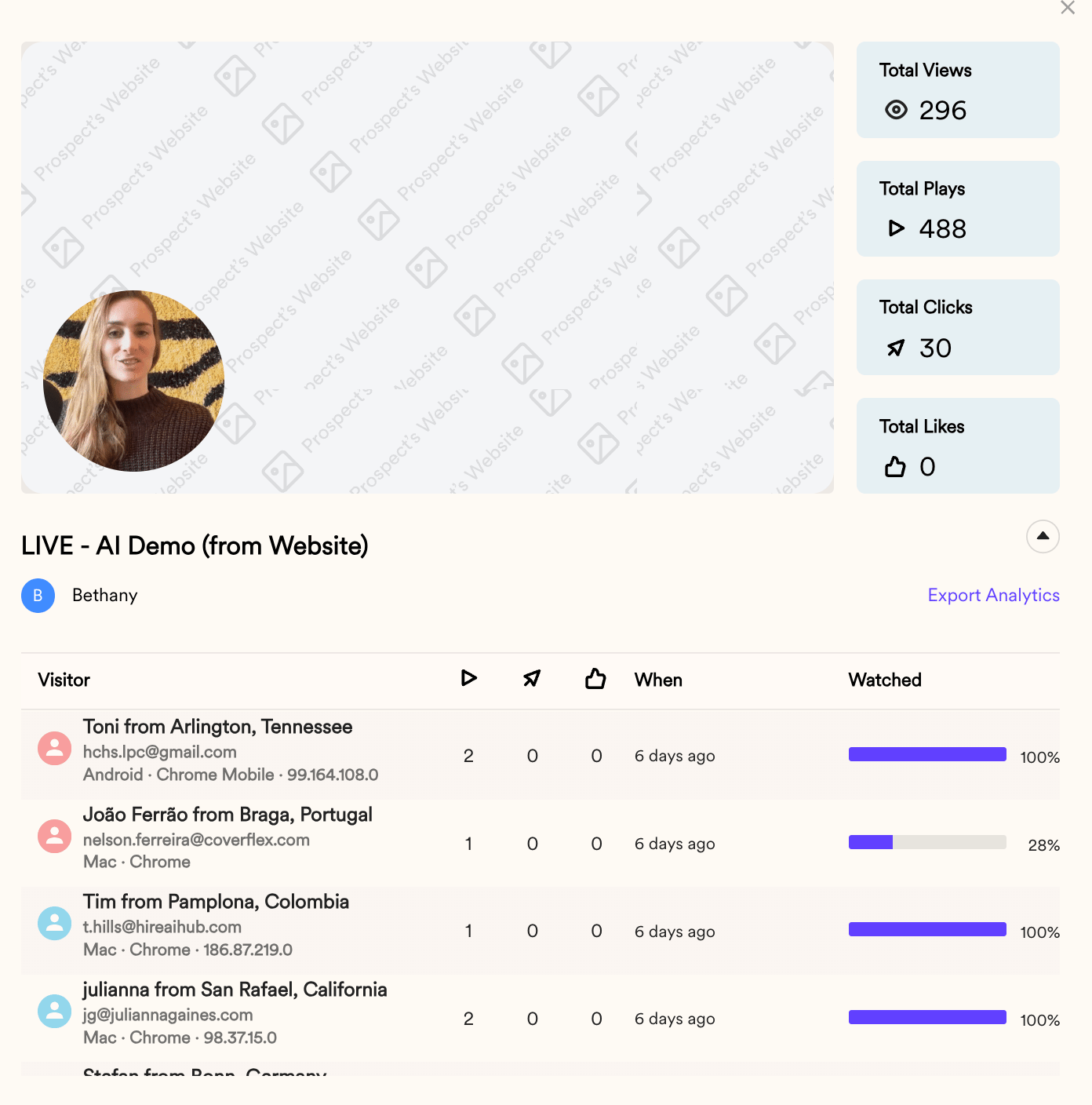
Once people start to watch your video, you'll be able to see who's watching, what percentage they've watched, and what other they've taken in your video analytics.
Just click **"See Engagement"** at the bottom of your Dynamic Video Builder to view the analytics modal.
## Frequently asked questions
Create a Dynamic Video campaign in Sendspark, import your contacts, then click Share Campaign and select Engage. Copy the snippet and paste it into a ZoomInfo Engage email template. When you turn on the sequence, every person on your Sendspark list receives an email with the video generated for them.
When you first paste the snippet into an email template you'll see a generic video preview. To see a personalized video, preview the email as a contact who was on your Sendspark list — that prospect's generated video will appear.
Record your video with the starter phrase "Hi Watermelon." Sendspark then replaces "Watermelon" with each viewer's first name. Turn on the Voice Cloning option in the Dynamic Video builder to enable this.
Export the Dynamic Video Contact List as a CSV in Sendspark. That list contains only the contacts a video was generated for, so you can send exclusively to them.
Click "See Engagement" at the bottom of the Dynamic Video Builder to open the analytics modal. You'll see who watched, what percentage of the video they watched, and what actions they took.
That's all! Let us know if you have any questions or feedback.
*Updated July 2026.*
 * \*\*Simulate Scrolling:\*\*Makes it look like you are recording over your viewer's website, and scrolling through the page
* **Cursor Overlay:** Adds a cursor, to make the website scroll look more convincing
* **Voice Cloning:** Ensures that we replace the word "watermelon" with your viewer's first name
You can also customize the video landing pages to make sure that viewers take the next step in your sales process after watching:
* \*\*Simulate Scrolling:\*\*Makes it look like you are recording over your viewer's website, and scrolling through the page
* **Cursor Overlay:** Adds a cursor, to make the website scroll look more convincing
* **Voice Cloning:** Ensures that we replace the word "watermelon" with your viewer's first name
You can also customize the video landing pages to make sure that viewers take the next step in your sales process after watching:
 ## 2. Import Contacts
You can create dynamic videos for contacts in a few ways:
1. Manually type contact data
2. Import a CSV
3. Generate videos via automation (Zapier, API, etc)
## 2. Import Contacts
You can create dynamic videos for contacts in a few ways:
1. Manually type contact data
2. Import a CSV
3. Generate videos via automation (Zapier, API, etc)
 Once dynamic videos have been created, you'll see them populate, and can play them to test out the AI and make sure everything looks great.
 ## 3. Share in ZoomInfo Engage
To share videos in ZoomInfo Engage, simply click **"Share Campaign"**
Then, select **"Engage"**
## 3. Share in ZoomInfo Engage
To share videos in ZoomInfo Engage, simply click **"Share Campaign"**
Then, select **"Engage"**
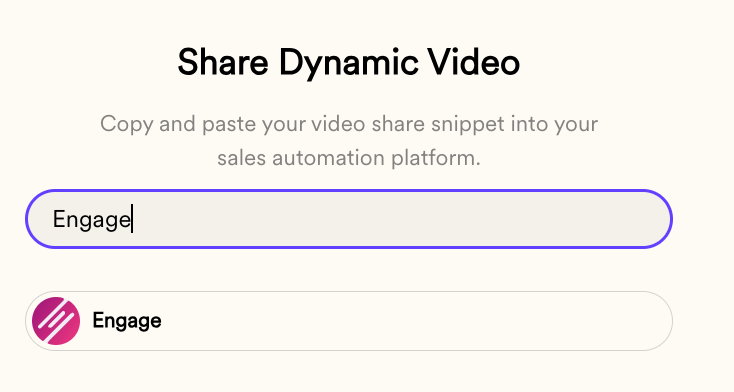 Now, you can take that snippet and**paste it in an email template in ZoomInfo Engage.**
When you first paste the video into your email template, you will see a generic video preview.
However, if you preview this video as a contact who was on your Sendspark list, then you should see the video that has been generated for them.
We don't have a ZoomInfo account we can use to demo, but this is how it would look in Apollo, where we have a similar integration:
Now, you can take that snippet and**paste it in an email template in ZoomInfo Engage.**
When you first paste the video into your email template, you will see a generic video preview.
However, if you preview this video as a contact who was on your Sendspark list, then you should see the video that has been generated for them.
We don't have a ZoomInfo account we can use to demo, but this is how it would look in Apollo, where we have a similar integration:
 Now, you should be able to turn on your sequence and ensure that every person who was part of your Sendspark list receives an email with the video made for them.
Note: if you want to be absolutely positive that you are only sending video emails to people whom you've made videos for, you can export the Dynamic Video Contact List as a CSV in Sendspark.
Now, you should be able to turn on your sequence and ensure that every person who was part of your Sendspark list receives an email with the video made for them.
Note: if you want to be absolutely positive that you are only sending video emails to people whom you've made videos for, you can export the Dynamic Video Contact List as a CSV in Sendspark.
 ## 4. Track Views & Engagement
Once people start to watch your video, you'll be able to see who's watching, what percentage they've watched, and what other they've taken in your video analytics.
Just click **"See Engagement"** at the bottom of your Dynamic Video Builder to view the analytics modal.
## 4. Track Views & Engagement
Once people start to watch your video, you'll be able to see who's watching, what percentage they've watched, and what other they've taken in your video analytics.
Just click **"See Engagement"** at the bottom of your Dynamic Video Builder to view the analytics modal.
 ## Frequently asked questions